
 Email article
As much as like to believe otherwise, many programs do not completely clean after themselves when you uninstall. In other words, many programs leave traces (in the form of files, folders, and registry entries) on your computer after you have uninstalled them. That is why clean uninstallers are so handy; they help you remove files, folders, and registry entries that programs leave behind after being uninstalled.
The program, however, is there are so many clean uninstallers out there that it is hard to know which one to pick. This is why we decided find and review (with your help, of course — thanks everyone for providing suggestions) the best free clean uninstallers for Windows. Enjoy!
This review is part of our Best Free Windows Software section. Check out more articles on the best free Windows programs by clicking here.
Before We Begin
Before we delve into the review, let me explain one important concept: the different methods of performing a clean uninstall.
There are three ways a program can do clean uninstalls — after- uninstall scan, snapshot comparison, and real-time monitor:
- After uninstall scan is when a clean uninstaller runs the target program’s regular uninstaller and then scans your computer for files, folders, and registry entries that program may have left behind. These after uninstall scans typically add one to two minutes (maybe more or less depending on your computer and what clean uninstaller you use) to your total uninstall time because you have to wait while the clean uninstaller runs the scan after regular uninstallation. When a clean uninstaller uses the after uninstall scan method, it only comes into play when you go to uninstall a program — it isn’t actively running in the background.
- Snapshot comparison is when a clean uninstaller takes a snapshot of your computer prior to you installing a program and takes a snapshot of your computer after you install the program. When you want to uninstall a program, the clean uninstaller compares the two snapshots to find and remove all new files, folders, and registry entries that were created during program installation. Using a clean uninstaller that uses snapshot comparison requires you to wait one to two minutes prior to installing a program, one to two minutes after installation of a program, and one to two minutes prior to uninstalling a program. (Times will vary, of course, depending on your computer and which clean uninstaller you use.) Like an after uninstall scanning clean uninstaller, a clean uninstaller that uses snapshot method is not actively running the background — you only run it when you need it.
- Real-time monitor is when the clean uninstaller is actively running in the background and monitors, in real-time, the changes made to your computer by a program installation. When you go to uninstall a program, the clean uninstaller knows exactly what was added to your computer during installation and is able to remove it. Unlike the previously two method methods, a clean uninstaller that uses real-time monitor is always on in the background because it needs to actively monitor program installations. Depending on the program used, this real-time monitor may or may not have an adverse effect on computer performance. The plus side is you don’t have to wait during program installation, after program installation, before program uninstallation, or after program installation — everything is almost instant.
Take note none of these three methods is 100% accurate. However, of all three methods the “best” method is real-time monitor simply because it is more user-friendly due to no waiting and is the most accurate in removing leftover files, folders, and registry entries. Of course that does not mean clean uninstallers that use the other two methods are inaccurate in removing leftover files, folders, and registry entries; a good clean uninstallers that use one of the other two methods can be just as good as one that uses real-time monitor. However, the no waiting aspect to real-time monitor is very important because people — like myself — will often stop using a clean uninstaller if it makes us wait during installation/uninstallation.
The programs reviewed in this article utilize a mix of real-time monitor and after uninstall scan; programs that use snapshot comparison were reviewed but did not make the cut due to how annoying they are to use (too much waiting).
That said, let’s begin…
Table of Contents [Comodo Programs Manager vs Revo Uninstaller vs Advanced Uninstaller PRO vs IObit Uninstaller vs GeekUninstaller]
- Best Free Clean Uninstaller
- Runner Up
- Honorable Mention 1
- Honorable Mention 2
- Honorable Mention 3
- Other Alternatives
Best Free Clean Uninstaller
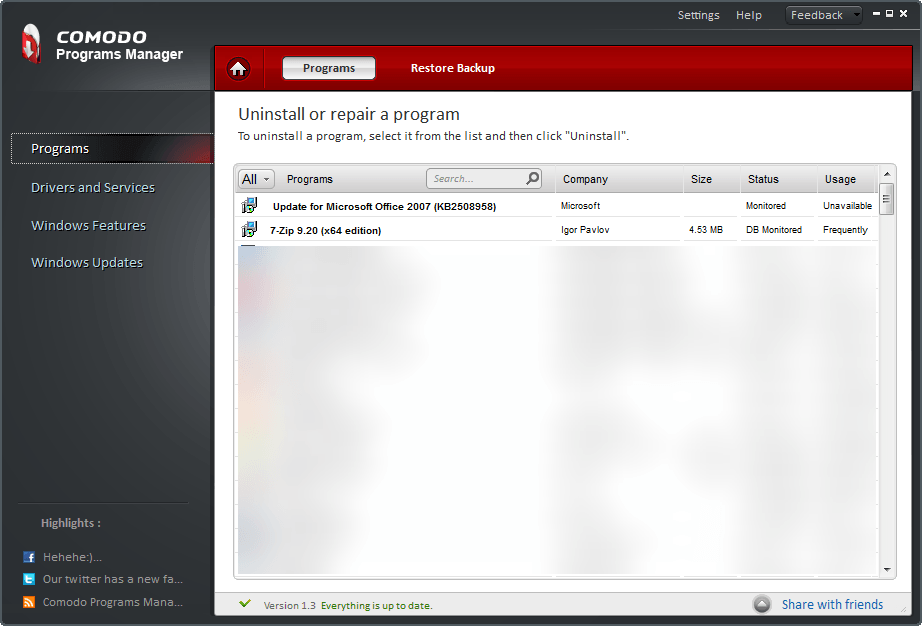 Program Name: Comodo Programs Manager
Note: dotTech’s has a full review on Comodo Programs Manager.
Developer: Comodo Security Solutions
Download Size: 10.8MB
Version Reviewed: 1.3
Supported OS: Windows XP/Vista/Win7/Server 2003/Server 2008 (32-bit and 64-bit)
Pros
- Uses real-time monitor to track changes made during installation of a program
- Using a real-time monitor allows Comodo Programs Manager to have very good accuracy in removing leftover files, folders, and registry entries, does not require users to perform any waiting during installation of programs, and allows for almost no-wait uninstallation of programs
- Supports batch uninstallation
- Works with all types of program installs, active installs that you install yourself and silent installs that are installed on their own (e.g. Firefox or Adobe Flash updating silently in the background)
- Has a ‘Database Monitored’ feature which allow you to cleanly uninstall popular programs that Comodo Programs Manager did not monitor on your computer (i.e. programs you installed prior to installing Comodo Programs Manager)
- Is able to remove leftover files, folders, and registry entries of programs that you uninstalled from elsewhere or failed/partially uninstalled programs
- For example, let’s say you uninstall a program from Add/Remove Programs. If Comodo Programs Manager monitored that program installation or if that program is a database monitored program then you can run Comodo Programs Manager and clean leftover files, folders, and entries even though you didn’t uninstall the program with Comodo Programs Manager.)
- Automatically removes locked files, folders, and registry entries (stuff that cannot be removed from within Windows) the next time you reboot your computer
- Is able to perform force uninstalls
- Can uninstall programs not monitored by Comodo Programs Manager (but uninstalls of programs that are not monitored by Comodo Programs Manager and are not database monitored programs is a simple uninstall, i.e. the same as from Add/Remove Programs)
- Makes automatic backups of programs you uninstall, allowing you to reinstall/restore the programs easily with one click
- Allows you to make self-extracting installers of programs you have installed. This self-extracting installer keeps your program settings and allows you to install that program on any other computer.
- Note: A program must be monitored by Comodo Programs Manager (i.e. software you install after you install Comodo Programs Manager) for you to be able to create a self-extracting installer. You cannot create self-extracting installer for database monitored and nonmonitored programs (i.e. software installed before you install Comodo Programs Manager are not supported for this self-extracting installer feature).
- Note: You cannot create self-extracting installers for programs that have kernel components.
- Aside from programs, works for drivers, services, Windows features (enable/disable only), and Windows updates
- Prompts you to make sure you want to remove shared DLLs
- Has built-in search allowing you to quickly find the program you want
- You can sort programs by name, developer, size, monitor status, and usage
- Adds a convenient entry in right-click context menu to trigger a manual monitor or uninstall a program with Comodo Programs Manager
- Displays a popup notification informing you of when a program install has been successfully monitored (you can disable this, if you wish)
- Extremely easy to use with little to no learning curve
Cons
- Can have false positives
- Does not display the date of installation for programs
- When performing an uninstall, there are two things that happen. First you are prompted to run the regular uninstaller of a program. Second you are asked to confirm you want to remove leftover files, folders, and registry entries. It would be nice if there was the option to automate the removal of files, folders, and registry entries after regular uninstaller has finished. Having the option to enable/disable this automation would attract both types of users, people who prefer manually looking at the list of leftover files, folders, and registry entries before confirming their removal and people who don’t want to look at the list and just want to cleanly uninstall programs
- Batch uninstallation is not automated — you still need to sit there and manually confirm you want to uninstall a program and then clean up traces afterwards
- It would be nice if Comodo Programs Manager also had an after uninstall scan feature which would help for those programs that have not been monitored by Comodo Programs Manager
- The program claims that is checks the installer of every program for malware using Comodo’s cloud technology and that it has the ability to keep your applications up-to-date using Comodo’s “constantly updated” database. However, I see no evidence of these two features existing or being used plus there are no options to disable this behavior (if it exists) for those that don’t want it to happen.
- Has not been updated in over an year. It still works fine on Windows XP, Vista, and Windows 7 but Windows 8 support is sketchy; some people report it working fine on Windows 8 while others say it doesn’t work.
- Takes anywhere between 5-30 seconds to load programs list after you open Comodo Programs Manager (annoying!)
- Does not have the ability to export list of installed programs to TXT, HTML, etc.
Discussion
I have been using Comodo Programs Manager for over an year and I absolutely love this program. Prior to finding Comodo Programs Manager, I used to use Revo Uninstaller to cleanly uninstall programs. However, after a while I stopped using Revo Uninstaller because I am impatient and hate having to wait after a program uninstall for Revo Uninstaller to scan my computer for leftover junk. Because it uses real-time monitoring, Comodo Programs Manager does not make you wait at all — not during/after program installation and not during/after program uninstallation. Everything with Comodo Programs Manager is very streamlined and quick. Really the only limit to the speed at which programs are cleanly uninstalled with Comodo Programs Manager is how fast you are able to click.
The best part about Comodo Programs Manager is that even though it uses real-time monitoring, it does not slow down your computer at all. Yes, it is running all the time in the background but computer resource usage (RAM/CPU) is extremely low (almost negligible) and Comodo Programs Manager does not interfere with your work or play. It simply sits in the background doing its thing, monitoring programs as they are installed.
As the proverbial cherry on top, there are two very useful and very interesting features of Comodo Programs Manager that go beyond clean uninstalling: backup feature that provides you with the ability to “undo” an uninstall by restoring the uninstalled program and the ability to make self-extracting installer files of installed programs. Probably the most interesting of the two is self-extracting installer which allows you to create an installer for your installed programs. Comodo Programs Manager throws in any and all files, folders, and registry entries that it associates with the program in question meaning you can “move” your program(s) to another computer along with relevant files and settings.
Simply put, Comodo Programs Manager is the best free clean uninstaller I have ever come across. The combination of intelligent features and user-friendliness help it blow the competition out of the water. However, no program is perfect and the biggest issue with Comodo Programs Manager is that it can sometimes overly accurate, i.e. risk of false positives.
There are two false positive issues in regards to Comodo Programs Manager, deleting files/folders/registry entries not belonging to the program being uninstalled and deleting files/folders that you don’t want deleted:
- The first issue is deleting files/folders/registry entries not belonging to the target program. You see, as already mentioned, Comodo Programs Manager actively monitors programs to determine what files/folders/registry entries are changed/added. The risk is if you are multi-tasking while installing a program that Comodo Programs Manager may wrongly associate a file/folder/registry entry change with the program you are installing when in reality it is related to something else.
- The second issue is deleting files/folders that you don’t want deleted. For example, when I uninstalled FileZilla (an FTP program) with Comodo Programs Manager, it wanted to delete files I downloaded from FileZilla, not just FileZilla program files/folders. I, of course, do not want to delete the files I used FileZilla to download — I only want to delete FileZilla program-related files.
The first issue (deleting files/folders/registry entries not belonging to the target program) is the lesser of two evils because all you have to do is not multi-task while installing a new program. This isn’t something I would worry about too much. The second issue, deleting files/folders that you don’t want deleted, is more a significant because it may result in deleting files that you want to keep or need. How often does it happen? Well, as I said, I’ve been using Comodo Programs Manager for over a year and have had no major issues but I did notice this behavior 4-5 times. So this is something you need to keep an issue on when uninstalling programs — be sure to give the files/folders list a quick look before accepting to delete them.
There is a compensating feature that helps you if you ever accidentally delete what you don’t want deleted — the automatic backup feature and undo uninstall feature I mentioned earlier. If you find you accidentally deleted files/folder while uninstalling a program that you didn’t want to delete, you can use the backup and undo the uninstall to recover the files.
Overall, despite its shortcomings, Comodo Programs Manager is the best free clean uninstaller around.
Runner Up
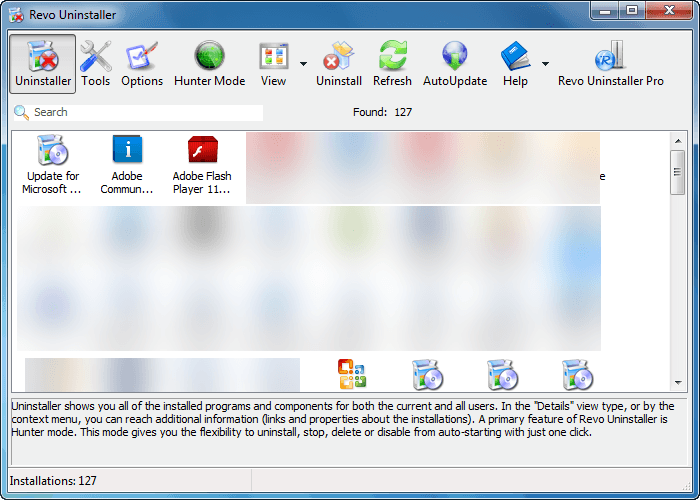 Program Name: Revo Uninstaller Free
Note: Revo Uninstaller Free has a portable version
Developer: VS Revo Group
Download Size: 2.5MB
Version Reviewed: 1.94
Supported OS: Windows XP/Vista/Win7/Win8
Note: Revo Uninstaller works on 32-bit and 64-bit Windows. However, the free version cannot cleanly uninstall 64-bit — only 32-bit programs. This includes 32-bit apps on 32-bit Windows and 64-bit Windows. You need to purchase Pro to be able to cleanly uninstall 64-bit programs.
Discussion
Due to its high accuracy and the fact that it basically popularized the genre, Revo Uninstaller is the most popular and widely respected clean uninstaller.
Revo Uninstaller Free uses the after uninstall scan method to cleanly uninstall programs (Revo Uninstaller Pro has both after uninstall scan and real-time monitoring, like Comodo Programs Manager); it also supports removing Windows updates. It takes a few minutes to perform scans after you uninstall a program, so you must have patience with this program. However, if you are able to wait those few minutes, Revo Uninstaller is one of the most accurate clean uninstallers I have ever used.
As much as I dislike the fact that VS Revo Group has sidelined the development of Revo Uninstaller Free to focus on Revo Uninstaller Pro, I have yet to find an after uninstall scanning clean uninstaller that is as accurate as Revo Uninstaller. I was hoping Advanced Uninstaller PRO, IObit Uninstaller and GeekUninstaller would one-up Revo Uninstaller but, while good, they aren’t as good as Revo Uninstaller. (Note: I don’t blame RS VS Revo Group for focusing on Pro — they need to make a living too. But I dislike how they seem to care more about pushing Revo Uninstaller Pro onto users than updating Revo Uninstaller Free.)
The biggest downside to Revo Uninstaller is what I just mentioned — you can to devote a few minutes to scan for leftover files/folders/registry entries after you uninstall a program. Aside from that, Revo Uninstaller’s after uninstall scan method is not as accurate as Comodo Programs Manager’s real-time monitoring. Indeed, if you look at Revo Uninstaller Pro the developer features its ability to real-time monitor as a selling point which should indicate to you real-time monitoring is typically a better way to cleanly uninstall than after uninstall scan. Of course that doesn’t mean after uninstall scan is bad; it isn’t. As I already said, Revo Uninstaller has one of the best after uninstall scanners. That means it just isn’t as good as real-time monitor.
On a similar note, Revo Uninstaller still suffers from the two drawbacks that I mentioned for Comodo Programs Manager — the risk of deleting files/folders/registry entries of unrelated programs and the risk of deleting files/folders you don’t want deleted. (These two drawbacks are inherent in pretty much all clean uninstallers, regardless of type, including the soon-t0-be-mentioned IObit Uninstaller and GeekUninstaller.) However, it should be mentioned the latter risk is a bit less in Revo Uninstaller because it won’t go after generic folders. For example, when discussing Comodo Programs Manager I mentioned how, when uninstalling FileZilla, Comodo Programs Manager wanted to delete files I downloaded with FileZilla because, as far as Comodo Programs Manager was concerned, FileZilla “created” those files and they should be removed along with the program. If I were uninstalling FileZilla with Revo Uninstaller, if those files are put in, say, my Downloads folder, then Revo Uninstaller would not touch those files — it wouldn’t even know they exist. However, if the files were put in something like a folder named FileZilla or in the Program Files folder of FileZilla, then Revo Uninstaller would also want to delete those files even though I don’t want it to delete them.
In the end, no method of clean uninstallation is perfect. The only way to get truly accurate and truly clean uninstalls is to have program developers make it so their programs cleanup after themselves upon uninstallation. However, that is likely never going to happen so we have to use third-party clean uninstallers to fill the gap. And which program and method you use depends on what you prefer; it is a balancing act between user-friendliness, accuracy, and false positives. In my opinion the balance is tilted most in favor of Comodo Programs Manager (which is why it is rated as #1) but Revo Uninstaller is also another excellent choice.
That said, five things should be mentioned about Revo Uninstaller. Firstly, it does not have the ability to do force uninstalls and/or clean failed or partially installed programs. Secondly, it does not create backups of programs prior to uninstall — it only creates a System Restore point. Thirdly, batch uninstall is not supported. Fourthly, free version of Revo Uninstaller works on 32-bit and 64-bit Windows but it can only cleanly uninstall 32-bit programs — you need to upgrade to Revo Uninstaller Pro to cleanly uninstall 32-bit and 64-bit programs. Lastly, aside from clean uninstall features, Revo Uninstaller has a basic startup manager, basic junk file cleaner, quick access to Windows tools, basic browser privacy cleaner, and basic Microsoft Office recent history cleaner.
Honorable Mention 1
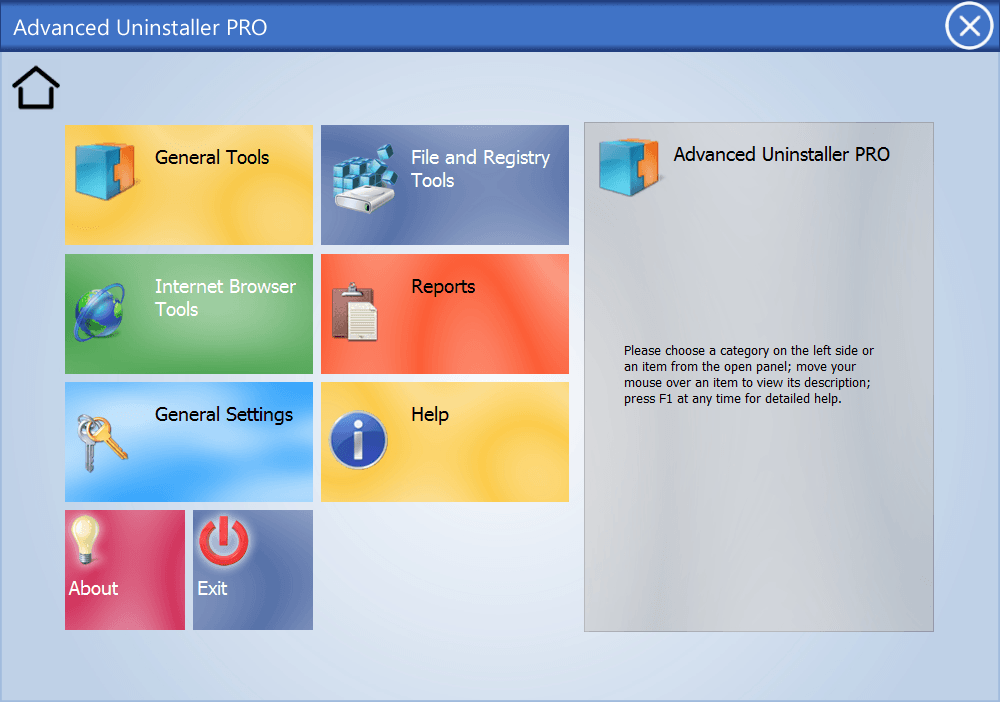 Program Name: Advanced Uninstaller PRO
NOTE: Advanced Uninstaller PRO comes bundled with bloatware toolbars during installation. Be careful while installing it.
Developer: Innovative Solutions
Download Size: 20.1MB
Version Reviewed: 11.20
Supported OS: Windows 8/7/XP/Vista/2003/2008 (32-bit and 64-bit)
Discussion
Advanced Uninstaller PRO used to be a shareware program that has become freeware in recent years. It is a feature-filled program. In fact, Advanced Uninstaller PRO offers the most features out of all the clean uninstallers reviewed in this article. Not only does Advanced Uninstaller PRO have the ability to cleanly uninstall by performing after uninstall scan but it also does real-time monitor — a combination of features not found in any of the other freeware clean uninstallers discussed in this review.
In addition to having the ability to perform both uninstall scan and real-time monitor, Advanced Uninstaller PRO has many other features and functionality: Startup Manager, Services Manager, Quick Cleaner (privacy cleaning), Start Menu Cleaner, Font Manager, Control Panel Manager, Registry Cleaner, Registry Optimizer, Registry Restore & Backup, File Shredder, Live File Compression, Duplicate Files, and Internet Browser Tools (delete IE, Firefox, and Chrome cookies, cache, and browsing history).
To top it off, in addition to being feature-filled, Advanced Uninstaller PRO is actually pretty good in performance. Not only can it uninstall 32-bit and 64-bit programs, but its clean uninstall capabilities finds quite a good number of leftover registry entries, files, and folders — not as good as Revo Uninstaller but still very good.
So with all those features plus good performance, you must be asking yourself: why the hell is Advanced Uninstaller Pro not ranked as #1? Three reasons.
First of all, Advanced Uninstaller PRO is painfully slow. The after scan uninstall is slow at scanning, so much so that, if you are like me, you will get frustrated and simply cancel the process. If you think Revo Uninstaller is slow, then you will want to stay away from Advanced Uninstaller PRO.
Secondly, I’ve never been able to properly use Advanced Uninstaller PRO’s real-time monitor. Sure it works if I manually trigger the real-time monitor but I’ve never been able to successfully get it to automatically monitor installations (despite the fact that it supposedly has this feature — you can enable it via system tray icon)… which is the whole point of a real-time monitor. Maybe I am just doing it wrong.
Lastly, do you really need all those extra features in a clean uninstaller? No, I mean do you really need them? In an uninstaller? I think not, and they just serve as a way to bloat the program — Advanced Uninstaller PRO is 2x the download size as the next largest program discussed in this review, Comodo Programs Manager.
That all said, however, Advanced Uninstaller PRO is definitely a great program and deserves recognition. I won’t fault you if you decide to use it… especially if you want after uninstall scan capabilities and are frustrated with Revo Uninstaller Free’s inability to uninstall 64-bit programs.
Honorable Mention 2
 Program Name: IObit Uninstaller
Note: IObit Uninstaller is portable. Be sure to grab it from Softpedia instead of its homepage because otherwise you will need to use FreeNew downloader.
Developer: IObit
Download Size: 1.5MB
Version Reviewed: 2.4.7.340
Supported OS: Windows 2000/XP/Vista/Win7/Win8 (32-bit and 64-bit)
Discussion
IObit Uninstaller, like Revo Uninstaller, is another clean uninstaller that uses after uninstall scan to identify and remove leftover files, folders, and registry entries. It is a portable program that supports batch uninstall (although batch uninstall is not automated — you still need to sit there and click-click-click at each prompt), is able to sort programs by name, size, and install date, works with Windows updates, has a module specifically dedicated for removing toolbars, can export installed programs list in a TXT file, and can do force uninstall.
When I sat down to write this review, I expected IObit Uninstaller to take the crown for #2. After all, it has receive heaps of praise from many people including reviewers and dotTechies. However, when I actually tested the program I quickly came to the conclusion IObit Uninstaller is not as accurate as Comodo Programs Manager and Revo Uninstaller. For example, after uninstalling Nitro PDF Pro 6 IObit Uninstaller told me the program left behind zero files, folders, and registry entries. Zero. I know (knew) for a fact Nitro PDF Pro 6 left behind more than nothing because Comodo Programs Manager had the install monitored and told me exactly what was left behind, which I went and verified myself, e.g. Nitro PDF folder in ProgramData.
That being said, IObit Uninstaller is not a complete failure. I am going to go out on a limb and say the Nitro PDF Pro 6 poor uninstall was a fluke because IObit Uninstaller performed relatively well for other uninstalls, although not was well as the previously two mentioned clean uninstallers. Generally speaking, I noticed IObit Uninstaller is better at identifying leftover registry entries than leftover files and folders. While this does decrease the accuracy of IObit Uninstaller’s clean uninstall capabilities, there is a silver lining — IObit Uninstaller is less likely than Comodo Programs Manager and RevoUninstall to delete files/folders you don’t want deleted. That doesn’t mean it won’t ever do it — it just means it is less likely to do it.
It should also be noted IObit Uninstaller’s force uninstall capabilities aren’t as user-friendly as Comodo Programs Manager’s, which makes it very easy to remove failed or partially uninstalled programs.
Overall, IObit Uninstaller is a viable option for clean uninstall needs if Comodo Programs Manager and Revo Uninstaller are not to your liking.
Honorable Mention 3
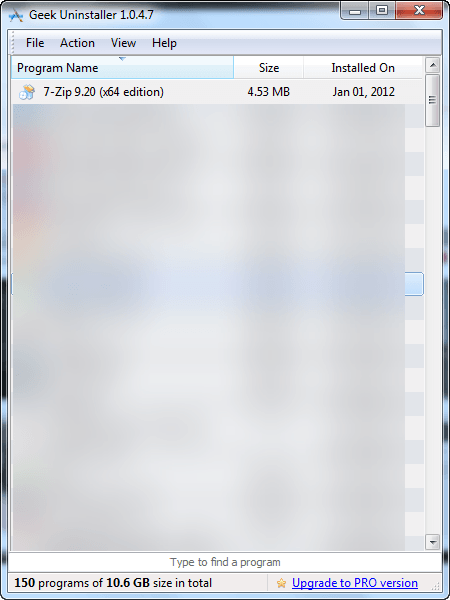 Program Name: GeekUninstaller
Note: GeekUninstaller is portable
Developer: Thomas Koen
Download Size: 1.9MB
Version Reviewed: 1.0.4.7
Supported OS: Windows 7/8/XP/Vista/2003/2008 (32-bit and 64-bit)
Discussion
GeekUninstaller is another clean uninstaller that uses the after uninstall scan method to identify and remove leftover files, folders, and registry entries. (The paid Pro version supports real-time monitoring, if you want that.) It is a portable program that utilizes the minimalist approach, with a simple interface that is to-the-point and allows for extremely easy searching by simply typing. GeekUninstaller can sort programs by name, size, and date; supports force uninstall; can export installed programs in an HTML file; and supports Windows updates. It does not, however, support batch uninstall.
Similar to IObit Uninstaller, GeekUninstaller is a good program but it simply isn’t as accurate as Advanced Uninstaller PRO, Comodo Programs Manager and Revo Uninstaller. Generally speaking, I’ve found GeekUninstaller to be the inverse of IObit Uninstaller — it is better at finding leftover files and folders than registry entries.
Overall, GeekUninstaller is not as good as the previously mentioned clean uninstallers but it is still a good program and a viable option.
Other Alternatives
- Advanced Uninstaller PRO
- Glarysoft Absolute Uninstaller
- Zsoft Uninstaller
- Simnet Uninstaller
- MyUninstaller
- …And more




