Pick up and move to another computer easily: virtualize your current PC (individual partitions or whole disks)
October 8, 2009 37
Email article | Print article
Virtualization, or virtual machines, are very cool. For those that don’t know what I mean, here is a quick run down: Virtualization technology allows a user to “run an OS in an OS”; in other words, for example, you can have Windows XP 32-bit installed on your computer and run a virtualized version of Windows Vista 64-bit on top of that. The virtualized Windows Vista acts just like if it was installed on your physical machine. However you really didn’t install Windows Vista; you virtualized it and are running it in Windows XP just like you run any other program. Admittedly virtualization does require a fairly powerful PC (to give you a general idea, think of it as running two OSes on your computer at once) or else you will experience huge amounts of lag, but virtualization technology is one of those things that are just awesome.
Now to create a virtual machine, you need virtualization software. The three most popular ones out there VMware, VirtualBox, and Microsoft Virtual PC. VMware is more of a commercial product (although there are some server editions you can get for free), while VirtualBox and Microsoft Virtual PC are completely free. My favorite one has always been VirtualBox because it is open source, so available to all users, and is cross platform (works on Windows, Mac, and Linux).
That being said, being able to install a new OS on top of your current OS is nice and all, but the purpose of this post is not to go into the details of virtualization. Rather I would like to inform dotTechies of an awesome, and potentially very useful, trick: turn your current OS (with all your files and program) into a virtual machine so you can easily run it (with all your files and folders) on another PC. The best part is your current OS is left untouched; rather you just create a “virtual copy” of it. Think of it as creating a backup image of your computer but instead of restoring the image, you “run” the image with your favorite virtualization software such as VirtualBox.
You can turn your current OS into a virtual machine using two different programs: VMware vCenter Converter and Disk2vhd. After you virtualize your OS, you can run it using VMware, VirtualBox, or Microsoft Virtual PC.. For the purposes of this post, I will focus on a Disk2vhd + VirtualBox combination.
Disk2vhd…
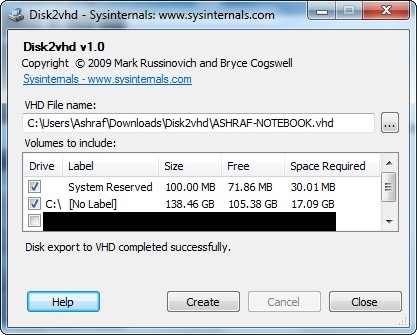
…allows you to easily virtualize your whole hard disk or select partitions. It is lightweight (707 KB download), portable, and [comparatively] fast (took me just under 40 minutes to virtualize the C:\ partition you see in the above screenshot) . You simply download Disk2vhd, unzip it (no installation required), run it, select the partitions you want to virtualize, click “Create”, and wait for it to finish. If you have multiple hard disks, Disk2vhd will create one VHD file for each hard disk.
The major advantage Disk2vhd has over rival create-virtual-images software is Disk2vhd takes advantage of Windows’ “Volume Snapshot” feature allowing you to virtualize the OS you are currently running whereas some other software will lock you out telling you they cannot create a virtual image of any online system.
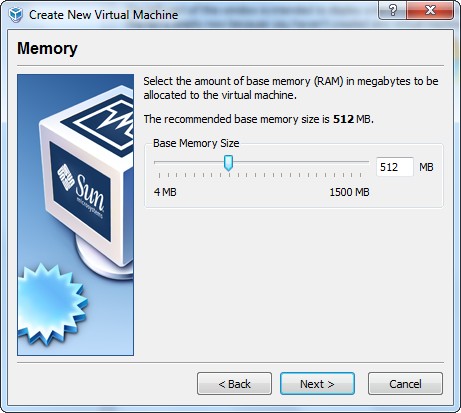
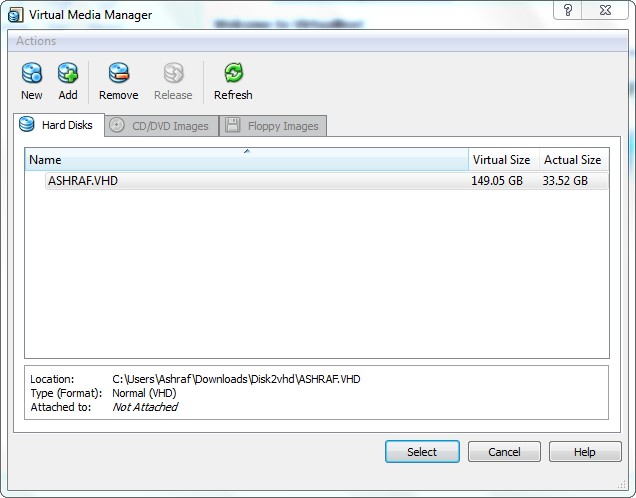
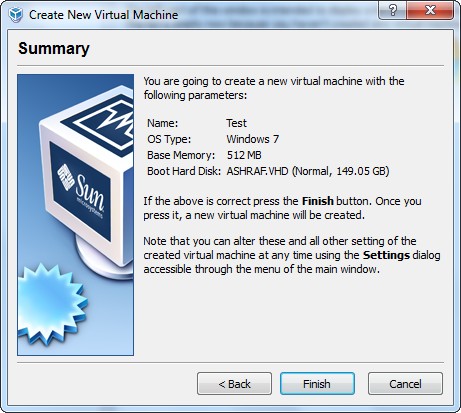
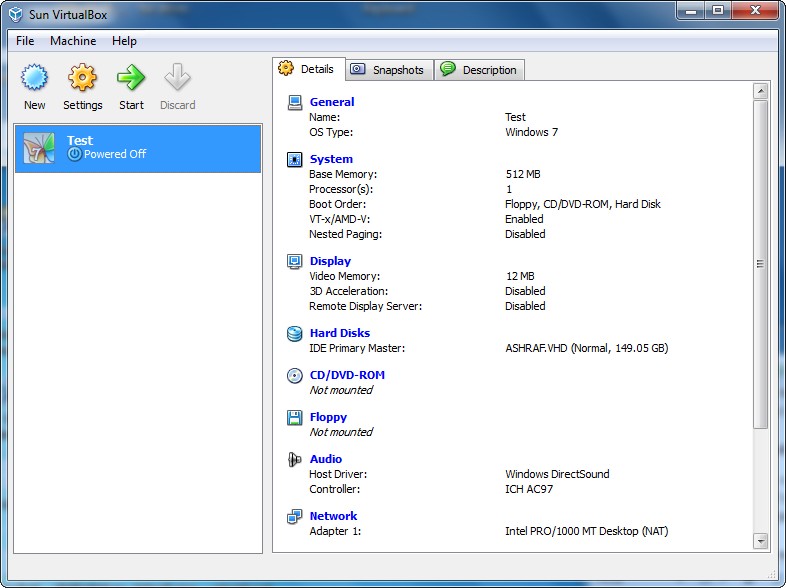
After you have created a VHD for your OS, you can run the virtual machine on any computer you want via VirtualBox (of course make sure you copy the VHD file to the computer you want to run it on). Just download and install VirtualBox, create a new virtual machine on VirtualBox like you would normally, but make sure to select the VHD for the virtual hard drive instead of creating a new virtual hard drive:
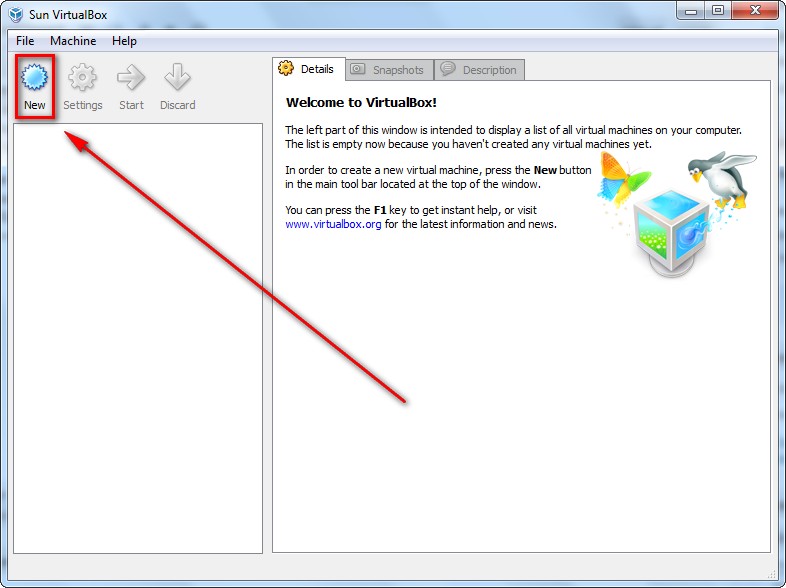
After you create the virtual machine, simply run it, and let Windows install as many drivers as it can find. After that it is up to you to find the drivers yourself.
Of course since Disk2vhd creates a VHD, you can also use Microsoft Virtual PC to run the virtual machine instead of VirtualBox (do note, though, Virtual PC has a 127 GB virtual disk size limit). The only problem is Microsoft Virtual PC is only available to people who have Windows XP Pro, Windows Server 2003, Windows Vista Business or higher, Windows Server 2008, and Windows 7 Professional or higher.
Furthermore, if you have Windows XP, Windows Vista SP1, Windows Server 2008, or Windows 7 (regardless of which edition), you can “attach” your VHD and make Windows think it is a real physical partition on your hard drive so you can boot directly from it and not have to virtualize it with VirtualBox or Virtual PC. For XP/Vista you need to download the VHD mount from Virtual Server R2 while you can do it natively in Server 08/Win7.
All in all, this “turn-your-PC-into-a-virtual-machine” is very cool and can be potentially very useful. To get started yourself, download the appropriate software from the links below:







Just a note about Virtual PC – it can run on any version of Windows XP (does not have to be Pro), same thing with Vista.
http://www.microsoft.com/downloads/details.aspx?FamilyId=28C97D22-6EB8-4A09-A7F7-F6C7A1F000B5&displaylang=en
I saw this disk2vhd tool yesterday when checking out the sysinternals website. Was astounded at how small it is – 800k. While most other software needs to install megabytes of stuff and services.
@k1: No Virtual PC cannot. You are looking at the service pack for it. Look at the download page:
Does it suPport Parallels VM?
Interesting.
But i have only 80 GB left on my 500 GB HDD so thats a problem.
Is there a way to virtualize MS-DOS for Vista-64? I still have a handful of good programs written for DOS.
Happy Dae·
Hello Ash :D
Hey you, are you spying on me or what??? 8)
Starting to get worried … :twisted:
This is what I’ve been looking into the past few days!
Been trying to figure out if we should upgrade XP to 7, install 7 on a new HD, buy a new PC w 7 pre-installed, etc, etc, …
It’ll be difficult to upgrade as MS gives ««NO SUPPORT»» for XP to 7 upgrades (which I think is the majority, seeing the low adoption rate Vista had!!!) Just guessing A LOT of ppl are going to have muchos problémas & lose a lot of data (!)
MS is allowing ‘XPMode’ for 7Pro & Ultimate *ONLY*
Maybe you could write something about all this prior to October 22, b4 ppl start going crazy w their upgrades … If you have time, of course ;)
As always, instead of facilitating the upgrade, they are making it confusing & complicated!!! *sigh*
So anyhoo, this article of yours is just fan*tas*tik!!!
I was thinking of Virtualization as a possibility, but had no idea how/what & was a bit apprehensive embarking on such an adventure!
Think I’m feeling a little bit less afraid :D
Big Thanks
Peace
PS: My other posts are still blocked!! *sniffff*
Just when I am thinking I am smart and all that, you go make a report like this.
(head still spinning…)
Whew! At first i thought I was going to install this on my old XP laptop, create a virtual copy of it and enjoy using it a few days.
Then I wanted to take a new WIN 7 laptop out of the box, install someting, copy this “BUBBLE” of my old XP over to it (using a file copy program like XXCopy, etc)
Then I would have my XP running on a new laptop (with WIN7 installed) and one day I could feel brave and drop my XP “BUBBLE” altogether.
(head explodes and gives up)
I love computers…I love computers…I love computers…I love computers…I love computers…I love computers…I love computers…
@Ashraf, just wanted to let you know that native VHD booting can only be done from Windows 7 or Server 08 R2. Vista I’m sure cannot. Server 08 might, I could be wrong.
Terrible article again!
If I understand correctly, it is possible through this process to use the PC of someone else and thus to use (temporarily of course !) applications registered by others (this is not legal … i know)?
Can one of those apps directly burn the vhd file ?
In any case thank you for this valuable information.
@Mihail Garchev: Well Disk2vhd technically only “supports” Microsoft Virtual PC because it only creates VHD VMs (VHD is a Virtual PC format). However VirtualBox can run VHDs which is why I use it. So the question is, rather, does Parallels VM have the ability to run VHD? If yes, then yes this supports Parallels VM.
@Leeroy Johnson: How do you use up so much space? LOL!
@Tortuga: Don’t look outside your window(s). No pun intended :P.
Good idea on the post about WinXP and Win7. I will chalk it up on the calendar.
Also, sorry about the moderation of your other comment. If people include too many links I need to verify it is not spam. I let it through now =).
@David Roper: Hehe; take a deep breath then go play with look technology.
@Bill Gates II: You are correct “native” support is not there in Vista. However you can do it if you download the mount software from Virtual Server: http://technet.microsoft.com/en-us/bb738033.aspx. In fact you can do it on XP too.
@Jeanjean: Well you would need access to the other person’s computer but yes technically you can do that.
What do you mean “burn” the VHD?
Apologies, my question was stupid of course (lol…it was not so late yet!)
Hey there Ash :D
I got something in the mail, regarding the XP «to» 7 transfer, w a Promo offer.
Dunno if its good, if it does what its suppose to.
But since we are talking about the headache that’s coming … might as well see if dotTechies can use it too.
Going to send it to you via eMail – that’s ok, right?
Maybe you could look into it & see if its useful.
Peace
@Jeanjean: No problem.
@Tortuga: Sure.
G’day Ashraf,
WOW — so many THANKS are due you for the many helpful evaluations
of GAOTD daily and myriad other FREEWARE !!
Can I ask for some hints ?? If so, I have a good friend who needs
to do college HOMEWORK on my Vista SP1 PC. Of course, this requires
being OPEN to multiple first & third party cookies and scripts and redirects — and using FLASH !! There is NOTHING Adobe allowed on my PC anymore. I use HIPS, script blockers, adblockers, etc.
So, I use Returnil and load all that stuff for her — it is intensive
preparation for the first 1/2-hour.
Is there a way to save that system state — Adobe reader and FLASH
installed and OPEN to ALL cookies and scripts — and run it as a
virtual machine, so it is easy for her to use my computer ??
You cannot save things permanently while Returnil protection is on.
I thought of installing it as a separate OS, but that would still allow all the changes to my real system hard drive.
Is there a way other than having a separate PC for that crap ??
THANKS for your trouble here — I need your knowledge …
Ashraf…
Wow, what a coincidence that you wrote this post, and then Paragon brings their virtualization offering out to GAOTD right afterwards. Can we spell “synchronicity”, lol??
I was excited to see who the developer of Disk2vhd was. Although it would be stretching the truth more than just a little to consider myself a real “techie”, somehow I’ve managed to become a little familiar with a (small) bit of Mark Russinovich’s work. If there was anyone in the IT field that I might think of as a “personal hero”, I think it would be him. If awards were given out for the person who has created the most useful utilities, his name would definitely be right up there at the top. I always have his task manager replacement “Process Explorer” running (in ADDITION to AnVir Task Manager, if you can believe that redundancy – just because there’s a couple things that Process Explorer lets me do that the “free” GAOTD version of Anvir doesn’t), and there are so many other tools that he has created that are just so helpful in understanding what is going on “under the hood” of these beasts. The videos he’s made available explaining usage of his tools are neat also, and show him not to be the egomaniac that someone with his skills could easily become, which is way cool too, in my book.
Finding his Disk2vhd (and Paragon’s offering as well)is giving me a very warm fuzzy feeling about recovering from possible collapse of my increasingly ancient PC. How cool, to know that I can just “bottle up my system” with the knowledge that if a hardware disaster completely clobbers my system, I can just trot over to another functioning PC with my copy of my virtualized system and continue on where I left off. Awesome….
Thanks for bringing this program to our attention. Two thumbs wayyyy up…
Thanks so much for this posting, Ashraf. I have long wanted to try out virtualisation but have been too afraid to try it out lest disaster reign down (wouldn’t be the first time – my staff are reluctant to let me near their comps!). But I feel confident that I can tackle it now. So thanks again! You’re a wonder, you know!
Sounds good.
However, i also heard of issues regarding compatibility of DirectX, video grafic adapter and other HW devices from within virtual machines (e.g. guest OS might see only simple VGA, unable to access any 3D acceleration features).
So games, multimedia etc. might not be supposed to work properly within virtual copy ?
Different support for Virtual Box / MS Virtual PC / VMWare ?
Any experiences ?
Something I’m not getting. How do you get the virtual hard drive on to another computer system? i imagine the virtualized hard drive file must be a pretty big file.
where i am going with this is that I am getting a new computer in a few months and if I virtualize my current system how do I get it to my new system once I have Microsoft Virtual PC installed?– as you can tell I am a complete novice at this.
Hi Ashraf,
I didn’t download the recent Paragon offering for a couple of reasons -
a) I feel they may be in the early stages of getting it right (?)
b) Some posters on the GOTD site, say it is not for the faint(Lite) hearted.
I have loaded your other two articles into Tabs, which I will study in full a bit later.
However your answer to these questions may save me from researching further -
1) My PC’s are 5 years old, and only have 1GB of ram.
I am pretty sure XP within XP will be asking too much.
Can one load a version of linux (that has low resource demands) into a partition.
And then use that as a host for the VM stuff (an XP Virtualized OS) ?
That way I avoid the demands of two XP’s running (one within the other)
2) When within a VO (Virtualized OS), is the main drive still called “C” ?
3) Are there any problems when running the virtualized OS ?
EG Somethings don’t work, or don’t work as we would expect ?
4) Can you easily transfer files in/out of the VO ?
5) When exiting the VO, can you save all the recent activity (Pgms installed, etc) ?
Does that become another VO, or update the one you loaded in ?
I apologize for my laziness, but I feel I would have to do a lot of research to work out those answers myself.
Thanks,
Rob
quick question:
Ashraf wrote:
fter you create the virtual machine, simply run it, and let Windows install as many drivers as it can find. After that it is up to you to find the drivers yourself.
Do you really need to look for aditional drivers since you will be using the drivers from an already working os?
FOr example, lets say I am using sofware on xp that only works on xp and not vista.
I buy a new computer that has vista 64 bit.
Now, if i create a virtual image of my xp computer, can’t I just launch that image on vista using virtual box or d I have to look for drivers?
cuz, right now, it is impossible to find drivers for XP on computers which have Vista.
Also, in the above scenario, will I be ableto print and have access to wireless from within the virtual environment?
THanks!
I’m going to try and answer some of the questions here:
@bob: First off the hardware that a VM sees is not the same as your real machines hardware, for the most part. HDD, Graphics, Sound, Keyboard, Mouse, Network, and more our emulators, so they only need very basic drivers that come with windows (that is why Aero in VMs don’t work be default). And two answer your second question, a VM can print, if the real machine could (ie, it is either plugged in to the real machine via USB or the printer is networked) and it gets whatever networking abilities the real machine has.
@Rob: Virtualizing XP on Linux can be done, but you would need a Virtualized that works on Linux (don’t know of one, all my Linux machines are virtual). The OS drive is still C by default. As to problems, most are related to the emulation I talked about before, like no Aero on Vista or 7 VMs, Games also can have some problems as the graphics card the is emulated cannot do too much fancy stuff, so any game that was made pre XP will work, for XP maybe, after XP start praying. transferring from and to the VM depends on the Virtual Software, but in general they have the ability to attach drives and/or folders as network attached drives as well as sharing the clipboard so you can just copy and past files between them. A VM acts just like a real machine, so yes it saves all you settings and activities including recent programs and files.
Randy Lawrence: It can be pretty big, and depending on the setting you gave it can even be as big as the drive you just copied. You could split the file and burn it to many many….many CDs but a better way would be to get an external Hard drive and use that.
KillNoise: You understand the problem but not the cause. Yes VMs don’t work well with DirectX and such, but that is because the VM has an emulator for its graphics card. It does not get you machines real one. See my replies above for more.
bladerunner: Yes what you are describing is a perfect scenario for a VM. All you would have to do is set up a VM that can access all those types of stuff (so like no blocking Flash). Then just have him do is homework on the VM, you can even make it full screen so it is like working on the real machine. Then when he’s done, just close the VM, and anything that is on the VM stays on the VM with no effect on your machine.
Ok, thats everyone since Ashraf last replied.
So what is the HW (chipset, video, audio etc) you actually see (e.g. when using WinAudit or Everest) from within virtual machine ?
HW equipment like VGA, 3D accellerator, OpenGL & DirectX support might be quite different depending on VM platform used (MS Virtual PC, VirtualBox, VM-Ware or Parallels VM)!
Which one provides best driver support & compatibility ?
Could anyone share WinAudit report summary from a running VM-System to make things clear & for feature comparison, please ?
@KillNoise: The HW is different from platform to platform though not radically so. I can give you the specs for Windows Virtual PC right now; I don’t have the others on this machine.
Windows Virtual PC (via Windows XP Mode Machine)
System Manufacturer: Microsoft Corporation
System Model: Virtual Machine
System Type: X86-based PC
Processor: x86 Family 6 Model 15 Stepping 6 GenuineIntel ~2154 Mhz
BIOS Version/Date: American Megatrends Inc. 080002, 8/14/2009
SMBIOS Version: 2.3
Sound Device: Sound Blaster 16 or AWE32 or compatible (WDM)
Display: Virtual PC Integration Components S3 Trio32/64
As to which has better driver support, none is really better than any other since all their hardware emulations use drives that come with OSes.
@Bill Gates II:
Which chipset does it show ? (AIDA32 or Everest system diagnosis will provide detailed information)
I know some VM commonly use i440BX (old Pentium II) or i810 (Pentium III) platform.
There may be large differences regarding DirectX (3D) & OpenGL support:
Many Windows XP supplied drivers are stripped down to provide only basic support, so DirectX & OpenGL are supported only via slow SW emulation (e.g. “Microsoft OpenGL 1.1″) until you install the full featured video drivers with HW accelleration provided by manufacturer.
There are two ways to achieve HW accelleration:
a) Find HW accellerated drivers to install for the emulated HW model
(here S3 Trio32/64 – with very limited accelleration features)
b) VM-system may provide VM-Tools including its own matched video driver, which should emulate DirectX/OpenGL calls by passing them to accellerated Host system drivers if available.
I know the latter method is used by Paralles VM-Tools for PC on Mac virtualization (commercial), by installing its proprietary emulation drivers inside the Windows XP VM to provide some DirectX accelleration support (using Mac GPU functions).
Similiarly, MS Virtual PC might easily provide DirectX acceleration functions inside VM as available on the Host system, which is allways Windows/DirectX based.
More difficult for Virtual Box, designed to run on any (including non Windows) host system. Maybe abstract pass-through is possible at least for OpenGL, available on most platforms (rather than for DirectX).
@ Ashraf: What do you know about implementation in Virtual Box ?
@KillNoise: Sorry for the imcomplete info last time, my mind was else where at the time. To get you more details about the Graphics card I used DirectX Diagnosics, and got this:
Card name: Virtual PC Integration Components S3 Trio32/64
Manufacturer: Microsoft
Chip type: S3 732
DAC type: S3
As to the chip set, its a 440BX (based on “Intel 82443BX Pentium(R) II Processor to PCI Bridge” from the DirectX Diagnostics)
Hope this helps!