
 Email article
{rw_text}Giveaway of the day for October 29, 2009 is:
Version reviewed:
v6.4 Build 310 – Standard
System Requirements:
Windows 7, Vista, XP, 2000 and 2000/2003/2008 Server (x32 and x64)
Software description as per GOTD:
novaPDF Standard is a PDF creator for Windows that lets users convert any type of printable document to a PDF format.Main features:
- Graphics options – You can compress, downsample or convert text and graphics to reduce PDF size.
- PDF Watermarks – You can define multiple text or image watermarks and add them to individual pages or the entire PDF document.
- Page Left, Right, Top and Bottom Margins – You can set a margin region that will remain empty when printing.
- Page zoom (1%-400% zoom factor) – You can zoom a page if you need advanced settings of how the document should be positioned on the PDF page.
- Create private profiles – You can define private printing profiles for future use, each with its own PDF printing settings.
- and more..
————————-{/rw_text} –>
{rw_good}
- Allows user to append (before or after) an existing PDF.
- Has the ability to add watermarks (text or image) to output PDFs.
- Allows user to control various different output PDF settings, such as document info, graphics compression, font embedding, etc.
- Users can create multiple “profiles” and have different printing settings for each profile.
{/rw_good} –>
{rw_bad}
- Lacks the ability to create password protect/encrypted PDFs (need novaPDF Professional for that).
- Watermarks are placed behind images in PDFs instead of appearing in front.
{/rw_bad} –>
{rw_score}
{for=”Ease of Use” value=”10″}Pretty much point and click.
{/for}
{for=”Performance” value=”7″}I see nothing wrong with the output PDFs. Repeated reiterations (i.e. PDF -> PDF) results in lower and lower quality PDFs. However, the first reiteration (i.e. the one create when you do File -> Print) is just fine in quality.
{/for}
{for=”Usefulness” value=”9″}Not having the ability to create password protected/encrypted PDFs does hurt usefulness, but otherwise very useful seeing as everyone needs to create PDFs.
{/for}
{for=”Arbitrary Equalizer” value=”7″}This category reflects an arbitrary number that does not specifically stand for anything. Rather this number is used to reflect my overall rating/verdict of the program in which I considered all the features and free alternatives.
{/for}
{/rw_score} –>
{rw_verdict}[tup]
{/rw_verdict} –>
novaPDF is a commercial PDF printer which allows you to turn any file into a PDF which you can print. There are three editions of novaPDF, Lite, Standard, and Professional. Today’s giveaway is of Standard.
novaPDF is as simple, easy to use, and straightforward as any other PDF printer. For any file you want to convert to PDF, you simply go to File -> Print and select “novaPDF” as your PDF printer (if you named it “novaPDF”; if you named it something else select that):
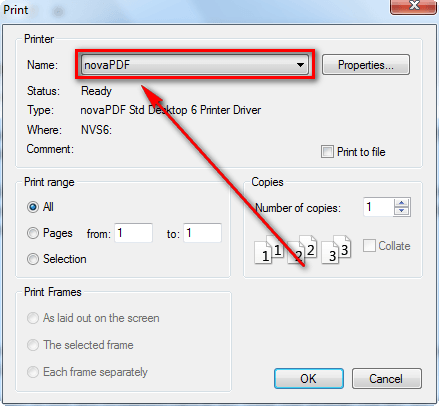
Once you hit “OK” the novaPDF window pops up:
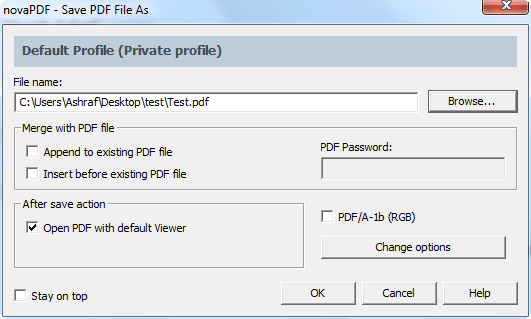
From this window you get to:
- Select the location you want to save the PDF to and the name of the output PDF.
- If you want to append an existing PDF by adding the pages you are printing to the start (Insert before existing…) or the end (“Append to existing…) of an existing PDF (if you are looking to do this, click on “Browse…” and select the existing PDF you want to append).
- Select if you want a PDF/A compliant PDF.
- Customize some output settings for the PDF you are able to create (click on “Change options”):


When ready, just hit “OK” to tell novaPDF to create the PDF. The printing time and resource usage of novaPDF just not vary greatly from any other PDF printer. Output quality is also similar to all other PDF printers. There is one thing, though, I would like to address in terms of output quality. While doing my research on novaPDF to write this review, I read the following comment on GOTD for the last time novaPDF was given out:
Cool features, but very poor quality output. The Ghostscript-based products like CutePDF and Pdf995 produce much better quality. Ironically novaPDF claims that their proprietary pdf engine is better becuase its not coupled with GS, but its not usable.
Perform this quality test…
1) Print something with one of the pdf drivers
2) View the document in your pdf reader
3) Print the pdf file to a pdf file
4) Observe the quality of the new pdf
5) RepeatIt obvious from the first iteration of the test the GS-based tools perform better. Several more passes and its undeniable. Even several print loops later , the latest file is mostly identical to the original, and the file size and embedded fonts are the same.
Novapdf, however degrades in quality and after the first iteration, all your text are now just images. The fonts are gone, the colors are wrong, things just start looking funky, and the file size triples.
I was curious to see if this person was accurate or just blowing steam, so I performed the mentioned “quality test”. I can confirm that what this person said is true: if you print a PDF created by novaPDF multiple times (i.e. print a PDF to create another PDF) the quality of the new created PDF does degrade as compared to CutePDF where the quality does not degrade (as much). However, I find this drawback to novaPDF to be of insignificant; why? Well because, practically speaking, who is going to need to print a PDF to PDF? What is the point of doing that (someone feel free to pipe up if they can explain to me why someone would need to do this)? The closest reason for this, which I can think of, is to append a PDF; however when appending PDFs, novaPDF does not degrade the quality of the PDF that is being appended. As far as I can concerned, the first iterations of both novaPDF and CutePDF are of similar quality and, practically speaking, that is good enough for me.
Anyway, novaPDF has some *extra* features you are not likely to find in freeware PDF printers. If you go to Control Panel -> Printers, right click on novaPDF and select “Printing Preferences” you can do one interesting thing with novaPDF. novaPDF allows users to create “profiles”:

Each profile can have different output settings and users can set it so novaPDF prompts users which profile they want to use when printing a PDF. For each “profile”, users can set the default graphic settings and document info (just as I showed you earlier), how to handle fonts when printing PDFs…
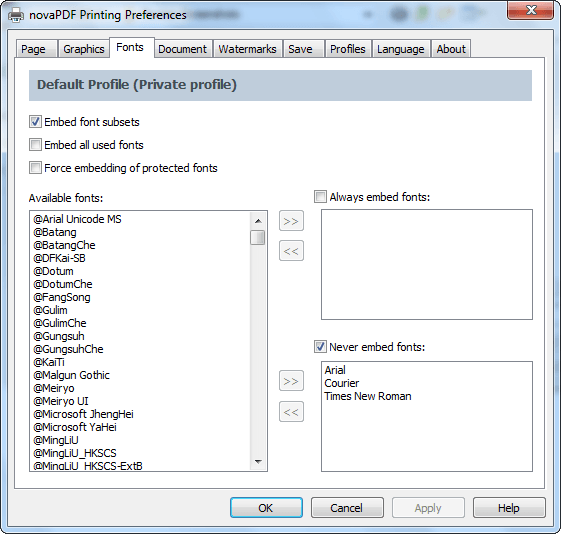
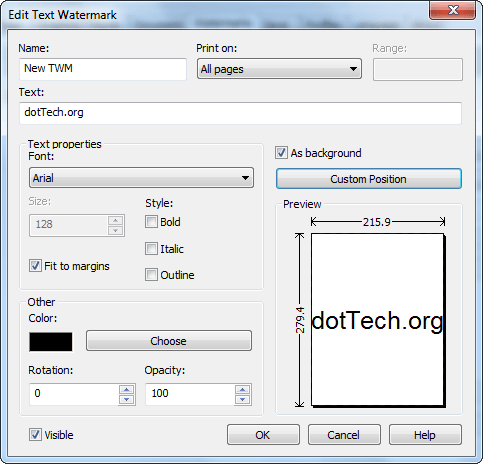
…and add watermarks to PDFs:
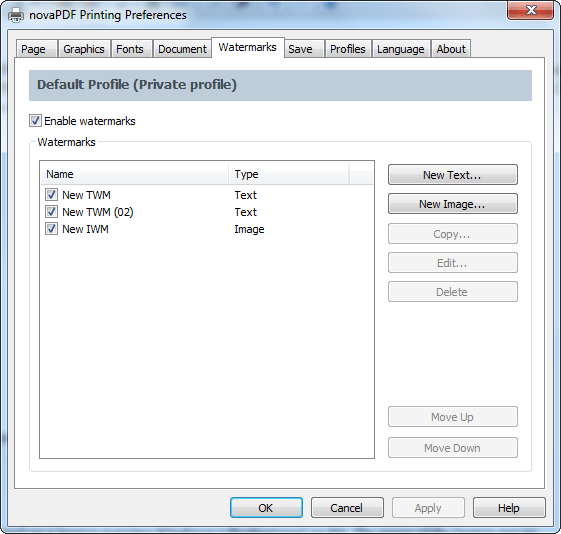
You can have text…
…or image…
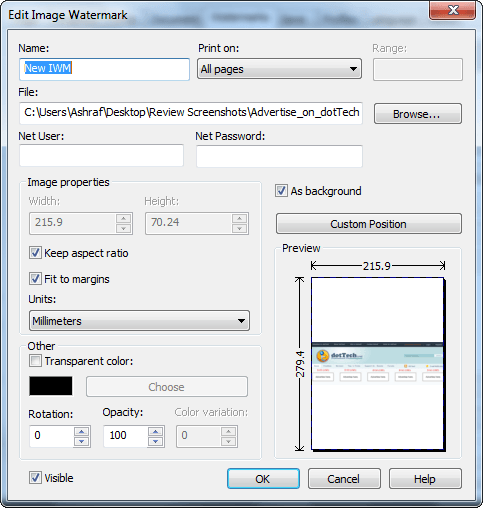
…watermarks and you can have as many watermarks as you want. Any watermarks enabled will be automatically added to PDFs created with the specific associated profile. You can, however, set it so a specific watermark only appears on certain pages of the PDFs. There is one thing to note with watermarks with novaPDF, though. The watermarks appear behind any images in the PDFs by default:
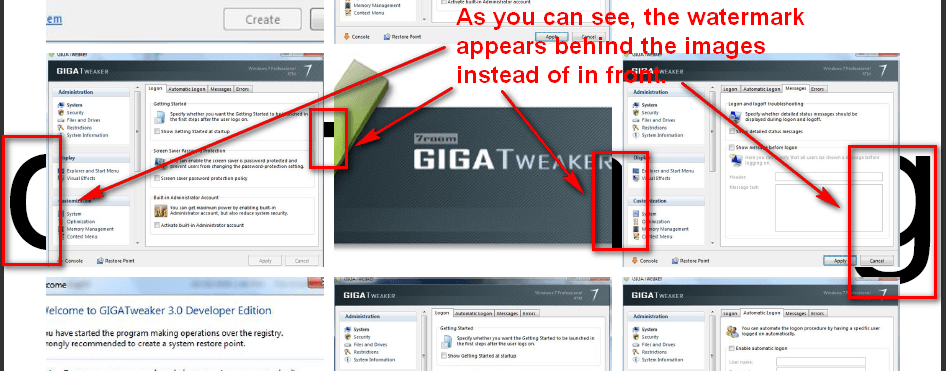
This occurs with both image and text watermarks. To make the watermarks appear in the front of images, uncheck “As background” under each specific watermark settings.
Lastly, one key feature I believe users will find lacking in novaPDF Standard is the ability to create password protected or encrypted PDFs; you need novaPDF Professional for that.
This review was conducted on a laptop running Windows 7 Professional 32-bit. The specs of the laptop are as follows: 3GB of RAM, a Radeon HD 2600 512MB graphics card, and an Intel T8300 2.4GHz Core 2 Duo processor.
{rw_freea}
eXPert PDF 5 Pro is a whole PDF package; it comes with a PDF editor, PDF printer, PDF batch creator, and a PDF to Word converter.
The PDF printer of eXPert PDF 5 Pro has all the features of novaPDF minus the ability to create “profiles”. It has some features novaPDF standard does not have though, like creating encrypted PDFs and e-mailing PDFs as they are created.
CutePDF is one of the best PDF printers I have ever used. However it is very simple (no real options to deal with – just clicking print and saving PDFs) and you to install some extra scripts to use (you will be prompted to install the scripts upon installation of CutePDF).
PrimoPDF is another excellent free PDF printer. It has more features than CutePDF, i.e. lets you control output PDF settings, but it has built-in advertisement for commercial PDF products.
doPDF is the freeware version of novaPDF. It doesn’t have any real options, except the option to embed fonts, and has built-in advertisement for novaPDF.
{/rw_freea} –>
{rw_verdict2}For what it is worth, novaPDF is a good program. It creates PDFs easily, creates then quickly, and creates them well. It also has some nice and useful features you are not likely to find with freeware PDF printers, such as adding watermarks and creating multiple different profiles for users to use. Therefore I give novaPDF a thumbs up; if you want it, go get it. However, if it was not available for free, via GOTD today, I would never pay for novaPDF because of how many free PDF printers there are out there. That being said, I use eXPert PDF 5 Pro for all my PDF needs (creating, editing, PDF to Word conversions) and I recommend it to anyone that needs it. The PDF printer that comes with eXPert PDF 5 Pro has all the niceties of novaPDF, such as adding watermarks, but also includes somethings novaPDF does not have such as creating encrypted PDFs. If you prefer to not get the whole eXPert PDF 5 Pro package and just want a simple PDF printer, novaPDF, CutePDF, and PrimoPDF are all good choices. CutePDF is the most simple, PrimoPDF provides more options but comes with built-in advertisement, and novaPDF is available for free only today. Take your pick.
{/rw_verdict2} –>
