
 Email article
{rw_text}Software reviewed in this article:
Version reviewed:
v5.0.0
System Requirements:
Windows 95/ 98/ Me/ NT/ 2000/ XP/ Vista/ 7 (x32/x64)
Price:
$14.99 (USD) but you can get it for free for a limited time at Giveawayoftheday.com!
Software description as per the developer:
Fresh RAM is like a shot in the arm for your computer. By optimizing the ways in which your system and applications are utilizing memory, Fresh RAM can boost your computer’s performance, helping you avoid the costly expense of hardware upgrades!
Don’t let Fresh RAM’s friendly and intuitive interface fool you. Underneath those easy-to-understand pie charts and graphs lies an engine of complex memory analysis algorithms that allow you to balance speed and effectiveness and run memory optimizations that will have all your applications running like butter. Combine these optimizations with the included Windows XP tweaks and your machine will run just as fast as it did the day it rolled off the assembly line!
Curious about which of your apps eat the most memory? Fresh RAM’s Process RAM Usage Identifier shows you the biggest memory hogs, while automatic memory optimization options free up memory when you need it most.
————————-{/rw_text} –>
{rw_good}
- Straightforward and easy to use.
- Allows uses to use four different “optimization levels”.
- “Powerful Optimization” works really well in terms of freeing RAM.
- Has the ability to automatically run optimization.
- Comes with a handful of “tweaks” for Windows XP users.
{/rw_good} –>
{rw_bad}
- “Leakage Optimization”, “Quick Optimization”, and “Maximum Optimization” do not work very well. They clear little to no RAM.
- Uses up a lot of computer resources while the optimization process occurs.
{/rw_bad} –>
{rw_score}
{for=”Ease of Use” value=”10″}Very easy to use.
{/for}
{for=”Performance” value=”4″}First of all, “Leakage Optimization”, “Quick Optimization”, and “Maximum Optimization” do not work very well. They clear little to no RAM. “Powerful Optimization” works really well in terms of freeing RAM but it uses so much of your computer resources (almost max RAM and CPU) while freeing RAM (takes 10-15 seconds for “Powerful Optimization” to run for me) your computer is most likely going to be locked/frozen if you are doing something else.
{/for}
{for=”Usefulness” value=”4″}RAM optimizer can be useful… if they work. Most don’t. Fresh RAM works – to an extent – but how it works makes it not very useful (see “Performance” above).
{/for}
{for=”Price” value=”8″}$14.99 is a fair price in my opinion.
{/for}
{for=”Arbitrary Equalizer” value=”5″}This category reflects an arbitrary number that does not specifically stand for anything. Rather this number is used to reflect dotTech’s overall rating/verdict of the program in which all the features and alternatives have been considered.
{/for}
{/rw_score} –>
{rw_verdict}[tdown]
{/rw_verdict} –>
In the past, Peter, our friend from Denmark, has shared with us numourous methods on how to solve Windows’ memory woes. Fresh RAM is a program that would fall under Peter’s strategy of “optimize RAM usage with various different programs”. Fresh RAM is – yet another – RAM “optimizer” software. The catch about Fresh RAM, however, is it received high praise from Softpedia so I was half excited about testing it out for myself. Unfortunately, after testing it myself I was disappointed.
This is what Fresh RAM’s interface looks like:
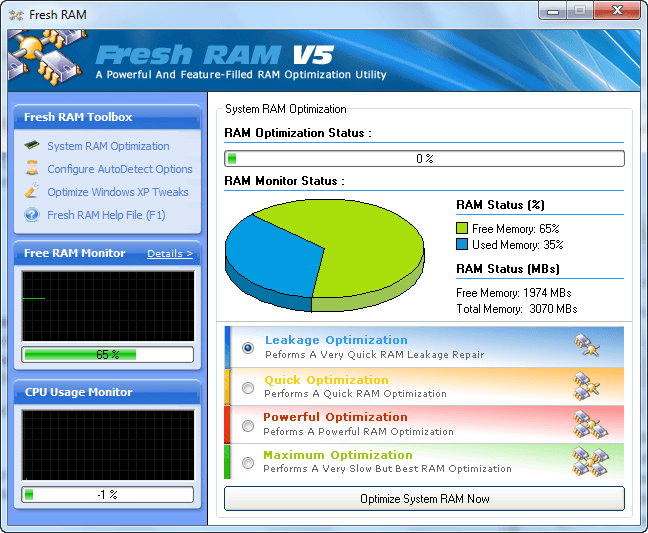
If looks were everything, Fresh RAM would score a, eh, 9/10 – the interface is fairly nice and professional. Too bad looks aren’t everything.
As you can see, Fresh RAM has four different optimization modes: “Leakage Optimization”, “Quick Optimization”, “Powerful Optimization”, and “Maximum Optimization”. “Leakage Optimization” is supposed to be the weakest but quickest, with “Maximum Optimization” the strongest but slowest and the other two in-between respectively. As per my testing, however, “Leakage Optimization”, “Quick Optimization”, and “Maximum Optimization” are useless – they free little to no RAM. “Powerful Optimization”, though, works very well.
Depending on how much RAM my computer was using at the time, and which programs were open, using “Powerful Optimization” I was able to free anywhere from 2%-12% of my RAM (I have 3 GB of RAM total). For example, during one test my computer was using 49% RAM. I ran “Powerful Optimization” and then my computer was using 37% RAM. Of course keep in mind as with all memory optimizers, this decrease in RAM usage is only a temporary decrease. It will go right back up when I start using my open-but-idle programs. This temporariness, however, is not Fresh RAM’s fault. It is just how it is; no program can permanently decrease the RAM usage of other programs without modifying the actual code of the other program. So, while the other three modes are useless, “Powerful Optimization” works fairly well at freeing RAM. In fact, varying from trial to trial, sometimes even CleanMem couldn’t free up the same amount of RAM as Fresh RAM. And that, my friends, is impressive. The only problem is the method of freeing up RAM used by Fresh RAM makes it somewhat undesirable.
We all know how CleanMem works; it only turns on when it needs to do its thing, and it calls a Windows API to free RAM, thus using little to no computer resources itself. Fresh RAM, on the other hand, uses some other method (not specified by the developer). This other method involves – literally – using up your computer resources while the optimization occurs (the actual amount of computer resources usage depends on the optimization mode being used – “Powerful Optimization” uses about almost 100% CPU and RAM). So it is best to run the optimization while you are not actively doing anything else you run the chance of locking/freezing your computer while the optimization occurs.
To manually optimize your RAM with Fresh RAM, simply select the optimization mode you want to use and click “Optimizer System RAM Now”. A little window…
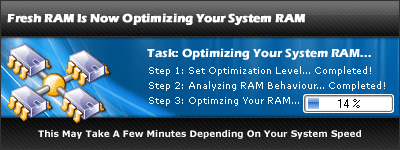
…pops up and lets you know the optimization is in progress and it disappears when the optimization has been completed.
Whenever you want to manually run the optimization, you can simply do it via the main program window like I just explained, or you can right click on the Fresh RAM system tray icon, and select “Optimize RAM Now”:
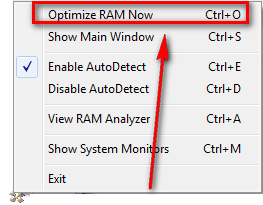
“Optimize RAM Now” will use the optimization mode you used last via the main program window. So, for example, if you left the optimization at “Leakage Optimization”, whenever you use “Optimize RAM Now” “Leakage Optimization” will occur.
If you prefer to not manually run your optimizations, Fresh RAM also has an auto-0ptimization feature built in:
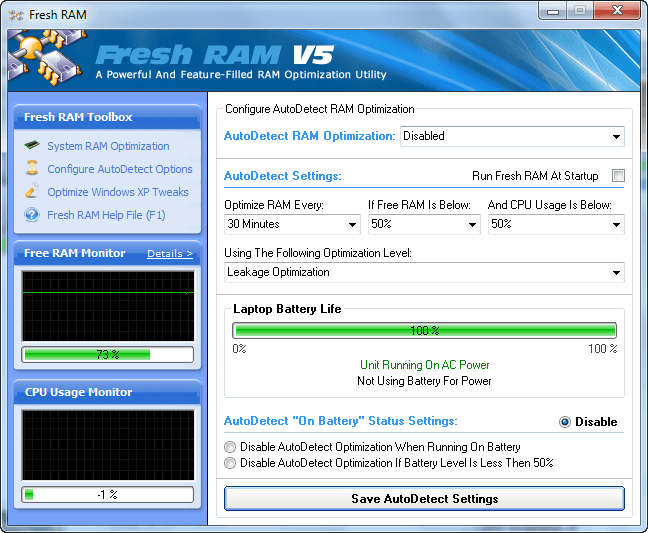
Fresh RAM gives users three parameters to set when Fresh RAM should auto-optimize – time, percentage of RAM free, and percentage of CPU usage. The developer was not very clear on if all three parameters are an “and” statement not an “or” statement. As per my tests, they are all “and” statements. In other words, all three parameters have to be true for the optimization to occur.
In addition to setting the parameter, users get the set which optimization mode to use (“Leakage”, “Quick”, “Powerful”, “Maximum”) and to (optionally) disable auto-optimization if the user is on a laptop and running on battery power.
After you change the auto-optimization settings, be sure to hit the “Save AutoDetect Settings” button or otherwise the settings won’t be saved. Also, be sure to enable “AutoDetect RAM Optimization” otherwise it won’t be turned on.
While this auto-optimization feature looks handy, it actually is not. As already mentioned, Fresh RAM uses up a lot of computer resources while optimizing RAM usage. So if the optimization automatically occurs while you are doing something else, don’t be surprised if your computer locks up/freeze/slows down to a crawl because Fresh RAM is hogging the resources. In fact I have first hand experience with this. I was testing out the auto-optimization feature and forgot to turn it off after I was done testing it. Lone behold while I was using my computer – I was in the middle of writing an instant message – and the auto-optimization happens. My computer locked up and I couldn’t do anything. So I waited a few seconds (I didn’t count how many exactly but it was something like 10-20 seconds) and the optimization finished. However, even after the optimization finished my computer was at a crawl. Nothing worked; as I tried to minimize the programs open and Windows told me they (some of them) were not responding. It was so bad I just said “forget it” and did a hard reset. So, what I am trying to say is, think twice before you enable auto-optimization. It may just come back to bite you later.
Other than the RAM optimization features, Fresh RAM has a few other tools up its sleeve:
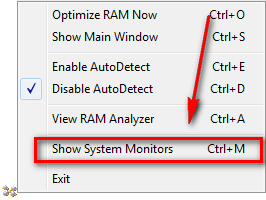
- A system resource monitor widget:

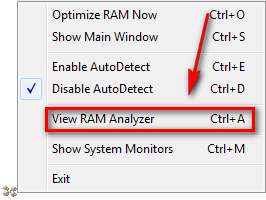
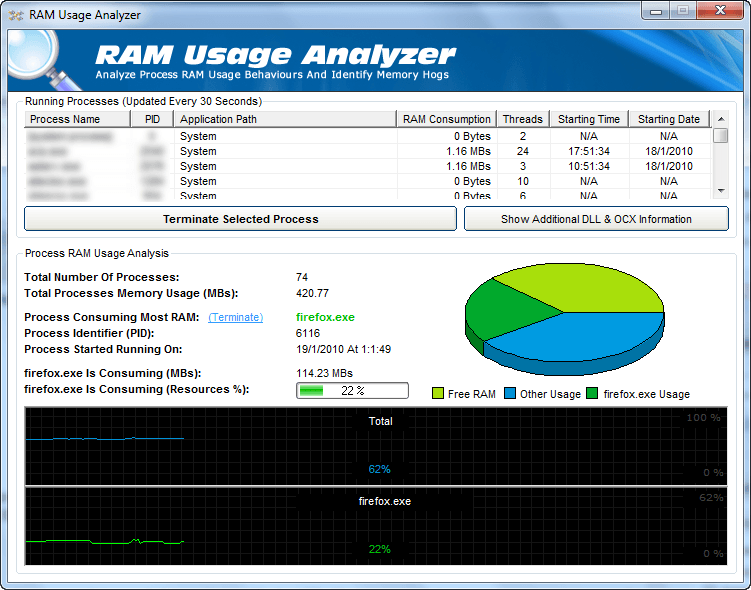
- A “RAM Analyzer”:
- A handful of “tweaks” for Windows XP only users:
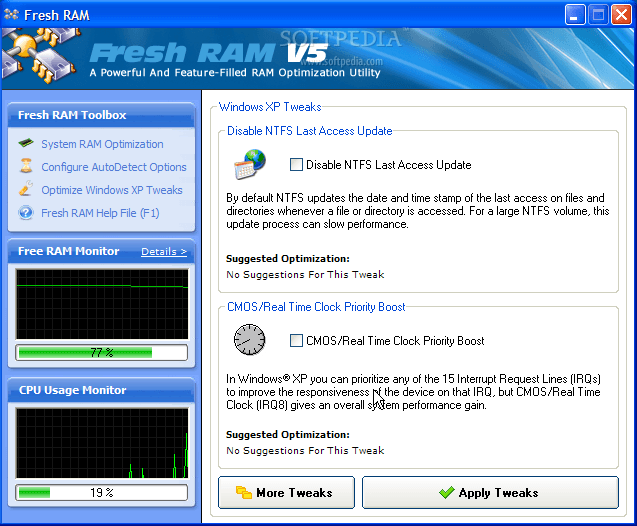
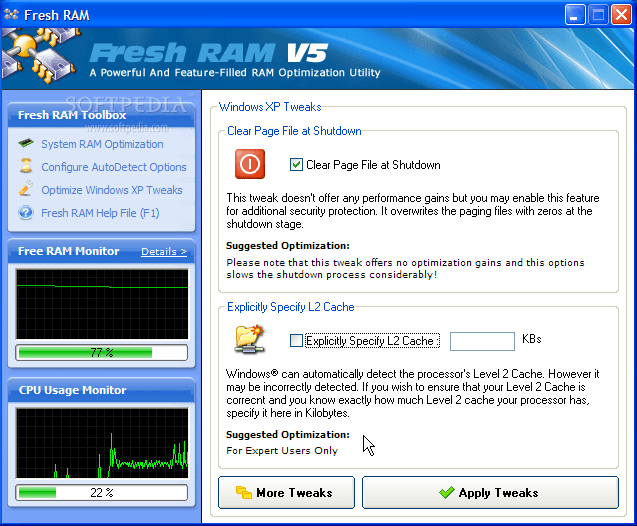
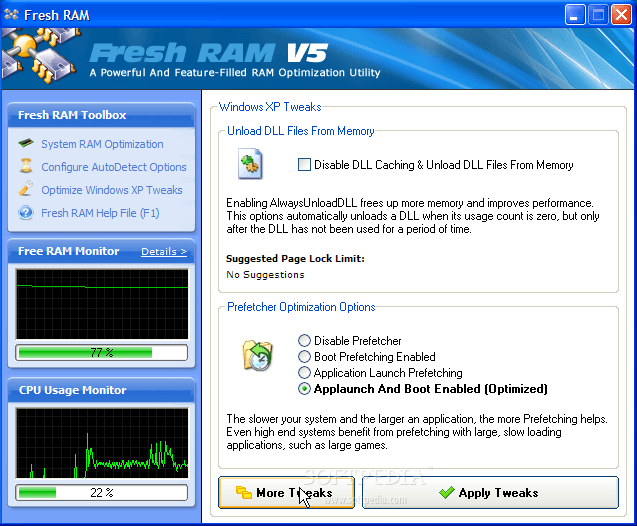
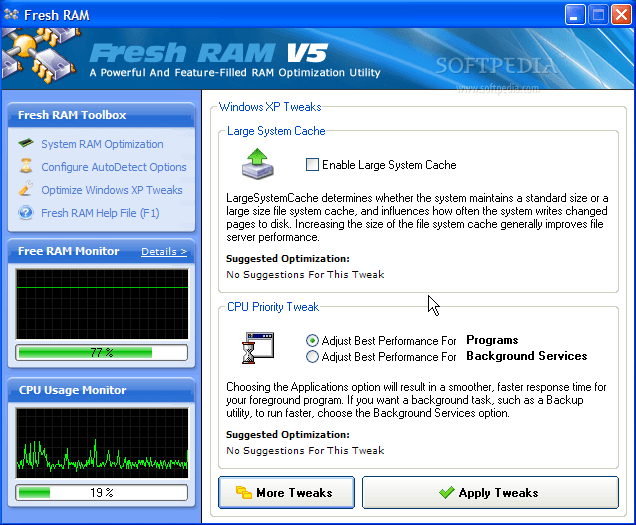
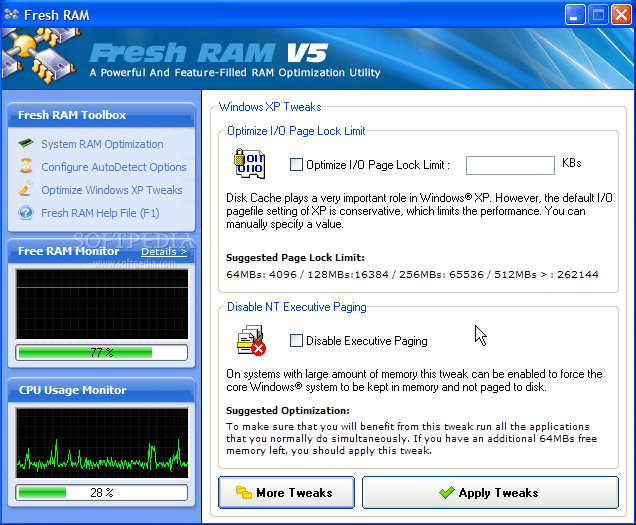

NOTE: Because I was unable to get Fresh RAM to run on my Windows XP virtual machine, I was unable to take screenshots of the Windows XP tweaks myself. The above screenshots are from Softpedia.
This review was conducted on a laptop running Windows 7 Professional 32-bit. The specs of the laptop are as follows: 3GB of RAM, a Radeon HD 2600 512MB graphics card, and an Intel T8300 2.4GHz Core 2 Duo processor.
{rw_freea}
Amongst its boatload of features, AnVir Task Manager allows you to easily deal with memory leaking programs by either manually right clicking them and selecting “Free Memory” or settings all programs using X amount of memory to be automatically freed of memory every X minutes. The great thing about this feature is it is instance and does not lag up your computer like TweakRAM does while cleaning.
CleanMem is one of the few memory cleaning programs that actually work and don’t lag up your computer while doing it.
Memory Fox is a program that does similar things as CleanMem, except Memory Fox is a Firefox add-on that is focused specifically on optimizing Firefox memory usage.
FreeRAM XP Pro includes automatic memory monitoring and optimization; advanced tray support; fast, threaded freeing with a stop option; multiple system-metric monitors; a simple and attractive GUI; memory reporting and diagnostic logging; and real-time memory information. FreeRAM XP Pro’s AutoFree feature intelligently scales how much RAM is freed with your current system status, thus optimizing RAM without slowing down your computer. Additionally, FreeRAM XP Pro’s unique Global Memory Compression technology frees memory instantly in a way that is completely unlike other memory managers. FreeRAM XP Pro has been designed to be easy to use yet highly customizable by computer novices and experts alike.
-Download.com
***Does not officially support Vista
RAMBooster monitors the amount of RAM your system is using and allows you to free it up. This will let your PC run smoother and faster, and you won’t have to reboot as often. It will monitor the memory at all times, and if the amount of free RAM gets too low, it will automatically boost it for you, finding unused RAM and returning it to the free pool. RAMBooster will also monitor your CPU usage. Version 2.0 includes replaced CPU-infotext with a gauge. RB now always minimizes to the tray instead of taskbar or tray. The GUI looks almost like the old GUI, to make things easier for those who have used RAMBooster for years. Supports RAM up to 9999 MB instead of previous 99. Help-file problems fixed. Fixed conflicts with CPU-usage meter. Also some dial-up system caused to CPU-reading to freeze to 0%. This part has also been rewritten. Allows only one instance of the program. Lots of code optimization, invisible to users. It is bettter, faster, and more reliable now.
-Download.com
***Does not officially support Vista
{/rw_freea} –>
{rw_verdict2}As I have stated time and time again, I really don’t like these “ram optimizer” programs because most of them never work. In fact, most actually make your computer slower. While Fresh RAM can be effective in freeing RAM (depending on which “optimization” mode you use), the method of its optimization really makes it an iffy program. Thumbs down from dotTech. My recommendation is CleanMem. To date, CleanMem is one of the few programs I have used that free RAM effectively and don’t slow down your computer in the process. If you are a frequent Firefox user, you may also want to consider Memory Fox because Memory Fox will manage Firefox’s notorious RAM leakage better than CleanMem. (I run both CleanMem and Memory Fox.)
{/rw_verdict2} –>
