How To: Find your mouse cursor after you have lost it on Windows

November 1, 2011 42 Email article | Print article

We move our mouse (or trackpad) but the cursor is no where to be found. Sometimes it camouflages with the background while other times our eyes just play tricks on us. Nonetheless, it has happened to the best of us. I just came across a simple trick to help out in situations like these and figured I should better human-kind by sharing it with all dotTechies.

The trick is very simple; it involves enabling an option in your mouse settings so every time you press the Ctrl key (left or right Ctrl) on your keyboard, your mouse cursor will be highlighted with circles so you can easily find it. In other words, every time you press the Ctrl key something like this will happen:

The round circles around the mouse pointer are what show up when you press the Ctrl key.

To enable this feature (it is built into Windows) follow these simple directions:

  • Open “Start Menu”.
  • Go to “Control Panel”.
  • Find “Mouse” and click on it. “Mouse Properties” should open.
  • Go to “Pointer Options” and check “Show location of pointer when I press the CTRL key”:
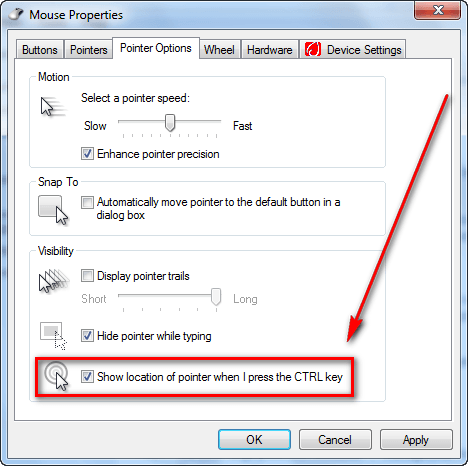
  • Click “Apply” and “OK”.

Now whenever you press the Ctrl key (left or right) the round circles should surround your mouse pointer indicating where it is located.

Thanks Someguy!

42 Comments »

  1. DJ January 24, 2010 at 7:19 PM (comment permalink) -

    Wow, I need that, great!
    Thanks Ashraf [and Someguy]!!

    1
  2. Child Genius January 24, 2010 at 7:22 PM (comment permalink) -

    WOWWWW!

    This is bigger than “God Mode”!!!

    Thanks for letting us in on this secret.

    2
  3. David Roper January 24, 2010 at 7:25 PM (comment permalink) -

    Good to know. I wonder why it isn’t turned ON by default.

    Thanks, Someguy

    3
  4. Wheezer January 24, 2010 at 7:27 PM (comment permalink) -

    Good one! This tip will save my eyes a lot of work.

    Thank you!

    4
  5. Locutus January 24, 2010 at 8:05 PM (comment permalink) -

    This is something I’ve always taken for granted as far back as at least the early 2000s… before then computers weren’t on my radar that much. It’s a handy usability trick.

    5
  6. V.Subramanian January 24, 2010 at 8:46 PM (comment permalink) -

    “??ashraf??nice friend
    Dear Ashraf is the founder of dotTech. Ashraf spends (insane hours on dotTech )insane hours on dotTech (usually writing articles but sometimes doing absolutely nothing except staring). Yes he is weird, but he is also very friendly.
    I am proud of you about your sincere dedication to the ambition in undrstanding the www field and sharining with other people, like me.
    Iam a subscriber to your elabarate site.Yet ,since I am having limited knowledge in computer, unable to understant the findings you have made.
    I have tried to record a vote on you for the award but unable to do that for lack of knowledge to do.
    I am aged 73years,May God bless you.
    I have made my curser according to your instructions.
    Thank you with my sincere blessings to you.
    V.Subramanian

    6
  7. Refpeuk January 24, 2010 at 9:17 PM (comment permalink) -

    I assumed everyone knew this.

    Sigh . . . I guess I’m the only one who reads every bit of the control panel options.

    7
  8. Roland January 24, 2010 at 9:48 PM (comment permalink) -

    Thanks..a function I forgot to set in system 7

    8
  9. Someguy January 24, 2010 at 10:14 PM (comment permalink) -

    No problem. I didn’t expect an article written about this. Well thanks for including credit to me Ashraf.

    9
  10. Blackbird January 24, 2010 at 10:33 PM (comment permalink) -

    In Vista: Start>Control Center>In Control Panel Home>Under “Hardware and Sound”>Mouse>Pointer Options Tab> Put a check in (At bottom): Show location of pointer when I Press the CTRL key>Click on “Apply”, then OK. (DONE)
    (You can also SPEED UP your mouse at the top of this window by moving the slider to Fast in “Select a pointer speed.”
    And…. RIGHT BELOW that… you can check the box to “Enhance pointer precision”
    (DON’T forget to click the “Apply” button.

    10
  11. smokexx January 24, 2010 at 10:40 PM (comment permalink) -

    If I remember correctly back in my win 95/98 days, my college friends and I had some fun with this same pointer locator. I actually changed my pc pointer to a missile to make the feature look nerdy cooler!:). But you still need to install a microsoft app(intellipoint, i think) to use this. That’s why I was glad when MS included this as part of their OS built-in features. Thanks for the heads up once again Ash and Someguy.

    11
  12. Ted January 24, 2010 at 10:43 PM (comment permalink) -
  13. Shueygal January 24, 2010 at 11:02 PM (comment permalink) -

    Thanks for the useful tip. Never know when that ol’ mouse will go for a break and can’t find it.

    13
  14. Ozzie January 25, 2010 at 12:53 AM (comment permalink) -

    @Refpeuk: LOL! You may well be! I am somewhat afraid of fiddling with things lest I cause computer mayhem (once bitten, twice shy, as they say), so I tend to leave well enough alone. But this is a good tip as my mouse often goes walkabout. Thanks Ashraf!

    14
  15. OldElmerFudd January 25, 2010 at 12:57 AM (comment permalink) -

    @Child Genius:

    If you liked ‘God Mode’, check this out:
    http://blogs.zdnet.com/Bott/?p=1630

    Good resource for Windows 7 users.

    15
  16. Alan January 25, 2010 at 2:11 AM (comment permalink) -

    @OldElmerFudd:

    NB This is NOT a reply to OldElmerFudd – I just cannot find a reply button that aims @ the article.

    For those who initially think this does not work.

    There is an error in both this write-up and also in the Mouse Properties GUI.
    The circles do NOT appear when you press the Ctrl Key,
    they appear when you RELEASE the Ctrl Key.

    I configured my system like this 2 years ago.
    I have just re-visited by Mouse Properties and find that all 5 option boxes are ticked – I do not know if one of the other options has inverted this circle effect.

    I am using XP Home edition with SP3.

    Regards
    Alan

    16
  17. JJSlider January 25, 2010 at 2:24 AM (comment permalink) -

    @Refpeuk: You know, I thought exactly the same thing when I read this.

    17
  18. Jeanjean January 25, 2010 at 4:03 AM (comment permalink) -

    @ Ted : You know, I thought exactly the same thing when I read this. (lol)

    Thanks Ashraf & Someguy !

    18
  19. Old Prop January 25, 2010 at 5:04 AM (comment permalink) -

    This may be the most useful “unknown” features Windows has. If it were in the Mac OS, they’d be writing books about it. (And I used Macs all day, every day, for 20 years.)

    19
  20. Alan January 25, 2010 at 5:26 AM (comment permalink) -

    HEY, Somebody stole my name. (He said facetiously,)

    20
  21. Samuel January 25, 2010 at 6:27 AM (comment permalink) -

    In one of my “I’m too lazzy to change” moments I found this feature but decided to stick with my current method which is to scroll to the top left corner like crazy and then I know it’s there.

    21
  22. icacream January 25, 2010 at 7:38 AM (comment permalink) -

    Thanks Ashraf & Someguy !
    This is indeed precious !

    22
  23. Aesar January 25, 2010 at 9:58 AM (comment permalink) -

    This can be a useful tool unless someone (like myself) who extensively uses keyboard shortcuts instead of the mouse (when typing I don’t like to constantly move back and forth between the keyboard and the mouse), it can become very irritating to constantly see little flashing rings popping up around the cursor every time I release the Ctrl key; and I do that a lot, especially when editing and coding.

    23
  24. Someguy January 25, 2010 at 4:24 PM (comment permalink) -

    I’m very surprised I’m one of the only persons who knew this. I guess when you start at a very early age you know everything and obviously I started early.

    24
  25. gmon January 25, 2010 at 11:19 PM (comment permalink) -

    If I lose my cursor, I just move the mouse – and there it is! kinda like where’s waldo.. ;p

    25

Leave A Response »