Virtual Machines, Part One: What, why, and how

October 5, 2011 43 Email article | Print article

Not to be confused with virtual process machines, virtual machines are, as Wikipedia puts it, “a software implementation of a machine (i.e. a computer) that executes programs like a physical machine”.  They’re operating systems like Windows or Linux inside a separate program on your existing operating system.  They can do a lot of things a regular computer could do, but instead of using new hardware, the virtual machines (the guests) use a program on your current hardware (the host).

But why would you care?  Some times it’s fun to try new software, but you don’t want to mess up your computer.  Other times, you could be trying out a new operating system.  Maybe you want to see if you can have fun by getting that latest virus and trying to get rid of it.  (Hint:  don’t do that, please.)  There is no one definitive program to make virtual machines in.   Microsoft has one, Sun (the makers of Java and OpenOffice) have one, VMware has one, and I’m sure there’s more out there to find.  In this series on virtual machines, I’ll be using VirtualBox by Sun.

This Part 1 on virtual machines is meant to be an introductory article teaching everyone what virtual machines are, why to use them, and providing a simple guide on how to install one. Since we have already covered the two former points, lets go onto the latter.

Downloads

>>VirtualBox homepage
>>VirtualBox direct download for Windows (32 bit or 64 bit)
>>VirtualBox download page for other operating systems

Table of Contents

The Install
Creating a new Virtual Machine
Installing Ubuntu
Installing Windows XP
Final Words

The Install

Make sure to use entirely default settings if you want to follow along.  During the install, there will be multiple warning dialogs that pop up. Click “Continue Anyway” or things like that.

Once it is installed, it will prompt you to create an account.  You don’t really need to.
Creating a new Virtual Machine

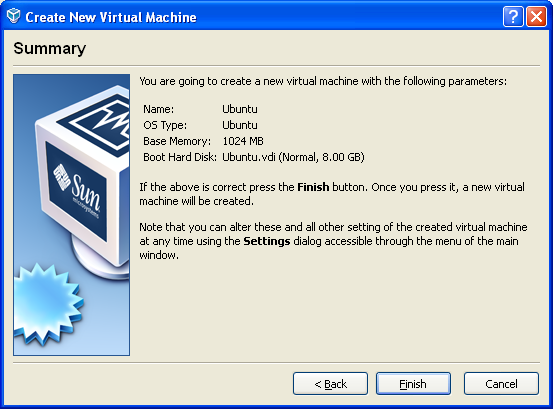
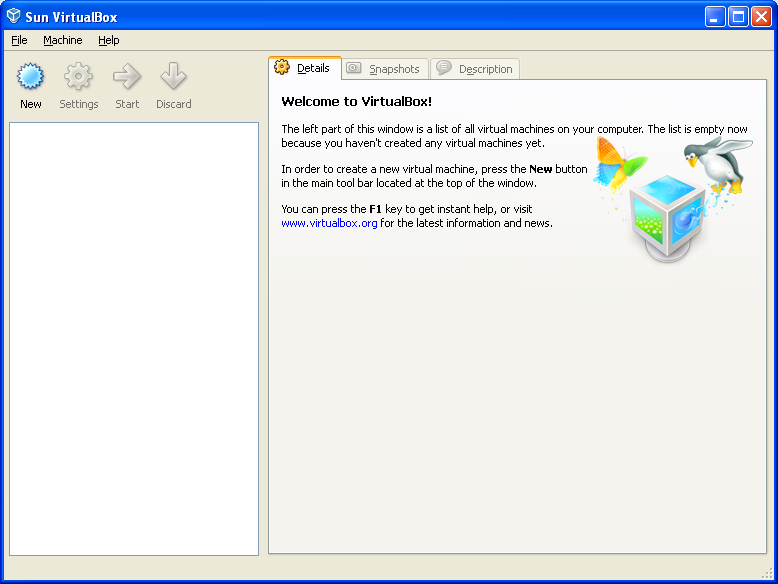
To create a virtual machine, click the New button.  Click  “Next”.  Type in a name for your virtual machine, for instance, Ubuntu.  Also select the operating system from the drop-down menu. You can install Windows, Linux, or most all other operating systems you can think of. Keep in mind it does not matter what your “host” operating system is; in other words, you can install Linux on Windows, Windows on Linux, etc.
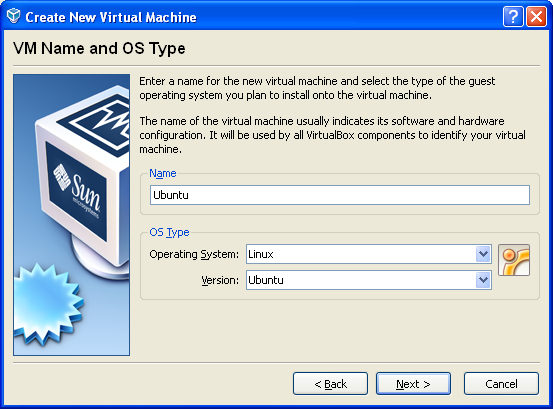
Note that you will need an install disc or an install ISO. You should also make sure to give it plenty of RAM.
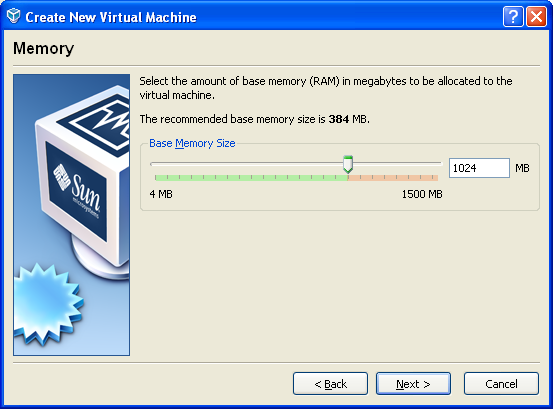
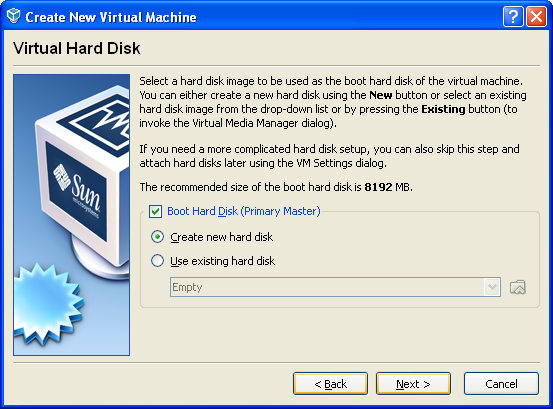
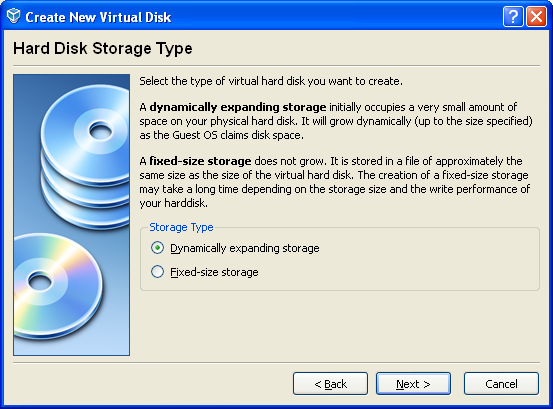
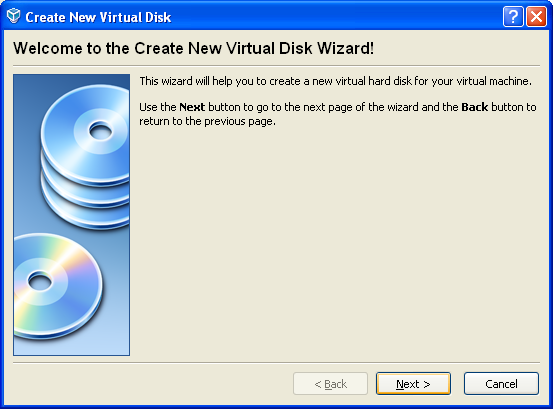
Next,  select a new hard drive.  This will lead to the New Virtual Disk wizard.
Installing an OS

After you have created your virtual machine, you need to install an OS on it. To install an OS you can either use an ISO or a CD. For the purposes of this article, first I am going to show how to install Ubuntu from an ISO. Later on, I am going to show how to install Windows XP from a CD.

So, for this step, you’ll need an install ISO of Ubuntu – you can get it from here.

Once you’ve downloaded the ISO, click the Start button (the green arrow).  It will start the virtual machine, and most likely give you this warning.
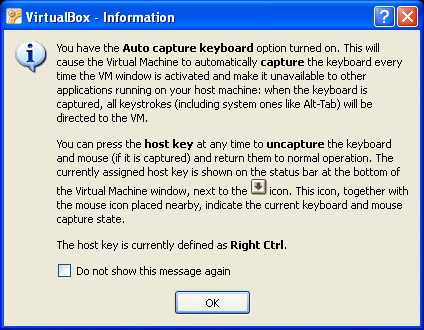
Click OK.  Then, the first run wizard will pop up.
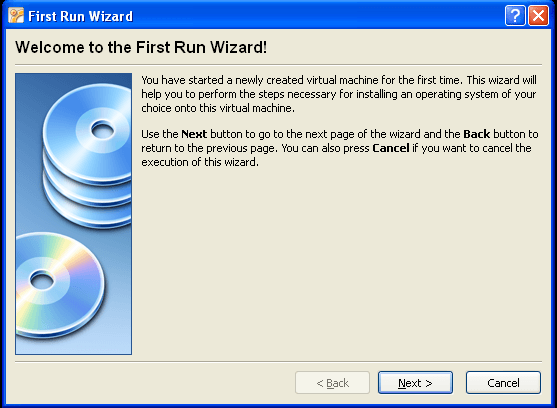
Click Next to get started, and then the little folder icon to select an ISO. If you are using an installation disc, select your disc drive from the drop down box.
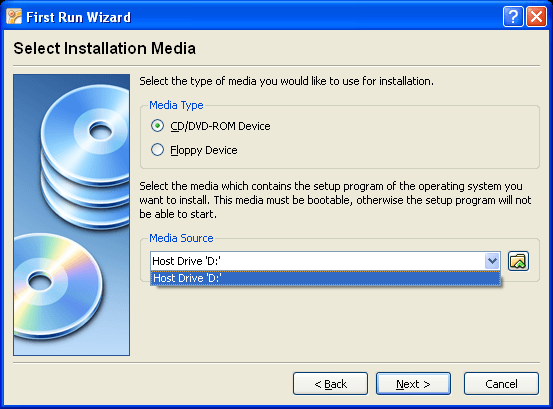
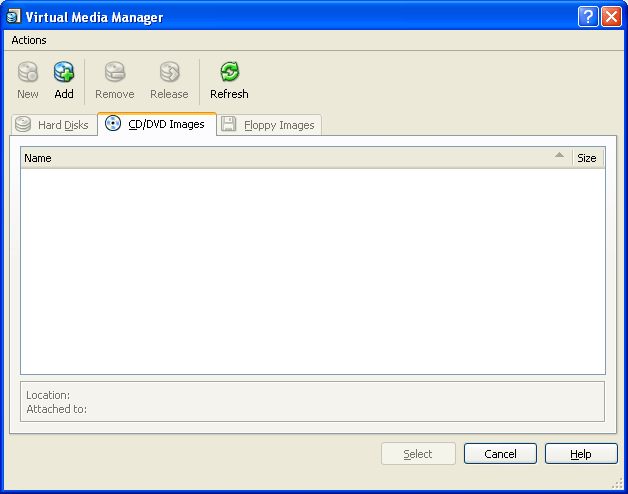
Click the Add to select a new ISO.  Then browse for the file.
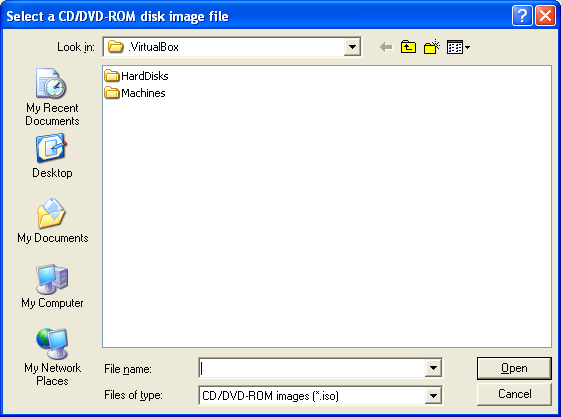
Press Open.
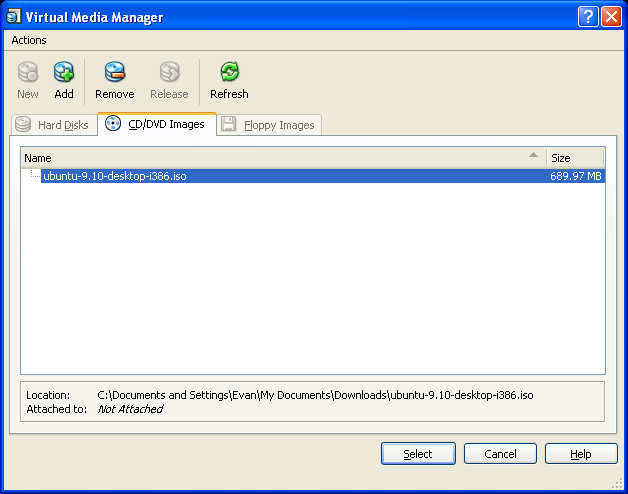
Then click Select.  Then click Next and Finish.  Click OK on the next message unitl you get to the Install screen.  Run through the install steps of your selected operating system.  Note that to get the cursor “unlocked” from the virtual machine, you need to hit the “host key”- the right Control key by default.
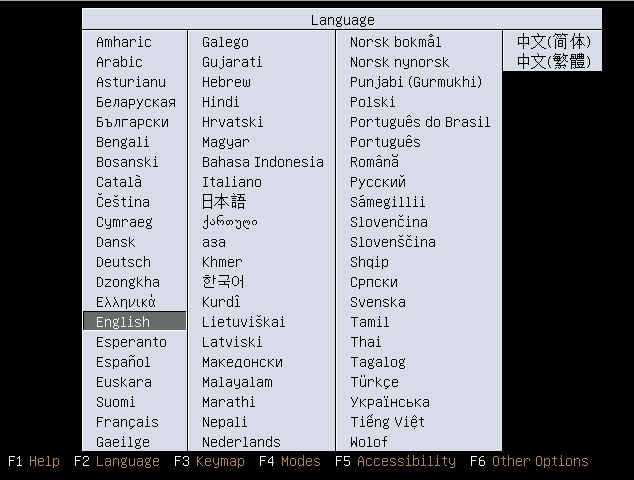
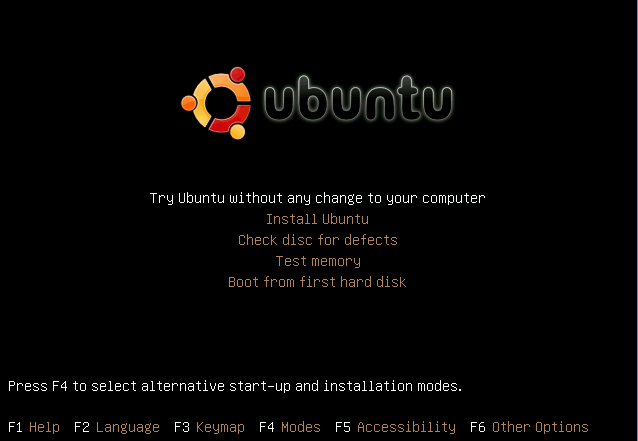
Press enter to select your language and move the cursor down to select Install Ubuntu.  Press enter to install the operating system.
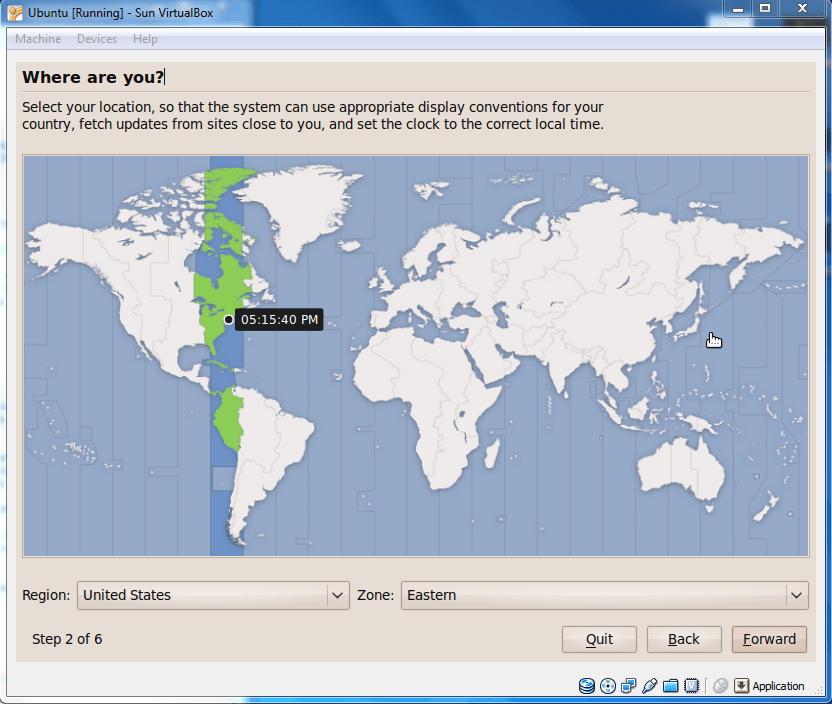
It may take a while for your virtual machine to respond.

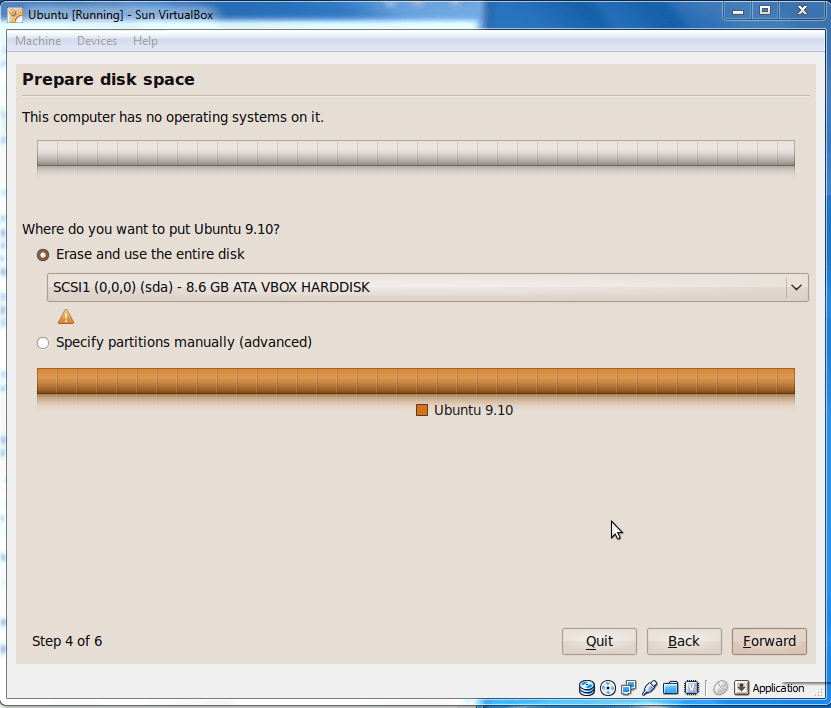
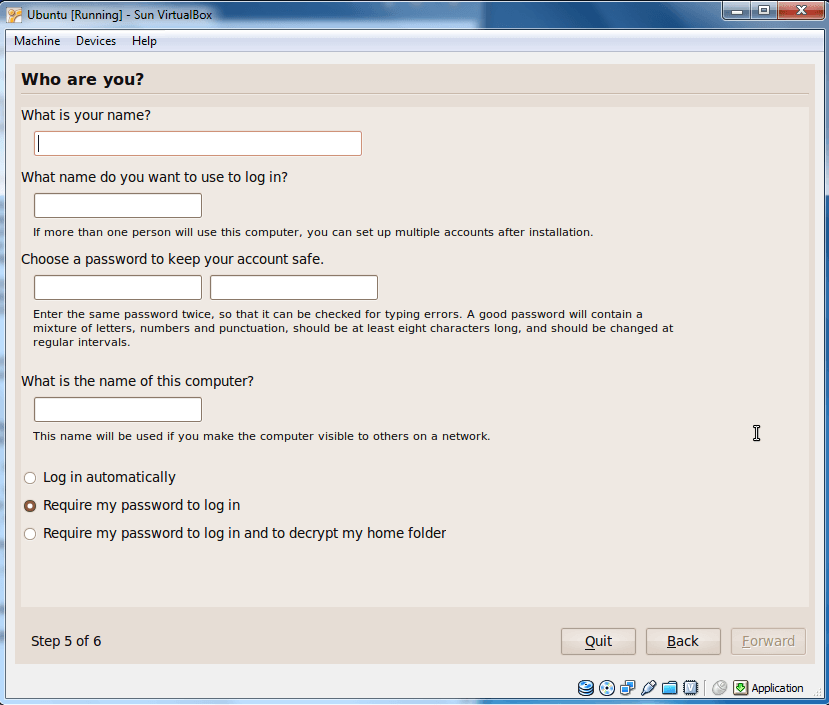
Click Forward, and change any settings you want.  Do this until the operating system is installed.
If you have a weak password, it’ll show you this message.
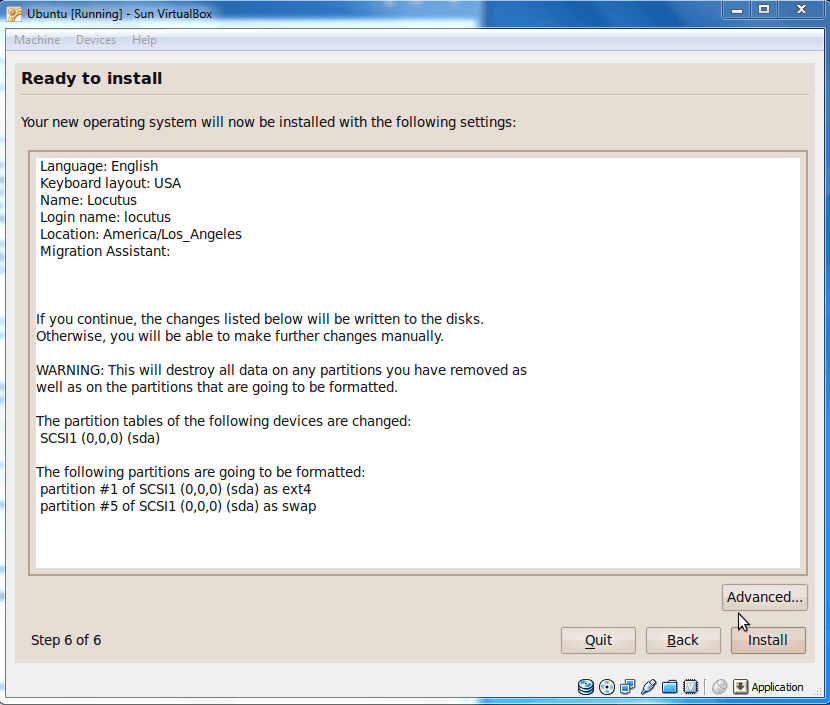
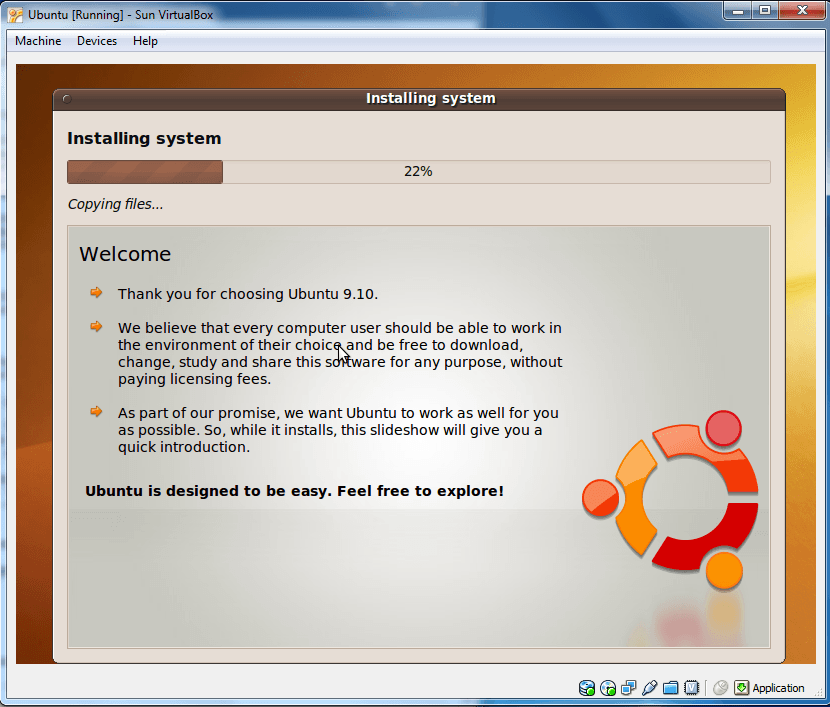
Now it’s time to do the install.

Now, your operating system is installed.
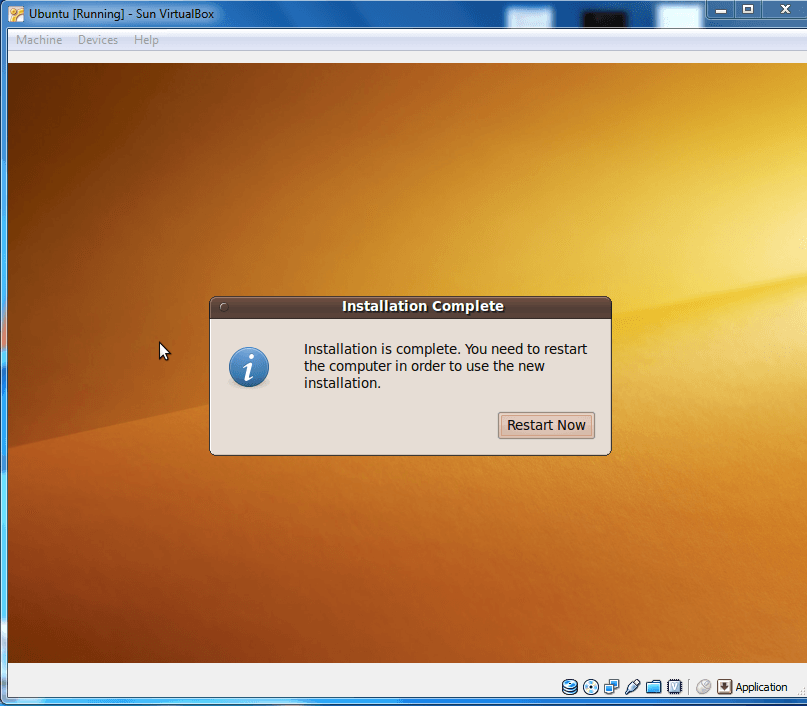
Click restart.  Be sure to press enter when prompted.
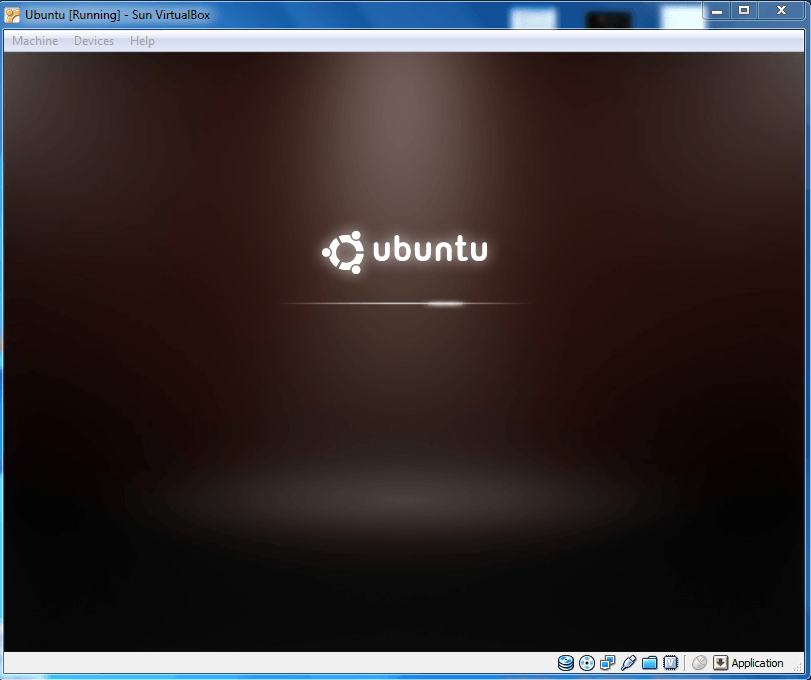
Doesn’t Ubuntu look nice?
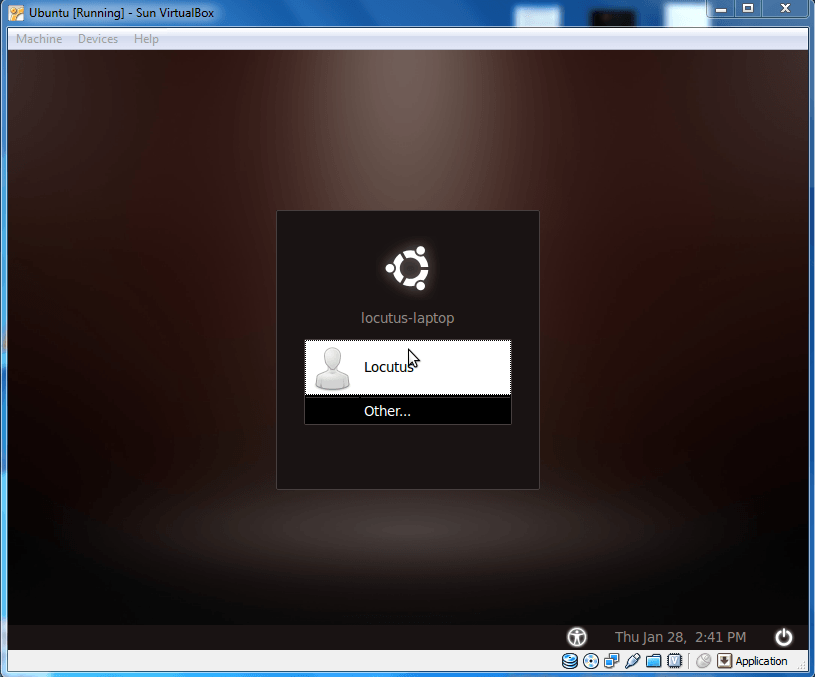
Now log in with your username and password you set up earlier. Be warned, the login sound is loud sometimes.
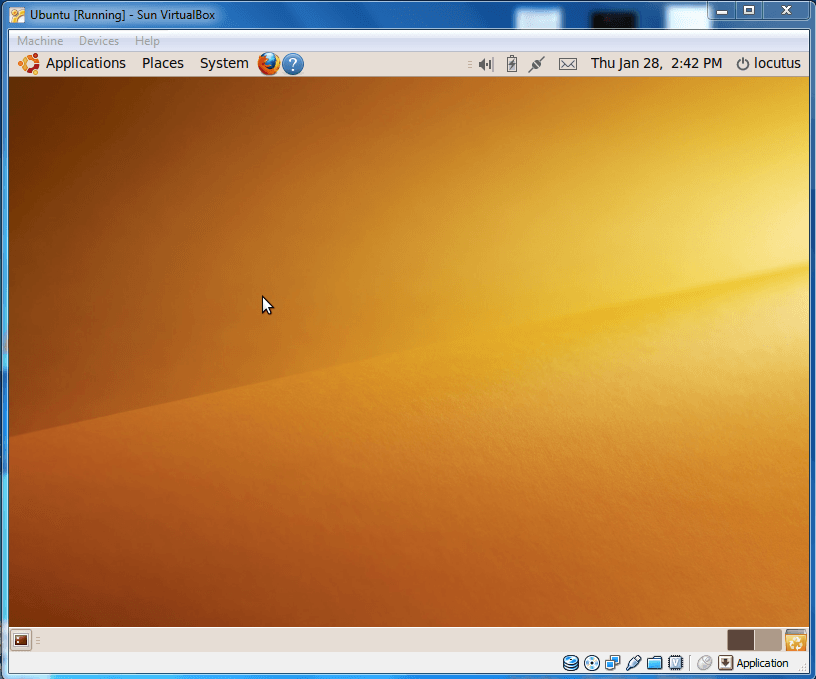
Now you’ll be greeted with your desktop.  Have fun!

Installing Windows XP

As explained earlier, you can install an OS from an ISO or a disc. Since I showed how to install Ubuntu from an ISO earlier, I will now show about to install Windows XP from a disc. Therefore, for this part of the article, you’ll need a Windows XP installation disc. (Keep in mind if you have a Windows XP ISO, you can use that also similar to how we installed Ubuntu from an ISO earlier.)

Create a new virtual machine from the steps outlined above (remember to chose “Windows XP” as the operating system when setting up the virtual machine).   Start the virtual machine, clicking OK at the prompt about keyboard integration.
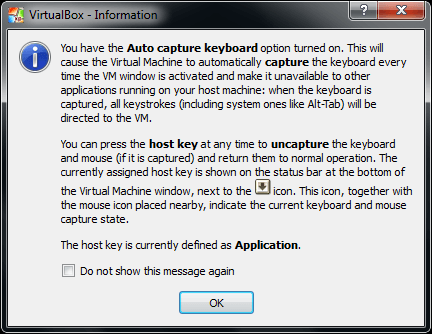
Go through the first run wizard, using the CD drive to install the OS.   The VirtualBox BIOS will flash, and the installation will begin.
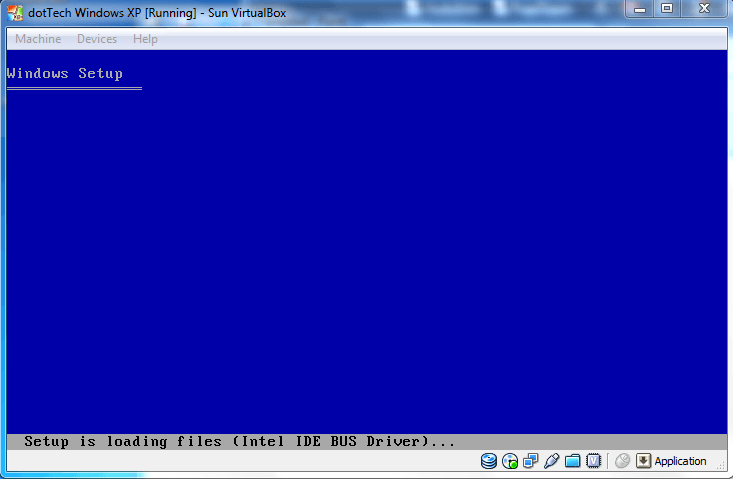
Once all the setup files are loaded, you’ll need to press enter.

Agree with the License Agreement (press F8),  partition the virtual hard disk, and the installation will begin.
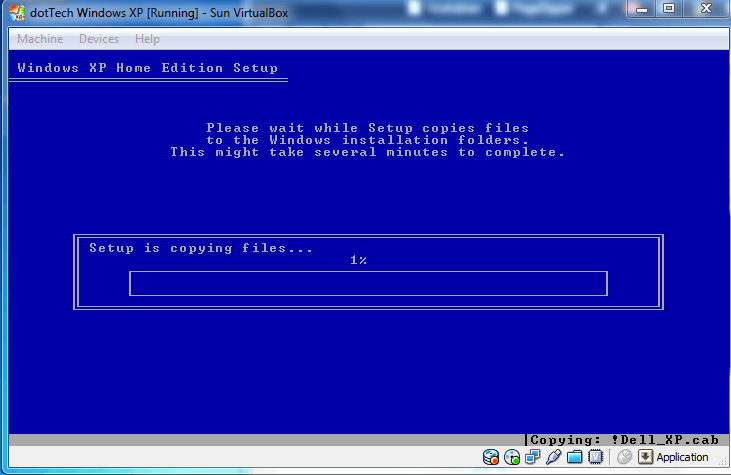
It may take some time to copy the setup files. Once it’s done with those, it will reboot into the actual installation.
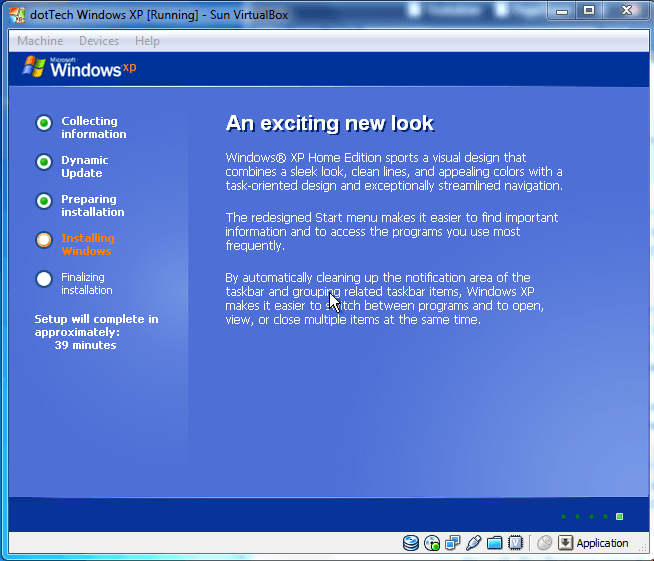
Make sure to set up all the information the way you’d like it:
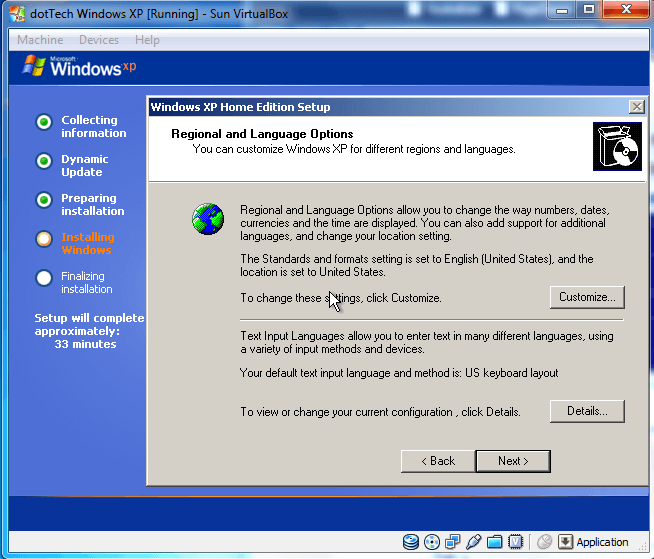
It will prompt you a few times- just continue with the installation.
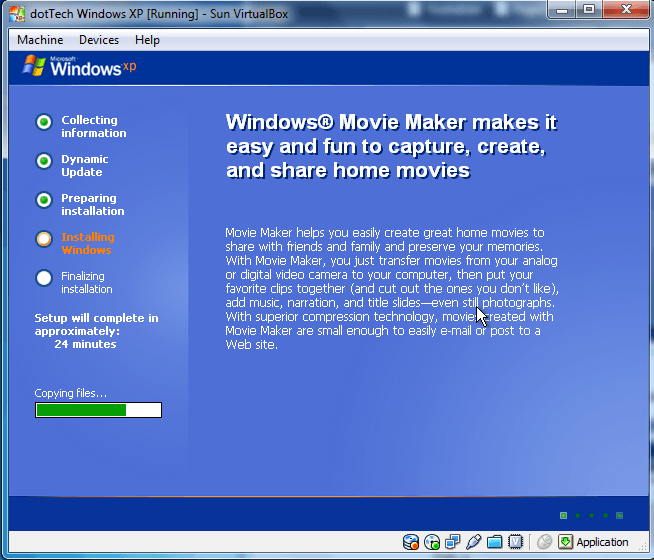
Depending on your computer, the installation can take anywhere from 15 minutes to an hour.

The Out-of-box Experience will start:
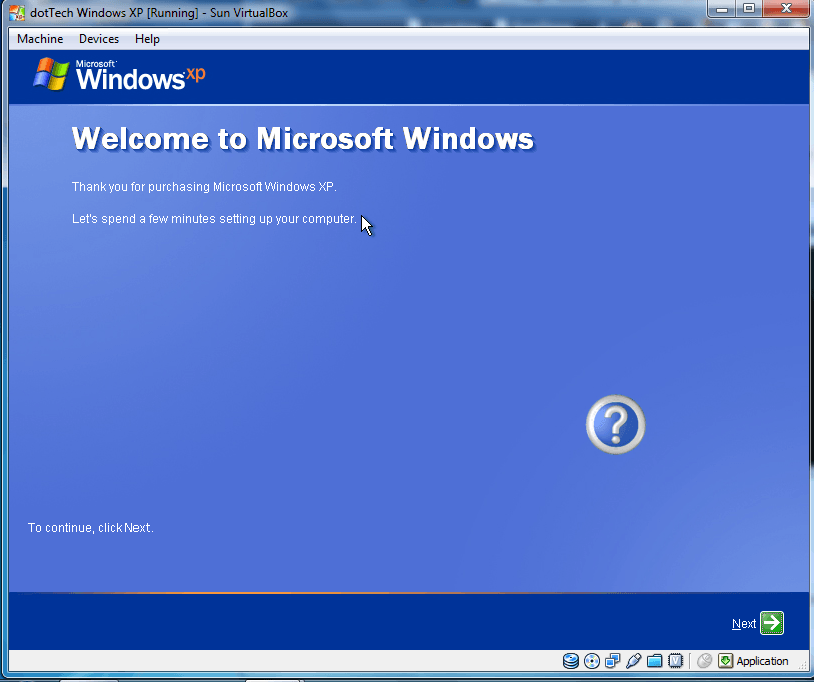
It will guide you through things like Automatic Updates, network settings, registration with Microsoft, and setting up user accounts.
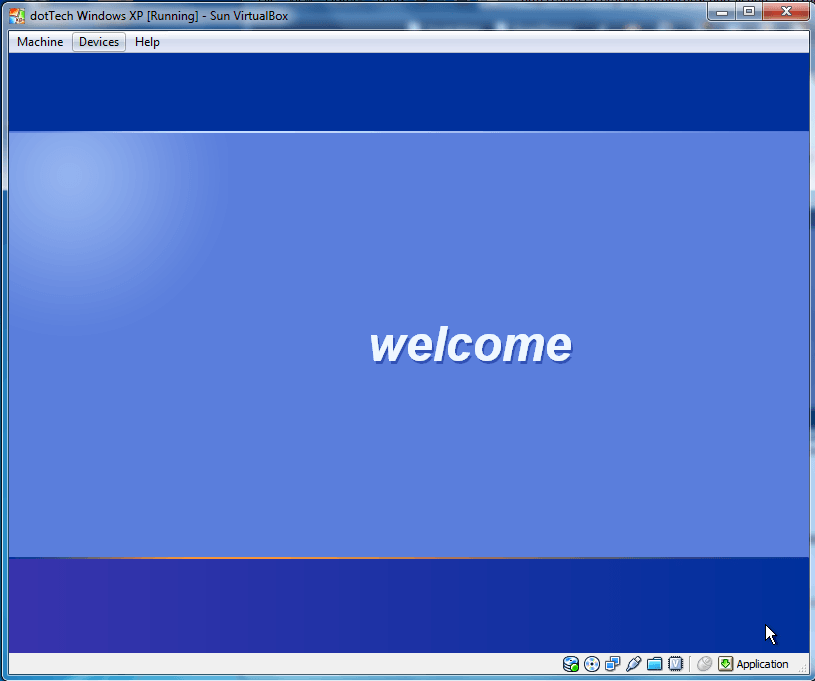
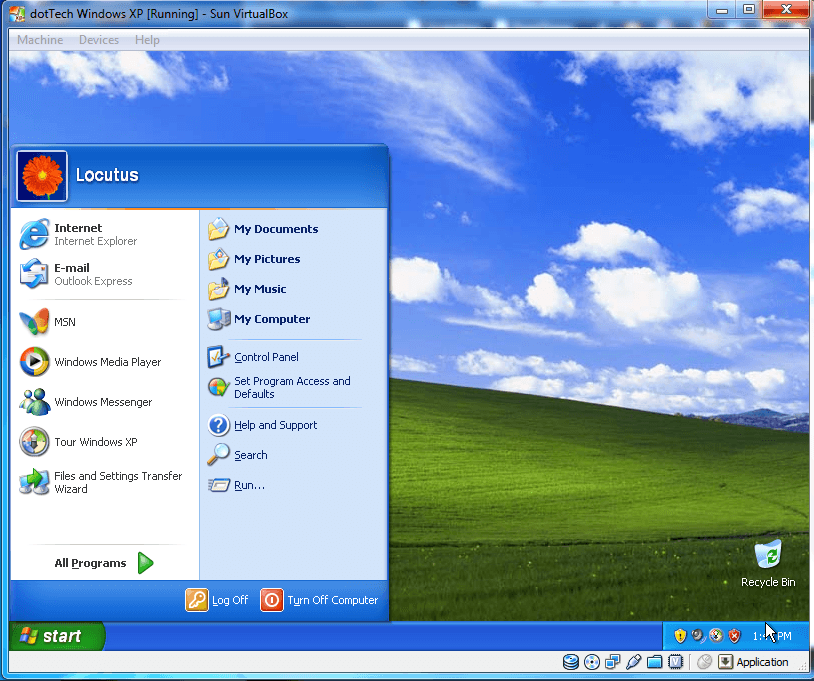
Then, it will load up your account and your start menu. Congratulations, your Windows XP is installed! You’ll have 30 days to use it (unless, of course, you have a valid license key and you register it).
Final Words

Using virtual machines can not only be fun (testing out new OSes, new software, etc.) but they can also be very handy. Play around with virtual machines and get to know them better. In future articles, I’ll provide more tips on virtual machines, such as guide you through installing the guest additions in Ubuntu.

Update: Part 2

43 Comments »

  1. Ashraf January 29, 2010 at 6:41 PM (comment permalink) -
    Mr. Boss

    Locutus,

    Terrific article! Seriously =).

    1
  2. Locutus January 29, 2010 at 7:19 PM (comment permalink) -

    @Ashraf: Thanks! It actually just came to me. The hard part was part two, installing guest additions and the shared folder in Ubuntu. It took me a while to figure it out.

    2
  3. Steve January 29, 2010 at 7:52 PM (comment permalink) -

    Hi! Locutus

    I have to agree with Ashraf, a very good article, as a matter of fact so good it has renewed my interest in having a VM on my PC.

    A few questions:
    I want to try Ubuntu, after it’s installed does it still require 4GB to reside on the HDD or is this 4GB with an installer file?

    I have an 80GB HDD – 12used, net 68 – 2GB ram XPpro sp3.
    Is this enough of space for ubuntu to work comfortably?

    Is the VM Treated as just another program with my XP running in the background or are you able to boot directly into the VM?

    Will this cause any problems with the MacriumR back-up program I use, when I go to use MacR with the VM installed?

    And maybe I missed this part. Ubuntu is installed on the VM, so no worries about formatting the “real HDD”, correct?

    3
  4. Locutus January 29, 2010 at 8:22 PM (comment permalink) -

    @Steve:
    1. Currently, my Ubuntu hard disk is 2.5GB installed.
    2. Yes- Ubuntu takes up as much space as the install (2.5GB) plus your files and data. During the setup, you can set the amount of space it can possibly take up. Also, the default is set to make it small and grow as you add data.
    3. It is treated as another program.
    4. It is simply a few files (the hard disk and the list). It would be just like any program.
    5. Yes. Ubuntu thinks it has its own hard disk, but it is just a file on the computer.

    4
  5. Wheezer January 29, 2010 at 8:23 PM (comment permalink) -

    Good article!

    So good that I’m actually thinking about giving it a try. I’d like to see what all the Ubuntu talk is about.

    Since I’m not really a “Professional Technologian,” altho I thought about playing one on TV. ;-) I need the step by step instructions you gave.

    Thanks for your hard work Locutus!

    5
  6. Steve January 29, 2010 at 9:07 PM (comment permalink) -

    @Locutus: Thank You for the quick reply!

    On the strength of your reply I will be Downloading VirtualBox, and Ubuntu, I should have something to report by the end of the weekend.

    6
  7. Locutus January 29, 2010 at 9:24 PM (comment permalink) -

    @Wheezer: @Steve: You’re welcome!
    @Wheezer: It was not my first time using virtual machines, but it was the first time I actually dove into them and played around and tried to get the Guest Additions (part 2) to work in Ubuntu. I also took my time getting Shared Folders to work.
    @Steve: Have fun with Ubuntu! It seems to be a really cool operating system.

    7
  8. amnesia January 29, 2010 at 9:34 PM (comment permalink) -

    In the past I have dual booted linux. Is there an advantage to using a virtual machine?

    8
  9. Locutus January 29, 2010 at 9:40 PM (comment permalink) -

    @amnesia:
    -Easier to backup/restore
    -You can do work in one while a virtual machine is doing something else
    -More tinkering
    -You don’t, like, actually have to install them on your computer.
    -Less partition management
    -Easier to remove
    -Saving state

    9
  10. RobCr January 29, 2010 at 9:43 PM (comment permalink) -

    Locutus, thanks for the article.
    All of my PC’s have been 2004 or older.
    There have been two banes of my life, regarding installing XP.
    Both the problems relate to flippin XP’s insistence on doing a reboot half way through the installation.
    1) It cannot pick up where it left off, and starts the Install from scratch.
    2) Or, when I am trying to install XP into a 2nd partition, it cannot locate the correct partition (when it is doing that flippin reboot).
    Will there be any such problems with our virtual attempts ?

    10
  11. amnesia January 29, 2010 at 9:44 PM (comment permalink) -

    @Locutus:
    So what would you say would be the minimum amount of ram needed on the computer to do this?

    11
  12. Locutus January 29, 2010 at 10:38 PM (comment permalink) -

    @amnesia: Well the system requirements for Windows XP are 64 MB of RAM and VirtualBox only lets you use 75% of your RAM for a VM, so maybe around 90MB of RAM? I have 4GB, but when I was using my computer with 1GB, it ran OK with it.

    12
  13. Locutus January 29, 2010 at 10:40 PM (comment permalink) -

    @RobCr: I’ve never experienced such a problem with the XP install, so I can’t really say.

    13
  14. meanpt January 30, 2010 at 3:11 AM (comment permalink) -

    … hum … well … I’m a virtualboxer, already tested all the W7 versions and did lots of linux gests installations under a vista home premium host and found that the more dificult is to add the vbox’s guest additions … while this may be easier (it is now … I had to request help on the foruns) to deal with the *buntus, sometimes it can’t be done, leaving aside the critical feature of foler sharing with the Windows host, not to mentioning the adjustment of the screen resolution to the physical screen.

    14
  15. jumbi January 30, 2010 at 5:19 AM (comment permalink) -

    Thank you for the useful subject.
    Will certainly study and test it sooner or later.

    15
  16. Mags January 30, 2010 at 6:56 AM (comment permalink) -

    @ Locutus Thx for the article. I’ve been using VirtualBox for some time now and realy like it.

    I have a question, though since I haven’t been able to figure it out on my own yet (nor had the time.)

    When I want to have internet access, I have to use Nat, when I want to use files on another drive partition (not shared folders) on my pc I have to use Host Only Adapter.

    Is there a way to get both to work at the same time? I’ve tried the others but just can’t get them to work together.

    16
  17. Mags January 30, 2010 at 7:00 AM (comment permalink) -

    @ amnesia I used to have a dual boot before switching to VirtualBox. I prefer this setup. It used to really frustrate me to no end having to reboot to XP then reboot back to Vista.

    As for RAM, I started with 4 GB but it automatically increased to a higher RAM when it was needed.

    17
  18. Bruce Fraser January 30, 2010 at 7:41 AM (comment permalink) -

    Locutus,
    Thanks for a great article. I will look forward to the followups.
    Q: I’m assuming that, after installing an OS and adding applications, one can save that setup. It would be a shame to go through all that work, only to lose it all when the main computer is shut down.
    Can you please clarify? Thanks again.

    18
  19. Mags January 30, 2010 at 7:48 AM (comment permalink) -

    @Bruce Fraser:

    A VM works like a regular pc OS installation. Once it is set up and you’ve installed your applications/software it will remain that way, just as a regular pc.

    Locutus can probably clarify that better. But you don’t lose anything.

    19
  20. kingpin January 30, 2010 at 8:34 AM (comment permalink) -

    @Locutus:Is virtual box same as the expensive Red Hat
    Linux virtualization and enterprise

    20
  21. OldElmerFudd January 30, 2010 at 9:28 AM (comment permalink) -

    Terrific article, Locutus! Well-developed and laid out, it’s one of the best “how/why to” explanations of running a VM I’ve seen.

    I use VirtualBox regularly because of the amount of software that goes through one of my machines. After years of working inside Sandboxie Pro, it was an easy switch. Since I tend to create C: partitions in the 20Gb range, I’ve never had a problem with virtual environments. Keep it up!

    21
  22. jelson January 30, 2010 at 9:57 AM (comment permalink) -

    Thank you very much. This is the simplest and most intuitive “how-to” I’ve yet read regarding setting-up VirtualBox!!! And I’ve read quite a while.

    Really looking forward to your nice article.

    22
  23. Locutus January 30, 2010 at 12:51 PM (comment permalink) -

    @kingpin: Kind of- except these are stored on your computer and are alongside your current OS.

    @Bruce Fraser: It’s like a regular PC, and you can even hibernate it or “clone” the drive from within virtualbox (by clone I mean take snapshots, more on that later).

    @Mags: In part 2, I detail using shared folders. They’re a real pain to set up, but if you know how it takes only seconds.

    @meanpt: You have to use sudo from the command line to get the Guest Additions to work in Ubunutu. It’s a pain, but I run through the process in part two.

    @Mags: I am currently running Ubuntu with NAT (PCnet_FAST III is the adapter name) and it has shared folders working. I’m going to try mapping my B: partition to a shared folder really quick.
    ———–
    Ok, Mags: Here’s what I got. (Remember this is using shared folders TO access the other partitions.) I was able to access B:, my pictures partition, and use it.

    23
  24. Samuel January 31, 2010 at 6:23 AM (comment permalink) -

    Great article Locutus. And thanks for the ping :D
    There’s another two uses for VMs, one which I’m suprised you didn’t say and one not so suprised.
    The first is to use a VM to run software that will run on an older version of you OS.
    The second is to run full screen game not full screen. Since the game is running inside the VM it thinks its full screen but as long as the VM isn’t full screen the game really isn’t.
    Currently I’ve got 2 VMs:
    1) An XP one (switched it to XP Mode for 7).
    2) 98 for old stuff that won’t work on XP.
    Been trying to get DOS or Win3.1 VM going, no luck so far :(

    24
  25. Locutus January 31, 2010 at 1:03 PM (comment permalink) -

    @Samuel: Huh. Just make sure to select DOS from the list (Other – DOS) when you make the machine- it works fine for me.

    25

Leave A Response »