
CapsLock Warning: A failsafe for notorious Caps Lock-related mistakes

February 23, 2010 75 Email article | Print article

For those that have been following the discussion in the KeyExtender review, Rob – a loyal dotTechie – offered to make his CapsLock Warning program available to other dotTechies. Since then, me and Rob have been discussing the program behind the scenes and have finally come up with a final product ready for everyone to download (well, it was Rob doing all of the heavy lifting… I just tagged along to leech credit =P).

By the name of the program, I am sure most everyone can guess what the program is. However, I will still explain. CapsLock Warning is an simple but elegant program intended to help avert Caps Lock-related problems by displaying a “CAPS LOCK ON” message to users whenever Caps Lock is turned on:

Via the program options (right-click system tray icon -> “CapsLock OPTIONS”), users are given the ability to control where the “CAPS LOCK ON” message is displayed, and how it behaves:
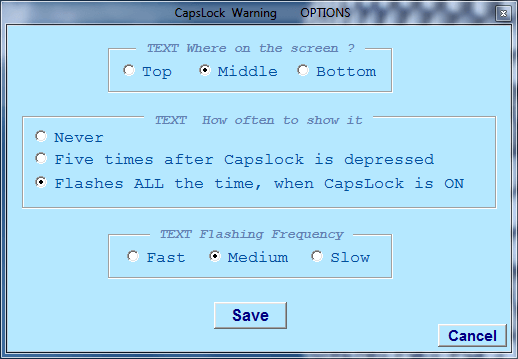
  • TEXT Where on the screen – this setting allows you to select which part of your screen the “CAPS LOCK ON” message will be displayed (top, middle, or bottom).
  • TEXT How often to show it – every time you turn on Caps Lock, CapsLock Warning will display the “CAPS LOCK ON” message once. After that initial display, you can control if you want the message to flash on the screen for you, and if so, for how long. “Never” makes it the message is not flashed again after the initial time. “Five times after…” makes it so the message is flashed five times after the initial display. “Flashes ALL the time…” makes it so the message continuously flashes until you turn off Caps Lock.
  • TEXT Flashing Frequency – this setting control how fast the flashes occur. Take note that this setting also controls how fast the initial flash is displayed so even if you have the previous setting set to “Never”, this setting is still relevant.

In  addition, to the “CAPSLOCK ON” message display, the system tray icon for CapsLock Warning continuously flashes while Caps Lock is on.

If/when you want to turn off CapsLock Warning, all you need to do is right-click the system tray icon, and select “UNLOAD THIS PROGRAM COMPLETELY”.

CapsLock Warning is a portable program, so after downloading it, just unzip it and run CapsLockWarning.exe to use it – there is no need to install. Since it is a portable program, you may place CapsLockWarning.exe in any folder on your computer except for your main directory (i.e. C:/) because it uses a Settings.ini file to save your settings.

After you download the program, please pay particular attention to the Readme because in it there are important instructions in there, such as how to make CapsLock Warning turn on automatically at Windows boot.

Now, as per Rob’s request, CapsLock Warning is available to dotTechies only. In other words, you must be a registered member on dotTech in order to download CapsLock Warning. If you are already a registered member, please login and come back to this post; if you are not a registered member, register, login, then come back here.

NOTE: Rob took his own time to create this very handy program for us. Please respect his wishes. Please do not host CapsLock Warning on any other website/server, and please do not directly link to the file on dotTech. If you want your friends and family to know about and get CapsLock Warning, simply provide them a permalink to this article.

To get CapsLock Warning, simply download it from the following link:

Version reviewed: v1.00

Supported OS: All Windows

Download size: 20 KB

CapsLock Warning download link

Thanks Rob!

P.S. Please provide feedback to Rob in the comments below. For example, if there are any bugs with CapsLock Warning, please say so or if there are any features you want added in CapsLock Warning please say so.


75 Comments »

  1. goofus828 February 23, 2010 at 12:42 PM (comment permalink) -

    Sorry but I get a error message in WinZip:

    : CapsLockWarning\Readme (Don’t ignore me!).txt unsupported compression method 14
    error: no files were found – nothing to do

    1
  2. Ashraf February 23, 2010 at 12:46 PM (comment permalink) -
    Mr. Boss

    @goofus828: Curses – if only everyone in the world used 7-zip over other software like WinZip =P.

    I have recompressed the file so that it will work with WinZip. Please redownload and confirm.

    2
  3. Youngatheart1946 February 23, 2010 at 1:25 PM (comment permalink) -

    Hi there Ashraf and Rob, thank you both very much for this little gem. I am sure I am one of many who will find this little app. invaluable.
    keep up the gr8 work guys.

    Youngatheart1946

    3
  4. Wheezer February 23, 2010 at 1:30 PM (comment permalink) -

    Looks good. Altho it did act like it locked up when I put the message at the bottom and selected fast as the speed. The message quit coming up and the message box that you get when you right click the tray icon opened and wouldn’t close.

    I right clicked on the icon again, it opened another right click menu. But this one had the CapsLock OPTIONS option on it twice.

    I clicked on one of them, changed back to the medium setting and everything worked fine again.

    Before downloading it and trying it, I was afraid that it would be aggravating to have a flashing message on my screen like that. Boy was I wrong. There’s nothing aggravating about it.

    Many, many thanks to Rob for making this and then sharing it with us. That was a very nice thing to do.

    And thanks to Ashraf for allowing it to be offered on dotTech.

    4
  5. jivadas February 23, 2010 at 1:57 PM (comment permalink) -

    This is a great idea! As a sloppyFinger, CapsLock has always been a bane to me. My practice in the past has been to pry the key loose from my keyboard and recycle it in the garbage; but I found that occasionally I want to use the function.
    HOWEVER….
    Those of us over 70 may not understand your install instructions. What do you mean, “place anywhere”? How do I install it on XP/Word?

    xØx
    jd

    5
  6. Ashraf February 23, 2010 at 2:23 PM (comment permalink) -
    Mr. Boss

    @Youngatheart1946: Rob is the one who deserves the real credit here, not me. Nonetheless, you are welcome =).

    @Wheezer: I also faced that two right-click menu bug – I forgot to mention it to Rob though. I will be sure to do that if he doesn’t know already. Similarly, in regards to the menu not closing: same thing happens to me, but I think this is “as intended”, hence the “OOPS Hide this Menu” option.

    However, I don’t have any problems running it at the bottom of my screen and at fast. It works just fine for me.

    @jivadas: CapsLock Warning is “portable” so you don’t have to “install” it – just run CapsLockWarning.exe and it will work. By “place anywhere” I meant you can put CapsLockWarning.exe in any folder you want – it will work. I have clarified the directions.

    If you are still confused, please ask and I will make a video about it.

    @Everyone: Please provide feedback to Rob such as if there are bugs, or any features you want added.

    6
  7. Jaap February 23, 2010 at 2:36 PM (comment permalink) -

    I have no need for this program. When I push CapsLock, I will hear a sound (piep!) and when I push that key again, I hear an other (lower) sound. That is all I need to prevent mistakes and you can arrange that in every version of Windows: Control panel > Ease of access center. I am not really sure of the english names, because I use a dutch version.

    7
  8. Ashraf February 23, 2010 at 2:39 PM (comment permalink) -
    Mr. Boss

    @Jaap: I also use a built-in caps lock notifying tool (although not the one you are mentioning since my sound is off a lot of the time). However, I am sure many, many people will find CapsLock Notifier very handy.

    Thanks for the tip and feedback, though! =).

    8
  9. davidroper February 23, 2010 at 3:26 PM (comment permalink) -

    We were warned:

    you may place CapsLockWarning.exe in any folder on your computer except for your main directory (i.e. C:/) because it uses a Settings.ini file to save your settings.

    So why not name the settings file
    CapsLockWarning-v1_0.ini
    and be safe?

    then you could find and delete old versions ie
    v1_0, v1_1, etc as needed
    Just thinking outloud. Great program.

    9
  10. giovanni February 23, 2010 at 3:34 PM (comment permalink) -

    Hey Ashraf,
    another way to avert Caps Lock-related problems is to use “ToggleKeys”, an option designed for people who have vision impairment or cognitive disabilities.

    When ToggleKeys is turned on, your computer plays a HIGH SOUND every time the locking keys (CAPS LOCK, NUM LOCK, or SCROLL LOCK) are pressed on the keyboard.

    To see how to enable this option on your system with XP as OS please read this little tutorial made by Microsoft:

    http://www.microsoft.com/enable/training/windowsxp/togglekeys.aspx

    But if you’re a bit hard of hearing or for any reason you prefer a VISUAL warning instead of a sound, try this:

    1. Repeat step mentioned on the above link (==> Open your PC’s Control Panel and then Accessibility Options on XP Classic View).

    2. On the SOUND TAB check the USE SOUNDSENTRY checkbox.

    3. Click the SETTINGS button and select FLASH ACTIVE WINDOW in the WARNING FOR WINDOWED PROGRAMS drop-down menu. Then click OK and you’re done…LOL!

    Now every time you hit CAPS LOCK or other Lock keys, the active window will FLASH at you without installing any tool on your PC.

    To enable the CAPS LOCK WARNING on WINDOWS 7 see:

    http://www.thewindowsclub.com/enable-the-caps-lock-num-lock-or-scroll-lock-warning-in-windows-7

    Enjoy!!

    10
  11. J. L. February 23, 2010 at 3:52 PM (comment permalink) -

    I simply changed my Caps Lock key to function as a shift key.
    Instructions here: http://www.howtogeek.com/howto/windows-vista/disable-caps-lock-key-in-windows-vista/

    11
  12. Emrys February 23, 2010 at 5:07 PM (comment permalink) -

    Cool. Good work guys. Can I change it to black text on a gray background?

    12
  13. Wheezer February 23, 2010 at 5:55 PM (comment permalink) -

    After reading Ashraf’s reply to my first post:
    “@Wheezer: I also faced that two right-click menu bug – I forgot to mention it to Rob though. I will be sure to do that if he doesn’t know already. Similarly, in regards to the menu not closing: same thing happens to me, but I think this is “as intended”, hence the “OOPS Hide this Menu” option.

    However, I don’t have any problems running it at the bottom of my screen and at fast. It works just fine for me.”

    I decided to try again with the speed of the flash to fast. It worked without a flaw.

    Must have just been a thing where the planets were all lined up in just the right order at the exact right second in time that caused what happened earlier to happen. :-)

    I’m glad you posted that info Ashraf. I like this little program and plan on keeping it.

    13
  14. pm55 February 23, 2010 at 7:31 PM (comment permalink) -

    I never thought I would need this as until i bought a new laptop with no warning light what so ever for cap lock. You have to guess if it is on or off. This is a great solution to this problem.

    Thanks for thoughtful and useful software.

    14
  15. Bob Wingler February 23, 2010 at 9:24 PM (comment permalink) -

    Went to dl page and was told I must log in but I see no option do do so.

    15
  16. Ozzie February 23, 2010 at 10:01 PM (comment permalink) -

    Thanks Rob and Ashraf! This is incredibly generous of you! I sooooo need to put my mother on to this (I’ll try and get her to sign on as a member) … she is forever sending me emails that suddenly feature whole paragraphs in caps (gives me a jolt – I think she is yelling at me for some reason … as in: “went out for lunch today AND HAD A SANDWICH AND IT WAS DELICIOUS), at the end of which she chirpily writes: “Whoops, just realised I hit caps but I don’t have time to go back and rewrite it all.” Yep, if I didn’t know better, I’d think this was made precisely for her.

    16
  17. Jeffinprov February 23, 2010 at 10:05 PM (comment permalink) -

    This is absolutely terrific! My typing skills are somewhat idiosyncratic on a good day. Further, on my primary machine, I use one of the wavy-gravy style “ergonomic” keyboards, thus giving me problems on “flat” boards, i.e. those used by the rest of the world… the biggest of those problems being the damn caps lock. A thousand Thank-Yous!!!

    17
  18. Wheezer February 23, 2010 at 10:47 PM (comment permalink) -

    @Bob Wingler:
    Look up a the top right corner of the page. Click on “Login.”

    That’s on a regular page, I don’t know if it’s on the page with the message telling you that you have to log in before you can download the program. But you still have to come back to this page anyway to click the download link again, so ya might as well log in before clicking the download link.

    18
  19. Janet February 24, 2010 at 12:26 AM (comment permalink) -

    I was quite puzzled about this whole business since I always get a beep when I hit Caps Lock and thus always know when I have accidentally turned it on. I thought this was a default setting (?). Do most people either not have this function or keep their sound turned off??

    What would be really nice would be a program that allows you to reverse Caps Lock for selected text…:-)….Or to toggle text case (like they have in some programs)…….

    19
  20. RobCr February 24, 2010 at 12:48 AM (comment permalink) -

    Wheezer, Ashraf,
    I tried unsuccessfully to replicate your initial problem. I tried it with CapsLock off, and also tried it with CapsLock on. It worked ok.
    My PC is oldish, so perhaps some super fast PCs are catching out my code, when it is changing the Timer Interval setting. I believe that once you have settled on your settings, and ‘beaten it with a stick’, it should be ok from then on.

    Regarding placing the exe into a Folder.
    There are three reasons why the program should have it’s own folder, rather than be placed in the C directory. All reasons relate to the fact that the program creates and later locates text files -
    1) It can get a bit tricky for the program to compute where it’s companion files are (eg Settings.ini), if they are in the main directory (eg C:\). Especially if networks become involved. If they are in the same folder as the exe, it ‘is a piece of cake’.
    2) If ever you wish to ‘un-install’ the program (remove it), you can just delete the folder. and that then removes all traces of the program.
    3) There may be enhancements later, such as frequently used clips, or recent clipboard clips. That would involve creation of additional files.
    I just wouldn’t sleep well at night, knowing that some of you had those sprinkled all over your main drive(Directory)

    Regarding the suggestions to use Windows built in aids, I have learned to shy away from many of those, as they are usually a PIA, somewhere else.
    The program caters for two problems -
    1) Accidental hitting of the CapsLock key
    2) Deliberate pressing of the CapsLock key, and then forgetting to turn it off.
    I being old, suffer mostly from the latter problem. However If I was hitting the key accidentally, I would still be using the program to give me a ‘heads up’.
    Since it does not require installing, and uses virtually no resources, and no one could miss the warning, what do you have to lose ?
    Also you might think of some extra features to recommend to me (Not related to Capslock), that could be built in, since it is always one mouse click away, running in the systray.

    Regarding the login link on the top right of this page, I noticed that I have to mouse over a blank area to the right of ‘Welcome’ and it then appears.

    Thanks for all the praise,
    Rob

    PS Perhaps the members could raise suggestions for other programs to be created by our members, for us members ?
    Who knows some of the suggestions may be small enough, that they could be built into this program.

    20
  21. Adrian February 24, 2010 at 3:22 AM (comment permalink) -

    @Janet: This “Default function”, as you say it, is actually the ToggleKeys function of Windows. You will hear a beep every time you press “caps lock”, “scroll lock” or “num. lock”.

    You can turn off this function via the Control Panel.

    21
  22. RobCr February 24, 2010 at 4:15 AM (comment permalink) -

    @Emrys:
    I have it working.
    The background and the text are Grey.
    I suspect there won’t be a big demand for Grey, however the coding I have done, is generic enough that it will assist, if there is a later demand for Red, etc.
    In the meantime, we don’t want to clutter the Options dialog with settings that many are not interested in.
    If we add this line to the end of the Settings.ini file -
    BackColor=Grey
    Which will then look similar to this -
    [GENERAL]
    HELLO = World
    [TEXT]
    Position=2
    HowOften=2
    Frequency=0
    BackColor=Grey
    We will be able to get it showing Grey for you.
    You can just paste that line to the end of your Settings.ini file.
    (I would have the program unloaded whilst you do that.)

    The challenge is – How do we get the program to you ?
    It would just be a case of me sending you CapsLockWarning.exe and you replacing yours with it.
    Any thoughts on how I can get it to you ?
    Regards,
    Rob

    22
  23. anemailname February 24, 2010 at 4:19 AM (comment permalink) -

    Rob, THANK YOU! LOL
    I don’t want to have to set my PC to make a sound or pop a screen to tell me when I hit the caps lock key, this little program is perfect for me, if only because you can just turn it off without dancing through the myriad of windows configurations! Just right click and be done with it. I have Arthritis and hit that darn key all the time without knowing it, I guess now I can stop yelling at my friends and family. (although sometimes it is fun)
    My only suggestion for the basic program (being a graphic artist) would be a graphically enhanced interface and pop up button, maybe some different color choices? But that is just aesthetics.
    As for program additions, my one suggestion for an add on, doesn’t really pertain to everyone. I have a multi-media keyboard and would love a pop up or even just a small “F” in the corner to let me know if my F Lock is on or not.
    Excellent job Rob! And thanks Ashraf for bringing us useful apps!!
    Thank you

    23
  24. RobCr February 24, 2010 at 4:32 AM (comment permalink) -

    @Janet:
    Are you seeking say a feature something like this -
    You highlight(select) some bad text ‘mARY HAD A LITTLE lAMB’
    You press Ctrl C (which places it into the Windows Clipboard)
    You click an option in my program’s systray Icon, and it reverses the case of the text in the Clipboard, and pastes it.
    Which would overwrite your selected text with ‘Mary had a little Lamb’
    That would be possible, but I doubt there would be much demand (from the other members) for that feature. As that is the other purpose of the program – preventing that from happening in the first place.
    What are your thoughts ?
    Regards,
    Rob

    24
  25. RobCr February 24, 2010 at 4:39 AM (comment permalink) -

    @anemailname:
    See my recent reply to Emyrs.
    If there is enough demand(from other members) we could standardize the color choices, and build it in officially.
    Regarding the F Lock, could you elaborate on what that is ?
    (I only have a standard keyboard.)
    Regards,
    Rob

    25

Leave A Response »


