Are applications contacting home? See what programs are using the internet without your knowledge

May 9, 2011 41 Email article | Print article

into eternitys watersWhat’s that program you have running that’s accessing the internet? You don’t know? Find out using a simple command prompt command. It’s important to know what your programs are doing at any one time. You should have full control over what does and doesn’t use your connection, whether you’re at home or running on an O2 UK 3G dongle. This is a simple and effective process that allows for the monitoring of your system. Just follow the instructions and you’ll remain well-informed.

more–>

Step One:  Windows XP

Open up the Run box by pressing the Windows key and R at the same time.

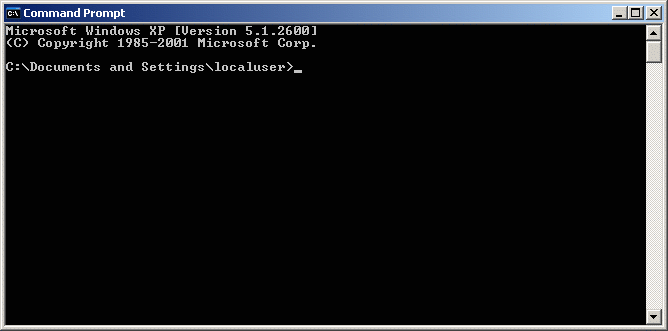
Put in CMD and press OK. The command prompt window will open up:
Step One:  Windows Vista/Windows 7

Open the Start menu () and type in CMD:

Right click on it and select Run as Administrator:

Step Two

In your open Command Prompt window, enter the following:

netstat -b 5 > activity.txt

and hit enter. (Note: to paste something into Command Prompt, you’ll need to right click and click paste.)

If you forgot to run the prompt as an administrator (like I did in the screenshots above), just redo step one  You can tell when it’s running as administrator because instead of saying C:\Users\Username it says C:\Windows\system32.

If you’ve pasted the code right, a blinking cursor will… blink.

After a few minutes, press Ctrl+C. That’ll stop the command.

Now type in activity.txt to open the log:

When you press Enter, your default text editor-probably Notepad-will open:

Now, scroll through the lists.  You’ll see that it’s mostly your browser-but some times, there are programs like Google Talk’s webcam program installed that call home even when you aren’t using them.

Now that you’ve found any and all culprits that are programs accessing the internet (with and without your knowledge), you can either close them from the Task Manager or even uninstall them.

UPDATE:
I’ve made a short (1 minute) video on doing this.

UPDATE 2: Clarified the Windows XP instructions.

[[Via Lifehacker via Cogizio]]

This article was written by Locutus on his tech blog Cogizio. You can read the original article here.

Creative Commons License photo credit: balloon tiers

41 Comments »

  1. Emrys May 22, 2010 at 12:20 PM (comment permalink) -

    I’m on XP. I followed the directions and I saw a bunch of stuff come up and the window closed. W the Frack? Is there something going on here?

    1
  2. Locutus May 22, 2010 at 12:30 PM (comment permalink) -

    @Emrys: That sounds more like a mistake I made in typing the instructions. Hang on, let me boot my XP box.

    2
  3. JohnD May 22, 2010 at 12:41 PM (comment permalink) -

    Worked great for me on Win 7 and I copied and pasted your commands :)
    I have this umm, concern that applications are using the svchost process (Process Explorer will delve into svchost processesI know, but not historically to my knowledge) to communicate out, bypassing my software firewall.  This netstat command would be nice to have run at startup to see all of the communiques that go on during the boot process.  I wonder how that could be accomplished?
    Good job.

    3
  4. Locutus May 22, 2010 at 12:50 PM (comment permalink) -

    @JohnD: Unfortunately I don’t know of any way to see what programs are using the internet during boot, sorry.

    @Emrys: I’m having problems with the XP computer, hang on.

    4
  5. alan May 22, 2010 at 12:52 PM (comment permalink) -

    No mistaken typo – it worked for me.
    A very informative article
    I am 100% sure I do not need this myself because Comodo blocks any outgoing data which I have not initiated.  But 101% is even better so I have pasted into my login start-up the command
    netstat -b 5 > activity.txt
    Tomorrow we will see if anything naughty phones home during the start-up chaos.
    A quick test now.  I see tons of stuff over a 2 minute period, but as expected it is all classified as either
    ESTABLISHED  PID  2616 [Firefox] – which is still running, or
    TIME_WAIT  PID 0 with no name, but Windows Task manager calls it System Idle Process.
    Nothing naughty in two minutes on my system.
     

    5
  6. Gil May 22, 2010 at 12:54 PM (comment permalink) -

    I’m running XP and didn’t have that problem, but the instructions may have been fixed. This is nice to know Locutus and you mentioned to end the task or uninstall the program. I don’t want to have end the task every time I boot up my computer and I don’t want to uninstall the program. Is there someplace to stop the program from starting up (it’s not listed in my startup folders).

    Also, what’s the policy for sharing articles like this with other groups. What I’d do is explain a little of what the article is about and provide a direct link to the page. That way, dotTech, authors, etc get their due credit.

    Thanks.

    6
  7. Locutus May 22, 2010 at 12:56 PM (comment permalink) -

    @alan: Glad to hear it worked out for you!
    @JohnD: I guess you could add it to startup like alan, but it’l only show things that happen after it starts up too.

    7
  8. Locutus May 22, 2010 at 1:19 PM (comment permalink) -

    @Gil: There are ways-easy ways-but due to having to leave in about 30 seconds,  can’t share them right now. Maybe when I get back?

    Also, “To summarize, you are allowed to reprint dotTech.org owned content if the content is used for a noncommercial purpose and you provide attribution to dotTech.org in a clear and proper manner; for more detailed information please check out CreativeCommons.org.”

    8
  9. OldElmerFudd May 22, 2010 at 1:25 PM (comment permalink) -

    This is a nice CLI tool that I started using with Windows XP. It’s a good idea to let the command prompt run for a couple of minutes to get all the information properly. Usually, the text document you create will contain the usual suspects (bg), your browser, AV, email client, whatever web-based apps – Dropbox, for instance – you have open. There’s likely to be a group of listings that look less familiar. In those instances where you’re not sure what something is, copy and paste into a browser search to find out. On this box, nuq04s01-in-f191.1e100.net is Google.com. 174.36.30.18-static.reverse.softlayer.com is Dropbox’s server, and so on.

    9
  10. haakon May 22, 2010 at 1:33 PM (comment permalink) -

    Great article- and thanks a lot!!!
    ————–
     ”Gil”: I do not know if this freebie is still there to have.
    http://dottech.org/headline/7292#
    I DID use the CMD and found lots of “connections” I did not recognize.
    THEN I remebered I had the Anvir app and use THAT instead.
    More or less detailed descriptions of what the “connecting” apps was and more. Also very easy to disable or remove them.
    I have more often than not removed ….”too much”  :-)
    The Anvir IS a great help when you dont know what to do 

    10
  11. ha14 May 22, 2010 at 1:37 PM (comment permalink) -

    Hi, Thanks for this review I read similar article on
    http://www.techishare.com/blog/softwares/whats-my-computer-doing/
    I used it to find it worms were connection to internet and sending infos without my knowledge.

    11
  12. alan May 22, 2010 at 1:42 PM (comment permalink) -

    @John
    I already have a script which runs at start-up following my password.
    It can also be accessed via
    Start / All Programs / Startup / Mystart.BAT
    I used that access route and right click to edit the script and add the magic bit.
     
    Please try “Netstat /?”
    That describes many options, and suggests to me that if svchost should be identified as a culprit, then Netstat will also show what asked svchost to do that.
    Finally, nothing will go out during the boot process if you are not connected to the internet – e.g. if you have dial-up modem which does not issue the password till you log in.  If however you have an “always on” broadband connection there could be a few dangerous seconds.
    I do not worry about my dangerous seconds because I am confident that Comoodo will block svchost unless it is working for an approved executable.

    At 19:52:19 “C:pagefile.sys” had a modified time-stamp as XP came out of BIOS
    At 19:52:32 the event log shows I submitted my password for log-on.
    I admit 13 seconds is an unlucky number, but I will keep my fingers crossed ! !
    I think if something bad happened in that 13 seconds I would be more concerned that a Rootkit had seized control.
     
    This seems to be the most popular article I have ever seen.
    I started this after seeing post 6 – now it is post 11 and advancing.


    12
  13. Marco May 22, 2010 at 2:21 PM (comment permalink) -

    I checked just for fun and found Chrome and Avast and that’s ok but I also found O&O Clever Cache files (ooccctrl.exe and ooccag.exe) that seem to be phoning quite often, I don’t know where? Why would a memory & cache optimization software need to access the Network so often????

    13
  14. Locutus May 22, 2010 at 4:18 PM (comment permalink) -

    @OldElmerFudd: Nice!  Say, how do you trace those back?

    @Marco: Where does it say that they are going (the “foreign address” column”)?

    14
  15. chinaguy May 22, 2010 at 4:42 PM (comment permalink) -

     @Emrys: I think your problem Emrys was that you did not paste the command into the command prompt but into the run box instead. Be sure you follow the instructions above to the letter including typing cmd into the run box and hitting enter. Do not paste the command: netstat -b 5 > activity.txt into the run box as that will result in the command running and then the command prompt promptly exiting after it has run. I have made the same mistake before. There was no mistake in the instructions but they need to be followed to the letter. If it doesn’t work after you try this post back and we, probably others who are better with computers than me, will help you.
    @Locutus: You did not make a mistake. The instructions were correct but Emrys just missed a step in the instructions. I have made the same mistake before. Very easy to do. When command prompt runs and then shuts down without letting you see what is going on it is usually because the command to be run was put into the run box not the command prompt. I will try it on the xp machine but am pretty sure that you made no errors.

    15
  16. chinaguy May 22, 2010 at 4:49 PM (comment permalink) -

    An update: I ran the command from the run box and it did result in what happened to Emrys. The command prompt showed up, showed a whole bunch of stuff that nobody could possibly read because of the short duration it was open and then shut down almost instantaneously. If that is what happened to you Emrys, it seems to be from your description above, then just be sure you run the command prompt and then paste in the instructions Locutus gave rather than pasting them into the run box. That is the only way this will work.

    16
  17. jumbi May 22, 2010 at 5:24 PM (comment permalink) -

    very good article!
    a nice firewall would easily help doing that, but great when you need to check that without installing other software.

    17
  18. Locutus May 22, 2010 at 5:28 PM (comment permalink) -

    @chinaguy: Thanks for that. I’ve updated the article!

    @jumbi: This is great especially for people who use Windows Firewall (it’s fine, people, it’s fine.) like me!

    18
  19. Doru May 22, 2010 at 9:43 PM (comment permalink) -

    In general are:browsers,antivirus and programs who use your webcam like:Skype,messenger.Also Google Talk .But all this programs are open when you open computer.I think that this is normal.If you afraid for example that Skype will record your camera,without your approval,rotate your webcam on the wall when you not use it and you solve the problem.Google Talk-what can do against my persson?I’m not a terrorist,i’m not a thief or burglar ,anarchist or criminal.So i don’t care.

    19
  20. Locutus May 22, 2010 at 10:01 PM (comment permalink) -

    @Doru: Well this is also good for seeing if that new program you’re trying out “AntiSoft GetRiddaBadware” is phoning home.

    20
  21. OldElmerFudd May 22, 2010 at 10:42 PM (comment permalink) -

    @Locutus: I take the activity text file and and highlight part of an unfamiliar line, such as: “TCP    xxxxxx-a9f6040:2619   174.36.30.18-static.reverse.softlayer.com:http  ESTABLISHED     636″  (x’s replace identifier)
     
    A little digging with a whois search took me through enough twists to find that Dropbox uses Softlayer’s servers. Google was a simple whois lookup using the nuq04s01-in-f191.1e100.net section of the line.
     

    21
  22. OldElmerFudd May 22, 2010 at 10:49 PM (comment permalink) -

    @Locutus: Just to add, I use Online Armor Pro on all my machines. I have to give permission for applications I install to call out. Processes like svchost.exe haven’t shown up in any of my activity reports.

    22
  23. alan May 23, 2010 at 1:32 AM (comment permalink) -

    Nothing happened in first two minutes after I logged in -
    except my start-up script did not continue with its activities until netstat received the Ctrl’C  to terminate.
    I am now creating a seperate script to simultaneously launch at from the startup folder.  This will hold the single line
    netstat -b 5 > activity.txt.
     

    23
  24. Locutus May 23, 2010 at 1:52 AM (comment permalink) -

    @alan: Keep me updated!  Sounds like a great startup routine.

    24
  25. jevvv May 23, 2010 at 2:39 AM (comment permalink) -

    Some of the progs are ones that start automatically on startup.
     
    To stop those you can run msconfig (Win98, XP and Vista) choose the Startup tab, then look down the list of which items are checked to load on startup.  If you are unsure then look them up online.
    If there is something you don’t want to load on startup then uncheck it, click the apply button, then ok.   (make sure it is something ok to not load!)
    Now restart your computer and they will no longer load on startup.

    25

Leave A Response »