Are applications contacting home? See what programs are using the internet without your knowledge
May 9, 2011 41
Email article | Print article
What’s that program you have running that’s accessing the internet? You don’t know? Find out using a simple command prompt command. It’s important to know what your programs are doing at any one time. You should have full control over what does and doesn’t use your connection, whether you’re at home or running on an O2 UK 3G dongle. This is a simple and effective process that allows for the monitoring of your system. Just follow the instructions and you’ll remain well-informed.
more–>
Step One: Windows XP
Open up the Run box by pressing the Windows key and R at the same time.
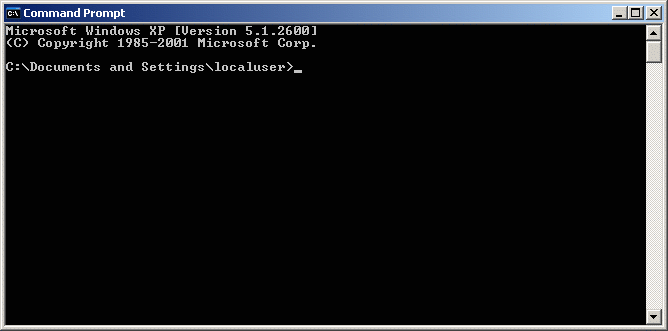
Put in CMD and press OK. The command prompt window will open up:
Step One: Windows Vista/Windows 7
Open the Start menu (
) and type in CMD:
Right click on it and select Run as Administrator:
Step Two
In your open Command Prompt window, enter the following:
netstat -b 5 > activity.txt
and hit enter. (Note: to paste something into Command Prompt, you’ll need to right click and click paste.)
If you forgot to run the prompt as an administrator (like I did in the screenshots above), just redo step one You can tell when it’s running as administrator because instead of saying C:\Users\Username it says C:\Windows\system32.
If you’ve pasted the code right, a blinking cursor will… blink.
After a few minutes, press Ctrl+C. That’ll stop the command.
Now type in activity.txt to open the log:
When you press Enter, your default text editor-probably Notepad-will open:
Now, scroll through the lists. You’ll see that it’s mostly your browser-but some times, there are programs like Google Talk’s webcam program installed that call home even when you aren’t using them.
Now that you’ve found any and all culprits that are programs accessing the internet (with and without your knowledge), you can either close them from the Task Manager or even uninstall them.
UPDATE:
I’ve made a short (1 minute) video on doing this.
UPDATE 2: Clarified the Windows XP instructions.
[[Via Lifehacker via Cogizio]]
This article was written by Locutus on his tech blog Cogizio. You can read the original article here.
photo credit: balloon tiers


I am a bit tied up at the moment.
Someone running one of my Data Base programs, has switched to Windows 7 (New PC), and is trying to use that instead of a server. So I am experimenting, and debugging.
I took time out, to have a quick check of the NirSoft web site, in case he had a GUI program for monitoring the internet.
My browse of his site did not appear to have exactly what we want.
However I came across this web page, where someone was seeking a program (see who is calling home).
http://ask-leo.com/how_can_i_tell_what_internet_activity_is_happening_on_my_machine.html
The author mentions use of a NirSoft program, and another program.
Also there are 53 comments, that I have not read yet.
Perhaps someone may care to study the page in more detail, and also check if one of the 53 comments, points us to something simple, and effective.
Rob
Some listed items are as mysterious as the hundreds of CLSID/892598319…. entries that appear in registry cleaners. Without knowledge/research/time/courage, it could be more dangerous to tinker with it than leaving the listed items intact. Will be so good if people could write programs that not only report these things, but also, at least, point you in the right direction to find out what the entries mean. Without that, it’s too daunting for John Does like me. Thank you to those who added some insight with their comments!
http://www.chip.de/downloads/Vollversion-jv16-PowerTools-2009_42960945.html
Click on Zum download and next.Download will have program and license.Instal program .After that,click right on license and make to open only with Jv 16(exe) who is install in Program files….Next open the program and go to:Help>Licence information>Install new license and select file:license.Next close and close the program.Open again and will be registered.If you don’t know how to download go to:Techno360.
Glad to help Locutus. Goodness knows I get enough help from you guys. Nice to be able to give a little back.
I have been through the 53 comments on that link I posted. Not much Joy there.
What I would like (and perhaps Josh ?), is a nice simple program, which monitors your outgoing Internet traffic, and pops up, when there is out going traffic.
And so that we are not overwhelmed with a plethora of detail, there be two options -
- Hide all safe traffic (Stuff the Developer knows is usual)
- When some traffic appears, it can be told – ‘Never show that one again’
Surely, someone has developed that ?
@RobCr: This may not be what you want, and unfortunately, it’s not free, but I use BWMeter http://www.desksoft.com/BWMeter.htm
It has a very simple firewall that asks for permission when something wants internet access, and doesn’t bug you about again, unless you remove that program from the Forbid/Allow lists.
@RobCr
Comodo Security is free and does what you want, and then some.
I use it for all my security needs.
I swear by it.
My son used to swear at it, because every time he ran a new application that wanted the Internet it would pause the connection until the user decided to Block or Permit. It also had a check box to remember (or not) this decision for any further attempt.
It is more docile now with WhiteLists
They have an active user forum at
http://forums.comodo.com/comodo-internet-security-cis-b125.0/
@RobCr: I ran across this a couple of years ago. I don’t use it often – only five machines in my network – but it has quite a bit going for it. I use the free version (bottom of the page), and don’t recall a “pop-up” feature. Maybe the Pro version will do all you want. Take a look; it might work for you.
http://www.netlimiter.com/download.php
hth
@Locutus: @alan: @all – Thanks for the comments and advice. I particularly like the term “startup chaos” that alan used as this is the period that I am concerned about. I am not worried about the time after the software firewall kicks in, (I am currently using Online Armor but have used Comodo and Look & Stop in the recent past), but that period of seconds when the router lite shows a connection and the OS software gets started up and my protection programs are running. A lot can happen in these seconds in computer time. I key in on svchost because it will usually have unlimited access to the internet and so Many things use it for various purposes. Ports 80 and 8080 are another open avenue. I very seldom use IE, but CCleaner always finds cookies and such from IE, most I understand as programs like SuperAntiSpyware will use IE subliminally to do update checks but there is also usually a IE cookie for john@msn that I don’t particularly like to see. I suppose the only true way to do this type of monitoring would be a hardware packet sniffer between the router and the computer, but that would be a little bit over the top for a home PC. This is a good topic, as we move so many of aspects of our personal lives onto the computer, such as financials, I would really like to know who is taking a “peek” at my PC and why.
An apt headline from a Computerworld article today:
“MSRT has scrubbed mutating Alureon rootkit from more than 360,000 Windows-based PCs since May 11″
Don’t forget the shortcut to start CMD as Admin
Ctrl+Shift+Enter
Thank you Locutus for this information !
Now I will be able to know if “ET wants to phone home” ! :-)
@Locutus:
Last week 10% or 20% of the sites I went to were not there.
After my post on 23rd I found 70% were there with a following wind after several attempts
There were no 404 error messages – the DNS just failed to resolve names into IP addresses.
I vaguely remembered forthcoming DNS doom, and eventually found
“DNSSEC unlikely to break Internet on May 5″ – an article on
http://blogs.techrepublic.com.com/itdojo/?p=1713
Desperation, I unchecked the option to use the DNS provided by my ISP, and went elsewhere – and every site was back with me within a couple of minutes.
That I call A RESULT.
Pity it took me a couple of days to eventually get there.
I am now back, and can advise that THIS is the script to do the job.
I call the script NetStats.BAT
It holds a single line command, which is :-
start “USE Ctrl’C to terminate NETSTAT Logging and close this Window” cmd /c netstat -b 5 ^>activity.txt
You can use Windows Explorer to select that script, and drag/drop a short-cut link to
C:Documents and SettingsAll UsersStart MenuProgramsStartup
That will launch a CMD that rapidly disappears as it launches another CMD which runs netstat.exe and logs into activity.txt in the same folder as the script. This second CMD window reminds you to use Ctrl’C to terminate logging and close the Window. You can minimize the window to the task bar and it will continue logging until you bring it back to focus.
The official way to terminate is via use of Ctrl’C when focus is on its Window. Simply / accidentally closing the window by clicking the tiny X in the top right corner also seems to work for me -
but timing is everything.
I am filled with dread by the thought of killing the netstat.exe process whilst it is halfway through appending the next line of text to Activity.txt. This could corrupt / muddle the last few records in Activity.txt. It may well cause more Lost Clusters.
I remember Windows 98 refused to shutdown until I pulled the plug, and every morning it would blame me for not shutting down “PROPERLY”, and would tell me how many disc clusters I had lost ! !
Windows XP does not APPEAR to fall apart so badly, until you run CHKDSK ! !
Conclusion – Use Ctrl’C – anything else can injure your computer’s health
Or use Process Hacker and look at the Network Tab.
Or use System Explorer and look under Connections.
Both work and are far easier for the average user. Enjoy.
One wonders if #19 uses postcards for all his communication. Perhaps the reason to use security is the same reason that they invented envelopes.
There are too many free programs that do this.