
 Email article
Advertisements are a critical source of revenue keeping dotTech afloat (same goes for most other websites). I greatly appreciate anyone and everyone that does not block ads on dotTech and our sister site, SharewareOnSale. However, I do not hold a grudge with anyone that does block ads because I understand advertisements can be very annoying (especially Flash ads); and, I feel everyone should at least have the knowledge of how to block ads so it is by choice when (if) they decide to not block ads as opposed to by helplessness. After all, education is the key to making an informed decision. (Okay, that was a lame dialog.)
There are many dotTechies who are OK with advertisements; but there are also others that are not. Out of those that dislike ads, there are some that block ads and there are some that would like to block ads but don’t know how. This article aims to help that latter group.
This article will show you how to block ads on the four major browsers used by Windows XP, Vista, 7, and 8, Mac OS X, and Linux users: Firefox, Internet Explorer, Chrome, and Opera. Read on to learn more.
Table of Contents
System-wide Ad-blocking
Before we get into telling you how to block ads on Firefox, Internet Explorer, Chrome, or Opera, I want to point out two methods you can use to block all ads on your computer regardless of which program or browser the ads are shown in. In other words, the following two methods will block ads on every browser you use and other programs too, like instant messengers, torrent software, etc.
If you use any of the two system-wide ad-blocking methods mentioned below, you do not need to download any browser add-on or browser specific method to block ads (e.g. if you download AdFender or HostsMan, you don’t need AdBlock Plus).
AdFender
AdFender is an ad-blocking program that works independent of web browsers; it installs as a Windows program and not a browser add-on/extension and it blocks ads on all your browsers, system-wide. As such, you can use AdFender to block ads on Firefox, Internet Explorer (including the latest v11 of IE), Chrome, Opera, or any other web browser you use; it also blocks ads on instant messaging programs and torrent software. All you have to do is download and install AdFender, and it is good to go — it will automatically block ads on Internet Explorer (and your other browsers). Click here to learn more about AdFender and read our full review.
HostsMan
HostsMan is not an ad-blocking program; it is a program that allows you to modify your Windows computer’s HOSTS file. However, you can use HostsMan to block ads because you can use it to block connections to ad networks vis-a-vis the HOSTS file. The process is actually quite a bit easier than it sounds — you only have to click a few buttons — and it is very effective: it blocks ads on every browser or program on your computer. Click here to learn more about HostsMan and read our full review.
How to block ads on Firefox
Without a doubt Firefox is the easiest browser to block ads in because of its extensive add-ons support. In fact, while I don’t know if Firefox was the first browser to support adblockers, I do know Firefox is what made adblocking popular.
If you are a Firefox user and you want to block ads, look no further than AdBlock Plus. AdBlock Plus is a no-hassle, install-and-go adblocker add-on for Firefox. Really the only sort of “setup” you need to do with AdBlock Plus is select the adblocking filter you want to use:

These filters are, more or less, a definitions list telling AdBlock Plus which ads to block (similar to how there are virus definitions for anti-virus programs). You need to select one of the filters to use; unless you know what you are doing, just leave it at “EasyList” and click “Add subscription”. After the initial installation you can select to use more than one filter (“Tools” -> “AdBlock Plus Preferences…” -> “Filters” -> “Add Filter Subscription…”) but in all honesty one filter is more than enough to block 99.5% of ads. (Do note, though, if you visit non-English websites frequently, you may want to use a second non-English filter to block ads on non-English websites.)
Although AdBlock Plus blocks most ads on its own, if AdBlock Plus ever misses an ad you can right-click on the ad and select “AdBlock Plus: Block image”; this will allow you to create a custom filter blocking that ad and ads similar to it:
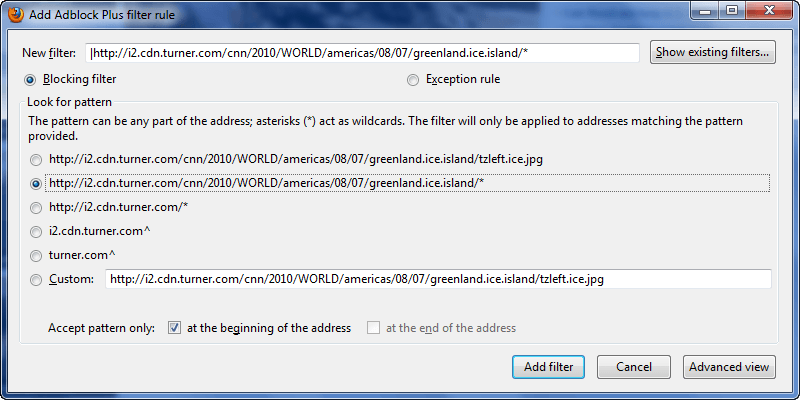
If AdBlock Plus misses a Flash or Java ad, a little “Block” tab will pop up above it allowing you to block it manually (since you can’t right-click on those types of ads).
Other useful features of AdBlock Plus are
- The ability to disable AdBlock Plus on specific websites (i.e. allow ads to some on a website *cough* dotTech *cough*). This can be done via the AdBlock Plus button:

- Adblocking is not a perfect science; there will be false positives (i.e. AdBlock Plus blocks an image or element which isn’t an ad). AdBlock Plus makes it fairly easy to unblock images/elements when these false positives do occur. This can be done by clicking the AdBlock Plus button, right-clicking the false positive, and disabling the corresponding filter:

Many people decide to use NoScript (an add-on that blocks scripts – like JavaScript – from running) instead of AdBlock Plus for their ad blocking needs (most ads are served using JavaScript, so when NoScript blocks JavaScript the ads do not appear). Yes NoScript is a terrific add-on, and yes it will make your browser safer and faster. However, I personally dislike NoScript.
NoScript is something that discourages the use of browsing technologies like JavaScript. Can JavaScript be used to exploit people’s computers? Yes. How many websites that run JavaScript do this? Maybe .01%? The point is we should not be discouraging the use of these website technologies – we should be embracing them (unless everyone wants the plain HTML websites back) – just because a few punks decide to exploit that technology. Do we stop downloading programs just because some programs are malicious? Of course not! Rather, we are just careful about what programs we download. Similarly, there is no need to block scripts if you are just careful of where you visit (and if you have security software installed), just like if you are careful of what you download.
Of course NoScript does allow users to enable scripts on “trusted” websites, but knowing when to enable scripts takes the eye of a tech-savvy person. The average user will be severely deprived of the wonders of the Internet after installing NoScript. (For example, dotTech uses JavaScript for the scroll “Old But Still Gold” on the main page; dotTech’s search cannot be used until scripts are enabled.)
I highly recommend AdBlock Plus over NoScript for ad blocking needs.
UPDATE: In a recent update to the add-on, AdBlock Plus has introduced “acceptable ads” feature which allows some ads to show in your browser. If you don’t want these “acceptable ads”, you can disable the feature. Click here to learn how to disable acceptable ads on AdBlock Plus.
How to block ads on Internet Explorer
Blocking ads on Internet Explorer used to be more complicated than Firefox… but now it is just as easy. Nonetheless, I will provide multiple different methods on blocking ads in Internet Explorer – you decide which one is best for you. (Or, alternatively, you can switch to a real browser. =P)
AdBlock Plus
AdBlock Plus, the famous ad-blocking add-on for Firefox, has now been officially ported to Internet Explorer. Like AdBlock Plus on Firefox, AdBlock Plus on Internet Explorer is easy-to-install and just works — it starts blocking ads from the get-go without you needing to setup anything. In other words, simply install it and go.
Also be sure to read dotTech’s article on what AdBlock Plus’ ‘Acceptable Ads’ are and how to turn them off.
Use InPrivate Browsing Filtering Capabilities
Internet Explorer’s InPrivate Browsing – the mode that makes sure no browsing data is stored on your computer – has a feature that allows users to filter content. This filter can be used to block ads. A user on DSLReports forum created an XML file out of AdBlock Plus’s list of ads to block and this XML file can be imported into InPrivate Browsing’s content filter:
- Download the XML file. (Unzip it after downloading.)
- Go to “Safety” -> “InPrivate Filtering Settings” and click on “Advanced Settings”:
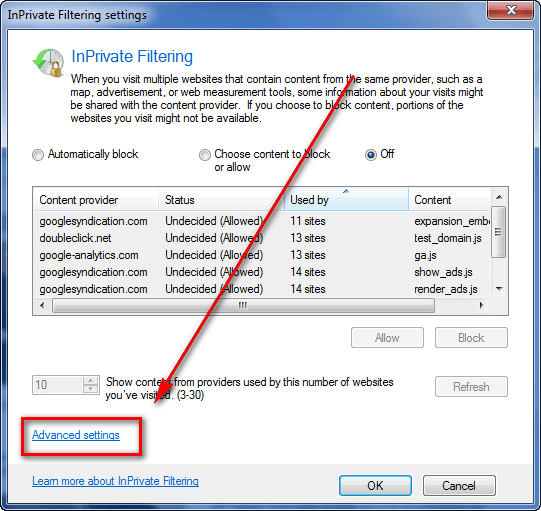
- At the “Advanced settings” window click in “Import” and import the XML file you downloaded:

The great thing about using this filter is
- It uses AdBlock Plus’s filter list so you will be blocking most all ads.
- You do not have to be in InPrivate Browsing mode for the ads to be blocked. Ads will be blocked like normal as long as you have “InPrivate Filtering” enabled (“Safety” -> “InPrivate Filtering”).
The thing about “InPrivate Filtering” is you must manually turn it on every time you run Internet Explorer. If you find that annoying, a simple registry hack makes “InPrivate Filtering” automatically turn on every time you run Internet Explorer. To do this registry hack
- Run regedit.
- Go to HKEY_CURRENT_USER\Software\Microsoft\Internet Explorer\Safety\PrivacIE
- Right-click, go to “New” -> “DWORD”:

- Name the new key StartMode:

- Right-click the key -> “Modify”. Make sure hexadecimal is selected, enter a 1 in the textbox and click OK:
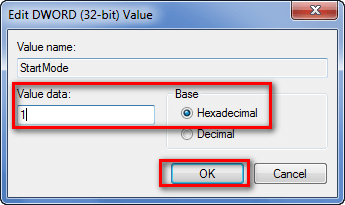
- Close regedit. Done! Now every time you run Internet Explorer “InPrivate Filtering” will be turned on and ads will be blocked.
Since this method uses InPrivate Browsing’s filter, there is no need to download any plugins. The downside, however, is
- The XML file from the DSLReports user is an year old (i.e. AdBlock Plus’ filters have been updated since then) so the list does not include the latest ad servers in it (although it still allows you to block most ads you will come across)
- You cannot exclude specific websites from the filter (i.e. you can’t make it so dotTech ads are not blocked)
- It is hard to pinpoint and remove false positives.
IE7Pro
Updated February 25, 2012: IE7Pro seems to have stalled in development. It was last updated in June 2010. I’d suggest looking at the AdFender method mentioned above to block ads in IE since IE7Pro is no longer being actively developed.
IE7Pro is a plugin for Internet Explorer (works on IE 6/7/8 – not just IE 7) that adds a boatload of useful features to Internet Explorer. One of the features IE7Pro adds is an adblocker. This adblocker, however, is not enabled by default after installing IE7Pro – users have to manually enable it after installation. (Be warned during the installation of IE7Pro you are prompted with – drum roll please – an ad for installing a third party program; don’t accidentally install that third party program if you don’t want it.):


After the adblocker module has been enabled, you still need to enable the Flash blocker (to block Flash ads). To do this, go to “Preferences” again, click on “Ad Blocker” and enable Flash blocker:

You have the ability to modify filters, add your own filters, and whitelist websites.
Overall I found the ad blocking features of IE7Pro to be very poor; heck it wouldn’t even block Google AdSense ads…
Update February 26, 2012: Simple Adblock now has multiple editions, Free, Pro, and Enterprise. Free is limited to blocking 200 ad requests a day. Because of this limitation, I’d suggest using the the AdFender method mentioned above to block ads in IE since Simple Adblock is no longer free.
Simple Adblock is the closest IE users will be able to get to an AdBlock Plus-like plugin. Simple Adblock uses EasyList filters (the one from AdBlock Plus) to block ads so its accuracy in blocking ads is extremely good, although not as good as AdBlock Plus since AdBlock Plus allows for usage of multiple filters. Also, while Simple Adblock does allow users to disable Simple Adblock on a specific website, there is not much users can do to block individual ads or unblock individual ads. Simple Adblock does allow users to customize the filters list, but again, that is is a hassle because users have to modify files located in Simple Adblock’s installation folder.
On the brightside, Simple Adblock is very easy to setup, requiring only two inputs from the user after installation:

After installation Simple Adblock is accessible via an icon placed in Internet Explorer’s bottom bar:

As I said, Simple Adblock is the closest free plugin Internet Explorer users will get to AdBlock Plus; a word of caution about Simple Adblock though. You should always only install plugins/add-ons/extensions from trusted sources because otherwise you could be installing a browser exploit without knowing it. Simple Adblock is not that well known (thus not fully vetted by the Internet Explorer community) and the developer does not provide any information about him/herself. I am not saying Simple Adblock is a malicious plugin (SiteAdvisor says it is clean, Download.com says it is clean, and I scanned it personally and it came out to be clean); I am saying be cautious.
How to block ads on Chrome
AdBlock Plus
AdBlock Plus, the famous ad-blocking add-on for Firefox, has now been officially ported to Chrome. Like AdBlock Plus on Firefox, AdBlock Plus on Chrome is easy-to-install and just works — it starts blocking ads from the get-go without you needing to setup anything. In other words, simply install it and go.
Also be sure to read dotTech’s article on what AdBlock Plus’ ‘Acceptable Ads’ are and how to turn them off.
AdBlock For Chrome
Blocking ads in Chrome is just as easy as blocking ads in Firefox. AdBlock for Chrome does what AdBlock Plus does for Firefox. In fact, AdBlock is easier to setup than AdBlock Plus; with AdBlock you do not need to select which filter’s list to subscribe to – AdBlock automatically uses AdBlock’s own filters and AdBlock Plus’ EasyList. So, to use AdBlock all you need to do is install it – it will start blocking ads instantly requiring little to no assistance from you.
Most other features present in AdBlock Plus are in AdBlock:
- Users can exclude sites from being blocked (press Ctrl + Shift + L when surfing the website you want to exclude):

- Users can manually block an ad AdBlock missed (press Ctrl + Shift + K when surfing the website with the ad you want to block):


- Users can manually change which filters are being used:
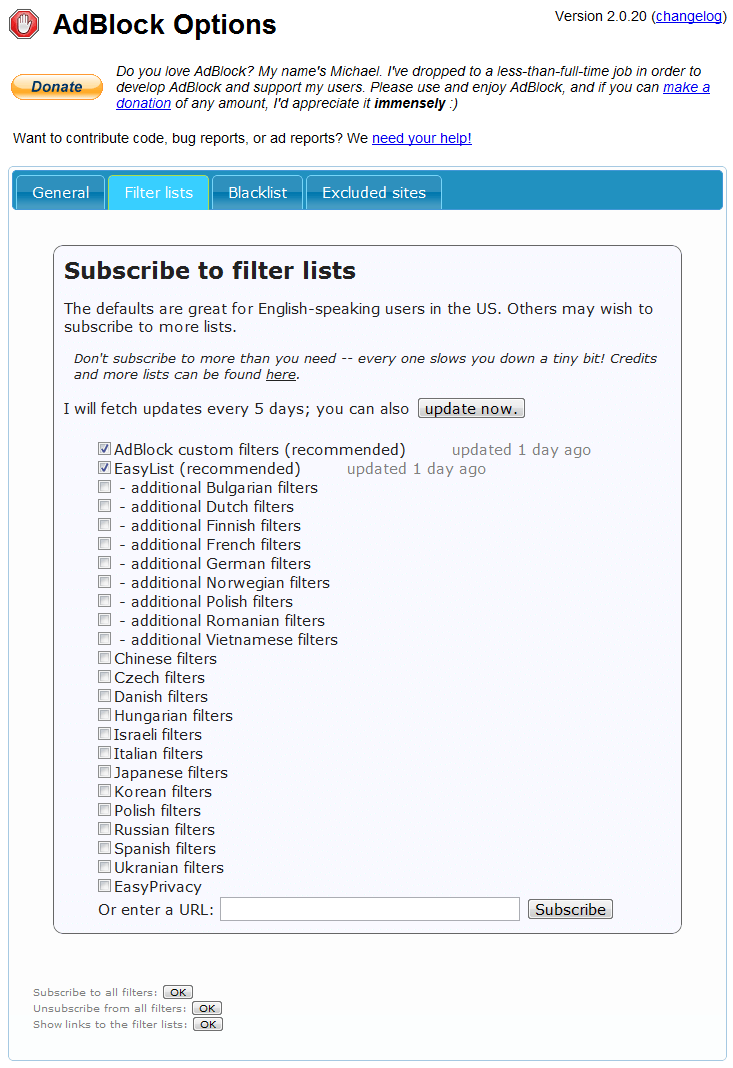
Unfortunately AdBlock does not have an easy way to remove false positives like AdBlock Plus does (as far as I can tell). Also, whereas AdBlock Plus fully stopped ads from being downloaded, because of the restrictions of Chrome, some ads are blocked by AdBlock after they have been downloaded as opposed to being blocked from being downloaded.
How to block ads on Opera
Historically, like Internet Explorer, blocking ads on Opera is a bit complicated because of Opera’s poor extendability. In the past the best way to block ads in Opera is an adblocking method using Opera’s built in content blocker (similar to IE’s InPrivate Filter) and an add-on to block Flash ads specifically. However, ever since Opera introduced extensions starting in Opera 11, third-party developers have started creating add-ons for Opera. One such add-on is Opera Adblock and the other is AdBlock Plus.
AdBlock Plus
AdBlock Plus, the famous ad-blocking add-on for Firefox, has now been officially ported to Opera. Like AdBlock Plus on Firefox, AdBlock Plus on Opera is easy-to-install and just works — it starts blocking ads from the get-go without you needing to setup anything. In other words, simply install it and go.
Also be sure to read dotTech’s article on what AdBlock Plus’ ‘Acceptable Ads’ are and how to turn them off.
Opera Adblock
Opera Adblock is an add-on for Opera that makes it extremely easy to block ads. Similar to Adblock Plus for Firefox and Adblock for Chrome, Opera Adblock utilizes ad filters to block ads, notably Fanboy and EasyList. The best part about Opera Adblock is it is extremely easy to setup and use. All you have to do is install Opera Adblock from Opera’s extensions website and you are good to go; Opera Adblock automatically starts blocking ads start installation, using Fanboy’s ad filter and CSS filter to block ads (Opera Adblock also blocks tracking websites and the annoying Facebook logins and buttons you see all over the Internet) — you don’t have to mess with any settings if you don’t want to.
If, however, you do feel inclined to customize Opera Adblock settings, from Opera Adblock’s Preferences you can…
- Customize what ad filters to use:

- Manually block specific websites and/or CSS elements:

- Add a button in Opera’s address bar to quickly enable/disable Opera Adblock:

- Control how often Opera Adblock looks for updates for the filters you are using, change which CSS element filter to use, enable/disable New York Times paywall and Facebook buttons/logins blocking, and enable/disable launch delay:
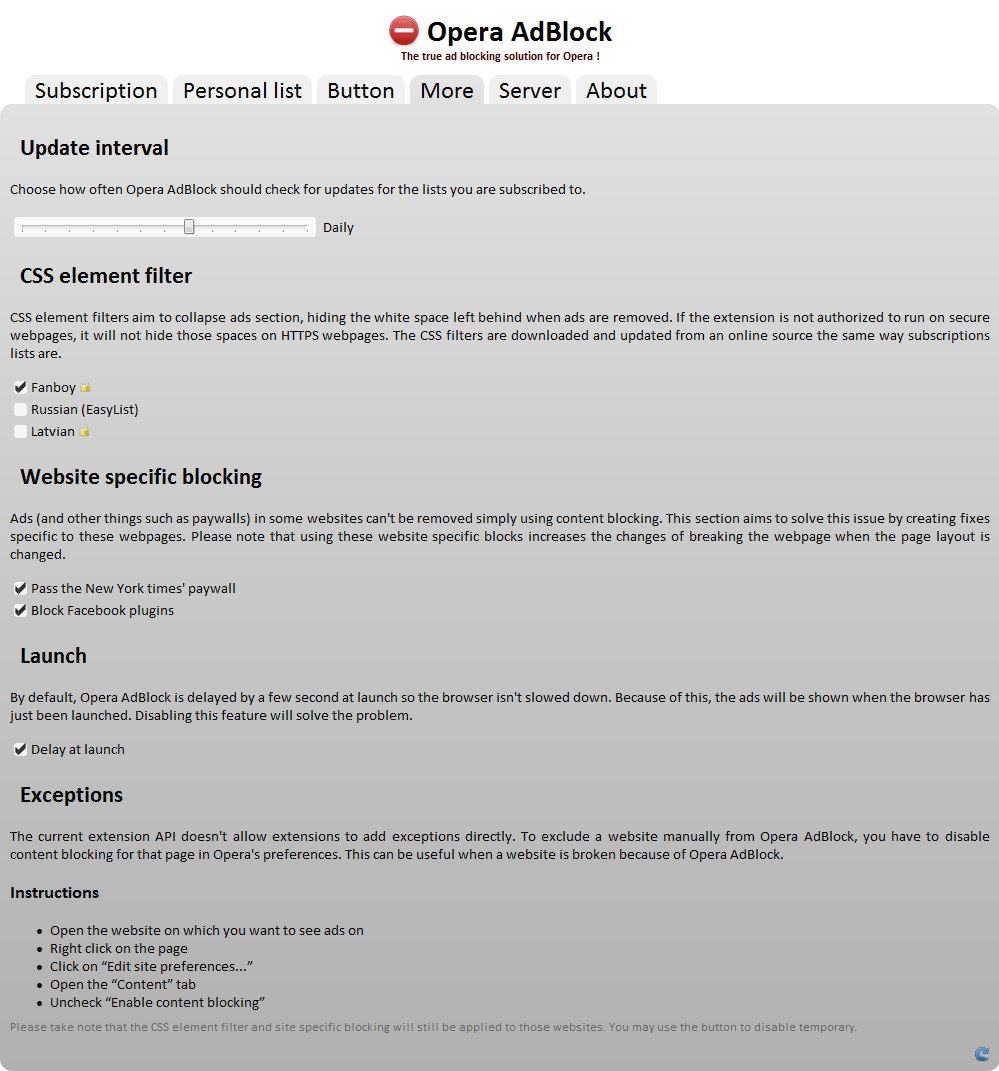
- Set Opera Adblock to automatically check for updates:
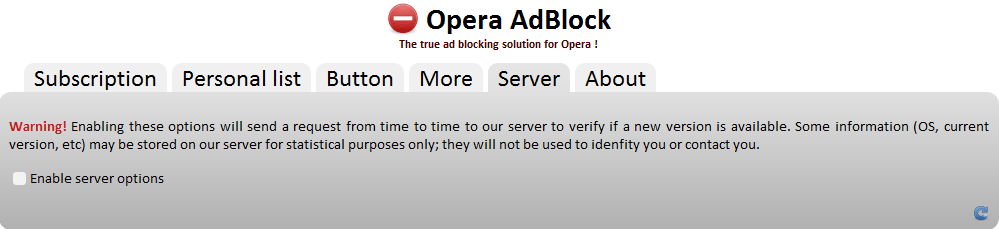
Really the only downside I can see to Opera Adblock is that it isn’t as easy to unblock ads on specific websites as it is for Adblock Plus for Firefox or Adblock for Chrome. If you want to unblock ads on a specific website with Opera Adblock:
- Right-click on the page you want to unblock ads on
- Select Edit Site Preferences…
- Go to the Content tab
- Uncheck Enable content blocking
You need to do this for every website you want to manually unblock ads and for some websites it still may not work in which case you would have to uncheck Enable plug-ins, too.
Final Words
There are multiple different ways to block ads on Firefox, Internet Explorer, Chrome, and Opera; instead of talking about all of them, I picked the best adblockers to recommend in this article. Everyone is, of course, welcome to share their opinions on which adblockers are the best (be sure to specify for which browser is the adblocker you are recommending).
Before blocking ads, always keep in mind you may be blocking the only source of revenue your favorite website has; lack of ad revenue can often times drive a website out of business, or force the website to put up a pay wall. That is not to say you are wrong or evil if you block ads (some ads, especially Flash ads, deserve to be blocked because they are so intrusive and annoying) but rather one should always consider the impact blocking ads will have on the website in question. That said, now everyone has the knowledge and tools needed to block advertisements. So, please share with us in the comments below: Do you, or will you, block ads?
Originally posted on August 8, 2010. Second Edition posted on Febuary 26, 2012 to update ad blocking procedures for Opera. Third Edition posted on December 31, 2013 to add new methods for blocking ads.




