
 Email article
Here on dotTech we have talked about virtualization technology plenty of times. However, all previous articles have discussed computer-level virtualization. In other words, they talked about virtual machines, how users can virtualize their computers, etc. What if a user wanted to use virtualization technology but on an applications-level as opposed to computer-level; where would the user turn to?
There is the mostly-defunct Altiris Software Virtualization Solution, which is still available for download for free but has been turned into Symantec Endpoint Virtualization Suite (a paid program) after Alitris Software got bought-out by Symantec Corporation (thanks Symantec). Or, there is VMware ThinApp which is clearly not intended for home-use considering you could buy a car in the money you would spend purchasing ThinApp. That then leaves us with Cameyo.
Cameyo is a fairly new program that allows users to easily virtualize at an application-level:
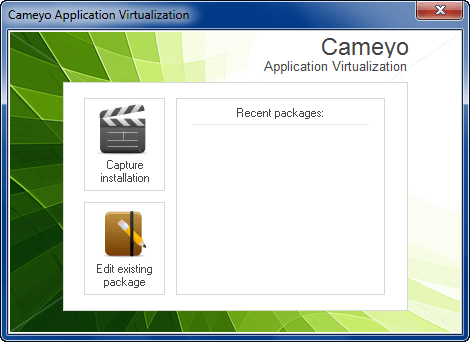
What do I mean “virtualize at an application-level”? To put it simply, Cameyo takes a program and condenses it down into one .EXE file. In other words, Cameyo allows users to make programs portable. (Of course a virtualized app is not the exact same as a natively portable app, but I think you get my point.)
Using Cameyo is very easy:
- Run Cameyo (after installing it) and click on “Capture installation”. Cameyo will take a “snapshot” of your computer:
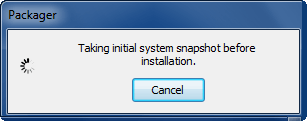
The time it takes to complete the snapshot varies on how powerful your computer is and how much hard drive space you are using. For what it is worth, it took around 2 minutes for the snapshot to complete for me.
- After the snapshot has completed, you will need to install the application you want to virtualize:
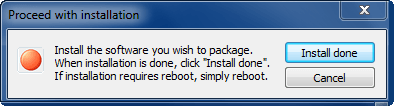
Install the program you want to virtualize and click “Install done” when the installation has finished.
- After installation has finished, you will need to wait while Cameyo takes another snapshot of your computer:
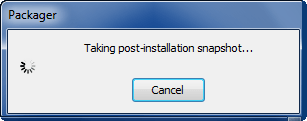
Like the initial snapshot, the time it takes to complete the snapshot varies on how powerful your computer is and how much hard drive space you are using. It took around 2 minutes for this post-installation snapshot to complete for me.
- After the post-installation snapshot, you will need to set the name of the package, where to save the package, and what is the “main executable” for the program you are trying to virtualize:
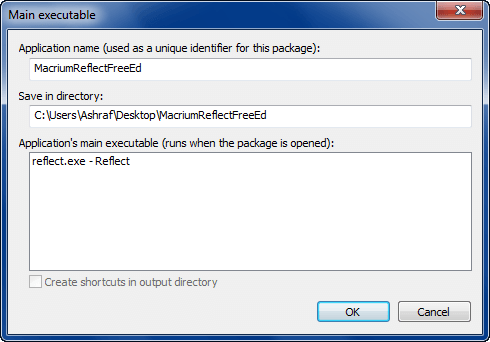
Take note you must select (left-click) an .EXE listed under “Application’s main executable” before you click “OK”. For the most part there should only be one .EXE listed there, but for some programs there may be multiple .EXEs (such as Paragon Software products which has its individual components broken down into individual .EXEs). In this case, either select the .EXE of a “launcher” (if applicable), or select multiple .EXEs as you see fit. (Yes, you can select multiple .EXEs.)
- Next, Cameyo will build the package…
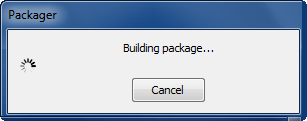
…and prompt you when everything has finished:
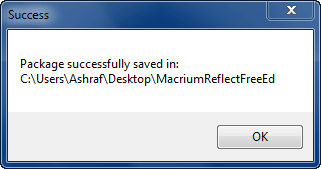
When everything has finished, go to the location where the package was saved and run the .EXE to launch your virtualized program:
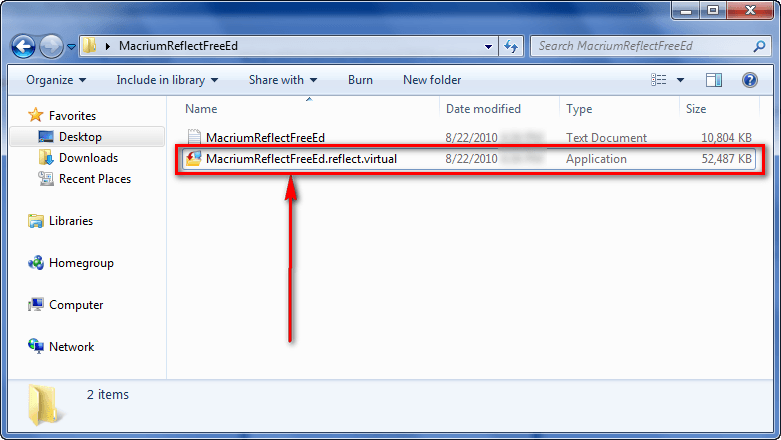
If you are looking to put this virtualized package on a portable device, such as a USB drive, simply copy the whole folder onto the device. There is no need to install Cameyo on every computer that you want to run your virtualized applications; just run the .EXE of the respective virtualized package and you are good to go.
Cameyo allows users to edit packages after they have been created, doing things like changing the name of the packages, changing the main executable, add/deleting files, and viewing registry entries. To do this, run Cameyo and either click on the package which you want to edit, or click on “Edit existing package” and load the package which you want to edit:

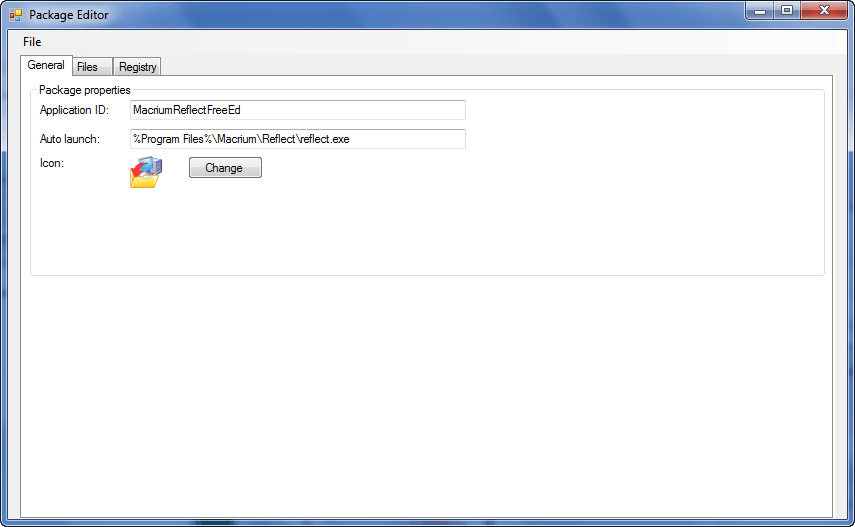
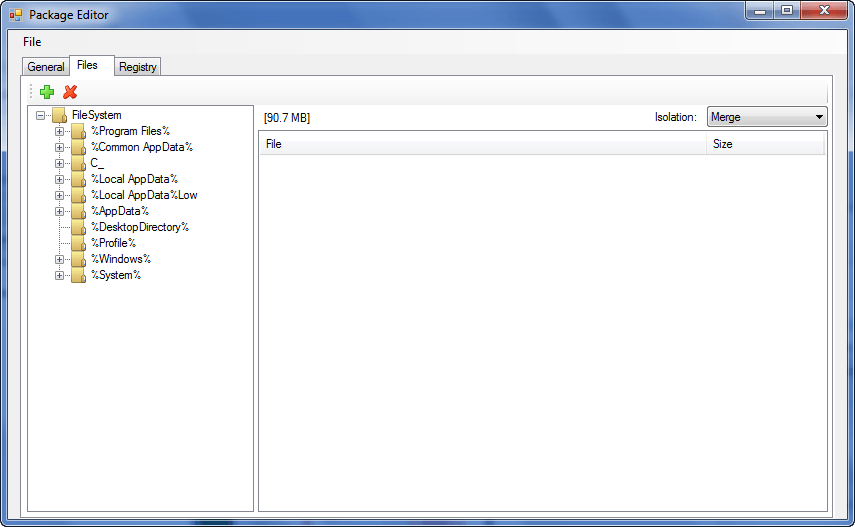
Be sure to save the package after you are done editing it (via the “File” menu).
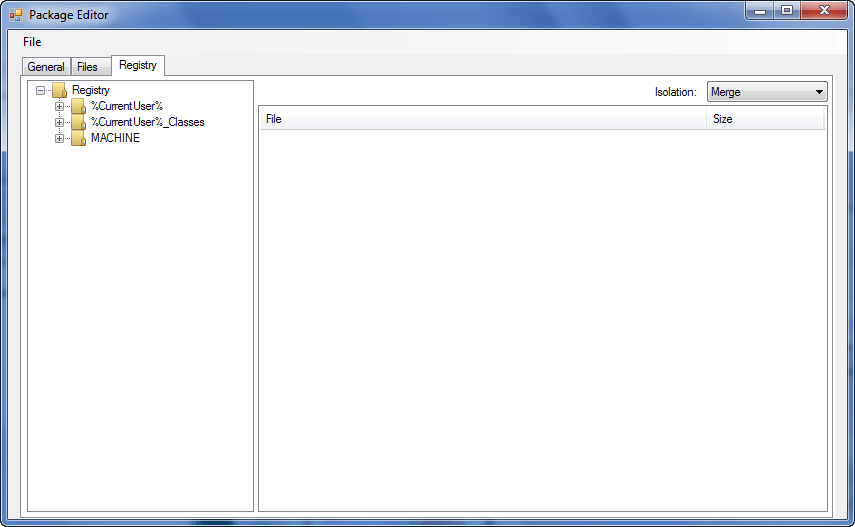
As far as I can tell, while you can add/remove the files included in a package, you cannot add/remove/modify registry entries included in the package. For registry entries the only thing you can change is “Isolation” from “Merge” to “Write&Copy”; however, I honestly have no idea what this “Isolation” feature does since there is no proper documentation about Cameyo.
Here are a few important aspects to note about Cameyo:
- Cameyo allows you to virtualize multiple programs into one package. If you plan on doing that, install all programs before hitting the “Install done” button. Also, when being asked to select the “main executable”, select the .EXEs for all the programs.
Take note if you are going to virtualize multiple programs together, realize that all the programs you virtualize will be launched at the same time whenever you run the final virtualized package. Hence, I would recommend only virtualizing one program in one package – create a new package for each program – so you aren’t forced to run all programs at the same time when you don’t want to.
- As described above, Cameyo works by taking snapshots of your computer before and after installation and records all changes made to your computer by comparing these two snapshots. This snapshot method means four things:
- To create a virtual package of a program, you have to actually install it on your computer so Cameyo can record it. You may uninstall the program after the package has been created.
- If you want to virtualize a software you already have installed, you first need to uninstall it then re-install while you have Cameyo running.
- Cameyo will capture and record all changes made to your computer, not just the installation of a software. So, for example, while testing Cameyo I took screenshots in-between the two snapshots. So, in the final package, Cameyo included these new screenshots even though the screenshots had nothing to do with the program that was installed. If you find that Cameyo has included too much “junk” (i.e. non-related files) in the virtualized package, you can always go in and edit the package to remove those files.
- During the “installation” phase of Cameyo, be sure to take all initialization steps (such as registering the program) and install any add-ons/plugins/third-party software before you hit the “Install done” button. This ensures that the virtualized package will include everything that you want. (I highly recommend before you hit the “Install done” button to take the program through its initial first steps, i.e. run it, register it if applicable, and close it.)
- Cameyo makes an outbound call to a server (the developer’s server I presume) right before the initial snapshot is taken when creating a new package:

I am not particularly sure why the outbound call is made and what it does during that outbound call but for what it is worth, VirusTotal found Cameyo to be clean (only 1/42 AVs found it to be infected)
- Not all programs can be virtualized properly. You may find that some programs do not function properly after you have virtualized them when you try to run the programs via the package you created. (This is just a technical limitation with some programs.) I highly suggest you test a virtualized package after you create it to make sure the program fully works. It takes trial-and-error to find out which programs will work when they have been virtualized and which have not.
- Cameyo is still in Beta and it is not 100% bug free (although I didn’t find anything majorly wrong with the program). When I first installed Cameyo, it would crash when I tried to use the “Package Editor”. However, I uninstalled Cameyo and reinstalled it and the “Package Editor” works just fine now. Furthermore, you may find Cameyo’s “Recent packages” list does not properly refresh after you create a new package; only after manually loading the package via “Package Editor” is the package displayed in “Recent packages”.
- Currently Cameyo has no ability to allow virtualized applications to be set as “default launchers” for files. For example, if you virtualize Microsoft Word, you cannot set the virtualized Microsoft Word as the default opener for .DOC files. The developer has stated the ability to set virtualized applications as “default launchers” will be introduced into Cameyo in future versions.
- Cameyo doesn’t have very good documentation nor is there very much information on who the developer of Cameyo is. There is a support forum, though.
- Cameyo has an SDK which developers may be interested in.
That said, why would anyone want to virtualize a program? I can think of a couple of reasons…
- The desire to make a non-portable program portable.
- The desire to not lose a time-limited freebie (e.g. GOTD giveaways).
…and I am sure other dotTechies can give many more.
Last but not least, here is a short 4 minute video – created by the developer – that demonstrates Cameyo in action. Take special note of how the developer downloads Flash and Java for Opera before clicking on the “Install done” button to ensure the virutalized package of Opera has Flash and Java:
You may download Cameyo from the following links:
Version reviewed: v1.4
Supported OS: Unknown
Download size: 1.6 MB
[via AddictiveTips]




