Here on dotTech we have talked about virtualization technology plenty of times. However, all previous articles have discussed computer-level virtualization. In other words, they talked about virtual machines, how users can virtualize their computers, etc. What if a user wanted to use virtualization technology but on an applications-level as opposed to computer-level; where would the user turn to?
There is the mostly-defunct Altiris Software Virtualization Solution, which is still available for download for free but has been turned into Symantec Endpoint Virtualization Suite (a paid program) after Alitris Software got bought-out by Symantec Corporation (thanks Symantec). Or, there is VMware ThinApp which is clearly not intended for home-use considering you could buy a car in the money you would spend purchasing ThinApp. That then leaves us with Cameyo.
Cameyo is a fairly new program that allows users to easily virtualize at an application-level:
What do I mean “virtualize at an application-level”? To put it simply, Cameyo takes a program and condenses it down into one .EXE file. In other words, Cameyo allows users to make programs portable. (Of course a virtualized app is not the exact same as a natively portable app, but I think you get my point.)
Using Cameyo is very easy:
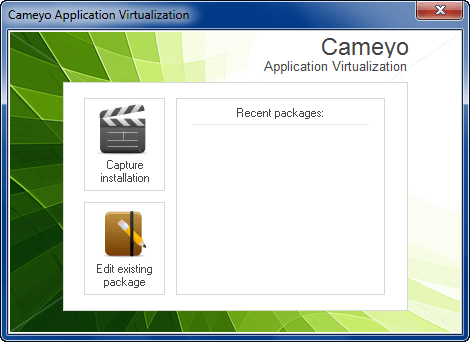
- Run Cameyo (after installing it) and click on “Capture installation”. Cameyo will take a “snapshot” of your computer:
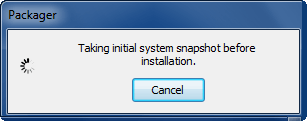
The time it takes to complete the snapshot varies on how powerful your computer is and how much hard drive space you are using. For what it is worth, it took around 2 minutes for the snapshot to complete for me.
- After the snapshot has completed, you will need to install the application you want to virtualize:
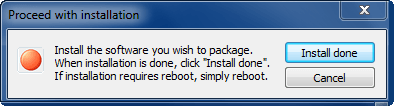
Install the program you want to virtualize and click “Install done” when the installation has finished.
- After installation has finished, you will need to wait while Cameyo takes another snapshot of your computer:
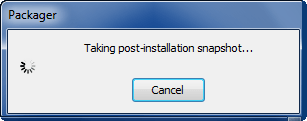
Like the initial snapshot, the time it takes to complete the snapshot varies on how powerful your computer is and how much hard drive space you are using. It took around 2 minutes for this post-installation snapshot to complete for me.
- After the post-installation snapshot, you will need to set the name of the package, where to save the package, and what is the “main executable” for the program you are trying to virtualize:
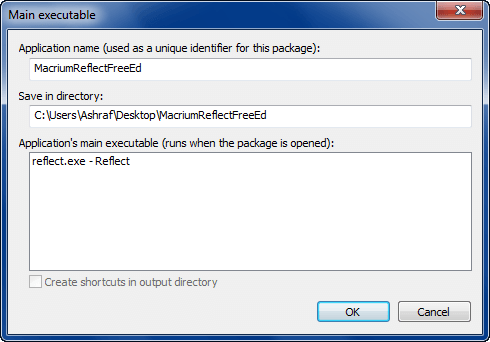
Take note you must select (left-click) an .EXE listed under “Application’s main executable” before you click “OK”. For the most part there should only be one .EXE listed there, but for some programs there may be multiple .EXEs (such as Paragon Software products which has its individual components broken down into individual .EXEs). In this case, either select the .EXE of a “launcher” (if applicable), or select multiple .EXEs as you see fit. (Yes, you can select multiple .EXEs.)
- Next, Cameyo will build the package…
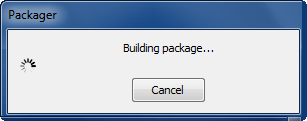
…and prompt you when everything has finished:
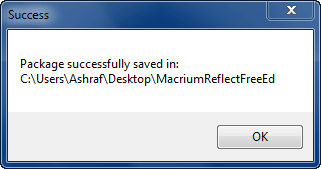
When everything has finished, go to the location where the package was saved and run the .EXE to launch your virtualized program:
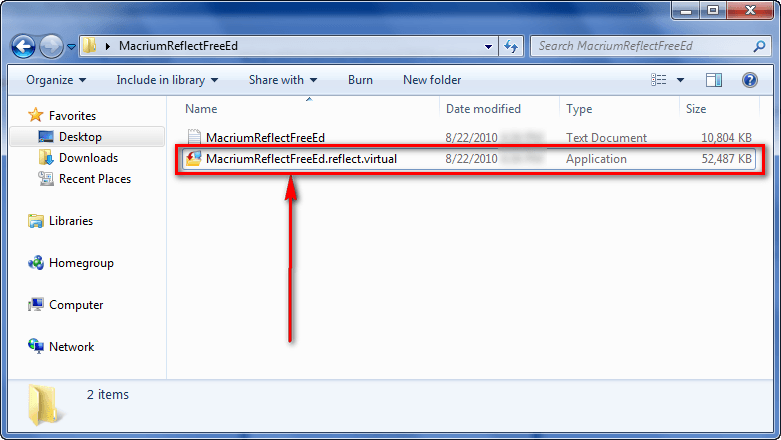
If you are looking to put this virtualized package on a portable device, such as a USB drive, simply copy the whole folder onto the device. There is no need to install Cameyo on every computer that you want to run your virtualized applications; just run the .EXE of the respective virtualized package and you are good to go.
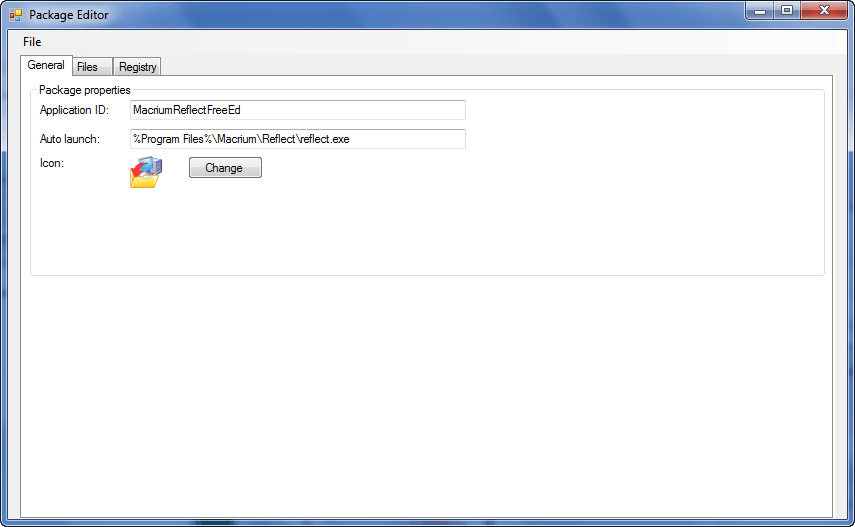
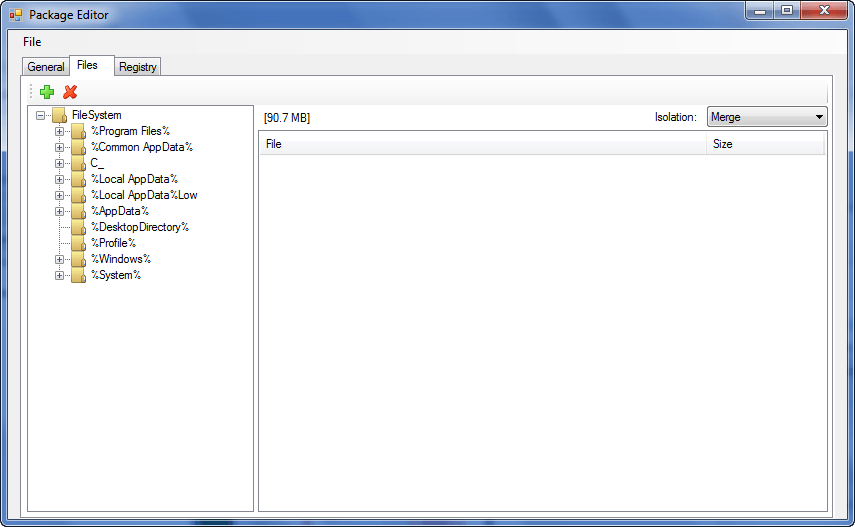
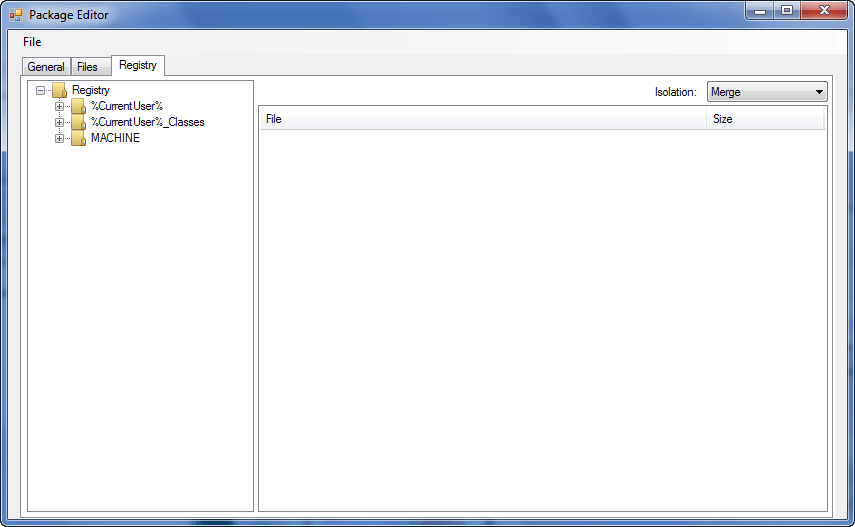
Cameyo allows users to edit packages after they have been created, doing things like changing the name of the packages, changing the main executable, add/deleting files, and viewing registry entries. To do this, run Cameyo and either click on the package which you want to edit, or click on “Edit existing package” and load the package which you want to edit:
Be sure to save the package after you are done editing it (via the “File” menu).
As far as I can tell, while you can add/remove the files included in a package, you cannot add/remove/modify registry entries included in the package. For registry entries the only thing you can change is “Isolation” from “Merge” to “Write&Copy”; however, I honestly have no idea what this “Isolation” feature does since there is no proper documentation about Cameyo.
Here are a few important aspects to note about Cameyo:
- Cameyo allows you to virtualize multiple programs into one package. If you plan on doing that, install all programs before hitting the “Install done” button. Also, when being asked to select the “main executable”, select the .EXEs for all the programs.
Take note if you are going to virtualize multiple programs together, realize that all the programs you virtualize will be launched at the same time whenever you run the final virtualized package. Hence, I would recommend only virtualizing one program in one package – create a new package for each program – so you aren’t forced to run all programs at the same time when you don’t want to.
- As described above, Cameyo works by taking snapshots of your computer before and after installation and records all changes made to your computer by comparing these two snapshots. This snapshot method means four things:
- To create a virtual package of a program, you have to actually install it on your computer so Cameyo can record it. You may uninstall the program after the package has been created.
- If you want to virtualize a software you already have installed, you first need to uninstall it then re-install while you have Cameyo running.
- Cameyo will capture and record all changes made to your computer, not just the installation of a software. So, for example, while testing Cameyo I took screenshots in-between the two snapshots. So, in the final package, Cameyo included these new screenshots even though the screenshots had nothing to do with the program that was installed. If you find that Cameyo has included too much “junk” (i.e. non-related files) in the virtualized package, you can always go in and edit the package to remove those files.
- During the “installation” phase of Cameyo, be sure to take all initialization steps (such as registering the program) and install any add-ons/plugins/third-party software before you hit the “Install done” button. This ensures that the virtualized package will include everything that you want. (I highly recommend before you hit the “Install done” button to take the program through its initial first steps, i.e. run it, register it if applicable, and close it.)
- Cameyo makes an outbound call to a server (the developer’s server I presume) right before the initial snapshot is taken when creating a new package:
I am not particularly sure why the outbound call is made and what it does during that outbound call but for what it is worth, VirusTotal found Cameyo to be clean (only 1/42 AVs found it to be infected)
- Not all programs can be virtualized properly. You may find that some programs do not function properly after you have virtualized them when you try to run the programs via the package you created. (This is just a technical limitation with some programs.) I highly suggest you test a virtualized package after you create it to make sure the program fully works. It takes trial-and-error to find out which programs will work when they have been virtualized and which have not.
- Cameyo is still in Beta and it is not 100% bug free (although I didn’t find anything majorly wrong with the program). When I first installed Cameyo, it would crash when I tried to use the “Package Editor”. However, I uninstalled Cameyo and reinstalled it and the “Package Editor” works just fine now. Furthermore, you may find Cameyo’s “Recent packages” list does not properly refresh after you create a new package; only after manually loading the package via “Package Editor” is the package displayed in “Recent packages”.
- Currently Cameyo has no ability to allow virtualized applications to be set as “default launchers” for files. For example, if you virtualize Microsoft Word, you cannot set the virtualized Microsoft Word as the default opener for .DOC files. The developer has stated the ability to set virtualized applications as “default launchers” will be introduced into Cameyo in future versions.
- Cameyo doesn’t have very good documentation nor is there very much information on who the developer of Cameyo is. There is a support forum, though.
- Cameyo has an SDK which developers may be interested in.
That said, why would anyone want to virtualize a program? I can think of a couple of reasons…
- The desire to make a non-portable program portable.
- The desire to not lose a time-limited freebie (e.g. GOTD giveaways).
…and I am sure other dotTechies can give many more.
Last but not least, here is a short 4 minute video – created by the developer - that demonstrates Cameyo in action. Take special note of how the developer downloads Flash and Java for Opera before clicking on the “Install done” button to ensure the virutalized package of Opera has Flash and Java:
You may download Cameyo from the following links:
Version reviewed: v1.4
Supported OS: Unknown
Download size: 1.6 MB
[via AddictiveTips]
51 Comments »
Leave A Response »


Email article


This looks very interesting, but what worries me is the fact that that outbound call is made. I am using win 7, so to test I’m going to use VirtualBox and run XP, then see how much data is transferred out. In the video I noticed a lot of activity when the final package was being created
(in XP, the two computer icons light up when there is network activity).
Also, if you install a program while this is running and said program has a virus attached to it, won’t that be run on every machine and infect all of them when you use your new package?
First you must close all programs, or it comes into the package. E.g. Firefox Cache or Profil Data, Kaspersky Lab.
Cameyo scans all partition, not only C:\, that is useless, or? And we cannot exclude.
I have Cameyo not installed, but unpacked the *. msi file and run the packager.exe
This writes to the registry:
[HKEY_CURRENT_USER\Software\Microsoft\Windows\CurrentVersion\Internet Settings\Connections]
[HKEY_CURRENT_USER\Software\Microsoft\Windows\CurrentVersion\Internet Settings\Cache]
[HKEY_CURRENT_USER\Software\Cameyo\Packager]
“InstallID”=”xxx-one-ID”
If you delete the Key, a new ID is generated, is probably a unique identifier for the update. (I think)
With 7-Zip we can unpack a package-exe file and delete files manually.
The registry is stored in the file VirtReg.db a paradox database. (Password protected)
greeting
Thunder-man
@Thunder-man: Do you really need to close all your other programs, as Cameyo compares the before and after shots?
@Soulflare3: I do not know about everyone else but i myself scan everything after it downloads. So if i may (excuse the copy and paste Ashraf). “When everything has finished, go to the location where the package was saved” right click and you should be able to use your virus scanner to check it, THEN finish packaging it. I know it is another step but better safe then sorry. Then again if your using Firefox and have Virus Total installed (a recent Ashraf review) you could use that as well.
Mike yes, but we must only close program that make change on HD e.g. Firefox. (Chache)
I have partition C:\ to J:\ and Cameyo has include
D, H and Z. (Z:\ is may Ramdisk for Firefox)
unpacked package-exe:
(see screenshot)
http://screendash.com/13378 D_, H_, Z_ are my include partition, because there open programs on it. (Firefox, Thunderbird and Kaspersky Security)
Ashraf, just FYI
Someone just told me about another app-virtualization: Evalaze => http://www.evalaze.com/en/
It is in early development (ver. 0.8)
@kcs3295:
Hi Ken,
You can always find the latest versions for both the Altiris SVS and the Symantec Workspace Virtualization (SWV) here:
https://kb.altiris.com/display/1n/kb/article.asp?aid=29519
You need to sign up for an account at Symantec to download the SWV (it’s free).
You can request a Personal license key for the SVS here:
http://www.altiris.com/Download/svsPersonal.aspx and use that key with the SWV.
@AB: That is not needed at all.All you have to do is to create an ISO and mount it on Netbook,install it as on desktop.Netbook problem is over.Gizmo is probably the best @ebony: It is not a virtualization solution to protect your PC.Returnil,Timefreeze,Sanboxie are for that thing.It is an application packager like Thinapp, Appdeploy,so that next time you can just click the Exe and use it.@Soulflare3: Maybe because it is a new app and develepor wants to check statistics and so it connects to Internet so ardently like Soluto but maybe harmless.If before a capture and till the capture a virus cre@Rick C.: ates Registry entries only then,it is the difference only and not the absolute part.If you give me 10$ and I return you 9,you lose only 1$,that is the only thing.@Soulflare3: 100 percent.you create a snapshot,install GOTD 1 day installer,open internet connection and do whatever extra till it shows it is registered.Take snapshot and the resulting Exe has everything you want including serial and can be used forever on any system.@Giovanni: It is a repackager only,if you want to commit piracy,you can easily do it anyway,install any trial on any PC and put same 1 user serial on many PCs.99.99% sharewares will accept it there also.@Mike: 100% but you have to virtualise it via Returnil or Workstation so that the resultant permanent installer or exe is there but at that point it does not cripple your system until u need it.@flommedrengen: For more than a year but it is not popular at all and I think it is beta,dont think it will do the same classic job@Rick C.: It will remember the serial,actually it is Installer+Key.@Trent:Returnil free and Cameyo will make an awesome duo.You will have no real installation and a perfect installer for future.@ha14: No,but what you are getting for free is amazing and first time,I never thought a thing like this can be free.It will of course create the same entries as a normal installer does.No sandbox option,ofcourse u can use it when Returnil is on and Reboot to get rid of dirt.@Ashraf: It is an excellent free alternative of Thinapp though no benefit of compressed MSIs,sanboxed and portable options,very slow scan comparatively but outstanding thing.BTW have you tried spoon.net where you can try softwares without downloading any installer and any sandboxing program.I like it absolutely although it will silently download installers and a good free connection is needed.
Thanks.
Two more things-
It is recommended that you do repackaging only on a new VM like VMWare Player,Workstation or Virtualbox.Only then you can get clean no problem binaries.One VM only for repackaging.
Second just before taking capture,close all programs and even your AV,firewall,AV updation,everything otherwise u will get a 10 times bigger exe file full of crap,bcoz all those prompts and checks modifies registry and writes to sensitive C Drive files etc,result will be acceptable although VMware has made an unbelievable freebie like VMware Player for us.Oracle box and MS Virtual PC or even Parallels cannot match it by any means,IMHO.
@#17 & 23…I installed a software that needed a reboot…I was capturing(taking a snapshot) with Cameyo but after reboot…there was no capturing at all anymore…so that was a bummer.I have windows 7 ultimate 32bit.
Im a doing something wrong?Cant see what…there ‘s nothing to do wrong…
Ashraf ???
Thanks for your article. The idea is beautiful, but imo the program still needs a lot of polishing. I made two attempts and both of them failed.
How would Cameyo cope alongside Ashampoo Uninstaller.?
I use AshU extensively for new installs (because it also has the ability to make re-installable copies, complete with registry entries etc., during uninstalls – of previously recorded installs) even though it can extend time to install considerably at times!! (Even though drive monitoring has been restricted to C:)
Have not tried to copy an Ashampoo uninstalled “back-up” onto another comp. so don’t know if there would be any problems there.
However, the ability to “ghost” installs using Cameyo and then use the virtual programs on another comp. is very appealing.
Question is, would there be any conflicts between the aforementioned programs and any time additions when both are run simultaneously.?
Will give it a try and hope nothing disastrous happens! (Must remember to switch on Returnil first.)
@ruudster101
You can use WhyReboot.
http://exodusdev.com/products/whyreboot?request=about&ver=1.0.1.537
Then change manually the Registry und you must not reboot.
I made a working copy of Safe Returner with Cameyo with Wondershare TimeFreeze’s protection turned On… Works!
@ruudster101: Hmmmm… It could be the program you are trying to package, I also am having the same problem with most software/shareware that require a restart. Still not sure how to come around this probelm though, if anyone knows please reply.
@ 38…its not compatible with windows 7…
http://my.jetscreenshot.com/4247/20100902-kfqt-83kb
and im not that tech-savy>> i dont dare to mess with my registry…
@40….I’ve not try it myself sofar…but this is what i heard around the net>>> When ur puter ask for reboot….open thaskmanager>>>process>>>kill ur explorer.exe (there are 3 or 4 or more
explorer.exe mostly…..kill all untill explorer is off…u see that ur taskbar is gone
…then u go to file>>>>still in taskmanager… u choose new task and u type
explorer.exe and hit ok….taskbar & explorer will be back…according to some people that would do the trick….without rebooting….
Like a said i did not do this myself already….and i cannot guarantee its a
proof thing….
When i have the time i test it myself & i’ll be back(lol) and tell if it worked for me…
I’m not a tech savvy per se, but can someone explain how to use
Returnil free and Cameyo together?
Do you run Returnil FIRST, then Cameyo, or the opposite?
Thanks!
PeterA
For those of you who do not want to set up a virtual machine, cameyo now offers an online packager, which will virtualize your application for you without the need to install it on your own computer. Caveat: application must have silent installer.
Isn’t Application Level Virtualization is all about running the process (exe file) on a remote CPU(s)?
I think the author made it quite clear that Cameyo is actually about making application portable.
Eventually when you’ll run a packaged applications your local CPU will do the work whereas in REAL application virtualization you can run processes on thin clients.
Hey ASHRAF!
To turn any APP into a PORTABLE version just use this amazing FREE TOOL:
http://www.softpedia.com/get/System/System-Miscellaneous/P-Apps.shtml
I played with it for a while and woh…. never failed so far!!
Amazing, isn’t it??
@Giovanni:
Have you seen the video on:
http://www.portable-app.com/Demo.aspx ?
Looks brilliant – thanks for the info.
@jayesstee:
YES Ihave…simply amazing!!
Just wondering whether is better than CAMEYO or not….who knows…
Very good app…
The most important thing I like is, you can share your entire app in multiple PCs very easily..
Like Ghosting entire drive, you can ghost an application, and also, it will not change the settings unless we intend to do so..
But I wish to have a feature added to it.. It should act like a Virtual Sandbox and then install the app for capturing it, so that it will not effect the system at all..
Thanks for the review..
Regards,
Shawn Abraham.
@Jamster Mc:
You said that the software will continue the capture process after a required reboot and about 3-4 people including myself have experienced that it DOES NOT RESUME CAPTURE AFTER REBOOT.
If you have gotten Cameyo to do this…please explain.
Dm
@Dm Ancruem:
1. What version of Cameyo are you using? The current version is 2.0.834.
2. What environment are you using to capture the installation? I have no trouble with XP SP3 inside VirtualBox 4.2.4, i.e. Cameyo recognizes reboots and starts again when the system is back up.
3. What software are you trying to package?