Email article
 Update: This promotion is over! Be sure to subscribe to dotTech for information about future freebies!
Alcohol 120% became a hit before my time but the name still resonates throughout the tech world. To put it simply, Alcohol 120% is a program that can read (mount) CD/DVD images with the added benefits of being able to backup CD/DVD/Blu-Ray/HD-DVD discs to an image format (it cannot bypass DRM protection), and burn images to discs. It can also do “traditional” burning, such as data and documents. Furthermore, Alcohol 120% supports .mds, .iso, .bwt, .b5t, .b6t, .ccd, .isz, .cue, .cdi, .pdi and .nrg image formats and can create up to 31 virtual drives at once.
Alcohol 120% and Dameon-Tools are the two big names that helped usher in the age of disc images, and to this day Alochol 120% remains an extremely popular piece of DVD burning/mounting software. While typically it would cost you €39.95, you can now get v5.5 for free! (This may be a limited time offer, I don’t know, so be quick if you want it.)
Version being given out for free: v5.5
Special note: The German version of Alcohol 120% and the English version seem to have different number schemes, so don’t let that confuse you. Furthermore, although this is a German promotion, the program itself will be in English.
Free updates: Unknown
Supported OS: Windows XP/Vista
Special note: Windows 7 is not officially supported but this guide will show you how to install it on Windows 7
Download size: 12.1 MB
Note: Unless specifically stated otherwise in this article, Alcohol 120% has not been tested or reviewed by dotTech (aside from checking to make sure this promotion is valid). Please do not take this post as an endorsement/rejection or review of the program. This article is simply to inform about the availability of this program as a freebie; nothing more, nothing less.
The first thing you’ll want to do is download the program. To do this Chip.de’s promotion page and download it:
NOTE: This is a German promotion but the product will be in English.
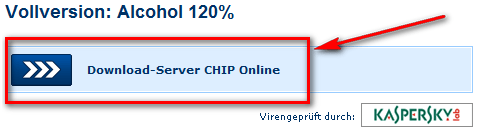
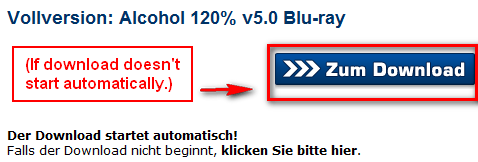
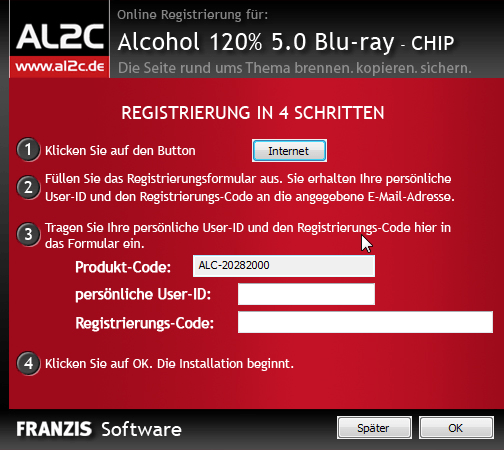
Once the download has finished, extract it (the download is a ZIP file). Go the folder you extracted to and run Alcohol_5_Blu-Ray-CHIP.exe. Click on the “Internet” button:
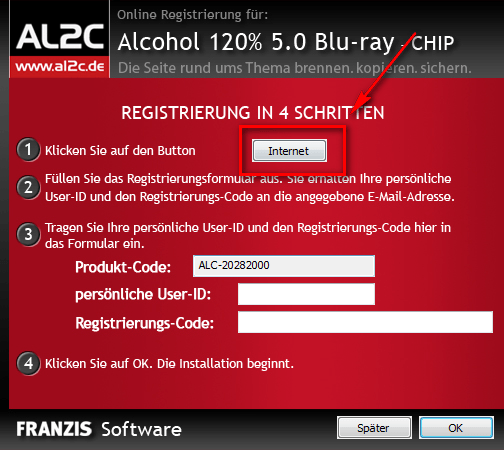
Upon clicking the “Internet” button a website will load in your Internet browser requiring you to register:
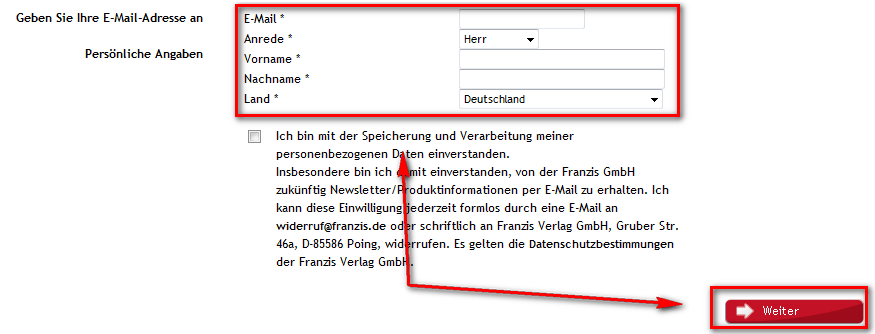
Fill out your email address, your title (Herr for males, Frau for for female), your first and last names, and your country. I chose Schweiz since that’s my favorite German-speaking country, but any of them is fine. Be sure to check the box – it signs you up for their newsletter and lets them process your information so you get the necessary license information. If you don’t want the newsletter, you can either use a disposable email address or unsubscribe later.
Once you have filled out the whole form, click the “Weiter” button. If you do it properly you will get a confirmation message:
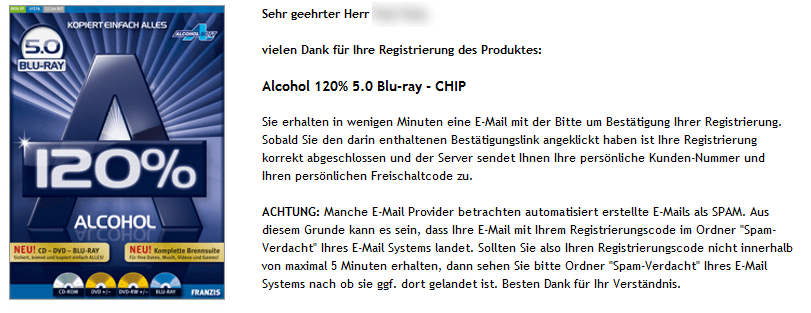
The message informs you that your email will arrive in less than 5 minutes, and to check your spam folder if it doesn’t arrive in 5 minutes. It took ~30 minutes for the e-mail to arrive in my first account, and ~5 minutes to arrive in my second account so you may need to be a little patient.
The e-mail you need to look for in your inbox is from Franzis Registrierungsteam (registrierung@franzis.de) with the subject of Registrierung: Alcohol 120% 5.0 Blu-ray – CHIP?. In the e-mail there is a click you have to click to confirm your e-mail address:

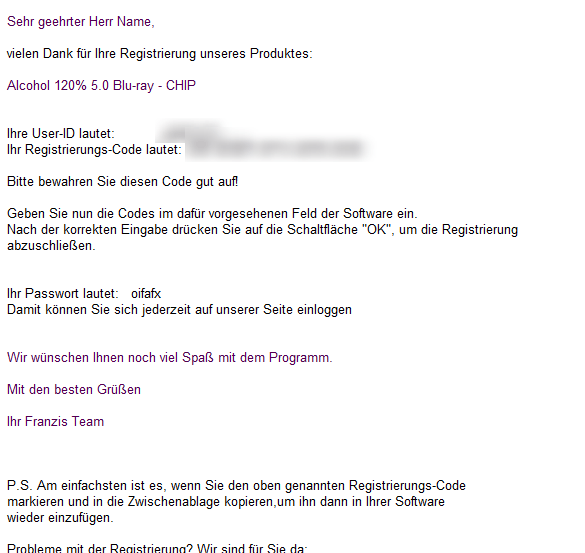
Once you click the link and confirm your e-mail address, you will get another e-mail from Franzis Registrierungsteam (registrierung@franzis.de) with the subject of Registrierung: Alcohol 120% 5.0 Blu-ray – CHIP. This e-mail will contain the two codes you need to register Alcohol 120%:
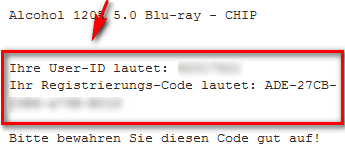
Go back to the Alcohol 120% installer and enter the two codes you got via e-mail…
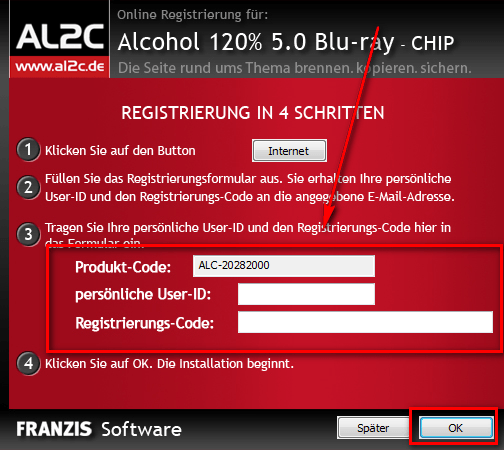
…and click “OK”. After you click “OK” you will be asked if you want to run the Alcohol 120% installer; hit “Weiter”:
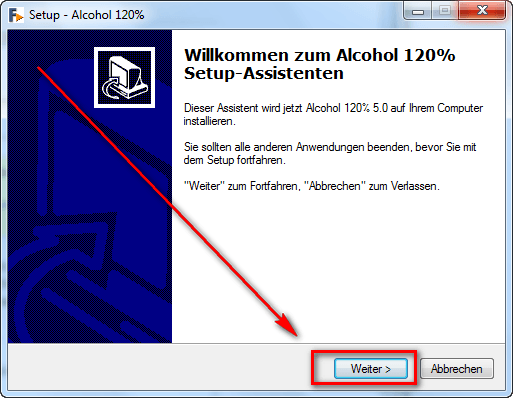
Once the installer has been extracted, you will see this screen:
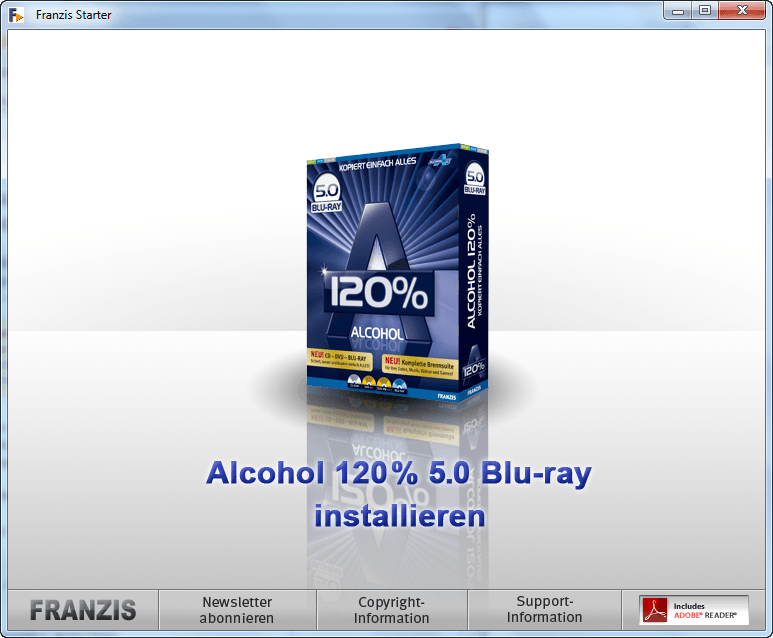
Once you are at this screen, what to do next depends on what Windows you are on.
Windows XP and Windows Vista
Click on installieren. The installer is actually displayed in English (for the most part) so begin installing the program like you would any other program. After accepting the Terms and Conditions, you should see two options – leave the default one checked:

Continue following the installer through; just make sure to leave everything checked and keep clicking next. You know you have successfully installed the program when you see the last and final screen:

After installation has finished and you run Alcohol 120%, you will be presented with another registration screen. Simply re-enter the user ID and registration code you received earlier via e-mail and click “OK”. You should now have a fully functioning, registered, version of Alcohol 120%!
Windows 7
NOTE: Before you proceed please realize this particular version of Alcohol 120% is not officially supported on Windows 7. In fact, it won’t even install on Windows 7 without a few tricks. That means that Alcohol 120% (v5.5) may not work properly on Windows 7 and could possibly cause harm to your computer. By installing Alcohol 120% (v5.5) on Windows 7 you are accepting all the risk onto yourself. Locutus, Ashraf, dotTech, anyone or anything else (besides yourself) is not responsible for any gain or loss you may incur.
When you get to the installieren screen shown previously, don’t click anything. Go to C:/Users/your user name/AppData/local/temp. A quick easy way to get to that temp folder is pressing Win+R and typing in %TEMP% and hitting “OK”.
Once that temp folder is open, do a search for Alcohol. You’re looking for Alcohol120_de_retail_5.5.7.6719.exe:

Copy and paste it to the desktop and name it something like Blah.exe – don’t rename it to anything that even remotely looks like the original name.
Download the latest version of SPTD from Duplex Secure. Make sure to download the one that’s right for your architecture (i.e. 32-bit or 64-bit)! After the download has finished, install it:
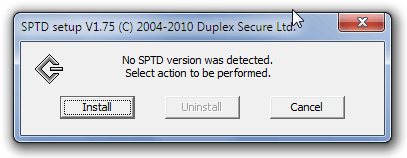
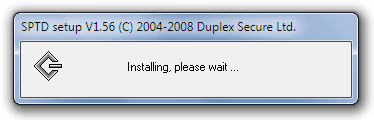
After installation has finished, restart your computer.
After restarting, open up the Alcohol installer from your desktop (the one that you renamed). Click Next and then I Agree. (You’ll notice that this installer is in two languages it’s pulling some text from the OS and some from the installer itself.) Once you reach the “select components to install” screen make sure to select the first three options:
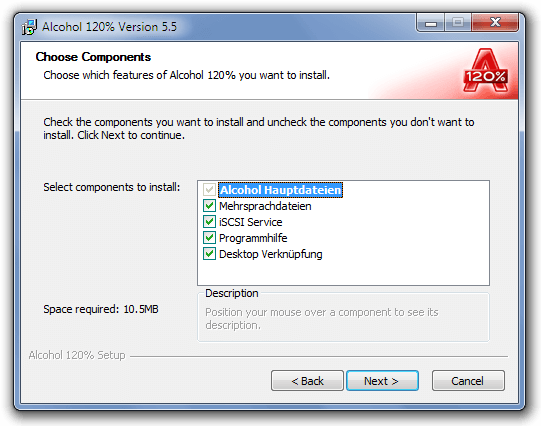 The first, grayed out box is the main program. The second is the multilingual language packs, which I’m guessing contain English. The third is a service required by Alcohol 120%. The fourth one is the offline help – I have no idea which language it would install, so it’s not worth it unless you understand German. The fifth are desktop icons, but by the end of this article we will have changed the path of the EXE file so the desktop icons are worthless to us.
After selecting the proper components, click Next and accept the default install path:
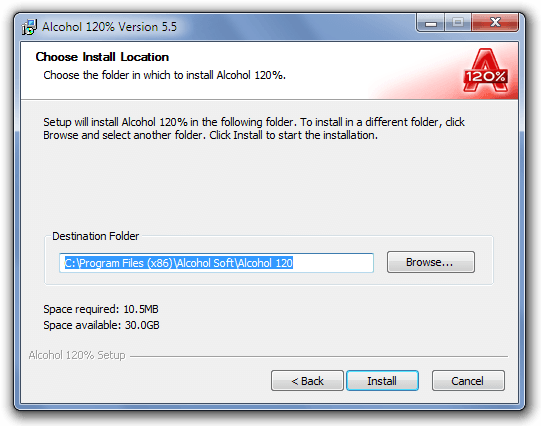 Click Install and it will install:
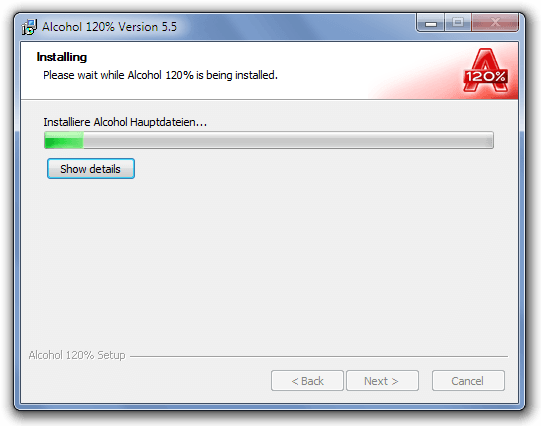
Once you are at the final end screen of the installation, before you close the installer make sure to uncheck both of the two options:
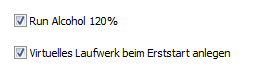
(You don’t want to autostart the program.)
Next, go to C:/Program Files/Alcohol Soft/Alcohol 120 (go to C:/Program Files (x86)/Alcohol Soft/Alcohol 120 if you are on a 64-bit machine). Rename alcohol.exe to program.exe:
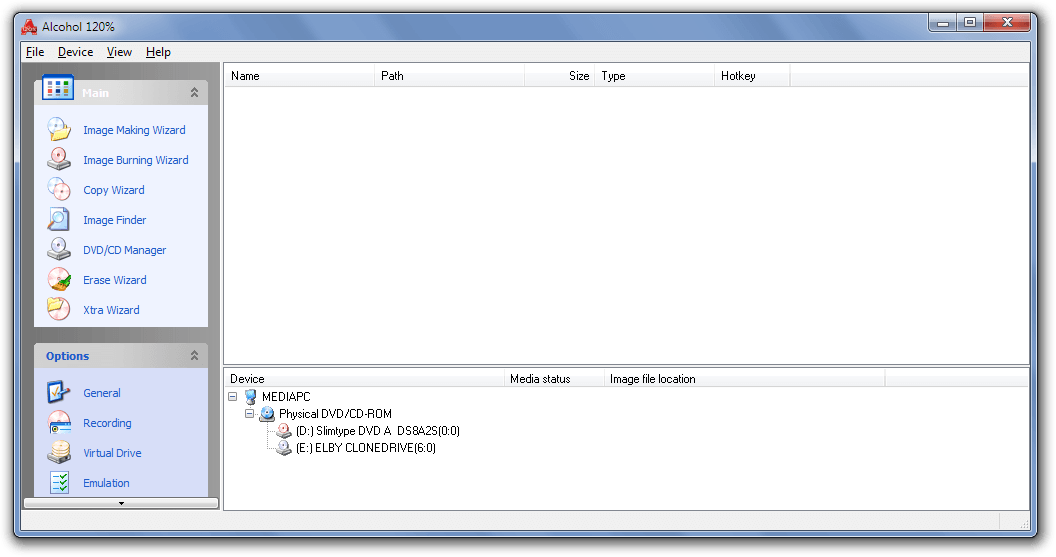
 Run Alcohol 120% and click the Register button. Find the second code you received via e-mail earlier (the longer one) and enter it. Once you click “OK”, it’ll take several minutes to “Apply Alcohol virtual device settings”. Once the virtual device settings have been applied, go through the options and set everything the way you want it to – set up virtual drives (I like just the default one), set up filetype registrations, etc. Once you’re done with this, restart your computer again. After reboot, Alcohol 120% will work!
Conclusion
Great software? Yes, personally I do feel it is. Here is an example of what one can do with it; I have mounted an ISO of the Avatar DVD I made with DVD Shrink:

*NOTE: That is a legal backup of the movie – I own it.
(In case you are wondering: The first disc drives is my annoying SD card reader, the second is my DVD drive, the third is a Virtual CloneDrive, and the fourth highlighted one is Alcohol 120%.)
Alcohol 120% is a great piece of burning/mounting software, and the fact that it’s available for free is even better. Enjoy everyone!
Special thanks to Conn09 for the Windows XP/Vista guide!