Wubi: Get a taste of Linux without the pain – install Ubuntu like a program in Windows
September 7, 2011 75
Email article | Print article
Windows is a great operating system, but want to know just how green the grass is on the other side? Try Wubi, a Ubuntu installer for Windows.
The cool thing about Wubi is it installs Ubuntu like a program onto your computer, requiring you to perform no dual-booting or partitioning; just like how you would install Photoshop or Firefox. (And it uninstalls just like how you would uninstall Photoshop or Firefox.) Rather, Wubi fools your computer into thinking you are dual-booting and have a separate partition for Ubuntu: When you boot your computer, you have the option to boot into Windows or Ubuntu. Wubi makes a virtual partition that your computer can boot off of, allowing you to enjoy the wonders of Ubuntu without the pain.
With Wubi one can have Ubuntu up and running within minutes. When you first start the program, it’ll ask you for several things:
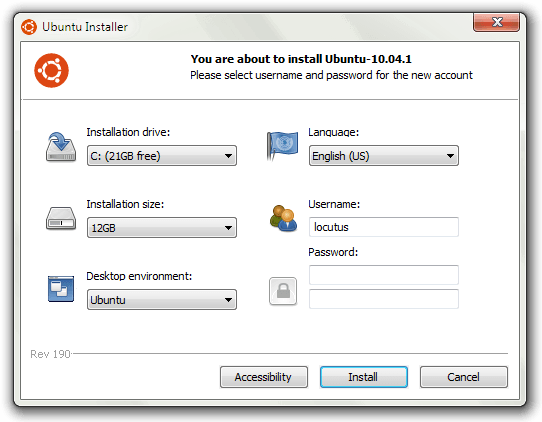
The first option is where you want to install Ubuntu. Normally, you should just choose C: unless you don’t have enough space on it. (Wubi won’t let you install Ubuntu unless you have at least 3GB of free space.)
The next setting you’ll want to choose is the size of your fake partition; you can give it as little as 3GB or as much as 30GB. When picking a size keep in mind that how much ever you pick now is how much space Ubuntu will have to use (for its programs, files, etc.). If you plan on using Ubuntu a lot, I recommend choosing a large size, but if you don’t see yourself using Ubuntu too much you can choose a small size. Just be sure to strike a balance between free C: space and installation size space, because you don’t want Ubuntu to take up all your hard drive space with Windows getting none; I used 8GB.
The third important setting is the desktop environments. In the most crud definition of the word, you can think of desktop environments as different versions of Ubuntu; you can select from Ubuntu, Ubuntu Netbook, Kubuntu, Kubuntu Netbook, Xubuntu, and Mythbuntu. If all the previous names mean absolutely nothing to you, you are better off leaving desktop environments to Ubuntu.
(If you are a non-native English speaker, Ubuntu comes in many, many different languages and you can pick what language you want to install Ubuntu in from Wubi – that is the fourth setting.)
Lastly, pick the username and password you for Ubuntu. Make sure you remember the password because the password is extra critical in Linux – you need to type in your password every time you want sudo/administrator access; and you need sudo access pretty much to do anything.
Once you are ready, hit the Install button and Wubi will start doing its thing:
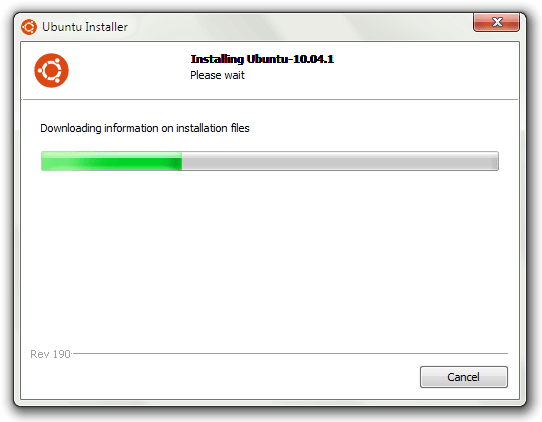
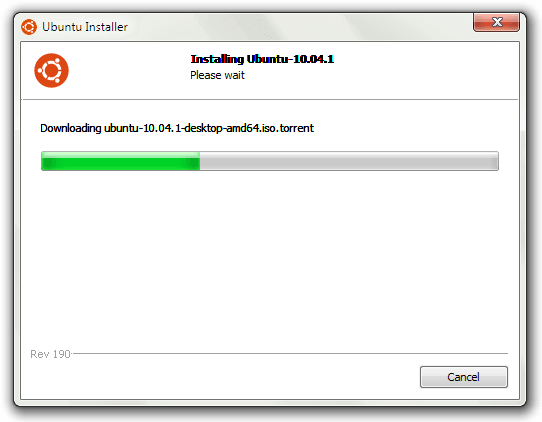
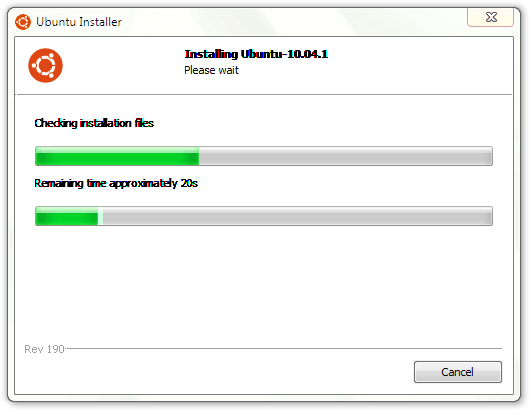
Take note that Wubi downloads and installs Ubuntu for you, a 700 MB download, so it may take a while. Also Wubi automatically selects 32-bit or 64-bit Ubuntu based on your computer specifications.
Once Wubi is done doing its thing, you will need to reboot your computer:
After your computer reboots and gets pass the BIOS screen, you will be prompted with by Windows bootloader that asks you to pick if you want to load into Ubuntu or Windows:
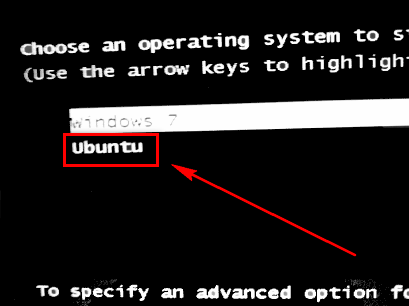
Select Ubuntu and hit enter to load into Ubuntu. Once Ubuntu loads, it’ll finish the installation, while showing off its features. The installation takes about 10 minutes depending on your computer; it took me around 7 minutes. When Ubuntu is done being installed, your computer will reboot.
Upon reboot you will once again be asked if you want to load into Windows or Ubuntu (you will be asked this on every reboot from now on, until you uninstall Ubuntu). This time, however, after you select Ubuntu from the Windows bootloader like previously discussed you will be taken to the GRUB bootloader screen where you must select Ubuntu again:
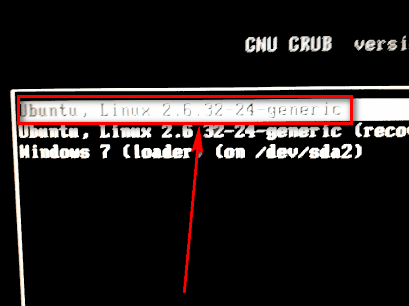
(You will be taken from Windows bootloader -> GRUB bootloader every time you want to load up Ubuntu.)
Once you select Ubuntu, Ubuntu will load up and if you see a screen similar to the following, you are good to go:
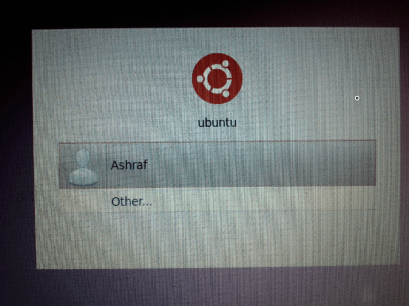
Log into Ubuntu using the password you set in Wubi earlier. Once you’re logged, you can start playing around with Ubuntu, setting up your Internet connection, playing with the applications, the interface, etc. Learning to use Ubuntu is a fun and daunting task – have fun while learning how to operate your new operating system!
Whenever you want to get out of Ubuntu and load back into Windows, reboot your computer and select Windows from the Windows bootloader screen. And, if you ever want to get rid of Ubuntu, you can just uninstall it from within Windows’ Add/Remove Programs like you would uninstall any other program.
So, to conclude, Wubi is a safe, easy way to get past Microsoft’s cage and into the *nix world. Give it a try, who knows you may end up liking it. You can grab Wubi from the following links:
Version reviewed: The one that installs Ubuntu 10.04.1
Supported OS: Windows 98 and higher, except Windows ME
Download size: Wubi is only 1.4 MB but it downloads Ubuntu, which is 700 MB







![[Linux] Tint2 is a lightweight panel (taskbar)](http://cdn.dottech.org/media/2013/04/ecran1-134x90.jpg)
![[Linux] Thunar is a lightweight file manager [Mac OS X]](http://cdn.dottech.org/media/2013/04/t1-134x90.png)
![[Linux] AdeskBar is a customization shortcut dock/panel](http://cdn.dottech.org/media/2013/04/ad1-134x39.png)
![[Linux] Dynamic Window Manager allows you to open windows in tiled, monocle, or floating layouts](http://cdn.dottech.org/media/2013/04/dwm_tiled-134x90.png)
If I remember properly, Wubi was how I first got into Linux; it was my door to a world of distros. Back in my Linux days I think I switched distros every couple of days, haha.
Eventually, though, I ended up ditching Linux and going back to Windows because I realized one thing: While playing with Linux is fun, it impedes work if your job/college require computer usage and they work in Windows. It is just a pain trying to keep up with everyone at your job/college that run Windows – too many compatibility issues.
(Oh, and yes, I took those last three screenshots by with awesome new Nexus S. =D)
BTW, I just want to let everyone know that I am currently running from Safe Mode because my computer is getting BSOD’ed after installing Ubuntu using Wubi. However, I am 99.9% sure it wasn’t Wubi/Ubuntu that has caused the problem; it was a dumb mistake I made that is the issue.
Just thought I should put that out there.
EDIT: A system restore and I am now as good as new.
OK Ashraf-now you got me scared – I’m “this close” to installing this on my old XP test box,but it runs so good (better than my 7 comps) that I’m afraid to take the leap.Seems like the perfect way to jump in,but I don’t want to wreck the best running PC in the house !!
@chuck: I can say with confidence that you probably won’t wreck your PC with Wubi. Wubi is about the most safe thing you can get. I was an idiot and restarted my computer while Windows was loading – I was in a rush to get to Ubuntu – and that is why the problem occurred for me. The problem was easily fixed, though, with a system restore.
Don’t let my story scare you.
@Ashraf: “I can say with confidence that you probably won’t wreck your PC with Wubi.” Nice, confidence that he probably won’t? :|
now that i can run winxp like a window in my win7pro64, another cool thing to know that i can do that for linux as well! when can OSX be run that way? or mr. jobs will keep us craving and starving forever with his EULA? LOL (with sarcasm).
wait! nexus S is taking pics like that? wow.
BTW, i dual-boot my lappie with baishakhi (my language based OS made using ubuntu) and i also have splashtop quick boot. more OS? LMAO.
I have tried Wobi in the past and it is a great way to be introduced to Linux. The only issue I had was as you said, Wobi will detect if you are using 32bit or 64bit system, but it does not let you pick the 32bit install if you have a 64bit system. (I later discovered you can chose which one you prefer if you install Wobi using a Ubuntu disc you can burn). Linux 64bit suffers from the same issues that Windows 64bit has, namely the incompatibility of many programs that will work on 32 bit will not work on 64 bit. I wish developers would make their programs more compatible with 64bit systems. It’s so frustrating sometimes I think about switching back to 32bit.
@Locutus: Yeah… what is wrong with that? :-/
@mukhi: Well not exactly. I had to black out my face from the reflection on the screen, so the blacks are an edit I did.
@Mark: Yeah 64-bit compatability is one of the reasons I dont use it. I do wish Wubi – non CD – version allowed users to select which one they are installing.
@Ashraf: Just that you’re using the word “probably” after “confidence”.
@Locutus:
LOL. LMAO. Ashraf is not sure that he is confident…
@Locutus: It makes sense in my head xD
Thanks Ashraf :-)
I have been like so many others….. using Linux editions on and off.
I did not have the time or energy to read the comments…
———–
Almost ALL Linux editons can be run from CD or DVD!
When doing so you can easily save your work on a small dedicated partition so the next time you boot from the CD or DVD all setting will be saved…or NOT..all up to you to decide.
When my Windows OS act up or fail I usually use a Linux OS to restore the Windows :-)
(can only be done if you made a full copy of the OS partiton :-)
—————
Why dont I use Linux as my main OS??…same reasons Ashraf dont- compatiliby (and being lazy)
@Haakon Aas: Actually Locutus wrote the article, so credit to him.
Here is a summary of my Linux experience:
I originally started out my career on a UNIX Pyramid mainframe back at the start of the 80′s and apart from an unimpressive experiment with Red Hat Version 5 about 10 years ago, I had not thought about Linux again until about 2 months ago when I got a Ubuntu 10.04 disc sent to me.
So, I decided to perform a serious experiment. I got two identical machines – each with 1 Gb of RAM. On one I installed Windows 7 and on the other Ubuntu 10.04.
The Windows 7 machine was not too bad – faster than Vista and probably slightly slower than XP would run. Mind you this was not intended for gaming. I installed Office 2007 and Firefox for browsing.
The Linux Machine runs very well indeed. I am not a fan of the standard Gnome Desktop so I downloaded and applied a Windows 7 theme – to a layman it looks and behaves like Windows 7.
I also installed firefox and even more impressive was that I could also apply the exact same addons I use on the Windows version. I also installed Wine which allows Windows Software to be installed – and it works very well indeed – except it has a File Manager that reminds me of Windows 3 rather than Windows XP Explorer.
In fact the linux setup ran so well it made the Windows 7 sister machine looks slow. So, I reduced the Linux machine’s memory to 512 Mb and increased the Windows 7 box to 1.5Gb – the linux machine does not really miss that extra memory at all. The Windows 7 machine really needed that extra memory but is still ever so slightly slower than the Linux box.
My only complaint regarding Ubuntu 10.04 is that it keeps dropping the Windows LAN connection. One minute I can navigate to shared drives then next it has gone. The internet connection does not drop out ever and in fact downloads are faster on the Linux box – probably because I did not have any antivirus software running on it. I do not dare risk browsing the internet on the Windows machine without it – so it has got Avast Home v5.
One last point, is that Wine does not yet handle connecting to mapped drives so this has to be setup before loading Wine.
Overall, I am more than impressed with Ubuntu and if you have a spare machine lying around (even a low spec one) – I strongly advise you give it a go.
@Leslie: Isn’t Ubuntu cool? :D The networked drive thing is a major issue.
how about a using unetbootin on a usb stick and when you set it up making it making it persistent
that way any changes will stay the next time you boot from the stick it works real good better than a live cd because you cant save the changes you make while using a live cd
@hangdawg: That’s next on my list :P
Guys..can anyone tell me if they have made it as easy to install software on Linux systems as it is on Windows?
I haven’t tried Linux in years, even though I love the whole idea of it to bits. Back in the day, when I tried it last, you nearly needed a degree in programming just to get something installed and running..and although I can find my way around under the PC hood ok..and even know enough to tinker with the registry, but I never did seem to learn who to speak to one in code, no matter how much I tied..just don’t have the aptitude of it I guess.
Anyway, a relitive of mine told me a while back that things are a lot better now, when it comes to installing stuff on a Linux system, but we never got to go over it in detail. I think he said there is some kind of utility that is used to just click and install stuff now, instead of coding things in like before..can anyone tell me just what this is..where to get it..and if, so, can it be used with this installation?
Thanks in advance, as always.
Dan
@Dan: It’s a thousand times easier to install software on Ubuntu than it is on Windows. There’s a single, unified installer, and it comes with a nice “software store” that is basically beautiful front end to APT.
By way of an add-on to my post above..I just wanted to apologize for all the typos in it. Been out earlier tonight (..it’s now nearly 5am here)..and had one vino too many. :- )
Perhaps I better leave the installing part of all of this until the morning..or even better still, tomorrow afternoon.
Dan
@Locutus:
Thanks for the quick reply, Locutus..boy, that was fast!
So I guess it’s “idiot-proof”, compared to how it used to be?..and you say it comes with the OS?..this could be my lucky day! LOL
Dan
@Mark: I need to proof read my posts. Spelling Wubi wrong 3X ftw!
@Mark: If you are a regular to dotTech, you should be used to misspellings and typos by now… my misspellings and typos. :-P
Will this work fine on Windows 7 64 bit? Will it work fine if installed on an external hard drive? I found something like this before but it had problems with both of the above.
@Ed: Yes, this works on Windows 7 64-bit. Also, this does not install anything to an external hard drive. It installs it to your internal hard drive.