
 Email article
 Note: This freebie was originally posted about back in December of 2010. That specific offer has since expired but the same freebie is now available from a different source. Therefore I have republished this post to let everyone know about it, in case you missed it last time around. Sorry if you get double e-mail/RSS/Facebook/Twitter notifications!
Software Description
The following is a description of InPaint, as per the developer:
Inpaint Overview
Do you have a photo that would look just right if you could only remove one or more objects or persons from your composition? For example, look at the following two pictures. The original on the left features a large building in the foreground that dominates the scene while also blocking an uninterrupted view of the horizon. If we could somehow remove this, it would open up the entire view. You can see what we mean in the picture on the right. With the building gone, we can really appreciate the full beauty of this landscape. Well, now you can remove just about any unwanted object or person using Inpaint.
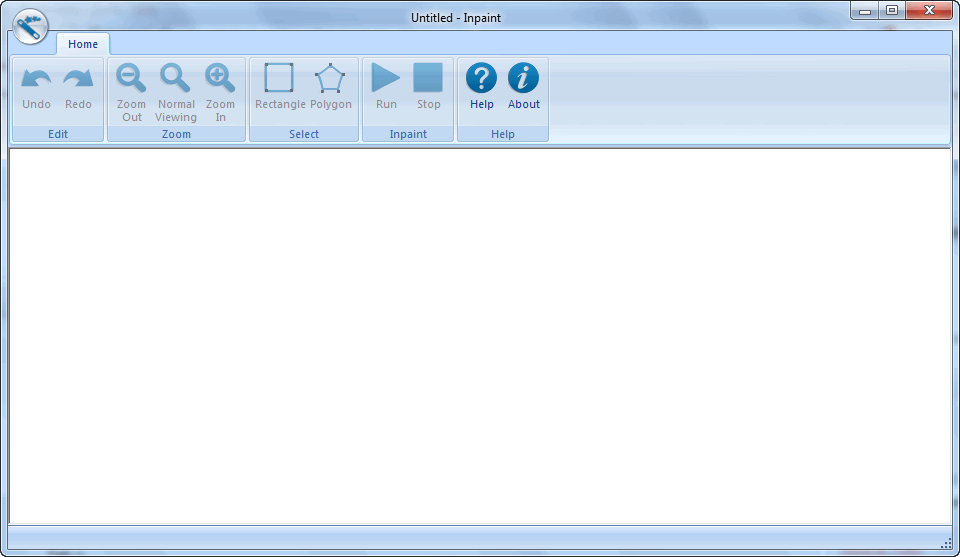
inpaint screenshotTop Reasons to use Inpaint
- Repair old photos
- Remove watermarks
- Remove unwanted objects
- Digital Facial retouching
- Remove date stamps
- Easy to get started
How to use
Inpaint is so easy to use. Simply paint and fill the object you want to remove from your picture, then press the Smart Remove Selection arrow button. Inpaint will magically fill the selected area with intelligently-generated textures pulled from the surrounding image data. And if you don’t get the results you wanted the first time, you’ll be glad to know there are a number of alternate solutions Inpaint offers. Try one or more of the following techniques and experiment until you get just the right look you want:
- Change the boundary area Inpainting creates. Reduce or enlarge the rectangular area Inpaint generates using any of the eight resizing handles which appear around your selection.
- Rather than trying to remove all objects at once, try selecting and applying the Smart Remove Selection button to each one separately, one after another.
- Move backwards through your changes one step at a time using the Undo Last Action feature in the task pane, then try making a more accurate selection of the object you wish to remove.
- If your feel your selection is accurate, simply Inpaint it over again. Each Inpaint procedure is unique so you’ll get a slightly different result each time you apply the Smart Remove Selection button.
Inpaint reconstructs the selected image area from the pixels near the area boundary. Remove undesirable objects from still images, such as logos, watermarks, power lines, people, text or any other undesired artifacts. There’s no need to manually go through messing around with your old clone tool any more! Now you can use Inpaint to easily remove all those unexpected objects that end up spoiling an otherwise really great photograph.
dotTech Advice
dotTech reviewed InPaint (v3.0) back in back in January. The final verdict of that review describes how I feel about the program:
InPaint is a good program. The performance will vary depending on the image being processed and how you handle the selection and processing, but InPaint is simple enough for novices and yet still handy for a quick touch up by a professional; it works quickly and does a good job, for the most part. […]
I highly recommend InPaint.
Freebie Details
InPaint is being offered for free via a promotion run by PC Welt. There is no information if you can install/reinstall at a later date (I believe you can, though) nor is there information on how long this promotion will last.
The promotion by PC Welt is of the German version of InPaint. Since most of us don’t speak German and prefer English, I will be providing directions on how to use the serial key provided by the PC Welt promotion with the English version of InPaint.
To get InPaint for free, follow these simple directions:
Version being given out for free: v2.4
Free updates: No
Free technical support: Unknown
Supported OS: Windows 2000 and higher
Download size: 1.5 MB
- Visit the Software-butler.de registration page and register:
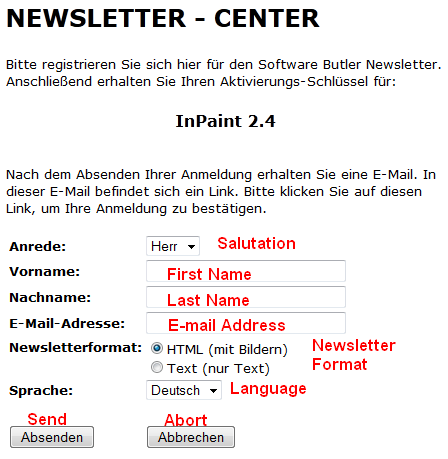
Once you fill out the form, hit Absenden.
If you do it properly, you should see a confirmation message like the following:
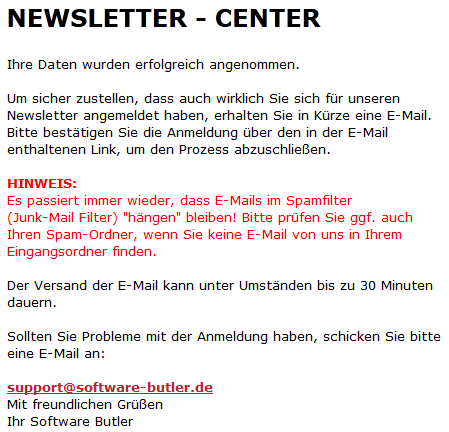
- Check the inbox of the e-mail address you registered with. Look for an e-mail from Software Butler bounces@news.dadagoo.de with the subject of Software Butler Newsletter Anmeldung. In the e-mail there will be a confirmation link you need to follow:

Click on the link, or copy + paste it in your web browser.
- At the confirmation page you will be given your registration key:
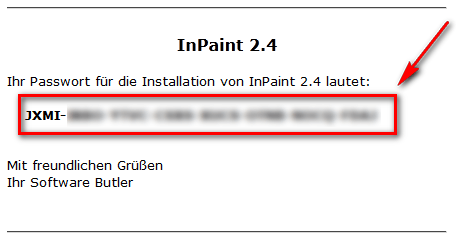
Copy this registration key because you will need it very soon.
- Download and install InPaint. (This installer and program are in English.)
- After installation, run InPaint and register it with the registration key you received:
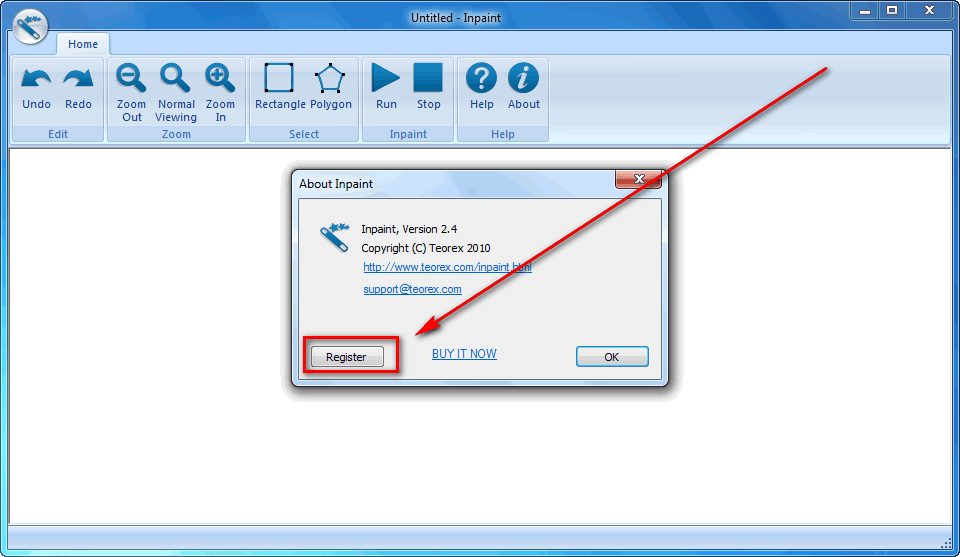
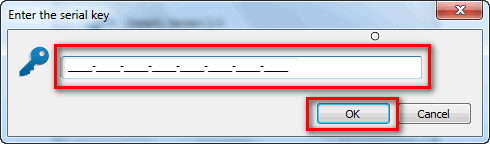
Note that there is no confirmation message telling you that you registered successfully. To make sure you registered successfully, after entering the serial key and hitting OK, click on the About button and if it looks like the following, you are good to go:
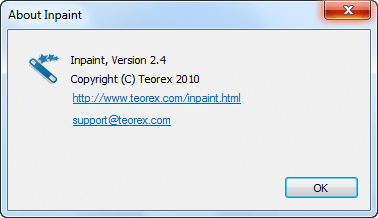
- Enjoy!
If you have trouble getting InPaint for free, post below and other dotTechies or I will try to help.
