How To: Bring your giveaways (and other programs) with you when you reformat

November 14, 2011 41 Email article | Print article

Background

Okay I knew about this method for a while now, but never really had a chance to test it out. Well recently I had decided that it is time to reformat my Windows partition because it was getting filled with too much junk. The only problem was that I was going to lose 3 months+ of giveawayoftheday software! So I decided to put my ‘method’ to the test and see if it would allow me to keep my giveaway programs across the reinstall.

What you need

  • A partition manger (Windows partition manager will do).
  • Application Mover.
  • Time.
  • Patience.

Some Assumptions

This method is assuming that you are reformatting your Windows partition and installing the same OS on that partition after you reformat. Also, the partition must have the same letter designation before and after the reformat, i.e. C:/.

Some Cautions

  • This method will in no way gaurauntee that you will be able to successfully use your giveaway of program after you have reformatted. If your program will work depends on the program and how the developer coded it. So far, I have a 66.66% success rate with this method.
  • Application Mover is a shareware program that limits you to 10 program ‘moves’. I figured out a work around this limitation (a way to reset the limit once you reach it), but I was not willing to use it (damn self conscience) and I am not willing to share it – that would be unethical =D (if the developer of Application Mover is reading this, please contact me and I will explain the work around so you can get it fixed). If you are not willing to purchase a license for Application Mover (it is only $15), pick and chose the 10 applications you want to keep before we go any further.

The Good Stuff: How to keep your programs across a reinstall

This method been tested on Vista Home Premium 32-bit. It should work for Vista and XP, 32 and 64 bit users, but use this at your own risk – I am not responsible for any lose but I will take credit for any gain =D.

First thing you need to do is open up Windows Partition Manager (“Disk Management”). You can also use any other partition management tool that you desire. Shrink your Windows partition if you have no free space left. How much you will shrink your Windows partition depends on how big, in total, are the programs that you decided to keep. 5 GB should be enough for most people. With that 5 GB of free space create a new partition in NTFS format. Name your partition whatever you please. Something like Programs could be appropiate – I have my partition named “Important Files”.

Next download Application Mover.

Install and run AM (Application Mover).

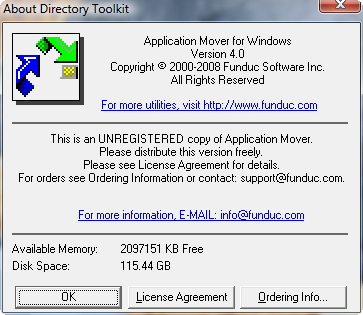
When you run AM, you will be prompted with this (assuming you did not buy the software):

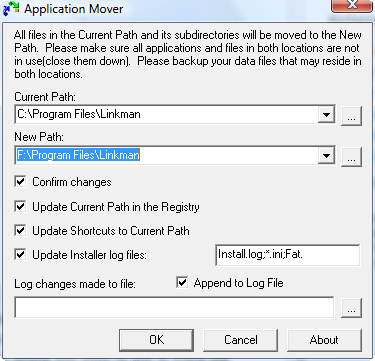
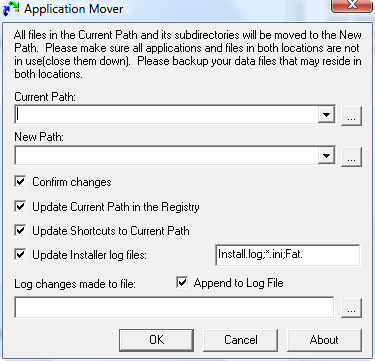
Click “OK”. You should then be brought to the ‘main’ screen of the program:

The only thing that concerns us is the “Current Path” and “New Path”. Sure the other settings are important, but leave them at default…we don’t need to mess with them. “Current Path” is where the program you are trying to move is located. “New Path” is where you want to put it. Click the “…” button next to “Current Path” and browse to the location where the program you want to move is located. For example, if I want to move Linkman Pro (which I did btw =D), I would find the folder “Linkman” and chose it. Since I installed Linkman Pro under Program Files, I would go to C:/Program Files/ and select on “Linkman” which is the folder where Linkman Pro is installed. Then for “New Path”, copy and paste what is in the box for “Current Path” but replace the partition letter, i.e. C:/, with the partition letter for your new partition, i.e. F:/ (assuming your new partition is designated F:/):

At this point some of you may be thinking must we place the program in the same location on the new partition as we did on the old. No you do not have to – in fact you don’t even need to name the folder the same thing. But for simplicity’s sake, lets just keep it that way. If you have enough computer knowledge and are confident in your skills, by all means, change whatever you want.

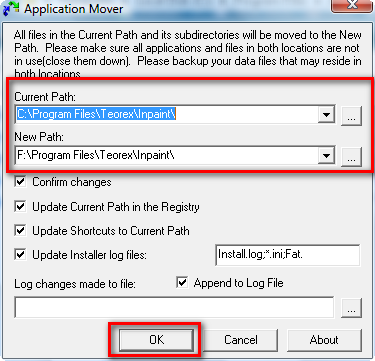
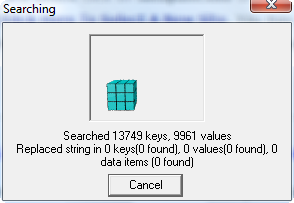
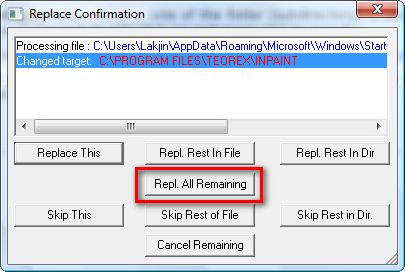
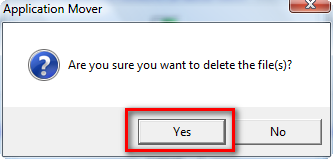
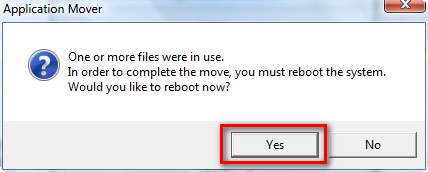
Ok so, after you are done with that, click “OK”. The program will start to do its thing. It will scan the folders and start moving files. On the way you may be prompted to replace some files. Be sure to replace all of them. Every time you are prompted, select “Replace” or “OK” – if you don’t your program might run into problems later on. At the end it will ask you if you are sure you want to delete your files. Hit “Yes”. If you get an error after that, don’t worry about it. In the end it will prompt you to restart your computer. Do so. After you have rebooted, open up your new partition and see if the program was successfully moved. If so, well done. If not…try again. Keep repeating the same process until you have all your programs moved into the new partition.

Here are screenshots of an example of me moving InPaint:

After you have moved all your applications into the new partition, you should be ready to reformat your Windows partition. Be sure not to format the partition that holds your programs when you are reformatting or else you will lose all your programs! After you have installed Windows and you get back to your desktop, you can, if you want, move the programs out of your partition (i.e. F:/) and move them back into your Windows partition (i.e. C:/) if you want. Or you can just leave them in the F:/ partition like I did.
Does this actually work?

As I mentioned above, sucess rate is not 100%. I have had a 66.66% sucess rate. I moved 9 programs into my F:/ partition before I reformatted my C:/ (Windows) partition:

  • PDF to HTML
  • PDF to Image
  • PDF to Text
  • PDF to Word
  • Linkman Pro
  • Edraw Max
  • Wondershare Photo Collage Studio
  • InPaint
  • AVS Video Editor

Out of all of those, AVD Video Editor, Wondershare Photo Collage Studio and InPaint all had either errors or were unregistered when I tried to run them from my F:/ partition after I reformatted my C:/ partition and installed Windows. The rest have been working perfectly so far. 6/9 = 66.66% success! And somehow, by stroke of luck, InPaint was offered by GOTD today so I had a chance to get it back after my reformat =).

TIP: For some programs, the developer enable you to use the provided registration code to activate the programs after the giveaway date. If you keep the registration codes in hand, you may be able to reinstall some of the giveaways after you reformat. YMMV. I am not giving out any registration codes, sorry!


41 Comments »

  1. Jeanjean April 18, 2009 at 3:49 AM (comment permalink) -

    @ normofthenorth

    Sorry for the delay.
    Because it can import and export virtual layers, there is no problem to refind all your GAOTD on a new PC.

    26
  2. compu2 May 2, 2009 at 5:05 PM (comment permalink) -

    Hi Ashraf
    I have an application called Laplink PCmover. Could I use this instead of Application Mover?

    Regards
    Dave

    27
  3. Ashraf May 2, 2009 at 5:26 PM (comment permalink) -
    Mr. Boss

    Dave,
    I have never used Laplink PCmover and I don’t know much about it but taking into account what the purpose of it is, I am thinking that yes it should allow you to move your giveaways just fine.

    28
  4. OmegaReport October 13, 2009 at 4:22 AM (comment permalink) -

    Both Seagate (and now) Western Digital offer free software that comes on a CD when you buy a new HDD from them.This allows you to clone your entire old drive to a new one – OS, programs, settings, documents, etc.

    With the Seagate software, at least one of the drives (old or new) must be a Seagate or Maxtor. I assume the same is true for the WD program. I’ve used the Seagate program a number of times and it works flawlessly.

    29
  5. sos4ever December 16, 2009 at 9:21 PM (comment permalink) -

    In response to Ashraf’s comment

    “I was actually about to post a HOW TO on how to track what is being installed/being changed on your computer (including serial keys) whenever you install a program.”

    @Ashraf: Wouldn’t the program that you recommend, Zsoft uninstaller fill that order?

    30
  6. Dave January 31, 2010 at 2:33 AM (comment permalink) -

    @giovanni:

    Giovanni, I have been looking at the different methods espoused on this subject and have just finished backing up most of my wife’s laptop. I was wondering if you could elaborate on making a transport file with SystemSuite as I have a copy of ver 9 around here somewhere and will likely upgrade to 10 when I finish with upgrading her from Windows 7 beta to Windows 7 Ultimate. With this kind of upgrade could I use System Suite?

    31
  7. Adrian February 19, 2010 at 1:04 AM (comment permalink) -

    Assuming that the new OS installed is same as the old, why don’t just backup the whole registry in a .reg file, copy all your program files (including those hidden) to some DVDs, copy them over to the new computer, and install the .reg file into the new OS registry. Done!

    32
  8. kcs3295 February 23, 2011 at 8:34 PM (comment permalink) -

    Paragon has an app that allows coping to boot on new hardware but have not tried so far.

    I download the GOTD app from the developer’s site but sometimes they give a special serial key for the GOTD app which will not work to re-install.

    Also, an app called WhatChanged will capture the system changes & registry files.

    If not mistaken, PC Mover only allows 10 uses for a license. Read before buying since it would be a rip-off to pay for this.

    Give Ashampoo Burning Studio a try as it may extract all related installed files to burn to cd. Even if it wont install (auto-run) – a copy & paste may work using the same directory of the old pc. This would be using M$ Volumn Shadow Copy which works for me. Ashampoo offers MyAutoPlayMenu which may build an exe of the copied file – haven’t tried this yet either but on my list.

    Ken

    33
  9. Don May 10, 2011 at 3:36 PM (comment permalink) -

    All this rigamarole and jury-rigging is exactly why I don’t bother with GAOTD offers. Almost everything I have ever seen on GAOTD that I wanted was later available as a true freebie (via infopackets.com or DotTech newsletter) or as a publishers special deal (aShampoo is great for special free offers). Where a freebie of the product is not available otherwise another software package that accomplishes the same thing usually is.

    If I hear about something on GAOTD that I think I want I might download and install it but only to play with it a bit to make sure I want it. Then I go elsewhere to find a true freebie doesn’t require all the extra effort to keep after a format.

    Don

    34
  10. pceasies November 14, 2011 at 12:10 PM (comment permalink) -

    Also, for Giveaway of the Day I found it far easier to download the zip and save the activation page. You copy the ID from the download link and say 123, and paste it on the activation link. Like: http://www.giveawayoftheday.com/activate/?id=26105

    Then you save that page as an HTML file. When you want to install you set Fiddler to redirect to the saved file instead of allowing the program to access the internet. The great part is, it’s super easy to automate and ensures you can run activate.exe or setup.exe. The only downside is you still won’t be able to use programs you had to go online and get a reg key from the dev to activate.

    35
  11. pceasies November 14, 2011 at 12:11 PM (comment permalink) -

    @OmegaReport: Still no good if you want to reinstall, but keep a couple apps from before.

    36
  12. noscar November 14, 2011 at 6:12 PM (comment permalink) -

    hmmm…. using programs manager from comodo gives us ability to recreate the setup file from monitored installation, there is also a repackager from appdeploy, and installrite.

    37
  13. jayesstee November 15, 2011 at 10:08 AM (comment permalink) -

    @pceasies: Please explain further – I see the words but don’t understand, particularly:
    “You copy the ID from the download link and say 123, and paste it on the activation link” and
    “Then you save that page as an HTML file. When you want to install you set Fiddler to redirect to the saved file instead of allowing the program to access the internet”
    Perhaps a dotTech [CC] article is the way to go?

    38
  14. Blue November 15, 2011 at 5:05 PM (comment permalink) -

    A much easier way is to install the giveaway program with Advanced Uninstaller Free; using it to track the installation. Then uninstall the giveaway program and Advanced Uninstaller Free will make a backup of the installation. Copy that backup to a safe location and you can then install it whenever you want.

    Easy, simple and (as the name of the program implies) free.

    Of course, perhaps a better solution would be to use Linux, where most Windows programs have a free alternative. If you *do* encounter a program that doesn’t have a Windows equivalent, use Virtualbox to run an XP machine. Save that virtualbox image file and you can reuse it on your newly formatted disk.

    39
  15. Raeldin November 15, 2011 at 8:02 PM (comment permalink) -

    Ashraf,
    I second JeanJean. I have used SVS for several years now and it has been great. I started using it because the more stuff you install the more cluttered your system gets, and I haven’t found any program that completely removes itself from your system on uninstall.
    SVS, or SWV (Symantec Workspace Virtualization) as it is called now, removes those issues. Once you delete a layer the software is completely gone. And if you suspect that a certain program is causing you trouble, just disable the layer and reboot. See if the issue goes away.
    I use a XP VirtualBox to install all my apps then just import the xpf file into my Windows 7 machine. The program is not able to capture every piece of software, but it has around a 98% chance in my experience.

    40
  16. Watcher1924 July 6, 2012 at 6:53 PM (comment permalink) -

    For a couple of days I and other GOTD users (probably many) were not able to install the giveaway programs. It was the first time I noticed this specific behavior during the installation: very high CPU usage for very long time (I don’t know how long because I felt sorry for my computer so I killed the process every time), not completion of the “connecting with GOTD” process and maybe some other details that I don’t remember.
    I suspected something about a change in the installation procedure so I thought about checking their blog for some announcement and I was right; the GOTD wrapper was updated!
    http://blog.giveawayoftheday.com/gotd-wrapper-is-updated/
    There are complains from the users because of a special protection program called “Themida” (btw, as a user there noted: “Themis or Themida was the Greek Goddess of justice”!). After this update the wrapper was tweaked again to resolve some problems for the users and now I can install again but they didn’t make clear if “Themida” stoped being used or if -in some other way- they made the procedure less strict.
    Anyway, I believe that it worths reading until the last comment (21st, by the time this comment was being written).

    @Ashraf (or anybody that knows the answer), why the date of this dotTech article is more recent than the date of the first comments?!!

    41

Leave A Response »