Tip: For the best compression, use 7-zip to backup your files
November 13, 2011 51
Email article | Print article
As I am sure all dotTechies know, backing up files regularly is a good idea because you never know when a technical disaster may strike. However, simply backing up files is not enough. You need to make sure you backup your files in such a way that the backups are accessible and usable shall your main data ever be lost, deleted, or corrupted. Depending on how important your data is to you, this means not only having redundant backups, but also having at least one source of an “off-site” backup in case of a physical disaster such as fire, etc.
^ Image credit.
Although not exactly an “off-site” backup, one of the thing I like to use to store backups of important files is my phone. I use my phone because I almost always have it with me and if my house were to ever burn down, I would make sure my phone got out safely before anything else, including but not limited to my family members and our pet fish Rover. After all I had to get downgrade from a 10 bedroom mansion to a 1 bedroom condo to fund the purchase; so the phone essentially is worth more than… everything else. The problem with using a phone as my backup, however, is it has a limited amount of space I can use; so compression is key.
When it comes to compression, typically system-level backup programs (the ones that usually deal with “image backups”) are better at compressing than file-level backup programs. The reason for this is because the purpose of these system-level backup programs is to backup whole hard drives or partitions; they typically backup larger amounts of data thus compression becomes very important in order to save space. While almost all backup programs – both system-level or file-level – provide users with the option to compress their backups, I have yet to find any backup program that can compress files as well as 7-zip can.
For those that don’t know, 7-zip is not a backup program. It is a powerful open source archive manager: It allows users to create and extract from archives such as .ZIP,.RAR, .GZIP, and more (can only extract .RAR, cannot create). In addition to supporting most (if not all) popular archive formats, 7-zip has its own indigenous .7z archive format which, when combined with LZMA/LZMA2 compression technique, allows for excellent compression of files.
In my Paragon Backup & Restore Free vs Macrium Reflect Free vs EASEUS Todo Backup vs DriveImage XML vs Acronis True Image Home article, I showed results of how well those software compressed 4.77 GB of data at their highest possible compression settings. When I wrote the article, the best out of the lot was Acronis True Image Home with an output file size of 4.29 GB (i.e. the backup image was 4.29 GB). Yesterday I introduced EASEUS Todo Backup v2, which was able to compress 6.01 GB of data down to 5.24 GB. (It must be noted that how well programs can compress data depends on the type of data; I am not trying to make you think “wow backup programs compress terribly”. Rather, I just want to point out how well 7-zip works.) Using 7-zip, at “Ultra” compression with LZMA2, I was able to take that same 6.01 GB of data and create a 2.40 GB .7z archive out of it. Yes, you read that properly: 2.40 GB. Not only did 7-zip create a smaller sized backup than EASEUS Todo Backup v2 – which backed up the same 6.01 GB – but it created a smaller sized backup of more data than what the other previously mentioned five programs could do with less data.
7-zip clearly blows all other backup programs out of the water when it comes to compression. So, then, why don’t backup programs take 7-zip’s compression capabilities and implement it in their respective programs? After all, 7-zip is open source so that shouldn’t be a problem. The reason is simple: Speed. Whereas it took 7-zip 40 minutes to create the .7z archive (tack on 20 minutes if you want to encrypt using AES 256), it takes 10 minutes or less for the system-level backup programs to backup the same data (unencrypted – add more time if you are looking to encrypt). Similarly, when creating the archive 7-zip eats up a lot of computer resources: 70%+ CPU and ~720 MB of RAM. With the exception of Acronis’ CPU usage, all the other system-level backup programs are a lot more light on computer resources when conducting their backups. (Note: If you are using multi-core systems, you can limit 7-zip to using X number of CPUs. The 70%+ CPU usage I report above is when I allowed 7-zip to make use of both my cores.)
Because of the speed and resource usage disadvantages of 7-zip, it clearly cannot – should not, at least – be used as a regular backing up tool (by “regular backing up tool” I mean backing up within short time-frames like every day or every week); nor should it be used to backup a huge amount of data (it would just take too long). If you want to regularly conduct backups or you want to backup a lot of data, you should check out a system-level backup program (or even a file-level program depending on what you are looking to backup). Those backup programs are built around the idea that users will use them to regularly create backups and use them to create backups of a large amount of data; they have been designed to strike a balance between compression and speed. They focus more on usability as opposed to getting the smallest sized backup possible. However, if you find that compression is the most important aspect of creating your backups (i.e. it is important enough that you are willing to spend the time to get that great compression) or if you only want to backup a small amount of data or if you feel your data doesn’t change often enough to be backed up “regularly”, 7-zip may just be a better program to use to backup your data than other, specialized backup tools.
That said, using 7-zip to create backups is very easy. First you obviously need to install 7-zip. After that, creating a backup with 7-zip can be done via two ways:
Via right-click context menu
- Select (highlight) the files/folders you want to include in the backup, right-click, go to 7-zip -> Add to archive…, set archive settings, and wait for the archive to be created:
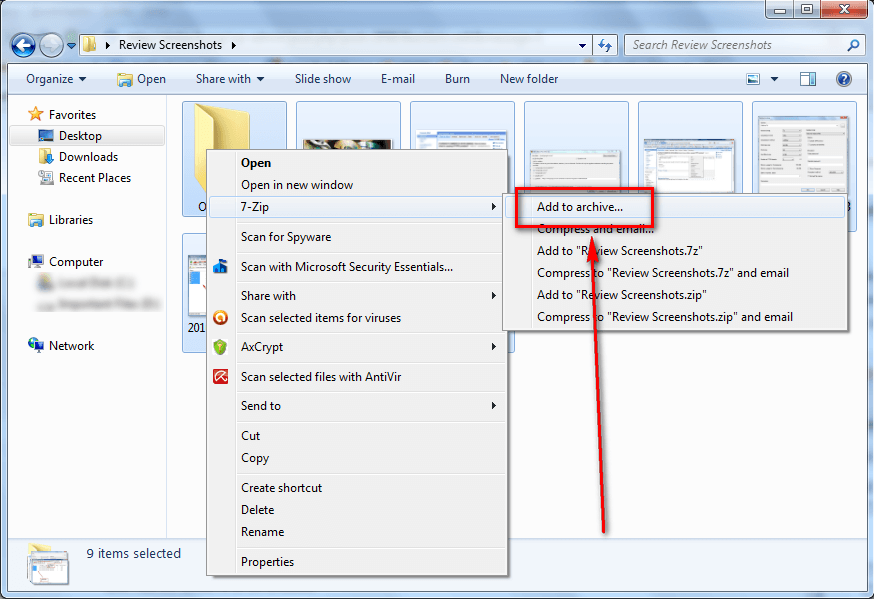
Once the archive is created, that is your backup file. By default it will be placed in the folder you were in, but you can manually move it to wherever you want to store your backup. You can “restore” the backup by simply extracting the .7z archive wherever you want.
Via 7-zip File Manager
- Launch 7-Zip File Manager, navigate to the folder that contains the files/folders you want to backup, select the files/folders you want to backup, click on the Add button, set archive settings, and wait for the archive to be created:
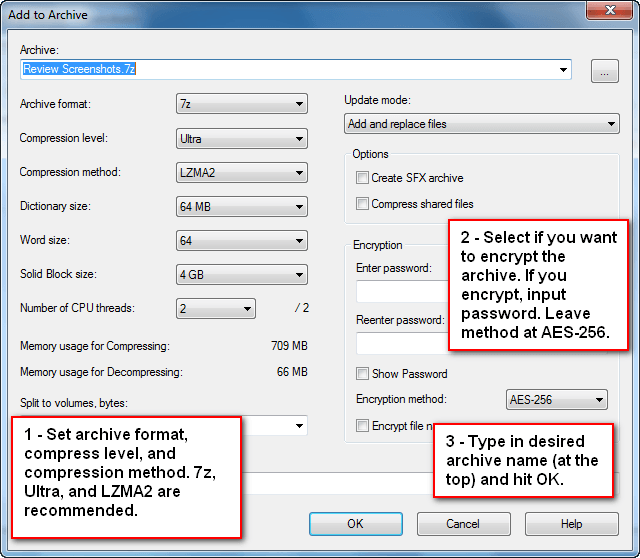
Once the archive is created, that is your backup file. By default it will be placed in the folder you were in, but you can manually move it to wherever you want to store your backup. You can “restore” the backup by simply extracting the .7z archive wherever you want.
Anyone that doesn’t have 7-zip already can grab it from the following links:
Current version: 9.20
Supported OS: Windows 98 and higher and limited support for Linux/Unix
Download size:1.1 MB for 32-bit version and 1.3 MB for 64-bit version
[Direct download - 32-bit Windows version]
[Direct download - 64-bit Windows version, Intel and AMD CPUs]


Please note that there are certain things that 7-zip does not do as well. For instance, Photoshop files and video files. I was able to compress 210MB+ to 150MB using Windows XP’s built in ZIP tool, while in 7-zip it scraped it down to a mere 200MB. (Surprising? Yeah! I know. I was surprised too.) Therefore, I don’t recommend using 7-zip for media files, or at least I recommend trying out different tools.
Different tools have different advantages.
Also,
scheduler fail.
@Locutus: I got Y2K’ed a decade late. I meant to publish the article on Jan 1 2011. I accidentally published it on Jan 1 2010, which is why everyone got e-mails a bit early.
I tend to like IZArc better, but 7-Zip is a very good program still.
One backup program that does incorporate 7-zip as an archive method is Cobian Backup (http://www.cobiansoft.com/cobianbackup.htm). This file backup program is very handy with multiple ways to store the backup, i.e. local hard drive, external drives, network drives, FTP sites and more. For those technically inclined this is an excellent tool to make sure you never lose a file. I use it on the small business server at work and it has saved the day multiple times over the last 5 years.
@leland: I have to second that. Although dotTech hasn’t officially reviewed Cobian Backup, it is a brilliant file-level backup program.
@Toast: Never heard of IZArc. Is it freeware or shareware?
A decade ago, I used to backup Folders (and Files) with Winzip.
On one occasion I attempted to recover some files, and I was unable to.
I do not believe it was a corrupt ‘backup’
I believe it was because the depth (width) of some of the file paths (and names) were too long.
I have never used zipped folders as backups since.
Rob
PS I avoid the ‘Documents and Settings’ folder like the plague, as it is similar to a mineshaft dug by a rabid Wombat. I notice that many of you do use it (tch! tch!).
In there you will find some very long paths (assuming that you are lucky enough to find anything in there).
Hi Ashraf
I am very impressed at your energy and prolific output.
I find virtually all your advice and reviews very useful and informative.
So just that you know there are many of us following you and never commenting, and I hereby want to confirm that you are doing a fantastic service.
Jonathan
7-zip is my way to go in every new installation for many years now.
Just remember to set it as default zip handler.
Izarc is fine also (yes, it is freeware) and has similar functionalities (and more beautiful icons!) and is my 2nd freeware option. But 7-zip is included in ninite and I usually end up with this first.
I have found a couple of specific differences that made me use one instead of the other in some occasions, but cant really remember now what exactly were those. The only one that its obvious is that izarc has a portable version as well.
(and 7-zip has a portableapps version available).
@Ashraf: Freeware. I like how it brings up the program with the archived files. Last time I used 7-Zip it did not do that. Also, if there is a .exe file archived, there is a function of it that allows users to install it without unarchiving everything, but it unarchives (is that a word?) it to a TEMP folder until it is installed/used.
http://www.izarc.org/
http://www.izarc.org/izarc2go.html –portable, no explorer integration
CNET gives each program equal ratings. Really, I have no clue which has better compression, but they both use the same methods.
I use PeaZip because it looks nicer — using the 7zip backend.
Ashraf, I saw your heading, and I was all geared up to complain about how SLOW 7zip is as a backup tool. All covered already, so “never mind”!! I used 7zip once to back up a ~20 GB HDD, and “never again”. I’ve been enjoying Macrium Reflect Free for a few years now, since a restore with Acronis corrupted my FAT!
Ashy, I agree with everything Jonathan said, which leads me to ask:
Are you the only one working on this site or do you have help?
Keep up the good work,
Just me,
Dirty Harry
Ashraf –
While trying to research if I could use 7zip to back up files that are open and in use, I found the 7zip command line utility 7za.exe. I like to use batch files for a lot of things, and 7za.exe looks like it will be very useful.
Here are some of the command line switches:
a archive; d delete; e extract (specifying source and destination); x extract (source and destination preserved in archive); l (lowercase letter ell) list; u update; t test archive; -t specify type of archive**; -m method of compression**; -o specify destination directory; -p set password; -v something about the volume of the archive; -ao overwriting.
**see the 7zip help file or the webpage http://dotnetperls.com/7-zip-examples for details……
The webpage has more switches and a ton of other useful information.
I still do not know if 7zip will back up an open file, but I will find out by trying to do so.
Ashraf, I really appreciate you and your website. Many, many thanks for all of the hard work you put into it. I can learn something almost every day, either from your article or from the the people posting their comments. So many thanks to them, also! I have no connection to 7za.exe- it’s open source. I’m just hoping that you and some of your followers will find the information about it useful.
Happy New Year, and may the Spirit of All Things Wise and Wonderful always surround and protect everybody and their loved ones!
7-zip is an essential utility I think every computer should have. It is worth noting that 7-zip can also unpack other formats such as ISO, EXE, and even Flash files.
This is not about backup, but I have had a 7-zip question hanging around:
Is there a way to get zipping in ther r-click context menu with 7-zip? I had it with WinRar and used it all the time but don’t seem to have it with 7-zip …
@janetb: I am confused. I have an option to ZIP in the right-click context menu for my 7-zip — see screenshot in the article above. You are saying you don’t it?
When I right click a file, I have a 7-zip menu item.
When I mouse that, my sub menu is very different from Ashraf’s
I have eleven choices, and three of them are -
Add to Archive
Add to ‘blah.7z’
Add to ‘blah.zip’
I always use the latter one
@Rob (Down Under): What version of 7-zip do you have? My screenshot is of the latest version because I recently just downloaded and installed.
Ashraf, I tried to add this to the above (during the countdown), and it told me that I do not have permission to Edit it. I got the edit box, it just would not let me Save the changes.
Here is what I was going to add -
PS Ashraf, If that is your Windows Explorer, I should show you how to get a proper Classic view (in spite of MS’s attempts to block us doing what we want)
PPS version 4.65
@Rob (Down Under): You couldn’t edit your comment because I had already posted a new one after yours. You can’t edit comments after new comments are posted.
And, hey, whats wrong with my Windows Explorer? :-(
Did you not like the Classic view in XP’s Windows Explorer ?
That is my holy grail.
Plus I refuse to use ‘My Documents’ and ‘My Pictures’, etc, buried down the mineshaft of Documents and Settings. Thus they do not clutter my Classic View.
Also MS can take their Libraries, and shove them. I want direct access to folders that I created in the C directory, not some ‘sleight of hand’ / mirroring / whatever, indirect view of folders.
I have Detail view in the right pane, like a real man would use.
Also I don’t use Windows Explorer, as it does not have Tabs, on the right, like a real man would use.
I have 6 FREE programs that can all meet those criteria (some took a bit of digging, to configure them correctly.)
Only recently accomplished that, in XP, so haven’t tested them in Win 7 yet.
Five of them are ‘no install’, so 4 of them should work.
One of them is the lite version of a current commercial product, so it should be OK in 7.
Perhaps it is time for a thread on ‘Real Men’s’ File Managers ?
The programs are -
XYPlorerFree (No install. Great in XP, but a little quirky in Win 7)
CubicExplorer (No Install)
Q-Dir (No Install)
Explorer++ (No Install)
UltraExplorer (No Install)
Xplorer2Lite (I don’t like it, and that is the free version of a commercial program)
@Ashraf: @Rob (Down Under):
I see I had verson 4.65 (!!!), so I downloaded and reinstalled (9.2) and now have 10 7-zip options in the r-click contest menu for 7-zip….:-)….Rob, I wonder what your 11th option is….:-)….
a href=”http://dottech.org/tipsntricks/20583/comment-page-1#comment-59619″>Rob (Down Under)</a
I use Classic Shell , which has Explorer settings and Start Menu settings. Did everything I could to get my new W7 to look like XP….:-)….Classic Shell doesn’t change any of the functions— just the looks, layout, up-one-level-arrow button, etc. I thought I should give the Win7 explorer a try to see the new functions, but I needed a more intuitive layout. Classic Shell is very good for that.
JanetB,
The Win 7 Start menu is horrible.
I have Classic Windows Start Menu (cwsm.exe) which is free, and No Install.
It ‘replaces’ the Windows Start button (actually it just floats over it, so you don’t see the MS button)
I am using that in Classic mode.
Creating and organizing the Start Menu folders was a challenge, as MS tries to block our access to those folders.
‘They will have to get up early in the morning to stop me’
I believe it is now better than I could achieve in XP (I can choose the Font, and Font Size).
It does not interfere in any way with Win 7, and even has a Start Menu option to show the original.
Ashraf,
I have a folder in XP called PGMS_NoInstall
The ‘no install’ programs mentioned above are in there.
I just copied the whole folder to Win 7
All of these ran nicely (and remembered the previous Tabs)
CubicExplorer (No Install)
Q-Dir (No Install)
Explorer++ (No Install)
UltraExplorer (No Install)