Tip: For the best compression, use 7-zip to backup your files
November 13, 2011 51
Email article | Print article
As I am sure all dotTechies know, backing up files regularly is a good idea because you never know when a technical disaster may strike. However, simply backing up files is not enough. You need to make sure you backup your files in such a way that the backups are accessible and usable shall your main data ever be lost, deleted, or corrupted. Depending on how important your data is to you, this means not only having redundant backups, but also having at least one source of an “off-site” backup in case of a physical disaster such as fire, etc.
^ Image credit.
Although not exactly an “off-site” backup, one of the thing I like to use to store backups of important files is my phone. I use my phone because I almost always have it with me and if my house were to ever burn down, I would make sure my phone got out safely before anything else, including but not limited to my family members and our pet fish Rover. After all I had to get downgrade from a 10 bedroom mansion to a 1 bedroom condo to fund the purchase; so the phone essentially is worth more than… everything else. The problem with using a phone as my backup, however, is it has a limited amount of space I can use; so compression is key.
When it comes to compression, typically system-level backup programs (the ones that usually deal with “image backups”) are better at compressing than file-level backup programs. The reason for this is because the purpose of these system-level backup programs is to backup whole hard drives or partitions; they typically backup larger amounts of data thus compression becomes very important in order to save space. While almost all backup programs – both system-level or file-level – provide users with the option to compress their backups, I have yet to find any backup program that can compress files as well as 7-zip can.
For those that don’t know, 7-zip is not a backup program. It is a powerful open source archive manager: It allows users to create and extract from archives such as .ZIP,.RAR, .GZIP, and more (can only extract .RAR, cannot create). In addition to supporting most (if not all) popular archive formats, 7-zip has its own indigenous .7z archive format which, when combined with LZMA/LZMA2 compression technique, allows for excellent compression of files.
In my Paragon Backup & Restore Free vs Macrium Reflect Free vs EASEUS Todo Backup vs DriveImage XML vs Acronis True Image Home article, I showed results of how well those software compressed 4.77 GB of data at their highest possible compression settings. When I wrote the article, the best out of the lot was Acronis True Image Home with an output file size of 4.29 GB (i.e. the backup image was 4.29 GB). Yesterday I introduced EASEUS Todo Backup v2, which was able to compress 6.01 GB of data down to 5.24 GB. (It must be noted that how well programs can compress data depends on the type of data; I am not trying to make you think “wow backup programs compress terribly”. Rather, I just want to point out how well 7-zip works.) Using 7-zip, at “Ultra” compression with LZMA2, I was able to take that same 6.01 GB of data and create a 2.40 GB .7z archive out of it. Yes, you read that properly: 2.40 GB. Not only did 7-zip create a smaller sized backup than EASEUS Todo Backup v2 – which backed up the same 6.01 GB – but it created a smaller sized backup of more data than what the other previously mentioned five programs could do with less data.
7-zip clearly blows all other backup programs out of the water when it comes to compression. So, then, why don’t backup programs take 7-zip’s compression capabilities and implement it in their respective programs? After all, 7-zip is open source so that shouldn’t be a problem. The reason is simple: Speed. Whereas it took 7-zip 40 minutes to create the .7z archive (tack on 20 minutes if you want to encrypt using AES 256), it takes 10 minutes or less for the system-level backup programs to backup the same data (unencrypted – add more time if you are looking to encrypt). Similarly, when creating the archive 7-zip eats up a lot of computer resources: 70%+ CPU and ~720 MB of RAM. With the exception of Acronis’ CPU usage, all the other system-level backup programs are a lot more light on computer resources when conducting their backups. (Note: If you are using multi-core systems, you can limit 7-zip to using X number of CPUs. The 70%+ CPU usage I report above is when I allowed 7-zip to make use of both my cores.)
Because of the speed and resource usage disadvantages of 7-zip, it clearly cannot – should not, at least – be used as a regular backing up tool (by “regular backing up tool” I mean backing up within short time-frames like every day or every week); nor should it be used to backup a huge amount of data (it would just take too long). If you want to regularly conduct backups or you want to backup a lot of data, you should check out a system-level backup program (or even a file-level program depending on what you are looking to backup). Those backup programs are built around the idea that users will use them to regularly create backups and use them to create backups of a large amount of data; they have been designed to strike a balance between compression and speed. They focus more on usability as opposed to getting the smallest sized backup possible. However, if you find that compression is the most important aspect of creating your backups (i.e. it is important enough that you are willing to spend the time to get that great compression) or if you only want to backup a small amount of data or if you feel your data doesn’t change often enough to be backed up “regularly”, 7-zip may just be a better program to use to backup your data than other, specialized backup tools.
That said, using 7-zip to create backups is very easy. First you obviously need to install 7-zip. After that, creating a backup with 7-zip can be done via two ways:
Via right-click context menu
- Select (highlight) the files/folders you want to include in the backup, right-click, go to 7-zip -> Add to archive…, set archive settings, and wait for the archive to be created:
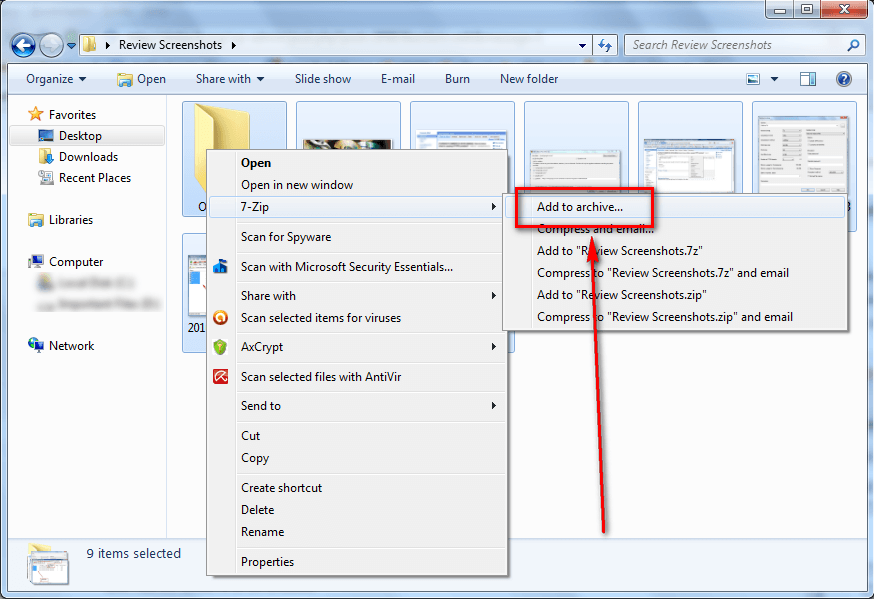
Once the archive is created, that is your backup file. By default it will be placed in the folder you were in, but you can manually move it to wherever you want to store your backup. You can “restore” the backup by simply extracting the .7z archive wherever you want.
Via 7-zip File Manager
- Launch 7-Zip File Manager, navigate to the folder that contains the files/folders you want to backup, select the files/folders you want to backup, click on the Add button, set archive settings, and wait for the archive to be created:
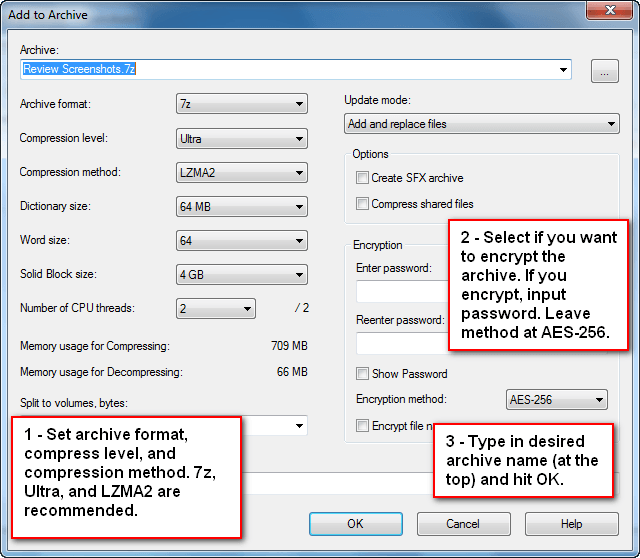
Once the archive is created, that is your backup file. By default it will be placed in the folder you were in, but you can manually move it to wherever you want to store your backup. You can “restore” the backup by simply extracting the .7z archive wherever you want.
Anyone that doesn’t have 7-zip already can grab it from the following links:
Current version: 9.20
Supported OS: Windows 98 and higher and limited support for Linux/Unix
Download size:1.1 MB for 32-bit version and 1.3 MB for 64-bit version
[Direct download - 32-bit Windows version]
[Direct download - 64-bit Windows version, Intel and AMD CPUs]
51 Comments »
Leave A Response »


I believe this comment relates to the main subject of this thread.
I was going to post earlier, and propose my approach of imaging the whole drive to external docks.
(Two docks, so that you can alternate between the two of them.)
The drives are shoved vertically into the docks.
I restrained myself (from posting earlier), as I have preached about that on many occasions in Ashraf’s threads (search this site for DiscWizard).
However it is relevant, as that is now my only method of backups.
The reason that I am bravely posting this, is for those that have older PCs that do not have Sata motherboards.
My docks have USB and eSata sockets. Up until now I have used USB.
I ordered a PCI card from China (eBay) for $13
I installed it in my 2003 PC which runs Win 7
It (the PCI card), has the good Silicon Valley chip (not the flaky Via chip).
It has 2 Sata and 2 eSata sockets. (You choose any two to be active)
Ran it today with a Seagate Sata drive inside, and also used an eSata connection to one of my docks.
It ran perfectly, using both drives at once.
Yell out if anyone needs a link.
PS eSata is two to three times faster, than USB
@Rob (Down Under):
I just checked this out:
Classic Windows Start Menu is a part of Classic Shell. So we are using the same great app. Since you like it, you might want to check out the second part of Classic Shell: Classic Explorer, as well as Classic Shell ‘s additional goodies:
http://www.codeproject.com/KB/shell/classicshell.aspx
7-zip is my only zip program. I find it easier to use than PeaZip and more capable than IZArc, although both of them are OK. JZip and QuickZip are other freeware ones that incorporate 7z capabilities. Note that much of the slow performance in 7-zip is due to your using the best possible compression. If you use less aggressive settings, you will get much faster compression with only a slightly larger file size. I use “ultra” for backing up 1-10 Mb files that I have to email. In those cases, the smallest possible file size is an acceptable trade off for slightly longer compression times. Finally, note that decompression times are about the same for any compression mode and setting used in 7-zip.
@janetb:
There are a couple out there that have very similar names.
Mine is not the same one as yours
If you go to the link you posted, about 25% down the page he lists others that he checked out.
Mine is called
Classic Windows Start Menu
http : // usuarios.lycos.es / coreaffinity / classicwinstartmenu.htm
I have shoved some spaces into that link, so it does not need moderating
I have turned off all the aero and graphical stuff, and it is so functional.
Are you using XP or Win 7 ?
Perhaps I can convert you to one of my File Managers ?
If you have not used Tabs, you have not lived.
@Rob (Down Under):
I am on Win7 now: Windows 7 Home Premium 64bit.
The link I gave is for the Classic Shell project on SourceForge which includes Classic Start Menu. I liked the fact that they gave reviews (which periodically get updated) on similar programs. Yes, yours is one that is reviewed there. They wrote:
Classic Windows Start Menu –
Classic Windows Start Menu is also free, and only has basic functionality. No drag/drop, very few languages are supported, and doesn’t quite work correctly when the taskbar is not at the bottom.
Update: The latest beta supports drag/drop, and better handles the different positions of the taskbar. There is still room for improvement (drag/drop is a bit buggy, Unicode support is lacking), but looks like the project is active, and effort is being made to fix the existing problems.
I had checked them all out and felt SourceForge’s Classic Start Menu to be by far the best….It certainly has many more options…..
When on XP, I had tried ShellLess as a tab Explorer. At the time, I was really low on space, so having that installed and running with Windows Exp as well on the system was too much. When I upgraded, I found Win7 to be so different from XP (I skipped Vista), that I figured I would give it a chance before adding outside software. At this point I even find myself often preferring the W7 Sart Menu(!!)–I can easily toggle between the two–as I have been able to make it like XP….I totally agree with the earlier post that MS had taken away our access to so many controls in Win7. It seems to have evolved into a children’s OS….:-(….
Have you seen ShellLess? You have listed so many….Do you use more than one?
janetb,
I have used XYPlorerFree in XP as it is ‘as good as it gets’
However I had a lot of tabs open in it (to remind my old brain where some VB6 Programs were).
So I had the bright idea, to find another free one that I could set up nearly as well as XYPlorerFree. (With the intention of ‘moving’ the Tabs to the other one, and freeing up XYPlorerFree for me.)
XYPlorerFree was pretty perfect to start with (not much setting up needed).
It took me many hours to work out how to set the others up. EG One was designed for multiple Panes. Some people love Panes, but I suspect that if Tabs had been invented first, then the desire for Panes would have been miniscule.
However I now have the 4 that I mentioned, looking the way a Tabbed File Manager should. Plus remembering the open Tabs from the previous session, etc.
If you tried any one of the 4, it will do no harm to Win 7, as Win 7 will not even realize they are running (No Install).
Of the 4, I am leaning towards UltraExplorer, as it allows me to choose the Font, and the Font Size (old eyes as well).
They all follow the XYPlorerFree conventions of -
Ctrl T for new Tab.
Mouse wheel click to close a Tab.
Ctrl N for a new Folder.
You have my personal guarantee, that Win 7 will be unaffected by them.
(They do not integrate into the Shell. They do not integrate into anything.)
Had a look for ShellLess, but it appears to be shareware.
@Rob (Down Under):
Thanks for letting me know they are no-install–that is a deciding factor! ;-) I will try them. Do they have pane options as well? I like multiple windows open for 1) comparing, and 2)for dragging items between windows. I guess you can’t do that with tabs (?)…..
@janetb:
I have not tested this with all of them yet, but just did a test with UltraExplorer.
I don’t believe that you should need panes.
Have a single instance of UltraExplorer.
Have a single Directory on the left.
Open up a few Tabs, and have those open on different Folders.
As you switch from Tab to Tab, the Directory on the left will keep in kilter with what is on the right.
If you click on any file in a tab, and left drag it to another Tab, it will move it there for you.
You can do a right click drag instead, if you wish a choice between Copy or move.
Regarding setting UltraExplorer up the way I like
“”"”"”"”"”"”"”"”"”"”"”"”"”"”"”"”"”"”"”"”"”"”"”"”"”"”"”"
I will download a fresh copy of UltraExplorer, and place it in anther folder.
That will allow me to refresh my memory, on how I ‘fixed it’ (set it up properly).
PS Download the portable version.
Create a folder for it in your C directory
I created -
C: BackSlash PGMS_NoInstall BackSlash UltraExplorer
The editor is discarding backslashes, so I used the word BackSlash instead
. . . . . UltraExplorer Tweaks to get proper Style
To always get Details View, go to Tools
Then go to Listview Common
Up in the top center, there is a combo drop box called Default View.
Click it and choose Details.
Then click OK a couple of times to save and close the Options
Go to View menu and then to Toolbars.
There are a lot that need unticking.
The only one that should be ticked is – Main Menu bar
There is a little area called Drop Stack, top leftish.
Click the X to close that.
In Tools Themes, I went for the one called Human.
That should get you pretty much the way, I believe it should be.
You can choose a different Font and Font Size if you want.
You get to it from Tools menu then Options then Listview.
The Font button is at the top (a bit left of center).
Just finished reading the comments above.
My current favorite zip utility is WinRAR; One of the things I like about it is opening in a window aka: WinZip. the unzipped files can then be saved to a folder of choice & then installed as needed.
Back in the days of Iomega Zip cartridges, I tried zipping files using 7Zip & had problems with the archive function. i got away from using both Zip cartridges & 7Zip as hard drives got larger.
While I have all the zip programs available I lean towards WinZAR.
Just finished reading the comments above.
My current favorite zip utility is WinRAR; One of the things I like about it is opening in a window aka: WinZip. the unzipped files can then be saved to a folder of choice & then installed as needed.
Back in the days of Iomega Zip cartridges, I tried zipping files using 7Zip & had problems with the archive function. i got away from using both Zip cartridges & 7Zip as hard drives got larger.
While I have all the zip programs available I lean towards WinZAR.
As i’ve tested the best bacup programmes are KGB Archiver, UHA (using WinUHA GUI frontend), 7-zip and WinRAR
In general cases KGB archiver has the best compression but its v.impractical.. Say, it can take about 5 minutes to compress a file of just 5MB!!!
But it could be used in places where compression is worth than anything else(Emails, IF people still use Floppys, backups in phones…).
I’ve seen it compressing files by 18% while all the others couldn’t pass 30%. Thats 180KB per 1MB.
UHA is usualy slightly better than 7zip or WinRAR. For me RAR and z-ZIP is a tie.They r superior to each othr in different cases.
Ah and Ashraf, CAB is much beter in compressing than most of us think.Its certainly better than ZIP tho its slower. And dont be suprised if that supercede 7-ZIP in specific rare cases. Ive found it compresseing better than RAR
@Ashraf: Thanks for re-posting this – I had an old version of 7-Zip, downloaded version 9.20 (still the latest) and I have too now have 7-Zip in the Windows Explorer context menu. Result!
Incidentally, you state: “By default it will be placed in the folder you were in”. True, but if you insert a path in front of the archive file name (first box in the “Add to Archive” screen), then you can automatically build your archive file in another folder and/or drive.
Incidentally (#2), you are so right about the time it takes, but it can be run in a background mode while you get on with other things.
Please: What program can provide the widest possible best compression between 7Zip and IZArc? Ashraf says: “Using 7-zip, at “Ultra” compression with LZMA2, I was able to take that same 6.01 GB of data and create a 2.40 GB” NOW: Using IZArc the same 6.01 GB how much would be possible to compress? …Thank you.
I created a Freeware tool called B7 which allows you to backup using the 7-Zip compression as well as store the backups on Amazon S3. I created this tool so that I could automatically backup certain folders on my server(s).
It has a GUI but to automate you can create a Windows Task and then simple call it from the command line.
You can download it from my blog at http://thomasjaeger.wordpress.com.
This is a pure windows application. No libraries or run-time needed. One simple exe for B7.
This post is regarding Self Extracting EXE
That is a compressed file with an EXE extension that you can send to a friend, and all they have to do is double click it, to extract the files. (And they do not need to have 7Zip installed on their PC, to do that self extracting).
I had a purchased copy of Winzip 8
I was ignoring update offers, as I was using 7Zip
I accepted their offer to upgrade to Ver 15.5, as they also bundled in a Self Extractor.
It was horrible, and would not offer a simple Extract here choice, when the friend was double clicking the EXE.
I will never upgrade Winzip again.
Now to the good news -
7Zip has this option (to create a Self Extracting EXE) and it is simple/brilliant/easy, and allows an Extract Here, as a default.
Here is a link to a tutorial -
http://www.recipester.org/Recipe:Use_7-Zip_to_Create_Self_Extracting_Executable_47534422
Basically all you do is –
Select the files you want to add to the EXE
Right click and choose 7Zip ==> Add To Archive
Tick the checkbox “Create SFX archive”
And click OK
@Rob (Down Under):
PLEASE NOTE:
Those lovely, simple .exe files cannot be sent to any form of gmail address! …:-(….
@Janetb:
There is a trick I use when sending compressed files (or EXEs) to email hosts that cannot handle them.
I replace .zip or .exe
with
.IAmAnArchive
And I tell the recipient to change it back.
I just sent one of 7Zip’s Self Extracting EXEs to my GMail account, and all went to plan.
Regards,
Rob
To nearly quote Seinfeld -
“They have to get up early in the morning, to stop me.”
@Rob (Down Under):
Wow! Thanks! I have been looking for a way to send .exe’s to gmail addresses for ages…! Can you write anything (like xxx.changeformat) for very NON-computer-savy recipients? If so, does having the letters exe anywhere in it cause rejection? E.g., xxx.change-to-exe!……
@Janetb:
I remember in my early GMail days, trying a few things, and not having much luck.
Then some time later I tried what I described above, and it worked.
They may have softened their scrutiny a bit, or I just came up lucky with that.
I guess any letters after the dot will be OK.
I myself would avoid exe and zip as part of those letters.
But I will be interested in your experiments.
Rob
PS When I did that trial with the self Extracting .exe called .IAmAnArchive
I downloaded it back from the GMail attachment, and double clicked it whilst it was still called .IAmAnArchive
There was a delay, then 7Zip opened it.
It did not self extract it, but it did open up the 7Zip application and show the contents of the archive.
@Janetb:
I just sent this to GMail, and then downloaded it back from GMail.
Worked OK
Sample.exe.RemoveTheDotAndThisLongInstruction
@Rob (Down Under):
Very ceative, I like it!
Your posts to JanetB are the best (only?) thing happening on dotTech.org.
@Rob (Down Under):
I find this all a bit surprising because I thought Windows (and apps) identify a file as what it is even when it is mislabled….Like when a program won’t open a file it is supposed to open because it says “this is not a valid x-file…” I guess the gmail filter is much less sophisticated….But I do know that if you include an exe file within a zip file, it will NOT go through to gmail. And if you zip an exe file, it also will also NOT go through….
@Janetb:
I have an EXE (ClipBuddy.exe) which I compressed together with a JPG.
I created the self extracting exe, and called it -
Latest.exe.RemoveTheDotAndThisLongInstruction
It was received in GMail ok.
I downloaded it, and did the rename and then let it self extract
The JPG and the EXE got through, and my clipbuddy.exe ran fine
jayesstee,
Thanks for the praise, it is appreciated.
In this day of backing up to multiple media volumes, for example a dozen DVDs since you have so many photos, be sure that you are able to recover your files if some media is damaged. In specific I found 7Zip is dead in the water if you do not have all the volumes available for decompression. This not only means with 7Zip (and Cobian) that you have to copy all of the volumes back into one folder before you can recover, it means that if any of the source files (volumes) are unreadable you are completely dead. On this last point you need to consider that each volume you add doubles your odds of failure (not good for backup).
For this reason I went with WinRAR which both generates volumes that can be accessed independently (except that some files may span multiple volumes based on size and position), and has a command line option to generate “volume recovery” command “r*”, like rv[N] Create recovery volumes. Generate a file list with the “winrar l *” command and archive that text file as well and you can examine it to find our what volume(s) you need to access to get data back in an emergency.