
 Email article
 Is your phone feeling a bit boring? Does your tablet need more customization? Sometimes, your devices don’t feel personal enough. Other times, it can be bogged down by needless bloatware and other cruft. Free it with one of several free tools for iOS, Android, Windows RT, and webOS!
Jailbreaking, on iOS devices, allows you to install apps, tweaks, and themes that Apple hasn’t approved. You can add a fifth (or sixth, or seventh) icon to your dock; you can make the entire system bright red. Although Apple tries hard to not let people jailbreak, the worst they can do is void your warranty; and rest assured, Apple will void your warranty if you jailbreak. (Jailbreaking is 100% legal, although pirating apps is not!)
Rooting, which is for Android devices, allows you to modify crucial system files that would otherwise be locked away. This lets you do things like block ads, remove/freeze bloatware, use a firewall, and much more. Due to the thousands dozens of devices available, there are dozens and dozens of rooting methods; however, there are also some rooters that are fairly universal. Take note although rooting is 100% legal, it may void your warranty.
Disclaimer: Please proceed with caution. Although the art of rooting, jailbreaking, and homebrewing has been been turned into a science, all after-market software modifications have the risk of bricking your device. By proceeding below and rooting/jailbreaking/homebrewing your device, you recognize and accept the risks of these processes. Locutus, Ashraf, dotTech and anyone else except yourself are not responsible for any gain, loss, or harm done to you, your device, or your data. If you brick your device and come whine here, Ashraf will probably laugh at you.
Table of Contents
Android Rooting
Do you like HTC’s Sense skin? What about Motoblur? More like Motoblah! By rooting your Android device, you can get more customizability along with more apps.
Android is a unique beast among mobile OSes. Unlike iOS or WebOS, which are made exclusively by one company and only have a few software releases, Android has thousands dozens (maybe hundreds) of devices and many different software versions. As such, it is extremely difficult to make one rooting program work on all devices. However some programs, like SuperOneClick, have managed to get fairly close to the end goal of a universal rooting program, and some others, like z4root, even allow rooting from the comfort of your hand (no computer required).
Rooting Android with z4root
Have Android 2.2 Froyo or below? That means you can root your phone, from the convenient location of your phone! All you’ll need is a small bit of time. No computer is required. (If you have above Android 2.2, skip down below to SuperOneClick, Framaroot, or device-specific rooting.)
First, you’ll need to make sure that non-Market app installs are allowed; this is called sideloading apps. To do this, go to Menu > Settings > Applications (or Security) and check “Unknown Sources”. (If it’s greyed out, that means that your carrier has decided to be mean and block sideloading. To remove this restriction, try rooting with SuperOneClick, Framaroot, or device-specific rooting below.)
Now that your phone allows sideloading, download z4root onto your phone. Once it has been downloaded, use a file manager to navigate to the APK installer (it will probably be in the download folder) and install z4root. After it is installed, launch z4root from your app tray open it up from your launcher:

Once z4root has been launched, you are half-way finished. Now all you have to do is decide if you want a permanent root, or just a root until you reboot your phone (temporary root). If you want a permanent root, be aware that it won’t work on every phone (try SuperOneClick, Framaroot, or device-specific rooting if z4root doesn’t work for you).
Once you select what type of root you want, just follow on-screen instructions and you will be rooted within minutes. You know you are rooted if you have a “SuperUser” app in your app tray. You may have to reboot your device for this to appear. If the “SuperUser” app appears, congrats! Your Android 2.2 phone is now rooted.
Te following is the list of known phones compatible/incompatible with the permanent root:

(Click on the list to view it in full size.)
If your phone is not in the list shown above, it may or may not be compatible with z4root. The only way to find out is try it out. If your phone is on the incompatible list, you can only use the temporary root option.
Rooting with SuperOneClick
Rooting with SuperOneClick is a fairly easy affair, but requires a bit of setup first. The first thing you need to do is make sure your device will work with SuperOneClick. SuperOneClick only works for devices on Android Gingerbread (2.3.x) and lower. See Framaroot or device-specific rooting if your device is not compatible with SuperOneClick.
It is most likely compatible if it is not one of these (the following are incompatible devices)
- Sprint EVO 4G (HTC Supersonic)
- Droid Incredible (HTC Incredible)
- HTC Desire GSM
- HTC Desire CDMA (HTC BravoC)
- HTC Aria
- Droid Eris (HTC DesireC)
- HTC Wildfire (HTC Buzz)
These phones have locked NAND chips. In order to remove this lock, you must use unrevoked, a NAND unlocker.
So far the known phones that are compatible with SuperOneClick are:
- Acer Liquid Metal
- Dell Streak
- HTC Magic (Sapphire) 32B
- HTC Bee
- LG Ally
- Motorola Atrix 4G
- Motorola Charm
- Motorola Cliq
- Motorola Droid
- Motorola Flipside
- Motorola Flipout
- Motorola Milestone
- Nexus One
- Samsung Captivate
- Samsung Galaxy 551 (GT-I5510)
- Samsung Galaxy Portal/Spica I5700
- Samsung Galaxy S 4G
- Samsung Galaxy S I9000
- Samsung Galaxy S SCH-I500
- Samsung Galaxy Tab
- Samsung Transform M920
- Samsung Vibrant
- Sony Ericsson Xperia E51i X8
- Sony Ericsson Xperia X10
- Sprint Hero
- Telus Fascinate
- Toshiba Folio 100
The key thing to note is just because your phone is not on the above list does not mean SuperOneClick won’t work with your phone. As long as your phone is not listed on the incompatible list (first list shown above), then your phone may still work with SuperOneClick. The only way you will know for sure is to give it a try; if you are on Android 2.3 Gingerbread or lower, SuperOneClick will likely work for your device. See Framaroot or device-specific rooting if your device is not compatible with SuperOneClick.
After verifying your phone is rootable, there still remain couple of prerequisites to rooting your device:
- You NEED to put your phone on USB Debugging mode
- You NEED to install make sure the Android drivers for your phone are installed
- Make sure you DO NOT mount your SD card
- If you still can’t get something to run, try doing it in recovery mode
To put your device into USB Debugging mode, go to Settings > Applications > Development and check the “USB Debugging” box. After enabling debugging, install drivers for your phone on your computer and plug in your phone.
After installing the drivers, you’ll need to download SuperOneClick. Note that, due to the exploit used in the rooting program, it may be detected as a virus; this is to be expected and the program is clean as far as we know. Extract the program and open SuperOneClick.exe (Vista + 7: right click -> run as administrator):

The beauty of SuperOneClick is its rooting method is universal, allowing for all Android devices to be rooted at any version number. So, just hit Root to root your device.
(Sidenote: After rooting, if your device did not allow for sideloading, you can enable sideloading on your device by hitting the Allow Non-Market Apps buttons.)
Once the root procedure has finished, go back to your device. Open your app launcher and you should a new app called “Superuser”. This verifies your device has been rooted; if you don’t see it, try rebooting your device.
Congratulations! You’ve successfully rooted your Android device. Now go have fun theming, de-bloating, and modding.
Rooting With Framaroot
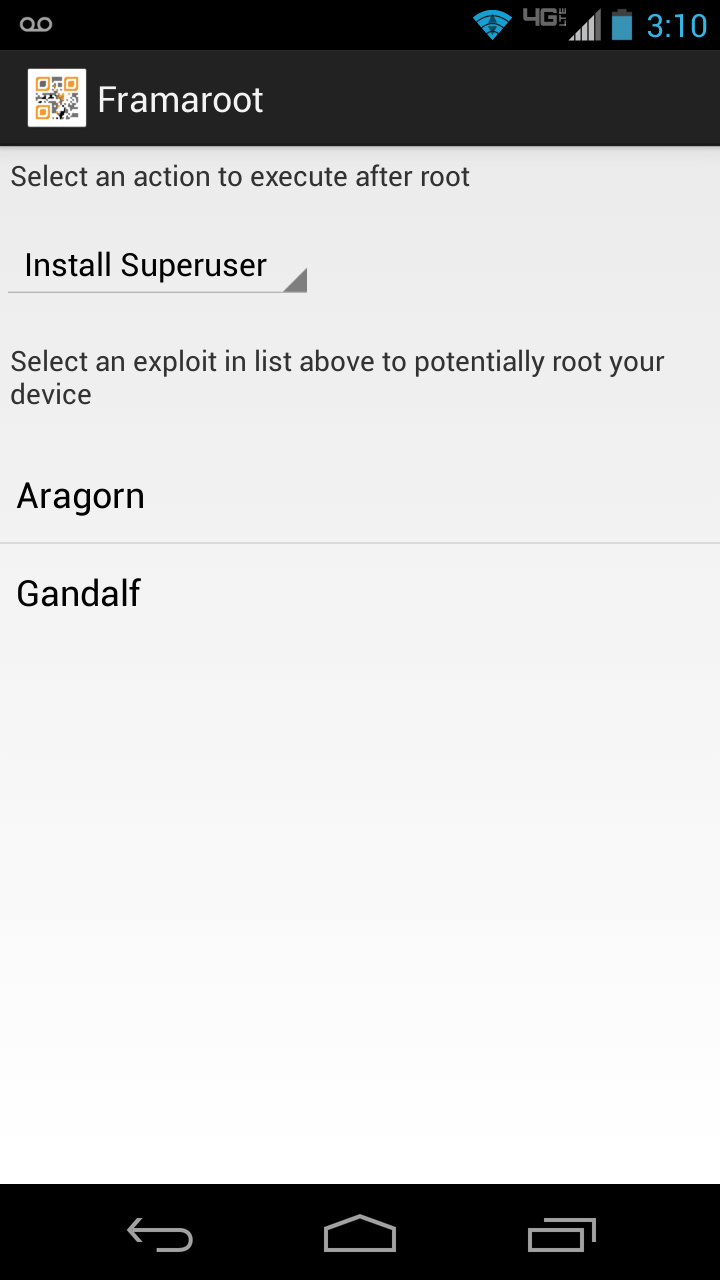 You can think of Framaroot as an updated, modern version of z4root. Like z4root, Framaroot is an Android app that lets you root you root almost any Android smartphone or tablet directly from within the app itself — download the app (you need to sideload, since it isn’t available for Google Play Store), run it, select the relevant options, and Framaroot roots your devices and installs SuperUser. The difference between z4root and Framaroot is, Framaroot is a newer app and supports more newer devices than z4root, thanks to the use of multiple exploits.
As already mentioned, Framaroot works with dozens of devices (noteably, it supports many devices on Ice Cream Sandwich and Jelly Bean) but not all devices. So far, the known supported devices are:
Compatibility for Qualcomm devices (Gandalf exploit only) :
- Asus Padfone 1/2
- Asus Padfone Infinity
- Asus Transformer Pad Infinity TF700KL
- BW T18+ (Fortis Evo)
- Cloudfone Thrill 430x
- Disgo 8400g
- DNS S4504/S4503/S4502
- FAEA F1
- Gigabyte GSmart G1315 Skate
- Gigabyte GSmart Rio R1
- Google Nexus 4
- Highscreen Spark/OMEGA Q/Blast/Strike/Boost
- HTC One S
- Huawei Honor Pro (U8950-1)
- Huawei U8815/U8816 Ascend G300/G301
- Huawei U8825D Ascend G330D
- Karbonn Titanium S5
- Kyocera Torque
- Lenovo S870E
- LG Nitro HD
- LG L7 II P710/P714/P715
- LG Optimus F5 (P875)
- LG Optimus G E970/E975
- LG Optimus L3 II E425
- LG Optimus L5 E610/612/615
- LG Optimus L7 II P710/P713/ P714/P715
- LG Optimus L7 P700/?705
- LG Optimus LTE 2
- MEDION LIFE P4013
- Micromax A111 Canvas Doodle
- Oppo Find 5
- Orange Nivo
- Pantech Discover
- Pantech IM-A840S Vega S5
- Samsung Galaxy Win I8552
- Sharp Aquos Phone SH930W
- Sony Xperia E C1505/Dual C1605
- Sony Xperia L C210X
- teXet TM-3204R
- teXet TM-4677
- Xiaomi Mi-2S
- ZTE V880G/ZTE V955
- Waiting feedbacks …
Compatibility for MTK devices (Boromir exploit only) :
- Alcatel OT 4030D S’POP
- Alcatel OT 8008D Scribe HD
- Alcatel OT 997D
- Alcatel OT Idol 6030X/6030D/6030H
- Amoi N828
- ASUS Memo Pad HD 7
- Chinese Star S7589
- DAXIAN XY100S
- Explay HD Quad
- Explay infinity II
- Explay Polo
- Explay Surfer 7.32 3G
- Explay Surfer 8.31 3G
- Fly IQ440 Energie
- Fly IQ441 Radiance
- Fly IQ442 Miracle
- Fly IQ443 Trend
- Fly IQ446 Magic
- Fly IQ450 Quattro Horizon 2
- Fly IQ451
- GoClever Fone 570Q
- Haipai I9389
- Highscreen Alpha GTX
- HKC Q79 3G
- Huawei U8836D G500 Pro
- IconBIT NetTAB Space 3G Duo
- iOcean X7
- Jiayu G2
- Jiayu G3S
- Jiayu G4
- KENEKSI Beta
- Lava iris 405
- Lenovo IdeaPhone P700i
- Lenovo IdeaPhone S720
- Lenovo IdeaTab A3000-H
- Lenovo IdeaTab S6000-H
- Lenovo P770
- Lenovo S820, S920, A390
- Micromax Canvas HD
- Motorola RAZR D3
- Newman N1
- Oppo findway U7015
- OUMEI X5
- Philips W536
- Philips W736
- Prestigio MultiPhone 4055
- Prestigio MultiPhone PAP 4505DUO
- Sharp AQUOS SH837W
- Star S5 Butterfly
- TeXet NaviPad TM-7055HD
- Texet TM-5277
- THL V12
- THL W100 (130711)
- THL W200
- ZOPO C2 Platinum
- ZOPO ZP 910
- ZOPO ZP300+
- ZOPO ZP900 Leader
- ZTE V880G/H
- ZTE V987 Grand X Quad
- Waiting feedbacks …
Compatibility for Huawei K3V2 devices (Pippin exploit only) :
- Waiting feedbacks …
Compatibility for Samsung devices (Legolas and Aragorn exploits only) :
- Samsung Galaxy Core GT-I8262
- Samsung Galaxy Proclaim S720C
- Samsung Galaxy Young GT-S6312/GT-S6310
- Samsung Lightray SCH-R940
- Waiting feedbacks …
Compatibility for Exynos devices (Sam, Frodo, Legolas and Aragorn exploits only) :
- AT&T Galaxy Note 2 SGH-I317
- Highscreen Explosion
- Hyundai T7s
- Impression 9702 (Exynos 4412)
- Lenovo K860/?860i
- Newman N2
- Meizu MX2
- Samsung Galaxy Camera EK-GC100
- Samsung Galaxy Note 10.1 GT-N8000, GT-N8010, GT-N8013, GT-N8020
- Samsung Galaxy Note 2 GT-N7100
- Samsung Galaxy Note 2 LTE GT-N7105
- Samsung Galaxy Note 8.0
- Samsung Galaxy Note GT-N7000
- Samsung Galaxy S GT-i9000
- Samsung Galaxy S2 AT&T SGH-I777
- Samsung Galaxy S2 Epic 4G Touch – SPH-D710
- Samsung Galaxy S2 GT-I9100
- Samsung Galaxy S3 GT-I9300
- Samsung Galaxy S3 LTE GT-I9305
- Samsung Galaxy Tab Plus GT-P6200/GT-P6210
- Samsung Galaxy Tab 7.7 GT-P6800/GT-P6810
- Samsung SGH-i997 Infuse 4G
- T-Mobile Galaxy Note 2 T-889
- Verizon Galaxy Note 2 SCH-I605
- iBerry Auxus CoreX2 3G and CoreX4 3G
Compatibility for Omap36XX devices (Gimli exploit only) :
- Archos Gen8
- Cliq 2 MB611
- Coolpad Quattro 4G
- Droid 2 (a955)
- Droid 2 Global (a956)
- Droid X (MB810)
- LG Marquee LS855
- LG P970 Optimus Black
- Motorola DEFY+ (MB525 / MB526)
- Motorola Droid PRO
- Motorola Droid X
- Motorola XPRT
- Parrot ASTEROID Smart
- R2D2 (a957)
However, just because your device isn’t on the list doesn’t mean it won’t work — the only way to find out if Framaroot will work on your device is to try it. If Framaroot doesn’t work, rooting will fail and no harm will be done to your device and you should read our device-specific rooting section for a specialized guide on how to root your device. If Framaroot does work… then you are golden.
So ready to give it a try? Head over to Framaroot’s homepage at XDA-Developers to grab it. You will first need to sideload the app onto your smartphone or tablet, meaning you need to first enable Unknown Sources by going to Menu > Settings > Applications (or Security) and checking “Unknown Sources”. Then download the app onto your smartphone or tablet (you can download the app APK onto your computer then transfer it to smartphone or tablet using a USB wire) and install it. Once installed, run it and follow on-screen instructions to have a rooted device in no time!
Other One-Click Tools
If none of the one-click, universal tools we’ve mentioned above work for you, there are a couple of other ones you can try. If you are interested, see Kingo One-Click Tool or Cydia Impactor. Both are one-click rooting tools for Android that works with many different smartphones and tablets — learn more about them to see if they will work for your Android smartphone or tablet.
Device-specific Rooting
dotTech has a section on how-to root guides for individual Android devices; you can read the guides from the links below:
Google devices
Samsung devices
- How to root Samsung Galaxy Note 3 (international/generic version)
- How to root Samsung Galaxy Note 3 (AT&T version)
- How to root Samsung Galaxy Note 3 LTE N9005
- How to root Samsung Galaxy Note 3 Neo N750
- How to root Samsung Galaxy S4 (GT-I9505, the one with LTE and Qualcomm quad-core processor)
- How to root Samsung Galaxy S4 (GT-I9500, the one with Exynos 5 Octa)
- How to root Samsung Galaxy S4 (GT-I9500)
- How to root Samsung Galaxy S4 LTE-A I9506
- How to root AT&T Samsung Galaxy S4 Active (SGH-I537)
- How to root Samsung Galaxy S4 Mini (GT-I9192)
- How to root Samsung Galaxy S4 Mini LTE I9195
- How to root Samsung Galaxy Camera
- How to root Samsung Galaxy Ace 2
- How to root Samsung Galaxy Note II
- How to root Samsung Galaxy Note 10.1
- How to root Samsung Galaxy Note 10.1 LTE P605
- How to root Samsung Galaxy Tab 7.7
- How to root international Samsung Galaxy S III (GT-I9300)
- How to root international Samsung Galaxy S III LTE (GT-I9305)
- How to root Verizon Samsung Galaxy S III
- How to root Sprint Samsung Galaxy S III
- How to root T-Mobile Samsung Galaxy S III
- How to root AT&T Samsung Galaxy S III
- How to root Samsung Galaxy Grand Duos GT-I9082
- How to root Samsung Galaxy Exhibit 4G
- How to root Samsung Galaxy S Relay 4G
- How to root Samsung Rugby Smart I847
- How to root Samsung Galaxy S II Epic 4G Touch (Sprint)
- How to root Samsung Galaxy Mega 6.3
- How to root Samsung Galaxy Fame S6810
- How to root Samsung Galaxy S5 Plus
- How to root Samsung Galaxy S5 G900H
- How to root Samsung Galaxy S5 G900F
- How to root T-Mobile Samsung Galaxy S5 G900T
- How to root Samsung Galaxy S3 LTE SHV-E210K
- How to root Samsung Galaxy S3 SGH-I747
- How to root Sprint Samsung Galaxy Note Edge
- How to root T-Mobile Samsung Galaxy Note Edge
- How to root T-Mobile Samsung Note Edge N915T
- How to root Samsung Galaxy Note Edge (SM-N915S)
- How to root Samsung Galaxy Note Edge (SM-N915G)
- How to root Samsung Galaxy A5 (SM-A5000)
- How to root Samsung Galaxy A5 (SM-A5009)
- How to root Samsung Galaxy A5 (SM-A500G)
- How to root Samsung Galaxy A5 (SM-A500H)
- How to root Samsung Galaxy A5 (SM-A500F)
- How to root Samsung Galaxy Avant
- How to root Samsung Galaxy Grand 2 (SM-G7102)
- How to root Samsung Galaxy Ace II e
- How to root Samsung Galaxy Ace 3 LTE S7275R
- How to root Samsung Conquer 4G
- How to root Samsung Captivate Glide
- How to root Samsung Galaxy S Captivate i896
- How to root MetroPCS Samsung Galaxy Admire
- How to root Samsung Galaxy A3 (SM-A9000)
- How to root Samsung Galaxy A3 (SM-A900F)
- How to root Samsung Galaxy A3 A300H
- How to root Samsung Galaxy A3 A300F
- How to root T-Mobile Samsung Behold 2
- How to root Samsung Galaxy Tab 3 10.1 P5200
- How to root Samsung Galaxy Tab 4 10.1 T535
- How to root Samsung Galaxy Tab 4 10.1 T535 LTE
- How to root Samsung Galaxy Tab S 10.5 T805
- How to root Samsung Galaxy Note 4 (SM-N910C)
- How to root Samsung Galaxy Note 4 (SM-N910H)
- How to root Samsung Galaxy Note 4 (SM-N910T)
- How to root Sprint Samsung Galaxy Note 4 (SM-N910P) LTE
- How to root Samsung Galaxy Note 4 (SM-N910U)
- How to root Samsung Galaxy Note 4 (SM-N910G) LTE
- How to root Samsung Galaxy Note 4 (SM-N910F) LTE
- How to root Samsung Galaxy A7 (SM-A700H)
- How to root Samsung Galaxy A7 (SM-A700FD)
- How to root Samsung Galaxy A7 (SM-A7009)
- How to root Samsung Galaxy A7 (SM-A7000)
- How to root Samsung Galaxy S6 Edge (SM-G925T)
- How to root Samsung Galaxy S6 (SM-G920T)
- How to root Samsung Galaxy S6 G920F
- How to root Samsung Galaxy S6 Edge G925F
- How to root T-Mobile Samsung Galaxy S6 Edge
- How to root Samsung Galaxy S6
- How to root all Samsung Galaxy S6 models
- How to root Samsung Galaxy Alpha (SM-G850M) LTE
- How to root Samsung Galaxy Alpha G850F
- How to root Samsung Galaxy E5
- How to root Samsung Galaxy E5 E500F
- How to root Samsung Galaxy E7
- How to root Samsung Galaxy E7 E700H
HTC Devices
- How to root HTC One Maxx
- How to root HTC One
- How to root HTC Droid DNA
- How to root international (Tegra 3) HTC One X
- How to root AT&T HTC One X
- How to root HTC One S
- How to root Sprint HTC Evo 4G LTE
- How to root HTC Butterfly S
- How to root HTC Desire 510
- How to root HTC Vivid
- How to root HTC Merge
- How to root HTC One M9
Motorola Devices
- How to root Motorola Moto G
- How to root Motorola Moto X
- How to root Motorola Moto X XT1052
- How to root Motorola Moto X XT1097
- How to root Verizon Motorola Moto X
- How to root Motorola Droid Ultra
- How to root Motorola Droid Mini
- How to root Motorola Droid Maxx
- How to root Motorola Atrix HD
- How to root Motorola Droid RAZR Maxx HD
- How to root Motorola RAZR i
- How to root Motorola Photon Q 4G LTE
- How to root Motorola Droid RAZR HD
- How to root Motorola Milestone 3
- How to root Motorola Droid 4
- How to root Motorola Moto E
- How to root Motorola Moto E 2015
- How to Motorola Moto G 2014 (2nd Gen)
- How to root Motorola Moto Maxx
Sony Devices
- How to root almost any Sony Xperia smartphone or tablet
- How to root Sony Xperia Z
- How to root Sony Xperia Z1
- How to root Sony Xperia Arc S
- How to root Sony Xperia SL
- How to root Sony Xperia T LT30p
- How to root Sony Xperia Z
- How to root Sony Xperia Tipo ST21i
- How to root Sony Xperia P
- How to root Sony Xperia Play
- How to root Sony Xperia GO
- How to root Sony Xperia Z3 Compact
Amazon Devices
LG Devices
- How to root LG G Pad 8.3
- How to root LG G2
- How to root LG G2 (all variants)
- How to root LG G2 Mini
- How to root LG Nitro HD
- How to root LG Optimus 3D P920
- How to root LG Optimus L5
- How to root LG Optimus G E975
- How to root LG Optimus F7
- How to root LG Optimus 4X HD (P880)
- How to root Sprint LG Optimus G
- How to root AT&T LG Optimus G
- How to root LG Connect 4G
- How to root LG Escape P870
- How to root LG Splendor
- How to root LG Mach LS860
- How to root LG Optimus L9 P769
- How to root LG Optimus Extreme L40G
- How to root LG Optimus F3
- How to root LG G3 LS990
- How to root LG G3 D851
- How to root LG G3 D852
- How to root LG G3 D855
- How to root LG G3 D858
- How to root LG G3 D859
- How to root LG G3 F400L
- How to root LG G3 F400
- How to root LG G3 VS985
- How to root LG G3 Beat
- How to root Sprint LG G3
- How to root AT&T LG G3 D850
- How to root LG G Vista
- How to root LG Volt
ASUS Devices
Barnes & Noble Devices
Oppo Devices
Lenovo Devices
Acer Devices
Pantech Devices
MSI Devices
ZTE Devices
Huawei Devices
Other Devices
- How to root NVIDIA Shield
- How to root Prestigio PAP5000
- How to root Prestigio MultiPhone PAP4300 DUO
- How to root Prestigio PAP3500 Duo
- How to root Prestigio PAP4040
- How to root Karbonn Titanium S5
- How to root Karbonn Sparkle V
- How to root MyPhone A919i Duo
- How to root Trio Stealth Pro 9.7
- How to root BungBungame MiSS
- How to root Micromax Canvas 2 Plus
- How to root Micromax A111 Canvas
- How to root Micromac A110 Canvas 2
- How to root Lava Iris 504Q
- How to root Kyocera Hydro
- How to root Celkon A98
- How to root Alcatel One Touch 993D
- How to root OnePlus One
- How to root XOLO Q3000
- How to root XOLO Hive 8X-1000
- How to root 3Q QPad LCO720C
Other
If z4root nor SuperOneClick nor Framaroot nor Kingo One-Click Tool nor Cydia Impactor worked for your device and we haven’t covered your device on dotTech, the best place to find how to root your device is XDA-Developers. Visit XDA and look for your specific device; then roam the forums and look for a thread that explains how to root. (You will most likely find it in the Android Development subforum for your device.) You can even ask questions if you have trouble.
iOS jailbreaking
Apple makes cool toys. However, Apple has not-so-cool restrictions on these toys. Apple likes to build a “walled garden” around its gadgets: You can’t buy or download apps they don’t approve of, and don’t even think about setting custom ringtones. Don’t like that icon? That’s too bad, as Apple won’t let you change it. Luckily, there are ways to blow a hole in this walled garden (without damaging the turnips), and it’s called jailbreaking.
iOS 8.x Jailbreak
- Guide on how to jailbreak iOS 8.x on iPhone 6, 6 Plus, 5s with TaiG 2.2 | Guide for Mac users
- Guide on how to jailbreak iOS 8.x iPad Mini and Air
- Guide on how to jailbreak iOS 8.x iPhone / iPod / iPad with PP Jailbreak
- More iOS Jailbreak Guides
evasi0n (iOS 7.x)
It’s been a long road, getting from there to here. However, after almost a year without a new jailbreak, the first unthethered iOS 7.x jailbreak has been released. Titled evasi0n, it’s available for any device running iOS 7.0 through 7.1beta. In other words, it shows you how to jailbreak any iDevice on iOS 7.0, 7.0.1, 7.0.2, 7.0.3, 7.0.4, 7.1beta1, and 7.1beta2.
After downloading evasi0n, extract and run evasi0n.exe. Note that you’ll need to disable passcodes prior to jailbreaking. When you’re ready to go, just hit “Jailbreak” and you’ll be on your way!
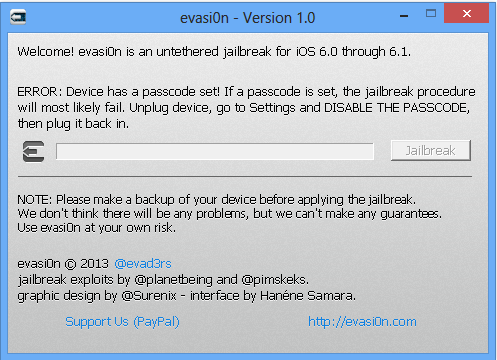
After it goes through the various stages of jailbreaking, you’ll need to tap the new app on your homescreen labeled “Jailbreak”. Only tap it once! After tapping, it will go through a few more stages of jailbreaking, and will reboot once or twice.
Congratulations, you’re jailbroken!
[evasi0n for Windows download]
[evasi0n for Mac OS X download]
Absinthe (iOS 5.x)
After downloading Absinthe, extract absinthe-win-[version].exe and run it. Absinthe still won’t start, however: that was just an extractor. Now go to the newly created absinthe-win-[version] folder and run absinthe.exe. You’ll need to run it as administrator.

Just plug in your device and hit jailbreak. It may take quite a while, especially if you have a large amount of data already on your device, due to some of the exploits it uses. Around halfway through the jailbreak, your device will go into Restore mode. This is perfectly normal and is one of the ways the jailbreak works.
In just a few minutes, you’ll be jailbroken! Congratulations!
[iOS 5.1.1 download – Windows] [iOS 5.1.1 download – Mac OS X]
[iOS 5.0.1 download – Windows] [iOS 5.0.1 download – Mac OS X]
JailbreakMe.com (iOS 3.x, 4.x)
Do you have an older device, one running iOS 3.1.3 or 4.3.3? You’re in luck! These older software versions are vulnerable to the world’s easiest jailbreak–and you don’t even need a computer to do it on! Simply go do JailbreakMe.com from your device:
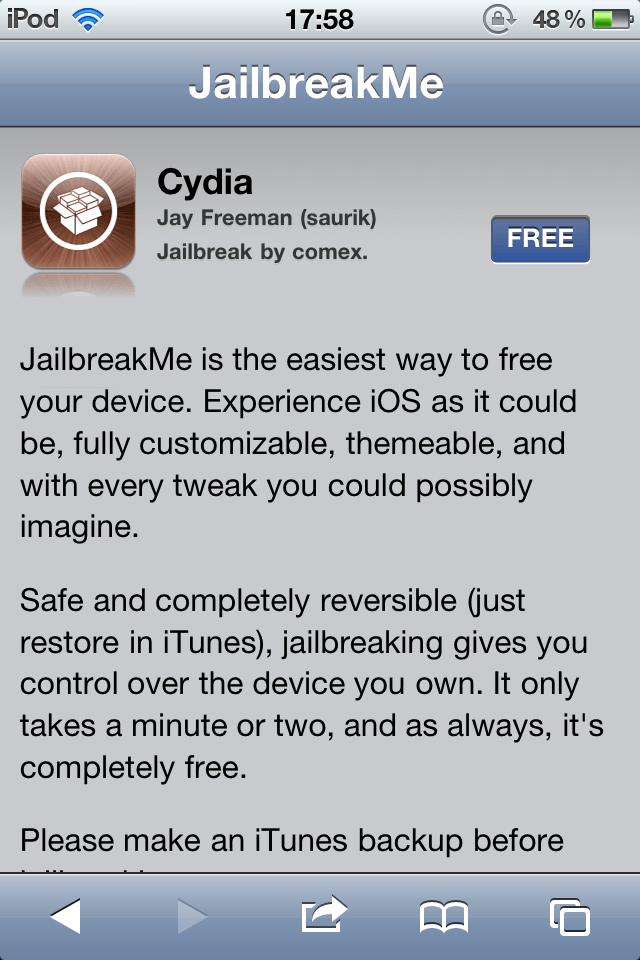
Notice the “Free” button? JailbreakMe installs just like any other app, meaning it’s super simple to install:

After tapping Free and Install, just wait a minute or two, and suddenly, Cydia is installed! It’s that simple.
iOS jailbreak for iOS 8
Aside from the jailbreak methods above, we also have the latest jailbreak guides for iOS 8.
- Jailbreak iOS 8.4 with TaiG
- Jailbreak iOS 8.4 with TaiG 2.2
- Jailbreak iOS 8.3 with TaiG
- Jailbreak iOS 8.3, 8.2, 8.1.3 with TaiG 2.0
- Jailbreak iOS 8.2 with TaiG
- Jailbreak iOS 8.2 in Mac OS X
- Jailbreak iOS 8.1.2 with TaiG 1.2.0
- Jailbreak iOS 8.1.2 with TaiG
- Jailbreak iOS 8.1
- Jailbreak iOS 8.1. with PP Jailbreak
Windows RT Jailbreaking
RT Jailbreak Tool
dotTech has an easy-to-follow guide that shows you how to jailbreak your Windows RT tablet. The jailbreak works with any tablet running on Windows RT, including Microsoft Surface RT. Click here to read the guide.
WebOS homebrewing
Homebrewing, which is for HP’s WebOS devices, allows you to install apps that aren’t in the App Catalog. It also allows you to install tweaks to the WebOS operating system, like faster animations, overclocking, and many more. The best part about homebrewing is that HP is entirely alright with you if you do it, and on WebOS, there is a large active community of people that write homebrew applications and tweaks. These applications range from things that weren’t submitted to the App Catalog to things that wouldn’t be allowed in the App Catalog. Unlike jailbreaking or rooting, setting up your WebOS device for homebrewing is as easy as the Konami code. Literally.
Homebrewing with WebOS Quick Install
Luckily for WebOS users, there is a single, unified app for getting set up. To get started, open your Just Type box and type in upupdowndownleftrightleftrightbastart. (Five points for those of you that know what that is.)

Open the Developer Mode app that appears and flick the switch in the top right corner. It’ll ask you for your developer mode password; if this is the first time you’ve done this, you don’t have one. A little while after tapping Submit, you’ll be in Developer Mode–congrats!

Now that you’re in developer mode, connect your device to your computer. Hit Close when asked if you want to use your device as a USB drive.
Everything else is done from the computer. Download the latest version of WebOS Quick Install, currently version 4.3.1, from here. If you don’t have Java, be sure to get it now!
Once downloaded, double click it to launch. It will complain that you don’t have Novacom drivers installed. When it does, just hit the install button and wait a few minutes.After the drivers are installed, it should look something like this:
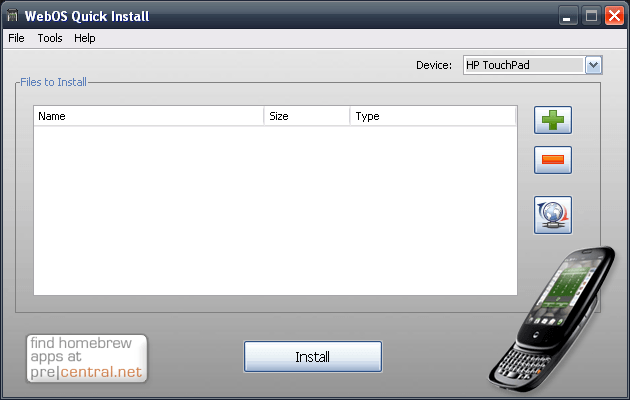 Hit the globe to search the internet for packages.
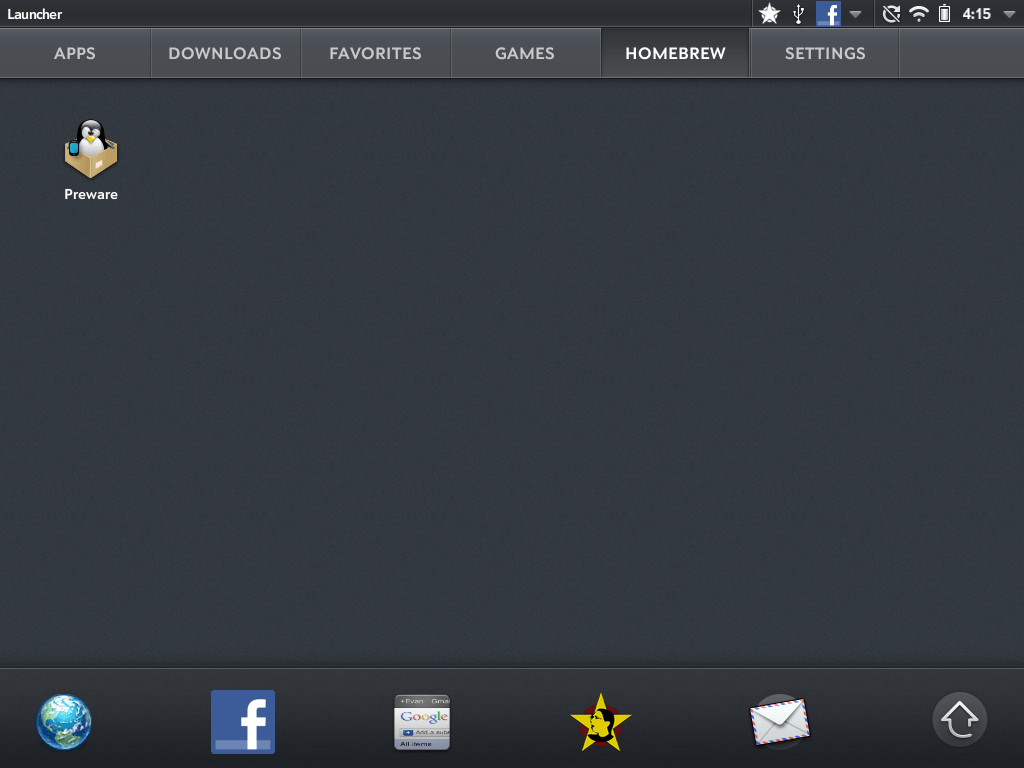
 The package we’re looking for is called Preware. Once you’ve found the package, click install. Very shortly afterward, you’ll have Preware nicely installed on your device. It’ll appear in the downloads tab.
Conclusion
It’s never fun to be told what to do by Big Brother; this is even more true when it comes to electronics we spend our cold hard cash on. With just a few minutes of your time, you can free your device from the shackles put on it by Corporate America. Jailbreaking, rooting, and homebrewing opens doors for your device that would not be open otherwise. Enjoy! (And remember: Don’t pirate apps.)
Originally published August 24, 2011; updated multiple times since then.




