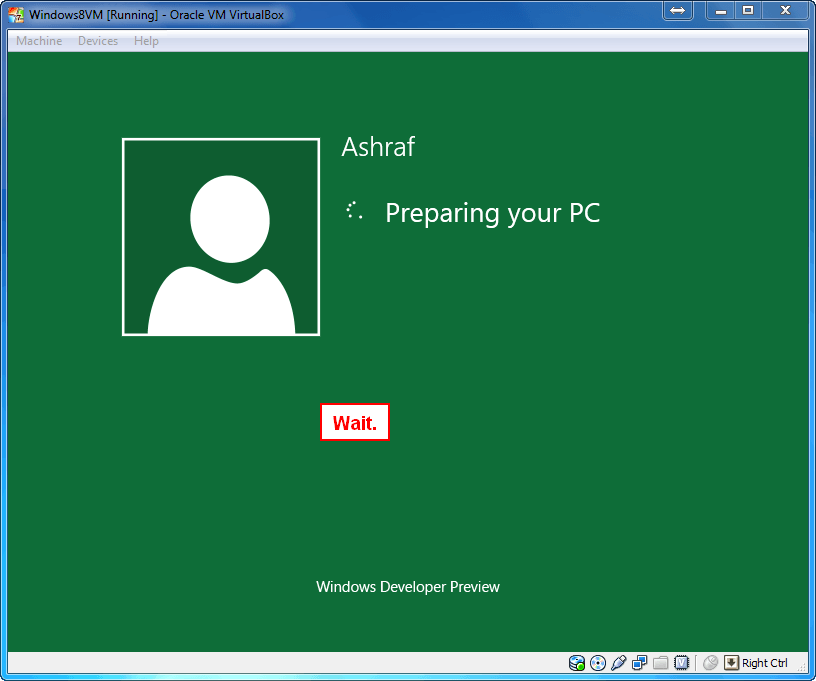
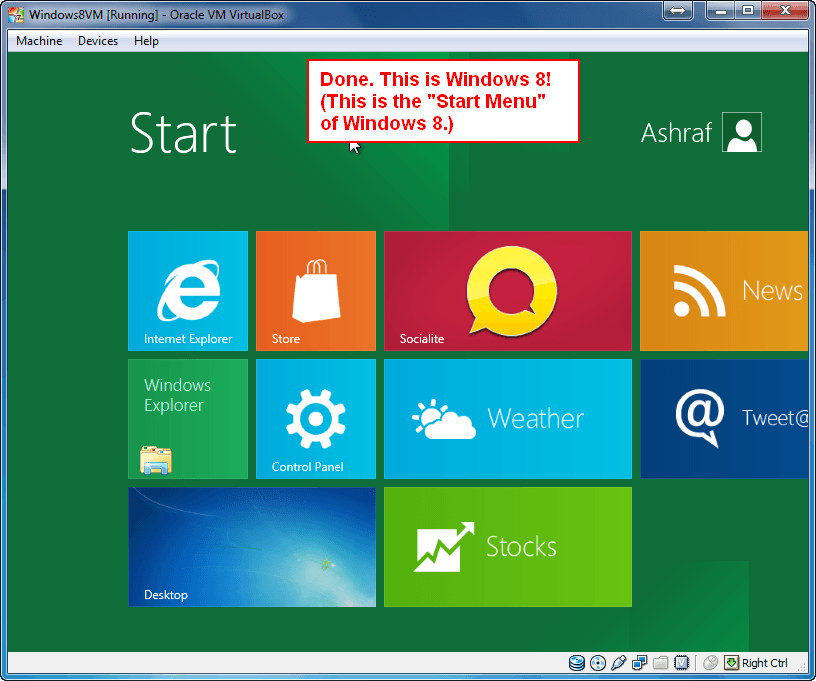
Recently Microsoft has released preview versions of Windows 8 including Windows 8 Consumer Preview and Windows 8 Developer Preview, pre-Beta releases of Windows 8 designed to give consumers and developers a preview of Microsoft’s next installment of Windows. I am sure there are many dotTechies out there that are dying to give Windows 8 a …preview… but don’t want to install it on their main workhorses. Well, don’t worry — you can give Windows 8 a whirl without having to install it on your computer, per se: You can install Windows 8 virtually on VirtualBox.
Why Install Windows 8 On VirtualBox
The reasoning is really very simple. VirtualBox is a virtualization program, as I am sure most — if not all — of you know. By installing Windows 8 on VirtualBox you are, in effect, sandboxing it from your computer. All your data and files are safe since Windows 8 doesn’t touch your main partition; and any bugs in Windows 8 will not crash your (real) machine. Plus uninstalling/removing/deleting Windows 8 on VirtualBox is very easy with no virtual side effects.
Before We Begin
There are two things you need to confirm before you try to install Windows 8 on VirtualBox.
First and foremost you need to make sure VirtualBox is supported on your computer. At the time of this writing, VirtualBox is available for all three major operating systems: Windows, OS X, and Linux. Both 32-bit and 64-bit machines are supported.
Secondly, you need to make sure your computer can support Windows 8. Officially, Microsoft says “Windows Developer Preview works great on the same hardware that powers Windows Vista and Windows 7” and lists the system requirements at:
- 1 gigahertz (GHz) or faster 32-bit (x86) or 64-bit (x64) processor
- 1 gigabyte (GB) RAM (32-bit) or 2 GB RAM (64-bit)
- 16 GB available hard disk space (32-bit) or 20 GB (64-bit)
- DirectX 9 graphics device with WDDM 1.0 or higher driver
- Taking advantage of touch input requires a screen that supports multi-touch
- To run Metro style Apps, you need a screen resolution of 1024 X 768 or greater
Since you will be running Windows 8 on a virtual machine, you want to make sure your computer has a slightly stronger CPU and slightly more RAM than what is mentioned above. This is because your computer needs to be able to support your current operating system + all its processes + VirtualBox + Windows 8 all at the same time. You are always welcome to try Windows 8 even if your computer does not meet the above requirements, but I warn you it may not work.
How Long Will It Take
When I did this yesterday, it took me a total of about 30 minutes. However, most of the 30 minutes was spent waiting for Windows 8 to actually install (i.e. I was doing other stuff on my computer while Windows 8 was installing on VirtualBox in the background — you can walk away from your computer while this happens) so I actually only did 5-10 minutes of setting up/installing.
The above mentioned 30 minutes does not take into account the time it took to download Windows 8 (or the time it takes to download VirtualBox, if you don’t have it already). Windows 8 is a 2.8 GB/3.6 GB/4.8 GB download (depending on which version you decide to download) so how long it takes for you to download it will vary depending on your connection speed.
How To Install Windows 8 On VirtualBox
Before I start showing you how to install Windows 8 on VirtualBox, please note that I have successfully run Windows 8 Developer Preview 32-bit on VirtualBox in Windows 7. I cannot confirm if Windows 8 64-bit will work using the directions listed below or not since I have not tested it but it should work. Also, Windows 8 might run on VirtualBox in Mac OS X and Linux, too, but the directions may be slightly different than what I have listed below. Anyone that has successfully virtualized Windows 8 64-bit and/or successfully installed Windows 8 on VirtualBox in Max OS C and Linux, please let us all know in the comments below!
That said, do the following to install Windows 8 on VirtualBox:
- Download and install VirtualBox, if you don’t have it already. If you do have it already, make sure you have the latest version, v4.1.2.
- Download (alternate download link) Windows 8′s installer ISO file.
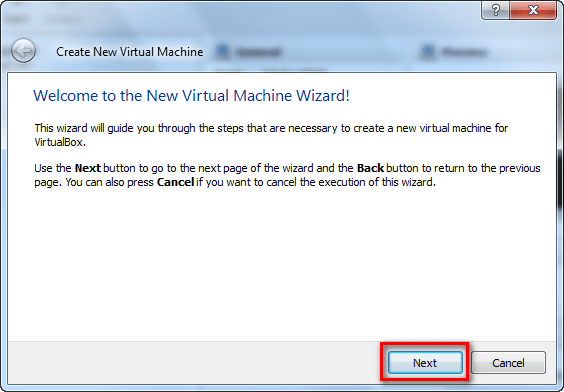
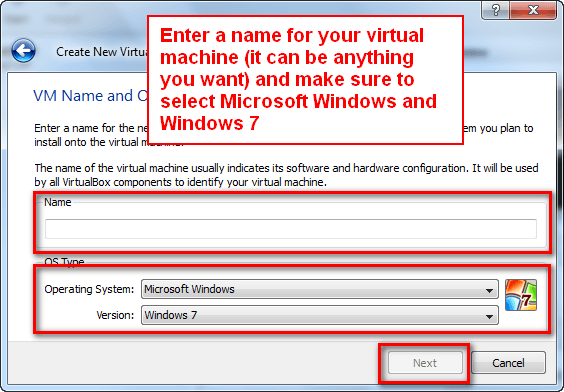
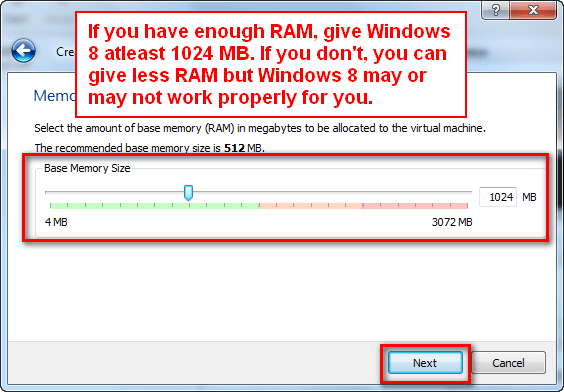
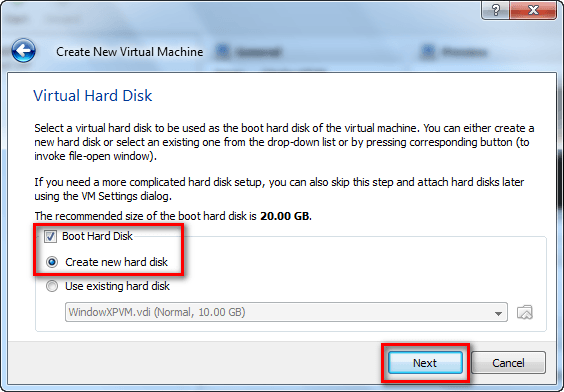
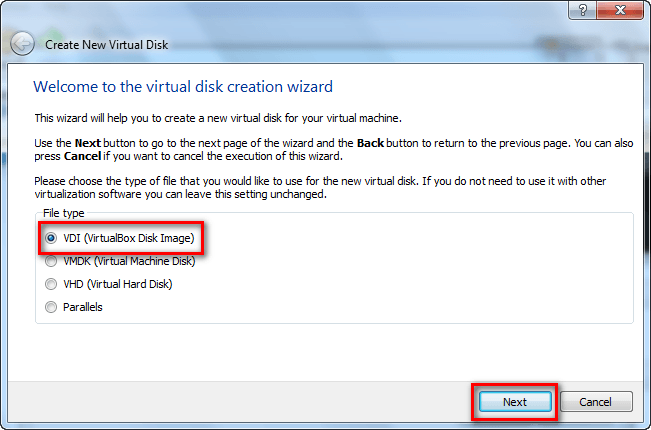
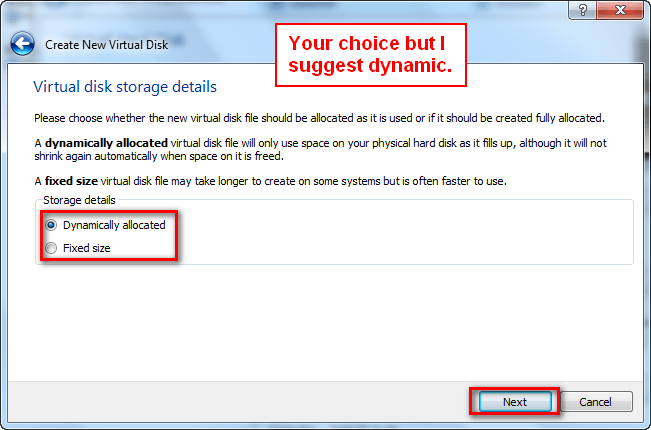
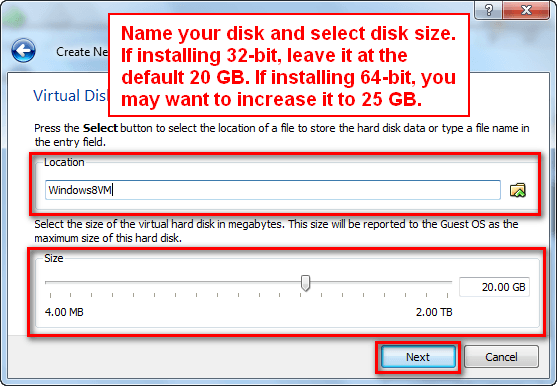
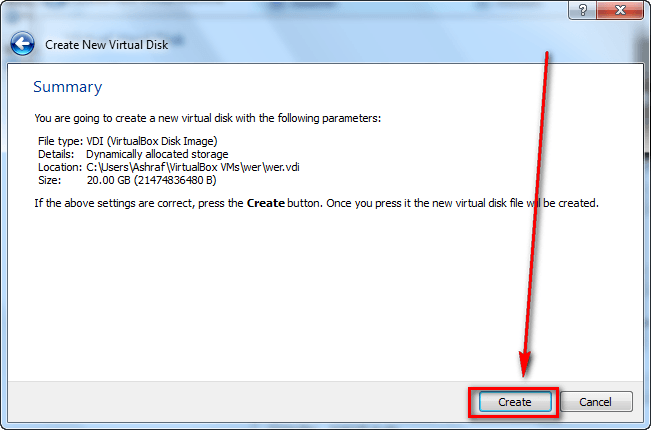
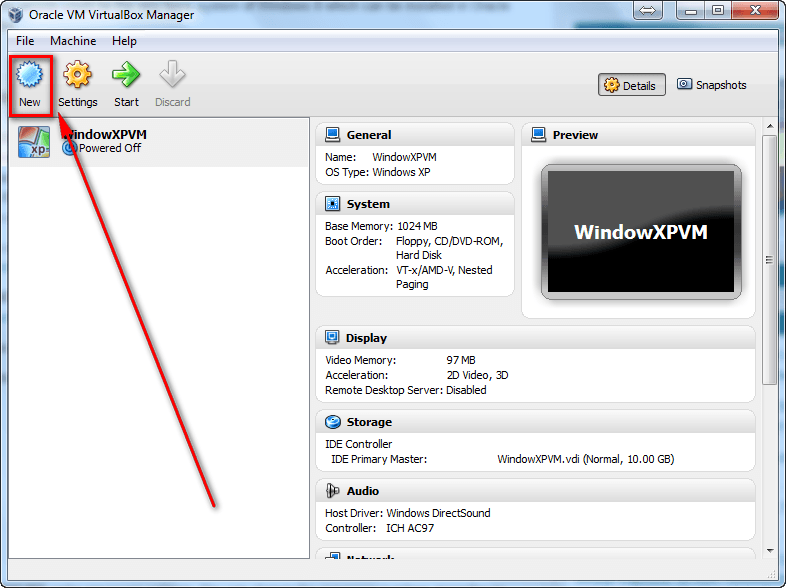
- Run VirtualBox and create a new virtual machine for Windows 8. The process is fairly standard, just like you would create a virtual machine for any operating system except for one thing: Make sure to select Windows 7 as the operating system (since VirtualBox doesn’t officially support Windows 8, yet), give at least 1024 MB of RAM and atleast 20 GB of hard drive space. If you are confused, don’t take tension — just follow the screenshots shown below:
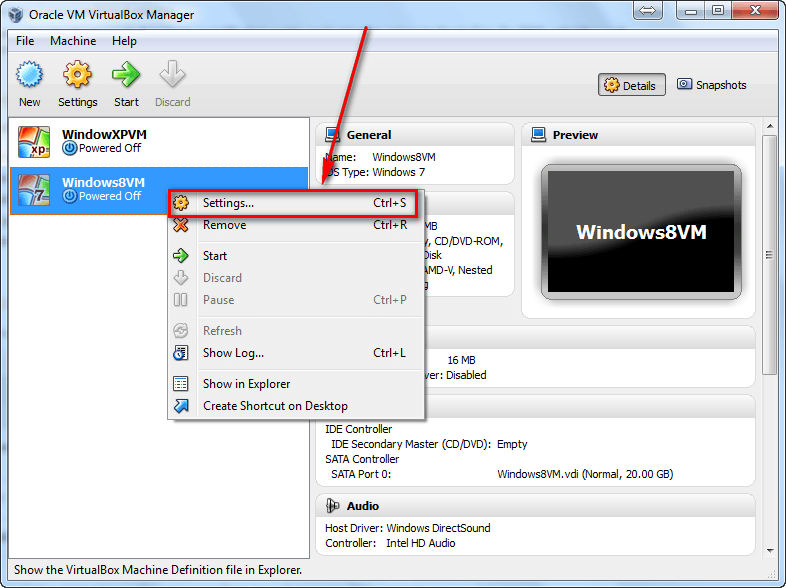
- Once you have finished creating the virtual machine for Windows 8, you should see it available in VirtualBox. Right-click it and go to Settings:
- Go to System -> Motherboard and check Enable IO APIC:
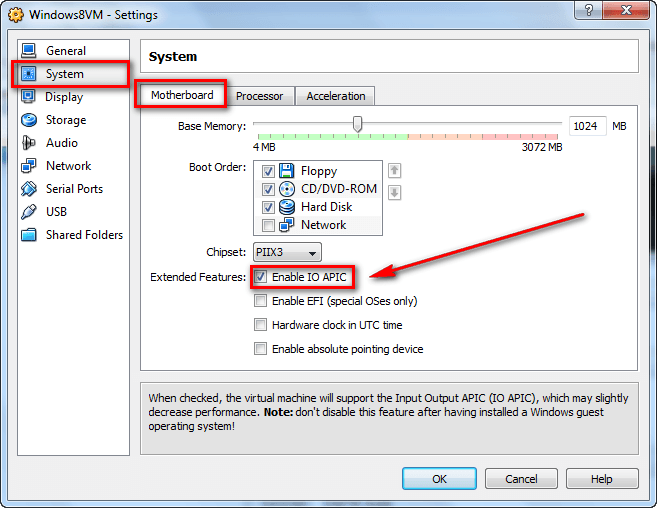
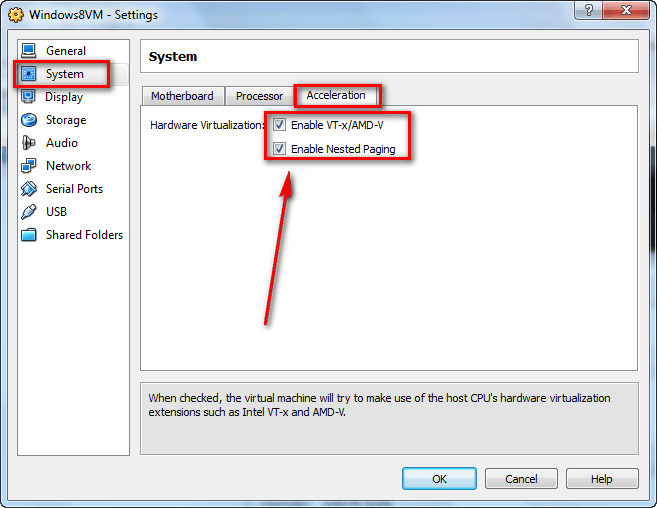
- Go to System -> Acceleration and make sure Enable VT-x/AMD-V and Enable Nested Pinging are checked:
- Go to Display -> Video and check Enable 2D Video Acceleration:
Note: For better performance you can check Enable 3D Acceleration but you are not required to do so to run Windows 8. Also, for better performance you can give the virtual machine more video memory, but if your computer doesn’t have any more to give, leave it as is. I was able to run Windows 8 just fine with 16 MB of video memory.
- Go to Storage and click on the Empty found under IDE Controller. A small disk icon should appear on the right of the program window. Click on that disk icon; then click on Choose a virtual CD/DVD disk file…:
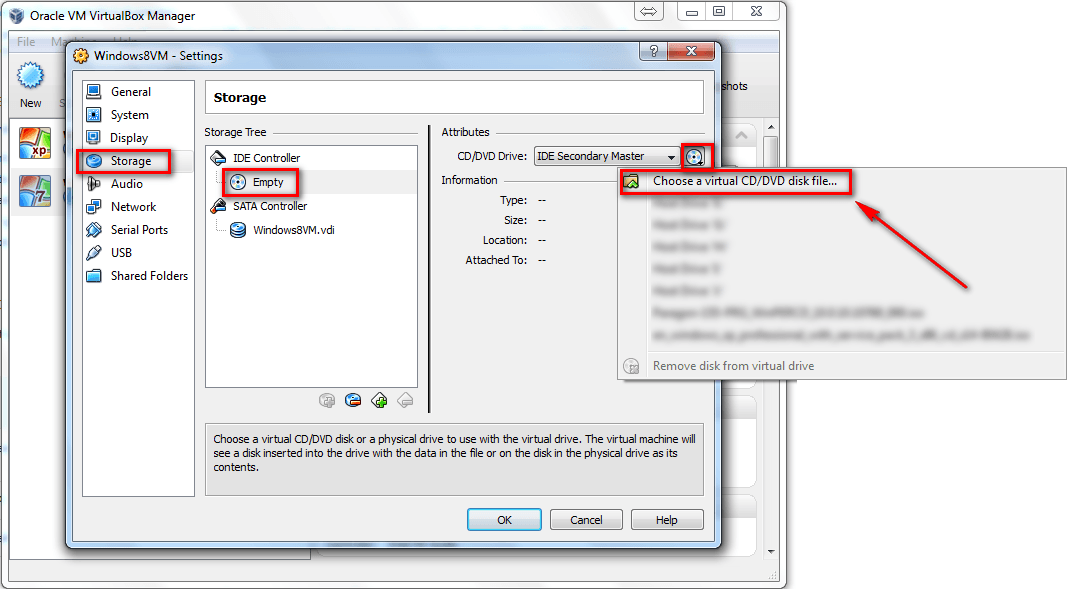
- Find the Windows 8 ISO you downloaded earlier, select it, and click Open:
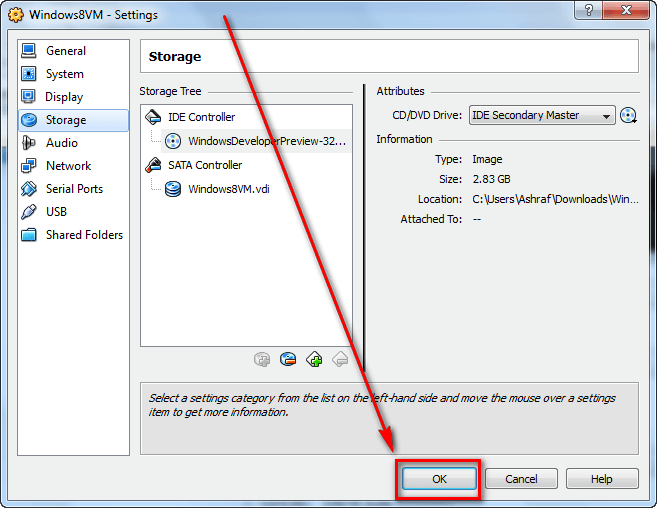
- Once you have loaded Windows 8′s ISO, click OK to exit Settings:
- Back at VirtualBox’s main window, double-click on your Windows 8 virtual machine or select it via single click and click the Start button:
- Wait a minute or two while the virtual machine turns on.
- After the virtual machine has been turned on, you will see a Windows Preview screen…
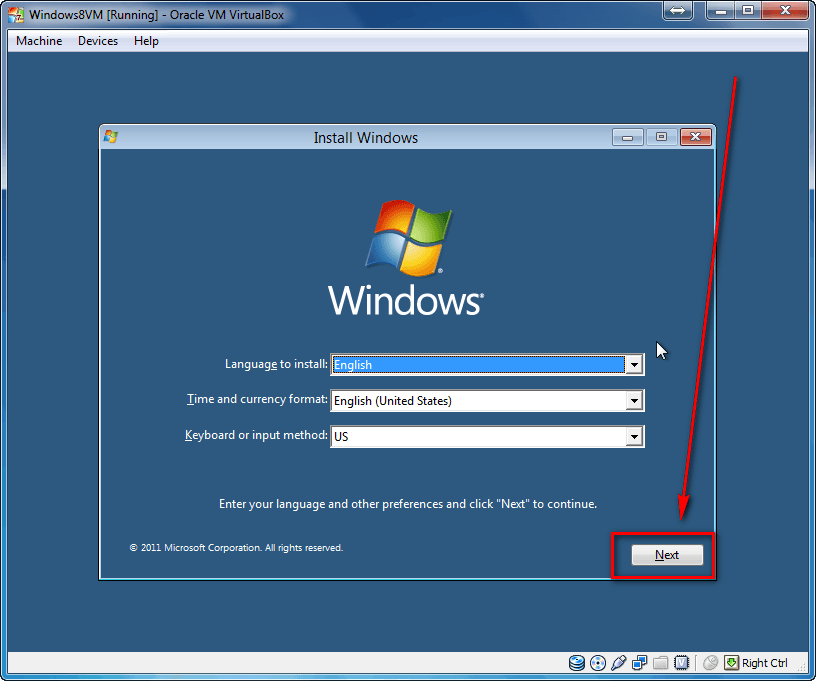
…and then you should see the familiar Windows install screen:
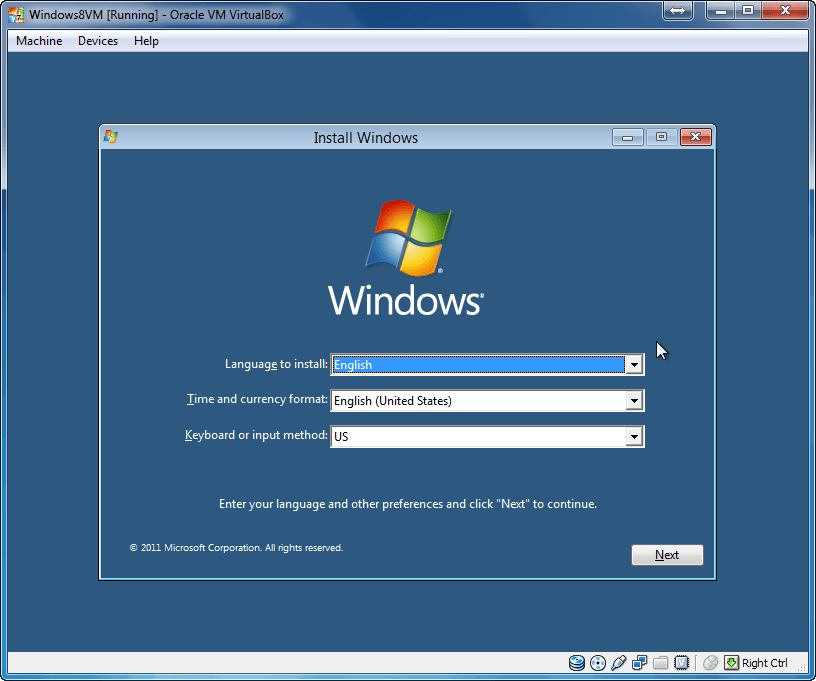
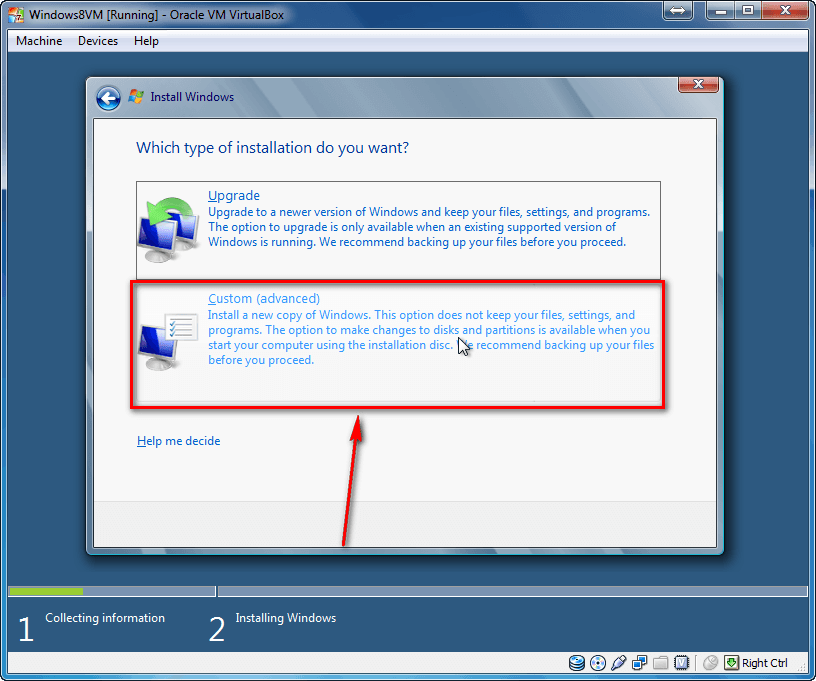
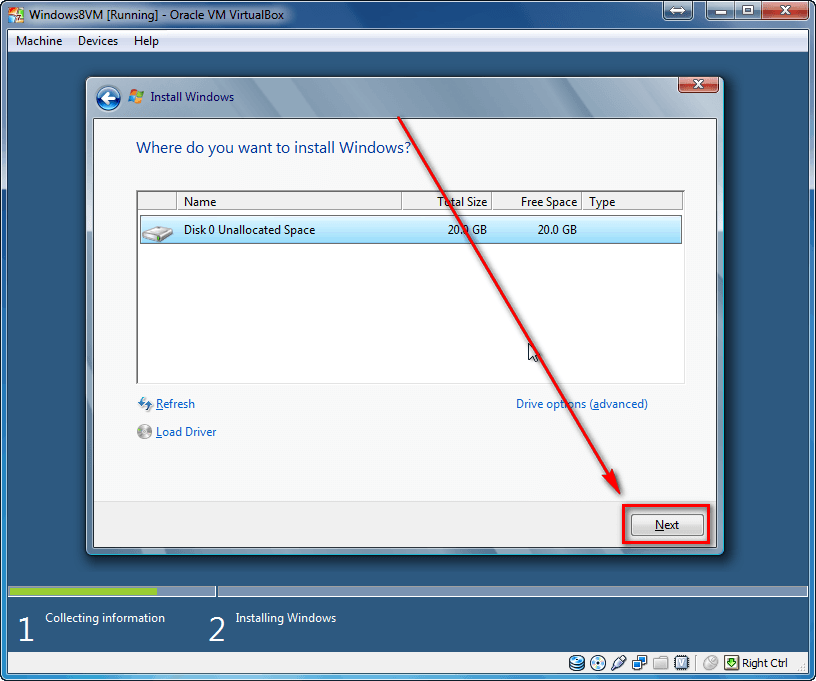
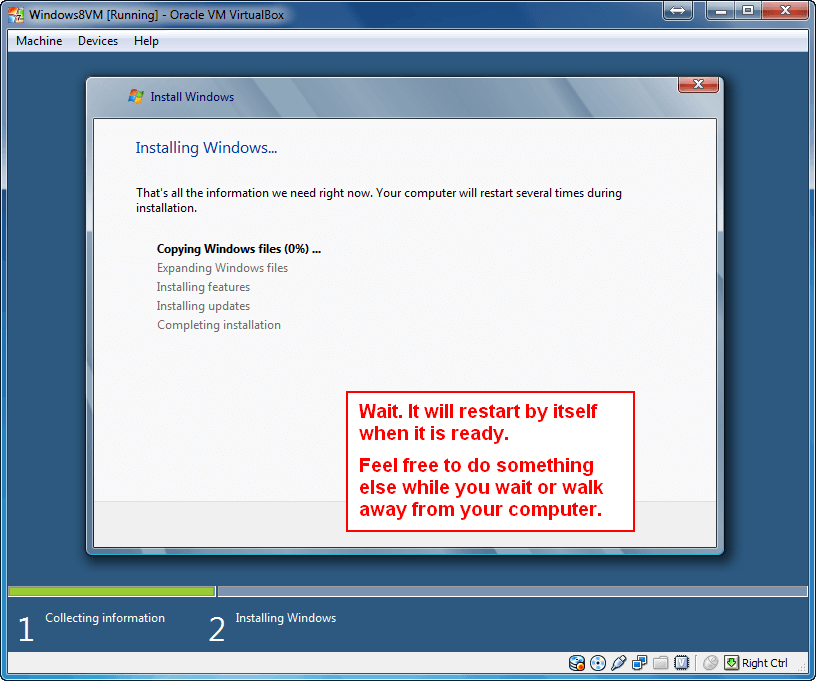
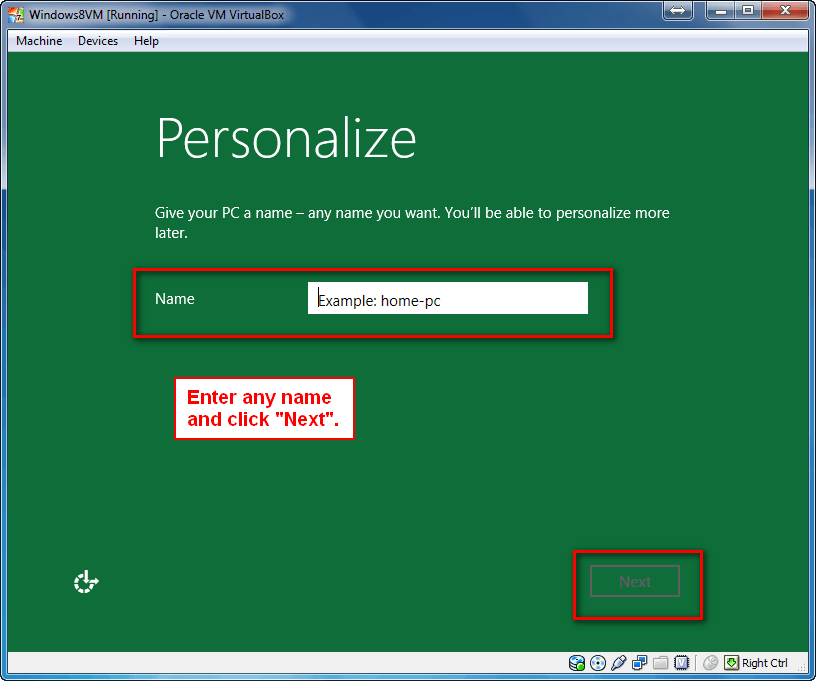
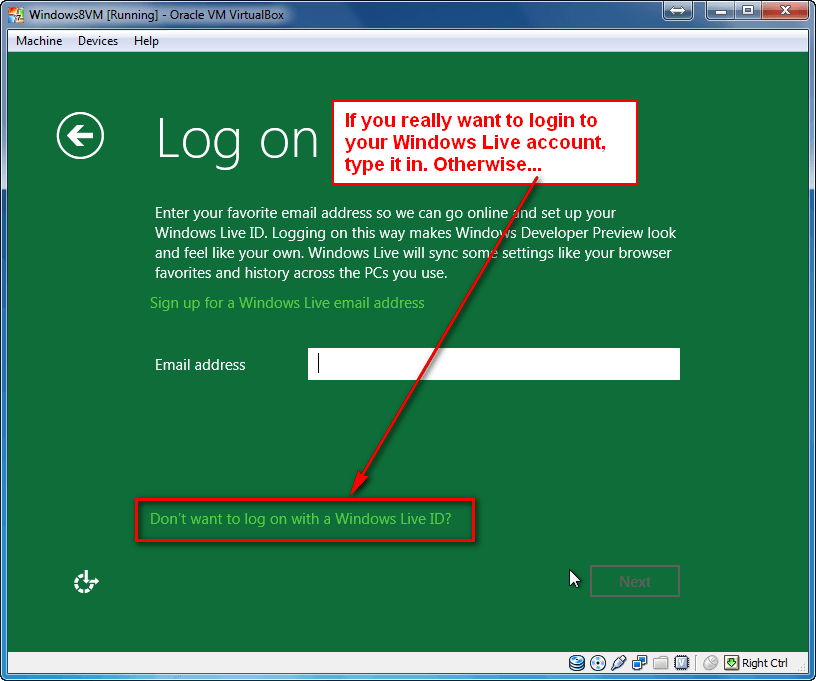
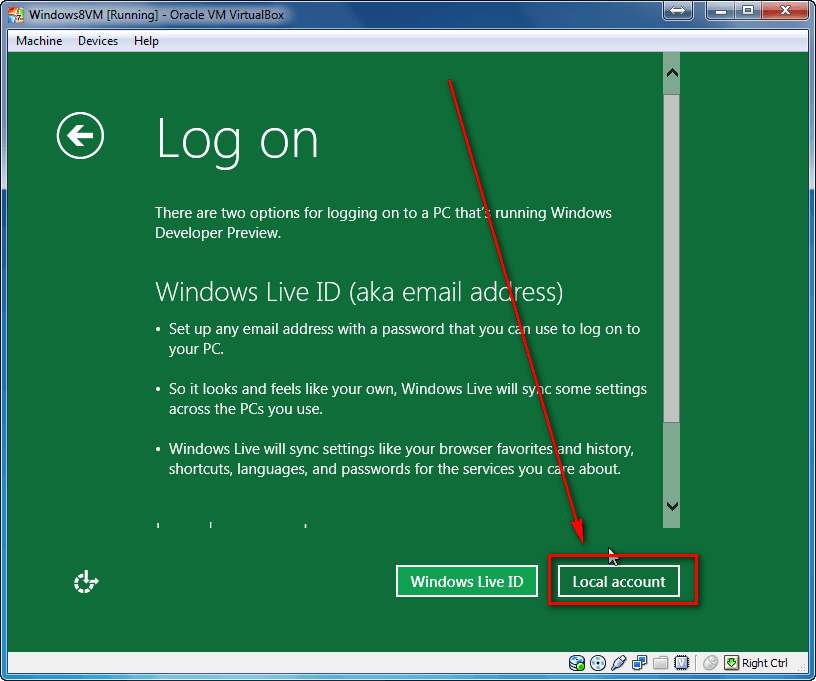
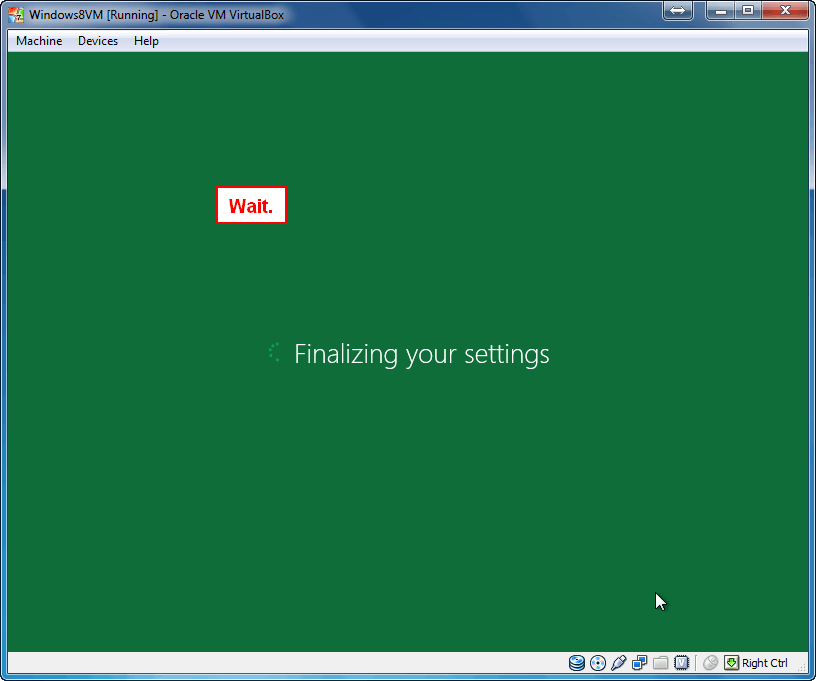
Congrats! You have successfully setup Windows 8 on VirtualBox. Now all you have to do is follow on-screen instructions to install and configure Windows 8. If you have never installed Windows before and as are confused, follow the screenshots shown below and you will find yourself on Windows 8 in no time:
Once you have successfully installed Windows 8, there is one matter of housekeeping you may or may not want to do. Remember how earlier in Settings you went to Storage and mounted the Windows 8 ISO via the small disk icon? If you leave that mounted, every time you run Windows 8 on VirtualBox you will be prompted with that “Press any key to boot from CD or DVD…” message for 3-5 seconds. If you find this message to be annoying (like I do), all you have to do is go back to Settings -> Storage. Under IDE Controller you should see something that says WindowsPreview… Click on that and then click on the small disk icon on the right. Then click on Remove disk from virtual drive. Then click OK to exit settings. Done. You will no longer see that “Press any key to boot from CD or DVD…” message when you boot Windows 8.
Conclusion
Now you have Windows 8 to play around with. Sure, it is a pre-Beta (so expect bugs, unfinished features, etc.) but nonetheless you should get a feel for what to expect next year. Go explore Windows 8 and be sure to share with your dotTech friends what you find! Comments are always open.
[via Sysprobs]






Email article


![Microsoft makes fun of iPad using Siri’s voice in latest Windows 8 ad [Video]](http://cdn.dottech.org/media/2013/05/ipadsurface-134x90.jpg)
![The Leap Motion makes Windows 8 look… awesome [Video]](http://cdn.dottech.org/media/2013/05/leap-134x90.jpg)
Thanks for the thorough and easy to follow guide.
@bill: You are welcome! Took me longer to write than I originally thought but well worth it if it helps people.
Now we just need a newer version of Virtualbox, because the Virtualbox Guest Additions which improve further the performance and responsiveness of the VM refuse to install on Windows 8 Dev Preview.
Everything works fine until I get about 10% installed at which time the installation is cancelled and I get the message required files cannot be found or are corrupt. I then get a message that bootmgr cannot be found. I thought the bootmgr was included in VirtualBox or Win 8 Dev Review. Any ideas what might be happening. Could my download be corrupt? Thanks.
@Unicorn02: Once they update VirtualBox to officially support Windows 8, installing it will be a lot easier, too.
@Ted Myers: Your download is probably corrupted. What version did you download? The MD5 for the 32-bit download is 9b7798438fa694ecfa465c93a4c23c97.
@ashraf: what is your host spec and your virtualbox version? because i can’t select the acceleration tab (its grayed). i use virtualbox version 4.1.2r73507
btw…create new virtual disk page is different with mine
thankx
Quote: I cannot confirm if Windows 8 Developer Preview 64-bit will work using the directions listed below or not since I have not tested it but it should work.
I don’t think so. As far as I know, VirtualBox cannot run X64 systems.
@Ashraf:
I downloaded the 64 Bit version w/o Dev apps (3.6 GB I believe) I will attempt download again when I arrive home from work this evening. Thanks.
For anyone who was wondering about Windows 8′s fast boot time, I can go from off to completely logged on in under 12 seconds on my c. 2009 cheapest-model laptop
Tried in Virtual Box & Vmware player no go..anyway wont be long till Beta windows 8..sould be better!!
@r0lZ: http://www.virtualbox.org/wiki/Guest_OSes look at the first entry, 32 or 64 bit Windows
No avail, I can’t install the 32-bit version on my Win7 X65 (SP1) system.
Me too, I don’t have the System -> Acceleration tab. (I know that some options are available only if you have a specific hardware/CPU supporting them. That might be the reason, as I’m running the latest version of VirtualBox.)
When I try to install the Win8 preview, I can see the “Windows8 Developer preview” screen, but after 15 seconds, a message is continuously printed on screen. The message says that I have to power down the machine. When I try again, exactly the same scenario happens. (I have also had once a VirtualBox critical error.) Anyway, I give up.
So, either we must wait for a more stable Win8 version, or VirtualBox doesn’t support Win8 without a specific hardware. Pity!
Hi,
same as r0lZ: after 15 seconds, a message says that I have to power down the machine.
Tried in Virtual PC as well, no cigar…
incase you guys are kinda like me nad have no clue on hwo to shut Windows 8, here is the insturctions:
How Do I Restart, shut down or Sleep my Windows 8 Computer?
**if you have a tablet (obvious you dont so disregard this one part) swipe from the right to bring up the uh whatever the hell side menu thing is called (keep forgetting the name) and click settings
**or hit Windows+I shortcut to bring it up and hit the power button from the selection menu on the bottom right
**or press ctrl+alt+del and hit the power button in the lower right
@sunrise: Windows 7 x32 is my host and I am using VirtualBox v4.1.2r73507. In my experience you must have Enable VT-x/AMD-V and Enable Nested Pinging checked in order for Windows 8 to work.
The virtual disk page is slightly different because I actually didn’t have the latest version of VirtualBox installed when I wrote this article (dumb of me). I have since then updated to the latest version and updated the guide. The difference isn’t that major — you just have one extra step where you must select what type of virtual disk format you want. The general process is the same.
@r0lZ: You can.
@Ted Myers: Let me know if it works.
@Lucas T: o_O This will be interesting.
@Carl: If you provide us with more details (i.e. your Wiondows, what version you are downloading, if you followed all the directions mentioned above) we may be able to help.
@Lucas T: Ditto.
@r0lZ: Yeah, that probably means your computer doesn’t support it. As I mentioned in my response to sunrise, in my experience Enable VT-x/AMD-V and Enable Nested Pinging is necessary. When I tried running Windows 8 without it, it kept crashing.
@Quartzkyte: Are you having the same issue as rolZ that some options in settings are disabled?
@Prema: Thx!
I’ve read somewhere that there is an option on virtualization that needs to be set on the host computer BIOS.
Maybe that’s the reason some people are not succeeding.
The first attempt to install gave me an error at 98% (something about a missing file). Then I tried again using the same virtual disk and everything went OK.
I installed the 32 bit version just fine in virtualbox v. 4.1.2r73507, i just didnt enable 2/3D acceleration, i’ll enable it now :)
@Harerton: virtualbox asked me to enable virtualization in my bios ONLY when i was installing 64bit guest in virtualbox, before that i was using 32bit xp/7 without it, i dont know if Windows8 x86 need’s it because i enabled it before win8 x86.
Hi, I’m having the same issue as @Quartzkyte
However, I’ve checked everything in the acceleration tab, followed all of the steps in this tutorial and it still didnt work.
Please help.
Thanks
@Ashraf: :
hm… i think r0lZ is rite…my hardware is not support for acceleration virtualbox :P
as information im using vista home basic in my laptop :P will try itu using another PC with XP Pro
@sunrise: Some cheaper and/or older processors don’t support VT-x/AMD-V
I installed windows 8 32-bit on my X64 windows 7 machine, and straight after the windows developer preview boot screen it said the computer need to restart and to hold down the power button. Pls help!
@Ashraf: thank you but no, I don’t have the disabled settings problem like r0lZ.
I have recent hardware (i7 2600, 6Go RAM) and XP Mode installed.
Strange…
Ooh. lots of patience and reattempts to get installed in Virtualbox. And yes, I did change the BIOS settings to support virtualisation.
So I even had the privilege of seeing the new BSOD..
During installation attempts, variously got
DPC Watchdog Violation
“A required CD/DVD Driver is missing. If you have a driver floppy disk, CD or DVD..” !floppy disk!
“Windows Setup could not configure Windows to run on this computer’s hardware”
“Windows could not complete th installation. To install Windows.. restart..”
Also seemed to hang with a black screen.. still using CPU.
Finally, it ran.
Hmm, now, just how would you install a program and launch it.. I guess the demo doesn’t allow that. In fact beyond the first set of apparently dummy apps and a desktop with explorer and IE it didn’t seem to do too much.
I tried Windows 8 w/ dev tools, but I kept getting an error that it needed a disk for my cd/DVD drivers.
Also, I couldn’t get virtual box to accept the iso, and was linking through my virtual DVD drive, which could read the disk.
I downloaded it again (without the d/l accelerator this time) and will try tomorrow.
My sha-1 isn’t matching, will that be an issue?
@David: any clue of what happened between
“Windows could not complete th installation. To install Windows.. restart..”
Also seemed to hang with a black screen.. still using CPU.
and
Finally, it ran.
?