Recently Microsoft has released preview versions of Windows 8 including Windows 8 Consumer Preview and Windows 8 Developer Preview, pre-Beta releases of Windows 8 designed to give consumers and developers a preview of Microsoft’s next installment of Windows. I am sure there are many dotTechies out there that are dying to give Windows 8 a …preview… but don’t want to install it on their main workhorses. Well, don’t worry — you can give Windows 8 a whirl without having to install it on your computer, per se: You can install Windows 8 virtually on VirtualBox.
Why Install Windows 8 On VirtualBox
The reasoning is really very simple. VirtualBox is a virtualization program, as I am sure most — if not all — of you know. By installing Windows 8 on VirtualBox you are, in effect, sandboxing it from your computer. All your data and files are safe since Windows 8 doesn’t touch your main partition; and any bugs in Windows 8 will not crash your (real) machine. Plus uninstalling/removing/deleting Windows 8 on VirtualBox is very easy with no virtual side effects.
Before We Begin
There are two things you need to confirm before you try to install Windows 8 on VirtualBox.
First and foremost you need to make sure VirtualBox is supported on your computer. At the time of this writing, VirtualBox is available for all three major operating systems: Windows, OS X, and Linux. Both 32-bit and 64-bit machines are supported.
Secondly, you need to make sure your computer can support Windows 8. Officially, Microsoft says “Windows Developer Preview works great on the same hardware that powers Windows Vista and Windows 7” and lists the system requirements at:
- 1 gigahertz (GHz) or faster 32-bit (x86) or 64-bit (x64) processor
- 1 gigabyte (GB) RAM (32-bit) or 2 GB RAM (64-bit)
- 16 GB available hard disk space (32-bit) or 20 GB (64-bit)
- DirectX 9 graphics device with WDDM 1.0 or higher driver
- Taking advantage of touch input requires a screen that supports multi-touch
- To run Metro style Apps, you need a screen resolution of 1024 X 768 or greater
Since you will be running Windows 8 on a virtual machine, you want to make sure your computer has a slightly stronger CPU and slightly more RAM than what is mentioned above. This is because your computer needs to be able to support your current operating system + all its processes + VirtualBox + Windows 8 all at the same time. You are always welcome to try Windows 8 even if your computer does not meet the above requirements, but I warn you it may not work.
How Long Will It Take
When I did this yesterday, it took me a total of about 30 minutes. However, most of the 30 minutes was spent waiting for Windows 8 to actually install (i.e. I was doing other stuff on my computer while Windows 8 was installing on VirtualBox in the background — you can walk away from your computer while this happens) so I actually only did 5-10 minutes of setting up/installing.
The above mentioned 30 minutes does not take into account the time it took to download Windows 8 (or the time it takes to download VirtualBox, if you don’t have it already). Windows 8 is a 2.8 GB/3.6 GB/4.8 GB download (depending on which version you decide to download) so how long it takes for you to download it will vary depending on your connection speed.
How To Install Windows 8 On VirtualBox
Before I start showing you how to install Windows 8 on VirtualBox, please note that I have successfully run Windows 8 Developer Preview 32-bit on VirtualBox in Windows 7. I cannot confirm if Windows 8 64-bit will work using the directions listed below or not since I have not tested it but it should work. Also, Windows 8 might run on VirtualBox in Mac OS X and Linux, too, but the directions may be slightly different than what I have listed below. Anyone that has successfully virtualized Windows 8 64-bit and/or successfully installed Windows 8 on VirtualBox in Max OS C and Linux, please let us all know in the comments below!
That said, do the following to install Windows 8 on VirtualBox:
- Download and install VirtualBox, if you don’t have it already. If you do have it already, make sure you have the latest version, v4.1.2.
- Download (alternate download link) Windows 8′s installer ISO file.
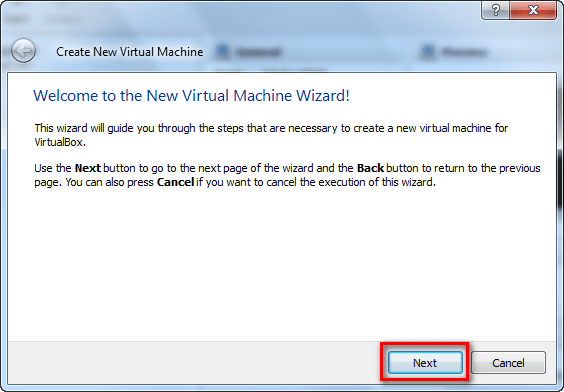
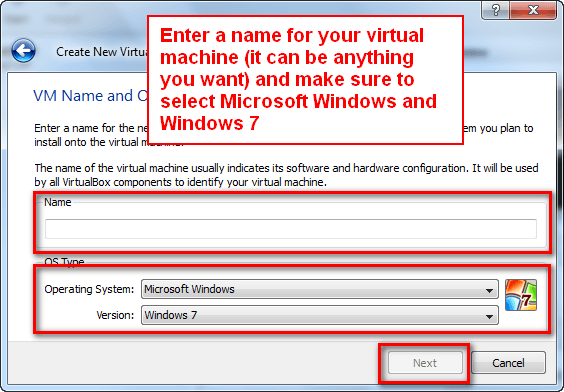
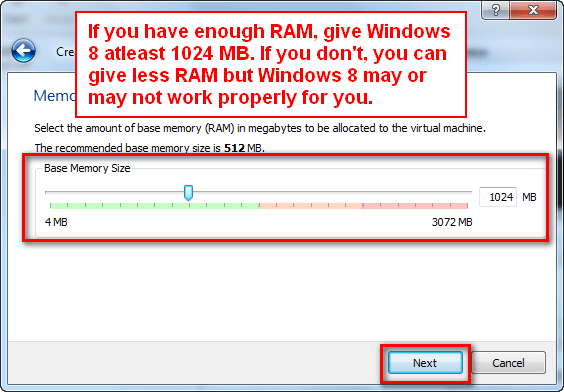
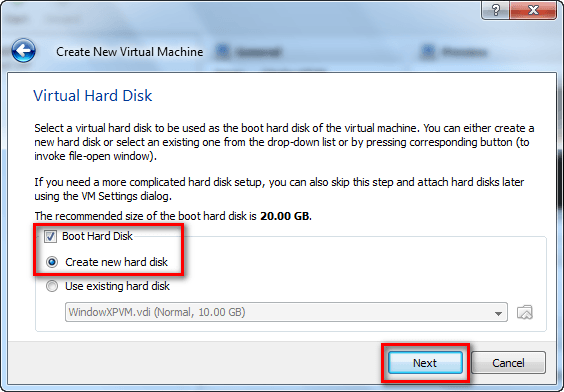
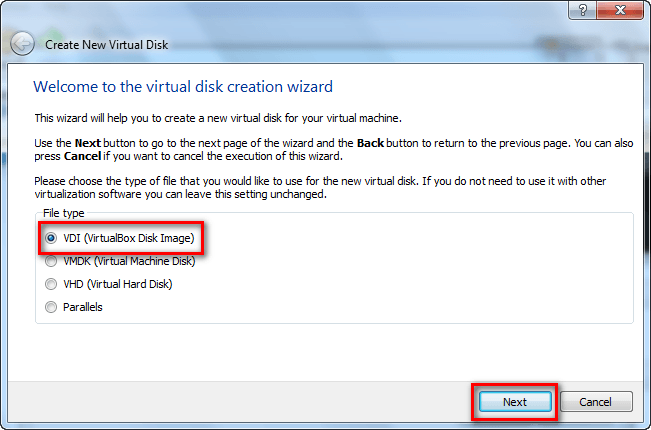
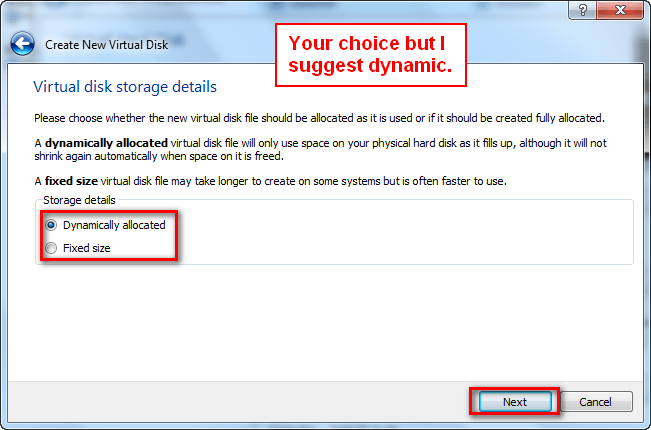
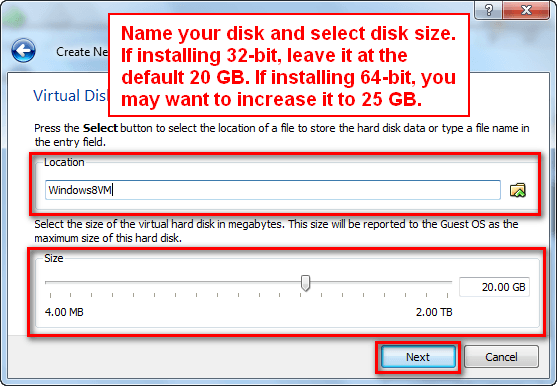
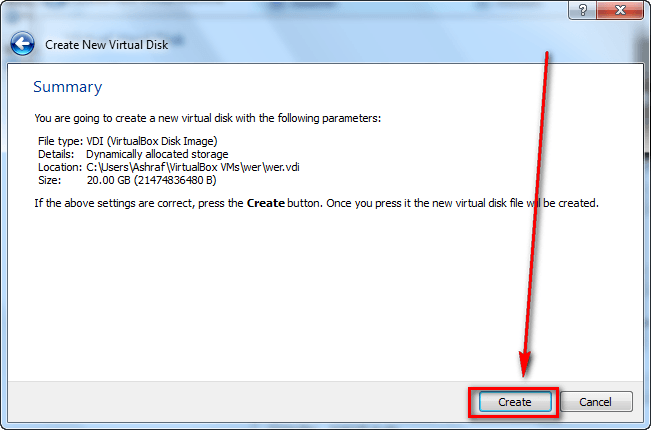
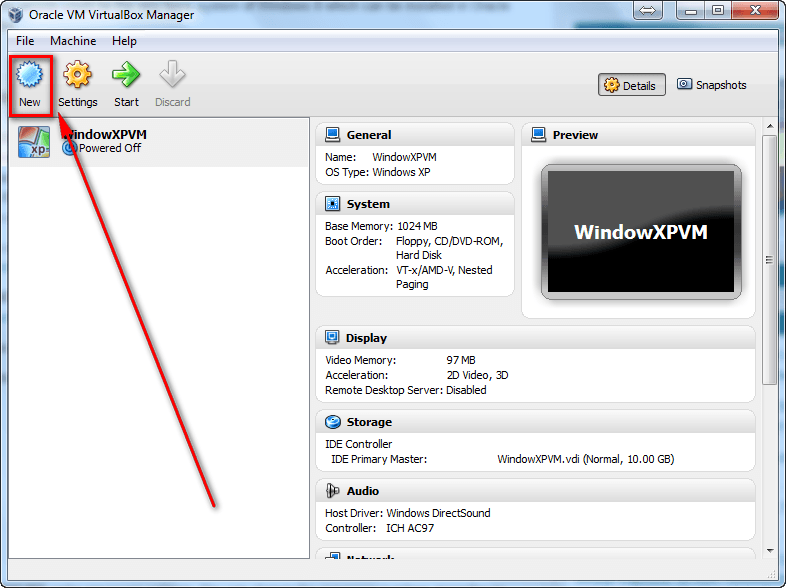
- Run VirtualBox and create a new virtual machine for Windows 8. The process is fairly standard, just like you would create a virtual machine for any operating system except for one thing: Make sure to select Windows 7 as the operating system (since VirtualBox doesn’t officially support Windows 8, yet), give at least 1024 MB of RAM and atleast 20 GB of hard drive space. If you are confused, don’t take tension — just follow the screenshots shown below:
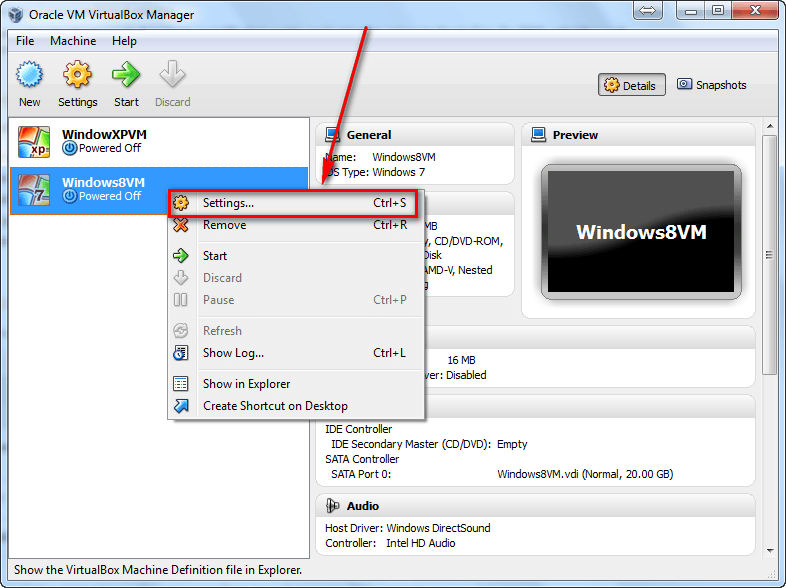
- Once you have finished creating the virtual machine for Windows 8, you should see it available in VirtualBox. Right-click it and go to Settings:
- Go to System -> Motherboard and check Enable IO APIC:
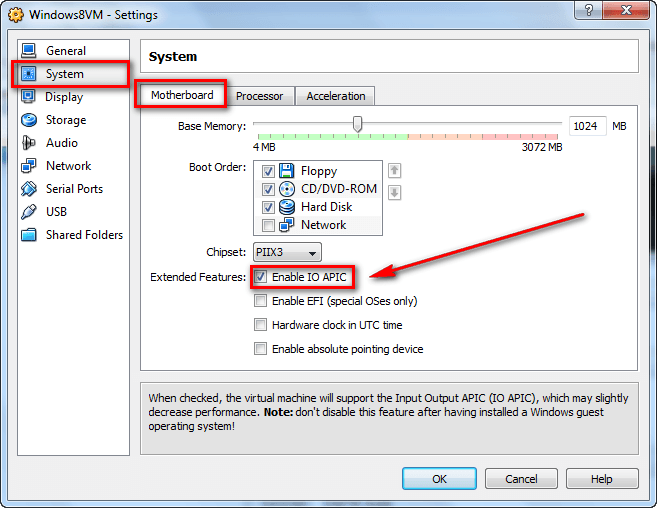
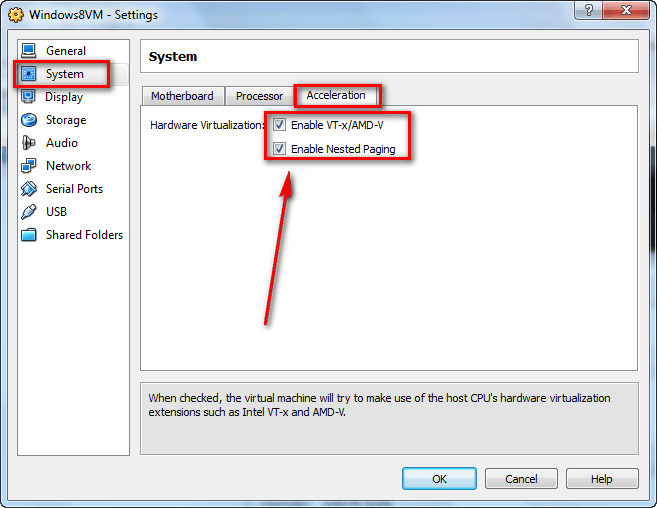
- Go to System -> Acceleration and make sure Enable VT-x/AMD-V and Enable Nested Pinging are checked:
- Go to Display -> Video and check Enable 2D Video Acceleration:
Note: For better performance you can check Enable 3D Acceleration but you are not required to do so to run Windows 8. Also, for better performance you can give the virtual machine more video memory, but if your computer doesn’t have any more to give, leave it as is. I was able to run Windows 8 just fine with 16 MB of video memory.
- Go to Storage and click on the Empty found under IDE Controller. A small disk icon should appear on the right of the program window. Click on that disk icon; then click on Choose a virtual CD/DVD disk file…:
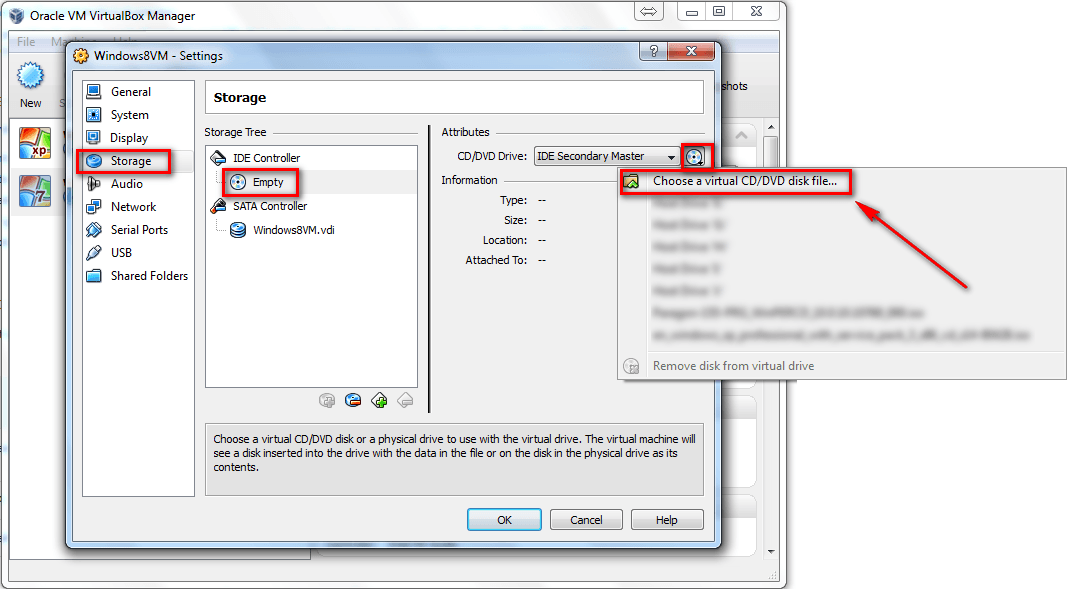
- Find the Windows 8 ISO you downloaded earlier, select it, and click Open:
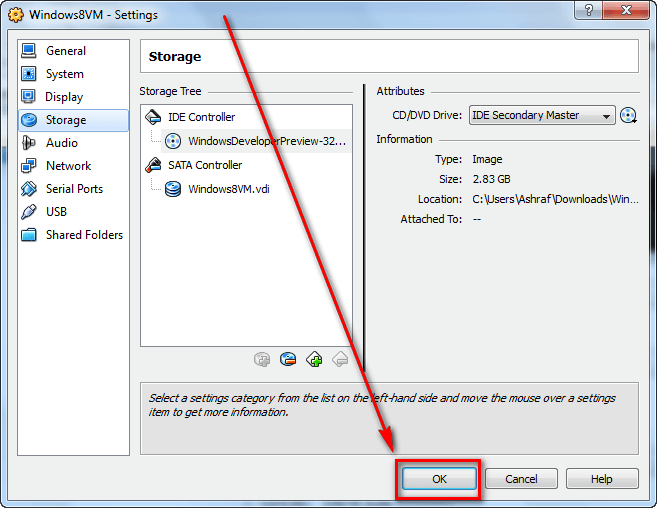
- Once you have loaded Windows 8′s ISO, click OK to exit Settings:
- Back at VirtualBox’s main window, double-click on your Windows 8 virtual machine or select it via single click and click the Start button:
- Wait a minute or two while the virtual machine turns on.
- After the virtual machine has been turned on, you will see a Windows Preview screen…
…and then you should see the familiar Windows install screen:
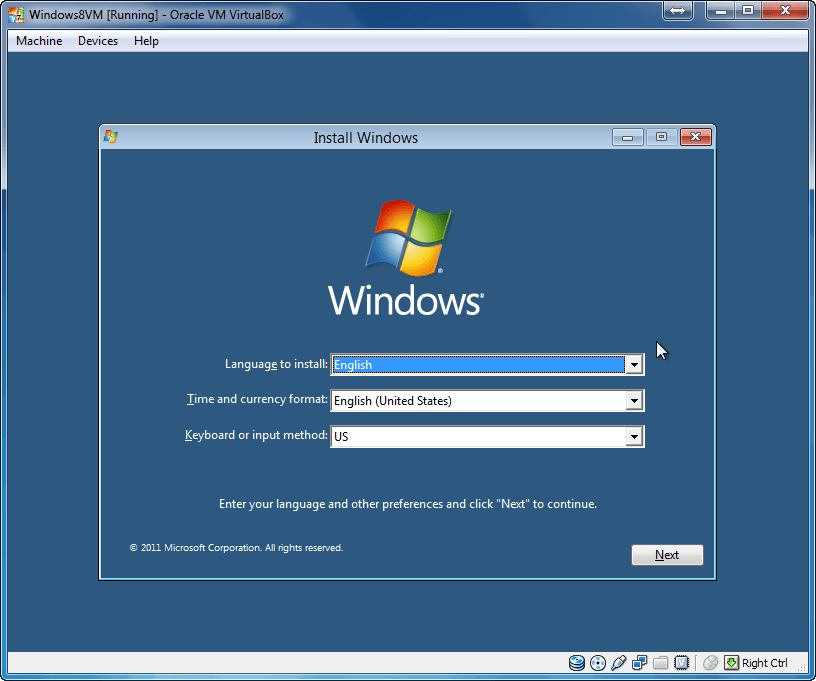
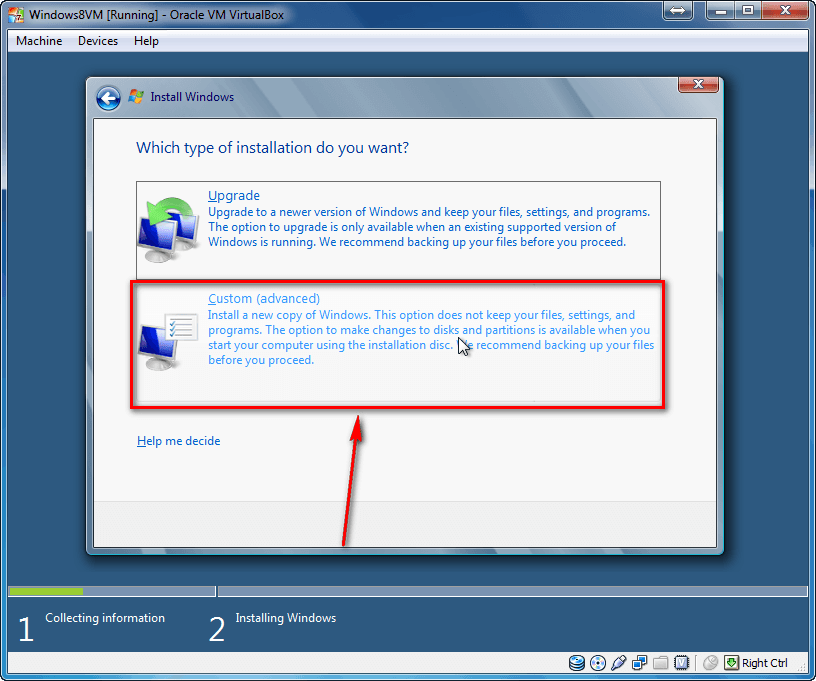
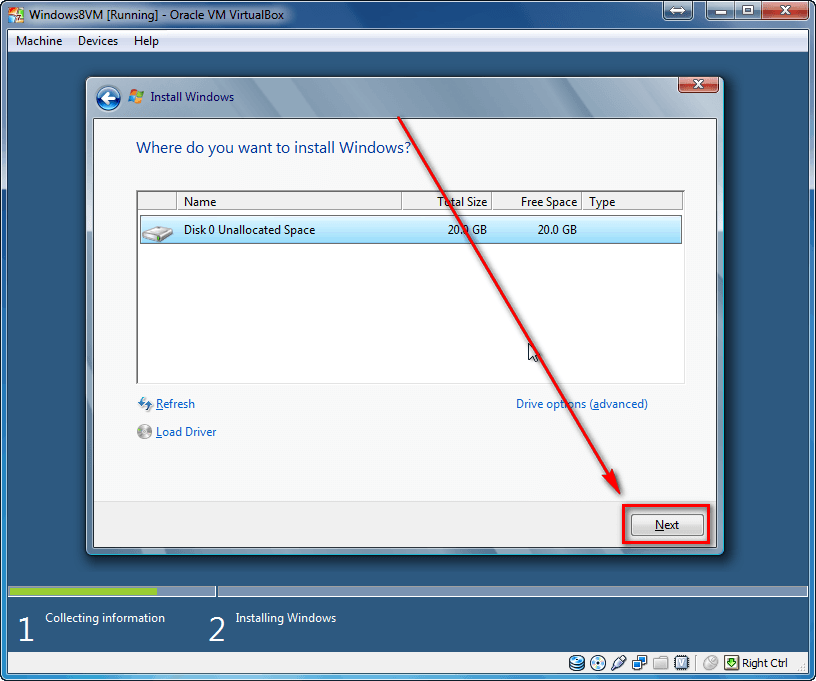
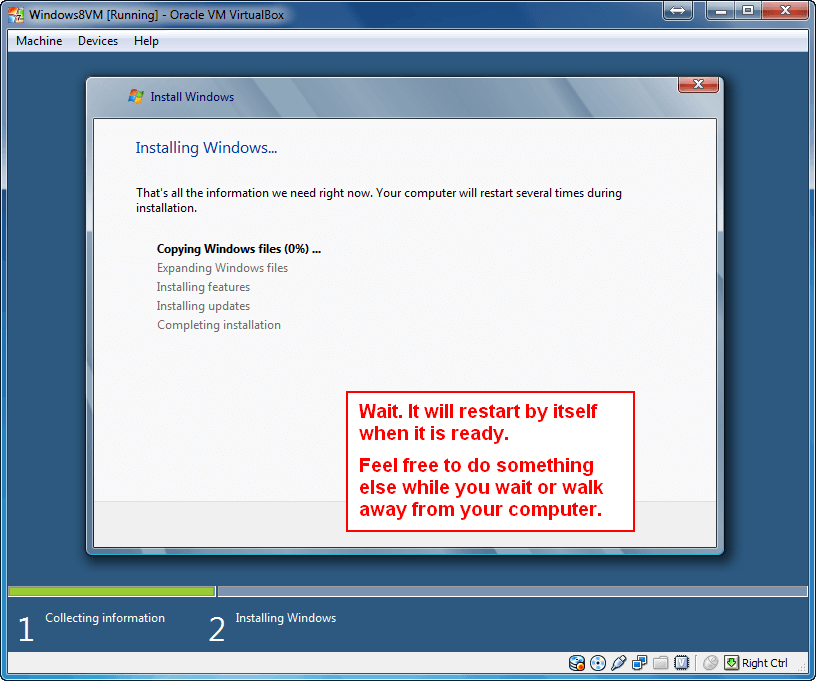
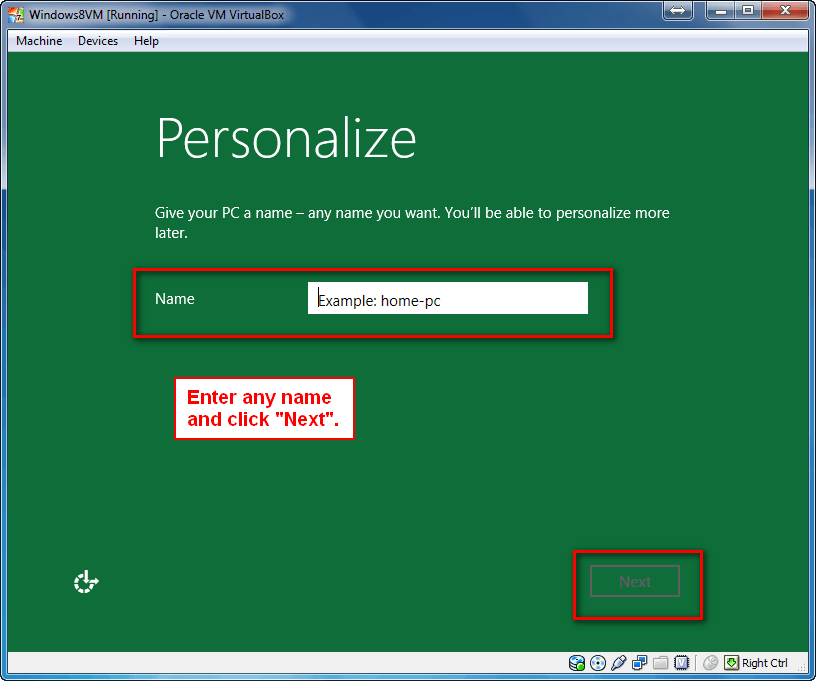
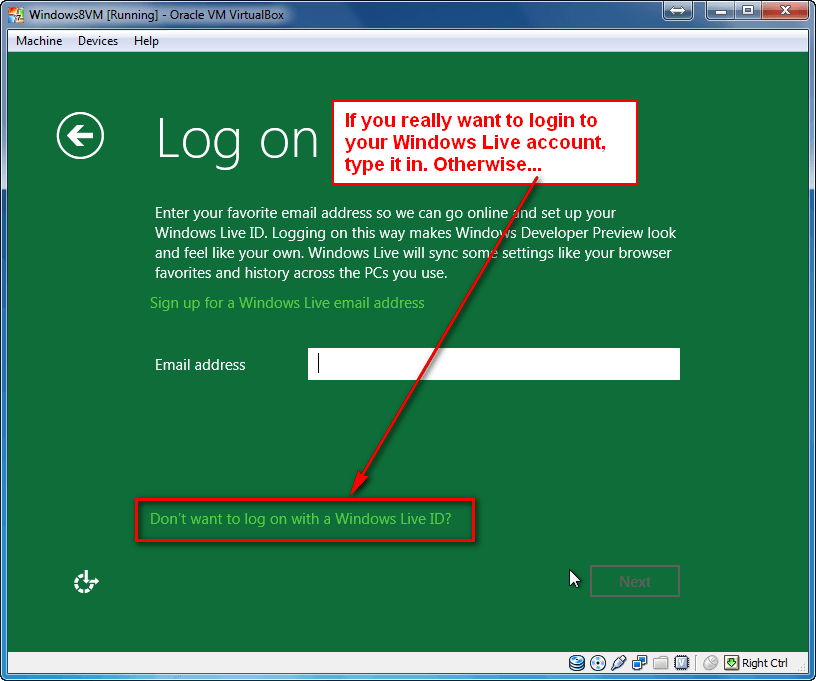
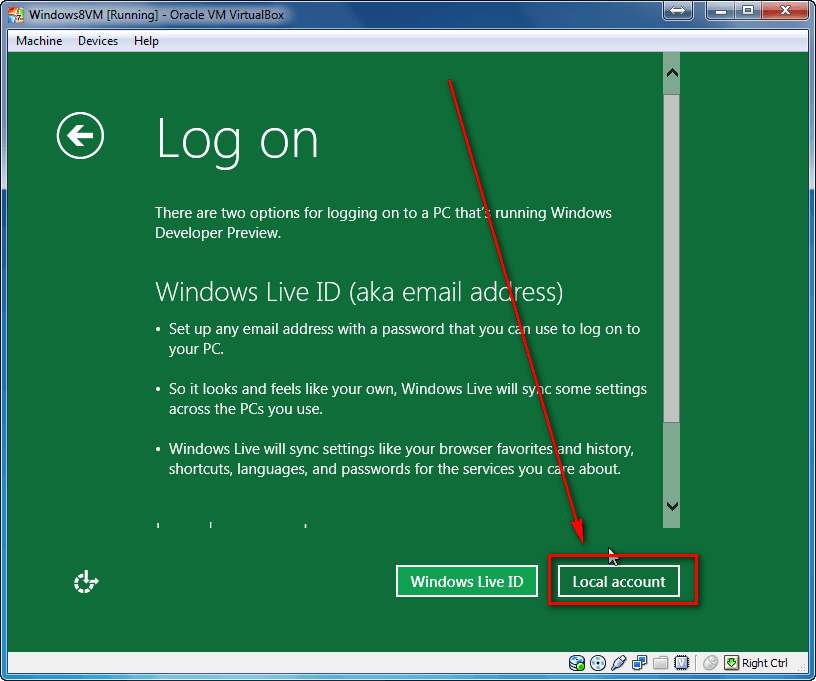
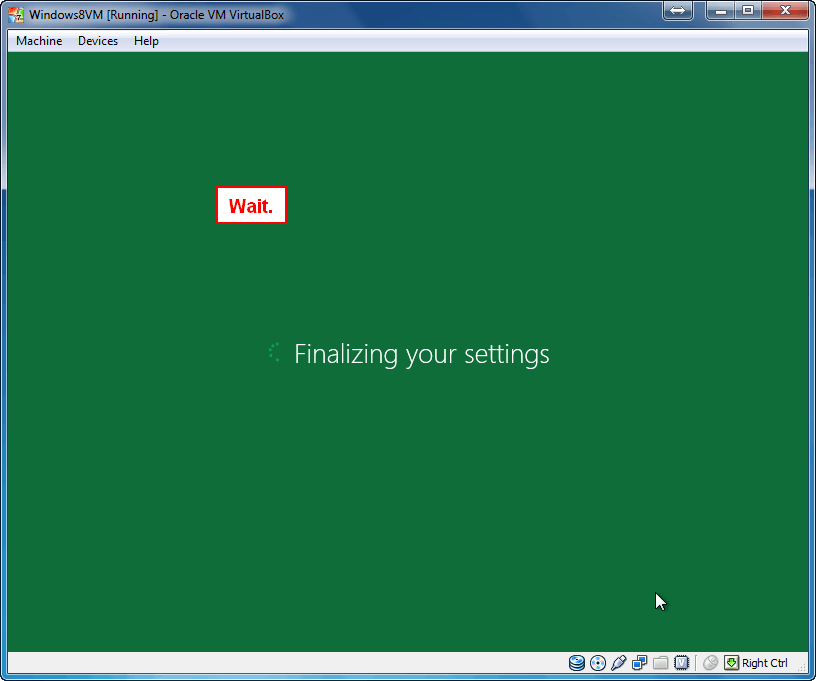
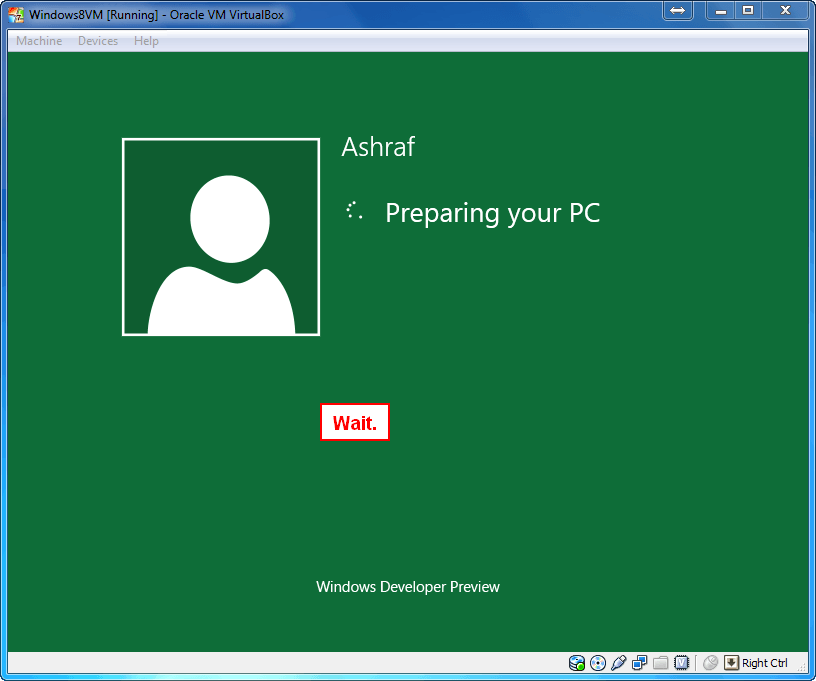
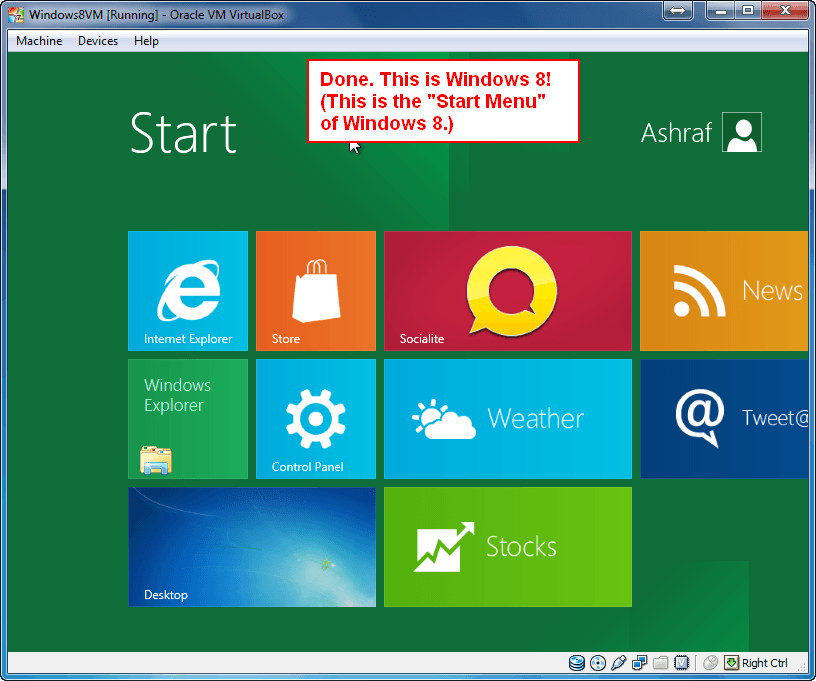
Congrats! You have successfully setup Windows 8 on VirtualBox. Now all you have to do is follow on-screen instructions to install and configure Windows 8. If you have never installed Windows before and as are confused, follow the screenshots shown below and you will find yourself on Windows 8 in no time:
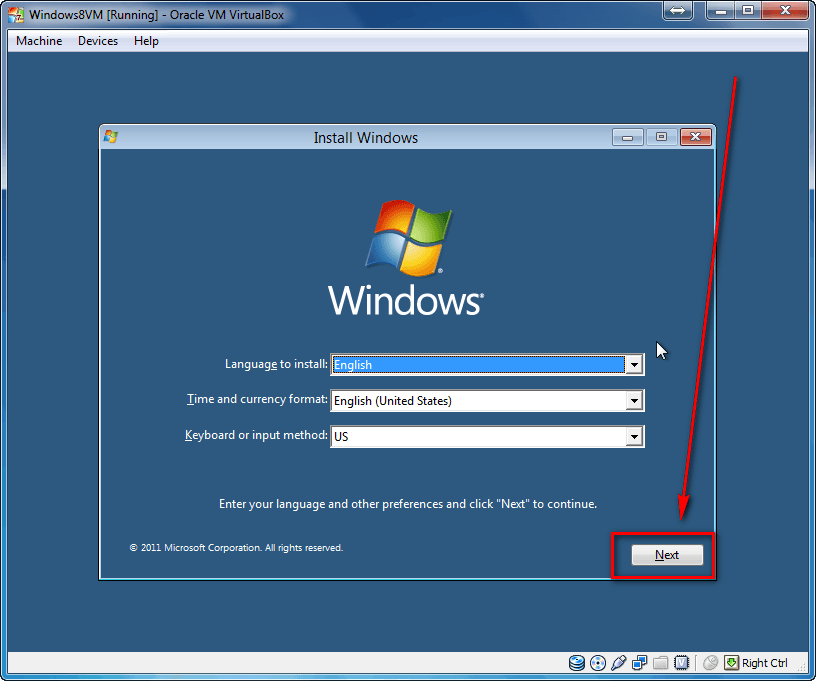
Once you have successfully installed Windows 8, there is one matter of housekeeping you may or may not want to do. Remember how earlier in Settings you went to Storage and mounted the Windows 8 ISO via the small disk icon? If you leave that mounted, every time you run Windows 8 on VirtualBox you will be prompted with that “Press any key to boot from CD or DVD…” message for 3-5 seconds. If you find this message to be annoying (like I do), all you have to do is go back to Settings -> Storage. Under IDE Controller you should see something that says WindowsPreview… Click on that and then click on the small disk icon on the right. Then click on Remove disk from virtual drive. Then click OK to exit settings. Done. You will no longer see that “Press any key to boot from CD or DVD…” message when you boot Windows 8.
Conclusion
Now you have Windows 8 to play around with. Sure, it is a pre-Beta (so expect bugs, unfinished features, etc.) but nonetheless you should get a feel for what to expect next year. Go explore Windows 8 and be sure to share with your dotTech friends what you find! Comments are always open.
[via Sysprobs]
58 Comments »
Leave A Response »


Email article


![Microsoft makes fun of iPad using Siri’s voice in latest Windows 8 ad [Video]](http://cdn.dottech.org/media/2013/05/ipadsurface-134x90.jpg)
![The Leap Motion makes Windows 8 look… awesome [Video]](http://cdn.dottech.org/media/2013/05/leap-134x90.jpg)
It seems guest addition will not install at all
64-BIT W/ DEV TOOLS INSTALLS ON VIRTUALBOX!
(Yes I know this is shouting, but I wanted to get your attention.)
As a side note, I’ve downloaded this three times. The first with a download accelerator, that didn’t speed anything up, the second time using Chrome, the third (successful) time was using Firefox. I know that the browser that you use should not matter. Also, the third download was at a different location.
I just thought I would throw this out to you who are experiencing install issues, as my second download said it downloaded the full 4.8GB file, but when I looked at the file it was only 1/2 the size.
My setup:
Windows 7 64-bit
4GB RAM
Intel Core i5 750
I selected the OS at Windows 7 64-bit, but Windows Other *may* work as well.
@Ashraf: If you want to contact me, you should have my email attached to this post, just let me know.
I appreciate what you do here.
i got this error when im about to choose a harddisk… but i gave mine 25gig how come its nnot detected???
here is the pic: http://i672.photobucket.com/albums/vv88/xain819_2009/extra/wew.png
it seems that it can’t read the iso?
I have the same problem like ACER, but I install it on x86 Win7. After the windows developer preview boot screen it said the computer need to restart and to hold down the power button. Help pls ?????
is it becoze i din’t update my windows to sp1….
@qwer:
Have you tried sending a ctrl+alt+del from the VirtualBox menu bar?
@Harerton Dourado: I believe if that is the issue people are facing, VirtualBox will give some sort of popup warning message. I am not 100% sure about this, though.
I believe most of the issue people are having is due to hardware that can’t support virtualization and/or Windows 8 virtualized.
@Igor: Was it not working when you didn’t have 2D acceleration enabled? Did you get it to work afterwards?
@Chaotic: What exactly is the error message you are getting? Can you show me in a screenshot?
@sunrise: Um, yeah, a laptop with Vista Basic probably doesn’t have enough power to run Windows 8 virtualized. :-P
@Lucas T: Thanks for clearing that up for us!
@ACER: Make sure your ISO is not corrupt and make sure you enable all the settings I mentioned above. The MD5 for the 32-bit download is 9b7798438fa694ecfa465c93a4c23c97.
@Quartzkyte: Odd. Did you try to go to Settings and enable/disable other settings to see if it worked? You may need to play around with it a little.
Also, make sure your ISO is not corrupted.
@David: Glad to hear you finally got it to work!
@David Baker: Sha-1 isn’t matched to what?
@meanpt: Yeah, VirtualBox doesn’t officially support Windows 8 so that is to be expected.
@David Baker: Glad you finally got it to work!
@xain: It looks like you are trying to repair the Windows installation. You should install new Windows. See my screenshots above and follow what the arrows and red boxes tell you to do.
@xain: Um, according to your screenshot the ISO is loaded just fine. You are just using the wrong option.
@qwer: Make sure your ISO is not corrupted. Also make sure all the settings I mentioned in the article above are enabled.
@xain: Nope.
@David Baker: I don’t think that will work because, as I understand it, qwer isn’t able to boot into Windows. It craps out on him after the initial screen.
Just FYI, some BIOS have advanced virtualization support like VT-X/AMD-V disabled by default. I had to edit my BIOS settings to get it to work. Also, you can install the Guest Additions drivers in Windows 8 with Compatibility Settings, although idk if this is a good idea or not :/
@Ashraf:
Regarding the SHA-1, that was the SHA-1 check that was next to the link on the download page.
That is where the Chrome/accelerator downloads weren’t working for me, but the firefox one did.
i’m getting error saying
Please restart your computer
hold the power button and some code
what should i do
help me please
@Ashraf:
i did exactly what the tut shows… i even tryed booting it in my system not in VM…and still got the same prob…hmmmm……..
and when i run it i dont see the Windows Developer Preview screen it just goes to the select country or to that page that has the select country, language….etc..
hi friends, i got it through vmware 8
just read the post here on the link, i hope whoever didn’t get may get after reading this post
thanks
http://www.bench3.com/2011/09/step-by-step-instructions-to-install.html?showComment=1316496450523#c4082077535317179135
Hi,
i need your help please. I installed windows 8 from dvd as dual boot with windows 7. The setup completes fine but after finishing all process in Coping files, expanding windows files, ………..etc it restarts (like usual) but when the pc start it says to select os (win7 or 8) after selecting win 8 it shows “Preparing” and then show “Windows 8 cannot be installed on you computer hardware”
please help.
I got inter core 2 duo E7400 @2.80ghz, 2gb ram, gigabyte g31 motherboard and ati radion 512mb ddr2 vid ram
To qwer: I also have the same problem, but my host is Ubuntu 11.04.
correct
If you’re choosing to install Windows 8 to your hard drive, you’ll need to be more careful.. With the virtual PC route, you’ll be a lot safer and the process will be much easier..
Well.. Installing Windows 8 on VirtualBox is tricky but not that hard once you get to know the basics.. Windows 8 developer preview installer is currently available for download from the official Windows 8 website. If you would like to get first hand experience on what is new in Windows 8, I strongly recommend that you install it on a Virtual Machine rather than trying it on your primary computer..
In VituralBox, select the Windows 7 64 bit option if you are using the 64-bit version of Windows 8.
I can’t get this to work. The download is an exe file that wants to install itself if I activate it, not create an iso, and the whole point of me doing this was so I could check out Windows 8 without installing it on my main. I really wish I had access to my old desktop now.
I downloaded a 64 bit Consumer-Release iso file, enabled VT acceleration in my bios and started the installation, but it asked for a product key before it would continue.
@Peter Stern: Go to the Windows 8 FAQ page. It’s listed there as
NF32V-Q9P3W-7DR7Y-JGWRW-JFCK8
@sunrise:
The acceleration was also grayed in mine, so VirtualBox wouldn’t work. I took the link in Arun’s (#39) post and tried VMware Player (the free version of VMware Desktop). Mounting the ISO as a DVD was a little different than shown in the instructions for VMware Desktop, but it worked like a charm on my 4 year old Compaq laptop – I’m actually posting this from a Windows 8 Virtual Machine now.
When I set up the Virtual Machine, I used the 1028Mb RAM and 20GB HDD suggestions above, and haven’t had any problems. The Windows 8 installation requested the product key, which I found on the Windows 8 FAQ page (see previous post).
Hope it helps. VMware Player doesn’t have anywhere near the features that VirtualBox does, but at least it worked in this instance.
I tried to install WIN8 32bit which was downloaded as ISO image through VM Virtual box as guided by Mr. Ashraf. But it stopped in the beginning of the installation process itself with the below error code displayed.
Windows Recovery Environment
Your PC need to be repaired
An unexpected error had occurred
Error code : 0xc0000260
Press Enter to try again
Press F8 for alternate Boot options
My laptop is a Fujitsu AH530 with core i3 processor and running Win7 – 64 bit & occasionally using Debian Squeeze Linux OS. without any problem.
any help to install win8 virtually would be much appreciated.