Create a portable version of any software with P-Apps
January 14, 2012 49
Email article | Print article
Nowadays more and more programs are coming in installer and portable versions, allowing users to select which version they want to use. However, still there are many programs that are available in installer form only. This is where P-Apps comes in.
What Is P-Apps And What Does It Do?
P-Apps is a freeware program that allows users to create a portable version of any software. Once P-Apps creates a portable version of a program, that program can be used on any Windows machine without requiring any installation — you don’t even need P-Apps installed.
Technically speaking P-Apps works with all Windows software that have installers. However, at the time of this writing P-Apps is a fairly new program (at v1.0 right now) so I’m sure there are still unknown bugs that users may run into; and I haven’t tested P-Apps with all Windows software (duh) so I can’t vouch if it really does work with all software or only works with some programs. My guess is P-Apps won’t work very well with programs that perform kernel changes, such as installing a driver.
Using P-Apps
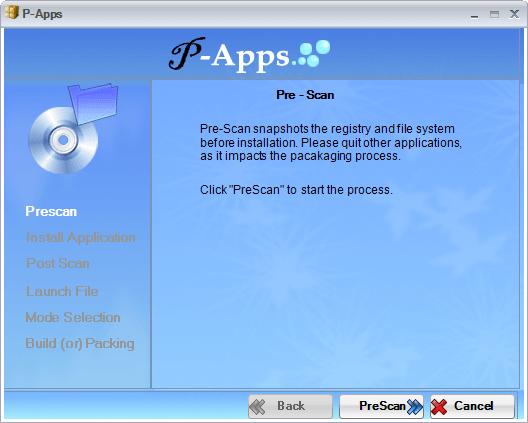
P-Apps works by taking a snapshot of your system before you install a program, taking a snapshot of your system after you install a program, comparing the two snapshots, and storing the differences (i.e. new files/registry entries) in the portable package of the software in question. P-Apps itself is a portable application so you don’t have to install it — all you do is run it before installing a program, do a pre-install scan, install the program you want to make portable (install like normal), do a post-install scan, and proceed from there.
The following demo video, created by the developer, shows P-Apps in action:
P-Apps Limitation
Because of the way it works – i.e. snapshot method – P-Apps has some inherent limitations.
The first limitation is in order to create a portable package of a program, you need to actually install that program on your computer so P-Apps can record what changes the program makes to create a portable version. This means you can’t create portable versions of software you already have installed; if you want to create portable versions of software you already have installed, you have to uninstall and reinstall those programs while using P-Apps.
The second limitation is you must ensure you have no other program running in the background making changes to your computer while you are using P-Apps. You see P-Apps’ snapshot comparison method is unable to determine what system changes are made by the software you are installing and what system changes are made by other third-party programs that were running in the background. All differences found by P-Apps between the pre-scan and post-scan snapshots are attributed to the software you are installing. So if you have background programs running and making changes to your computer while you are creating a portable package with P-Apps, those changes will be captured by P-Apps and forever embedded in the portable package you created.
Conclusion
P-Apps is a new program so without a doubt it has a way to go before we can call it “mature”; there are bound to be bugs and some software may not work properly with P-Apps. However, even in its current form P-Apps is an extremely useful program.
You can grab P-Apps from the links below:
Version reviewed: v1.0
Supported OS: All Windows
.NET Framework 3.5 required
Download size: 4.3 MB
Malware status: VirusTotal scan results (0/43)
P-Apps homepage [direct download]
[Thanks Giovanni!]






Does it mean, that I can run expensive program with one license on various computer, Desktop-Laptop for example?
Two reasons I wouldn’t install:
MAIN reason:
.NET Framework 3.5 required <<< deal breaker, just want a "clean machine" no unnecessary crap on my computer…..
2. You have to install the software you want to make portable first on your computer? That's ridiculous. That's the whole reason I want portable software, so I DON'T have to install software on my computer.
Thanks though Ashraf, you always come up with the latest and most interesting software!
Thinking gets me into trouble most of the time.
Does this App mean I can install those “good for one day” installs and have a “good for installs later” program? Nice.
I use Cameyo to do the same thing, and it works well. I have not yet tried P-Apps, so I don’t know if it offers any advantages. One more limitation (with Cameyo, and probably with P-Apps too) is that portable versions created on an XP system will not run on Win 7 and vice versa. One great feature of Cameyo is that the default portable version it creates is like a virtual sandbox that can easily be removed so that no changes would be left on the computer used to run the default portable EXE installer file. If P-Apps cannot also remove all traces of the installed portable program, then Cameyo would be preferable.
Before installing any program now, I routinely:
1) Create a restore point, just in case;
2) Run Cameyo to set the before scan;
3) Install the program, including any license, registration info, and initial setup options that are needed;
4) Use Cameyo again to capture the installation changes and create the portable EXE;
5) Run Revo to uninstall the program I just installed, and to remove left over debris in the registry; and
6) Create a desktop shortcut to the portable EXE that Cameyo created.
Hopefully, my computer is as clean as it was before I started the process, and I can run the portable EXE on that computer, or on any other computer running the same operating system.
@Tommy Tutone comment 2: Regarding your point 2, you have to install the program to make the portable version. But, you can uninstall the program once you make the portable version. Also, lots of us have reasons for making and carrying portable versions of programs that we do have installed on at least one of our computers. For example, I could travel with a netbook or tablet and run portable versions of heavyweight programs at a library, FedEx Office, or another available computer.
Regarding your point 1, if .NET Framework 3.5 is such bloated crap that you cannot abide it, what are you doing running Windows and Windows applications? Windows and “clean machine” are incompatible concepts. A brand new computer running any version of Windows, before you install a single program, is not a “clean machine.” Even a process that does nothing more than occasionally check for a program update wants 6-8 MB of RAM. (By the way, every program that now relies on .NET Framework would be that much larger if it internalized the necessary code. Better to have .NET Framework installed once than to have multiple programs that must be even more bloated without it.)
I wonder if this would work sandboxed?
What we need is a ‘Good Samaritan’ who will use his machine to make portable versions of some programs, and then provide a download link for us to get the pre-portable’ised version.
“Now who could argue with that”
(Blazing Saddles, in the church)
The Cameyo manual has this -
Best practice: it is recommended to capture software on the most basic operating system you intend to use the software on. For example, if the software is intended for use on Windows Vista and Windows XP, then it’s best to capture it on Windows XP. Also, the most convenient way for capturing software is on a virtual machine.
Two things in there may be of interest to you’all -
- It appears that you can portable’ise in a virtual machine, thus avoiding any real installation that could effect your system.
– It appears the portable’ised program made in say XP, will run in Vista (and perhaps Windows 7)
I posted this on their forum:
1. My system has C:SYSTEM, D:APPLICATIONS, E:DATA. Can I make the package extract to a given program’s folder in D:APPLICATIONS instead of Users appdata (%appdata% / Papps)? I want to keep my C:/ clean.
2. Do you have an entire virtual registry repeated for each program individually? Pardon my total ignorance about virtualization, but does that take up a lot of space (or no space)?
3. How does the file size of the portable-ized app compare to the amount of space it takes up with the regular, full installation?
@Janetb:
My post (this post), is nothing to do with the portable’ising programs.
Regarding your D partition.
You can place portable programs, anywhere.
However, if you have installed programs, I believe you should keep Windows simple, and install the program into the same Partition as the OS (into the C drive).
When things go bottom up, you want to be recovering a non complex environment.
Rob
PS If you are in the habit of imaging your hard drive (EG via Seagate DiscWizard), then –
Having your data (or at least large data), in a separate partition is a great idea, as any images you make of the OS, will be much smaller.
You can image the Data partition as a separate exercise (and probably less or more frequently)
When you image the OS (C drive), my suggestion (install pgms into C drive) makes life simpler.
I use – with some success – a portable version of “Universal extractor (UE)” to make portable applications.
You don’t have to install the software first.
I’ll try P-Apps when UE can’t do it. Thanks for this review!
@Jeanjean:
Super woman ?
As best I can tell, UE is like 7Zip, except it can extract a bigger variety of compressed files.
(And it cannot create zips).
I can see no mention of what you are achieving.
Say you took a program’s installer, and used UE to extract all the DLLs etc, what are the next steps you take to make all of that into a portable program ?
I have been programming for 14 years with VB (and other languages prior to that) , and I have evolved to make most of my VB6 programs portable.
But I could not do what you are doing ?
Curious/Envious,
Rob
@Rob (Down Under):
I know portable programs can be put anywhere–that’s why they call them ‘portable’….:-)…..I think you misunderstood my question…..:-)…..
This app automatically extracts everything to your C drive. That’s bad for me because I don’t (intentionally) put any programs in my C drive–it is only for system files! That’s what I call keeping Windows simple….:-)….I like to have all a program’s files in its own folder on D.
@Jeanjean:
I haven’t had much success with using UE on Windows 7 Home Premium 64bit. What is your OS?
Thank you Ashraf; I’ll give this a try. At the present I am using Portable App Creator 0•99 beta. Although it has limitations of not working on large software, it is easy to use and works for me.
@ Tommy Tutone – You can try (Portable App Creator 0•99 beta) it installs the app directly onto your thumb drive or external drive. Download it from portableaps.com forum or just Google it.
@Janetb:
I had a friend who was doing what you are doing, in his business computer,
It went belly up, and he could not restore it.
He then vowed never to do that again.
When Windows is installed in your C drive, and then applications are installed, entries are made in the Windows registry. DLLs etc are installed into the Windows folder, etc.
The applications in the Programs folder are part and parcel of that.
Trust me, ===> keeping that all together <=== in your C drive, is the least complex solution.
@Rob (Down Under):
I doubt if your friend did the same–I would have no trouble restoring my system….. Obviously a lot gets sent to C automatically–after all, the registry is there..:-)..! But more and more apps now give you the option of installing where you wish. Basically, this simply means the application data and program files do not have to be on C. Thus, whenever you can choose your installation (e.g., for virtually ALL GAOTD and dottech downloads), I put them all on D. I have about 200 apps installed–mostly free/GAOTD/dottech. Don’t want all that on my system drive! Especially not their data! Also, I think it is preferable to have the app’s program files and data files together when you want to find something. Putting all programs on C is a throwback to days when HDs were small. Nowadays, we save much more and consequently need to be more orderly to find things. Also, today’s systems have no trouble using apps not on C (no slowdown). Many folks have a separate partition for apps.
doese it save history of firefox ?
doese it work with games?
if it is yes, doese it save save saves?
@ Janetb On XP-sp3 ! I have since little Win 7 home premium on another PC, but I must first learn this OS a little bit.
@ Rob (Down Under) : last conversion in portable… FormatFactory 2.80.
I got a serie of files – including a FormatFactory.exe – and directories . I gathered all in a directory and created a link to start the program… and it works for as much as I have been judging.
Same procedure, same result with other programs. I try this for programs i use sporadically.
Sometimes UE can’t do the job.
@Jeanjean:
Is your XP 32 bit?
@Janetb:
I have a setup just like yours (C: Windows; D: Apps; E:Data) for pretty much the same reason as you, and have for over a decade. There really is no reason why this setup would cause more problems than an “all on C:” setup, in fact in many cases it causes less problems. Sure, if your C: partition goes south, some of your applications on D: may not work when you restore – but in an all on C:, NONE of them will work since they’d all been gone.
Installing everything to “C:\Program Files” isn’t any simplier than installing everything to D:, except for the need to change the default installation location when an installer wants to throw everything there! And if you are concerned about how things look to Windows, you can always create a NTFS junction that makes Windows THINK the files are in “C:\Program Files”. But maybe that is too complex :)
@ttfitz & Janetb:
Re: Drive Partitioning
If your C partition, or any partition, goes south, you restore your backup. That isn’t the issue.
Keeping the apps and OS on separate partitions does make backing up and restoring each one individually easier. In my opinion, this is outweighed by having to change the default path for program installations and, especially, updates. Program installations and updates are far more frequent, and require more of your attention, than restoring a drive partition, so convenience of the former is more important than the latter. As for how long a backup takes, who cares? That should be done while you are asleep. Also, tech support assumes default file locations. Therefore, except for a large organization with an IT staff that manages everything on every desktop, I always advise installing programs in the default location. That means OS and apps on C.
On the other hand, keeping data on a separate partition or, even better, a separate physical drive, has advantages with no downside. There are 2 ways a partition can “go south”; one of them is failure of the physical drive.
@Janetb
Yes.
@Finell:
As someone who, as I said before, has over a decade of following this scheme, I can tell you that problems with updates are almost non-existent (updates to programs that are already installed almost always know where the existing program is), and the time spent during installation is also so minimal as to not be a factor. Particularly in my case, because I like to organize my programs outside the main directory, be it “C:\Program Files” or “D:” – this program here would go under “D:\System Utilities” for example – so I would be changing from the default installation location anyway.
And, like I said, if the few seconds it takes to switch an installation from the default is that much of a burden, you can create a junction that accomplishes the same thing, and then not have to worry about it again.
The best thing about this software is that is freeware.