How to force Microsoft Excel to open files in new window [How-To Guide]
January 15, 2012 89
Email article | Print article
Often times you may find yourself in a position where you are using two or more Excel spreadsheets at the same time. You can, of course, use Alt + Tab to continually switch between the spreadsheets, or use Microsoft’s build-in secondary window function (you know, how you can minimize spreadsheets within the same window) to place the spreadsheets side by side. However neither of these methods is very attractive if you use multiple monitors or if you like using window-resizer programs like WinSplit Revolution. Rather, a best practice when working with multiple Excel spreadsheets at a time is to open the spreadsheets in separate windows, allowing you to easily tile the windows next to each other using WinSplit Revolution or, if you use multiple monitors, allowing you to place each window in its own monitor.
Unfortunately, the default behavior of Microsoft Excel is to open spreadsheets in the same window. Fortunately, there is a way to force Excel to open spreadsheets in new windows. This guide shows you how to do exactly that.
How to force Microsoft Excel to open files in new window
To force Microsoft Excel to open files in new window, you must do a registry tweak. This tweak takes less than five minutes, works on any computer (Windows XP, Vista, Win7, etc.) with Microsoft Office 2003 and higher (e.g. Office 2007, 2010, etc.), and is very easy to do; plus I have provided screenshots to help you, so don’t be scared that you have to modify the registry to do this. Take note, however, a) You need administrator access to your computer otherwise you won’t be able to modify the registry and b) You should be very careful when you have the registry editor open — accidental changes could crash your computer.
This tweak works with all Excel files, including files you open yourself and files that programs open via Excel.
To make Excel open spreadsheets in new windows, do the following:
- Close Excel, if it is open.
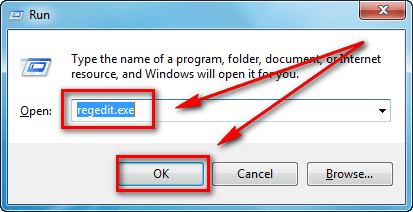
- Press Win + R on your keyboard, type regedit.exe in the Run box that pops up, and hit OK:
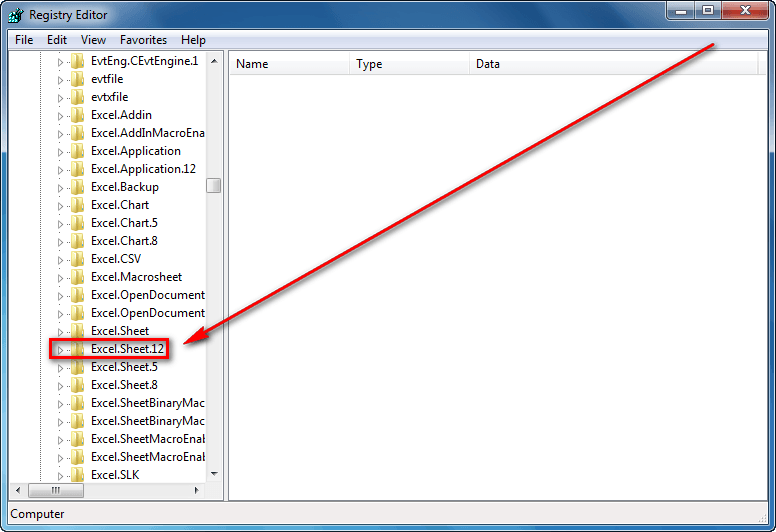
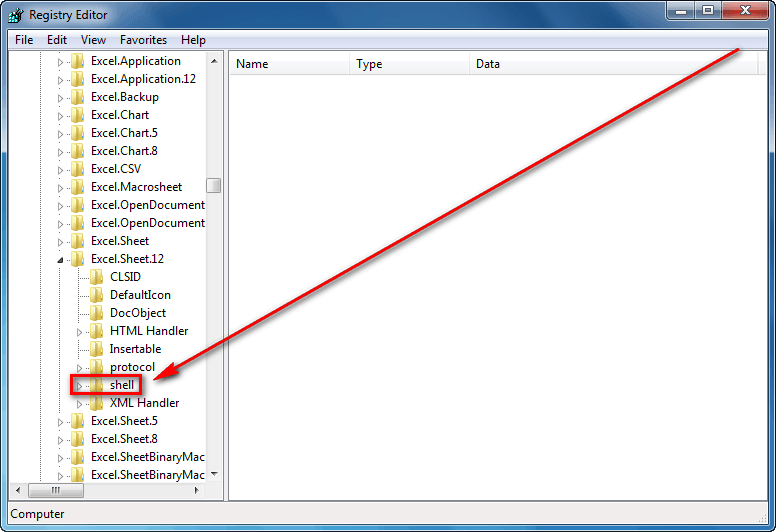
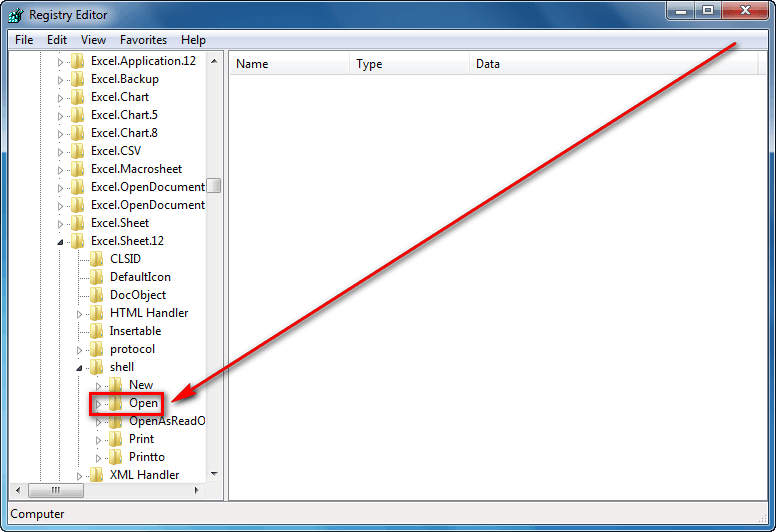
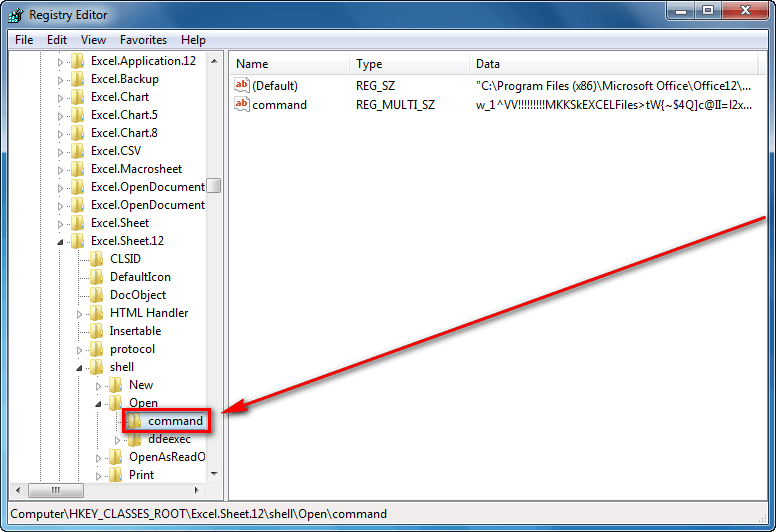
- Once you hit OK the registry editor will open. Navigate to the HKEY_CLASSES_ROOT/Excel.Sheet.12/shell/Open/command folder:
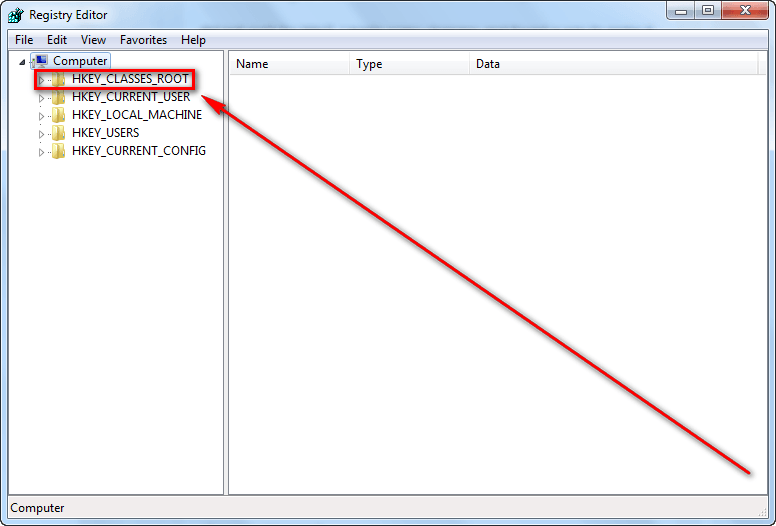
- From the HKEY_CLASSES_ROOT/Excel.Sheet.12/shell/Open/command folder right-click on the (Default) registry entry and select Modify…:
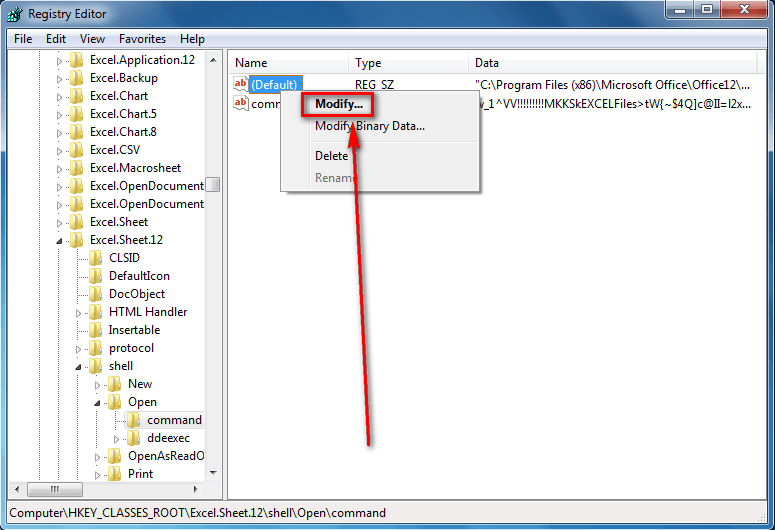
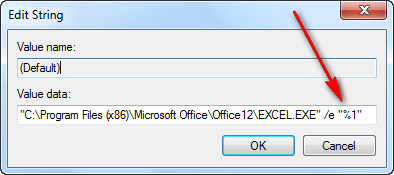
- Add a “%1″ to the end of the Value data textbox:
Make sure you include the quotes and make sure you have a space between the /e and the “%1″. Do not modify anything else. Click OK when you have finished.
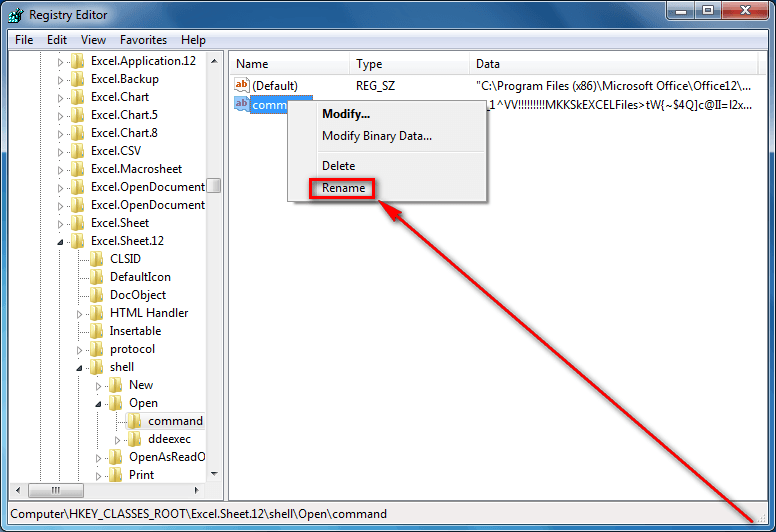
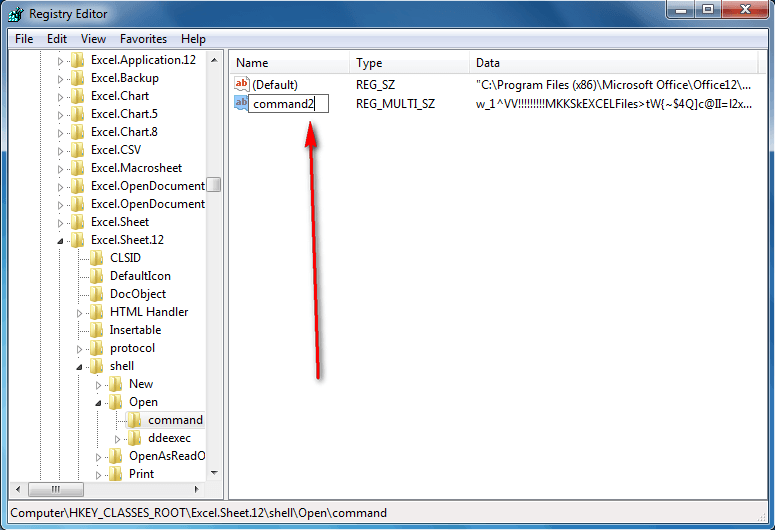
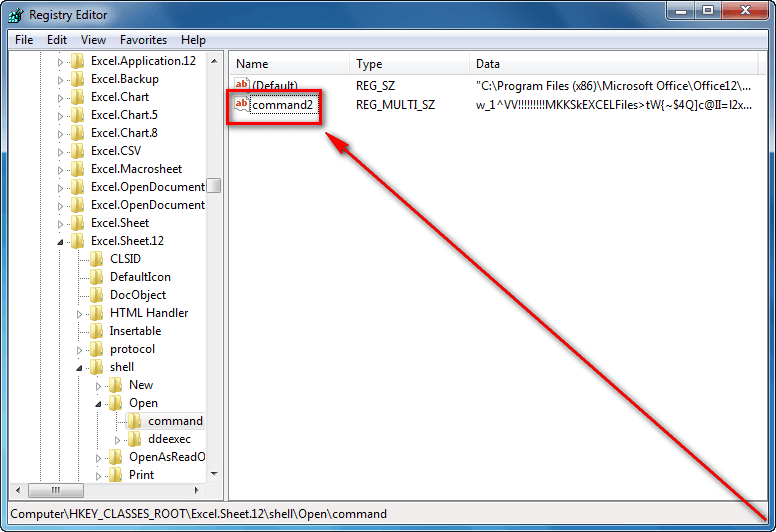
- Now right-click the command registry entry (this is from the same HKEY_CLASSES_ROOT/Excel.Sheet.12/shell/Open/command folder), select Rename, and rename it to command2:
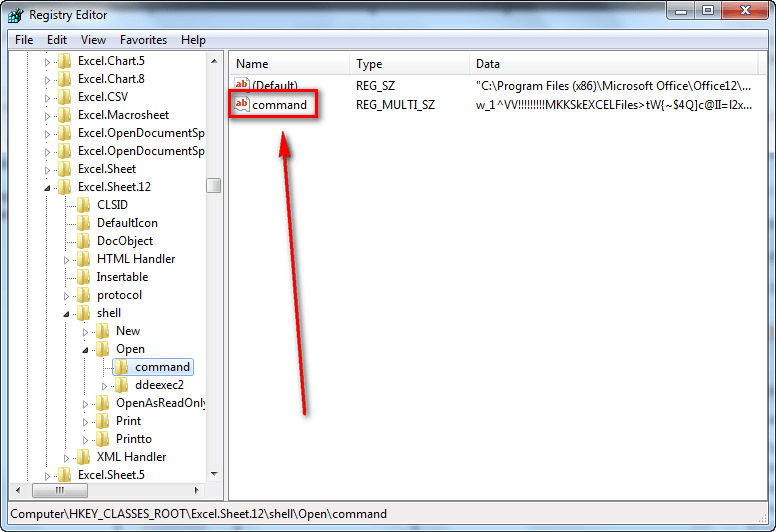
Ensure you rename the command registry entry and not the command folder.
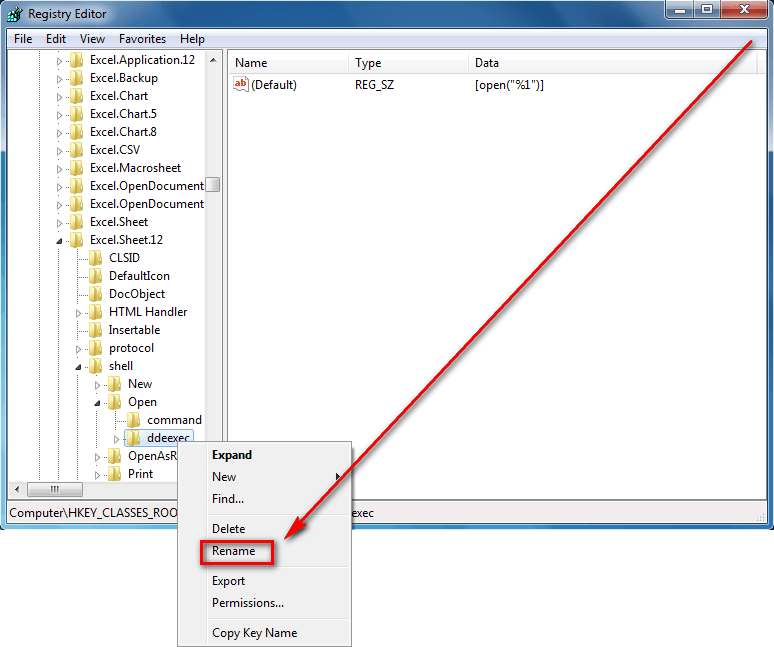
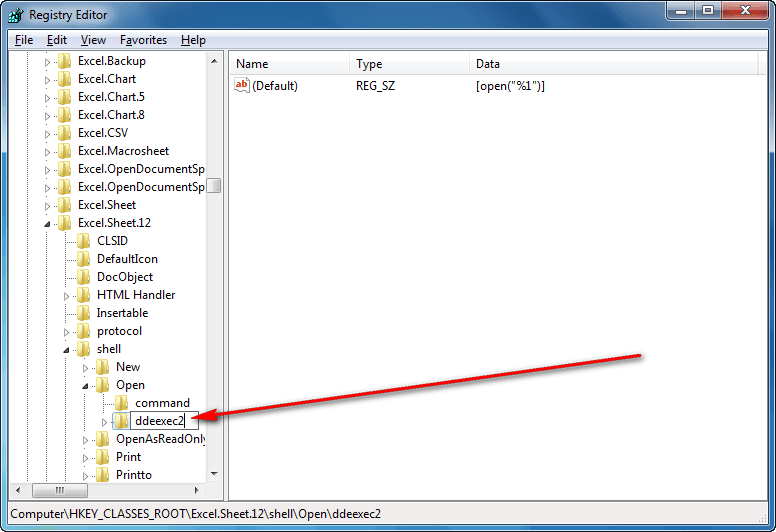
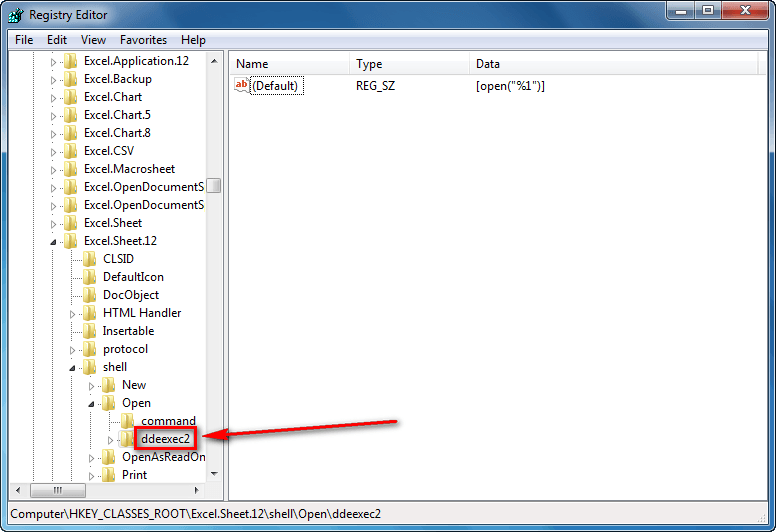
- Next right-click the ddeexec folder (HKEY_CLASSES_ROOT/Excel.Sheet.12/shell/Open/ddeexec), select Rename, and rename it to ddeexec2:
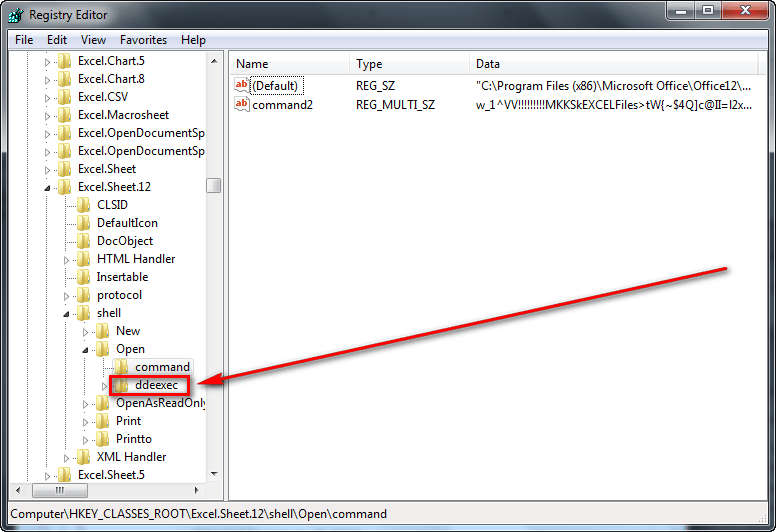
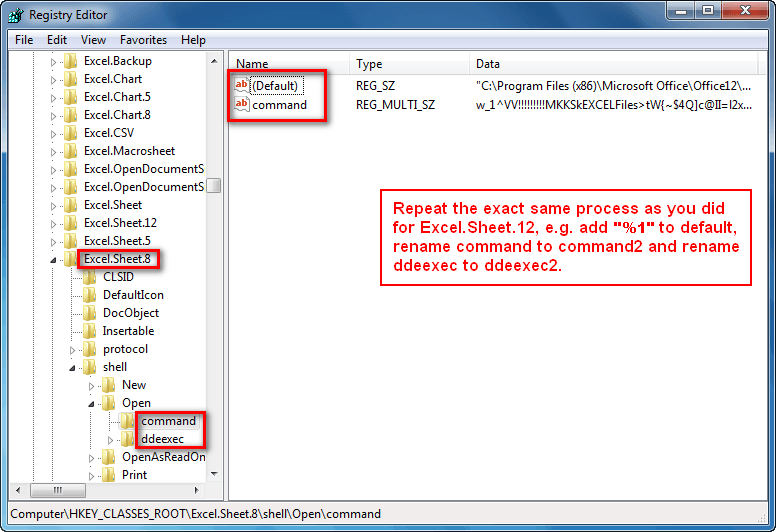
- Now go to the Excel.Sheet.8 folder (HKEY_CLASSES_ROOT/Excel.Sheet.8) and repeat the same steps as mentioned above. In other words, add a “%1″ to the (Default) registry entry from HKEY_CLASSES_ROOT/Excel.Sheet.8/shell/Open/command, rename the command registry entry to command2 from HKEY_CLASSES_ROOT/Excel.Sheet.8/shell/Open/command, and rename the ddeexec folder (HKEY_CLASSES_ROOT/Excel.Sheet.8/shell/Open/ddeexec) to ddeexec2:
- Close the registry editor (click the X button).
- Done.
Conclusion
I really hope Microsoft adds an option within Excel in future versions to open files in new windows; but until they do, this registry tweak allows you to easily and quickly force Excel to open all files in new windows. Enjoy.






THANKS!!!! JUst yesterday did I fight Excel to have several files open at the same time :-)
Or just click with the middle or wheel button on the Excel icon and a new copy of Excel will open and then you can just open your document like normal or drag it on to the new Excel window.
@Haakon Aas: You are welcome!
@Chris: Interesting. I didn’t know that. That is a good method for those that don’t want to do the registry tweak. Thanks!
Best of all (at least in my opinion) is to use a small software named office tab that enables tabbed browsing, editing, and managing of Microsoft Office documents (word, excel, powerpoint). Download the free edition from:
http://www.extendoffice.com/download/office-tab-free-edition.html
@giancarlo: That seems like an interesting software but it has a completely different use case than the registry tweak I mention in this article.
I used easy way of righ click on open with excel option to open addtional files and it opens in new excel window
@giancarlo: I downloaded and tried Office Tab, very interesting. The concept is great and is probably ok for most of the word processing that I do; however, there are times when I would like to have multiple windows open for Word and the freeware version of this software d provide the capability one must purchase full version. Not sure I’m that interested in the product.
I just went & started the process of making the modifications.
for excel.sheet.12 their is no ‘command’ registry entry below the Default registry entry.
Like wise there is no ddeexec folder under ‘Open’
for excel.sheet.8 the ‘command’ registry entry is also missing; however there is a ddeexec folder.
My ops is XP pro SP3.
Any thoughts?
@Chris, I tried the middle wheel step & excel shows as 2 in the tab bar, but excel still shows as only onw program window.
I am still using Office pro 2000 version, so extendoffice will not work for me.
this could be why some of the entries are missing from the registry, etc.
I have tried this on XP SP3 machine and although there is no HKEY_CLASSES_ROOT/Excel.Sheet.12/ entry (only Excel.Sheet.8), I carried out the modification as far as possible. It still works OK.
I also tried on Vista machine, which does NOT have the command entry to rename to command2, all other modifications to registry carried out. This also works OK. One extra point however, is that it does not work if the second file is opened from within the first. Thank you for a tip that solves an anoying problem for me.
Or you could use Excel Launcher – I’ve been using it for years & it works so well. It’s tiny & you just have to set Excel file types to always “Open With” it after you have first run it & pointed it to Excel.exe & you’re done! Get it here: http://blog.thomascsherman.com/2010/06/opening-excel-files-in-new-processes-excel-launcher-helper-app/.
That’s v.1.1, but I’m still using v.1.0 (get that here http://download.cnet.com/Excel-Launcher/3000-18483_4-10803083.html) because, for some reason I can’t remember, I preferred it to v.1.1; but it’s a great little FREEBIE program – so big thanks to Thomas C. Sherman!
@Ashraf:
Hi Ashraf, This tip from Chris reminds me of opening multiple links in separate tabs……..in your ‘ask a dotTechie’ article some days ago.
I tried it in both instances and it worked great…thanks Chris!
@Celia:
I just installed the Excel Launcher. It works great! Thanks for the find.
HI Ashraf,
I tried the way you showed me to tweak and open excel. Something happened: I can now click on excel sheets already saved (made up), BUT these files DO NOT OPEN. A blank Excel page opens that lets me go to the main menu: file –> direct it to my saved .xls files, and yes it does open then, but not directly as i used to earlier.
What wrong did i did or what happened here? Thnx —sim
This is a really great post, thank you! I’m not terribly fond of Excel’s built-in window management tools, and it’s a bit annoying to always be starting up another instance of Excel just to force spreadsheets into separate windows. I was searching for something else, completely unrelated, but I’m definitely bookmarking this and going to try it out for myself. Cheers!
This process didn’t work on my computer. The command line is slightly different than what’s shown in the examples. I even rebooted to see if that would apply the registry update – nothing. Oh well – I’ll keep looking!
@Gil:
No need to keep looking – see Comments 12 & 14 above!
The following would work for Win7 64 bit,(right click excel and open in new instance submenu)
Open a notepad and paste the following and save it as:- Excel OpenInNewInstance.reg
and right click merge…. you are done.. right click your excels and open in new instance
Windows Registry Editor Version 5.00
[HKEY_CLASSES_ROOT\Excel.Sheet.12\shell\OpenInNewInstance]
@=”Open In NewInstance”
[HKEY_CLASSES_ROOT\Excel.Sheet.12\shell\OpenInNewInstance\command]
@=”\”C:\\Program Files (x86)\\Microsoft Office\\Office14\\EXCEL.EXE\” \”%1\””
[HKEY_CLASSES_ROOT\Excel.Sheet.8\shell\OpenInNewInstance]
@=”Open In NewInstance”
[HKEY_CLASSES_ROOT\Excel.Sheet.8\shell\OpenInNewInstance\command]
@=”\”C:\\Program Files (x86)\\Microsoft Office\\Office14\\EXCEL.EXE\” \”%1\””
I really like this easy tutorial with pictures and it worked as described. However, I ran into my first problem only a few minutes later when I wanted to copy a worksheet from one file to another and now since they are separate Excel windows, I can’t have two open files and copy a worksheet tab between them. Any other tricks to solve this problem?
Thanks.
It works beautifully! THANK YOU.
Thanks for your help! Do you think it works the same with PowerPoint?
I am pretty computer illiterate but your steps made it so easy a 5-year-old could do it. Thank you so much, this speeds up my work flow immensely! Hopefully Microsoft will catch on eventually :)
Thank you for this!! I became so conditioned to manually reopen excel every day for multiple excel windows. This fix is perfect. I don’t get why they decided Word docs should open in new windows, but Excel docs should not. Anways, thanks again!!
You did an excellent job with this. Thank you for making it so understandable. The photos are great. It worked perfectly! You’ve saved me a lot of time and frustration!