How to force Microsoft Excel to open files in new window [How-To Guide]

January 15, 2012 89 Email article | Print article

Often times you may find yourself in a position where you are using two or more Excel spreadsheets at the same time. You can, of course, use Alt + Tab to continually switch between the spreadsheets, or use Microsoft’s build-in secondary window function (you know, how you can minimize spreadsheets within the same window) to place the spreadsheets side by side. However neither of these methods is very attractive if you use multiple monitors or if you like using window-resizer programs like WinSplit Revolution. Rather, a best practice when working with multiple Excel spreadsheets at a time is to open the spreadsheets in separate windows, allowing you to easily tile the windows next to each other using WinSplit Revolution or, if you use multiple monitors, allowing you to place each window in its own monitor.

Unfortunately, the default behavior of Microsoft Excel is to open spreadsheets in the same window. Fortunately, there is a way to force Excel to open spreadsheets in new windows. This guide shows you how to do exactly that.

How to force Microsoft Excel to open files in new window

To force Microsoft Excel to open files in new window, you must do a registry tweak. This tweak takes less than five minutes, works on any computer (Windows XP, Vista, Win7, etc.) with Microsoft Office 2003 and higher (e.g. Office 2007, 2010, etc.), and is very easy to do; plus I have provided screenshots to help you, so don’t be scared that you have to modify the registry to do this. Take note, however, a) You need administrator access to your computer otherwise you won’t be able to modify the registry and b) You should be very careful when you have the registry editor open — accidental changes could crash your computer.

This tweak works with all Excel files, including files you open yourself and files that programs open via Excel.

To make Excel open spreadsheets in new windows, do the following:

  • Close Excel, if it is open.
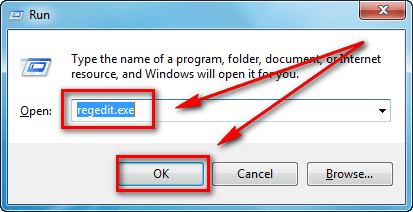
  • Press Win + R on your keyboard, type regedit.exe in the Run box that pops up, and hit OK:
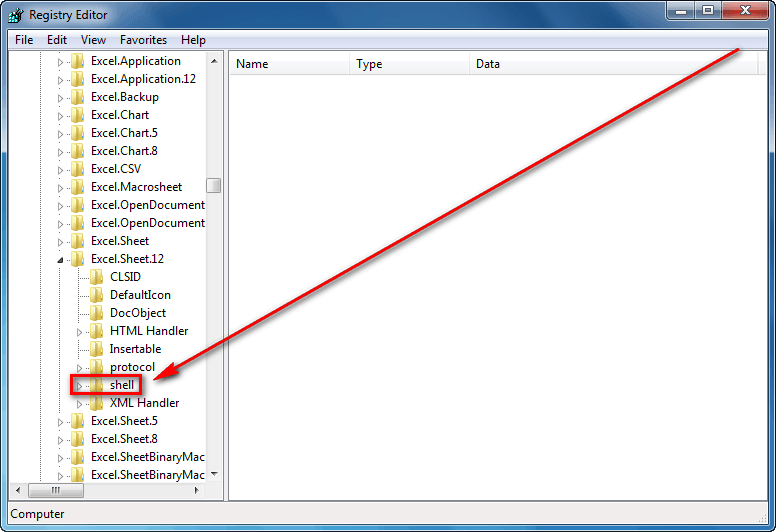
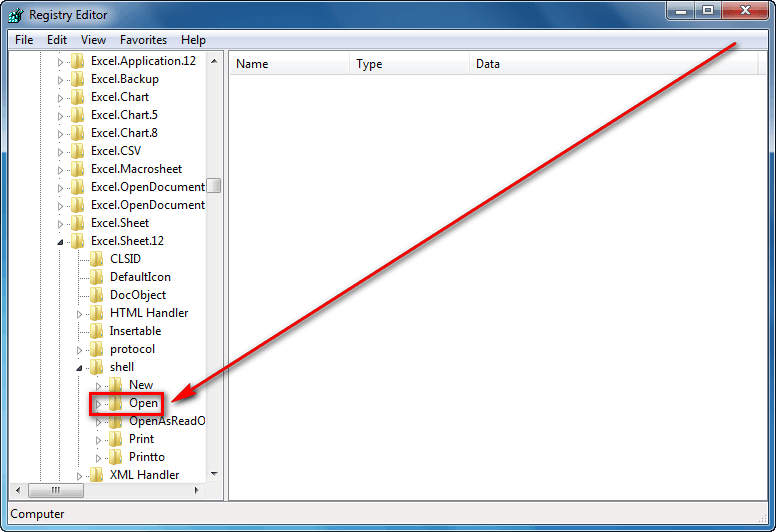
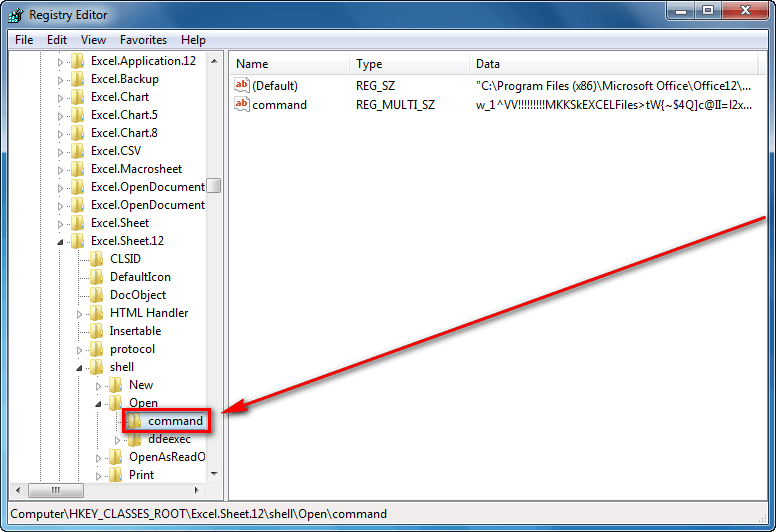
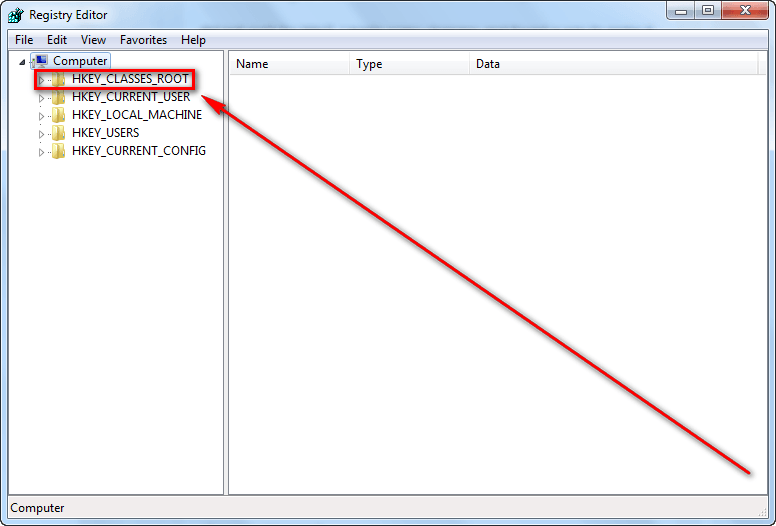
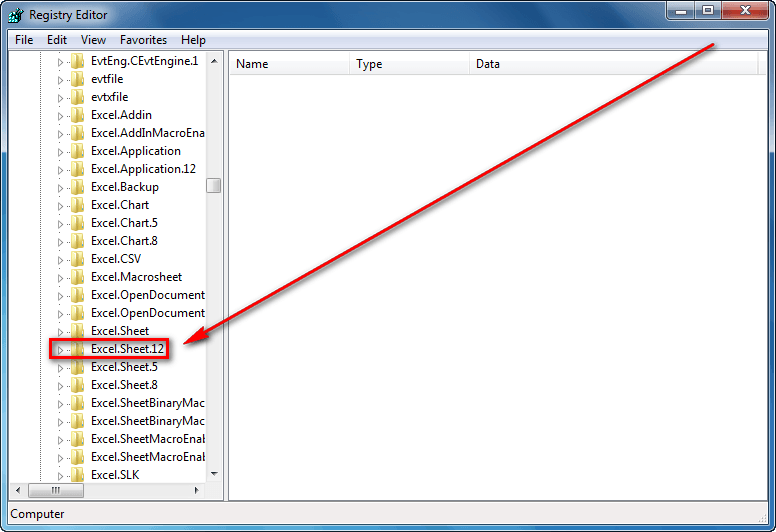
  • Once you hit OK the registry editor will open. Navigate to the HKEY_CLASSES_ROOT/Excel.Sheet.12/shell/Open/command folder:
  • From the HKEY_CLASSES_ROOT/Excel.Sheet.12/shell/Open/command folder right-click on the (Default) registry entry and select Modify…:
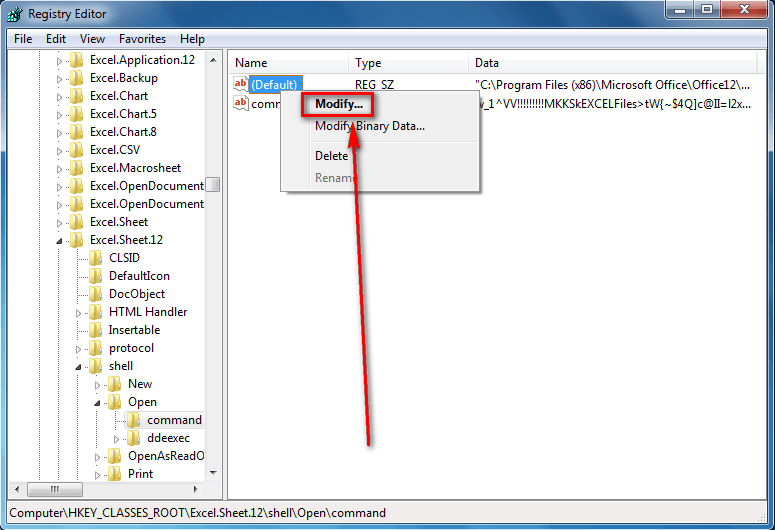
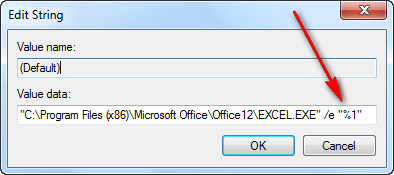
  • Add a “%1″ to the end of the Value data textbox:

Make sure you include the quotes and make sure you have a space between the /e and the “%1″. Do not modify anything else. Click OK when you have finished.

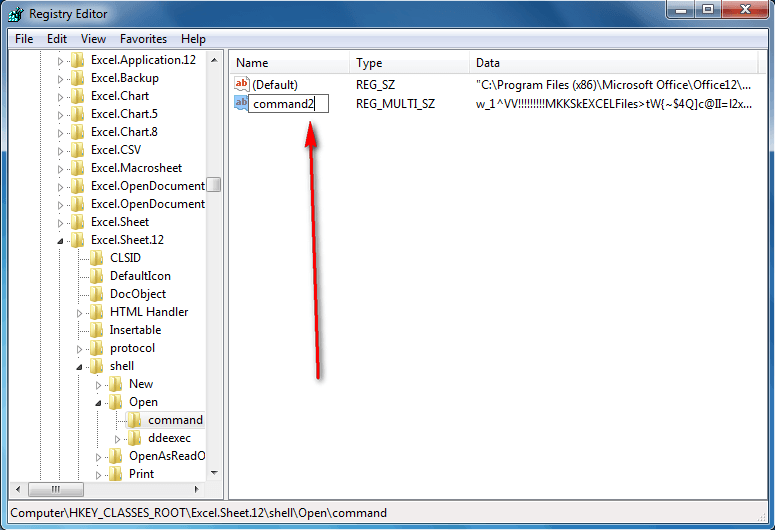
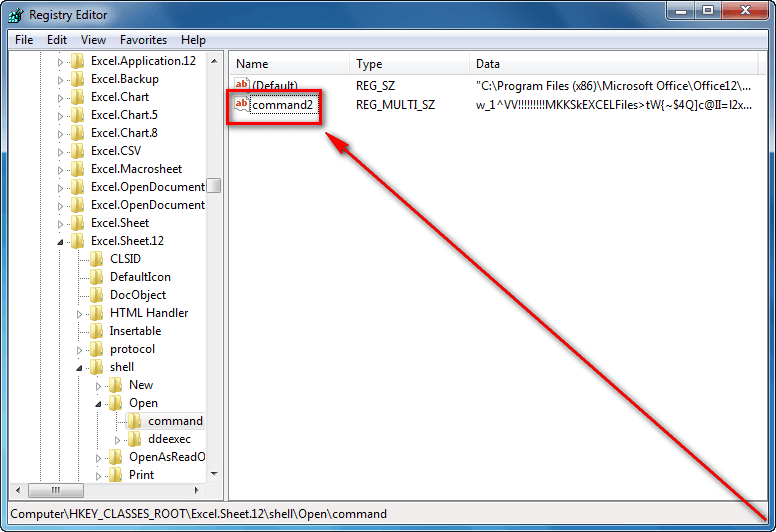
  • Now right-click the command registry entry (this is from the same HKEY_CLASSES_ROOT/Excel.Sheet.12/shell/Open/command folder), select Rename, and rename it to command2:
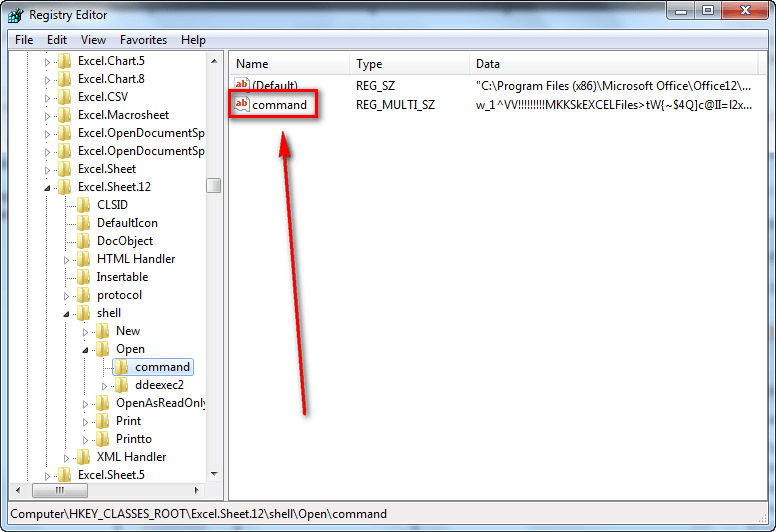
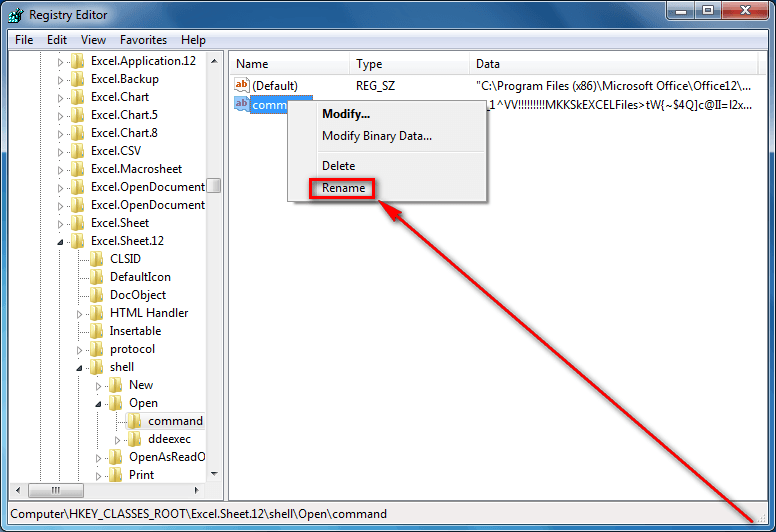
Ensure you rename the command registry entry and not the command folder.

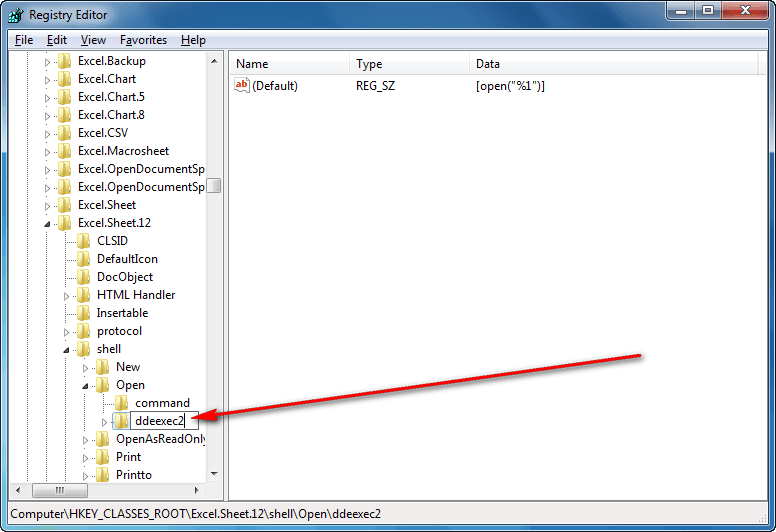
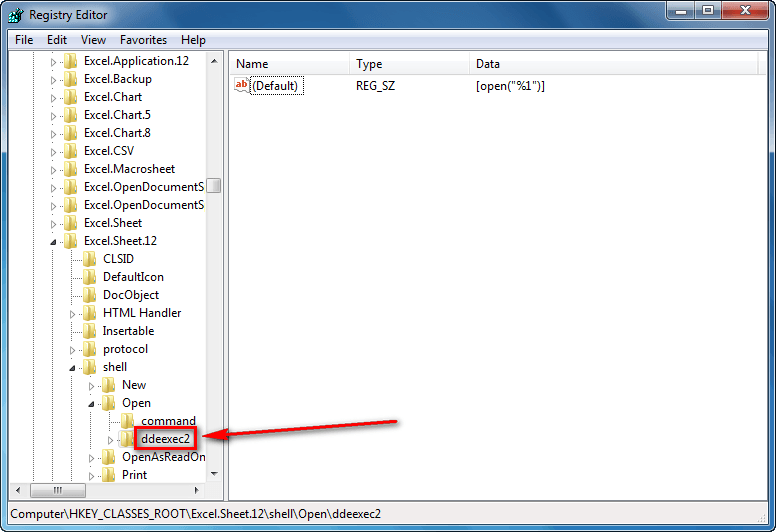
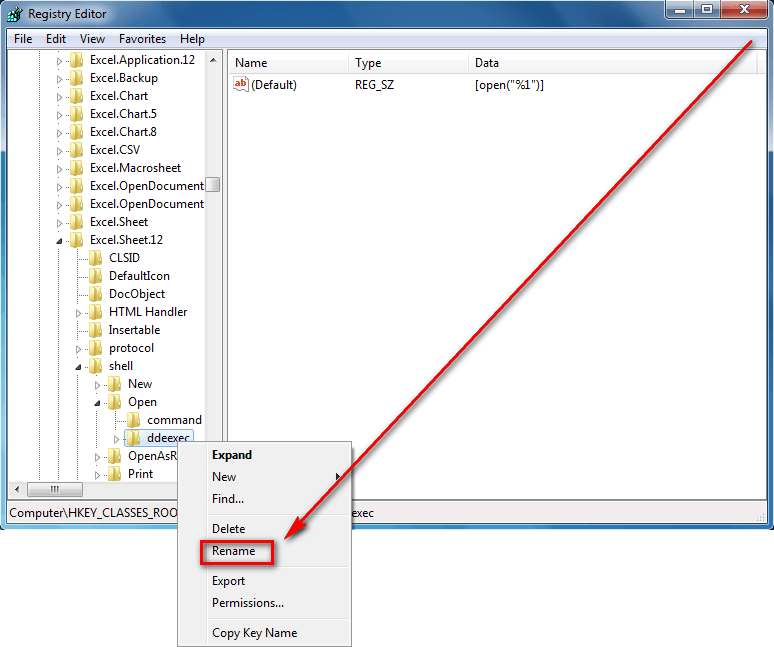
  • Next right-click the ddeexec folder (HKEY_CLASSES_ROOT/Excel.Sheet.12/shell/Open/ddeexec), select Rename, and rename it to ddeexec2:
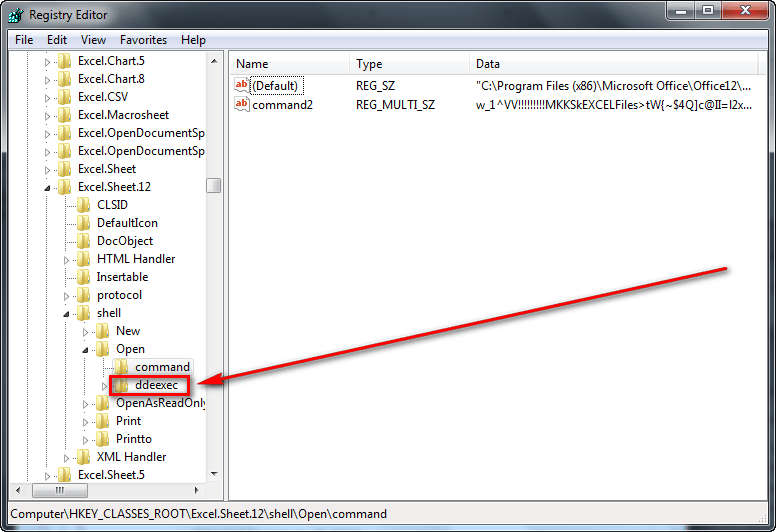
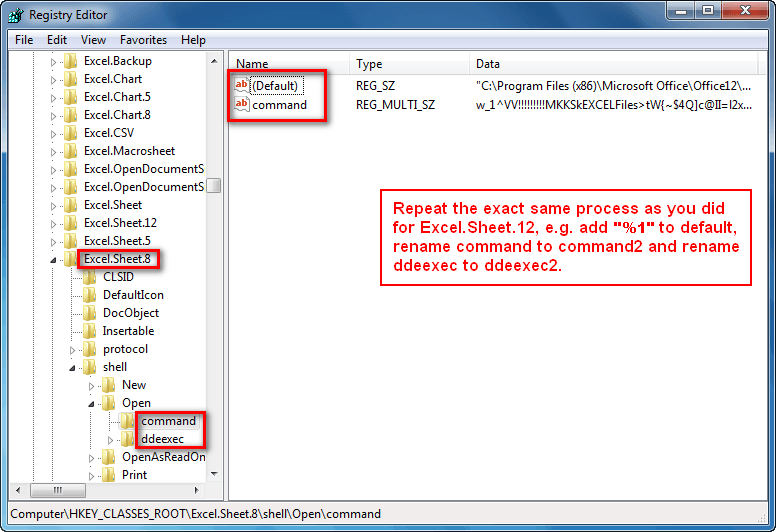
  • Now go to the Excel.Sheet.8 folder (HKEY_CLASSES_ROOT/Excel.Sheet.8) and repeat the same steps as mentioned above. In other words, add a “%1″ to the (Default) registry entry from HKEY_CLASSES_ROOT/Excel.Sheet.8/shell/Open/command, rename the command registry entry to command2 from HKEY_CLASSES_ROOT/Excel.Sheet.8/shell/Open/command, and rename the ddeexec folder (HKEY_CLASSES_ROOT/Excel.Sheet.8/shell/Open/ddeexec) to ddeexec2:
  • Close the registry editor (click the X button).
  • Done.

Conclusion

I really hope Microsoft adds an option within Excel in future versions to open files in new windows; but until they do, this registry tweak allows you to easily and quickly force Excel to open all files in new windows. Enjoy.


89 Comments »

  1. Rockvil July 18, 2012 at 10:19 AM (comment permalink) -

    Thank you for the easy to follow instructions! This worked great. Saving me so much time.

    26
  2. emirikol July 18, 2012 at 2:57 PM (comment permalink) -

    Oh Thank YOU!!!!!

    I’ve been looking for this!!! And it works great!!

    27
  3. Paul July 24, 2012 at 3:22 PM (comment permalink) -

    This did not work for me. Once implemented it would not allow me to open Excel files at all. Did it 100% the way shown too. Had to convert everything back. Sad…

    28
  4. Peter August 21, 2012 at 8:48 AM (comment permalink) -

    Great job! works for me perfectly W7, excell2010

    29
  5. Non August 27, 2012 at 8:56 AM (comment permalink) -

    Sadly…

    This solution is also documented on MS’s Support section.

    Guess MS Office engineers just refused to fix a problem caused by themselves, so instead, issued this “fix” forcing the general public (who’s not computer savvy) to do the fix for themselves!

    Typical Microsoft >:(

    30
  6. Aaron August 29, 2012 at 2:09 PM (comment permalink) -

    This initial tip by Ashraf worked wonders on my computer at home, however, at work I don’t have admin rights so I called IT and surprisingly they went onto my computer and adjusted the registry the way it needed to be. It didn’t work. I have an idea why but I was hoping someone could either confirm or offer a better reason….

    When you modify the ‘default’ registry to add the “%1″ the end of the chain prior to it was a /dde, not /e like it was on my comp at home. Does this make a difference and will it work if I get it changed to /e? Can anyone offer any advice?

    Thanks!

    31
  7. Daivd Coe September 26, 2012 at 8:32 AM (comment permalink) -

    @Aaron: My changes works with /dde in the command line, so it should make no difference. Just rememebr the other registry lines must be renamed “command” to “command2″ and “ddeexec” to “ddeexec2″ or it will not work. You have to edit both Excel.Sheet.8 and Excel.Sheet.12 the same way. I have Win7-32bit, Office Pro Plus 2010.

    32
  8. Sean October 2, 2012 at 1:38 PM (comment permalink) -

    THANK YOU! YOU ARE A GOD! THIS WAS AWESOME!

    33
  9. Gruff October 4, 2012 at 3:58 AM (comment permalink) -

    Awesome, thanks for that! I shall share…

    34
  10. Roc October 8, 2012 at 12:04 PM (comment permalink) -

    This works in 2010 without any reg changes
    1. Open the 1st workbook as you would normally.
    2. Move focus away from the workbook by clicking on some other window.
    3 Click Start:Program:Excel. This opens a new window and blank workbook.
    4 Keep focus on the new workbook and open the 2nd workbook into the new window.
    5. Repeat 3 and 4 as often as you need.

    35
  11. Roc October 8, 2012 at 12:32 PM (comment permalink) -

    @Roc: Should have said repeat 2 through 4 as often as needed.

    36
  12. Cornan October 10, 2012 at 9:45 AM (comment permalink) -

    THANK YOU!

    My company uses a very large excel sheet for asset tracking and trying to work with it and other lists in the single window was driving me absolutely mad. I’d stumbled across the trick that Roc describes here in the comments but it’s honestly a pain in the butt and I vastly prefer not having to mess with it. Thank you again for posting this!

    37
  13. mr. hands October 10, 2012 at 12:44 PM (comment permalink) -

    Worked without requiring restart, thanks! This automatic grouping “feature” was driving me crazy.

    38
  14. Control Man October 10, 2012 at 1:13 PM (comment permalink) -

    at first it didn’t work, but then I realized I typed in “$1″ instead of “%1″. Now it works.

    Thanks!!!

    39
  15. Wizzzard October 11, 2012 at 2:40 AM (comment permalink) -

    I like to say thumbs op for this great tut for making work Excel like the way it should!!

    THANKS!!!

    40
  16. LordScree October 12, 2012 at 6:29 AM (comment permalink) -

    This works fine for Excel files, but doesn’t seem to work for CSV files (which also open in Excel for me). Is there a fix that applies to CSV files, too? Thanks

    41
  17. GEORGEGR October 12, 2012 at 3:33 PM (comment permalink) -

    Thanks also from me BUT, Now after i done that in office 2007 i cant copy paste lets say a graph from one excel file to another and still work , cause it misses the conections, when i also use a formula and i want to add in it a cell from a totaly diferent excel file it doesnt work . it says that the file needs to be open ..

    42
  18. Tim October 15, 2012 at 9:08 PM (comment permalink) -

    Much easier option within excel

    round office button > excel options > advanced > under ‘general’ settings > tick “ignore other applications that use DDE”

    Not sure file types it works with, but works with everything I use

    43
  19. Tizwoz October 16, 2012 at 7:28 AM (comment permalink) -

    I am re-posting what I posted in No.12 above (as Celia – I since changed my Log-in) because, for some reason, only one person (see No.14 above) has picked up on this more simple solution: Excel Launcher. It works for .xls and .csv on WinXP, and although I have not tested on Win7 or Win8, it is so simple that I cannot imagine it would not work – perhaps someone will test on those two OS’s and post here with result?

    This is what I wrote before:

    Or you could use Excel Launcher – I’ve been using it for years & it works so well. It’s tiny & you just have to set Excel file types to always “Open With” it after you have first run it & pointed it to Excel.exe & you’re done! Get it here: http://blog.thomascsherman.com/2010/06/opening-excel-files-in-new-processes-excel-launcher-helper-app/.
    That’s v.1.1, but I’m still using v.1.0 (get that here http://download.cnet.com/Excel-Launcher/3000-18483_4-10803083.html) because, for some reason I can’t remember, I preferred it to v.1.1; but it’s a great little FREEBIE program – so big thanks to Thomas C. Sherman!

    44
  20. Jannine October 18, 2012 at 3:49 PM (comment permalink) -

    Hey thanks so much, this had also been bugging me…however I open many spreadsheets to compare via email attachments, opening multiple attachments even over different messages still causes them all to open in the same Excel window. Can anyone advise of a “tweak” for this?

    Thanks In Advance

    45
  21. Jannine October 18, 2012 at 3:53 PM (comment permalink) -

    @Tim:

    Just tried Tim’s method and now the attachments open in a separate window, thanks so much!!

    46
  22. Paul October 19, 2012 at 11:50 AM (comment permalink) -

    You have no idea how long I have needed this fix. Thank you so much for posting this, it works perfectly. Seems like basic functionality in a dual-monitor world. Not sure why this isn’t included natively with Excel.

    47
  23. Dilip Louis October 30, 2012 at 11:19 AM (comment permalink) -

    I take a lot of pleasure in finding solutions to annoying little problems, and without great souls like you, me and others of my ilk will be very sad all the time.

    Here, have a virtual rose.
    Dilip

    48
  24. Linas November 5, 2012 at 2:53 AM (comment permalink) -

    @Aaron:
    It worked for me with /dde.

    49
  25. Blair T November 9, 2012 at 9:54 AM (comment permalink) -

    You have just saved me a ton of time. Up till now I had to port data into a Word table then back to Excel , just so I could modify a tracking table while I worked on invoices.

    Thank you

    50

Leave A Response »