Email article
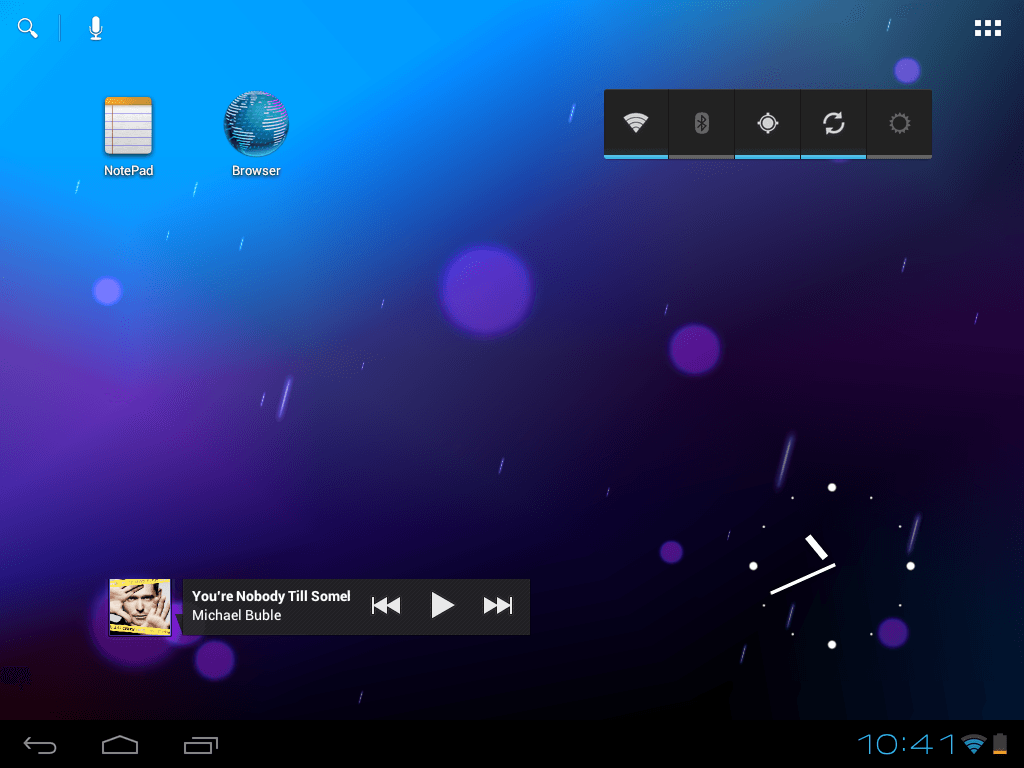 Do you have a Touchpad and find that webOS is somewhat… lacking? It looks great, and has some amazing user interface ideas, but it App Catalog is sparse and has very few apps in it. With webOS being officially cancelled, it also brings to light the issue of HP shutting down the Catalog.
However, the CyanogenMod team, famous for the CyanogenMod Android ROM, recently released the results of many month’s hacking. It is now possible to run Android 4.0 “Ice Cream Sandwich” on an HP Touchpad. Unlike earlier builds, this is a tablet-optimized version of Android, meaning all your favorite apps will display their tablet-optimized interfaces, instead of basically a 10 inch phone.
Why is Ice Cream Sandwich so much better?
“Alright”, you tell yourself. “I know Ice Cream Sandwich is a whole lot nicer looking than Gingerbread. But why is it such a big deal that it’s available on the Touchpad?”
You’re perfectly right to ask that question. You see, Gingerbread on the Touchpad is like having a 10″ phone without the phone part. (Samsung may soon release a 10″ phone, based on the fact that every year they release a bigger phone. This year’s winner is the Galaxy Note with a 5.3″ screen.) Ice Cream Sandwich is the first open-source Android version specifically designed for screens bigger than 5 inches, and it shows.
Take a look at some screenshots of Ice Cream Sandwich:
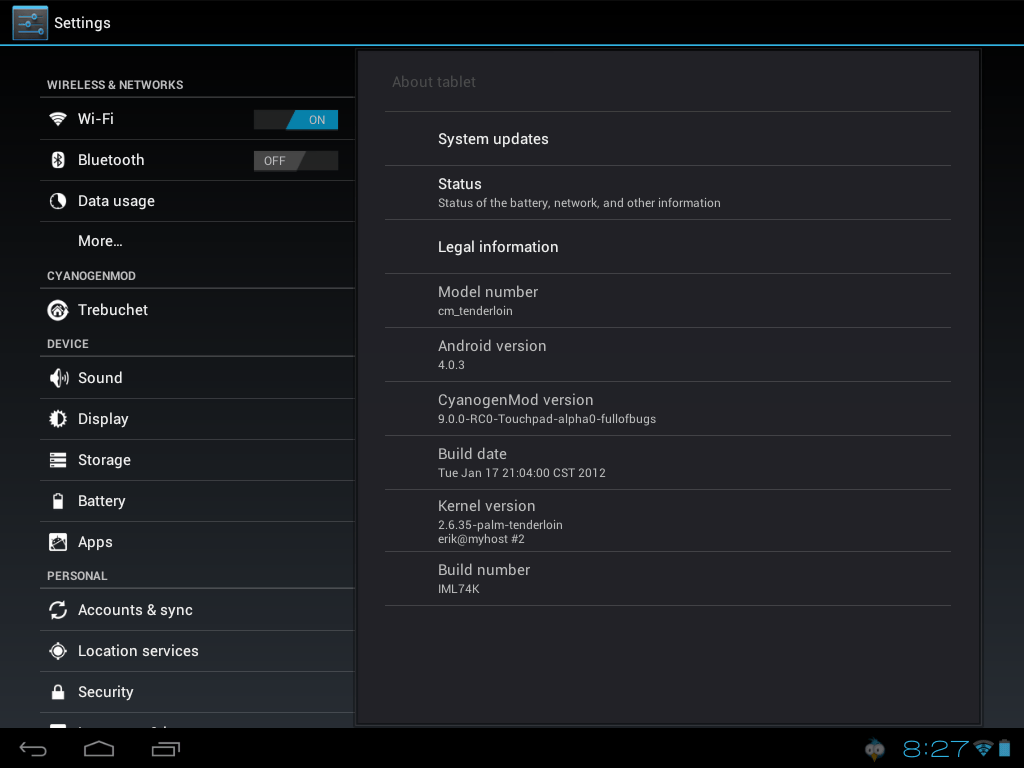
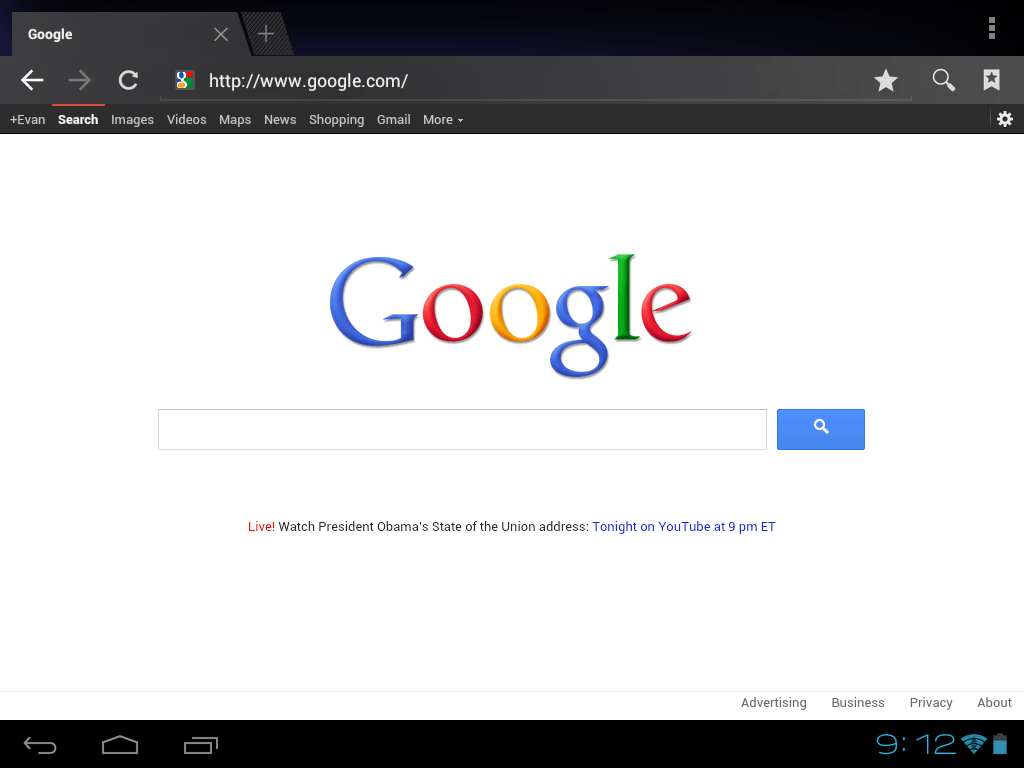

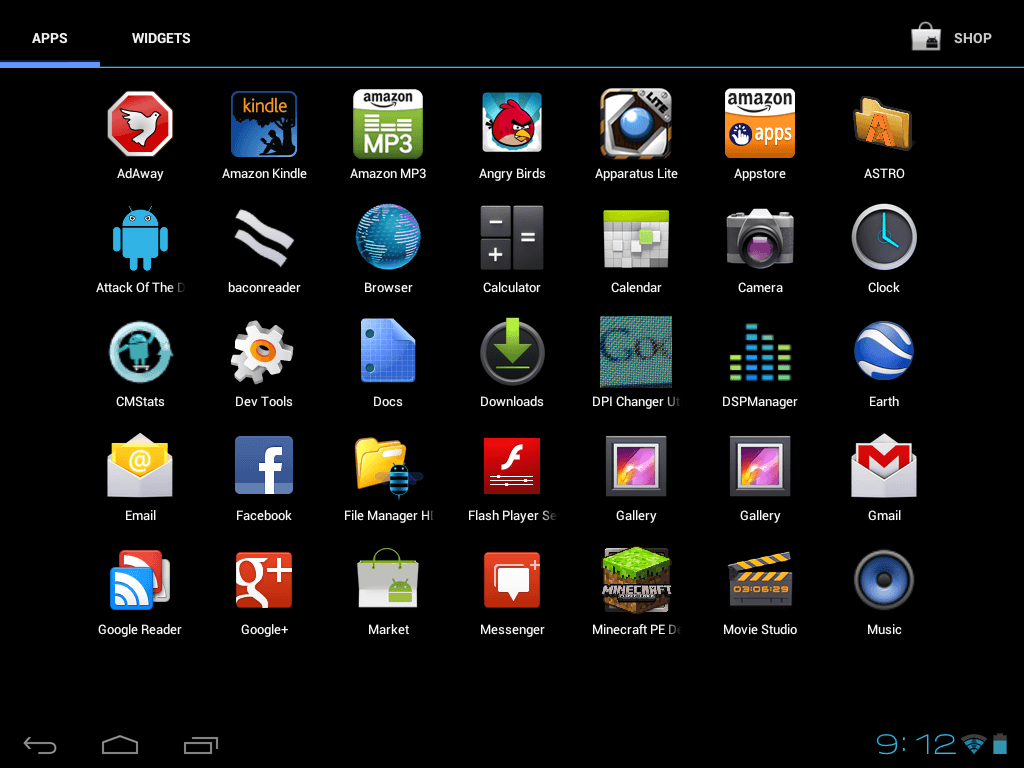
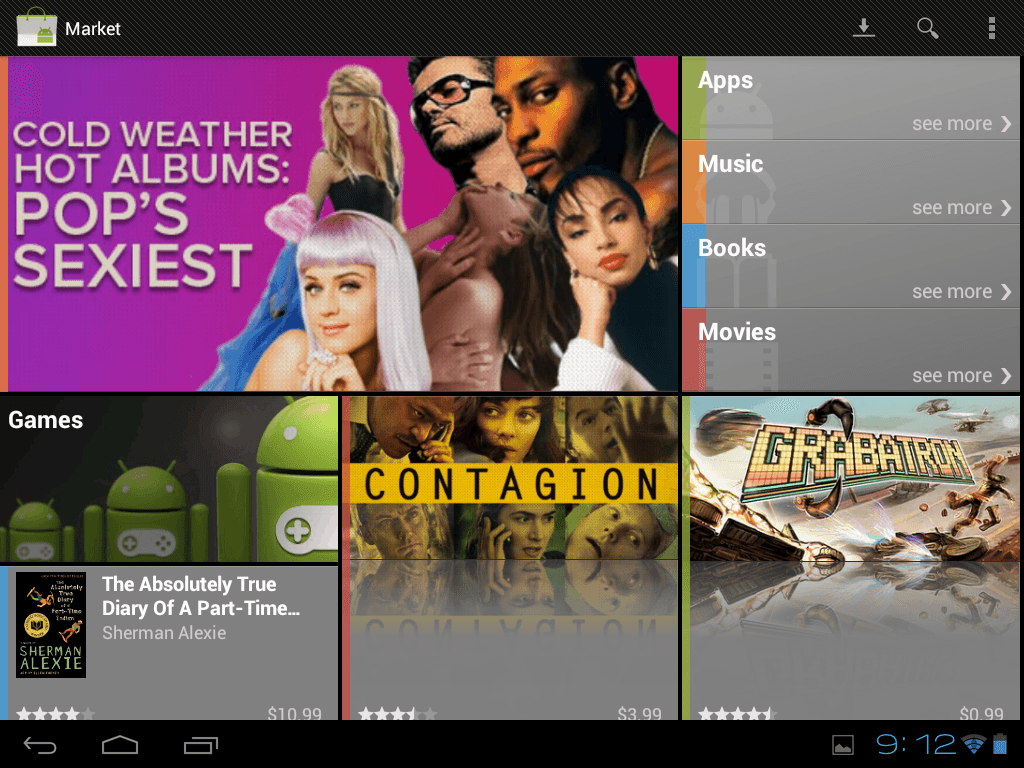
As you can see, Ice Cream Sandwich is downright beautiful, at least as much as an operating system can be.
Installing Ice Cream Sandwich on your Touchpad
To install Ice Cream Sandwich on your Touchpad, you’ll need to download several things:
Note: dotTech, Ashraf, and Locutus are not responsible for any gain or loss incurred by installing Ice Cream Sandwich or CyanogenMod on your Touchpad. Continue at your won risk — your warranty will probably be voided.
- ACME Installer v2. This is what installs the files onto your Touchpad.
- This handy dandy novacom installer. It’ll let you install all this stuff.
- ClockworkMod Recovery. This allows you to install future updates and other ROMs.
- Moboot. This allows you to choose what OS to boot into (CWM, webOS, CM9…)
- Google Apps. You’ll find the most recent version available at the Rootzwiki Wiki.
- and of course, CM9 Alpha 2 for Touchpad.
Just download all of these to your computer.
Now boot into webOS plug your tablet into your computer. Mount it and make a folder in the base of the drive called cminstall:
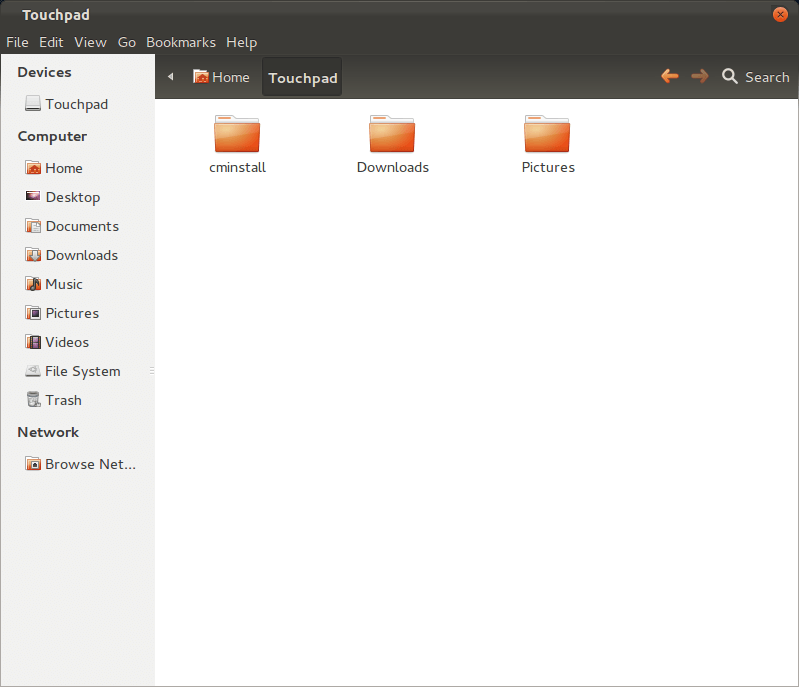
Paste in the Clockworkmod Recovery, the moboot, Gapps, and the CyanogenMod ZIPs. Now run the novacom installer and follow all the prompts. As I already have novacom installed, I can’t show this step, but it’s fairly quick and simple.
With the Touchpad still plugged into your computer, turn it off. Then hold the power button and the volume up button until a USB logo appears in the middle of the screen:

Go back to your computer and copy ACMEInstaller2 to where ever novacom stuck itself. This is usually C:/Program Files/Palm. Now open up Command Prompt or Terminal and navigate to the novacom directory. Again, this is usually C:/Program Files/Palm.
You can do this using the command:
cd "C:/Program Files/Palm/"
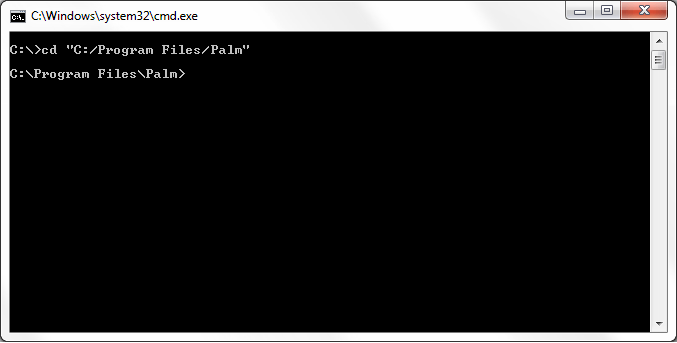
After you’re in this directory, copy and paste this command into the window:
novacom.exe boot mem:// < ACMEInstaller2
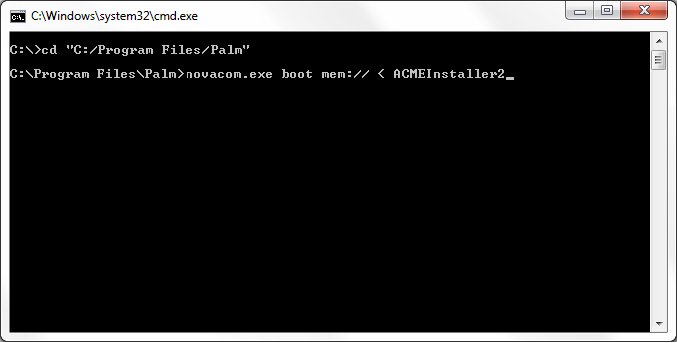
Wait just a minute, and you’ll have Ice Cream Sandwich on your Touchpad. In the mean time you’ll see a few screens worth of text fly by. Don’t worry, this is just the usual installation process.
Once it is done installing, you’ll be greeted with a screen known as moboot. This handy program allows you to choose which OS you want to boot in to, be it webOS, CyanogenMod, or any other operating system you may have on it in the future. You can either wait five seconds to let it automatically boot into CyanogenMod, or you can use the volume up and down buttons to choose webOS, webOS recovery, or ClockworkMod Recovery.
Conclusion
Now that you have Android 4.0 on your tablet, what other features do you want? 3G? A better screen? Share your thoughts on CyanogenMod, the TouchPad, and Ice Cream Sandwich below!