Early alpha of Android 4.0 “Ice Cream Sandwich” now available for HP Touchpad, courtesy of the CyanogenMod Team

February 21, 2012 31 Email article | Print article

Do you have a Touchpad and find that webOS is somewhat… lacking? It looks great, and has some amazing user interface ideas, but it App Catalog is sparse and has very few apps in it. With webOS being officially cancelled, it also brings to light the issue of HP shutting down the Catalog.

However, the CyanogenMod team, famous for the CyanogenMod Android ROM, recently released the results of many month’s hacking. It is now possible to run Android 4.0 “Ice Cream Sandwich” on an HP Touchpad. Unlike earlier builds, this is a tablet-optimized version of Android, meaning all your favorite apps will display their tablet-optimized interfaces, instead of basically a 10 inch phone.

Why is Ice Cream Sandwich so much better?

“Alright”, you tell yourself. “I know Ice Cream Sandwich is a whole lot nicer looking than Gingerbread. But why is it such a big deal that it’s available on the Touchpad?”
You’re perfectly right to ask that question. You see, Gingerbread on the Touchpad is like having a 10″ phone without the phone part. (Samsung may soon release a 10″ phone, based on the fact that every year they release a bigger phone. This year’s winner is the Galaxy Note with a 5.3″ screen.) Ice Cream Sandwich is the first open-source Android version specifically designed for screens bigger than 5 inches, and it shows.

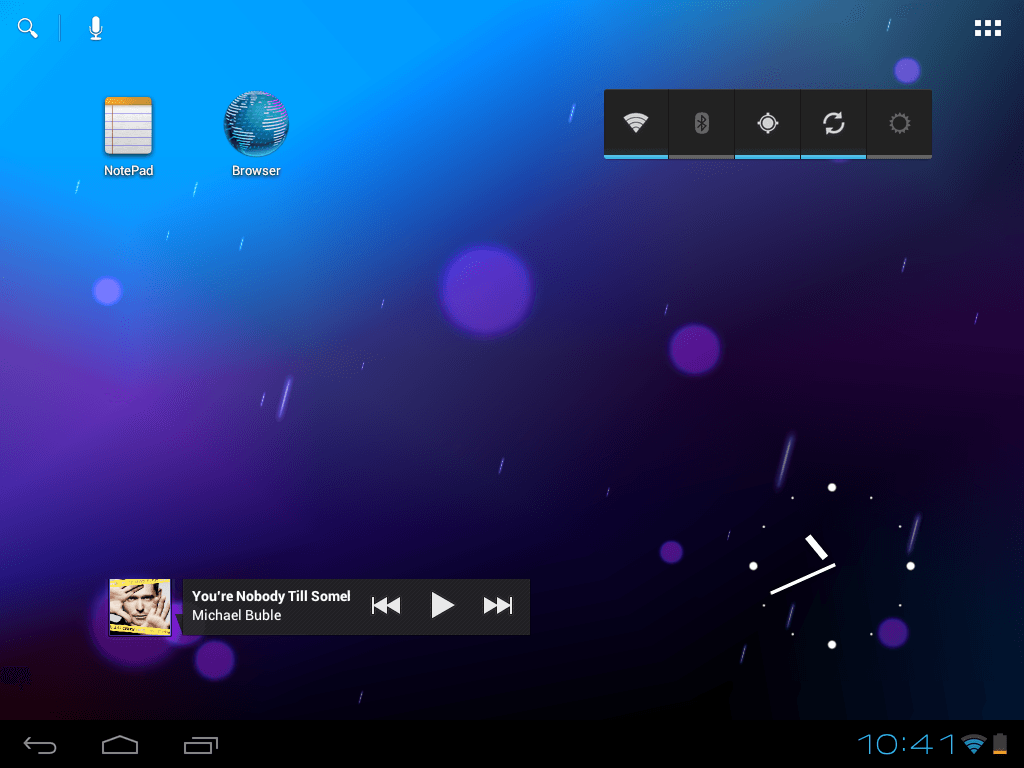
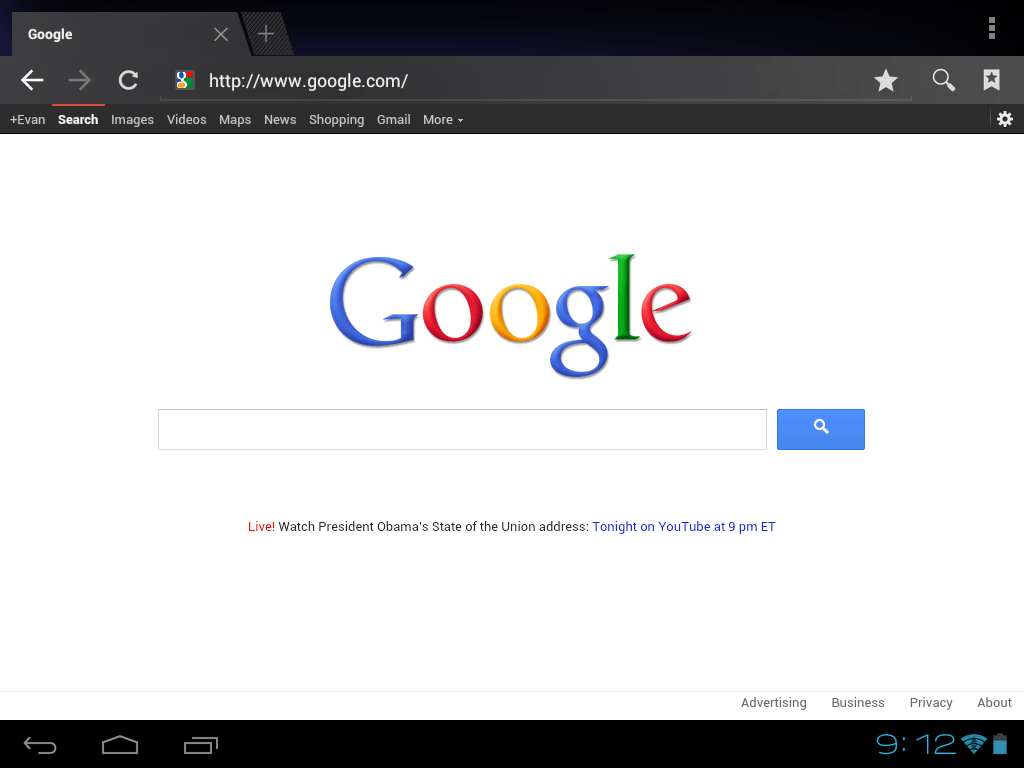
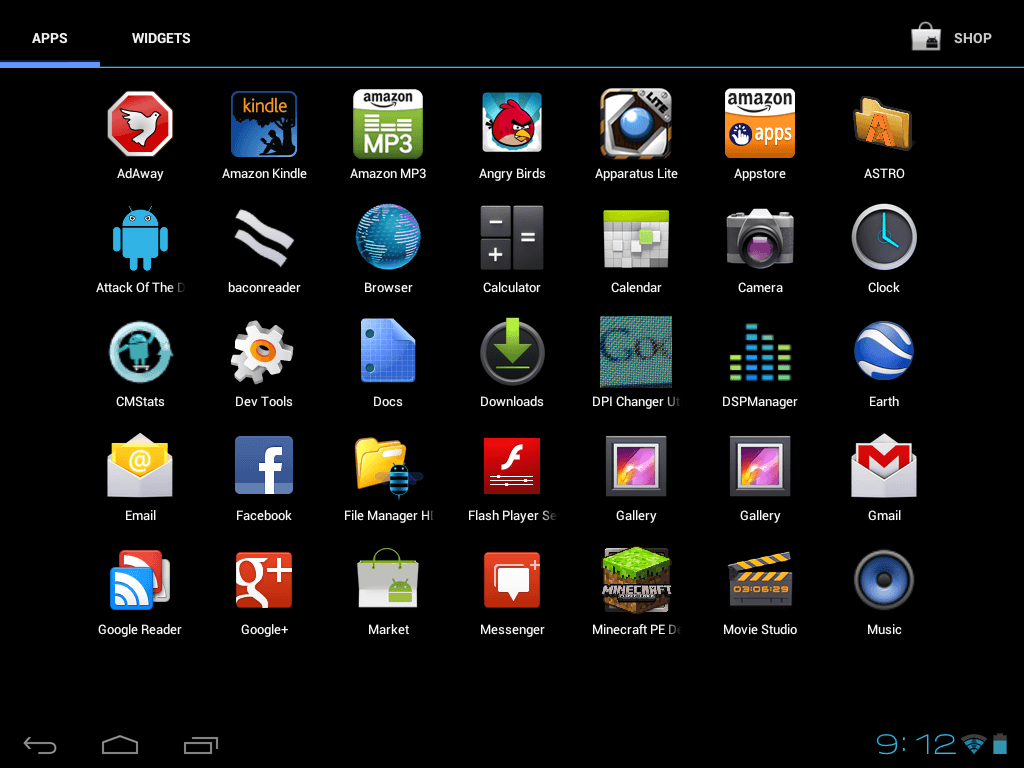
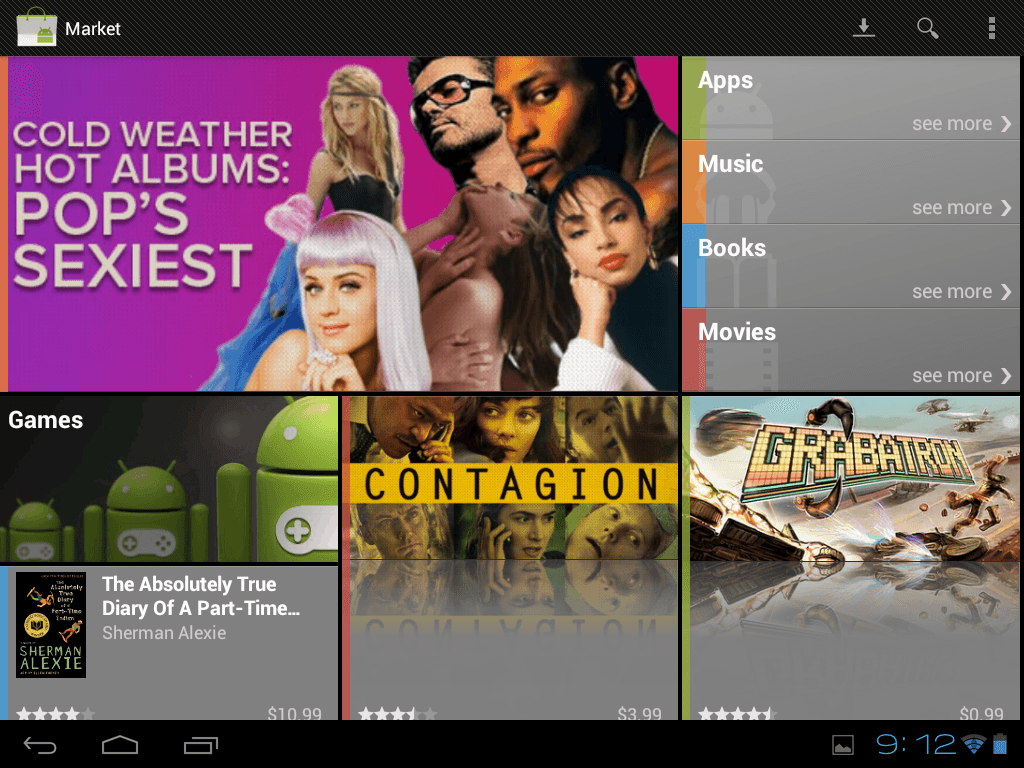
Take a look at some screenshots of Ice Cream Sandwich:
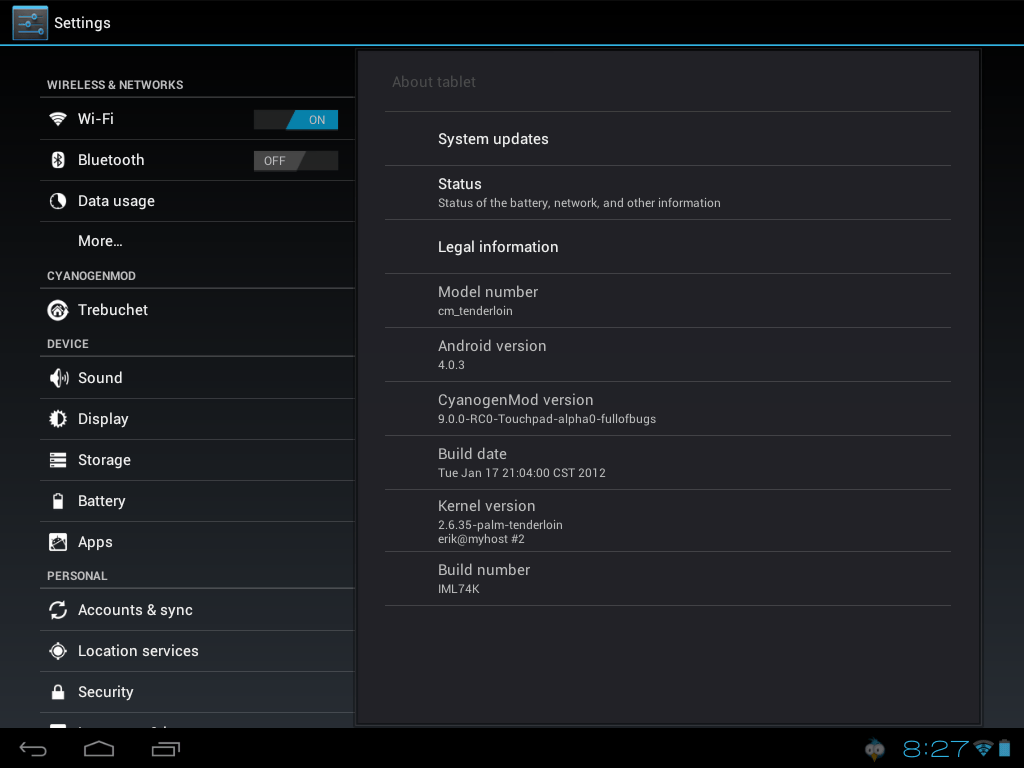
               

As you can see, Ice Cream Sandwich is downright beautiful, at least as much as an operating system can be.

Installing Ice Cream Sandwich on your Touchpad

To install Ice Cream Sandwich on your Touchpad, you’ll need to download several things:

Note: dotTech, Ashraf, and Locutus are not responsible for any gain or loss incurred by installing Ice Cream Sandwich or CyanogenMod on your Touchpad. Continue at your won risk — your warranty will probably be voided.

Just download all of these to your computer.

Now boot into webOS plug your tablet into your computer. Mount it and make a folder in the base of the drive called cminstall:
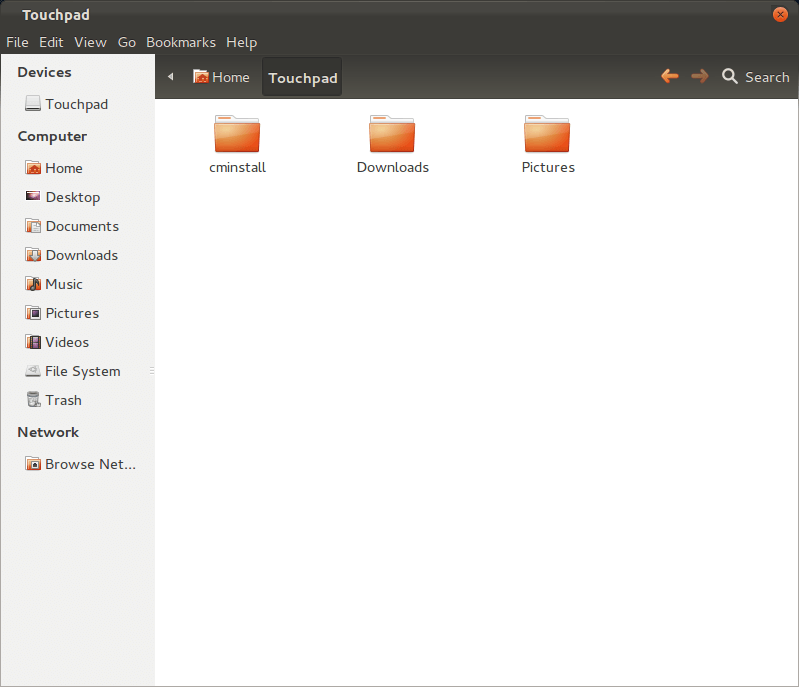
Paste in the Clockworkmod Recovery, the moboot, Gapps, and the CyanogenMod ZIPs. Now run the novacom installer and follow all the prompts. As I already have novacom installed, I can’t show this step, but it’s fairly quick and simple.

With the Touchpad still plugged into your computer, turn it off. Then hold the power button and the volume up button until a USB logo appears in the middle of the screen:

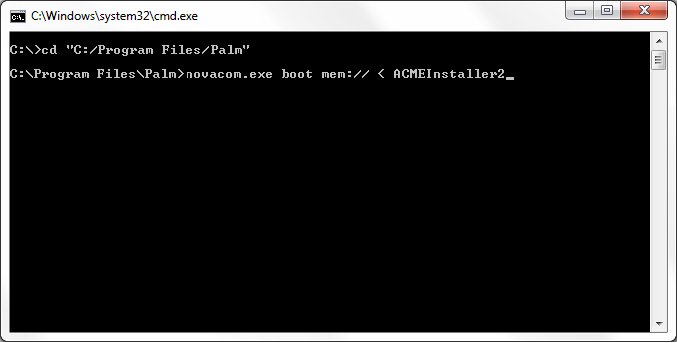
Go back to your computer and copy ACMEInstaller2 to where ever novacom stuck itself. This is usually C:/Program Files/Palm. Now open up Command Prompt or Terminal and navigate to the novacom directory. Again, this is usually C:/Program Files/Palm.
You can do this using the command:

cd "C:/Program Files/Palm/"
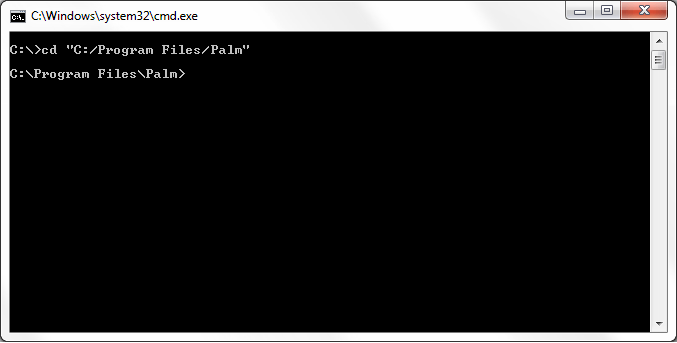
After you’re in this directory, copy and paste this command into the window:

novacom.exe boot mem:// < ACMEInstaller2
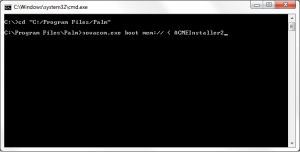
Wait just a minute, and you’ll have Ice Cream Sandwich on your Touchpad. In the mean time you’ll see a few screens worth of text fly by. Don’t worry, this is just the usual installation process.

Once it is done installing, you’ll be greeted with a screen known as moboot. This handy program allows you to choose which OS you want to boot in to, be it webOS, CyanogenMod, or any other operating system you may have on it in the future. You can either wait five seconds to let it automatically boot into CyanogenMod, or you can use the volume up and down buttons to choose webOS, webOS recovery, or ClockworkMod Recovery.

Conclusion

Now that you have Android 4.0 on your tablet, what other features do you want? 3G? A better screen? Share your thoughts on CyanogenMod, the TouchPad, and Ice Cream Sandwich below!


31 Comments »

  1. Col. Panek February 22, 2012 at 5:44 AM (comment permalink) -

    Unused Touchpads are selling for almost $300. Has the world gone mad?

    1
  2. Commonkore February 22, 2012 at 7:38 AM (comment permalink) -

    I’m stuck with the installation. Did fine until I rebooted my Touchpad and got the USB logo. I can’t find where the novacom installer planted itself. I can’t use my Touchpad at all now. Any suggestions or help you can offer would be much appreciated.

    2
  3. Locutus February 22, 2012 at 8:50 AM (comment permalink) -

    @Commonkore: check C:/Program Files/Palm.

    If that doesn’t work unplug the touchpad and hold home and power buttons til you see a response (generally 15 to 30 seconds).

    3
  4. Commonkore February 22, 2012 at 9:44 AM (comment permalink) -

    Thank you so much for your very prompt and helpful response to my query. I did check C:/Program Files/Palm and found novacom. I’m not exactly certain what to do next. I also, as you suggested, unplugged the touchpad and held the home and power buttons and my tablet works as normal now. I really want to get Android 4 on my tablet but I can’t seem to get past the installation step after finding the novacom directory. Thanks again for your help.

    4
  5. Chrisjin February 22, 2012 at 12:07 PM (comment permalink) -

    @Commonkore:
    Hey Commonkore i was stuck in the same situation like u but heres what i think you may have did wrong.

    In command promt your sopose to put cd “C:/Program Files/path/to/novacom/” notice the cd before the c program files, dont just put the c prgoram files put “cd” before then you put the next command, then the system starts installing

    5
  6. commonkore February 22, 2012 at 12:42 PM (comment permalink) -

    @Chrisjin:
    Thanks for your helpful suggestions. I’ve been struggling with this installation but I think I finally figured it out. I was actually in the wrong directory. Once I found the directory that contained the “novacom.exe” file I was away to the races. It has installed just fine and now I’m in the process of loading up Apps from Google. Thanks again for your helpful suggestion. I just love technology and there are so many helpful folks like yourself always willing to give a helpful hand. All the best.

    6
  7. Locutus February 22, 2012 at 3:15 PM (comment permalink) -

    Guys, I updated the post showing screenshots and containing a more definite path for novacom. I was using Ubuntu for the article so I didn’t know where it stuck itself, but thanks for finding that for me!

    Sorry if I was a little confusing too :)

    7
  8. Commonkore February 22, 2012 at 3:31 PM (comment permalink) -

    @Locutus:

    Great update. Once the kinks are worked out it is a reasonably simple install. I’m lovin it already. Thanks for this.

    8
  9. Ashraf February 22, 2012 at 7:13 PM (comment permalink) -
    Mr. Boss

    I want a Touchpad :-(

    9
  10. Commonkore February 22, 2012 at 7:27 PM (comment permalink) -

    @Ashraf:

    Greetings Ashraf. My personal thanks to you for the great job you do for all of us novices. I’ve picked up some great software thanks to you and your site. I admire and totally respect your thorough reviews and helpful comments. I love my HP Tablet, which by the way I was able to get thanks to your heads up that HP may be getting out of Tablets. Did you not pick one up?

    10
  11. Eddy Kenton February 22, 2012 at 8:36 PM (comment permalink) -

    I downloaded all the files and created cminstall on my HP Touchpad, my problem is runing novacom with the mem\\…, my qestion is where do i run this novacom? HP Touchpad or PC? I have been trying to run in my PC , but complain of ” no device found”.
    My PC is 64BIT Windows 7 . Please I need your help

    11
  12. Ashraf February 22, 2012 at 8:48 PM (comment permalink) -
    Mr. Boss

    @Commonkore: I tried. It sold out too quickly.

    12
  13. Commonkore February 23, 2012 at 4:45 AM (comment permalink) -

    @Eddy Kenton:
    You need to run the program on your computer. Use the command prompt to go to the directory which contains “novacom.exe” This is where you paste novacom.exe boot mem:// < ACMEInstaller2. Hit the enter button and bingo it will install Android 4. Good luck.

    13
  14. Phil Gaitan February 23, 2012 at 5:18 AM (comment permalink) -

    @Commonkore:

    I got stick on this as well try to be careful while in the cmd screen to type in the path correctly. there is a switch you may need to play with.

    Here is my question, how do I get the market to recognize so i can download? I’m running alpha 2 and its just a shell, no apps icon????

    14
  15. Eddykenton February 23, 2012 at 9:41 AM (comment permalink) -

    “After that, reboot your Touchpad and hold the volume up button until you get a giant USB logo”
    What does this statement mean? Does it mean disconnect your Touchpad from PC, THEN reboot your Touchpad? Why ” hold volume up button until you get USB logo” when you can select USB from the screen once you connect your Touchpad to a PC?
    I tried holding volume up button to get USB logo, but I got beeps no logo.
    When I run novacom it said no device found, which device?
    Must I paste the novacom.exe, can I type it in?

    15
  16. Eddykenton February 23, 2012 at 9:42 AM (comment permalink) -

    @Commonkore:
    “After that, reboot your Touchpad and hold the volume up button until you get a giant USB logo”
    What does this statement mean? Does it mean disconnect your Touchpad from PC, THEN reboot your Touchpad? Why ” hold volume up button until you get USB logo” when you can select USB from the screen once you connect your Touchpad to a PC?
    I tried holding volume up button to get USB logo, but I got beeps no logo.
    When I run novacom it said no device found, which device?
    Must I paste the novacom.exe, can I type it in?

    16
  17. Eddykenton February 23, 2012 at 9:51 AM (comment permalink) -

    @Ashraf:
    “After that, reboot your Touchpad and hold the volume up button until you get a giant USB logo”
    What does this statement mean? Does it mean disconnect your Touchpad from PC, THEN reboot your Touchpad? Why ” hold volume up button until you get USB logo” when you can select USB from the screen once you connect your Touchpad to a PC?
    I tried holding volume up button to get USB logo, but I got beeps no logo.
    When I run novacom it said no device found, which device?
    Must I paste the novacom.exe, can I type it in? I need your help badly!!!

    17
  18. Commonkore February 23, 2012 at 10:41 AM (comment permalink) -

    @Eddykenton:
    What I did was eject the tablet after I copied the programs suggested. I then reset my tablet holding the “up volume” button until I got the USB symbol. Now move to your computer. Use the command prompt to go to the directory which contains “novacom.exe” (on my computer this was c:\Progam Files\Palm, Inc. Look for something similar on your computer) This is where you paste novacom.exe boot mem:// < ACMEInstaller2. Hit the enter button and bingo it will install Android 4. It may take a few minutes to complete the install so be patient. Your tablet will display a lot of code but eventually will reboot. When it does it will provide you with options to boot with Android 4 or WebOS. Good luck.

    18
  19. Locutus February 23, 2012 at 9:23 PM (comment permalink) -

    Guys, I updated the post a little to help with the confusion. Thanks for sticking with this! It’s pretty amazing.

    I should probably add how you choose your OS. :P

    19
  20. Commonkore February 24, 2012 at 5:42 AM (comment permalink) -

    @Locutus:
    The updates you have added to the installation process should make the process much less complicated. As you suggested initially, adding 3G now would be a natural evolution and substantially improve the overall usage of the tablet. Can this be done with relative ease? Thanks for all your work and efforts on this for us faithful HP Tablet users.

    20
  21. probean February 26, 2012 at 9:43 PM (comment permalink) -

    many things aren’t working on my end. for starters, my machine (win7) cannot detect the device. google plus cannot upload media. reboot button shuts down the touchpad, so i have to manually start it up again. the screen, and overall sensitivity has dropped (compared to CM7).. it feels kind of clunkier. i hope a newer release will fix most of these issues.

    21
  22. Locutus February 26, 2012 at 9:54 PM (comment permalink) -

    @probean:
    1) go to Settings > Storage > little menu in the top right > USB computer connection and make sure Media device is checked.
    2) I’ll ask in IRC, see if anyone else is having this issue.
    3) I had the reboot issue in CM7 too. It’s a known issue and it’s being looked at I believe
    4) there was a new driver in Alpha 1, and I believe it has its issues over Alpha 0.x. It’s being improved, though.

    All in all
    might you call this
    an alpha release?

    22
  23. probean February 26, 2012 at 10:08 PM (comment permalink) -

    @Locutus:
    oh sweet! usb problem is fixed, thanks to you. the biggest upside this release has is its full unicode support. and looks, runs much better. so yea, it’s an alpha all right.
    another issue i just noticed: the apps disappear when you go portrait->landscape. not a big deal, but again shows that there’s some work remaining to be done

    23
  24. Locutus February 26, 2012 at 10:10 PM (comment permalink) -

    @probean: Glad I could help! If you want to talk to other TouchPad users that use CM9, you can go to the webchat/IRC channel:
    webchat.freenode.net/?channels=#cyanogenmod-touchpad
    you’ll need to register your nickname to chat in this channel, however.

    24
  25. dave February 28, 2012 at 8:16 AM (comment permalink) -

    Its a simple process to install CM9 but only simple if you read as many posts as possible. Pull all the files you need together and re-read the posts. Keep reading for a day and you will be able to install it avoiding some/all of the pitfalls.

    Maybe i was lucky but i had no issues installing AFTER READING ALL POSTS on several forums.

    I’m also now patching it daily from the daily updates site. Works a treat and no issues other those major one being reported (camera for example).

    Good Luck!

    25

Leave A Response »