How to: Remove or ‘uninstall’ Windows 7 (or any other installed OS)

January 29, 2009 108 Email article | Print article

NOTE: This article is mainly focused on how to remove Windows 7. However, the methods here still apply even if you are trying to remove a different OS such as Vista or XP.

At this point, there are bound to be many people who the Windows 7 fetish has worn off of. So now they want to remove Windows 7 but are not sure how (obviously I am not talking to the tech gurus here). I am one of these people… the ones that want to remove Windows 7 that is, not the ones that don’t know how =).

Going on and off from Linux a lot, I have quite a bit of experience when it comes to installing/’uninstalling’ an OS besides your primary Windows. So I figured I should make a post about how to remove Windows 7 in case there are people out there who are not sure how. Maybe I will even make a few bucks on the way. :P

Okay how to remove Windows 7 depends on your situation. If you may recall, in my Windows 7 post I mentioned three main ways of how to install Windows 7:

1) Make Windows 7 your primary OS (i.e. upgrading or installing Windows 7 in/over your current Window partition/installation).

2) Installing Windows 7 virtually.

3) Dual booting Windows 7 w/ your current Windows.

I will explain how to remove/’uninstall’ Windows 7 for each of these methods. All these methods have been tested by me and they work. However, use them at your own risk. Me, PMnet, anyone/anything associated/not associated with us are not responsible for any gain/loss coming out of using the methods mentioned in this HOW TO or the comments that follow. Also note that all of the following methods are cross platform so it does not matter if you have/want to have XP or Vista.

1) You upgraded to Windows 7 or you installed Windows 7 over your last Windows installation. Bottom line: Windows 7 is the only Windows on your computer at this moment.

Okay with a situation like this, I am sorry to inform you, but you cannot revert back to your earlier Windows – it just can’t be done. The only way to remove Windows 7 would be to install another Windows over it effectively losing all your data, i.e. do a clean install. Thus you are recommended to backup any data you consider important.

In order for this to work, you need a Windows CD or a recovery CD. Either one of these should have come with your computer. If you have lost them or, for whatever reason, they did not come with your computer, try contacting customer service for your respective computer company to see if they will send you a new one. If that does not work, you can also borrow a Windows CD from a friend just for installation purposes. Or if push comes to shove, you can torrent a copy of the Windows that you need (but you must already have a valid Windows key!). Torrenting is not legal, nor is it recommended because you don’t know what malicious content someone might have inserted into the ISO.

Okay first thing you want to do is look around your computer for a Windows label. If you are on a laptop it will probably be at the bottom of your laptop. If you are on a desktop, it can be anywhere. The label should list a product key for Windows. Copy this product key onto a piece of paper – you may or may not need it depending on your installation methods.

If you have a recovery CD, follow the directions provided by your computer manufacturer on how to restore your computer back to factory settings.

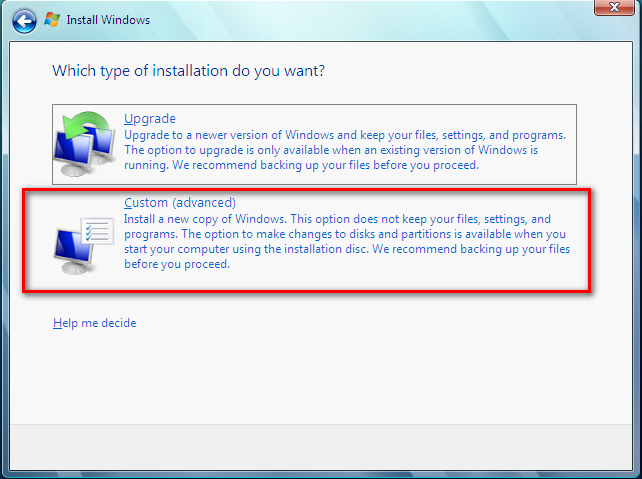
If you have a Windows CD, you will install it the same way you installed Windows 7. Pop the CD into the CD drive. Reboot your computer and follow on screen instructions. You should come to a page that asks you “What type of installation you want?”. Choose “Custom(advanced)”:

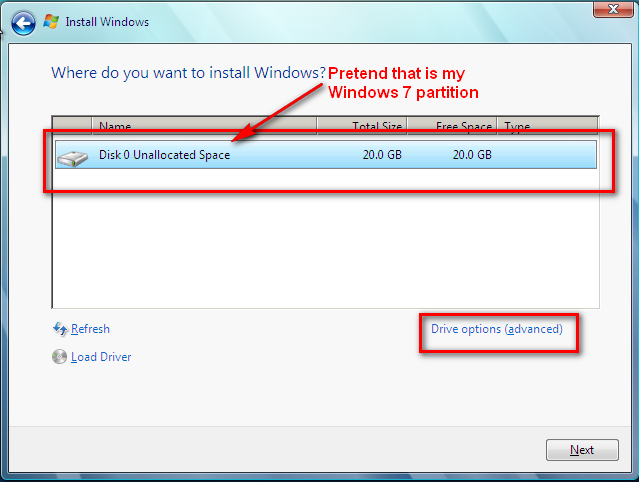
This will bring you to a page that will list all the partitions on your computer. Single left click on the partition that has Windows 7 installed. Then click on “Drive options (Advanced)”:

Now you technically do not *have* to do the following, but for safe measures you should. Click on ‘format’:

After the partition is done being formatted, make sure you have the partition selected, and hit “Next”. Just follow on screen instructions and you will have your Windows up in no time.
2) You virtually installed Windows 7

I mentioned three differnet programs you can use to virtually install Windows 7. However I recommeneded VirtualBox and that is the one I will use to explain on how to remove Windows 7. The method should, however, be similar for all three programs.

Removing OS installations that have been virtualized is really, really easy – literally a click of a button. This is when people start patting themselves on the back for going virtual…very easy to undo it all!

Okay load up VirtualBox. Right click on the Windows 7 installation and hit “Delete”:

You will get a message box asking you if you are sure/asking you to confirm that you want to delete it. Click yes. NOTE: Once you delete it, you will not be able to get it back again. If you want it back you will have to reinstall it.

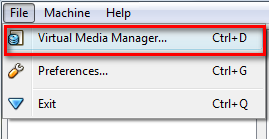
After that, go to File -> Virtual Media Manager:

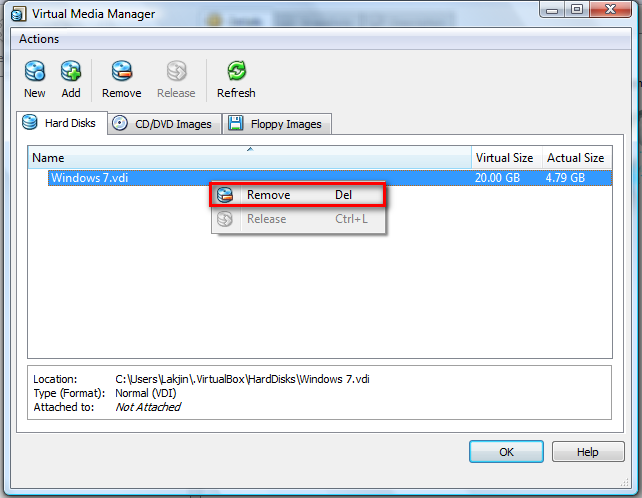
A window will pop up that will list the ‘virtual hard drive’ that you had Windows 7 installed. In order to get your hard drive space back that this ‘virtual hard drive’ is taking, you will have to delete it. Right click on the hard disk and click on “Remove”:

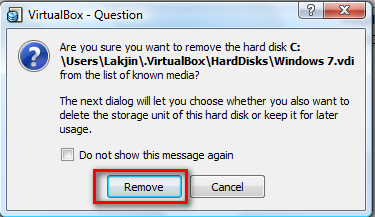
A message box will pop up asking you to confirm that you want to remove the hard disk. Hit “Remove”:

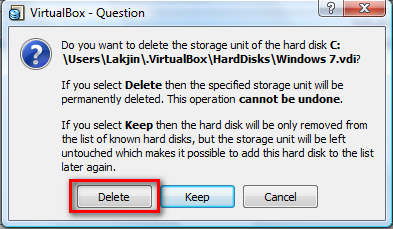
Another message box will pop up asking you if you want to delete the virtual hard drive or to keep it. Hit “Delete”:

And that is it. Windows 7 is no longer virtually installed on your computer. If you do not think you will be installing an OS virtually again, feel free to uninstall VirtualBox also. Be sure to use RevoUninstaller.

3) You dual booted Windows 7 with another Windows on your computer.

I know that there are multiple ways on how to remove Windows 7 if you dual booted. However, I chose to use the following way because I find it to be very easy and it is cross platform so you do not have to worry about if you are on Vista or XP.

First thing you have to do is download and install Paragon Partition Manager on your primary OS (the OS you want to keep – double check system requirements to make sure PPM will work on your system), not Windows 7 (the OS you want to remove).

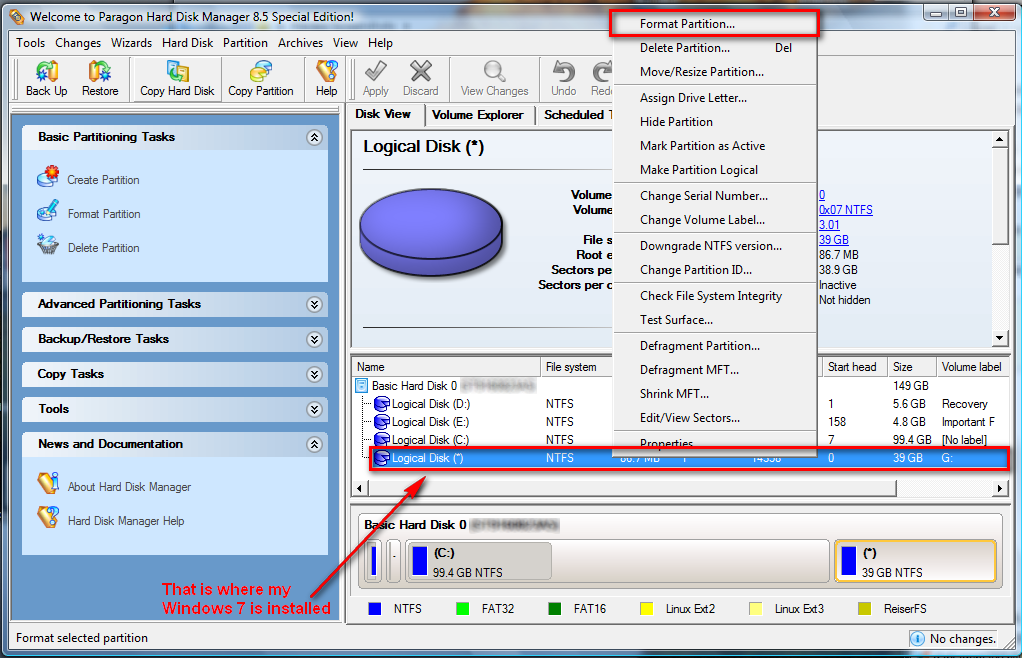
After that, run Paragon Partition Manager. At the bottom you will see all your partitions listed. Right click on the partition that has Windows 7 installed and click on “Format”:

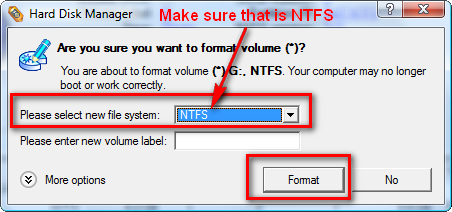
Make sure you are formatting the partition with Windows 7 and not the one with your primary OS installed! A window will popup asking you if you are sure you want to format the partition. It will give you the option to select a new file system and name it. Name it whatever you want, the name will be short lived anyway, but be sure to select “NTFS” for the file system. Hit “Format”:

After that, go up to the top of the program window where the buttons are and hit “Apply”:

You will be prompted with a message asking you are you sure you want to make the changes. Hit “Yes”:

That will start the process of formatting your partition. A window will pop up that will allow you to monitor the progress. After the formatting is done hit “Close”:

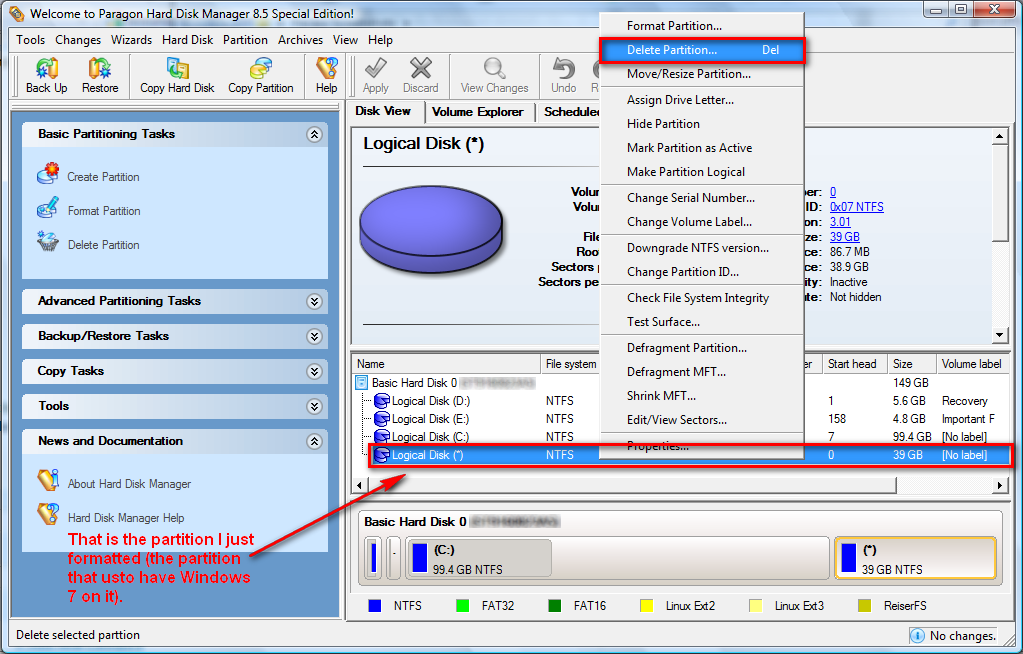
Now right click again on that partition that you just formatted, from the main program window, and hit “Delete”:

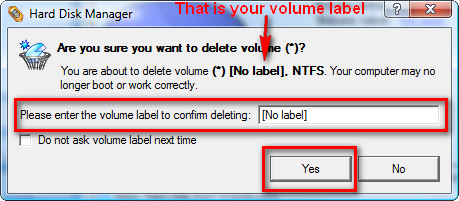
A window will popup asking you to type the label of the volume in order to confirm that you want to delete it. Type the name of the volume and hit “Yes”. The label of the volume in my screenshot is “[No label]” (without the quotes) so I typed in “[No label]” (without the quotes):

After you hit “Yes”, you will again have to hit the “Apply” button from the top:

You will be prompted with a message asking you are you sure you want to make the changes. Hit “Yes”:

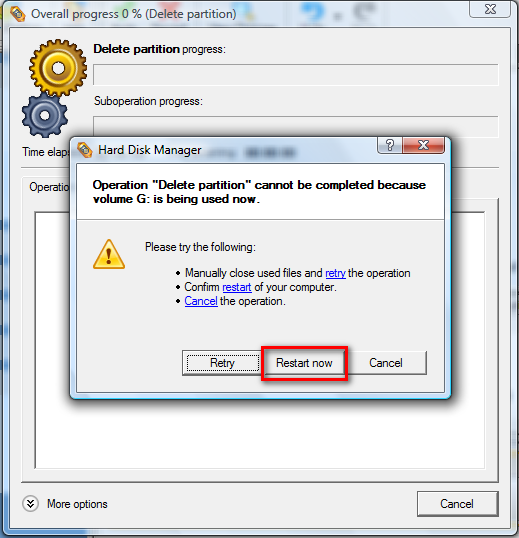
Again a window where you can monitor the progress of your partition deletion will popup. Just sit back and watch. After a few seconds, a window will popup telling you that your partition is in use and that you must reboot your computer to delete it. Hit “Restart Now”:

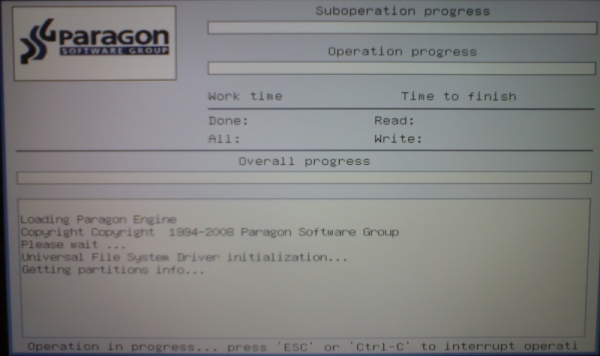
Your computer will then restart. Instead of your booting into Windows, you will be brought to a Paragon Hard Disk Manager screen (sorry for bad quality screenshot – had to use my camera phone):

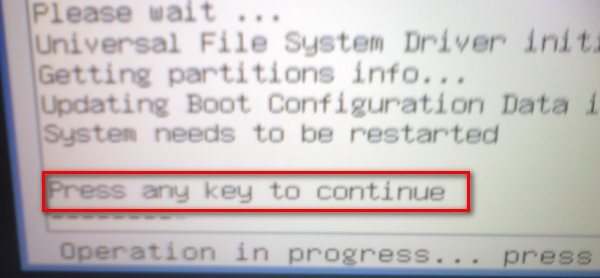
Allow the program to do its thing until the bottom left hand of the screen displays the following:

Hit any key you desire and allow your computer to restart. When restarting you should not be prompted with any screen that asks you to choose what OS to load – you should load directly into your primary OS, whether that is XP, Vista, Win98, whatever.

Now at this point you are done removing Windows 7. However, since you had designated X GB on your hard drive for Windows 7 and you no longer have Windows 7, you have X GB just sitting there and being useless on your hard drive. The following is optional but I highly recommend you do it so you can put those X GB back to good use.

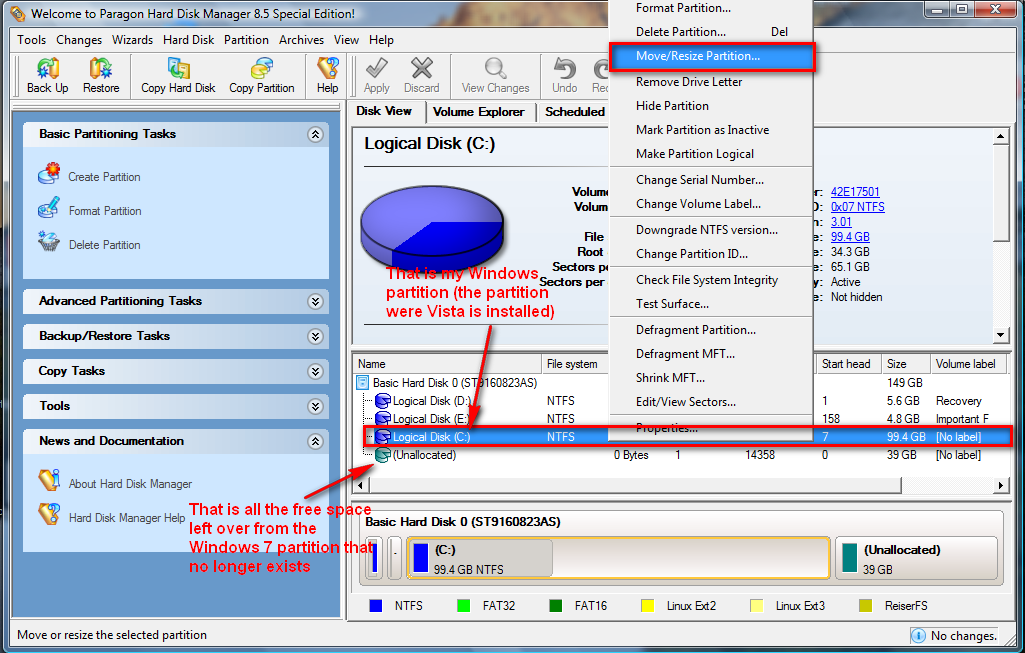
After your computer boots into your primary OS, run Paragon Hard Disk Manager again. You should at the bottom where it lists your partitions there should be an entry that says “(Unallocated)”. That is all the space that usto be your Windows 7 partition now just sitting there. Lets change that. Right click on your current Windows partition and click on “Move/Resize Partition”:
***If the ‘unallocated’ is not right next to your Windows partition (above or below) in the partition list, you have a special case. If you can’t figure out how to make it work, take a screenshot and post it in the comments below – I will try to help.

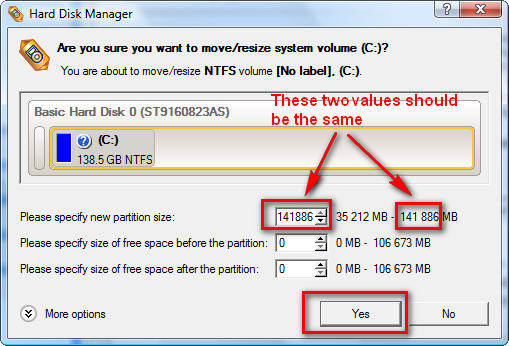
You should now see a window that will ask you to specify the new partition size:

Make it as big as possible and hit “Yes”:

Again hit the “Apply” button from the top menu on the main program window:

You will be prompted with a message asking you are you sure you want to make the changes. Hit “Yes”:

After that a window will popup where you can monitor the progress of making your partition bigger. After it is done, hit “Close”:

You are done. Go enjoy what is left of your day. :)

That is it. If anyone has any questions, feel free to ask – I will try to help to the best of my ability.


108 Comments »

  1. steve March 27, 2010 at 7:37 PM (comment permalink) -

    I recently bought a laptop (Dec) with windows 7. I tried to like it for a week but to no avail. I don’t like a thing about it.
    So I removed and reformatted. Ouch, 3 days later (mulched boot partition) I called the laptop manufacturer (MSI) and they sent me a couple of reinstall cd’s. Uhg!
    So I’m back to square 0 with Windows 7 functioning. I’m leaving out the dirty, ugly stuff.
    Just want to obliterate Win7 and install xp. I’ve been using my old laptop since December. How best do you go about scrubbing the 7 completely?
    Thanks!
    Steve

    51
  2. Sheel kumar April 12, 2010 at 5:00 AM (comment permalink) -

    Hi!
    I have intalled XP on C drive and Windows 7 on D drive. Now I want to remove Windows 7 on the D drive. Please, let me a method.
                                                                                                                            Thank you
                                                                                                                         Sheel kumar

    52
  3. chito April 18, 2010 at 8:23 AM (comment permalink) -

    The reason why i want to uninstall windows7 in my PC because windows7 will not recognized my Transcend-4GB flash drive.
    -chito

    53
  4. Rod Garnett April 21, 2010 at 12:16 AM (comment permalink) -

    Help I beg U to please read and if possible help. I am a retired minister. Our church gave me a new Acer, Intel, Core 2 quad??AM5641-E5650A 3gb. ddr2 memory, 320SATA drive, super-multi drive, None of this means much to me. The vista was terrible. Church admin put windows 7 ultimate on this machine. It had to drive of 160 each. It now seems to have one driver and i have no clue how to use the D drive he emptied. I made a boot and repair disk right after the new win 7 ultimate install. Some thing has gone wrong and it keeps saying I have a invalid copy of windows.Zone alarm aid i was infected by Trojans. I need to remove everything and put the winy back on with the boot disk and repair disk. I don’t have a clue how. i have one finger I can move and all this is difficult. If U could summary instructions, i would print off and follow. I can’t find a way to get to Microsoft and i am not sure I an asking the right question.Our admin had had heart attack. I have got to get up and running. I beg U please help me. Please. U are the only one i could find that seemed to know what to do it was just too much material for me with too many variables. Thanks God Bless, Rod Garnett rodgarnett@hotmasil.com 

    54
  5. Stala Mahina May 7, 2010 at 7:59 AM (comment permalink) -

    hlp me i do nut indistand

    55
  6. wayne May 25, 2010 at 7:23 AM (comment permalink) -

    STEVE – I have an MSI laptop with XP and want to move to windows 7. Want to exchange serials?
    This link explains how you can revert to your old Windows version if you installed Windows 7 over your last Windows installation.
    http://support.microsoft.com/kb/971760/

    56
  7. wayne May 25, 2010 at 7:24 AM (comment permalink) -

    @steve:
    STEVE – I have an MSI laptop with XP and want to move to windows 7. Want to exchange serials?
     

    57
  8. Ford August 7, 2010 at 1:21 AM (comment permalink) -

    i have installed windows 7 in my laptop and now iam trying to install windows xp please help .

    58
  9. Roshan August 14, 2010 at 5:34 PM (comment permalink) -

    i have win7 on C:\ and f:\ both partitions , previously i tried to format c:\ partition but 12gbs of data remained there. and at last my system was crash. somehow i manage to boot again . now i want to remove win7 from c: partition
    can you tell me how can i do it without disturbinb win7 at f: partition

    59
  10. Bala August 30, 2010 at 5:20 AM (comment permalink) -

    Hi!
    I have intalled XP on C drive and Windows 7 on D drive. Now I want to remove Windows 7 on the D drive. Please, let me a method.
                                                                                                                            Thank you

    60
  11. Necron September 9, 2010 at 2:00 PM (comment permalink) -

    @Bala: just follow the instructions for removing dual boot systems

    61
  12. vyankatesh mishra November 30, 2010 at 10:52 PM (comment permalink) -

    I recently bought a laptop (Dec) with windows 7. I tried to like it for a week but to no avail. I don’t like a thing about it.
    So I’m back to square 0 with Windows 7 functioning. I’m leaving out the dirty, ugly stuff.
    Just want to obliterate Win7 and install xp

    62
  13. sawadca December 13, 2010 at 8:36 AM (comment permalink) -

    Hi!
    I have intalled XP on C drive and Windows 7 on D drive. Now I want to remove Windows xp on the c drive. Please, let me a method. and windows xp , 7 , vista not booting ,my sistem , iam put windos 7 cd then install windos 7 in d drive, c drive showing 4 gb usage all data delete. but not formatting in c drive pls help me

    63
  14. vamsi February 14, 2011 at 3:55 AM (comment permalink) -

    Hi!
    I have intalled XP on C drive and Windows 7 on D drive. Now I want to remove both os and install new windows 7 cd.previous are both affected to virus.how can i do?

    64
  15. karthikeyan March 10, 2011 at 7:01 AM (comment permalink) -

    hi…..! I have upgraded my windows from xp to win 7 which I thought was good..but after using win 7 I feel XP is user friendly..and I tried installing xp, I cud not its says ” cannot install previous version I dnt hv device drivers of win 7 …..How to uninstall win 7..Please help……………….

    65
  16. Derek O'Brien April 6, 2011 at 5:52 AM (comment permalink) -

    By now, a lot of people using Win 7 have come to the conclusion that it is an abortion of an operating system, just as bad a Vista, but damn sight more user unfriendly. Basically it is designed for morons with no COMPUTER SKILLS apart from following Windows prompts and little else. It contains 20,000 or more files that are incestuously multiplying every time you shut the computer down, so basically , apart from being user hostile, it is resources greedy, and a cancer in your computer.

    Before doing anything drastic, you must transfer all your documents, etc to a new directory on the second partition of your HDD or burn them to CD. Do this with everything apart from Program Files, see below. Can I suggest you make an outlay of around $30 and purchase a copy of ZtreeWin, it is an amazing utility that leaves Windows Exploree for dead, and will transfer practically everything from one drive/directory/folder to another, its only limitation I can find is that a file may have a registry entry tacked onto it so you get a “File Sharing Error” message; apart from that it is invincible.

    It may be a pain in the butt to do it, but I advise either placing all youjr installed programs “Set-up” files in a second partition, or better still, burn them onto a CD (Gives you a Hard Record) and remember to also burn the “Program keys” onto the same CD. You now are in a position to wipe Win 7 off your computer, and then format the C:\ drive to eliminate any remnants, and then install your preferred OS.

    You now have a fully functioning OS that will need the appropriate drivers installed, and then, using the C, you reinstall your programs.

    66
  17. Derek O'Brien April 6, 2011 at 6:00 AM (comment permalink) -

    By now, a lot of people using Win 7 have come to the conclusion that it is an abortion of an operating system, just as bad a Vista, but damn sight more user unfriendly. Basically it is designed for morons with no COMPUTER SKILLS apart from following Windows prompts and little else. It contains 20,000 or more files that are incestuously multiplying every time you shut the computer down, so basically , apart from being user hostile, it is resources greedy, and a cancer in your computer.

    Before doing anything drastic, you must transfer all your documents, etc, to a new directory on the second partition of your HDD or burn them to CD. Do this with everything apart from Program Files, see below. Can I suggest you make an outlay of around $30 and purchase a copy of ZtreeWin, it is an amazing utility that leaves Windows Explorer for dead, and will transfer practically everything from one drive/directory/folder to another, its only limitation I can find is that a file having a registry entry tacked onto it will cause you to get a “File Sharing Error” message; apart from that it is invincible, and so useful in so many other ways.

    It may be a pain in the butt to do it, but I advise either placing all your installed programs “Set-up” files in a second partition, or better still, burn them onto a CD (Gives you a Hard Record) and remember to also burn the “Program keys” onto the same CD. You now are in a position to wipe Win 7 off your computer, and then format the C:\ drive to eliminate any remnants, and then install your preferred OS.

    You now have a fully functioning OS that will need the appropriate drivers installed, and then, using the CD, you reinstall your programs.

    67
  18. Andy Fong May 5, 2011 at 12:37 AM (comment permalink) -

    Even though Ashraf’s instruction of unintalling Win7 is very thorough, but it does not apply to my case. I’m using HP DV7 notebook. I installed Win7 ultimate 32bit and I want to uninstall it. I tried to format Drive C by Disk Management, but the software does not allow me to unintall. I have tried to replace the Drive C with a new formatted hd and use the recovery disc to revert to the previous Vista Home Premium, but the recovery disc could not boot the notebook. Any suggestions? Many thanks.

    68
  19. Jordache May 6, 2011 at 12:53 AM (comment permalink) -

    hi there

    i want to remove my windows 7 operating system because it is in chinese and want to reinstall it again, how would i do that? or is there another way to get my operating system in english because everything is in chinese

    69
  20. jayesstee May 6, 2011 at 12:56 PM (comment permalink) -

    @Jordache: Perhaps you can avoid removal and re-installation. Do you have access to another Win 7 computer (with English installed)?
    If you do, then identify the icon for the “Control Panel”. You will need to find this icon in the Chinese installation.
    On the English Win 7 machine, open the “Control Panel” and identify the “Region and Language” icon. You will need to find this in the Chinese Win 7 “Control Panel”.
    On the English Win 7 machine, open “Region and Language” and under the left hand tab you will find the top box labeled: “Format:”. In this you can select “English(United Kingdom)” or English (United States)”.
    So back yo the Chinese machine, identify and open in turn: “Control Panel”, “Region and Language” and”Format:”.
    If you are lucky, you will find “English”. If not keep trying different language choices until you get one where you can recognize “English”.
    Good luck, please post how you get on.

    70
  21. kathy May 13, 2011 at 4:54 PM (comment permalink) -

    All the above sound good but I have all the CD”s needed to do this..Just won’t allow me to. Says the Xp cd is blocked. Now what????? I do not like Windows 7 I want to go to XP. Nothing works with this system. Can you override this??

    71
  22. Clarence May 29, 2011 at 5:32 AM (comment permalink) -

    I posting again.
    I read your article “How to: Remove or ‘uninstall’ Windows 7 (or any other installed OS)” However when I tried to dowload PPM 9.5 it was no longer available. I was able to dowload PPM 11 but was not able to follow your tips. Will you be reposting your tips using PPM 11?

    72
  23. Rob Davis June 15, 2011 at 2:00 AM (comment permalink) -

    After struggling for four days trying to get Windows-7 to talk correctly to Server 2008 roaming profiles, I gave up with the godawful thing. Booted from a Windows 98 CD, FDISKed and reformatted the hard disk and then booted and set up good old reliable XP Pro which works flawlessly.

    B****y Microsoft – treating the world as their test bed! Why haven’t they fixed this roading profile problem? I won’t touch Windows-7 for another two years – by which time it MIGHT have come out of nappies/diapers.

    73
  24. Igors June 17, 2011 at 10:14 PM (comment permalink) -

    I no need Window…just got to instll…can help someone me?

    74
  25. Igors June 17, 2011 at 10:16 PM (comment permalink) -

    plea, be don’t more complix, jus don the slimle

    75

Leave A Response »