
 Email article
Today’s Software
- Turn Off LCD: turn off your laptop’s screen with a double click. Great for music!
- Startup Sound Changer: change your computer’s startup sound.
- Alt+Tab Tuner: tweak and tune the Alt+Tab menu
Subscribe to our Windows section to never miss an article: RSS Feed | E-mail
About Windows Software of the Day
Windows has hundreds of thousands of programs. Because of this great volume and lack of a central store, software discovery (aka finding new and useful programs) is extremely difficult. With our Windows Software of the Day initiative, dotTech aims to change that. Everyday we post three programs, allowing our readers to discover new software, daily. Enjoy! [Subscribe to our Windows section to never miss an article: RSS Feed | E-mail]
Developers: Click here to get your apps featured here!
dotTechies: Want to see an app on here? Send us a tip!
Software for June 13, 2012
Turn Off LCD
Want to turn off just your computer’s screen while keeping the rest of your computer on? This way, you can do things like wait for a long process to complete, or listen to music. Turn Off LCD fills in this hole: it’s a free, portable application that lets you turn off your screen with just a double click..
There’s only two possible downsides to TOLCD. Whenever you open it, a command prompt window opens for a fraction of a second. It doesn’t effect usability but can look a little funny. Secondly, there’s no built-in keyboard shortcut for TOLCD. However, submitter Mike whipped up a quick guide for creating one:
The easy solution: create a shortcut to run the program, with the behavior you want. Simply store the program in your Programs file (or wherever you want); right click on the program and create a shortcut to it; right-click on the shortcut, choose Properties, and set the program, under the Shortcut tab, to Run as Minimized (this eliminates the black DOS screen)–also feel free on that tab to set a Shortcut key of your choice (choose a keyboard key–it will be appended to ctrl+alt for the shortcut). At that point, simple place the shortcut wherever you want–dragging it to the Taskbar is a convenient, non-obtrusive location, handy and ready for use. Or put the shortcut on your Desktop.
Thanks, Mike!
Price: Free!
Version discovered: v1.01
Supported OS: Windows XP+
Download size: 69KB
VirusTotal malware scan results: 1/40
Portability: Entirely portable!
Startup Sound Changer
 Windows is extremely customizable. You can change the sound that plays when you hit the wrong button; you can change the sound that plays when you have low battery. You can change almost any sound but the one that plays when your computer starts up.
That is, until now. With Startup Sound Changer, a tiny little application, you can change that sound to any kind of sound you want. A five second section of your favorite song? Check. An alarm clock? Check (but for the sake of those around you please don’t).
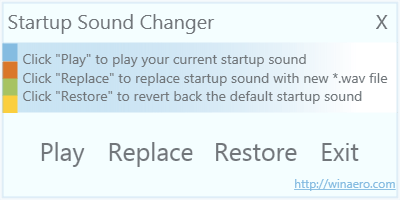
Startup Sound Changer is quite easy to use as well. You can do one of three actions with it: play your current sound, replace your current sound with a new sound, and restore the original sound. Note that to use this nice little app the replacement sound has to be a WAV file.
Thanks Doug!
Price: Free!
Version discovered:
Supported OS: Windows Vista+
Download size: 318KB
VirusTotal malware scan results: 0/43
Portability: Entirely portable!
Startup Sound Changer homepage
Alt+Tab Tuner
 Using Alt+Tab to switch windows is an awesome way to save time while multitasking. However, it’s a little bit uncustomizable. You can fix that with Alt+Tab Tuner, a tool that lets you tweak things like icon positions, transparency, and more.
Alt+Tab Tuner can control a number of things. For instance, you can make Alt+Tab a giant grid of icons that are mostly transparent instead of their usual small, opaqueness. You can even get the old Windows XP style Alt+Tab switcher, which is nice for a blast from the past or if you’re looking for the ultimate in speed and efficiency. Alt+Tab Tuner is a nice little tool for playing with Alt+Tab and can help you make it your own.
Price: Free!
Version discovered: v1.0.1.1
Supported OS: Windows 7+
Download size: 202KB
VirusTotal malware scan results: 0/42
Portability: Entirely portable!
dotTechies: We have tested all the software listed above. However, Windows Software of the Day articles are not intended as “reviews” but rather as “heads-up” to help you discover new programs. Always use your best judgement when downloading programs, such as trying trial/free versions before purchasing shareware programs, if applicable.




