
 Email article
 Anyone know when e-mail was invented? I don’t >.>’. Did Al Gore invent it? Who cares. The point is (actually it really isn’t the point…I am just trying to be funny) that email is wide spread across the globe and is used by the poor, the rich, and everything in between. Why use snail mail when you can use e-mail (does that rhyme?). In the early days e-mail was typically provided to you by your ISP such as AOL (@aol.com – remember those?). Now e-mails are more popularly used via third party services such as Gmail or Hotmail. It is nice to have a custom and unique whateveryouwant@gmail.com or whateveryouwant@hotmail.com or [insert email here] because it allows us to not only communicate with other people across the world, but also build an online identity. However what if you could have your own custom email. Not just have your own custom email, but get it for free? A ha, I knew that would catch your attention.
Today I am here to tell you about how you can get your very own custom email address for free. Unfortunately, the only way to do this for free is to have a whateveryouwant@whateveryouwant.co.cc email address instead of a whateveryouwant@whateveryouwant.com email address. However that is still better then a generic whateveryouwant@gmail.com or whateveryouwant@hotmail.com. Am I right or am I right? Okay if you are ready to take the plunge.
Update: CO.CC is no longer operating. However, you can still try to get your own free custom email address from CZ.CC.
In order to get your own custom e-mail address first visit CO.CC and register your desired domain:
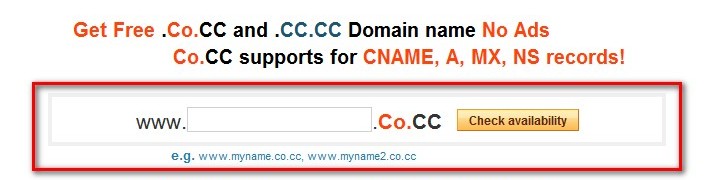
Three things to note:
- Not all CO.CC domains will be free. Some may cost money while others will not. For example: dottech.co.cc was free while helloworld.co.cc cost me $4 a year. If you search for a domain and the result shows that you must pay for it, simply search for a different domain name.
- You can only have four free domains per account. I assume that if you create a new account you can register four more free domains, but I am not sure if that it is “legal” to create multiple accounts or not.
- Every CO.CC domain comes with a CC.CC domain. While the CO.CC is fully customizable to your needs, the CC.CC is specific to being a “web store” and you cannot change that.
- Whatever domain you register is what your email address will be.
Update: You can now keep CO.CC domains for free forever if it is for personal use.
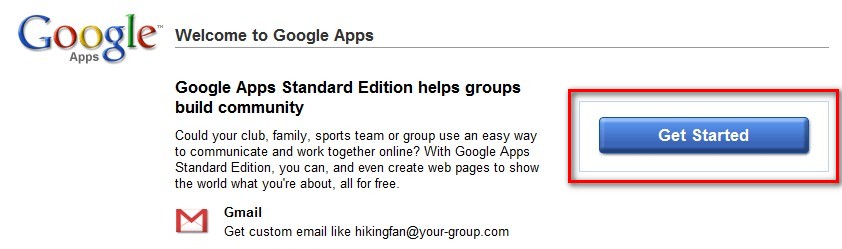
After you have registered your domain from CO.CC, go to Google Apps and click on “Get Started”:
***Note: You can use Google Apps for free with any domain (.COM, .NET, .ORG, etc.). The only problem is you won’t find a free .COM or .NET or .ORG or any other domain to use with Google Apps. This is why you must stick to a .CO.CC domain if you don’t want to pay anything. Don’t worry – a .CO.CC domain is similar to a .COM, .NET, .ORG or any other domain.
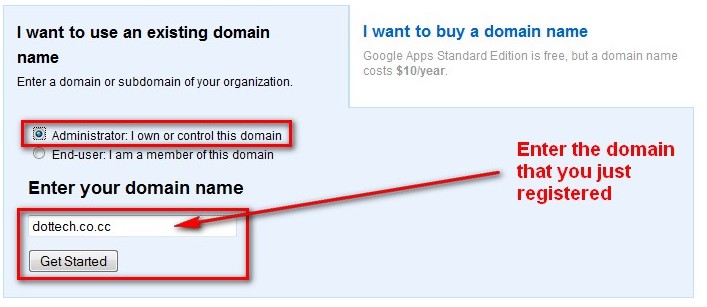
In the page that loads after you hit “Get Started”, select “Administrator: I own the domain”, type in the domain that you just registered from CO.CC and hit “Get Started”:
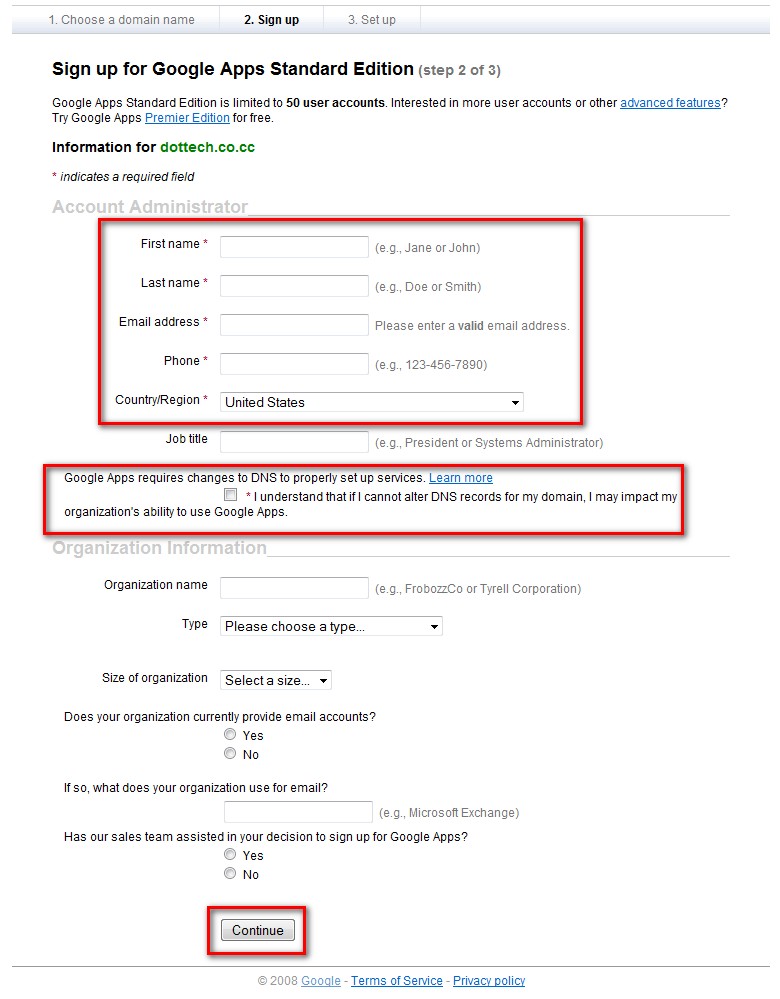
At the next page you will be asked to fill in some information about yourself. Fill out all the “Required” fields (you can also fill out the extra fields if you want) and hit “Continue”:
At the next page you will have to setup your administrator email account. Fill out all the “Required” fields as you find appropiate and hit “I accept. Continue with setup”:
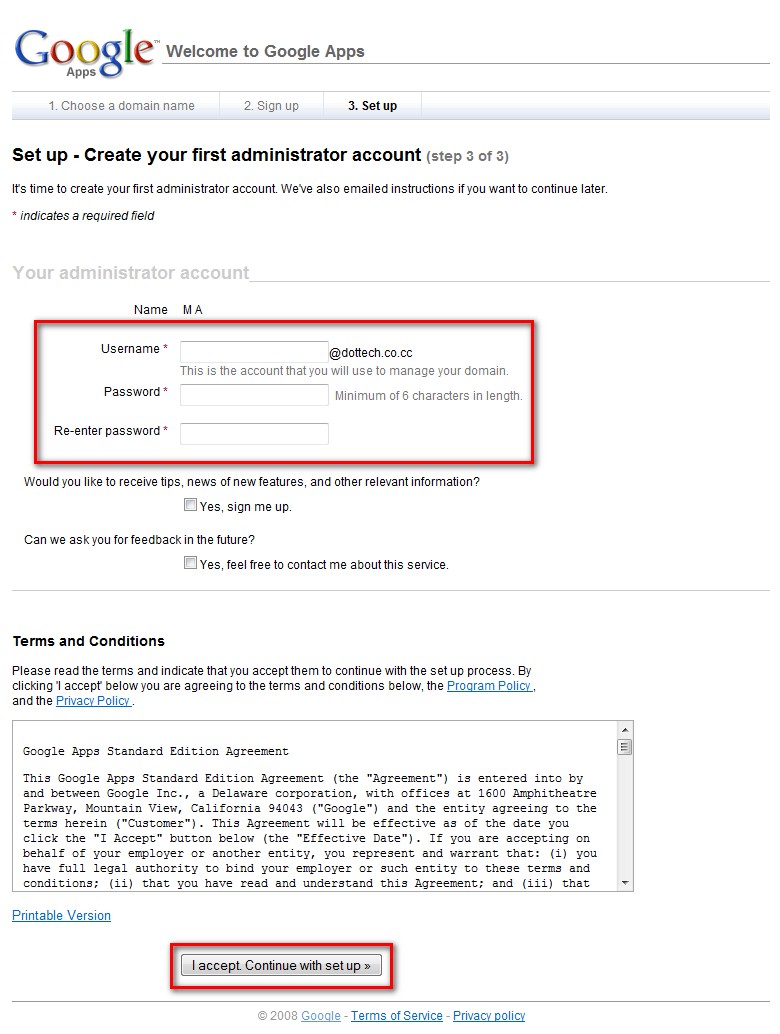
After you have hit “I accept. Continue with setup” you are done creating your free Google Apps account with Google. However you still need to active the email service and verify that you own the domain that you signed up with. At the admin panel (the page you are brought to after you hit “I accept. Continue with setup”) click on “Verify domain ownership”:

At the next page there will be a drop down menu. Click on the drop down menu and select “Change your CNAME record”. You should then see four step directions show up on your screen. Look at number two. There should be a string of characters in bold something like google23dbs35567:

Highlight that string and copy it. Open a new browser tab/window and go back to CO.CC. Click on “Domain Settings” (it is located at the top of your webpage) and login. Click on the name of the domain you used for Google Apps:
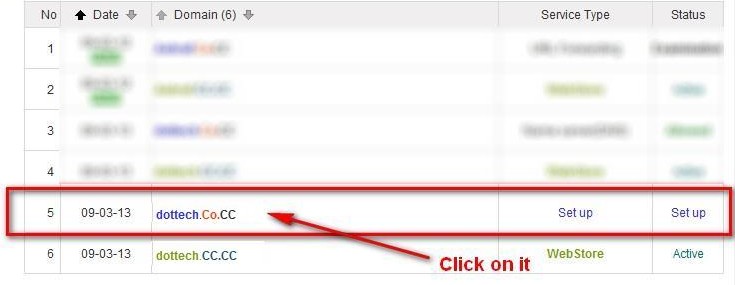
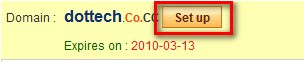
At the next window click on “Setup”:
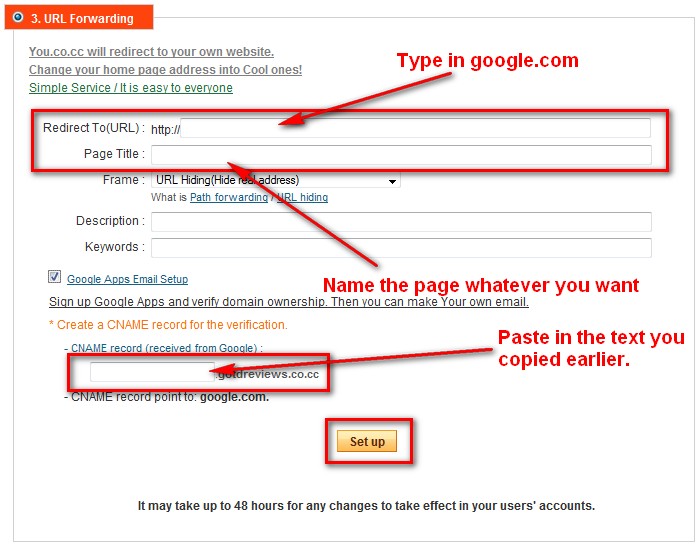
At the next page you will be given three options: “Manage DNS”, “Zone Records”, and “URL Forwarding”. Click on “URL Forwarding”. Once you click on “URL Forwarding” fill in the “Redirect to (URL)” text field with “google.com” (without the quotes) and fill in the “Page Title” with “Google Redirect” (without the quotes). After that, there should be a checkbox next to a line that says “Google Apps Email Setup”. Check that box. Paste in the text you copied earlier in the “CNAME Record” box that appears. Hit the “Set up” button:
Hit “OK” at the confirmation page that tells you your changes were made. Go back to the tab/window where you have the Google Apps page open (if you don’t have the tab/window anymore, log back in and go to the “Verify domain ownership” page again). Now hit the “Verify” button. You will be brought back to the Google Apps admin panel. Click on “Activate email”:
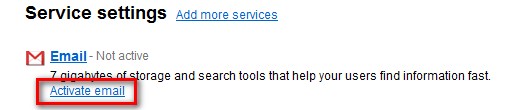
The next page that comes up gives you instructions on how to setup your domain to work with your email. Don’t worry about them – we have already taken care of it. Just go to the bottom of the page and click on “I have completed these steps”:

That is it. You are done. Congratulations you now have your own custom email address! All you have to do is wait until Google verifies your domain and sets up your email. They say it can take upto 48 hours but mine was setup within an hour or two. You will know that your domain was verified and your email was setup when you don’t see the “Verify domain ownership” or “Activate email” links at the Admin panel anymore.
Once your email is setup, you can access it by going to http://mail.google.com/a/yourdomainname.co.cc. For example, for me it would be http://mail.google.com/a/dottech.co.cc. Your email will work like any other Gmail account. If you would like to create more then one @yourdomainname.co.cc email address you will need to login to the Admin panel at http://google.com/a/yourdomainname.co.cc and click on “Create new users”. You can have up to 50 users.
Now go and enjoy your new email address and let me know if you have any problems :)
Image credit: bisiobisio




