
 Email article
Update 7/24/2010: Everyone can now get eXPert PDF 6 Pro for free! Visit http://dottech.org/freebies/17294 for more details.
We all work with PDFs nowadays. Good, reliable, and feature filled PDF manipulation programs are hard to come by at an affordable price. Well not anymore. Now you can get an excellent PDF manipulation program…for free.
What exactly can eXPert PDF Pro 4 do? Well…
PDF Creation
eXPert PDF Pro 4 is tightly integrated with Microsoft Word® and Excel® to simplify the process of creating and editing PDF files. You can convert these files into multiple image formats (JPEG, GIF, TIF, PNG, BMP…). And you can also easily manage bookmarks and URL links in each file.
- One click conversion
- Just right click on a file to convert it into PDF, without even having to open it.
- Microsoft Word® and Excel® integration in the menu bar
- A simple click on the icon launches PDF conversion of one or more documents.
- Image conversion: JPEG, JPEG 2000, GIF, TIF, PNG, EMF, BMP
- Transform your documents into images, instead of PDF.
- Create and manage hypertext and URL links in your PDF files
- Ideal for sending readers directly to an Internet site from inside your Word® or Excel® document.
- Automatic email sending
- In two clicks, convert a document to PDF and send it via email attachment from within the application.
- Merge conversion
- Organise and combine multiple documents – even if they have been created in different applications – and create one single PDF file.
- Create conversion profiles
- Increase your efficiency and create profiles so you can instantly select all the features you use when you create PDF documents.
Viewing & Editing PDF files
eXPert PDF Pro 4 provides an entire suite of tools to modify, improve and organise your PDF documents. Includes standard editing tools for text, graphics and annotation, plus functionality to add or delete pages and combine PDF files. Security and encryption features give you control over rights to open, copy, edit or print your PDF documents. You can also make the eXPert PDF Pro 4 editor your default PDF viewer so that you can add comments, or modify the original document, all in the same window.
- Standard editing tools
- Cut, copy paste, delete and resize text and images in your existing PDF file
- Text editing tools
- Ad or edit text; change sizes, fonts and color, all in your PDF document
- Image editing tools
- Add images, draw vector images – even Bezier curves – all without leaving the eXPert PDF 4 interface.
- Add comments and stamps
- Add notes, comments, stamps (eg. “confidential”, “draft”) and watermarks.
- Add or delete pages from existing PDF documents
- Gives you complete control over the final PDF document
- Document security
- Protect your PDF document with passwords (128-bit RC4 encryption) You’ll be able to control who has the right to read, copy, edit or print your document.
- View all your PDF files in the eXPert 4 editor
- Make eXPert PDF 4 your default PDF editor; that way you can add comments or edit the original document in the same window.
This list of features was attained via Avanquest.
Pretty impressive list of features if I do say so myself. Of course v4 is not the latest version – v6 is. However v6 costs $94.88 for a single license. So for a freebie, v4 is more then welcome in my arsenal. Okay so how to get it? Well getting it is a little tricky because you must attain it from a French website. However, when have I ever left you hanging w/o screenshots? =):
Update: It has been discovered that eXPert PDF Pro 4 will not work with XP x64 or Vista x64. Sorry! However eXPert PDF 4 Pro works just fine on Vista 32-bit.
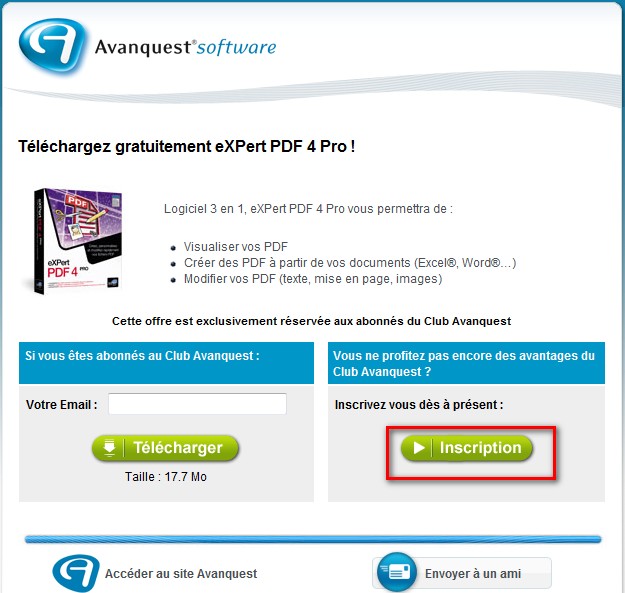
- Visit Avanquest’s promotion page. If you are part of Avanquest’s French website, just enter your email in the address box and download the software. However if you are not, like most of us, you must register with them first. So, click on the button that says “Inscription”:
- At the next page you will have to fill out some information. Fill it out and click on the button that says “Valider et Telecharger le logicel”:
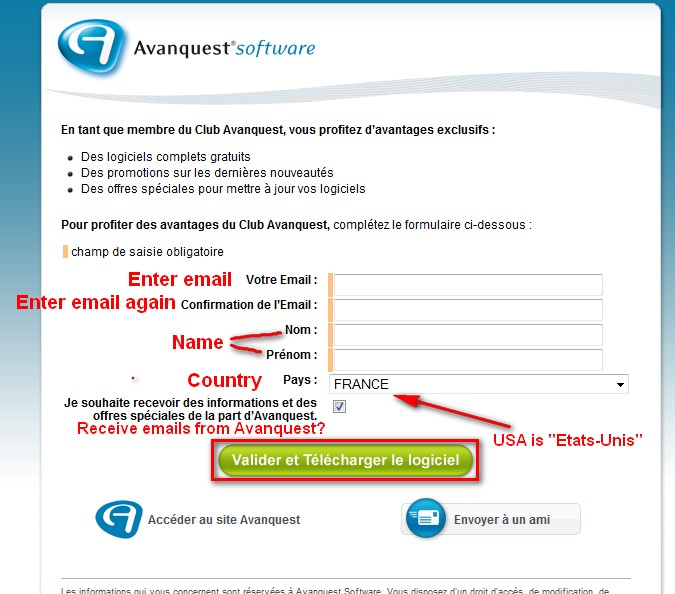
Note: You don’t need a valid email address but it is suggested that you enter a valid email address (just use a spam email) because you may need to use your account for future freebies from that website. Plus your registration code will be emailed to you in addition to being displayed to you right on the screen so you can have it stored in your inbox in case you ever have to uninstall/reinstall eXPert PDF 4 Pro.
- The next page will give you the download link for eXPert PDF 4 Pro and display your registration code. Download the program by clicking on the button that says “Telecharger” and copy your registration code. As mentioned above you registration code will also be emailed to you:

- After the program is done downloading, install it. The installation process will be in French but it is pretty straight forward:
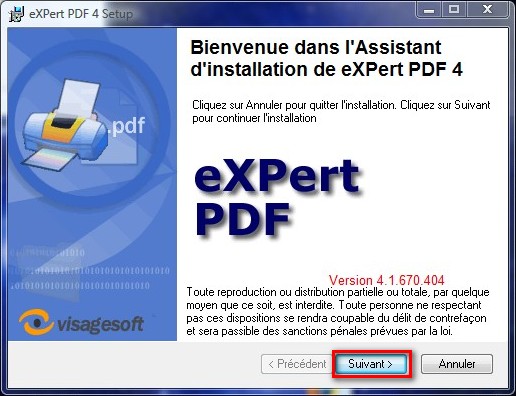
Click “Suivant”.

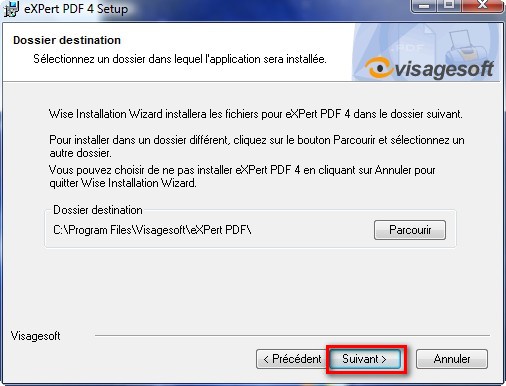
Paste in the registration key that you copied earlier into the box that says “Identification du produit” and click “Suivant”.
Click “Suivant”.
Click “Suivant”. The installation will then start. Wait for the installation to finish. The last window will appear after the installation is done:
Click “Terminer”.
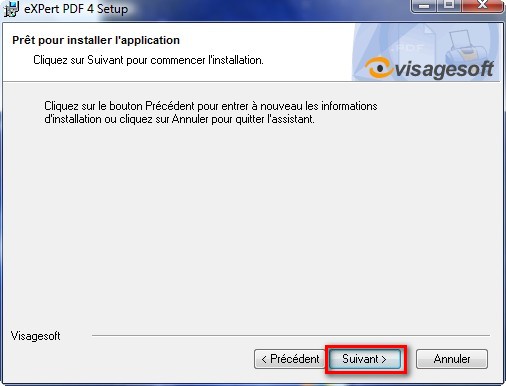

- After you click “Terminer” you are done installing eXPert PDF Pro 4. However the program will be in French. Therefore to turn in into English, go to the folder where you installed eXPert PDF Pro 4 to and go to the “Resources” folder. For most of us, this will be C:/Program Files/Visagesoft/eXPert PDF/Resources. Delete all the files in the “Resources” folder – they all should end in “.FRA”:
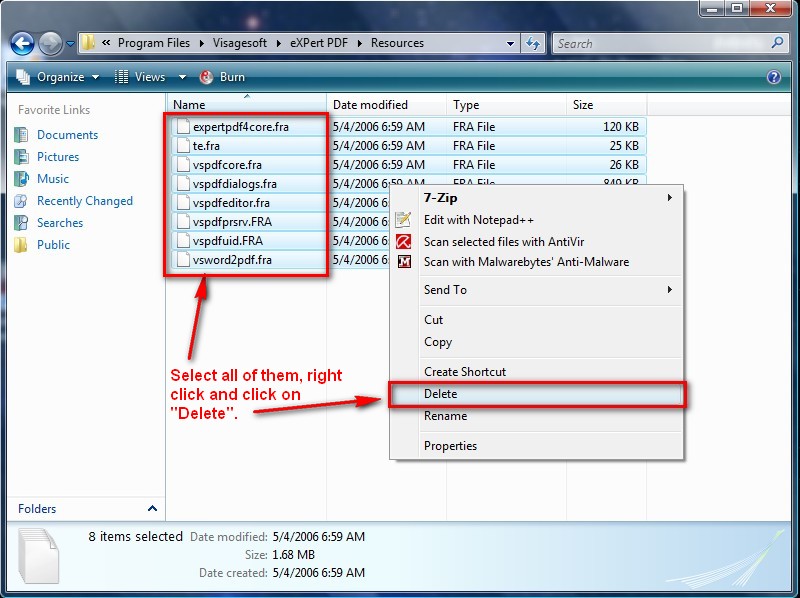
Update: If you are having trouble deleting the files under “Resources” make sure:
- eXPert PDF Pro 4 is not on. Double check under Windows Task Manager.
- If you still are not able to delete the files, try logging in to an Administrator account (even on XP) and deleting them.
- Now if you look under the “Start Menu” you may notice that the shortcuts for eXPert PDF are in French. Well we need to rename them (thx to SC below for reminding me of this). Right click on each shortcut one at a time and click on “Rename”. This is what you should rename them to:
- Accueil eXPert PDF = Purchase eXPert PDF
- Aide eXPert PDF = eXPert PDF Help
- Editeur de Filigranes = Watermarks Editor
- Editeur de paramètres PDF = PDF Settings Editor
- Serveur d’Impression eXPert PDF = eXPert PDF Creator
- The last thing you need to do is replace the help files. You see even though you changed eXPert PDF from French to English, the help files are still in French. In order to fix this, I ripped the help files from the English version of eXPert PDF Pro 4. Download them by clicking here (alternative download link here). They are in a .ZIP file. Unzip them and save the “expertpdf.chm” and “pdfeditor.chm” in C:/Program Files/Visagesoft/eXPert PDF. You will be asked if you are sure you want to overwrite “expertpdf.chm” and “pdfeditor.chm”. Click yes.
Update: If you are having problems viewing the help files after you download them:
- Right-click on “expertpdf.chm”
- Click Properties.
- Click Unblock.
- Double-click on “expertpdf.chm” to make sure it is now working.
- Repeat the same for “pdfeditor.chm”.
Thanks to Tony for posting the above fix for the help files.
- Now that you have eXPert PDF consider reading How To: Fix some eXPert PDF Pro annoyances (prevent PDF Printer from starting on boot and turn it off automatically when you are done using it).
- Update: After you are done installing eXPert PDF 4 Pro, you can now upgrade to eXPert PDF Pro 6 for free. If you would like to attempt an upgrade (it works for some it does not work for others), visit the You got eXPert PDF 4 Pro for free. Now upgrade to eXPert PDF 6 Pro for free! page to find out how.
There. Now you are done with everything. Go enjoy your eXPert PDF 4 Pro eXPert PDF 6 Pro! If you have any problems or questions, post below – I will try to help.
This freebie was originally found by For-Free-On-Internet.com.
