
8 free software to image/backup/ghost your computer (free alternatives to Acronis True Image, Norton Ghost, etc.).
April 10, 2009 96
Email article | Print article
Lately I have been running into a lot of backup programs. Each time I see a backup program, I think “Acronis True Image” or “Norton Ghost”. However both Acronis and Norton are commercial products that can be had for five simple payments of $19.95! Okay okay I exaggerate a bit – they are not that expensive. The point is every time I think of Acronis or Norton I think there must be viable free alternatives; there are always viable free alternatives. So I did the research, the testing, and have put together a list of 7 free programs that you can use to image/backup/ghost your partitions or hard drives like you can with Acronis True Image or Norton Ghost or any other similar commercial software.
Before I show the list of program, let me clarify something. Quite a few people have asked me “should I replaced X backup software with Y backup software”. Often times X and Y are two different types of backup software. What I mean is in the category of “backup software”, there are two subcategories:
- Software that is intended to backup whole partitions/operating systems or hard drives. Usually software that can do this refer to the task as “creating an image” or “disk imaging” or something similar.
- Software that is intended to backup individual files and documents.
Now every backup software does not have to be either or; one software may be able to do both tasks. The software I am about to show you are intended for full backup of partitions/operating systems or hard drives. They are not intended for individual files and documents. For a free backup software that is intended for files/documents check out Titan Backup.
Okay so here goes:
Clonezilla
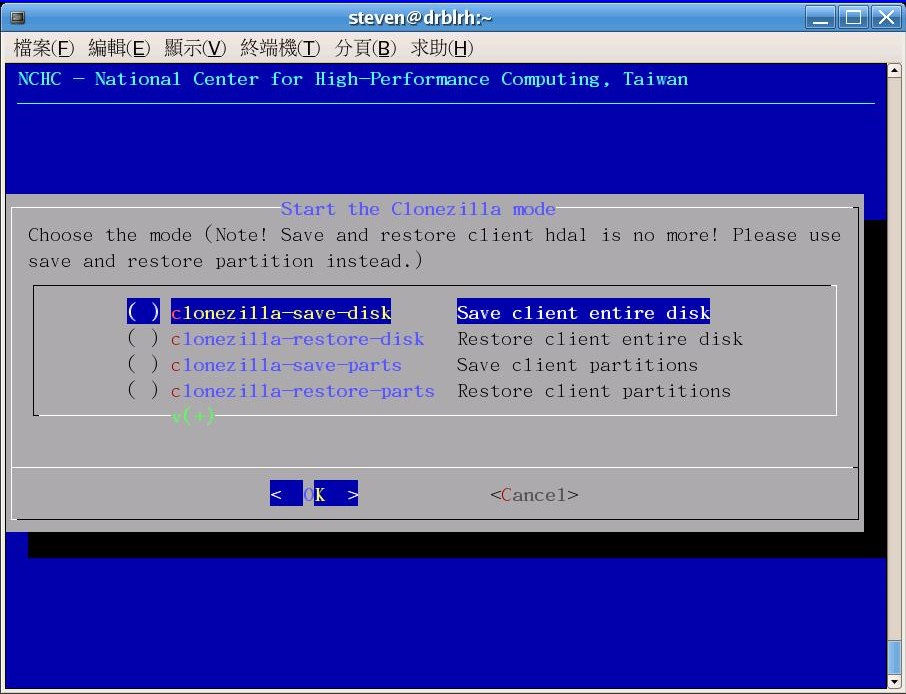
NOTE: Screenshot for Clonezilla was taken from the developer’s website.
PING
NOTE: Screenshot for PING was taken from the developer’s website.
DriveImage XML
Paragon Drive Backup Express
Paragon Hard Disk Manager 8.5 SE
Seagate DiscWizard (by Acronis)
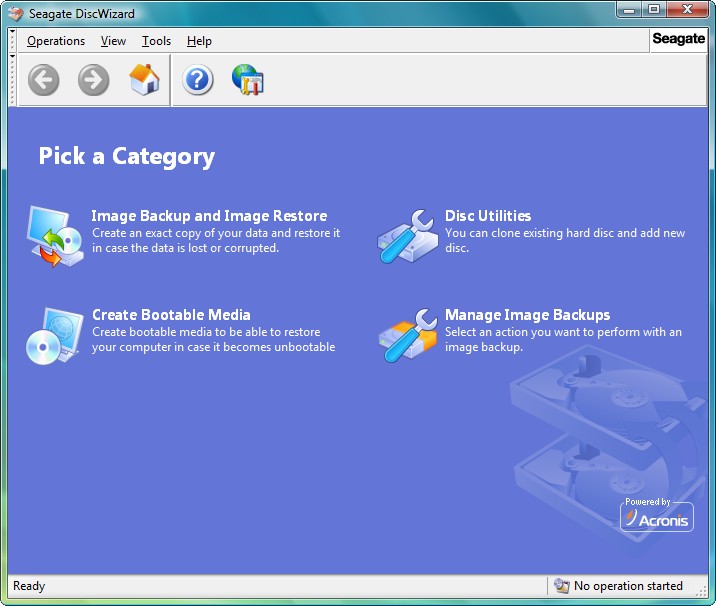
NOTE: Seagate DiscWizard is for Seagate hard drives only. For those people that don’t know, “Seagate” is a company that manufactures hard drives. You can try to use DiscWizard on a different hard drive brand at your own risk (some people say it works but I cannot verify that).
Acronis True Image WD Edition
NOTE: Acronis True Image WD Edition is for Western Digital hard drives only.For those people that don’t know, “Western Digital” is a company that manufactures hard drives. You can try to use this on a different hard drive brand at your own risk (some people say it works but I cannot verify that).
NOTE2: Seagate DiscWizard and Acronis True Image WD Edition are both the same software but for different hard drive brands. They are both “watered down” versions of Arconis True Image.
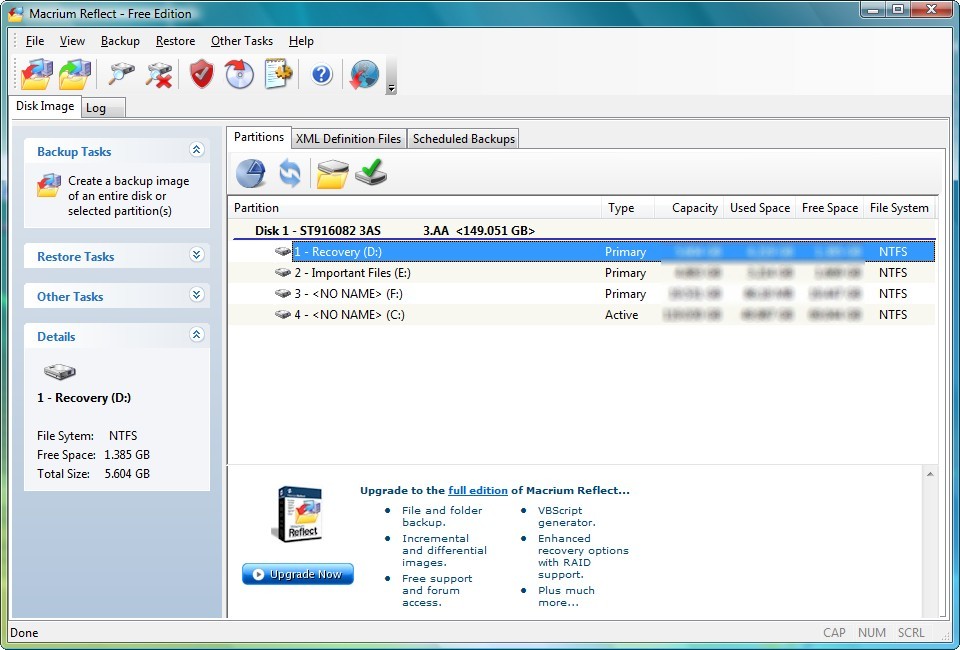
Macrium Reflect (Free Edition)
Before I start my “analysis” let me say that Paragon Hard Disk Manager 8.5 SE is one of my favorite freebies of all times. However, unfortunately, it does not really impress me in the category of partition/hard drive imaging/backup (it has bunch of other useful features though).
That being said, out of all seven programs, the programs that has the most features are definitely Seagate Disc Wizard and Acronis True Image WD Edition. Both are Acronis powered free tool Seagate and WD offers their customers. The only problem with them is is you must have a Seagate or WD hard drive to use it so it is hardly a freebie for everyone (since not everyone has a Seagate or WD hard drive). Additionally, I noticed that DiscWizard/Acronis True Image WD Edition was slower than I expected for backing up: when trying to create an image of ~44 GB partition, Seagate was giving me an estimate time of 3 hours at the highest compression =O. Safe to say I did not actually test to see if it in fact did take three hours, but if it does, that is very slow.
Okay so to figure out which program (bar DiscWizard and Acronis True Image WD Edition since they are brand specific) is the “best free partition/hard disk backup tool” I was used three criteria:
- User friendliness.
- Performance (speed/compression).
- Ability to create a bootable CD.
Clonezilla and PING both are not very user friendly so those were out the window pretty quickly. DriveImage XML does not have the most user friendly process of creating a bootable CD so that was eliminated also.
That left me with Macrium and the two Paragons. All three of these programs did fairly well in all three of my criteria mentioned above, but Macrium impressed me the most.
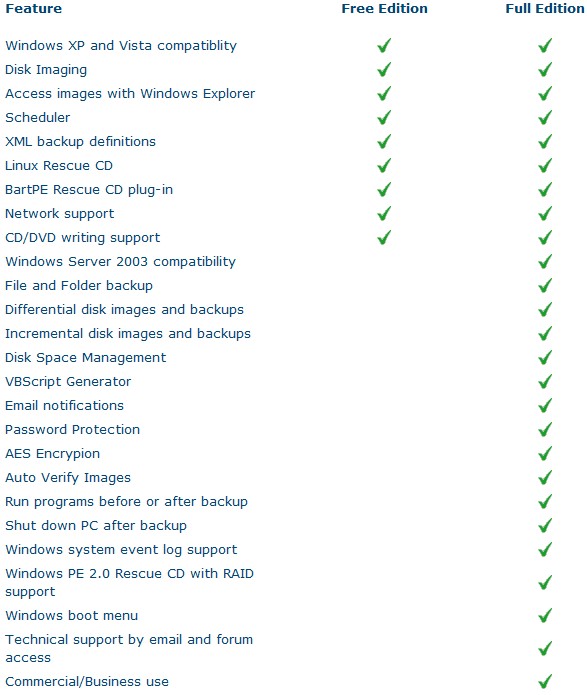
Macrium Reflect is an awesome professional disk imaging software that allows you to create and compress full image backups, to explore each image backup just like you were viewing a folder (useful if you want to only restore a certain file instead of the whole backup), has a scheduler and supports the creation of Linux and BartPE bootable disks. There are two versions of Macrium, free edition (the one mentioned here) and full version (costs $39.99). Here is a full list of features:
Creating an image of my C:/ partition (32 GB in size – the one with Windows on it) was a breeze: it took me less than 30 minutes with Macrium set on low priority to create an image backup. I set compression at its highest and the image file size was only 10 GB (the image created by the Paragon software was 14.5 GB). The whole time the backup was running I was using my computer and never once did my computer even hiccup (Macrium supports Microsoft volume shadow copy so you can make a full backup of your Windows partition while using Windows).
Additionally, as I already mentioned, you can create Linux or BartPE bootable/rescue CDs with Macrium:
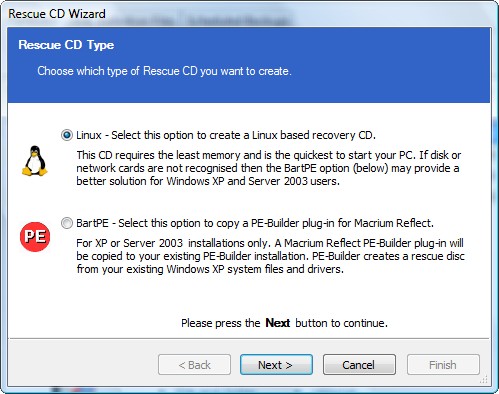
These rescue CDs are helpful if your Windows screws up and you are not able to login. All you do is pop in the bootable disk and run Macrium and restore your Windows installation from previously backed up image files without ever logging into Windows. While Macrium does not have native support to create a bootable USB/flash drive, you can create an ISO of the Linux bootable disk and google how to turn the ISO into a bootable USB/flash drive.
To make everything even better, Macrium Reflect supports both 32 and 64 bit versions of XP and Vista and the size of the installation file you must download is only 27 MB.
Macrium Reflect Free Edition is dotTech.org’s free full partition/hard disk backup software of choice. If this was a formal review I would say “two thumbs up”.
Here are the download links for all the software I mentioned above:
Paragon Hard Disk Manager 8.5 SE
96 Comments »
Leave A Response »


“My computer” says 41,6 GB for a total of 116 GB as Drive Image XML.
That is weird. I honestly don’t know what to say. How exactly did you determine Reflect only found 22 GB while Drive Image XML found 41.6 GB? Are you using default settings for Reflect? On my computer Macrium finds all the used space on my partitions.
The best suggestion I have is emailing Macrium support about it; I have never heard of this problem with Macrium before (if it is in fact a problem and not a misunderstanding).
Who needs an alternative to Norton Ghost?
Ashraf, read your email- free Norton Ghost!
*evil laugh*
*realizes people are staring*
*slowly waltzes away*
*realizes putting words into asterisks on a tech blog isn’t his smartest move*
*decides to hit “Submit Comment” now*
I know about free Norton Ghost. However it involves rebates which is why I have not posted about it yet. Keep in mind one of the rebates is a competitive upgrade rebate so not everyone will be able to get it.
When you go around the block as many times as I have you will pick up on Fry’s tricks :P Just kidding.
@ Ashraf, Jeanjean
FYI….My Computer=9.953….M.Reflect=9.953
@ Ashraf,
Thanks for your answer (the others too !).
I opened Reflect several times to check.
On the first page of Reflect, I see wel my 3 drives.
For c: it says Type (Active), Capacity (116.415Gb), Used Space (22.378 Gb), Free Space (94.037 Gb), File System (NTFS).
I have not change the standard settings…
Curious, no ?
For d: there is a difference but less important : Used 67.595 Gb (My Computer says 72.579 Gb)
I think suddenly at something…
Is it possible that DriveImage can “see” my software installation made with SVS, while Reflect doesn’t “see” these ?
This could explain things.
Jeanjean,
Did a Google on SVS.
I see they have a free one, for personal use.
My PC is a bit old and only has 512MB of memory.
Do you have a link to any nice reviews(and comparisons) of Virtualization software ?
Have you tried others ?
Regards,
Rob
@ Rob
I use SVS for sometime now and i gived all my links on this site, here : http://dottech.org/tipsntricks/2015
Jeanjean,
Maybe. I honestly don’t know.
Thank you anyway!
Hi Ashraf,
For information and after discussion with people of Acrium, it appears that Reflect backs up every used cluster in the file system.
My problem would not appear with SVS, but probably with the use of EAZ-FIX (that I’m testing for the moment).
EAZ is probably storing data in unused clusters and isn’t compatible with imaging software that backs up ‘in use’ clusters.
It would have been helpful if you would have elaborated more on the imaging features of these programs. Some take much longer because they waste time cloning vacant space on the drive. Clonezilla clones only the used portion. Some programs can restore only to a partition of the same size or larger while others can restore to a smaller partition.
I have customers who are computer illiterate using Clonezilla every day with no problems.
I have been going through hades with some of my dying PCs.
I use IDE drives, and XP Pro.
I have settled on using Seagate’s DiscWizard for imaging the drives, and recovering (sometimes to the same PC, sometimes to another PC).
The two major stumbling blocks(apart from hardware glitches) have been -
- The images can appear to be corrupted on some PCs (Googling reveals that others have that problem with DiscWizard and Acronis)
- When restoring an image to another PC, you have to do an XP repair, and I have lost count of how many times I came up against the dreaded –
a disk read error has occurred
press ctrl+alt+del to restart
Googling, reveals better men than me, have been stumped by that one.
Regarding my first problem, I threw the offending PC into the toilet (stored it in the bathroom), and found one that did not say the image was corrupt.
Regarding the second problem, I have converted the partition to Fat32(from bloody NTFS), and now the XP CD, can repair Windows with no problems.
I have been suspecting for some time now, that it was that flippin NTFS that was thwarting Repair installs.
I type all this for three reasons -
1) It may be of some assistance to others (Seagate DiscWizard is great, provided it likes your PC).
2) It may assist others who find that the repair install, stalls during that half way re-boot.
3) If I decide to stay with FAT32 (to make future repair installs, painless), can I handle files greater than 4GB ?
I know that you cannot store large files in the FAT32 partition (where XP is running),
BUT CAN IT SAFELY HANDLE large files, on other NTFS partitions or external hard drives ?
Let us say I have some image backups on an USB external hard drive (which is formatted to NTFS). Can I be in a FAT32 XP, and be SAFELY moving those 10GB files from folder to folder within the external NTFS drive ?
Rob
I like cloning rather than imaging and use the freeware XXClone (http://www.pixelab.com/) to do this. I have a fear of hard drive failure so like to keep a couple of clones, one stored on site & one off site. XXClone will clone to any size HDD (or even a partition) as long as it’s not smaller than the original. It will also make the clone bootable. For further info follow the link I’ve included.
DriveImage XML will preserve partition alignments upon restoring. This is a technical fact of which not many readers will be aware, but it is an important distinction when intending to image onto an SSD drive. The other software may or may not – for example, I’ve heard that certain versions of Acronis will not.
As for using DriveImage XML to make a drive bootable, all you have to do is merely set the partition as “Active”. I’ve never imaged anything BUT bootable partitions, and have never had an issue. Additionally, there’s a plugin should you want to install this program on a BartPE disc.
Will any of these programs image onto a USB external drive and then restore to a computer? Or does it HAVE to be to a cd/dvd? My kid’s Acer netbook doesn’t have a dv drive, and I don’t have funds to purchase an external one. I have a Seagate 500GB external HD, will it work for this purpose? (The eRecovery partition on the kid’s netbook is corrupt and so it won’t restore, I want to take the clone from her brother’s identical netbook and restore it to hers.) Any ideas?
@Tiffanie: Ya that shouldn’t be a problem.
In addition to that you may want to look into creating a bootable/recovery USB/flash drive instead of a bootable/recovery disk (CD/DVD) because restoring from a bootable/recovery disk is better (although not necessary) than from within Windows.
To create a bootable/recovery USB/flash drive create an ISO of Macrium’s Linux boot disk and google how to turn that ISO to bootable USB (sorry I can’t give more specifics here… don’t have any articles on hand).
Will a Linux boot disk (USB) work on Windows XP? Or will it make the HD Linux? Sorry for the computer semi-literacy.
@Tiffanie: Oh no, no. It is just Linux based so it can load when Windows can’t. It will work for Windows XP just fine =).
Thank you for all your patient help. I followed all the links and info and am working on doing the restore right now. Hopefully it will work and she will have a working computer again. Thanks
Just wanted to do a follow up. After everything was flashed over, I did the partition restore which is included in the .iso from my son’s computer, and it worked perfectly. She has a fully functional computer again! Thanks very much
Being a user, i found drive image xml pretty friendly. Morover, I can produce a bootable file in my external d: drive without having to erase the other information on it. Try doing the same with Paragon.
Regards, PT
I was using Macrium for a while as it was the strongest backup solution from freebies, but finally switched to Paragon Backup & Recovery Free Edition – it’s the version Paragon released after Drive Backup Express – http://www.paragon-software.com/home/db-express/, the key reason why I decided towards Paragon is its functionality:
• differential backup (it’s very useful for this kind of peace of software)
• Built-in ability to create a rescue CD or bootable USB Flash drive
• Linux/DOS bootable recovery environments
• Automatic data exclusion
• Backup to a network
• Hot backup
• Enough featured for the home user but not overwhelming
Also, Macrium has one major bug that I couldn’t face it with – cannot restore an image from a larger hard disk to a smaller one, even if your backed up data is less than that of your destination disk’s capacity.
Ashraf,
Thanks for your helpful reviews.
I prefer Paragon Backup & Recovery.
It has an option to exclude pagefile.sys
and user selected folders that can be
excluded from backup. It is under
Tools/settings/CopyBackupExcludeoptions.