
8 free software to image/backup/ghost your computer (free alternatives to Acronis True Image, Norton Ghost, etc.).
April 10, 2009 95
Email article | Print article
Lately I have been running into a lot of backup programs. Each time I see a backup program, I think “Acronis True Image” or “Norton Ghost”. However both Acronis and Norton are commercial products that can be had for five simple payments of $19.95! Okay okay I exaggerate a bit – they are not that expensive. The point is every time I think of Acronis or Norton I think there must be viable free alternatives; there are always viable free alternatives. So I did the research, the testing, and have put together a list of 7 free programs that you can use to image/backup/ghost your partitions or hard drives like you can with Acronis True Image or Norton Ghost or any other similar commercial software.
Before I show the list of program, let me clarify something. Quite a few people have asked me “should I replaced X backup software with Y backup software”. Often times X and Y are two different types of backup software. What I mean is in the category of “backup software”, there are two subcategories:
- Software that is intended to backup whole partitions/operating systems or hard drives. Usually software that can do this refer to the task as “creating an image” or “disk imaging” or something similar.
- Software that is intended to backup individual files and documents.
Now every backup software does not have to be either or; one software may be able to do both tasks. The software I am about to show you are intended for full backup of partitions/operating systems or hard drives. They are not intended for individual files and documents. For a free backup software that is intended for files/documents check out Titan Backup.
Okay so here goes:
Clonezilla
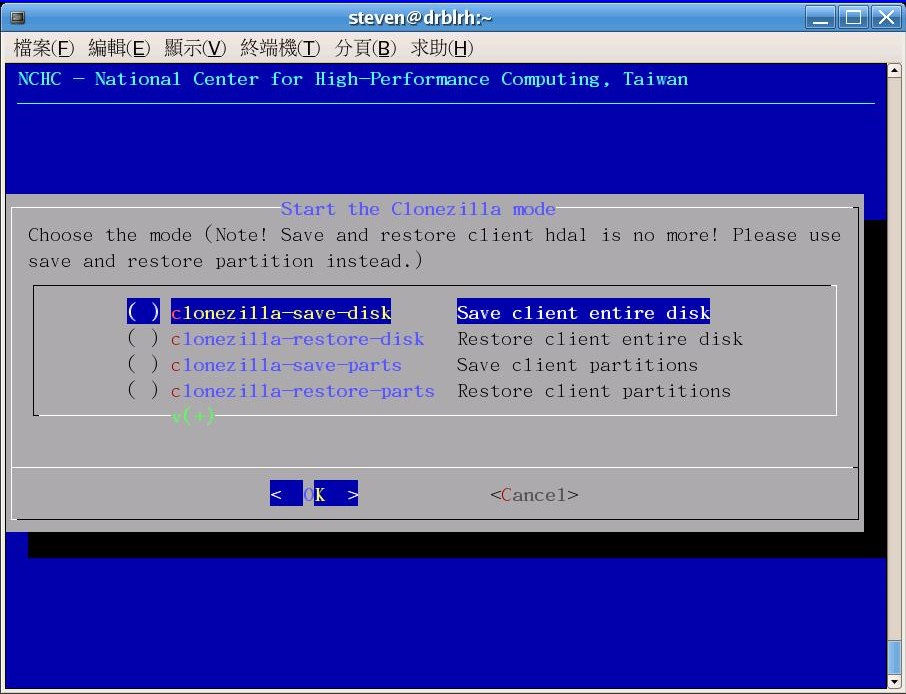
NOTE: Screenshot for Clonezilla was taken from the developer’s website.
PING
NOTE: Screenshot for PING was taken from the developer’s website.
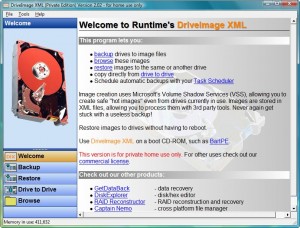
DriveImage XML
Paragon Drive Backup Express
Paragon Hard Disk Manager 8.5 SE
Seagate DiscWizard (by Acronis)
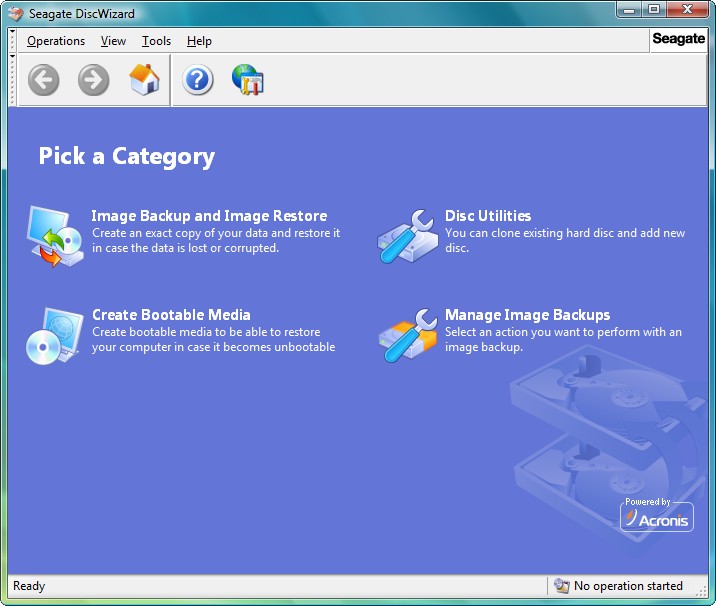
NOTE: Seagate DiscWizard is for Seagate hard drives only. For those people that don’t know, “Seagate” is a company that manufactures hard drives. You can try to use DiscWizard on a different hard drive brand at your own risk (some people say it works but I cannot verify that).
Acronis True Image WD Edition
NOTE: Acronis True Image WD Edition is for Western Digital hard drives only.For those people that don’t know, “Western Digital” is a company that manufactures hard drives. You can try to use this on a different hard drive brand at your own risk (some people say it works but I cannot verify that).
NOTE2: Seagate DiscWizard and Acronis True Image WD Edition are both the same software but for different hard drive brands. They are both “watered down” versions of Arconis True Image.
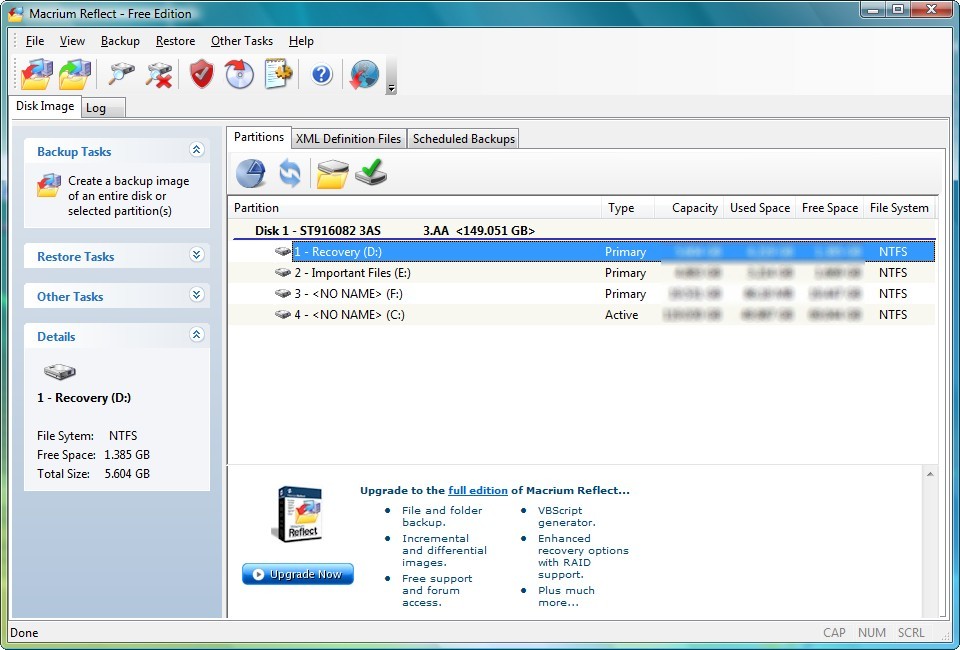
Macrium Reflect (Free Edition)
Before I start my “analysis” let me say that Paragon Hard Disk Manager 8.5 SE is one of my favorite freebies of all times. However, unfortunately, it does not really impress me in the category of partition/hard drive imaging/backup (it has bunch of other useful features though).
That being said, out of all seven programs, the programs that has the most features are definitely Seagate Disc Wizard and Acronis True Image WD Edition. Both are Acronis powered free tool Seagate and WD offers their customers. The only problem with them is is you must have a Seagate or WD hard drive to use it so it is hardly a freebie for everyone (since not everyone has a Seagate or WD hard drive). Additionally, I noticed that DiscWizard/Acronis True Image WD Edition was slower than I expected for backing up: when trying to create an image of ~44 GB partition, Seagate was giving me an estimate time of 3 hours at the highest compression =O. Safe to say I did not actually test to see if it in fact did take three hours, but if it does, that is very slow.
Okay so to figure out which program (bar DiscWizard and Acronis True Image WD Edition since they are brand specific) is the “best free partition/hard disk backup tool” I was used three criteria:
- User friendliness.
- Performance (speed/compression).
- Ability to create a bootable CD.
Clonezilla and PING both are not very user friendly so those were out the window pretty quickly. DriveImage XML does not have the most user friendly process of creating a bootable CD so that was eliminated also.
That left me with Macrium and the two Paragons. All three of these programs did fairly well in all three of my criteria mentioned above, but Macrium impressed me the most.
Macrium Reflect is an awesome professional disk imaging software that allows you to create and compress full image backups, to explore each image backup just like you were viewing a folder (useful if you want to only restore a certain file instead of the whole backup), has a scheduler and supports the creation of Linux and BartPE bootable disks. There are two versions of Macrium, free edition (the one mentioned here) and full version (costs $39.99). Here is a full list of features:
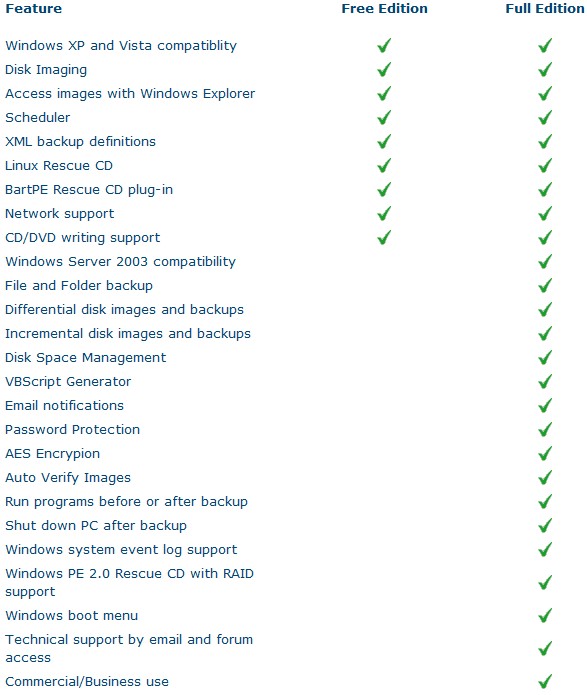
Creating an image of my C:/ partition (32 GB in size – the one with Windows on it) was a breeze: it took me less than 30 minutes with Macrium set on low priority to create an image backup. I set compression at its highest and the image file size was only 10 GB (the image created by the Paragon software was 14.5 GB). The whole time the backup was running I was using my computer and never once did my computer even hiccup (Macrium supports Microsoft volume shadow copy so you can make a full backup of your Windows partition while using Windows).
Additionally, as I already mentioned, you can create Linux or BartPE bootable/rescue CDs with Macrium:
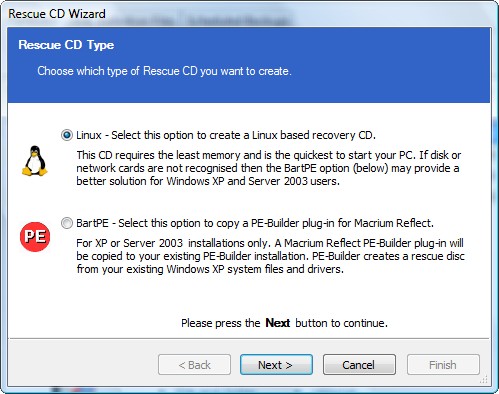
These rescue CDs are helpful if your Windows screws up and you are not able to login. All you do is pop in the bootable disk and run Macrium and restore your Windows installation from previously backed up image files without ever logging into Windows. While Macrium does not have native support to create a bootable USB/flash drive, you can create an ISO of the Linux bootable disk and google how to turn the ISO into a bootable USB/flash drive.
To make everything even better, Macrium Reflect supports both 32 and 64 bit versions of XP and Vista and the size of the installation file you must download is only 27 MB.
Macrium Reflect Free Edition is dotTech.org’s free full partition/hard disk backup software of choice. If this was a formal review I would say “two thumbs up”.
Here are the download links for all the software I mentioned above:
Paragon Hard Disk Manager 8.5 SE
95 Comments »
Leave A Response »


Ashraf & all other friends helping other people that do not have sufficient knowledge. I Appreciate your efforts. i also need your help for backup issue. i am using software “Shadow Protect ” when i make “Full “or “Diffrential” backup even after 1 hour it always make back file in GBs it should be some MBs. after few back up i have huge data in GBS plz can you suggest me the right software or method. Thank you
@gear:
What size is the drive (or Partition) that you wish to back up ?
Are you wishing to do a differential backup, or a full back up ?
I prefer to use KISS, particularly since a backup is very important.
- I never stuff with an existing backup (thus I would not even consider doing a differential backup).
- I do it from a bootable CD, and go away and watch TV (nothing else running on the PC).
- I verify the image just after it was created.
If you are happy to do the above, why not download the free Seagate DiscWizard, and create a bootable CD from it.
I would buy one of the Docking thingy’s ($30 Aust), and an internal Seagate SATA drive 500GB ($55 Aust).
You just shove the drive vertically into the docking thingy, and plug it into your PC, via USB or esata cable.
The Seagate DiscWizard WILL SEE see that you have at least one Seagate drive, and will function fully.
If you do not have a Seagate drive connected to the PC, you can always use this trick (from Seagate Tech Support) -
http://forums.seagate.com/t5/DiscWizard-and-MaxBlast/Using-DiscWizard-MaxBlast-to-back-up-non-Seagate-internal-hard/m-p/25406
If you follow my suggestions (use the Seagate DiscWizard, for full backup), and wish more help, yell out.
@gear:
PS If you are not aware of the docking thingy, here is a link for one -
http://www.topbuy.com.au/tbcart/pc/External-SATA-Hard-Drive-Docking-Station-USB-Interface-p3180.htm
Please consider adding GFI Home Edition Backup to your list of free personal-use alternatives. I’ve been using it for a few weeks now, and I love how easy it is to use and modify.
I am also using Paragon Backup & Recovery 10 Compact edition, and although that seems to work fine, the problem I have with it is once I’ve created a backup, it’s difficult to identify and modify what is being backed up (Paragon uses scripts, and within the script file is the name of another file that contains the list of files to be backed up, but this list isn’t easily accessible within the software.)
Ashraf, thanks for your continuing help and support of users, especially with links to free software. GFI Home Edition Backup can be found here:
http://www.gfi.com/backup-hm
Could you include Comodo Time Machine in this list and in your comparisons? Here is an article about it: http://www.makeuseof.com/tag/create-manage-snapshotbased-backups-comodo-time-machine/
give me more info
@Rafael Vidurrizaga: I just came across this question from you today, a year and a half after the question was asked, and I’m answering it here because I didn’t see any other responses to it. In case anyone else has ever wondered about this, the answer is yes, Seagate DiscWizard and Macrium Reflect will both work on IDE hard drives. Also SATA drives. I doesn’t matter what kind of cable the HDD is attached to.
@sujo: @sujo I was amazed when I received your today’s comment in response to a question from a year and a half ago, specially because you were thinking in other people who could have the same question.- Your answer shows the kind of people you are: a decent people who tries to help.- Thank you, thank you very much for your time and for your soul.- I wish the world were full of people like you.- God bless you.- Greetings from Lima, Peru, South America.
http://www.virtual-hideout.net/reviews/Vantec_NexStar_HDD_Dock/index.shtml
I can give this dock two thumbs up from my experience with it; it comes with both usb and eSATA cables.
http://www.virtual-hideout.net/reviews/Vantec_NexStar_HDD_Dock/index.shtml
I can give this dock two thumbs up from my experience with it; it comes with both usb and eSATA cables. Also Paragon Drive Copy 10 for image creation/restore.
I have one of those Docks, and a couple of the more typical ones (Red upside down ashtray/breakfast bowl)
I do love yours, but I have one caveat -
The wires plugging into the rear, are not as stable as with my other Docks.
So place it somewhere so it is not bumped nor moved.
Rob (Down Under)
PS Don’t be pressing the on off button on the front, just use the mains power on/off switch on your wall or power board (That is also my advice for all Docks)
The Acronis free WD version didn’t work for me, with my new 1.5tb HD
Had to reinstall Windows 7
Not happy about that at all.
@Phil K: I am a Seagate man myself.
(I believe WD is not compatible with those external docks that I love, which are the greatest PC related invention of the last decade.)
Did you use free WD DiscWizard, or some free version from Acronis ?
(I keep recommending the DiscWizard version, but no one listens)
What media/hardware do you send your image to ?
(I keep recommending a 3.5″ drive in one of those external docks)
If it was the DiscWizard version, did you verify it after you created it ?
Did you follow my recommendations to never, ever stuff with your image -
- don’t copy it
- don’t move it
- don’t rename it or any of it’s parent folders.
- use the same physical hardware and connections that you used to create it, when you do a recovery ?
- Don’t create your image when Windows is running.
I have never had failure, when I follow those rules.
Great compilation of what I wanted. Ashraf thanks a lot. Anand
Nice write up!
For more excellent freeware make sure you check out
http://www.topfreeware.net
I would like to see a comparsion of these backup programs performing both a partition/disk image backup and an incremental backup. Here are the areas that are important to me. If there is an article less than 2 years old on this, I would really appreciate a link to it. I have found nothing very useful yet.
* Time required to perform backup
* Time required to perform restore
* Amount of disk space required
* Any user intervention required
* Ability to search and restore individual files
* Any files that were missed from backup
* System requirements – both hardware & software
@Rob (Down Under): Agree with that about WD disks not playing well with the NexStar external dock; recently had to RMA a 1TB Green Caviar WD and exchange for a1TB Seagate for that reason.
I’m using Acronis WD and I write the image to a 160GB “My Book” WD then copy it to the Seagate.
Acronis reads the image as long as the WD disk is connected and powered up.
Tried Seagate DiscWizard but found it too slow.
My computer configuration is not high every game will playdota heroes similar crash, want to change machine is equipped with the computer high, welcome to the page.
@tinkerddc:
Are you saying that you would like to transfer your hard drive to another machine ? (And retain your existing OS and installed programs.)
That can be done.
Create an image, and ‘Restore’ it to another drive.
(Or clone your drive to another drive).
Put the clone in the new machine, and use the Windows (Install) CD, to do a ‘Repair Install’
That is NOT a repair via the “recovery console”.
You must not boot into the clone, until you have completed the “Repair Install”.
The “Repair Install” modifies your OS to live with the new hardware.
I have done it many times with XP.
Haven’t tried Win7 yet, but I hear rumors that you do not have to do a “Repair Install”. You can just put the drive into a different machine.
Whether that is correct or not, I would use a clone (NOT your original drive).
That way, you can do no harm, nor damage.
running portable DriveImage, source is undersized SSD. destination across a LAN. checked the vss option.
i’ve never tried restoring, though.
from accumulated impressions from reading, clonezilla looks good.
I was a happy Acronis user for a few years, until I actually used it (a couple of versions back, maybe 2009) to restore my HDD. I ended up with quite a few (300+) corrupt files and filenames. Each of these files appeared twice on the HDD: (1) Once with the correct filename, but with the file itself corrupt, unreadable, and undelete-able, and (2) Once in good file form, but with a bunch of junk added to the end of the filename extension — like note.txt turned into note.txt~@#$%&*()&) type thing. (In general, the mis-named Doppelgaengers seemed to work in place of the originals.)
It also seems that the backup-and-restore introduced FAT mismatches in case between the filenames stored in the two FATs. As a result, I was constantly told that I had to run CHKDSK — but running it never changed or fixed anything! This problem with FAT-case-mismatches (in WXP, I’m running SP3) is well documented by MS, and has no reasonable solution. The KB articles suggests making a backup, then restore everything EXCEPT all the corrupt files, one-by-one, by hand(!). (And yes, I’d tried all the various utilities that claim to be able to delete problem files that can’t be deleted normally — no joy!)
I was not amused, and I’ve since reformated that HDD and started from scratch (and moved on to a newer computer). And I’m using Macrium Reflect Free for backup. I’m not keen to put my faith in Acronis again, despite the power and user-friendliness of interfaith. I admit that I haven’t RESTORED anything with it yet with MRF, and I’ll be really frustrated if I end up with a similar problem!
ef
jhguy grurehg hguehuh
hrguy huryg8e ;qoitu
more info
Ashraf,
I can’t tell you in words as to how useful your website and all the recommendations are, especially to Newbies like me. The hard drive on my 4 year old dell inspiron laptop (40GB IDE) has been having some issues and I have bought a replacement (a160 GB IDE) and am trying to take an image of my old drive and do a “Restore to Dissimilar Hardware” as I understand it (since the new drive is not of the same capacity). Is my understanding correct? And do you or anyone who reads this forum think that any of the the free software you have mentioned here, can perform what I want? Also, there doesn’t seem to be a detailed tutorial / step-by-step instruction anywhere, as to how to restore ‘an image’ of an existing disk to a new / different drive. Because, once I take the image and then change the hard drive, would I have to re-instal the operating system using the original installation disks first and then attempt to replace the image or would I just have to instal the imaging program without the OS (say Win XP) and be able to restore the image? If the former is required, then the whole purpose of imaging the drive is defeated since I will anyway have to use my original installation disks. Can some please help me with answers? Thanks, Sriadverts