Some time ago I posted about how you can get eXPert PDF 4 Pro for free. Then I posted about how you can upgrade to eXPert PDF 6 Pro for free. However the upgrade to eXPert PDF 6 Pro was kind of tricky and many people are unable to do it properly. Well for the people who are unable to get eXPert PDF 6 Pro for free, you can now grab eXPert PDF 5 Pro (for free of course… duh =D). Unlike the procedure to get eXPert PDF 6 Pro, the procedure to get eXPert PDF 5 Pro is simple, straightforward and guaranteed to work (or your money back).
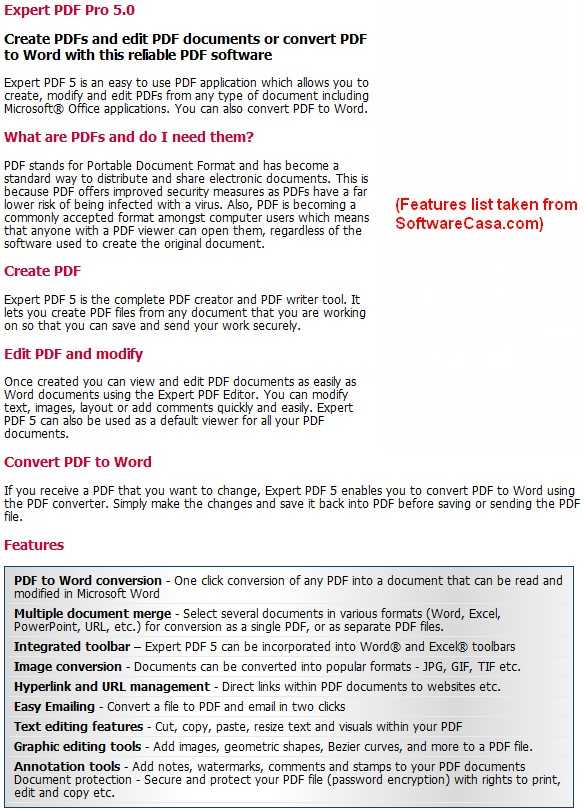
For those that don’t know what eXPert PDF 5 Pro is, here is a quick description of what eXPert PDF 5 Pro can do:
So how to get eXPert PDF 5 Pro?
NOTE: eXPert PDF 5 Pro is not supported on 64-bit machines. Sorry!
UPDATE 8/9/09: There is now a direct English version of eXPert PDF 5 Pro. Therefore you don’t need to follow any of the directions below since they are about how to get the German version and turn it in to English. Just download the English version from the promotion page (click here). You will need to register if you don’t have an Avanquest account already.
After you have eXPert PDF consider reading How To: Fix some eXPert PDF Pro annoyances (prevent PDF Printer from starting on boot and turn it off automatically when you are done using it).
- First, since this is another Chip.de promotion, be sure to visit them once again as a symbolic “thank you”.
- After that, visit the eXPert PDF 5 Pro promotion page.
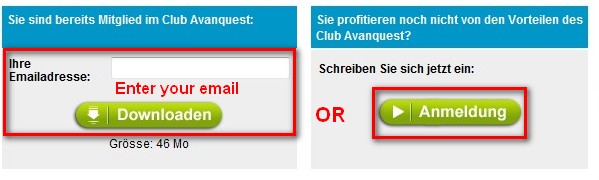
- If you already have an account with Avanquest, type in your email and click “Downloaden”. If you do not have an account with Avanquest, you must register – click “Anmeldung”:
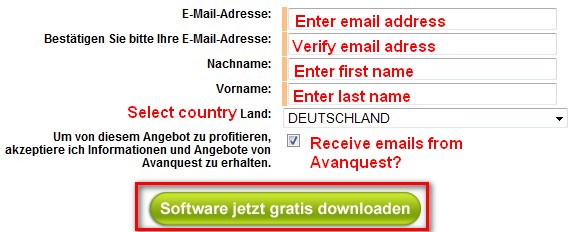
- If you clicked on “Anmeldung” to register, you will have to fill out a form with some information – click “Software jetzt gratis downloaden” when you are done:
- If you already had an email address and you clicked on “Downloaden” or after you registered and clicked on “Software jetzt gratis downloaden” you will be brought to a screen where your serial key will be listed and there will be a download link for eXPert PDF 5 Pro:
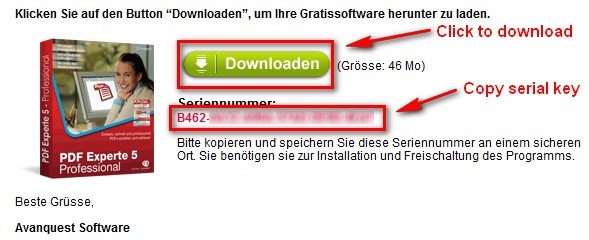
Highlight and copy the serial key (it will also be emailed to you) and click on “Downloaden” to start download eXPert PDF 5 Pro.
NOTE: The download for eXPert PDF 5 Pro was extremely slow for me (took about an hour to download) so don’t be surprised if you get a slow download speed.
- After you download eXPert PDF 5 Pro, run the installer. You will be brought to this screen:
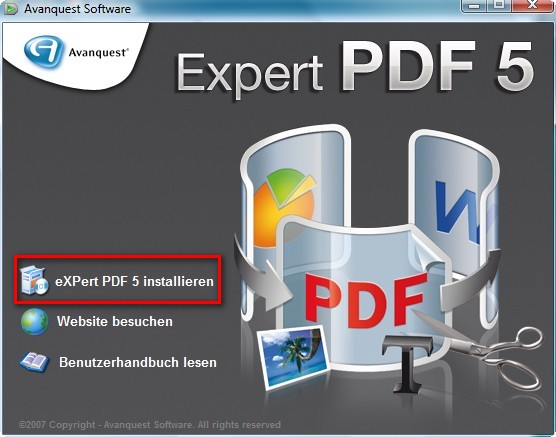
Click on “eXPert PDF 5 Installieren”
NOTE: If you have a previous version of eXPert PDF installed, you may be asked to uninstall it first. Do so.
- At the next screen it asks you to register or something (I am not exactly sure what it is since it is written in German). Just click “X” from the top right to close the window:
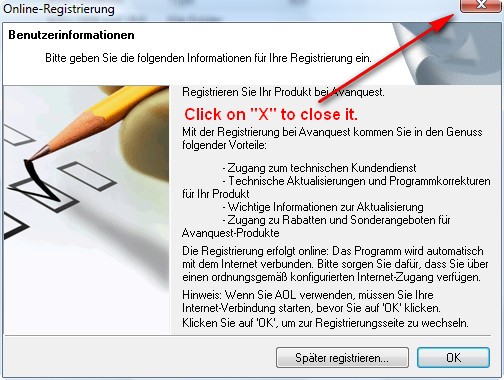
You will be asked something like “Are you sure you want to exit?”. Click “Yes”.
- The next screen will bring up the actual installer. Install eXPert PDF 5 normally:
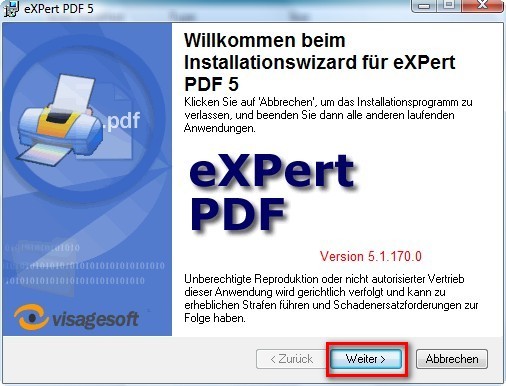
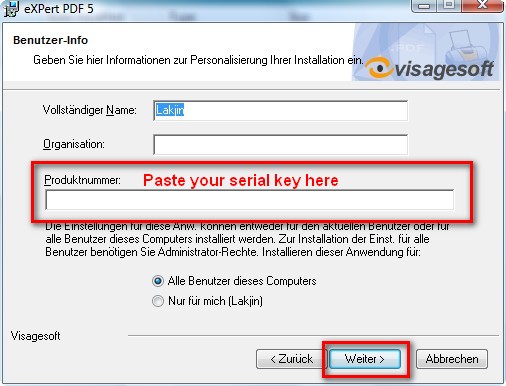
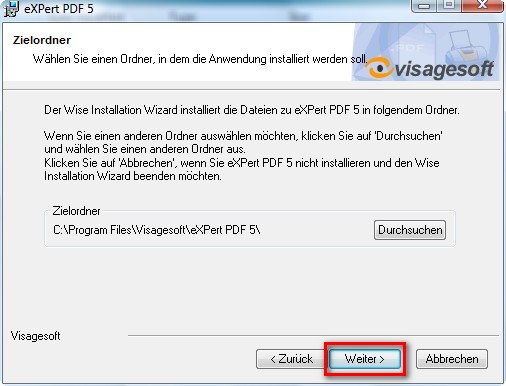
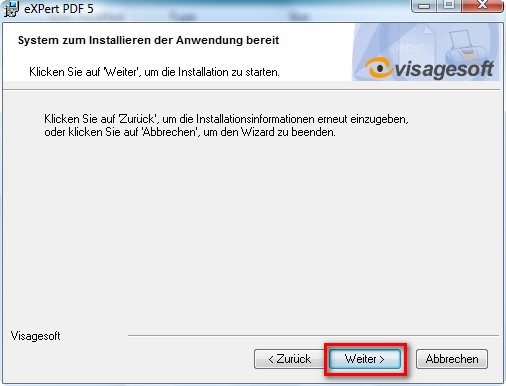
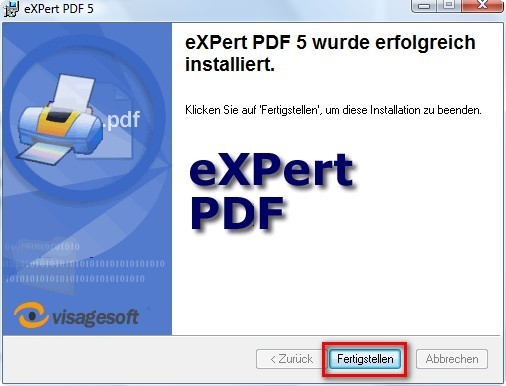
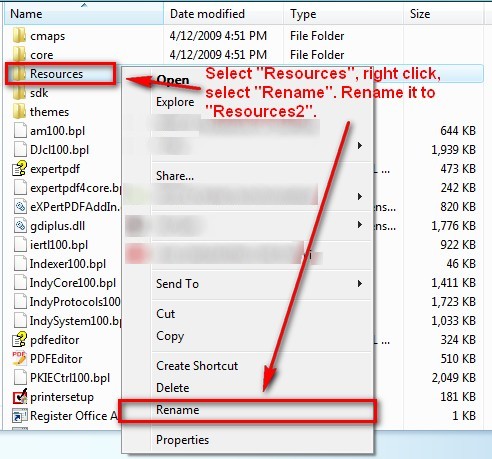
- After you click on “Feertigstellen” at the last installer window you are done installing eXPert PDF 5 Pro. However if you run it, you will notice the program is in German. To turn the program into English go to the folder where you installed eXPert PDF 5 Pro. If you did not change it, by default, this folder will be C:/Program Files/Visagesoft/eXPert PDF 5. There is a “Resources” folder there. Right click on it and rename it to “Resources2″:

- That is it. Now you have a fully functional eXPert PDF 5 Pro in English! However while the program is in English, the help files are not in English. If you would like your help files to be in English, download the the English help files I ripped from the English version (click here) and extract them into C:/Program Files/Visagesoft/eXPert PDF 5. Replace the existing files if prompted.
NOTE1: If you are getting an error while trying to download the help files from the above link, you can try to use the alternative download link: click here.
NOTE2: If you are having problems viewing the help files after you download them:
- Right-click on “expertpdf.chm”
- Click Properties.
- Click Unblock.
- Double-click on “expertpdf.chm” to make sure it is now working.
- Repeat the same for “pdfeditor.chm”.
- Now that you have eXPert PDF consider reading How To: Fix some eXPert PDF Pro annoyances (prevent PDF Printer from starting on boot and turn it off automatically when you are done using it).
Done =). Special thanks to jda2000 for bringing this freebie to my attention.
123 Comments »
Leave A Response »


Email article

I did exactly that and when I double click the files after unblock, it came up web site not connected.
Thanks for this I have been going crazy trying to convert PDF’s to word. I stumbled by here and grabed it. Thank You
You guys are great! Thanks for the Help files!
Janet
A big thank you to Ashraf and all who have helped here!!
One note: After renaming the “Resources” file for English, eXPert PDF Editor ran in English, but eXPert PDF Creator remains in German.
Anyone else find this ????
I seemed to have found the answer to my previous post:
Right click the icon for “eXPert PDF Creator”, > Properties > Compatibility .
Under “Input settings” check “turn on advanced text services” > Apply
Hope this helps, the GUI is in English now.
BTW, I used the English Help fix that Jean L P referred to above, and it worked flawlessly.
Thanks again,
advise to use flashget for fast downloads
from the usa it took me less than 2 minutes
Hi this msg for Stanley:
I had the same problem with getting help files to work properly even after unblocking. After you unblock and click OK, if you check properties again it will show the unblock option again. Some sort of Vista security thing, don’t really understand it myself. I had to go to ‘properties’ and then to ‘security’ and give full permissions (full control) to my user profile for the file. Then try the unblock feature and it should stick this time. check the help file and it should show the proper info. hope that helps.
I tried and it work, now I have the full version that work. Thanks
I was able to change the PDF Editor to english, but not the PDF creator. Does anyone have a fix for this.
Thanks and regards,
steel
I am having the same problem as Janet downloading the English help files. The error message is “Your download has failed. You have an invalid session set.” I tried clearing everything and using different browsers, but still no luck. Any suggestions?
That is odd. My PDF Creator is in English.
Brian please try what EC has stated above.
Here is an alternative download link for the help files for people that are getting errors on FileFront:
http://www.mediafire.com/download.php?ty05km2cddz
The new link works fine. Thanks, Ashraf.
Which Jean?
Sprechen Sie Deutsch? Apparently not. Nachname is ‘Last name’ (not first name), and Vorname is ‘First name’ (not last name). You have them reversed.
Lol someone already informed me of that.
Thank you, Ashraf, for providing the link for the free eXPert PDF 5 Pro
and taking the time to show the steps to download this useful software.
Ashraf,
I tried what EC did trying to get PDF Creator in English and it didn’t work. I’m going to try on another computer and see what happens.
steel
I would try to help you guys out but my PDF Creator is in English so I don’t know what is up.
Hi Ashraf,
Thank you for the tutorial on getting this software and for all your reviews. My PDF Creator is also in German and the fix suggested by EC did not work because I do not have “turn on advanced text services” as a selection on the compatability tab.
Also, I have the Help files on my desktop – how do I extract them into C:/Program Files/Visagesoft/eXPert PDF 5?
This is totally odd. Am I the only one whos PDF Creator is not in German?
For those people who’s PDF Creator is in German, if you want you can try eXPert PDF Pro 4 instead: I have had no reports of parts of it being in French while the other parts in English.
As for the help files: you should have downloaded a ZIP file. Just extract the files (Right click -> Extract here or something) and put them in C:/Program Files/Visagesoft/eXPert PDF 5.
Thank you so much! I had to reboot for another reason and I extracted the help files AND upon checking again my PDF Creator is now in English! All is right with the whole program. Thanks again!
Ashraf,
Like so many others have stated “thanks” for taking the time to detail the installation process. I had to resort to PDF5 when 6 would not show as registered software. Everything is in English but…I do have an issue. I picked a website in FireFox (it happened to be the Avanquest website) and tried to print to a PDF. When I do this all I see in the resulting file are the graphics. No text whatsoever. I then used a different site and got the same result. In fact this website is the same – graphics but no text. I checked the options but do not see how to modify it so that I get in the PDF what I see on the website. Is anyone else having this issue?
Thanks.
Iberg,
It prints w/ text and graphics for me just fine (I just tested it on dotTech). Can you check “File” -> “Print Preview” and see if you can see the text and graphics under there? If not then it is a problem with your computer/browser settings and not eXPert PDF Printer.
Ashraf,
Just checked Print Preview and this page looks good – text and graphics. Very strange. Previous to eXPert PDF Printer software I used PDFCreator (a freeware product) and that worked fine too but it’s functionality is extremely limited – no editing or even inserting new pages into an existing PDF. The eXPert PDF 5 Printer software installed without any issues (once I stopped trying to install it from the original exe file and instead uses RAR to decompress it to a folder. Maybe I’ll just have to use eXPert PDF Editor and skip the creator portion unless anyone has any ideas.