
 Email article
Often times when I am multitasking I copy some text/link/picture/whatever planning on pasting it somewhere else. However before I can paste that information, that I copied, to the proper location I end up copying something else for another task. This annoys the crap out of me because everything right after I do the second copy I think “oh crap I had something else copied”. Well to solve that problem I looked around and found a very handy tool called Clipboardic and thought I should share:
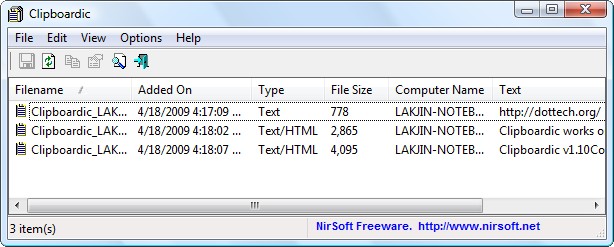
What exactly does Clipboardic do? Well to understand what Clipboardic does you need to first know what happens when you cut/copy (Ctrl + X/Ctrl + C or Right click -> Cut/Copy or [insert method to cut/copy here]) something on your computer. When you cut/copy something in Windows, the data (whether it be just text, or if it includes HTML links, images, etc.) is stored in a “Windows clipboard”. When you paste (Ctrl + V or “Right click” -> Paste” or [insert method to paste here]) the last data entry made into Windows clipboard is the data that is pasted. In other words the last data you copied or cut is pasted.
What Clipboardic does is it monitors your Windows clipboard and every time an entry is made in Windows clipboard, when you copy or cut something, Clipboardic stores it. So if you copy or cut multiple things in succession instead of just being able to paste the last data you copied, all you do is go to Clipboardic and click (single left click) on the entry that contains the specific data you want to paste; then just paste and the proper data will be pasted. Simple, easy and elegant. This way if you are multitasking and you copy multiple data, you can paste it all back, at will, instead of just being able to paste back the last thing you copied.
Furthermore, Clipboardic allows you to easily share your clipboard (copied/cut) data with computers on your network. If you want to do this, all you do is place Clipboardic.exe (Clipboardic is a portable file – no installation required) in a shared network folder. Then just run Clipboardic from the shared network folder whenever you want Clipboardic to capture your clipboard data or if you want access the clipboard data from another computer.
Keep in mind that in order for Clipboardic to work you must have Clipboardic running. This may sound obvious but what I am trying to say is that you cannot copy multiple data and expect Clipboardic to find/capture that data if you run Clipboardic after you copied the data. If you don’t have Clipboardic running while you are copying the data, it will not be able to capture your clipboard data (regardless of if you are sharing it across your network or not). Don’t worry – Clipboardic only takes up ~2 MB of RAM while running so it is not a resource hog at all. Also, since you probably don’t want Clipboardic appears in your Windows taskbar while it is running, if you go to “Options” and select “Put Icon on Try” you can close the Clipboardic program window and it will continue to run from your system tray.
Lastly, I find that Clipboardic is missing one key feature: the ability to auto start at Windows boot. I hope the developer adds in the next version but for now no worries: you can use Windows Task Scheduler to make Clipboardic run at Windows boot. For directions on how to use Task Schedular on XP, click here. For directions on how to use Task Scheduler on Vista, click here.
Ready to get Clipboardic? Clipboardic works on all Windows 2000 and above:




