
Easily keep track of all your clipboard (copied/cut) data and/or share it across your network.
December 14, 2011 56
Email article | Print article
Often times when I am multitasking I copy some text/link/picture/whatever planning on pasting it somewhere else. However before I can paste that information, that I copied, to the proper location I end up copying something else for another task. This annoys the crap out of me because everything right after I do the second copy I think “oh crap I had something else copied”. Well to solve that problem I looked around and found a very handy tool called Clipboardic and thought I should share:
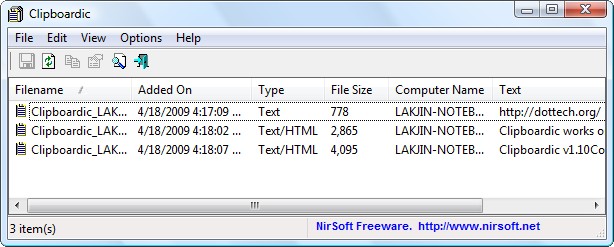
What exactly does Clipboardic do? Well to understand what Clipboardic does you need to first know what happens when you cut/copy (Ctrl + X/Ctrl + C or Right click -> Cut/Copy or [insert method to cut/copy here]) something on your computer. When you cut/copy something in Windows, the data (whether it be just text, or if it includes HTML links, images, etc.) is stored in a “Windows clipboard”. When you paste (Ctrl + V or “Right click” -> Paste” or [insert method to paste here]) the last data entry made into Windows clipboard is the data that is pasted. In other words the last data you copied or cut is pasted.
What Clipboardic does is it monitors your Windows clipboard and every time an entry is made in Windows clipboard, when you copy or cut something, Clipboardic stores it. So if you copy or cut multiple things in succession instead of just being able to paste the last data you copied, all you do is go to Clipboardic and click (single left click) on the entry that contains the specific data you want to paste; then just paste and the proper data will be pasted. Simple, easy and elegant. This way if you are multitasking and you copy multiple data, you can paste it all back, at will, instead of just being able to paste back the last thing you copied.
Furthermore, Clipboardic allows you to easily share your clipboard (copied/cut) data with computers on your network. If you want to do this, all you do is place Clipboardic.exe (Clipboardic is a portable file – no installation required) in a shared network folder. Then just run Clipboardic from the shared network folder whenever you want Clipboardic to capture your clipboard data or if you want access the clipboard data from another computer.
Keep in mind that in order for Clipboardic to work you must have Clipboardic running. This may sound obvious but what I am trying to say is that you cannot copy multiple data and expect Clipboardic to find/capture that data if you run Clipboardic after you copied the data. If you don’t have Clipboardic running while you are copying the data, it will not be able to capture your clipboard data (regardless of if you are sharing it across your network or not). Don’t worry – Clipboardic only takes up ~2 MB of RAM while running so it is not a resource hog at all. Also, since you probably don’t want Clipboardic appears in your Windows taskbar while it is running, if you go to “Options” and select “Put Icon on Try” you can close the Clipboardic program window and it will continue to run from your system tray.
Lastly, I find that Clipboardic is missing one key feature: the ability to auto start at Windows boot. I hope the developer adds in the next version but for now no worries: you can use Windows Task Scheduler to make Clipboardic run at Windows boot. For directions on how to use Task Schedular on XP, click here. For directions on how to use Task Scheduler on Vista, click here.
Ready to get Clipboardic? Clipboardic works on all Windows 2000 and above:






Read your clipboard artical and thought I’d share this one with you. It is now free for personal use. It even will remember URL’S and file paths from copy location. I’ve tried about 10 or more and this one is the best. Even has a built in browser contained within the app itself for quick lookup and linking. http://www.clipmagic.com/
Robert,
As per your suggestion I just gave ClipMagic a quick overview. No doubt it is a good program and it does have quite a few “bells and whistles” features that Clipboardic does not, but I find Clipboardic to be a hell lot more simple and straightforward (plus Clipboardic is standalone so no installation is needed while you do need to install ClipMagic).
Also, I don’t think ClipMagic has the ability to share clipboard data over networks does it? Or did I miss it?
P.S. Built in Screen Capture tools also are included in the program. All functions accessable from handy taskbare icon.
Every clipboard manger I’ve used has failed utterly because of one thing: I use emacs. A lot. And emacs puts TONS of things into the clipboard (like almost every time you delete anything). This is very handy for when you’re in emacs; it’s kind of central to how the editor works. But clipboard managers get all gummed up because they store it all, and the things you wanted to keep track of get buried under tons of little snippets of text.
What I’d like to see is a clipboard manager that allows you to exclude tracking clipboard activity from a specified list of programs.
Do you happen to know if Clipboardic or Clip Magic have this feature?
Thanks….
Not sure about ClipMagic, but Clipboardic can’t. I think I am going to create a list to desired featured and email them to Nirsoft; Clipboardic is a fairly new app so there is a lot of room for improvement.
Sue, try this one. It’s also portable so no install to checkout http://www.joejoesoft.com/cms/showpage.php?cid=97
Hi Ashraf,
Haven’t checked out your recommendation yet, but I surely will.
(Love the no installation)
Regarding the auto start with Windows -
In XP, you can create a shortcut for the exe, and place it into the
Start Menu / Programs / Startup
folder.
Regards,
Rob
Me again.
I notice that it does not minimize to the systray.
It has an option to place an icon in the tray, but what it should do is then use the tray INSTEAD of using up space on the windows Taskbar.
Unfortunately, it does both.
Here is my suggestion. Download -
http://www.teamcti.com/trayit/trayit.htm
That FREE program allows you to tell any program that it should minimize into systray INSTEAD of having a ‘button’ in the Taskbar.
I turned off Clipboardic’s option for sysytray, and then told Trayit to do what I want.
Works fine (no Taskbar ‘button’ when it is minimized)
HTH others,
Rob
Rob,
You have to hit “X”, i.e. close the program window, to make it minimize to system tray (after you have the option to make it appear in tray checked) – minimizing the window will not do it.
Thanks Ashraf,
I still recommend using Trayit, as all I have to do to show Clipboardic, is click the systray icon.
Then to hide it again, I can either -
- Click the systray icon,
or
Click the Taskbar ‘button’ (which is visible, whenever Clipboardic is showing)
Regards,
Rob
PS Trayit can also be used for other programs that lack the systray option.
Sunday, April 19, 2009 – 4:50AM-EST
Hello Ashraf,
I have tried many of these programs over the years and have found ClipX to be the most reliable and most configurable. Give it a try.
Mr. Lee
Hi Ashraf
Great website and info
However, may I ask you to keep the foul language off.
It makes the website unprofessional and may offend.
Thank you
what is the difference betwen clipbordic and spartan clipboard which is an open source?
Mr. Lee,
ClipX is 4 years old O_O. That being said I didn’t download it yet.
Pawel,
Apologies. I will control my self now :).
Andybandy,
Um I googled Spartan Clipboard and it costs $19.95 per license. Are we talking about the same software?
How’s Clipboardic’s memory usage?
Oops, haha. That’s what I get for skimming :P
Hey Ashraf,
It’s been a while, hope you’re doing well.
I paid for a version of a program called Clipmate. Use it everyday, runs at startup.
I just downloaded Clipboardic today even before your review.
I installed it on another machine and works great!
Just to let your readers know, the site where Clipboardic is located has a very large number of useful utilities, however your Anti-Virus software may throw up a bunch of flags for Trojans but these are false positives.
I use their utilities for forensic investigation. Their site is located here:
http://www.nirsoft.net/
Take care Buddy
reghakr!
Welcome back :).
And dude… you just gave away my source of awesome programs. :P
EDIT: Whoops… forgot to ask: how you been?
Thanks,
They are awesome, aren’t they?!
Been OK, very busy though. Some computer genius I am….I had to reformat 3 of my PC’s multiple times. I have an issue with Windows7 and “disappearing” files.
I lost all e-mail contacts, my master password file, thousands of pictures, videos, and mp3′s as well as all the programs I paid for.
I graduated and am now doing some limited forensic consulting. Love it!
I’ll try to come back more often.
If it makes you feel better you aren’t the only one who reformatted the same computer multiple times… if you get what I mean :D
Grats on the graduation. I hope the pay is good.
Sue,
What is an emac ?
Is it an application, or a special version of a Mac (presumably you are running Windows on it ?)
Surely if it is a computer (Mac’s emac), you can turn off that feature. I find it hard to believe that programs would clobber what I had put on the clipboard ? ?
I have taken Robert’s suggestion and downloaded ClipMagic (free for personal use).
It has Rules that can be set, and may assist you Sue ?
I like the internal browser, as sometimes I would like to fire up a browser, without a massive memory hit (My Firefox, Opera, IE7 are all loaded with many Tabs, awaiting me to do something with them).
That internal browser has a setting to ensure that clicked links do not fire up your default browser (that is good).
You can also make the browser full screen with F11 (that is good).
Haven’t tried pasting from it yet, but the week is young.
Rob
The most elegant multiple-copy function (mathematically speaking, i.e., the fewest moves) would probably be with Typing Assistant 4.3 (by SumitSoft)! It has an Auto-Clipboard function which automatically saves as many as your last 50 copy-entries (you can set it for 5, 10, 20, 30, 40, or 50). It will auto-suggest the copy entry if you type the first couple of letters (you can set how many), OR you can get your Auto-Clipboard Dictionary with Alt+Right(arrow) and chose from the list with one click each in whatever order you want them! All this is automatic (I have it open on bootup–it sits in the system tray).
It also has Auto-Expand for words or phrases or macros that you use often. Also Auto-learn, where it learns words you type and Auto-Suggests them. So no matter how fast you type, you can type even faster! But there are two things you must do:
!!!!You must set the options to get optimal results for yourself!!!
1. Set the minimum stringlength you want it to learn. I set it to 7, so it will only auto-learn and then auto-suggest words 7 letters or longer. If you are a fast typist, you might set that even higher, so it just auto-suggests for really long words. This is especially useful when using long specialty words, like in a technical article (e.g., the name of a program, or medical terms, etc etc.)
2. Set how many letters you should type before it shows suggestions. I set this at 2.
3. The great value of this program is felt only after you use it for a while–that is, after it builds up a dictionary from the words YOU have typed. That way, YOU GET TO A POINT WHERE THE WORD YOU WANT IS ALWAYS THE FIRST LISTED (sometimes the second)!!!!
This was a GAOTD offer, and many people criticized the program without bothering to check out the option settings. So the things that bothered them were actually easily solvable.
In any case, regarding this thread, it is great and simple for multiple-copy-pastes….
Janet
@Rob:
http://en.wikipedia.org/wiki/Emacs
Hello Ashraf,
Another great clipboard tool that I’ve been using for years is Mike Lin’s Clipomatic. It works great, is fantastically tiny (96 kb), can be set to autorun on startup, and uses next to nothing in system resources (200k) while running. You can find it at http://www.mlin.net/Clipomatic.shtml.
Dave