
 Email article
{rw_text}Giveaway of the day for April 21, 2009 is:
Version reviewed:
v3.2 Build 0019
Software description as per GOTD:
Foxonic is a powerful and easy-to-use PDF tool. With Foxonic, you can convert TIFF to PDF, JPEG to PDF, BMP to PDF, GIF to PDF and PNG to PDF. You can also merge PDF, split PDF, extract PDF pages, and add watermarks, add page numbers, add/change/remove PDF password/permissions and insert URL linking to the PDF file.
With this PDF tool, you can convert your favorite images, photos, pictures and scanned images of text documents to PDF files with password protection, make your own PDF e-books, PDF photo albums, PDF presentation and PDF slide shows with easy and pleasure, and share your PDF files with others without worry about the security of the PDF files.
Ashraf’s Note:
As Jim pointed out in the GOTD comments, on the developer’s website it shows “Foxonic Professional v3.5”. However we are being given v3.2 at GOTD. Like Jim I was unable to find any type of changelog so I can’t specify the differences between v3.5 and v3.2.
————————-{/rw_text} –>
{rw_good}
- Supports batch conversions.
- Can convert TIFF, JPEG, BMP, GIF and PNG images to PDFs.
- Allows you to add text or image watermarks to PDFs.
- Allows you to insert header and/or footer into generated PDFs.
- Allows you to control security and permissions of generated PDFs.
- Allows you to edit document info (author, subject, etc.)
- You can convert multiple images into one PDF or single images into single PDFs.
- Has a PDF merger, splitter and page extractor.
- Decent end-product quality.
- Informative “Help” section.
{/rw_good} –>
{rw_bad}
- Fairly crowded interface.
- Does not properly show the image thumbnails in the file browser.
- Can only have one watermark per PDF (text or image).
- Only supports converting images to PDFs – no text files, etc.
- A built in “import from scanner” feature would have been nice.
{/rw_bad} –>
{rw_score}
{for=”Features as Described” value=”10″}Works like it claims.
{/for}
{for=”Ease of Use” value=”7″}The interface is fairly crowded and overwhelming (in my opinion); however once you figure it out all it is easy to use.
{/for}
{for=”Performance” value=”7″}Not too heavy on computer resources, conversions to PDFs are quick and output quality is decent.
{/for}
{for=”Usefulness” value=”6″}I can’t see this product being very useful to many people. If it allowed you to convert more than just image files to PDF I could see it being used by many. But it doesn’t. However the reason this gets a 6 and not a lower score in this category is because the PDF merger/splitter/page extrator can be fairly useful.
{/for}
{for=”Arbitrary Equalizer” value=”7″}This category reflects an arbitrary number that does not specifically stand for anything. Rather this number is used to reflect my overall rating/verdict of the program in which I considered all the features and free alternatives.
{/for}
{/rw_score} –>
{rw_verdict}[tup]
{/rw_verdict} –>
Registration and installation went fine. Be sure to run Activate.exe after you install Foxonic Pro.
Foxonic Professional is a program that was made to allow you to convert image files to PDFs. As much as I would like to say it is “easy to use” I can’t; I find the interface for Foxonic Pro to be too overcrowded:
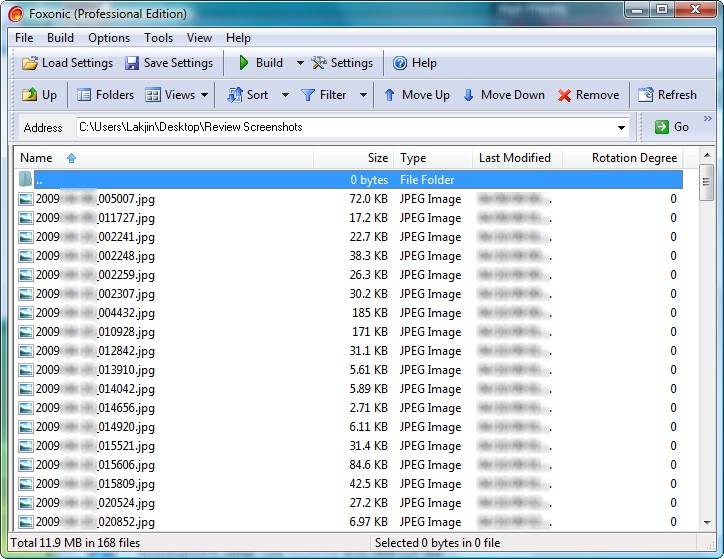
As you can see in the above screenshot, Foxonic Pro is designed to resemble a file browser of sorts. You browse your computer and view your files from within the program. I personally would prefer a simple browse-your-computer for desired images you want to convert to PDFs type of interface as opposed to the built in file browser; the file browser and all the options/features to go along with it (filter, sort, etc.) just make the interface look overcrowded (keep in mind you can turn off some of the toolbars if you wish).
Also, note that instead of displaying the thumbnails of each image, to give a preview of what each image is, Foxonic just displays the generic Windows thumbnail image. Not sure why but it seems Foxonic is unable to display a preview thumbnail for images. This screenshot illustrates what I mean better:
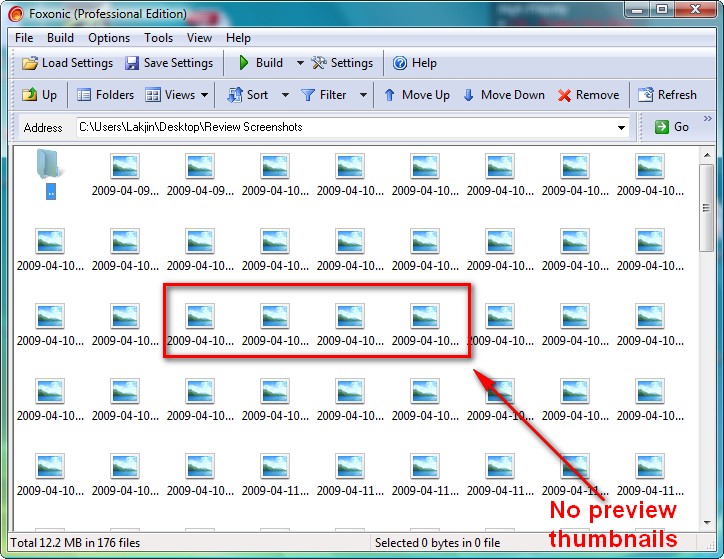
It may just be me but this bug is really annoying since image file names do not necessarily tell a person what the image is; viewing a thumbnail is a must. And yes I made sure to run Foxonic as Administrator so that is not the issue.
Anyway, before you start converting any files, first visit “Settings”:

As you can see there are many tabs under settings. For beginners be sure to visit the “General” tab and set the settings accordingly. If you want to enter a header or footer into your generated PDF, visit the “Page Header & Footer” tab; if you want to edit PDF metadata such as author, title, subject, etc. visit “Document Info”; if you want to encrypt/password protect your PDF, go to “PDF Security”; if you want to add a text or image watermark go to “Watermarks”. For more detail on what each setting tabs contains please click here.
After you are satisfied with your settings you can being to convert images to PDFs. Foxonic Pro allows you to convert TIFF, JPEG, BMP, GIF and PNG images to PDFs. Go back to the main program window and browse your computer until you find the desired image files. Select all the images, right click and select “Build Select files to PDF”:
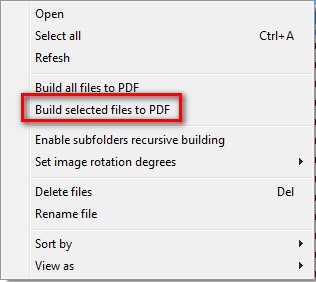
Alternatively you can also click on “Build all files to PDF”; the difference between the two options is that “Build select files to PDF” will only convert the files you have selected to PDF while “Build all files to PDF” will convert all image files in the folder you are currently in to PDFs. Regardless of which one you choose, converting images to PDF does not take long so just sit and wait for the files to convert. Also, depending on the settings you set, you will either have one PDF or multiple PDFs outputs; they may be the same name or different name as the original image files and they may be in the same location or different location as the original image files. Before long you should see a message box telling you the conversion to PDFs was a success:
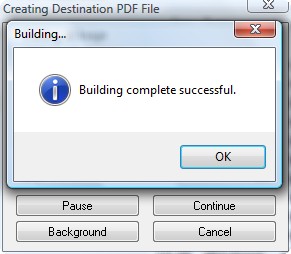
Just click “OK” and go browse for your PDFs and do with them as you wish. Before you close Foxonic remember to save your settings if you plan on using the same/similar settings in the future.
In addition to being able to covert images to PDFs, Foxonic has three more handy tools:
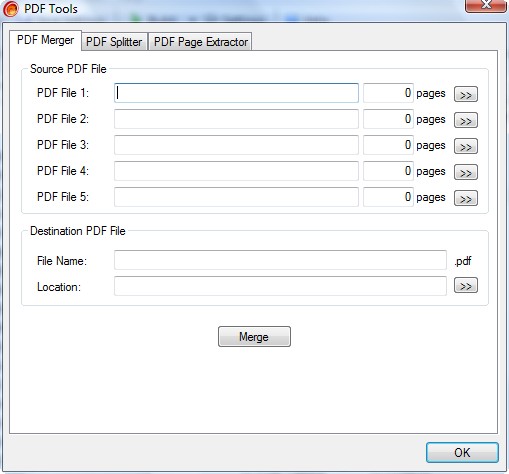
- PDF Merger (under “Tools”)
This tool allows you to merge multiple PDFs together into one PDF file. You can merge upto 5 PDFs together at a time.
- PDF Splitter (under “Tools”)
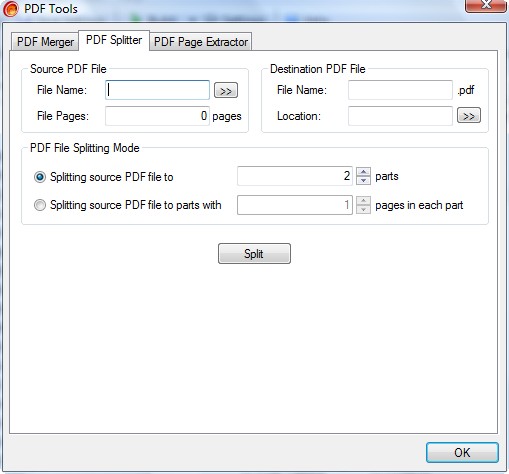
This tool allows you to split one PDF into multiple different PDFs. You can split the PDF either into X amount of equal parts of you can split the PDF so each part has X amount of pages.
- PDF Page Extractor (under “Tools”)
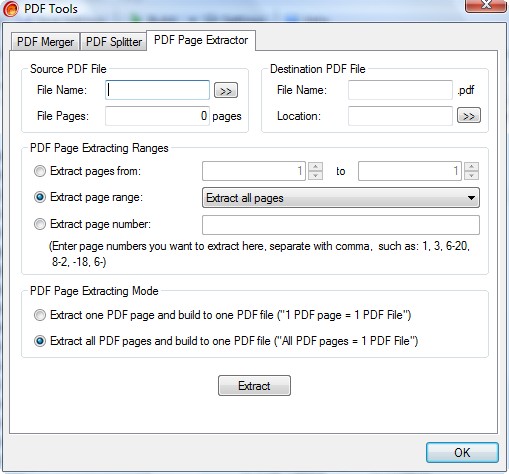
This tool allows you to extract certain pages from a PDF file. You can either define what pages you want to extract or you can use a predefined range: all the pages. first page, last page, odd pages, or even pages. You can also select if you want each extracted page to be an individual PDF or all of them should be combined to create one PDF.
Okay that is more or less the whole program. I am sure you are wondering now the quality of the PDFs created by Foxonic. Well wonder no longer. I used three images, one JPG, one PNG and one BMP and converted all three to PDFs. For convenience I zipped them all up. You can download them by clicking here. As you can see in the examples, the PDFs are of decent quality; not great but not too bad either.
Overall, I give Foxonic Professional a thumbs up. Yes it has its drawbacks but overall I think it is a good program; I especially like the PDF merger, splitter and page extractor features. However as I said there are drawbacks; these drawbacks include:
- Only being able to add one text or image watermark to each PDF.
- Only being able to convert images to PDFs. In today’s world with so many free PDF creators and printers, a program needs to be able to do more than just images to PDF to survive.
Also, this is more of a fancy wishlist but I wish Foxicon had some sort of “import from scanner” feature. You see usually the reason why people want to convert images to PDF is because they scanned something and would like it in PDF format. If Foxonic had a “import from scanner” feature, it would be very handy to import the image directly into Foxonic and convert it into a PDF.
This review was conducted on a laptop running Windows Vista Home Premium 32-bit. The specs of the laptop are as follows: 3GB of RAM, a Radeon HD 2600 512MB graphics card, and an Intel T8300 2.4GHz Core 2 Duo processor.
{rw_freea}
eXPert PDF Pro 5 is a professional PDF program that allows you to create, edit and convert PDFs. eXPert PDF comes with a “PDF Printer” that you can use to convert literally anything that you can print (File -> Print) into a PDF. Or you can use the “Batch Creator” instead of the PDF Printer to convert many different file types, including image and text files, into PDFs. On top of all that, you can edit your PDFs very easily, add watermarks, export pages, merge PDFs, etc. eXPert PDF Pro 5 is a great, great program.
To compare the quality of eXPert PDF Pro 5 and Foxonic, I took the same three images I used for Foxonic examples and converted them to PDF with eXPert PDF Pro. You can download them by clicking here. As you can tell, the quality of the PDFs created with eXPert PDF Pro is noticeably better (I used “Batch Creator” btw instead of the PDF printer).
{/rw_freea} –>
{rw_verdict2}I give Foxonic a thumbs up. It is a good program that has handy tools. However I do not recommend it. I do not recommend it because in front of eXPert PDF Pro, Foxonic looks like a baby: Foxonic can only convert images to PDF while eXPert PDF Pro can do images plus many more different types of files, including text files. Not to mention eXPert PDF Pro output PDFs are of better quality and you can not only create but also edit PDFs with eXPert PDF Pro. Thumbs up for Foxonic but eXPert PDF Pro is my recommendation for today. ***Note: eXPert PDF Pro 5 is not supported on 64-bit machines… sorry =(.
{/rw_verdict2} –>
