[Review] ShellLess Explorer 1.24

May 10, 2009 37 Email article | Print article

{rw_text}Giveaway of the day for May 10, 2009 is:

ShellLess Explorer 1.24

Version reviewed:

v1.24 Build 0427

Software description as per GOTD:

ShellLess Explorer is a powerful file explorer replacement which is based on windows shell COM+. It easy to use yet powerful. It has all the shell goodies from windows explorer – but has far more features to make up a complete file explorer.

Features:

  • Tabbed Multi-Panel Interface – Ultra easy to work with numerous folders at the same time.
  • Fast and easy to navigate to any places you want – A navigation bar and a list of MRU files/folders are provided.
  • Quick File Finder – Too many files to find what you want?Just type the name and get it!
  • Undo List – Lists all the file operations you did and allows you to undo any of them.
  • Fully Customizable – Tool bars, menus, hot keys, themes, layouts…
  • To-do Cart – Drag and drop files to the cart from different folders, and then copy/move at a time!
  • Add-ONs – Supports most of the third-party shell add-ons for windows explorer…
  • Others – Favorite bar, History record…

————————-{/rw_text} –>

{rw_good}

  • Nice tabbed interface.
  • You can save open tabs as “template” which you can open later.
  • Has a “favorites” system.
  • You can navigate multiple different locations (multiple panes) at once.
  • Supports drag + drop from one pane to another.
  • You can set/edit hotkeys.
  • Toolbars are fully customizable.
  • Provides easy access to some Windows tools like command prompt.
  • Has pretty much all Windows explorer features built in + a little more (“To do” list, “Undo” list, etc.).

{/rw_good} –>

{rw_bad}

  • Won’t open any folders if ShellLess is default viewer – I get error. Fixed
  • Doesn’t seem to be a way to edit the entries in “Places”.
  • “Undo” list does not work in Vista.
  • “History” is not 100% accurate.

{/rw_bad} –>

{rw_score}
{for=”Features as Described” value=”10″}All features are there.
{/for}
{for=”Ease of Use” value=”9″}Takes a little time to understand what all the buttons, menus, toolbars mean but overall very easy to use.
{/for}
{for=”Performance” value=”9″}A little bit more resource intensive than I would have liked but performs great otherwise.
{/for}
{for=”Usefulness” value=”8″}Yes ShellLess Explorer does everything the regular Windows but the extra features, such as a tabbed interface, make it useful in my opinion.
{/for}
{for=”Arbitrary Equalizer” value=”9″}This category reflects an arbitrary number that does not specifically stand for anything. Rather this number is used to reflect my overall rating/verdict of the program in which I considered all the features and free alternatives.
{/for}
{/rw_score} –>

{rw_verdict}[tupr]
{/rw_verdict} –>

***Apologies for not publishing this review earlier. It has been sitting as a draft in my posts list since last night… I must have fallen asleep hitting the “Publish” button!***

Registration and information went fine.

ShellLess Explorer is a program who’s intention is to completely replace Windows explorer. It has all the tools of Windows explorer packed into one convenient window.

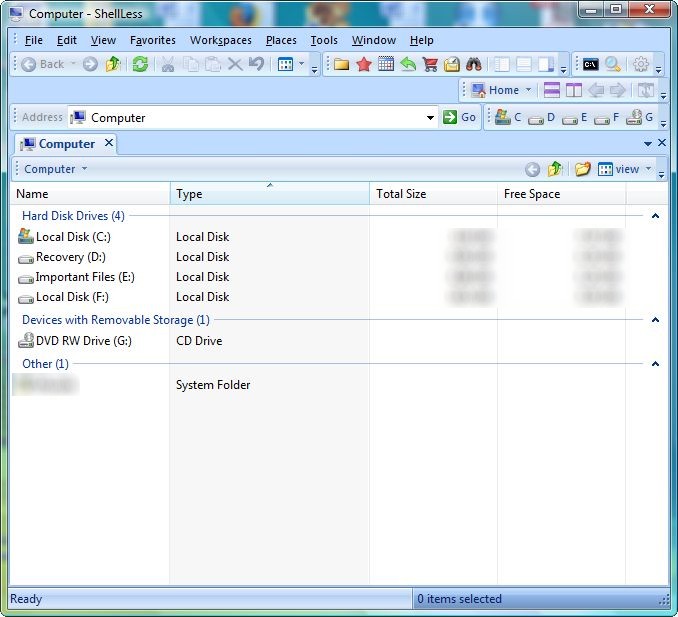
This is what ShellLess Explorer looks like:
2009-05-10_095649

As you can see SE (ShellLess Explorer) has a nice clean interface. By default there are many toolbars turned on:

2009-05-10_100900

You can turn these toolbars on/off, move them around and customize which buttons show up.

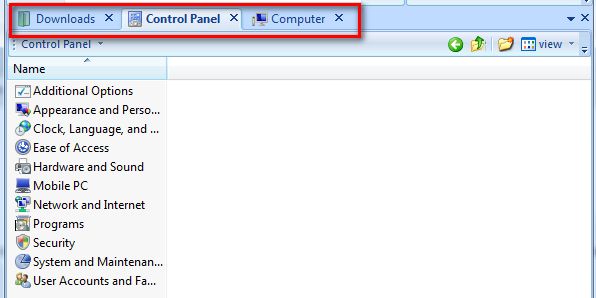
One thing to note right off the bat is that ShellLess Explorer has a tabbed interface. It works just like Firefox, IE, Chrome, etc.: you can open up as many tabs you want and each tab has a different folder/location opened in it:
2009-05-10_101507

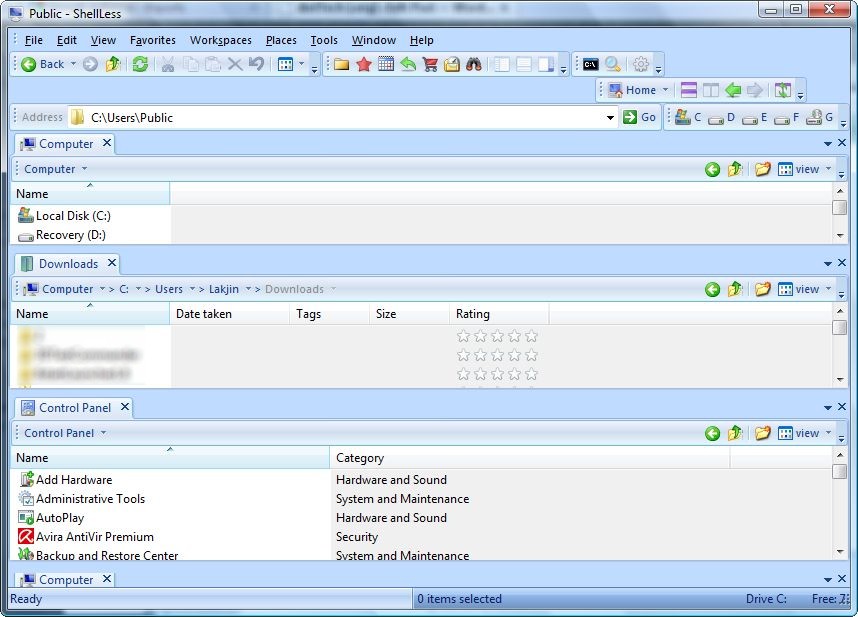
This tabbed interface is very handy and, in my opinion, one of the best features of SE. In addition to a tabbed interface you can open up different “panes” and view different folders/locations at the same thing:

2009-05-10_1017581

In the above screenshot I have three panes opened but you can have as many as you want. Each pane has its own tabbed interface and each pane is resizeable. If you would prefer different panes to be opened horizontally instead of vertically you can do that also:
2009-05-10_102102

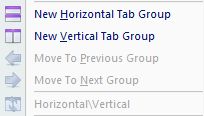
You can’t, however, have horizontal and vertical panes at once – you must pick either or. You can create panes either via the toolbar buttons or from under “Windows”:

2009-05-10_102437

or

2009-05-10_102429

“Horizontal\Vertical” allows you to switch between horizontal and vertical panes. In other words if you have vertical panes and you click on that button/menu entry, the panes will be turned into horizontal ones and vice versa.

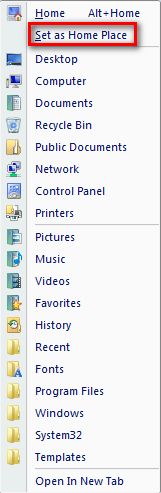
By default when you open ShellLess Explorer it is set to show you your “My Computer”.  This is because “My Computer” is your “Home”. You can change this by going to “Places” -> “Set as Home”:
2009-05-10_095944

“Set as Home” will set whatever tab is open and active as the “Home”. The “Home” is just like the “homepage” in a browser.

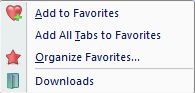
Additionally, as you can see, “Places” has links to other locations on your system including Desktop, Documents, Control Panel etc. The purpose of “Places” is to allow you quick access to commonly used folders on your computer. When you click on one of the places it will open up in ShellLess Explorer. Personally I found it annoying that there was no way to edit the “Places” because I would like to add/remove some places but that is not such a big deal because SE has a “Favorites” system:
2009-05-10_100341

The “Favorites” in SE work the same way as they do in Firefox, IE, Chrome, etc. – you can add your open tabs as favorites. When you add something to favorites it is placed in the list, just like the “Downloads” folder you see above, and whenever you want to go to them just click on their respective entry under “Favorites”.

There is a “Workspaces” feature that allows you to save all current open tabs as a “workspace”. Then the next time you open that “workspace” all the saved tabs open:

2009-05-10_102951

Here are a few more features of SE:

2009-05-10_103458

  • “History” – just like the “History” in a browser: this feature shows you all the files and folders you accessed organized by day:
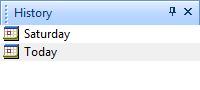
2009-05-10_103812

I found that “History” was not very accurate: many folders I went to where not recorded in “History”. However all files I opened where.

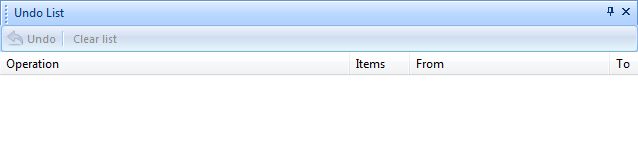
  • “Undo” list – this feature keep tracks of all the file changes you back (rename, delete, etc.) and allows you to undo them:

2009-05-10_104109

Unfortunately the “Undo” list does not work in Vista.
  • “To do” list – this feature serves as a “temporary file holder”. What I mean is you can drag + drop files and folders into the “to do” list and move them to other locations one at a time:

2009-05-10_104452

  • “Recent files and folders” – this feature shows you all the recent files and folders you have accessed. This is different than history because it does not record all your daily activity and I found this to be more accurate:
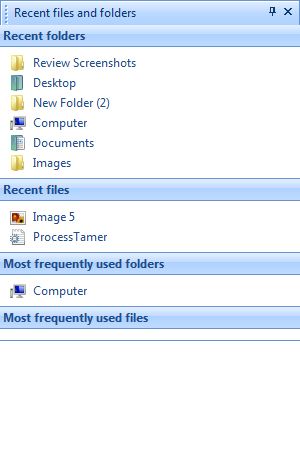
2009-05-10_104614

  • “Quick find” – this feature allows you to search the files in the tab you have currently active. This is not the Windows search equivalent – this is more like the Ctrl + F equivalent:
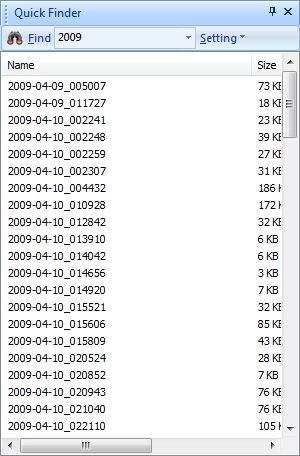
2009-05-10_104801

If you are looking to search your computer, you will find search under “Tools”.

Speaking of “Tools”, these are all the “tools” you can access directly from SE:
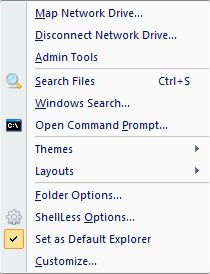
2009-05-10_105128

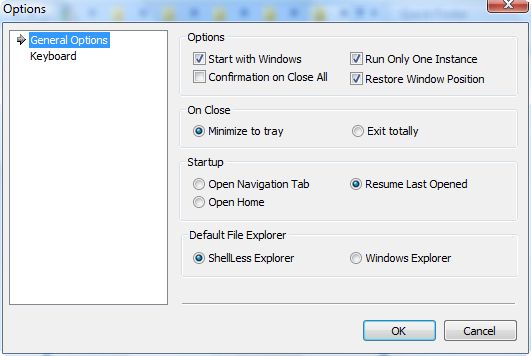
These are the “ShellLess Options”:

2009-05-10_111319

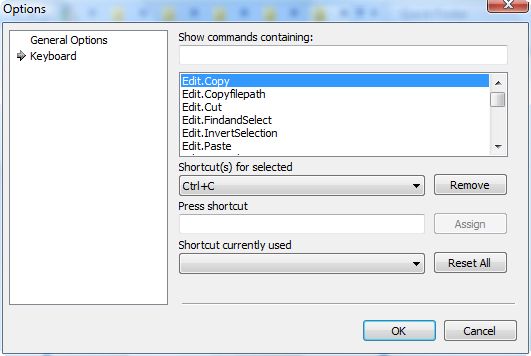
2009-05-10_111402

“Keyboard” allows you to set/edit hotkeys to certain actions (such as as you see in the above screenshot I can edit the hotkey for “Copy”). Here are all the actions you can set/edit hotkeys to:

2009-05-10_111524

One thing to keep in mind is that with Windows explorer replacement programs, computer resource usage (CPU and RAM) will always fluctuate depending on how files are in the folder you are viewing. For ShellLess, it depends on how many tabs you have open and how many files you have in the folders opened in each tab. On average for me ShellLess Explorer RAM usage is around ~20-22 MB and CPU usage fluctuates between 0-15% depending on what I am doing (usually stayed under 10%). CPU did spike to 35% once (when I scrolled from the top all the way down in my screenshots folder which has ~500 items in it – I had two panes w/ four tabs open in each one at the time) but it came back down the next second.

Now there are more features of ShellLess Explorer that I have not discussed – it has all of Windows explorer features built in + a lot more features all in one convenient program. However I am sure you get the point by now: ShellLess Explorer is a good program. I give ShellLess Explorer a thumbs up.

Initially I was planning on giving ShellLess Explorer a thumbs down because whenever I set ShellLess Explorer as my default browser I could not open any folders – I kept getting the following error:

2009-05-10_004450

However I have since restarted my computer a couple of times and everything seems to be working now – I don’t get that error when I try to open a folder and SE is the default browser.

This review was conducted on a laptop running Windows Vista Home Premium 32-bit. The specs of the laptop are as follows: 3GB of RAM, a Radeon HD 2600 512MB graphics card, and an Intel T8300 2.4GHz Core 2 Duo processor.
{rw_freea}

xplorer²

FreeCommander

{/rw_freea} –>

{rw_verdict2}I have never been interested in Windows explorer replacement programs; until today I have found them to be more annoying than useful. However ShellLess Explorer has impressed me in ways other Windows explorer replacement programs have not (tabbed interface, multiple pane support, favorites, editing hotkeys, etc.). ShellLess Explorer is a great program and I really like it: thumbs up and recommended.
{/rw_verdict2} –>

37 Comments »

  1. Steve May 10, 2009 at 11:43 AM (comment permalink) -

    Someone from GAOTD mentioned high CPU usage:

    ———————————–
    I had two tab groups open and four tabs within each tab group. I opened the task manager to check memory usage etc and noticed that ShellLess was using 50% cpu and 53 Mb of memory. I’m running an Intel Duo CPU with 2.66 GHz and 4Gb RAM. On closing ShellLess the memory useage dropped to 42 Mb but the CPU usage stayed at around 50% but fluctuating. On manually killing ShellLess the CPU usage dropped to 0-1%, at this point I only had Firefox open with one tab (GiveAwayOfTheDay). I’ve repeated this several times and each time the same result.

    Whilst it’s functionality looks very good, I’m rather disappointed that it hogs so much CPU and then still keeps running at the same CPU level despite being closed. I’ve never experienced this on my PC before and I keep my PC in fairly good shape.
    ——————————————–

    could you comment on this?

    1
  2. Tortuga May 10, 2009 at 11:44 AM (comment permalink) -

    Hey there ‘Sleepy Head’;-)
    Many Thanks Ash!

    I knew I wasn’t blind, as I went back to read the comments on GOTD & saw several ppl posting “distraught” messages for you in there!! :D

    Peace!

    2
  3. David Roper May 10, 2009 at 11:51 AM (comment permalink) -

    Indeed this Explorer shell looks good to me, too. Any shell that has an active, listen-to-the-user type programmer behind it is better than MS software.

    Alas, Alak, I have fallen in love with another, though. Q-DIR. It’s small enough to keep in my pocket. A new version comes out everytime you turn around. I like bug fixes a lot.

    3
  4. Ashraf May 10, 2009 at 11:52 AM (comment permalink) -
    Mr. Boss

    @Steve,
    CPU usage and RAM usage will fluctuate depending on how many items you have in the folder you have open with ShellLess Explorer and how big they are – the same is with any explorer replacement as far as I know. However I am not sure where that person is getting his/her numbers from. Maybe the four tabs in each pane he had open had thousands of files in each them.

    As per my testing: on average for me RAM usage was around ~20-22 MB and CPU usage fluctuated between 0-15% depending on what you were doing (usually stayed under 10%). CPU did spike to 35% once (when I scrolled from the top all the way down in my screenshots folder which has ~500 items in it) but it came back down the next second.

    4
  5. Ashraf May 10, 2009 at 11:54 AM (comment permalink) -
    Mr. Boss

    @David
    Q-Dir? The one with four panes? That is actually on my list of software to talk about… if I ever get around to it. :D

    5
  6. Tortuga May 10, 2009 at 1:03 PM (comment permalink) -

    Hi Ash

    I really do like this program!!
    Been using ShellLess since version 1.07 was offered back in September and really like it a lot. The Tabs and the Favourites are fantastikk!! The integrated search is autocomplete which helps a lot. And the Cart is great, it saves A LOT of steps. And most everything is highly customizable.
    I said BaBye to WinExplorer since!
    It can be used instead *OR* in conjunction w WinExplorer, cause there is no need to set ShellLess as the default, or even to add it to the StartUp. It adds an entry to the Context Menu, so you can call it from there when you need it.

    There are a few problems though, needs to be Refreshed a lot & it corrupts easily, so has to be closed/reopened
    Do hope this has been resolved in the new version, haven’t installed the new one yet.

    I have a question
    - When one has the ‘Drives’ Toolbar enabled, ‘ALL’ the drives appear, even the A & B, plus the Floppy & DVD Drives. So in my case there is an entire alphabet soup, since I have several partitions on my internal, plus 3 externals always plugged in – also partitioned. Its a very looong Drives TBar, which is VERY annoying.
    Have you found a way to change this? Under Customize on the Drive’s TBar, all the drives are listed but they are all greyed out but the ‘A’, there’s no way to untick any of the others.
    What am I doing wrong?

    Oh, also – Did you uninstall the previous one b4 installing the new version? I know! I know! I always ask the same thing …

    Have to go do some ‘real’ work, be back later
    Ciao

    6
  7. Ashraf May 10, 2009 at 1:11 PM (comment permalink) -
    Mr. Boss

    @Tortuga
    Yes I have =). Right click on the 5 dots which are on the very left of the toolbar. You should be able to remove each individual drive.

    As for uninstall previous version: No I didn’t because I didn’t have a previous version – this is the first time I have used this program. I believe I didn’t discover GOTD back when it was last given out.

    7
  8. Janet May 10, 2009 at 1:41 PM (comment permalink) -

    To Tortuga and Ashraf:

    R-clicking ANYWHERE on the Drives Toolbar gives the Customize Drive Toolbar…:-)….But it sounds like Tortuga already found that and is not able to select the drives he wants to remove…In mine, C,D,E,F,G,H are shown all (no A or B). They can be toggled on and off to show or hide. Sounds different from what you have. I’m om XP Pro and this is the first time I installed the program.

    Janet

    8
  9. Ashraf May 10, 2009 at 1:47 PM (comment permalink) -
    Mr. Boss

    @Janet: Thanks for pointing out you can click anywhere.
    Also I think you are right Janet that Tortuga already tried it: I misread what he wrote.

    @Tortuga: I have no idea why your drives are grayed out. Sorry bro.

    9
  10. Ashraf May 10, 2009 at 1:50 PM (comment permalink) -
    Mr. Boss

    @Ashraf: This new reply feature is so cool. Okay enough off topic.

    10
  11. Janet May 10, 2009 at 1:55 PM (comment permalink) -

    Tortuga:

    What OS are you? If you are XP Pro like me, perhaps you should uninstall with RevoUninstaller and re-install? How did the Customize Drive Tool work on the earlier addition?

    Janet

    11
  12. Janet May 10, 2009 at 1:59 PM (comment permalink) -

    Ashraf:

    I was very pleased with the new Edit function too! When I went to edit my last post however, it said I couldn’t edit my post after other posts have been posted–even though no other posts had been posted…:-)…! So I have yet to see if it works…..:-)…

    Janet.

    12
  13. Harerton Dourado May 10, 2009 at 2:23 PM (comment permalink) -

    Hi from Brazil,

    I use Q-Dir as Windows Explorer replacement.

    Highly customizable!

    http://www.softwareok.com/?seite=Freeware/Q-Dir

    Keep up the good work!

    13
  14. Ashraf May 10, 2009 at 2:24 PM (comment permalink) -
    Mr. Boss

    @Janet: I probably made a comment after your comment before you got a chance to edit. I am fast like the flash when it comes to comments :P

    @Janet: Good suggestion. It is always a good policy to uninstall before upgrading unless you upgrade from within the program itself.

    14
  15. Mags May 10, 2009 at 2:53 PM (comment permalink) -

    I really like ShellLess except for one thing, and so far haven’t seen anyone else post about it.

    Because of my business, I need to make new folders rather frequently. But in ShellLess I haven’t found where you can make a new folder. To me this is very important. If it is there I haven’t found it.

    Today though I haven’t had much time to really look through it.

    If anyone has found it can you please let me know.

    Thx.

    15
  16. Ashraf May 10, 2009 at 2:58 PM (comment permalink) -
    Mr. Boss

    @Mags: Right clicking in ShellLess should give you the same exact right click menu as if you were using Windows explorer. From that menu you can “New” -> “Folder”.

    If right clicking is too slow, you can add a “Create new folder” button to a toolbar. To add the button go to “Tools” -> “Customize”. Then go to “Commands” -> “File”. Drag the “New Folder” button from the window onto any toolbar. You can even create your own toolbar.

    16
  17. Jean-Luc Picard May 10, 2009 at 7:21 PM (comment permalink) -

    @Ashraf: Really? Flash on my computer is slow.
    EDIT: I do love editing!
    EDIT 2: Fixed typo in the edit.

    17
  18. Mohammed Sarhan May 10, 2009 at 10:26 PM (comment permalink) -

    Also, one of the free alternatives is the old version of xplorer lite which was called 2X Exploerer. 2X Explorer although old and stopped and replaced by versions of Xplorer but I think It must be one of the free alternatives. You should try It, Ashraf.

    Here is the link:
    http://netez.com/2xExplorer/

    P.S. Although dead since 2004, 2X Explorer is very familiar and good, I think.

    The table of differences between 2X Explorer, Xplorer lite and Xplorer Pro -Paid- is listed in the link you posted in the free alternatives.

    18
  19. cala May 10, 2009 at 10:55 PM (comment permalink) -

    First I must say thanks for your reviews.
    I have one question.
    In a program called Total Commander you can copy files/folders from one pane to the other pressing only two keys (F5 then Enter).
    Is there any possibility to have/make such a command/custom command in this program?
    Thanks.

    19
  20. Ashraf May 10, 2009 at 11:26 PM (comment permalink) -
    Mr. Boss

    @cala: Why just Ctrl C then Ctrl V? Or drag + drop? If that doesn’t work you can always edit the hotkeys from under “ShellLess Options” -> “Keyboard”.

    20
  21. Farrukh May 10, 2009 at 11:46 PM (comment permalink) -

    AOA
    ShellLess is pretty good tool and is inherited from Windows Explorer, so mostly it got those features.
    I’m using Tortoise CVS, a CVS client integrated in Windows explorer. In context menu it is fine, but in the explorer columns (like file version, date modified etc) ShellLess can’t show CVS information (Free-Command can’t do that as well) but windows explorer can.

    Its not as good while dealing with Network Locations (in a LAN) as Windows Explorer . Like I tried to explore one shared resource in our network, but in the Folder Pane it was unable to reach the Shared Machine address, instead was showing the Domain in which my Shared Machine was located.
    (BTW, Free-Commander is slow with Network locations, but better than ShellLess Explorer)

    I have been using Free-Commander since 3 or 4 months and I still find it much better than ShellLes Explorer, because of its better multi-pane with separate folder-explorer features, plus better handling of shortcuts and managing these into groups.

    In addition, in FreeCommander, we have built-in file viewers, better management of editing tool, (I use NotePad++) and ftp support.

    The contents of Start Menu (for all users and current user) are available via similar menu, so you can user FreeCommander as a separate shell.

    But overall ShellLess Explorer is a good replacement of Windows Explorer because of its Multi Pane and Multi Tab support plus other useful features which are not part of Windows Explorer

    1 Thumb Up for this :)

    21
  22. Ashraf May 10, 2009 at 11:57 PM (comment permalink) -
    Mr. Boss

    @Farrukh: Wasalaam. Thanks for your review!

    22
  23. Janet May 11, 2009 at 12:21 AM (comment permalink) -

    Hi Farrukh!

    What did you mean by “built-in file viewers” in FreeCommander?

    Thanks,
    Janet

    23
  24. Farrukh May 11, 2009 at 12:58 AM (comment permalink) -

    @Janet:
    Hi Janet,
    Sorry for my spelling mistake i.e. its Built-in file Viewer.

    There is a built-in File Viewer (Shortcut F3) which you can use to see the contents of file. Its part of Free-Commander.

    This viewer can work with multiple formats like .txt, .rtf, .doc, html, bmp, jpg, mp3, etc. Overall an excellent piece of tool built-in to Free-Commander.

    24
  25. Janet May 11, 2009 at 3:33 AM (comment permalink) -

    @Farrukh

    That’s what I thought you meant…But isn’t that incredible?!?! If it opens text files and image files, and html files and sound files, it must be a very heavy program, no? Does it open them in the active window or in a new window?

    Janet

    25

Leave A Response »