
 Email article
Today’s Software
- WindowPad: control window locations with hotkeys
- Acronis Drive Monitor: check drive health
- CPU-M Benchmark: benchmark, erm, your CPU…?
Subscribe to our Windows section to never miss an article: RSS Feed | E-mail
About Windows Software of the Day
Windows has hundreds of thousands of programs. Because of this great volume and lack of a central store, software discovery (aka finding new and useful programs) is extremely difficult. With our Windows Software of the Day initiative, dotTech aims to change that. Everyday we post three programs, allowing our readers to discover new software, daily. Enjoy! [Subscribe to our Windows section to never miss an article: RSS Feed | E-mail]
Developers: Click here to get your apps featured here!
dotTechies: Want to see an app on here? Send us a tip!
Software for June 26, 2012
WindowPad
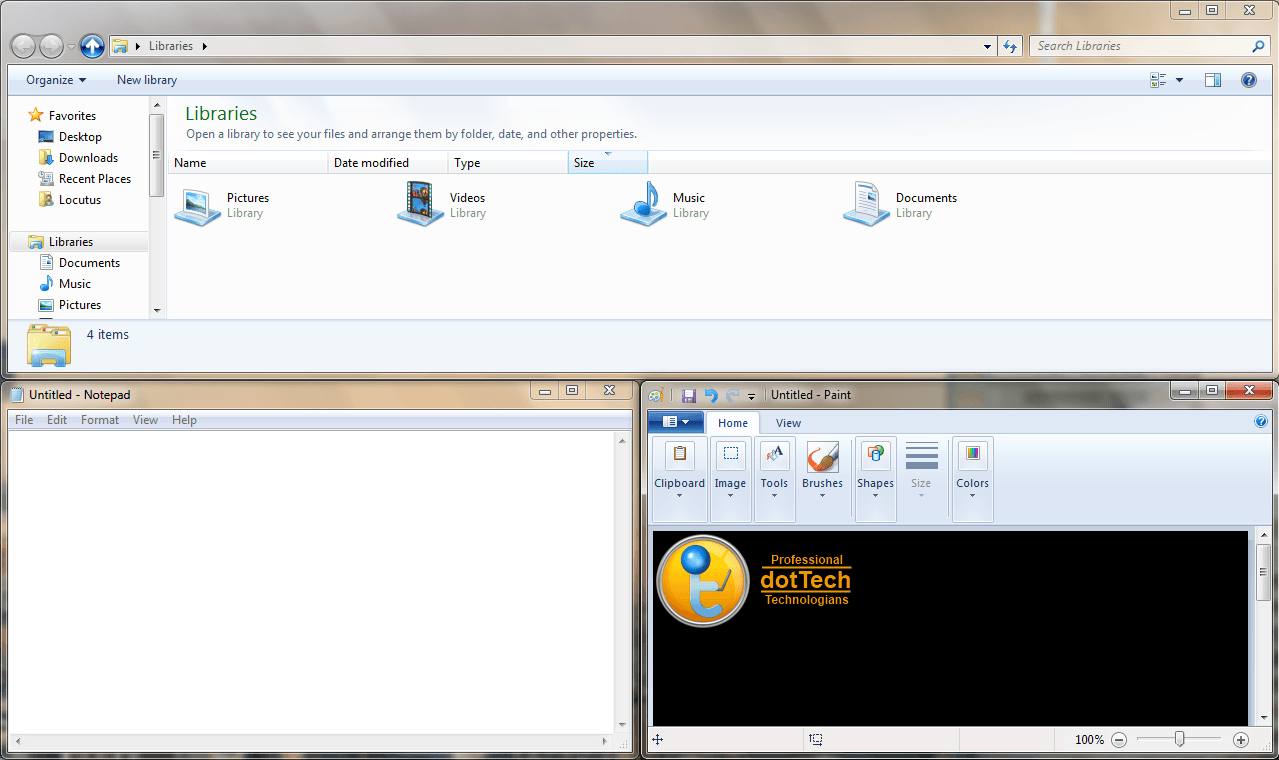 Want to easily control window locations quickly? Windows 7 added some support for this with its new Aero Snap feature, but it’s still not the most comprehensive. Enter WindowPad: this portable little freebie allows you to control any window with the tap of the Windows key. To move windows, just tap the Windows key, plus one of the number keys. Numbers 1, 3, 7, and 9 will pop your windows into their respective corners, while 2, 4, 6, and 8 will make them fill half of your screen. WindowPad is a super easy to use program, and it’s pretty much devoid of customization. If you want to change the controls, you can do that using the WindowPad.ini file, but using it requires knowledge of Autohotkey.
Price: Free!
Version discovered: v1.60
Supported OS: Windows unknown
Download size: 283KB
VirusTotal malware scan results: 0/42
Portability: No installation required!
[via AddictiveTips]
Acronis Drive Monitor
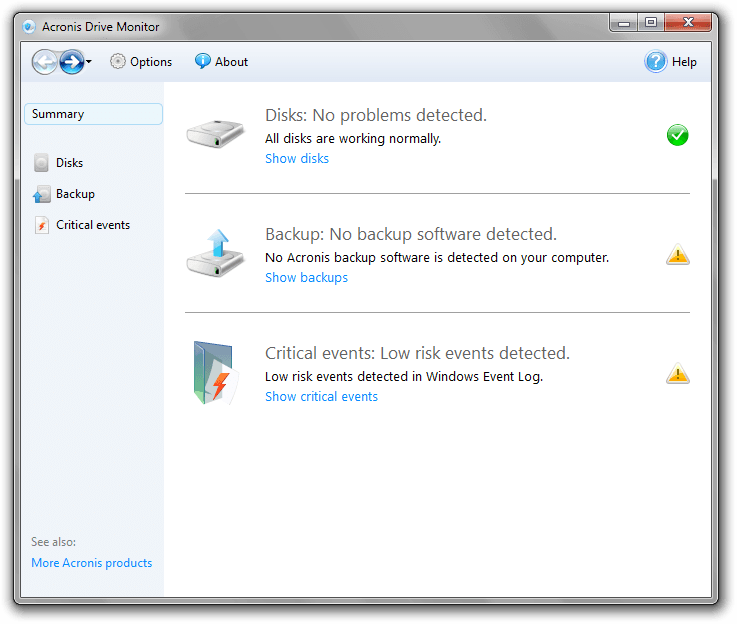 (Most) computers have moving parts, as much as it seems that they are just giant blobs of plastic and metal that magically work. One of those parts, the hard drive, is quite prone to failure after only a few years, and it’s important to know if your hard drive will die soon. Luckily, hard drives come with built-in sensors that can report their condition, and software has sprung up to estimate the condition of drives. Acronis Drive Monitor is one of those softwares. It comes with an easy-to-use interface, showing just the condition of your drive, any errors found in the Windows error log, and the status of any Acronis backups you may have. Of course, most people don’t use Acronis backup software, so it’s really just an ad for their software, but it’s still nice in the off chance you do use it. In total, Acronis Drive Monitor is a nice little program for monitoring drive health.
Price: Free!
Version discovered: v1.0
Supported OS: Windows XP+
Download size: 18.1MB
VirusTotal malware scan results: 0/42
Portability: Requires installation
[via Freeware Genius]
CPU-M Benchmark
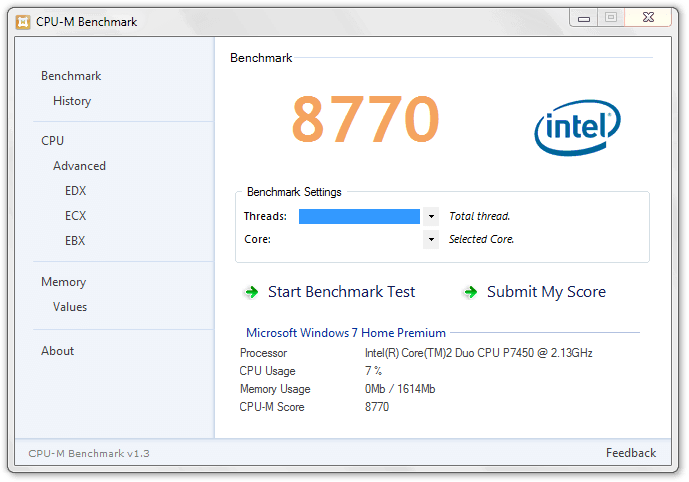 Do you know you have the fastest CPU in the world? Prove it with CPU-M Benchmark. This is a free tool that lets you test and submit your CPU to a giant online database. Using CPU-M Benchmark is quite easy. You just click the large “Start Benchmark Test” and wait a few seconds. Note that you’ll receive a higher score if your computer is not otherwise being used, so if you’re serious about the competition be sure to close all other applications. When you’ve completed the test, just hit Submit My Score. You’ll be taken to a page listing your ranking and the top CPUs in the world. Although it’s impossible to test yourself against the top supercomputers in the world, it’s still fun to see where your comparatively crummy computer stands in the ranks. Personally, I was number 1068. Which one are you?
Price: Free!
Version discovered: v1.3
Supported OS: Windows unknown
Download size: 673KB
VirusTotal malware scan results: 0/42
Portability: Requires installation
dotTechies: We have tested all the software listed above. However, Windows Software of the Day articles are not intended as “reviews” but rather as “heads-up” to help you discover new programs. Always use your best judgement when downloading programs, such as trying trial/free versions before purchasing shareware programs, if applicable.




