
Okay this article may sound ridiculous. A Windows tip on how to shut down or restart Windows 8? You must be joking, Ashraf. Well I’m not. For better or for worse, Microsoft has made a lot of fundamental changes in Windows 8. One such change is getting rid of the traditional Start Menu and thus getting rid of the orthodox menu to shut down or restart Windows. This, of course, will cause a lot of confusion. If you don’t know how to shut down or restart Windows 8, this guide shows you how.
Shut Down/Restart On Non-Touch Windows 8
Although it may be different, shutting down or restarting Windows 8 on a traditional computer actually isn’t that hard. To shut down or restart your Windows 8 laptop or desktop, do the following:
- When in Windows 8 (Start screen or Windows 8 desktop, it doesn’t matter), hit Win [Windows key] + i on your keyboard. This will bring up the Settings panel:
- From this Settings panel, click the Power button and then select Shut down or Restart:
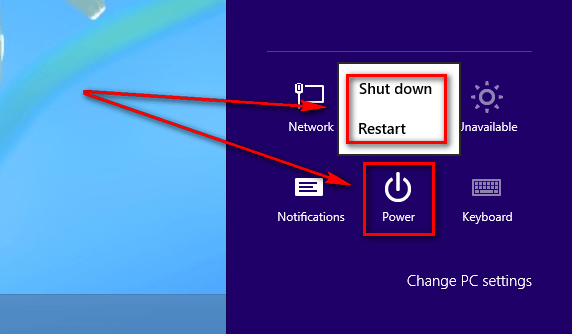
- Depending on what you select, your computer will now shut down or restart.
Shut Down/Restart On Windows 8 Tablet
Shutting down or restarting on a Windows 8 tablet can be done in the following way:
- Swipe the top-right corner of your tablet to bring up the Charms menu:
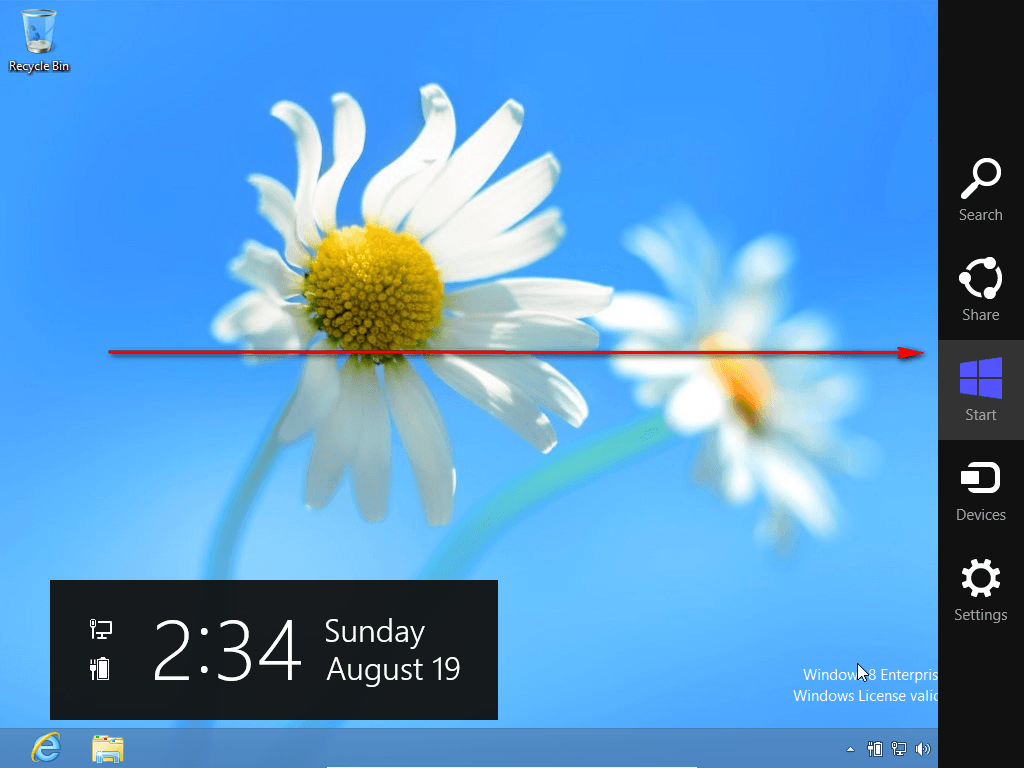
- From the Charms menu, tap the Settings button:
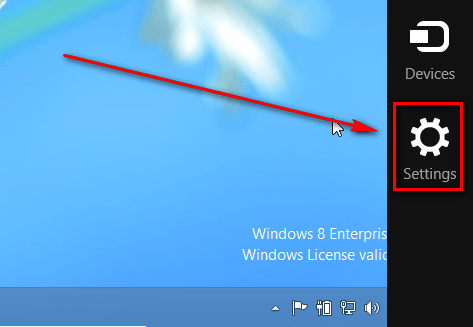
- Once you tap the Settings button from the Charms menu, the Settings menu will appear. From the Settings menu tap the Power button then Shut down or Restart:
- Your tablet will now shut down or restart.
Old-school Style
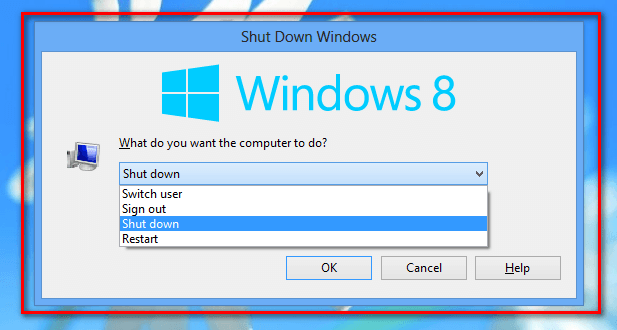
If all else fails, you can shut down, restart, sign out, or switch user old-school style — by using Alt + F4. Pressing Alt + F4 on your keyboard while on Windows 8 desktop or the Start screen (pressing Alt + F4 while in an open program will close the program, not shut down Windows) brings up the familiar shut down dialog box from which you can select Shut down, Restart, Sign out, or Switch user and hit OK to do it:
Conclusion
I want my Start Menu back.
[via How-To-Geek]
9 Comments »
Leave A Response »


Email article


![[Windows] Watcha Doing helps you track how you spend time on your computer](http://cdn.dottech.org/media/2013/05/Watcha-Doing-UI-134x90.png)
![Running Windows is more painful than torture [Comic]](http://cdn.dottech.org/media/2013/05/klingon_pain_stick_comic-134x90.gif)
![France causes problems on Windows [Image]](http://cdn.dottech.org/media/2013/05/why_france_why-134x90.png)
![[Windows] ZeZebra is a great way to share files between Windows, Mac, Android, and/or iOS](http://cdn.dottech.org/media/2013/05/ZeZebra-First-Time-Use-134x90.png)
My god! Have they gone mad?
XP will have to be prized from my dead cold fingers.
@annie: Why not move up to Win7? It is like WinXP… but more modern without going overboard like Win8, in my humble opinion.
For the Old-school Style, maybe it should be noted that it will only work when in the Desktop or Start Screen; some unexperienced users may end up closing their current application by accident.
@Gonzo: Good point. Updated.
This just in … Microsoft now has a new slogan:
“If It Ain’t Broke … We’ll Fix It Anyway.”
(FOX Television is already suing for plagiarism.)
And what to be done to hibernate the PC [Non-Touch Win 8].
Just asking although am not a Win8 user.
Any software that lacks logical intuitiveness and needs this many help guides is not worth having, even for free. I don’t care if it moons the pope on Sundays, I’ll pass. Get over win8.
I love Windows 8 and their push to get people out of the bad habit of relying on the start menu. I find myself getting to the programs I want much faster. I also have grown to love Metro. I thought at first Windows 8 would be terrible on a system that didn’t have a touch screen but that isn’t the case. I find it ironic that so many tech geeks hate to change heir old habits instead of embracing new technology.
I’m reading this not to find out how to shutdown or restart windows 8, it’s just the fact that they have made it so horrible that even shut down and restart now need a guide.
Earlier we had windows related guides like how to do blah blah.. with by editing the registry. Now we have these.
Great going MS



