
 Email article
Cut, copy, and paste (any combination of the three) has got to be one of the most widely used commands in Windows… ever. Come on… who here has never used any of the three before (please raise your hand so I can slap some sense into you)? Heck, sometimes, without any purpose except for entertainment, I just randomly Ctrl+C and Ctrl+V just because I can. Yes, I admit, I am kind of psycho.
One problem with cut/copy/paste is that if you cut/copy large files or a large number of files, Windows can take f-o-r-e-v-e-r to paste them. Well to help ease the pain I am going to tell you about 5 free applications that can help make your cutting/copying/pasting faster and more enjoyable (allowing pause, skip, etc.).
- TeraCopy
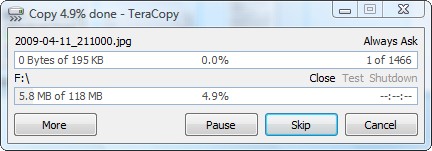
***TeraCopy is free for home users only I believe
- FastCopy

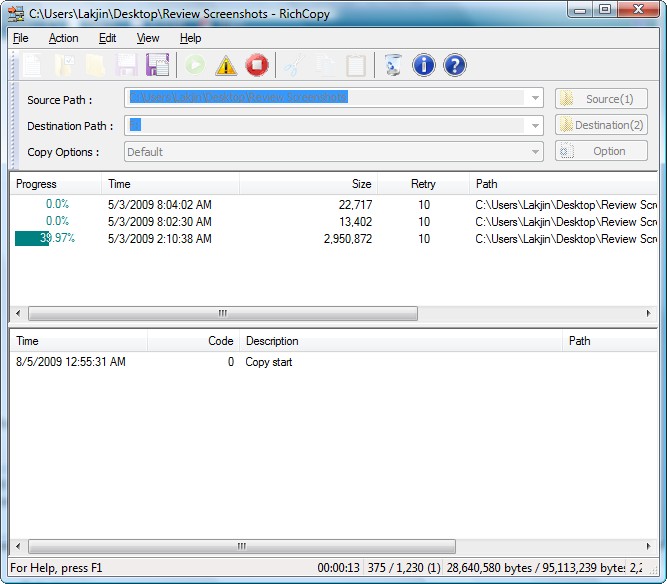
- RichCopy
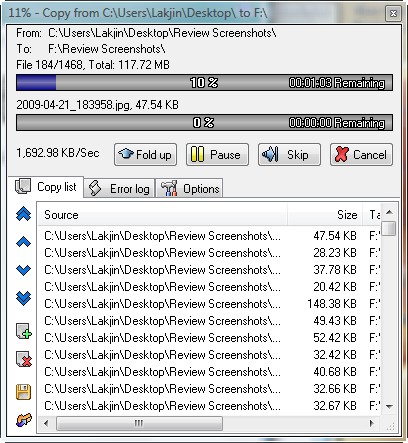
- CopyHandler
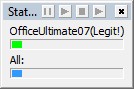
- SuperCopier
All five of the above listed applications have their individual perks, such as the excellent shell integration by TeraCopy and CopyHandler or the advanced settings by FastCopy or RichCopy, but the main purpose of all five is to help you cut/copy and paste files faster than Windows normally would. So instead of comparing all the programs feature by features, lets get down to the raw data.
Now keep in mind my tests were not done in a manner which would be approved by the Scientific Journal so results will vary from person to person, computer to computer, and heck even file transfer to file transfer. My intention was to give the general public a general idea of which program is the best… not be scientifically accurate.
To find out which is the “best” I ran a simple test; I copied 3.97 GB of file files (videos, documents, installation files, etc.) with each program at default settings for all the programs. I used Windows Vista default copy to use as a control group. The following are my findings (by category):
Windows Vista default copy (no third party software used) took 7 minutes and 51 seconds to transfer all the 3.97 GB.
Fastest Transfer
- FastCopy (4 minutes and 45 seconds)
- TeraCopy (4 minutes and 55 seconds)
- CopyHandler (5 minutes and 55 seconds)
- RichCopy (8 minutes and 23 seconds)
- SuperCopier (8 minutes and 54 seconds)
Least Hog on CPU During Transfer
***These values are ballpark averages. The cpu usage for all the programs spiked regularly and at at double digit values above these averages.
- FastCopy (10%)
- CopyHandler (10%)
- TeraCopy (16%)
- SuperCopier (17%)
- RichCopy (20%)
Least Hog on RAM During Transfer
- RichCopy (6 MB)
- SuperCopier (12 MB)
- CopyHandler (20 MB)
- FastCopy (38 MB)
- TeraCopy (60 MB) ***RAM usage fluctuated highly
Most “easy to use” and “easy to understand”
- TeraCopy (excellent shell integration!)
- CopyHandler
- FastCopy
- SuperCopier
- RichCopy
I was very surprised at my findings of “Fastest Transfer”… especially that of RichCopy. Two of the five programs were actually slower than the default Windows Vista transfer. I don’t know about you but I am not about to use a third party program to cut/copy/paste that will do it slower than Windows itself. So RichCopy and SuperCopier were immediately marked off my list of king candidates. So that left TeraCopy, FastCopy, and CopyHandler.
CopyHandler was also significantly slower than TeraCopy and FastCopy (by about a minute) but it, overall, is more light on computer resources than the other two. So if you want to be able to cut/copy/paste files faster than Windows but have an older, slower machine, CopyHandler is a very viable option for you. However I also marked CopyHandler off my list because I, personally, am more concerned with speed and less with computer resource usage. That left TeraCopy and FastCopy.
Between FastCopy and TeraCopy the choice of “best” was obvious: FastCopy was slightly faster, more light on computer resources, and still offered shell integration. However, being picky as I am, I really liked the TeraCopy shell integration. It allowed me to literally replace the Windows cut/copy/paste function with TeraCopy. I could do Ctrl+C and Ctrl+V and use TeraCopy instead of Windows. To add salt to the wound, FastCopy shell integration had a small bug where FastCopy(paste) would not show up in the right click menu until I set it to show up as a sub menu. TeraCopy is also a lot less confusing (more simple – not so many options) to use and has a much better interface. So yes while FastCopy is faster and more light on computer resources, the best Windows cut/copy/paste enhancer software for me is TeraCopy. However FastCopy, and even CopyHandler, are still excellent and viable options. It just depends on your needs and preferences.
You can download all of the programs from the following links:
TeraCopy works on Windows 2000/XP/Vista/7
FastCopy works on Windows 98/Me/NT/2000/XP/2003/Vista
No idea on requirements for RichCopy, CopyHandler or SuperCopier




