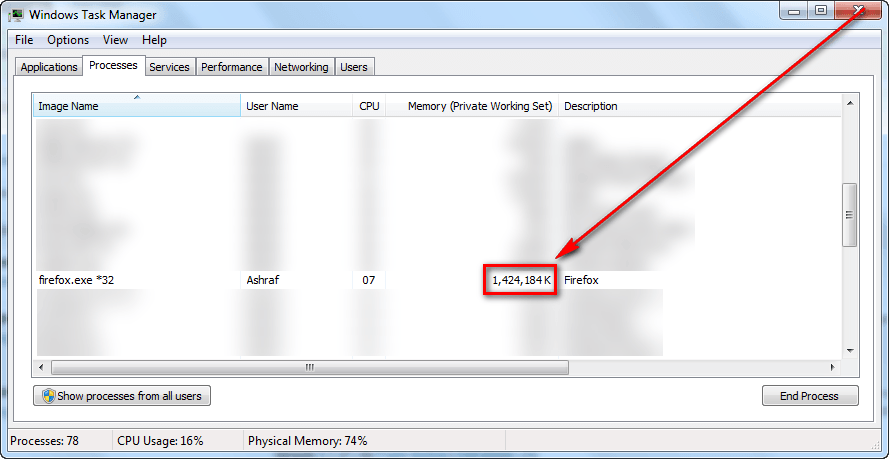
I challenge you to try to make Firefox use more RAM than my 1.4GB record

September 16, 2012 27 Email article | Print article

Since its inception, Firefox has been notorious for excess RAM usage, often in the form of RAM leaks. While Mozilla claims to have fixed RAM issues in recent Firefox updates, and has done a fairly good job for the most part, it is still possible to see Firefox consuming a huge chunk of your RAM — especially if you keep the browser continually open for long periods of times and have a lot of tabs open.

I have recently gotten into the (bad) habit of not closing Firefox after a session due to not wanting to lose my research and open websites. (Yes, I know Firefox has the ability to restore sessions, natively and with add-ons.) Yesterday my computer was going extremely sluggish so I decided to take a look way. As it turns out, Firefox (v15.0.1) was consuming more than 1.4GB of memory — a massive amount, by anyone’s standards. (I probably had anywhere from 50-100 tabs open — I didn’t count.) The sad part is that isn’t even the highest I have seen it go. Prior to capturing the screenshot you see above, I actually hit over 1.5GB of Firefox RAM usage. However, I was about to start a League of Legends session and my computer was literally grinding to a halt (almost 90-95% memory usage) so I couldn’t snap a screenshot.

Can you beat my record? Sound-off in the comments below!

27 Comments »

  1. Glenn April 13, 2013 at 6:09 AM (comment permalink) -

    I usually sit on 4Gb, but only got 6gb ram
    and trying to uni work on high demand programs is becoming hard

    26
  2. Rob (Down Under) April 13, 2013 at 6:29 AM (comment permalink) -

    . . . . . HOW I LEARNED TO LIVE WITH 370 TABS
    . . . (Spread them into multiple portable IceDragons)
    Create Folders for multiple copies of Comodo IceDragon portable.
    (When you install IceDragon, you tick one box and it makes it portable.)
    Place (‘place’ because no install required) IceDragon into one folder, and call it IceDragon_MASK
    Run it and add NoScript and other desirable Extensions and PlugIns.
    Run it for a wee while, so that you can fine tune it (EG add Search box to the top of screen, etc).
    Now create other folders for say – Health, Hardware, Software, ETC
    Copy the contents of your mask into each of them.
    NEVER RUN TWO IceDragons AT THE SAME TIME.
    (You can run any one of them at the same time as your installed FireFox)
    You can ‘move’ Tabs from FF into those IceDragons.
    Bookmark all your tabs in FF, and then export them to HTML.
    You can open that HTML file in each IceDragon, to ‘move’ Tabs from FF

    27

Leave A Response »