
 Email article
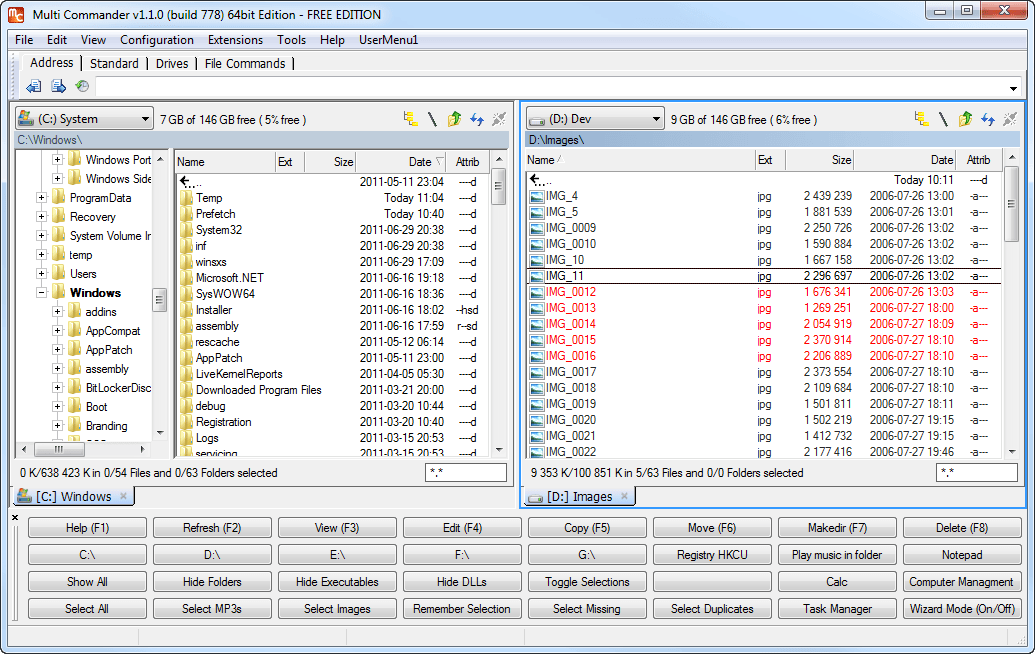 Multi Commander is a file manager that is an alternative to the standard, default Windows Explorer. With this program users can potentially get work done faster by using advanced features compared to using Windows Explorer.
What is it and what does it do
Main Functionality
Windows Explorer is good; one cannot deny that fact. However, when it comes to doing things more effectively when exploring files on your computer, Multi Commander does the job a lot better.
Pros
- Auto unpacking
- Auto sorting
- Browse inside archives
- Workspace support
- Multi-tabbed
- …and a lot more
Cons
- Dreadful user interface
- Difficult learning curve
- Help documentation is online, as opposed to coming with the program
Discussion
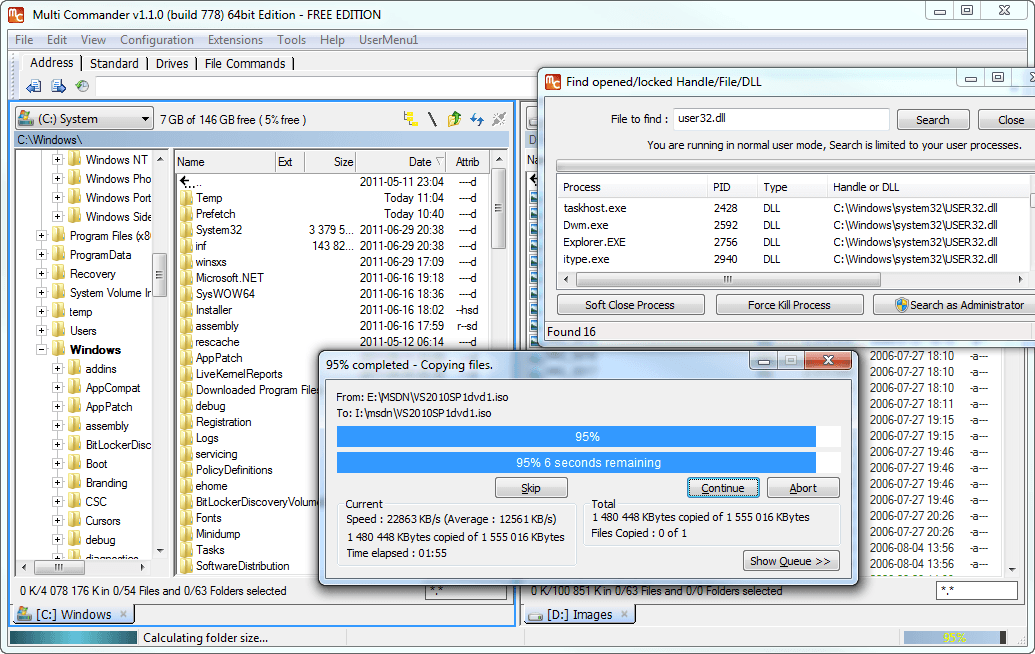 From the get go, the first thing that is notable about Multi Commander is that it is best used by those who are advanced computer users because the user interface is dreadful. As there are so many things going here, it would take users quite a lot of time to get their heads around everything before beginning to use the program effectively, and that could be a problem for some.
When the Multi Commander is launched for the first time, an option will present itself to choose a look and feel; this is called the “Quick Look n Feel Setup”. The setup consists of the “Commander Styled Look & Feel”, the “Windows Explorer Compatibility Look & Feel”, and the option to customize the whole user interface to your liking. Commander Styled Look & Feel is optimized for keyboard use. For example, F5 for copy,F2 for refresh, right mouse button for file selection, and double click right mouse button for context menu. Windows Explorer Compatibility Look & Feel is same shortcuts and mouse buttons as in Windows Explorer. For example, F2 for rename, F5 for refresh, right mouse button for context menu, and Windows Explorer styled selection.
We chose to go with the more familiar environment that is Windows Explorer Compatibility Look & Feel and found it to work out wonderfully.
Users will enjoy the vast number of formats supported by Multi Commander. Formats such as FTP, Registry, Zip, 7-Zip, Rar, Tar, GZ, Bz2, and Jar are among the few supported without the need for a third-party program. Having so many formats support means the user will feel compelled to stay within the Multi Commander environment because everything that is needed is right there.
Because Multi Commander support tabs, users can easily manage files across folders. This is a feature Windows users have been longing for but up to this day Microsoft has not taken heed to user demand. The only major operating system that has tab support built into the explorer menu is Ubuntu.
Finally, we would like to talk about extensions and plugins. There are not many plugins to enhance the program, and the ones that are there are not exactly useful. However, potential is there for success in this department if developers take it seriously.
Conclusion and download link
Multi Commander is a great alternative file manager; however, the dreadful user interface and difficult learning curve might throw off many users. For the power users who know what they are doing, Multi Commander is the perfect tool for managing many files at the same time.
Price: Free
Version reviewed: 2.7.2
Supported OS: Windows XP/2003/Vista/Server 2008 (R2)/Windows 7/Windows 8/Server 2012
Download size: 4.9MB
Virustotal scan results: 0/43
Is it portable? Yes




