[Windows] Multi Commander is feature-filled, multi-tabbed file manager — an alternative to Windows Explorer

October 7, 2012 60 Email article | Print article

Multi Commander is a file manager that is an alternative to the standard, default Windows Explorer. With this program users can potentially get work done faster by using advanced features compared to using Windows Explorer.

What is it and what does it do

Main Functionality

Windows Explorer is good; one cannot deny that fact. However, when it comes to doing things more effectively when exploring files on your computer, Multi Commander does the job a lot better.

Pros

  • Auto unpacking
  • Auto sorting
  • Browse inside archives
  • Workspace support
  • Multi-tabbed
  • …and a lot more

Cons

  • Dreadful user interface
  • Difficult learning curve
  • Help documentation is online, as opposed to coming with the program

Discussion
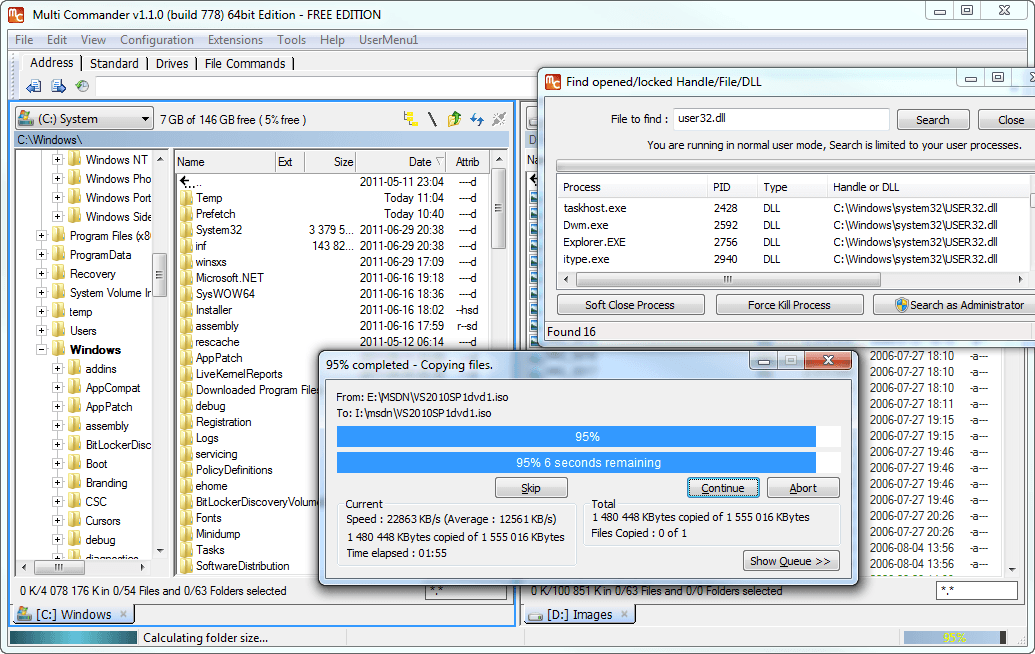
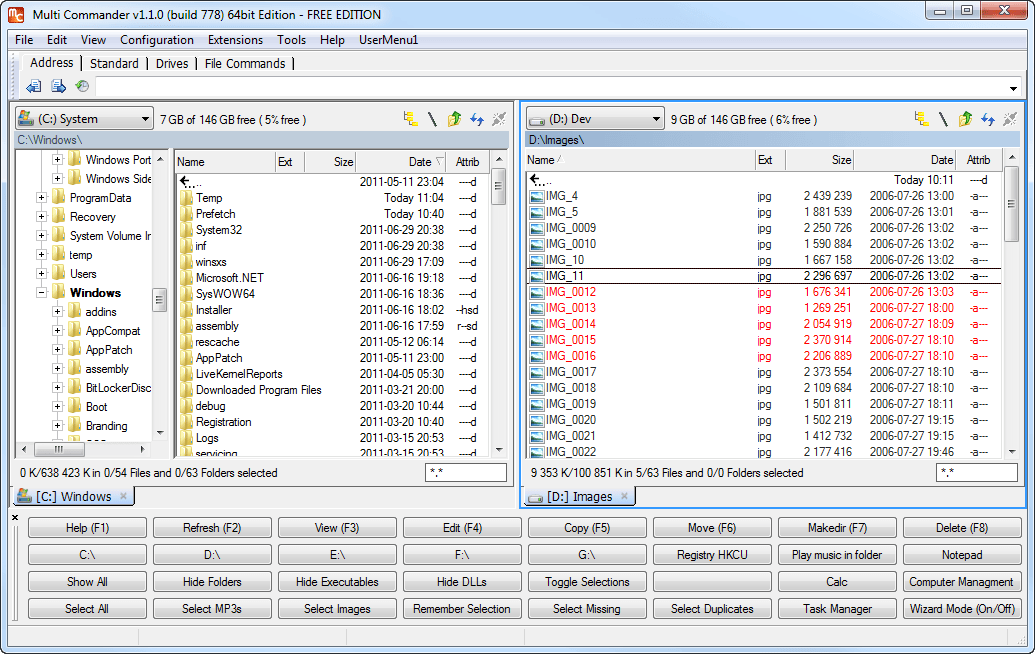
From the get go, the first thing that is notable about Multi Commander is that it is best used by those who are advanced computer users because the user interface is dreadful. As there are so many things going here, it would take users quite a lot of time to get their heads around everything before beginning to use the program effectively, and that could be a problem for some.

When the Multi Commander is launched for the first time, an option will present itself to choose a look and feel; this is called the “Quick Look n Feel Setup”. The setup consists of the “Commander Styled Look & Feel”, the “Windows Explorer Compatibility Look & Feel”, and the option to customize the whole user interface to your liking. Commander Styled Look & Feel is optimized for keyboard use. For example, F5 for copy,F2 for refresh, right mouse button for file selection, and double click right mouse button for context menu. Windows Explorer Compatibility Look & Feel is same shortcuts and mouse buttons as in Windows Explorer. For example, F2 for rename, F5 for refresh, right mouse button for context menu, and Windows Explorer styled selection.

We chose to go with the more familiar environment that is Windows Explorer Compatibility Look & Feel and found it to work out wonderfully.

Users will enjoy the vast number of formats supported by Multi Commander. Formats such as FTP, Registry, Zip, 7-Zip, Rar, Tar, GZ, Bz2, and Jar are among the few supported without the need for a third-party program. Having so many formats support means the user will feel compelled to stay within the Multi Commander environment because everything that is needed is right there.

Because Multi Commander support tabs, users can easily manage files across folders. This is a feature Windows users have been longing for but up to this day Microsoft has not taken heed to user demand. The only major operating system that has tab support built into the explorer menu is Ubuntu.

Finally, we would like to talk about extensions and plugins. There are not many plugins to enhance the program, and the ones that are there are not exactly useful. However, potential is there for success in this department if developers take it seriously.

Conclusion and download link

Multi Commander is a great alternative file manager; however, the dreadful user interface and difficult learning curve might throw off many users. For the power users who know what they are doing, Multi Commander is the perfect tool for managing many files at the same time.

Price: Free

Version reviewed: 2.7.2

Supported OS: Windows XP/2003/Vista/Server 2008 (R2)/Windows 7/Windows 8/Server 2012

Download size: 4.9MB

Virustotal scan results: 0/43

Is it portable? Yes

Multi Commander homepage

60 Comments »

  1. Eric989 October 8, 2012 at 1:41 AM (comment permalink) -

    @FredySmith: Xyplorer can do this but it is tabbed and not multipane as far as I can tell. Unfortunately it is not free. There was a free version but it has been discontinued and is hard to find online. I have a copy on my computer that I can upload if need be.
    In Xyplorer this option is under tools-file operatiions-custom copy operations. Be sure to check everything you need to because the default is to definitely not do this.
    Another option is to use fast copy. It is not a file manager but you can drag and drop stuff into it. You could also try FBackup but this is a pretty roundabout and tedious way of doing it.
    You could just simply use a checksum utility like nirsofts hashmyfiles. You would drag and drop your files into HMF and then drag and drop them out of HMF into the folder you wish. They will then be copied to that folder and still be highlighted. Then just drag and drop them from the new location back into HMF. Now make sure the identical column is showing and sort by that. If anything doesn’t have a number in this column then there are no duplicates and the file did not copy right. Identical files will have numbers and there should be 2 of each number. This is very easy to see and do. To speed it up make sure you only have the hash type you want selected like md5 as the default is to do several and slow things down.
    Besides this you can just go through help files of file managers and search for stuff like verify and verification. That is how I found that xyplorer did it.
    Hope this helps. Let me know if you need me to upload the free versio of xyplorer to a site like billionuploads or something.

    26
  2. RobCr October 8, 2012 at 2:34 AM (comment permalink) -

    If you look at post 15 on this page, you will find a description of, and a link to XYPlorerFree -
    http://dottech.org/29082/windows-software-of-the-day-march-24-2012/
    .
    I have been ‘pushing it’ on many DotTech pages.
    Here is a longer description on one of the other DotTech pages.
    (I won’t post a 2nd link, as we have not been told “how many links trigger a moderation delay”)
    .
    How would you like a program that is so good that you will never use Windows Explorer again ?
    And has a built in search capability, that searches the contents of files, AND DOES NOT BUILD AN INDEX

    There was an older version of XYPlorer which was free and was called XYPlorerFree
    IT DOES NOT REQUIRE INSTALLING, it just runs.
    It is free.
    You can change the font and size.
    You can change the colors (eg I have the whole selected line in a special color).
    It has Tabs.
    I have a Tab locked to a Folder called Downloads.
    All my downloads go into that folder.
    I have it(just that Tab) sorted by Date, so most recent are at the top.
    So say I was on a web page, describing a program.
    I can save the web page, and then click the download link.
    Later when I go to that Tab, the two files will be adjacent to each other, and I can move them to where I choose.
    And if you had the focus (in your normal tab), on the folder where you wish to move them, you can just drag them to the normal folder’s Tab.

    For searches -
    - IT DOES NOT BUILD A PRE-INDEX (I hate indexing).
    - It is very fast.
    When you wish to do a search, you press F12
    A panel appears at the bottom, defaulting to where you had the focus in the File Manger.
    You set the file names eg *.txt
    You set the contained words you are looking for, and start the search. It is a much simpler interface than the Windows one.
    You can filter on lots of other criteria.
    Press F12 to close the Search panel.

    27
  3. Eric989 October 8, 2012 at 3:12 AM (comment permalink) -

    @FredySmith: On second look the free version of XyPlorer does not seem to have the verification function that you wanted. It is set up much different than the current trial version so maybe I can’t find it. RobCr has provided a functioning link to the free version if it does work.
    http://www.portablefreeware.com/download.php?dd=579
    @RobCr: Do you know how to enable the file verification for copying in the free version of XYPlorer or is that functionality not present in that older version. All I know is that the configuration menu is set up completely different.

    28
  4. FredySmith October 8, 2012 at 5:02 AM (comment permalink) -

    Just had a look at XYPlorer. It does have dual pane option and can verify file copy (it calls it “Backup Operation”. It appears a bit more complex than the average file manager, at least to me anyway. It has many customization features that will take a while to go through. I’m certainly considering purchasing it if there are no similar programs for free.

    29
  5. RobCr October 8, 2012 at 5:16 AM (comment permalink) -

    Had a browse in XYPlorerFree, and could not see any verify capability.
    .
    I just installed TeraCopy.
    Fredy, you mentioned that you have it.
    What is the problem with it ?
    Are you looking for similar, but integrated into a File Manager ?

    Rob
    PS I am still getting all those blank empty lines.
    Anyone got suggestions how I can avoid that ?

    30
  6. Eric989 October 8, 2012 at 5:36 AM (comment permalink) -

    @FredySmith: Yeah you can either go with backup operations or custom copy operations. Unfortunately Bitsdujour just sold XyPlorer for half off or something so it will probably be a while for another deal like that to come along.
    Have you tried Fastcopy that I mentioned earlier? It might be easier than Teracopy. I never tried Teracopy but I have heard it is not the easiest to use or at least it is hard to learn.
    @RobCr: I am typing this comment into EditPad Lite to see if I can replicate your spacing problems, so we will see how it turns out.

    31
  7. RobCr October 8, 2012 at 6:49 AM (comment permalink) -

    @Eric989:
    After I installed TeraCopy, I went into XYPlorerFree.
    I selected some files, and then right clicked.
    There is an entry for TeraCopy, which I clicked.
    A small Dialog appears, with a browse button to allow me to point to the Target folder.
    It then does the copy, and the dialog disappears.
    I presume it verified ?
    I assume someone will knock on my door soon, and tell me how to do a Move (instead of a Copy)

    Rob
    PS I am typing this directly into this web page.
    I wonder whether my wireless keyboard doesn’t Send a normal Enter key instruction ?
    PPS It looks normal in the comment box when I am typing.
    And it looks normal, if I go to the Edit box (during the 9 minute count down).

    32
  8. Frank D October 8, 2012 at 7:11 AM (comment permalink) -

    @Eric989:
    I’m using the free version of xyPlorer and it has dual panes in addition to tabs.

    33
  9. Janet October 8, 2012 at 8:14 AM (comment permalink) -

    @Eric989:

    XYplorer is Dual-Paned AND Multi-Tabbed!

    34
  10. Janet October 8, 2012 at 8:20 AM (comment permalink) -

    @RobCr:

    Your posts look fine on my machine: single-spaced text with a skipped line between paragraphs. Very easy to read and orderly-looking…:-)…!

    35
  11. Janet October 8, 2012 at 9:04 AM (comment permalink) -

    @Vames:

    “Bare in mind, not every one are using these superior apps you are so accustomed to.”

    Pretty much all the Windows-related apps, computer maintenance apps, and computer aids apps I use are ones that I got from dotTech reviews (and GAOTD). A LOT of us are using the same programs because we follow dotTech and GAOTD and study the reviews. I think that is why many people often ask how a new program offer compares to earlier-reviewed programs

    So for me (and a lot of dotTechers), a ‘popular’ program is what a lot of dotTech readers are using as a result of the reviews and comments.

    For example, if a file-manager earlier reviewed on dotTech has multi-panes AND multi-tabs, I would question the value of publishing a review of a file-manager which had ONLY multi-panes or ONLY multi-tabs OR NEITHER, unless it had some other redeeming factor which would make a dotTecher using the earlier program want to switch over.

    This has nothing to do with subjective needs: a program that has A and B and C is good for people who need A, AND for people who need B, AND for people who need C. A program that does not have all/any of these functions can reasonably be considered ‘less good’…:-)…

    36
  12. Janet October 8, 2012 at 9:50 AM (comment permalink) -

    @Eric989:

    XYplorer can manually sort files by drag and drop and typically remember their position when opened in a viewer.

    Tools>Customize List>Manual sorting

    This program has infinite customization options…:-)….:

    37
  13. Ashraf October 8, 2012 at 12:45 PM (comment permalink) -
    Mr. Boss

    @Eric989: What I mean is simply picking the most popular app in a category, e.g. reviewing VLC instead of another video player. It isn’t an exact science. It is more feeling than anything. I have no qualms with reviewing other file managers and we in fact will — the suggestions you and others have provided are great and I’ve added them to my list.

    38
  14. Ashraf October 8, 2012 at 12:53 PM (comment permalink) -
    Mr. Boss

    @RobCr: I think moderation is held at 5 links but the spam filter also has a mind of its own. Just drop me an e-mail if your comment is ever spammed and ill fish it out.

    @Everyone: Nice discussion!!

    39
  15. Ashraf October 8, 2012 at 12:55 PM (comment permalink) -
    Mr. Boss

    @Janet: I understand your points. So please do suggest what programs you think are better; suggestions from dotTechies help us in picking better soft.

    40
  16. Ashraf October 8, 2012 at 1:01 PM (comment permalink) -
    Mr. Boss

    @Janet: FYI using bold in comments will encourage the spam filter to kill your comment :-P

    41
  17. FredySmith October 8, 2012 at 11:39 PM (comment permalink) -

    @RobCr: No, I quite like TeraCopy & have found it stable & never failed to perform its functions. That said, I just thought a File Manager that had the ability to automatically perform a verification of the copy & inform me that no errors occurred, as TeraCopy does, would perhaps be even better. I have ticked in the Shell Integration in TeraCopy preferences (found under the Menu tab) so that it is the default copy handler and did not realize I could use it as you have described with XYplorer. Thanks for that. One trap with the default setting of TeraCopy is that under “Always Ask” at top right 255 Character Limit is ticked. I have removed the tick so that any length file/folder name can be processed.

    @Eric989: Yes, I’ve used FastCopy. Once, I discovered it had copied all the folders and text files but not the exe or zip files. I must admit I was having a lot of problems with my PC at the time so maybe I’m wrong in blaming FastCopy for the failure. Luckily I had used RichCopy to do the same backup and that did work. I even did some speed tests comparing FastCopy & TeraCopy and FastCopy easily won. However as TeraCopy provides more information on-screen I prefer that.

    Thanks for all that input.

    42
  18. FredySmith October 8, 2012 at 11:54 PM (comment permalink) -

    Just attempted to edit my last post but it timed out. Just wanted to add that the topic of ‘verification’, I read that DOS had a command to have Verify ON/OFF. I’m wondering why Windows XP or later does not have that option.

    43
  19. Eric989 October 9, 2012 at 1:11 AM (comment permalink) -

    @Janet: Yes, I know it has panes. You are the third person to point that out. But you must admit that that option is hidden. It is not like it is front and center on the menu bar. Oh wait, it is! LOL
    I have tried the manual sort option in XyPlorer and just retried it. It lets me drag the files around but this is not persistent. When I reopen it, the files are moved back to their natural sort position and I have yet to get the sort order passed on to another program. Both Xnview and Windows picture viewer ignore it and default to alphabetical for me.
    As to your point to Vames about not featuring a tabbed only file manager unless there is something special about it. That is exactly how I feel about Cubic Explorer. It only has tabs for now and is not the most powerful with 5 million options but for me it is the most intuitive. Almost everything is where I want it and the things I use are easily accessible. It isn’t cluttered, either. It is not perfect for everyone but it just matches how I think.
    @RobCr: As far as I can tell nothing is wrong with your keyboard. There just isn’t a way to start a new line without the blank line appearing. For example, I will try to make a list below without blank lines and I will fail.
    List item 1
    List item 2
    List item 3
    See I failed miserably. You just have a different writing style than the rest of us and use very short paragraphs and list out each idea separately. It looks fine to me.
    @Everybody 44 comments. That’s the most I have seen on Dottech in a long time.

    44
  20. RobCr October 9, 2012 at 3:10 AM (comment permalink) -

    @FredySmith:
    When I was Googling yesterday, I came across a couple of pages saying there was a command line switch that can be used when opening Windows Explorer. I assume that one could build it into the shortcut that you use to open Windows Explorer. I cannot readily find it now. When Googling for it be aware that the comments on those couple of pages were saying it is a little known command, and it hardly gets a mention in Google searches that they had done.

    Notice that I have resisted my ‘new line’ habits based on ERIC’s ADVICE.
    As Cher would say to me “Snap out of it”.
    Thanks Eric, I thought aliens were fooling with my mind.

    45
  21. Janet October 9, 2012 at 5:04 AM (comment permalink) -

    @Eric989:
    ” I have yet to get the sort order passed on to another program. Both Xnview and Windows picture viewer ignore it and default to alphabetical for me.”

    For what it’s worth, sort order does get passed on to Irfanview, which is my default viewer (so that’s what I tested it on).

    46
  22. Eric989 October 9, 2012 at 7:00 PM (comment permalink) -

    @Janet: It’s still not working for me even with irfanview. Maybe you have XyPlorer set as your default file manager? Or maybe it is that I am using the portable version of both programs. The manual sort thing isn’t helpful because it isn’t persistent and it interferes with drag and drop into other programs.

    47
  23. Eric989 October 10, 2012 at 2:15 AM (comment permalink) -

    @RobCr: I just realized that if you copy your comments and then paste them into a notepad program, the spacing returns to normal.

    48
  24. Janet October 10, 2012 at 6:38 AM (comment permalink) -

    @Eric989:

    WIndows Explorer is my default file manager. (I only use XYplorer when I want dual panes.)

    Manual arrangement on XYplorer does seem to interfere with dragging to another program.

    The manual order was maintained if I opened a file in Irfanview and clicked the arrows in the tool bar to go through the folder. But it was not maintained if I opened Irfanview and navigated to the folder.

    49
  25. RobCr October 10, 2012 at 4:39 PM (comment permalink) -

    @Eric989:
    Did you try copying it from Notepad back into the DotTech page ? I think the empty inbetween lines return again. All of this was typed in Notepad, and had no blank lines between the three following lines -
    Line 1 (Should be no blank lines)
    Line 2 (Should be no blank lines)
    Line 3 (Should be no blank lines)

    50

Leave A Response »