
[Windows] Best free file archiver (aka file compression program or ZIP utility)
October 31, 2012 34
Email article | Print article
Are you looking forward to mailing a large file but the upload speed is just freaking your mind out? Or do you have multiple files and you want to archive them together? Or maybe you have downloaded a ZIP or RAR file and you want to unextract it? Well, if you are using Windows, you have plenty of options of software that will help you accomplish just that. You can go for different software as there are plenty of them, but the good freeware software is not that easy to find. This article looks at the top free software that you can use for compressing, archiving, or ZIPing/unZIPing your files.
This review is part of our Best Free Windows Software section. Check out more articles on the best free Windows programs from here.
Table of Contents
Best Free File Archiver
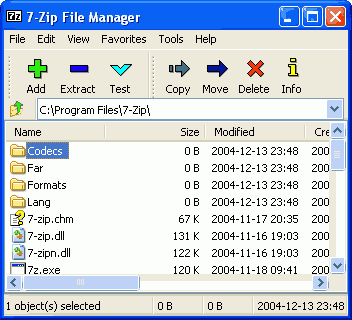
Program Name: 7-Zip
Developer: Igor Pavlov
Download Size: 1.09 MB
Version Reviewed: 9.22 beta
Requires: NT/98/Me/2000/XP/2003/Vista/Server 2008/7
Pros
- Is able to extract (aka “unzip”) files from over 22 archive formats, including ZIP and RAR
- Allows users to encrypt archive contents
- Can split archives into multiple pieces
- Can be integrated with Outlook
- Adds itself to the right-click context menu of Windows Explorer, providing users with quick access to common 7-Zip commands
- Can create self-extracting archives
- Very good compression ratio
- Has helpful online forums
Cons
- Interface is ugly
- Can extract from 22 archive formats but is limited to a handful of formats for creating archives
Discussion
7-Zip is the best archiving/compression/ZIP program you will find. Not only can it extract contents over 22 archive formats — ARJ, CAB, CHM, CPIO, CramFS, DEB, DMG, FAT, HFS, ISO, LZH, LZMA, MBR, MSI, NSIS, NTFS, RAR, RPM, SquashFS, UDF, VHD, WIM, XAR, ZIP, 7z, XZ, BZIP2, GZIP, and TAR. — but it can also create archives of 7 formats: 7z, XZ, BZIP2, GZIP, TAR, ZIP and WIM. In fact, 7z is an archive format popularized by 7-Zip, an archive format that allows compression and encryption at a level that far surpasses the more popular ZIP and RAR formats.
7-Zip works mainly from the right-click context menu of Windows Explorer. After installation, a “7-Zip” submenu is added to the right-click context menu for Windows Explorer and from that submenu you can perform common functions like extract, create archive, explorer archive, etc. If you don’t like using 7-Zip out of the right-click context menu, you can open up 7-Zip File Manager which is similar to WinRAR and can be considered 7-Zip’s “main program window”. Overall this 7-Zip
Aside from simply extracting and creating archive, 7-Zip has useful features such as the ability to split archives into multiple pieces, encrypt archives (AES-256 for 7z and ZIP formats), compress archive (7-Zip has a great compression ratio, especially if you use 7z format), and can even create self-extracting 7z archives (i.e. you can send the archive to someone who doesn’t have 7z installed and they will be able to extract it).
Really the only major issue I found with 7z is its limit of choice when it comes out creating archives. Sure most people will be happy with being able to create ZIP or 7z archives, but I would really like to see 7-Zip have the ability to create RAR archives, too. However, that likely isn’t going to happen since RAR is owned by WinRAR, a rival commercial program.
All in all, 7-Zip is great free software that is the answer to all your archiving problems. It’s no doubt an excellent free, and in my opinion superior, alternative to the likes of WinZip and WinRAR.
Runner Up
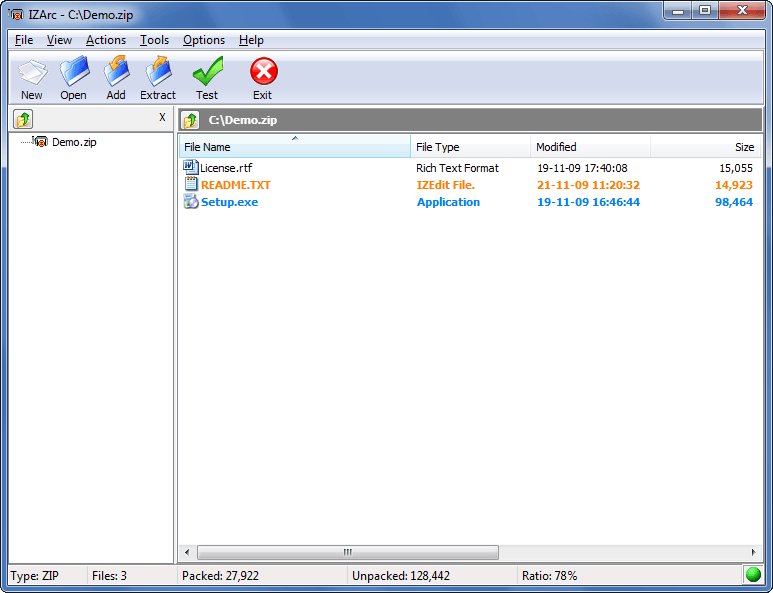
Program Name: IZArc
Developer: Ivan Zahariev
Download Size: 154.45 K
Version Reviewed: 4.1.7
Requires: Windows 2000/XP/2003/Vista/7
Discussion
IZArc is another file archiver with some a amount of features that stands up to your expectation. Similar to 7-Zip, IZArc can extract and create archives, encrypt archives, integrated with Windows Explorer, and create multiple volumes by splitting archives. As added benefits IZArc has the ability to convert one archive format to another, has a portable version, and has a version available on iOS. However, the real attraction to IZArc is that it supports many, many archive formats — even more than 7-Zip.
In total, IZArc can extract from roughly 50 archive formats and create 12 archive formats:
7-ZIP, A, ACE, ARC, ARJ, B64, BH, BIN, BZ2, BZA, C2D, CDI, CAB, CPIO, DEB, ENC, GCA, GZ, GZA, HA, IMG, ISO, JAR, LHA, LIB, LZH, MBF, MDF, MIM, NRG, PAK, PDI, PK3, RAR, RPM, TAR, TAZ, TBZ, TGZ, TZ, UUE, WAR, XPI, XXE, YZ1, Z, ZIP, ZOO
IZArc even supports disk images:
ISO, BIN, MDF, NRG, IMG, C2D, PDI, CDI
Indeed I don’t remember any other software with such a great list of formats supported.
The only major issues with IZArc is that:
- It comes bundled with AVG Toolbar.
- IZArc fails in some basic — but non-critical — functionality, such as there is nothing that would indicate to you that archive creation has been completed.
Overall, IZarc is an excellent file archiver program. If you are unhappy with 7-Zip, IZArc is an excellent second option. In fact, some may consider it even better than 7-Zip — to try to rank the two programs as “#1″ and “#2″ is akin to splitting hairs.
Honorable Mention
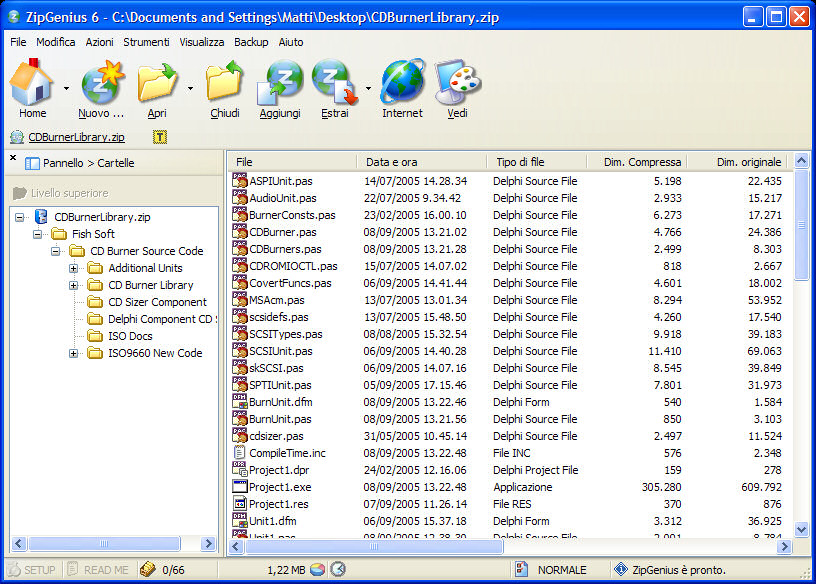
Program Name: ZipGenius
Developer: Matteo Riso
Download Size: 8.1 MB
Version Reviewed: 6.3.2.3110
Requires: Windows NT/98/Me/2000/XP/2003/Vista/Server 2008/7
Discussion
Take average compression software and add tons of extra features to it — this is what you get with ZipGenius.
Apart from carrying out the normal zipping and unzipping function, ZipGenius provides support to archive 21 other formats — most of which can be archived and unarchived although some, like RAR, can only be unarchived. (Full list of supported formats is available here.) The software is completely integrated with Windows Explorer right-click context menu and the interface of the application is also better than the previously mentioned 7-Zip and IZArc.
Other notable features of ZipGenius include encryption of archives, a built-in mail client, and the ability to upload archives to the web via FTPGenius.
FTPGenius is actually a component of ZipGenius. You see ZipGenisu comes in two editions — Standard Edition and Suite Edition. Standard Edition is basic ZipGenius with core archiving features while the Suite Edition includes “extras” of FTPGenius, ZGAlbum, Cutter 4.5, and support for themes.
The compression speed of ZipGenius is also worth mentioning — it is fast. However, do note the software really doesn’t live up to expectation in terms of compression ratio. The compression ratio isn’t that impressive like its other competitors. Also, the software doesn’t provide a good easy help file, so if you are stuck you need to go online to find your answers.
Leaving aside other factors, I feel the software is worth going for its speed and interface. Combine that with a lot of features and ZipGenius is definitely on my list of top three file archivers.
Other Alternatives
- PeaZip
- Hamster Free Zip Archiver
- jZip
- QuickZip
- …and many more






![[Windows] Batch install software updates with OUTDATEfighter](http://cdn.dottech.org/media/2013/05/OUTDATEfighter-main-UI-134x90.png)
![[Windows] sView is a free stereoscopic 3D media player (video player and image viewer) [Linux, Mac OS X]](http://cdn.dottech.org/media/2013/05/sview_image_2-134x90.jpg)
![[Windows] Encrypt external USB drives and internal hard drives with Protectorion ToGo](http://cdn.dottech.org/media/2013/05/Protectorion-ToGo-134x90.png)

As a loyal user of 7-zip for years I agree that it is very good but I recently switched my allegiance to Haozip. It can do just about everything 7-zip can but it also supports thumbnail views, has an excellent internal image and text viewer, can mount disk images, and can check md5 hashes from the right click context menu. My only gripe with it is that there is currently no portable version.
Another program that may be of interest is Zipeg. It is not truly an archiver as it can only open zip and rar archives and can’t create any, but what sets it apart is its temporary extraction of archives. It does this silently and seamlessly and cleans up these temporary files when it is closed. The main benefit I get out of this is that I can open an archive in zipeg, double click on an image within the archive, it will open in my viewer, and I can view all the images in the archive with my viewer just like they were in a regular folder. Other archivers would force you to open each image individually and not let you browse through them normally.
This one isn’t portable either. It will be of little use to most of you, but some might like this fairly unique functionality if you view archived images regularly.
This is exactly the sort of article I was hoping would make a come-back :-) : Ashraf-comparisons of apps we all have to lesser-known ones!
I use 7-zip, but I usually make my archives .zip files so as not to confuse/scare away my many non-computer savy clients, who only recognize the zip (or .rar) format….Good to learn that when necessary, I can get increased compression with 7-zip format. Then I would just enclose a note explaining that 7z is just like .zip or .rar…:-)….
@Eric989:
We used to be able to explore zip files in Windows Explorer without opening or extracting–with thumbnails and previews like any folder. Did this disappear with Win 7? In XP it was simply r-click on archive file and then click on Explore in the context menu….
Thanks for the review !
@Janet:
No, it stills there, just do as you said: Right click on the .zip file then: “Open With” -> “Windows Explorer”. Then you see the content as if it was a normal folder, of course you can change the view on the toolbar to whatever you wish: “thumbnails”, “details” etc. (or press Ctrl+Mouse-Scroll.
good luck
For some time already, I dropped 7zip for … Bandizip.
A recent article on the website of Raymond has strengthened me in my choice.
Thanks for the review.
@Janet: I tried what you said on four different zip archives of downloaded wallpapers and switched to thumbnail view and even refreshed but all I got were big icons and not thumbnails. The images only open one at a time and XnView cannot browse to other images in the archive. Possibly Window’s picture and fax viewer would do different but it gives no option to preview. I am using XP. My Vista laptop has no explore option for archives. I can only open with the default program.
It seems we have had a discussion like this before regarding what images were or weren’t browse-able by Irfanview and I could never achieve what you said so I don’t know if there is something wrong with my PC or if possibly you have something on your computer that you have forgotten about that gives you this additional functionality.
@Janet: @miky computers: So am I the only person who cannot see thumbnails; I only get bigger icons and never a proper thumbnail. On both my computers I have had the same problem with the pay program PowerArchiver 2012 regarding thumbnails not showing up. The same problem on both Vista and XP.
Can anybody else confirm that they are able to see thumbnails?
@Eric989:
Which file formats are you trying to see? I believe the Windows “Explore” for zip files showed the standard image files that Windows always shows. For other formats, you need something like SageThumbs, but this has nothing to do with zip files–you would need the third party app for viewing such formats anywhere in Windows Explorer.
@Eric989:
Sorry, no, the thumbnails don’t work! It shows only the picture of the icon! – Windows Explorer don’t show the thumbnails.
Only third party add-ones can do that.
@Janet: I am trying to see .jpg which is about as standard as you can get. Do you have SageThumbs installed? If you do, maybe it is able to show the thumbs after windows opens the archive with explore?
@miky computers: Thanks for clearing that up. I thought something must be wrong with my pc. I can somewhat understand that Windows did not delete the thumbnail view option when exploring archives even though it does not function properly, but I cannot understand why a professional program like PowerArchiver would have a thumbnail view and not be able to display thumbnails. If it can’t show thumbnails then it shouldn’t have a thumbnail view.
I used winrar for a long time. But as I never paid anything, I allways felt kind of bad for not supporting a commercial program.
Switched to 7zip, and found it to be… OK. Main problem was that in order to actually VIEW the content of the archive, I had to extract the file (i.e it was impossible to just click on the file in 7zip and have it open in the “correct” program.
Tried HaoZip, and will stick with that for a while. OK, not THAT pretty, and it has some Chinese characters when my web browser asks “open with”… The English text could be better, but I USE the program, don’t want to have a conversation with it. (Still “Open file BY HaoZip” to open file, “Upper directory” to go to parent directory…) But free, and better than 7zip IMO
fastunzip snack
http://www.donationcoder.com/forum/index.php?PHPSESSID=f0hn2s7b9uvgqhqos0uhclgpd4&topic=30804.msg286583#msg286583
Haozip is the best there is. ‘Nuf said.
I’ve been using ZipGenius for a while and recommend it for its integration with Windows Explorer (or, in my case, Xplorer2 lite). Very easy to use. It’s also fast enough for my needs. I use PeaZip at work because it runs without installing. Good article, I liked reading about the differences.
Just a note,
IZArc has a portable version too.
Hello, all.
I bought WinZip, it was the 1st shareware progarm I paid for.
Tried a slew of different ones, but I settled on IZArc.
This review said:
7-Zip “Can extract from 22 archive formats but is limited to a handful of formats for creating archives”,
and
“IZArc can extract from roughly 50 archive formats and create 12 archive formats”.
Douh!
“22″ vs “50″, and “a handful” vs “12″?
So, what makes 7-Zip better, since its “Interface is ugly”?
Besides, IZArc can install programs directly from within IZArc.
I used WinZip, had a “lifetime” license in fact,and when it was sold,
I got an email telling me that I had pay “AGAIN” for another “lifetime license”.
I was thinking, *NOT*!
I’ve used IZArc for years.
IMO, BEST archiver available.
The best ZIP program ever was ZipMagic. It installed as a device driver and made all of your zip files appear as ordinary folders and act EXACTLY LIKE folders. Click on one (called a zipfolder) and you could choose any file or folder in it and work with it (without extracting). Then you could save it back to the zipfolder just as you would do with an ordinary folder (no compressing step needed).
Regrettably, it does not work with XP or later Windows.
The portable versions of Bandizip and IZarc don’t appear to support right click context menu integration and Bandizip can’t create 7z archives. Neither is particularly customizable as far as choosing compression or encryption algorithms.
Peazip and FreeArc both support FreeArc’s .arc format(different from other arc formats) and it is claimed to be 2 to 5 times as fast as other compression methods. This is done by using several file type specific compression algorithms instead of a one size fits all type like lzma or deflate. From my personal experience it can sometimes be 10 times faster than other formats with the same level of compression but that performance gain is very rare, but in general it is probably a little faster than others but 2 to 5 times is not typical. The one drawback of this format is that only peazip or freearc can actually open the files as far as I know.
Both Peazip and Freearc have portable versions but Peazip appears to partially install itself if you choose context menu integration or file association. Both of these programs are very customizable as far as choosing compression or encryption algorithms especially FreeArc which allows AES, BlowFish, TwoFish and Serpent encryption.
A long awaited update of FreeArc to version.7 is expected any day. This may be worth a look.
Not mentioned, but I use 7-zip to open JAR files and EXE installers.
I can tweak JAR files using a simple text editor, and extract icons (sometimes) and examine versioning by expanding EXE files.
@Eric989:
I see thumbnail images of all my zips and rar files in Windows Explorer on Win7 because I use Mystic Thumbs. Great program that covers many file types.
Also via my Context Menu I can peek in archive with AlZip. It lists all the files inside the archive.
@Tom:
That’s incredible!! I always wanted to see what I was getting before comitting to installing (without having to extract)! It works on .msi files too!
I actually decided to put Freearc’s claims of 2-5 times the speed to the test and I must say that it is not an exaggeration like I thought before. I created 5 different archives with various kinds of files in them and got significantly faster times with FreeArc with comparable file sizes except in one case where FreeArc’s archive ended up being 50% smaller than the other program. I did these comparisons against 7-zip and its 7z format. Here are my results.
Reduction from 4:19 to 3:57
Reduction from 28 seconds to 14 seconds
Reduction from 3.5 mins to 1.5 mins
Reduction from 3:44 to 1:12
Reduction from 15 mins to 1.5 mins
That ranges from 10% faster to 10 times faster with 2 to 3 times faster being pretty standard which is huge. I tested out PeaZip as well since it handles the same format but FreeArc beats it almost every time.
The one drawback of FreeArc is that you are stuck in its .arc format that is not compatible with the other .arc format so it is not ideal for sharing stuff with others or for compatibility, but it should work fine for personal use as long as you keep your FreeArc or Peazip programs handy. You can find FreeArc below and remember that a new version should be released any day.
http://freearc.org/
No mention of JaBack. Stores backups as ZIP files.
@Eric989:
This is listed on the freearc web site -
Ability to create SFX (self-extracted) archives and installers
So all you have to do is create an EXE (self extracting file), and send it to anyone on the planet (even those that have been fooled into using Win 8). They just double click it to extract the contents.
- – - – The following is about normal zip files – - –
On a related note, I have been searching for years for the ability to create a self Extracting EXE, that will just extract it’s contents into the folder that the EXE is in.
- It does not ask any questions, and shows no dialogs.
- It does not create a useless folder, to put them into.
If anyone is interested, I will explain how.
[@Rob (Down Under)] Hi Rob! Just came across your post and yes I’m definitely interested in learning how you’d create such an SFX archive. Hope you get notified of this post and can take some time out replying. I’d really appreciate it. In case it matters, I’m using WinRAR on XP Pro SP3.