[Windows 8] How to add Google Calendar to Windows 8 Calendar app [2nd Edition]

March 25, 2013 59 Email article | Print article

In the original version of this article (shown below), I showed you how to add Google Calendar to Windows 8 Calendar app. However, since Jan 30, 2013, Google has dropped support for Exchange ActiveSync (EAS) connections, which helps you sync email, calendar, and contacts across multiple devices. Therefore, since that day, you have not able to sync Google contents with your Windows 8/RT computer or table. In this article, I will provide you some important information and solutions on this issue.

WHAT YOU SHOULD KNOW

Fortunately, this change doesn’t affect you if you’ve already connected your Google account to Windows 8/RT device before Jan. 30, 2013. That means you don’t need to do anything.

If you want to add a Google account at this time (in the other word, after Jan. 30), you will face the painful result of Google’s decision because Google calendar now stops syncing with Calendar app in Windows 8/RT. There is no official solution for this problem but I am going to show you the solution in the next part of this article. However, if you just need to use Mail app to view email from Gmail, you can do following steps.

  • Open Mail app then press Windows + I hotkey or swipe from the right edge (if you are using a tablet) and choose “Settings.”
  • After that, select “Accounts” then click/tap the line “Add an account.”
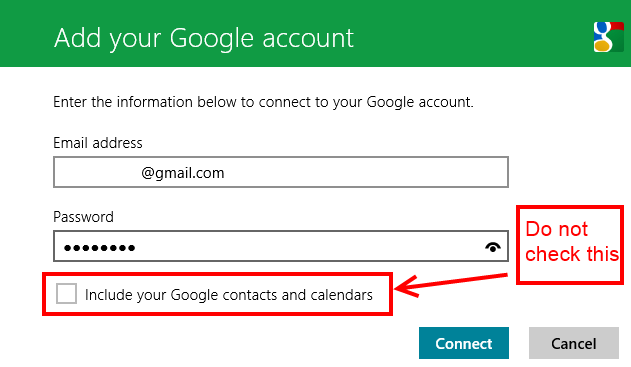
  • Next, you should choose “Google.” In the dialog, you have to enter your Google account information and the most important part is that not check the box “Include your Google contacts and calendars.
  • Then you are done.

0324-1

HOW TO ADD GOOGLE CALENDAR WINDOWS 8/RT CALENDAR APP INDRECTLY

At the time this article is being written, there is no way that helps you to sync directly Google Calendar to Windows 8/RT Calendar like before. We had Microsoft confirmed that it is working on CalDAV and CardDAV support for Windows Phone but there is no word about Windows 8/RT. So that, I will show you how to view Google Calendar in Windows 8/RT Calendar. Before we start, I want you to know that this method only allow you to view events from your Google Calendar, that means you cannot add or edit calendar items by using Windows 8/RT Calendar app. Additionally, it updates very slow; you can’t see the new added Google Calendar item in Calendar app immediately. However, you should do these steps below to do this trick.

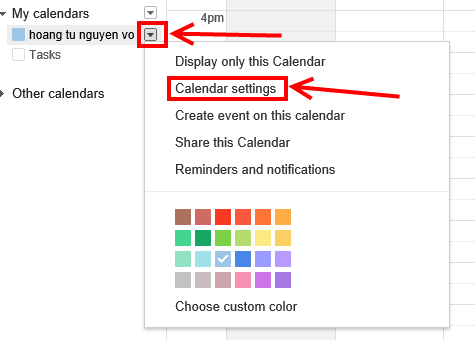
  • First, you need to sign in to your Google Calendar. On the left panel, you can see the list of your calendars. For which one you want to view by Calendar app, you need to hover the mouse over its name to make it show the small arrow then click that arrow. For those who are using a tablet, I recommend to zoom in the webpage so that you can tap the arrow easier. After that, you have to choose “Calendar Settings” in the menu.
0324-2

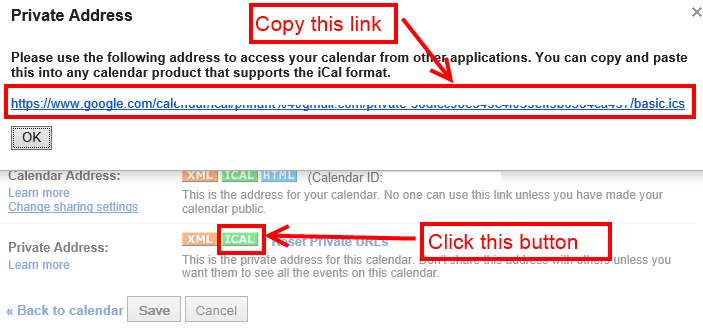
  • In the next page, you should scroll the whole way down then you will see “Private Address” part. What you have to do next is choosing the green button “ICAL.”
  • There will be a dialog that provides a link which you have to copy it for the next step.
0324-3

  • Now, you need to go to Windows Live Calendar by the link: http://calendar.live.com then sign in with the Microsoft account that you use to sign into your Windows 8/RT device.
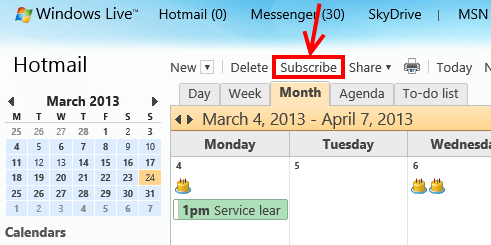
  • On the top of the calendar in Windows Live Calendar page, you have to choose “Subscribe.”
0324-4

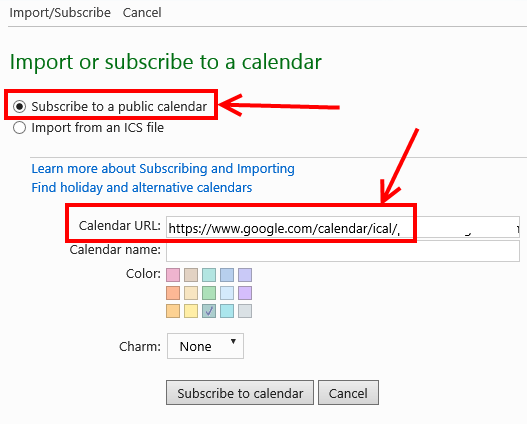
  • In the Subscribe page, choosing “Subscribe to a public calendar” and pasting the copied link from Google Calendar to the box “Calendar URL.”
  • Then you can enter a name for your Google Calendar to show in Windows Live Calendar. Next, pressing Subscribe to calendar to finish.
0324-5

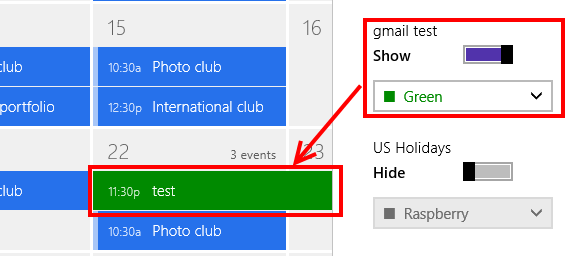
  • Now, you can go to Windows 8/RT Calendar app to see that your Google Calendar’s events now are appeared.
  • And that’s it! A little many steps but now you at least can see Google Calendar in Windows 8/RT Calendar app.
0324-6

CONCLUSION

Hopefully, Microsoft will resolve this big problem in the next update for their apps. If you have other solutions for this, please feel free to share in the comments.


The following is now deprecated but left here for reference!

Nowadays, many people are using online calendars to manage their time and schedules. There are a ton of calendar web apps you can choose. Google Calendar is one of the more popular ones. The issue with Google Calendar is it is online only — you need an active Internet connection to access it, which may not be possible for some people in some situations. So using an offline app to sync Google Calendar data is typically a good idea, so you can access your calendar when you are not connected to the Internet. If you are using Windows 8, there is a pre-loaded Windows Store app called “Calendar” to help you sync calendar from many services. In this article, I will show you how to add/use Google Calendar in the Windows 8 Calendar app.

HOW TO ADD GOOGLE CALENDAR IN CALENDAR APP

The very first time you use the Calendar app, if you are using a local account, you will be asked to sign in to your Microsoft account (Hotmail). If you are already using an online Microsoft account for your Windows 8 device, then you won’t be asked to sign in because you already are signed in.

Unfortunately, you must sign in with your Microsoft account even if you don’t like using Hotmail/Outlook calendar services; if you don’t sign in, you won’t be able to use the Calendar app. If you don’t like using Hotmail/Outlook calendar, you can simply hide the calendar events for that particular calendar via settings. I’ll show you how to do this in the second half of this article.

Once you have setup Calendar by logging in with your Hotmail/Outlook account, you can now Google Calendar. To add Google Calendar to Windows 8′s Calendar app, do the following:

  • Run the Calendar app. You will find the Calendar app on your Start Screen (because it comes installed with Windows).
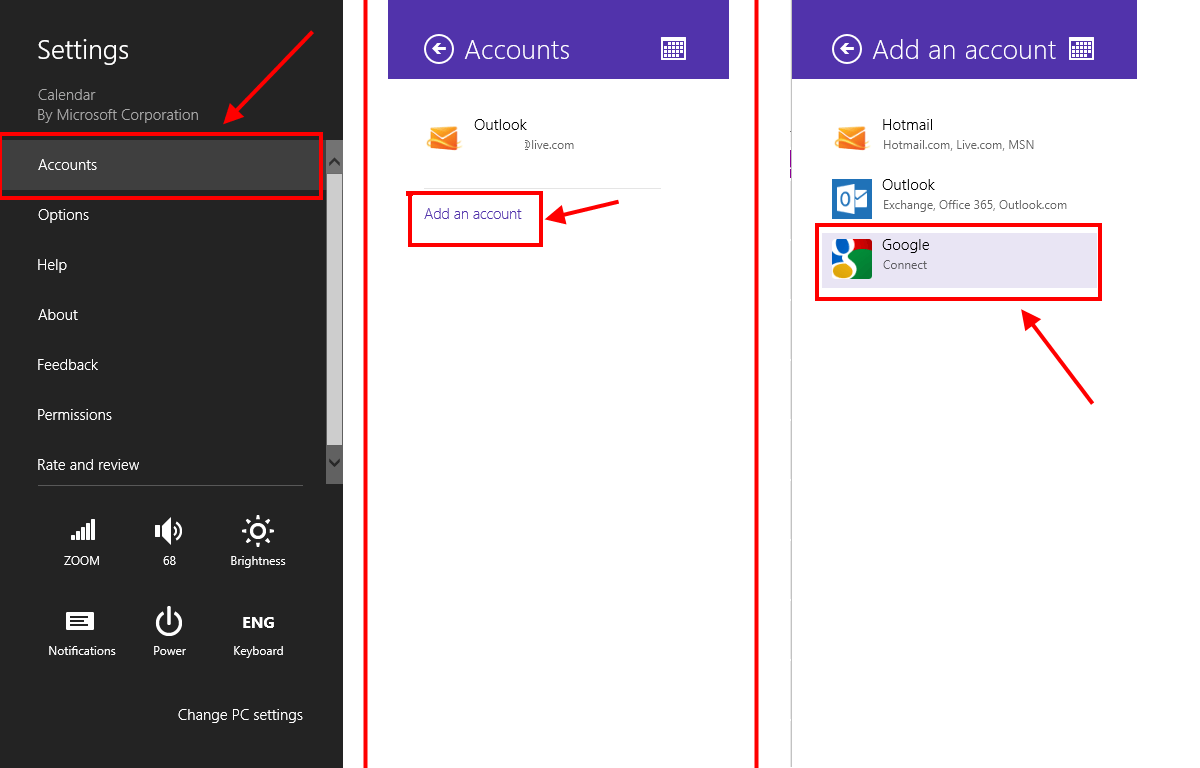
  • Once Calendar is open, press Windows + I hotkey (or swipe from the right edge of your screen and choose Settings) to show the Settings panel. Then select “Accounts”.
  • Next select “Add an account” and then select “Google”.
  • Finally, you need to enter your Google account information.
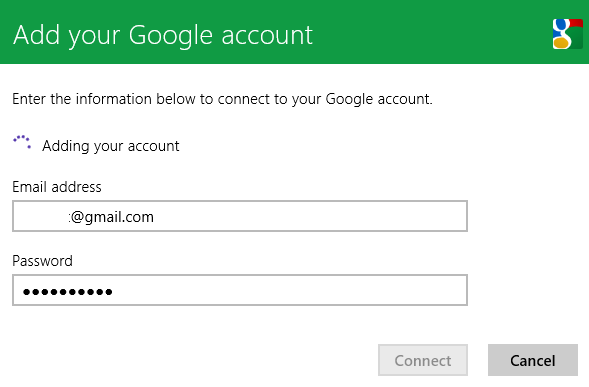
Once you are logged into, you are done — Google Calendar is now accessible via Windows 8 Calendar app! Do take note, after the initial login, you may need to wait for Calendar app to sync your Google Calendar data before you see it.

Once synced, you can use Google Calendar via Calendar app — even while offline (although if you are offline your data won’t be synced until you are online again). For example, you can easily create an event in Calendar app and it will be updated automatically to your web Google Calendar account, and vice versa – changes made in your Google Calendar account sync with the Calendar app.

HOW TO HIDE THE EVENTS OF A CALENDAR SOURCE

As I mentioned above, you are forced to log into a Microsoft account to use Calendar app but you don’t have to use Hotmail/Outlook Calendar — you can hide it. To do this, make sure Calendar app is running and bring up the Settings panel by using Windows + I hotkey (or swipe from right edge of your screen and choose Settings). Then select “Options”.

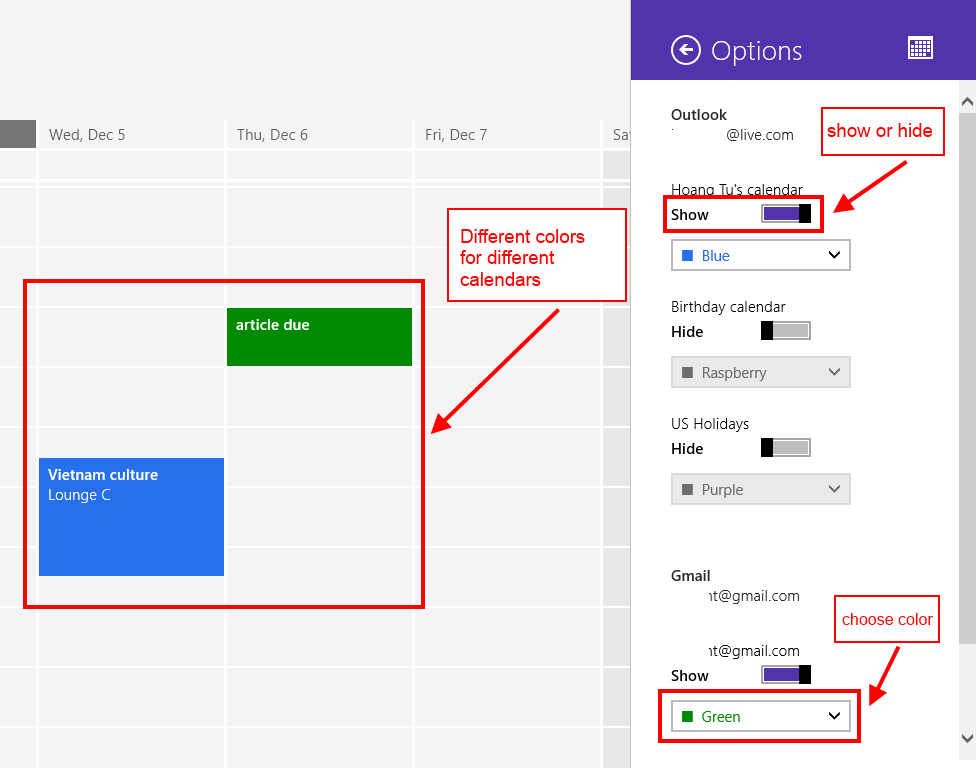
Once in “Options”, you have the ability to show or hide specific calendars. For example, you can hide your Outlook/Hotmail calendar by switching the “Show” toggle to the off position. If you don’t want to turn off a calender service but just want to be able to differentiate between it and others, you can also change the color of each calendar account.
CONCLUSION

With the above simple steps, you can now manage your Google Calendar right from your desktop in Windows 8. Enjoy!


59 Comments »

  1. Tom December 5, 2012 at 5:55 AM (comment permalink) -

    AFAIK, the approach described by this article will only retrieve your primary Google account calendar. That’s pretty limiting. If you’re like me, and have several different calendars (school, work, play, family) under your Google account, only your primary account is synced. If someone has shared a calendar with you, that isn’t available through the Win8 calendar app.

    FWIW, you access Google Calendar offline with the Chrome browser.

    1
  2. Hoàng Tú December 5, 2012 at 2:56 PM (comment permalink) -
    Minion

    @Tom:
    Thank you for your information.

    2
  3. Ashraf December 8, 2012 at 2:25 AM (comment permalink) -
    Mr. Boss

    @Tom: We are looking into how to be able to use shared GCs with Calendar app. Sorry about that!

    3
  4. Calvin December 28, 2012 at 10:40 AM (comment permalink) -

    Actually, you don’t have to sign in with your Hotmail to use the Calendar. You can sign in with your Gmail too!

    4
  5. Tim January 11, 2013 at 2:05 AM (comment permalink) -

    @Hoàng:
    This is a very good article, thank you very much!
    I have added Google calendar to the Win 8 calendar and all my entries in Google appear in the Windows calendar.

    However, is your statement correct that this works in the other direction as well? New entries added to the Windows app do not show up on my Google calendar..

    Best, Tim

    5
  6. zbojar January 31, 2013 at 7:57 PM (comment permalink) -

    well it did not work for me. I think due to higher level of security on my google account (that I don’t like anyway) SMS verification is accually good but application specific password and somewhere a I set up passphrase that prevents sync when log in to google from a new computer and so on. Just my stupidity. If I just knew how to reset it all.

    6
  7. daniel February 22, 2013 at 6:22 PM (comment permalink) -

    yea i tired that but its saying unable to connect ensure your entering your information correctly , come on man i know my google password lol …… help pleaes

    7
  8. Malk February 25, 2013 at 12:11 AM (comment permalink) -

    [@daniel]

    I have the exact same problem.

    8
  9. Peter February 25, 2013 at 2:58 AM (comment permalink) -
  10. Gary February 27, 2013 at 11:52 AM (comment permalink) -

    [@daniel]
    @Peter, @Malk

    Try using YOURUSERNAME@googlemail.com as opposed to YOURUSERNAME@gmail.com
    There appears to be an issue with the google API that doesn’t let you sign in with a gmail TLD. Very strange but I can replicate on several different platforms.

    Hope it helps,

    Gary

    10
  11. Hasseno February 28, 2013 at 3:28 AM (comment permalink) -

    tried it, didn’t work.
    any other suggestions?

    11
  12. Ryan March 1, 2013 at 3:02 PM (comment permalink) -

    [@Hasseno]

    I spent days trying to figure this one out, and I just now did. But it’s bad news.

    Google dropped support for EAS for calendars and contacts. So, we won’t be getting direct Google calendars on to the Win8 app.

    My work-around was this: I used the private calendar sharing option (iCal from under Calendar Settings). Copied the URL from there, and used it my Live.com calendar. I could do this for each calendar, not just the “main” one.

    After I had that set up, Win8′s calendar app was showing me all my events, not just the main, and not just MS’s stuff.

    12
  13. Carola March 5, 2013 at 12:16 PM (comment permalink) -

    Cuando quiero agregar las cuentas de gmail después de tener la de hotmail me da un error, me dice que los datos ingresados no son correctos, sin embargo con esos datos entro a mis cuentas google por la web.

    13
  14. Juegos de Dora la exploradora March 12, 2013 at 5:16 AM (comment permalink) -

    He tenido el placer de leerlo enteramente y he de decir
    que me ha entusiasmado. ¡Buen trabajo!.

    14
  15. steve March 16, 2013 at 5:42 PM (comment permalink) -

    So windows 8 calendar is basically useless to me now. crap!

    15
  16. Ryan March 16, 2013 at 8:23 PM (comment permalink) -

    [@steve]

    ‘Fraid so, unless you want to do the work-around i posted earlier (I wouldn’t blame you, it still comes with its annoyances).

    16
  17. someguy March 22, 2013 at 12:50 PM (comment permalink) -

    ******** THIS NO LONGER WORKS *********

    You should update the article.

    Google pulled the support for this. If you hadn’t set up the calendar with google in Windows already, you cannot do so anymore.

    I figured it out after re-installing Windows 8 recently. It still works on my laptop running 8, but the desktop that I re-installed to does not. There is an interesting oddity though. It works for my campus calendar, which uses google mail directly, but not for the others. I’m not sure why this is. I checked all of the manual settings, and they are identical, and use m.google.com. For whatever reason that one is ok for syncing calendar and contacts, but my other gmail accounts can only sync gmail. Anyways, I hope that helps if you’re trying this and wondering why it doesn’t work like the article claims.

    17
  18. Ryan March 22, 2013 at 1:56 PM (comment permalink) -

    [@someguy]

    Correct. The reasoning why was explained in my earlier comments. I’m not sure if the author is aware of this, or isn’t paying attention to comments of this page.

    18
  19. someguy March 22, 2013 at 2:28 PM (comment permalink) -

    [@Ryan]

    I missed your comment. Good information. Thank you for sharing it.

    That’s an excellent workaround.

    I still can’t sort out why my school gmail account transfers the calendar without doing that.

    My laptop had the email/calendar added prior to them pulling the plug, and still receives both my university calendar and my private one.

    My desktop gets my university calendar, but not my private one. It worked fine before I recently re-installed.

    I can’t find anything in the google account related to either the laptop or the desktop, and I don’t use the 2nd authorization requirement.

    It’s very odd how they dropped support for EAS, and yet one device still works like nothing changed, and one device works ok for one account but not the others.

    What the heck was google thinking? I may actually start using outlook.com to simplify things.

    19
  20. Hoàng Tú March 22, 2013 at 11:12 PM (comment permalink) -
    Minion

    Dear guys,
    Sorry for being late in responding. I don’t know exactly what game Google is playing with us, but it’s weird that my Windows Phone works well with my Google account, which I’ve just added minutes ago to test, but my Windows 8 doesn’t. Maybe we can wait for the next big update for core apps (Mail, Calendar, Music, Bing apps, etc.) from Microsoft (as I read the news this morning, it’s coming).
    BTW, I will edit the article if the update works or when I can find a solution for this problem.

    Thank you everyone for the information about dropping EAS.

    20
  21. Ryan March 22, 2013 at 11:25 PM (comment permalink) -

    [@someguy]

    It appears that Google dropped EAS support, but didn’t cut off any existing connections. But any new connections (even for accounts that are connected elsewhere) are not being allowed. From my research, their focusing on iCal sync options.

    Now, if you have a paid Google Apps account (which your school may, as do many other businesses), EAS is still supported, as to do otherwise would break a LOT of employee calendar support.

    So as of this last July 30th, most of us are left without a direct sync, and will need to use the work-around I posted above.

    21
  22. Hoàng Tú March 22, 2013 at 11:34 PM (comment permalink) -
    Minion

    I read that Microsoft is working on CalDAV and CardDAV support for Windows Phone and it’s still not clear that Windows 8 apps will support these protocols.

    22
  23. Ryan March 22, 2013 at 11:42 PM (comment permalink) -

    [@Hoàng Tú]

    Honestly, this sounds like two big companies trying to take their ball and go home. That’d semi-lock each business in to one or the other.

    Microsoft using EAS, and Google using CalDav/iCal.

    23
  24. Jamey March 24, 2013 at 2:38 PM (comment permalink) -

    Ok. I am not computer savvy and don’t understand all the computer lingo. I have tried to follow the directions to get my gmail calendars on windows 8. I tried to login when it gave me option to add my google account. Keeps telling me either my email or password are wrong but yet I can go to internet and sign in to gmail, so I know my gmail account name and password are correct. Can anyone help with this??

    24
  25. Ryan March 24, 2013 at 7:08 PM (comment permalink) -

    [@Jamey]

    Jamey,

    Make sure you have your Google Calendar syncing with your outlook.com calendar. Once that’s done, it will sync with Windows8 automatically (through Outlook.com).

    You do not directly add Google Calendar in Windows 8 mail app.

    However, to get your GMAIL on to Windows 8, you need to be sure you DO NOT check “Include Google Contacts and Calendars” – this is the part that’s breaking.

    And it’s on Google’s end to fix at this point, but I doubt they will. I suppose Microsoft could support CalDAV, but I doubt they will.

    25

Leave A Response »