
Free and feature filled Partition Wizard one-ups the competition by supporting 64-bit users and businesses (in addition to the norm home user)

August 29, 2009 33 Email article | Print article

When I think of partition management three five big names come to mind: GParted (Linux based), EASEUS, Norton, Acronis, and Paragon. GParted and EASEUS Partition Manager Home Edition of course being free while Norton, Acronis, and Paragon focusing more on commercial tools. So when a Canadian company by the name of MT Solution enters the dog fight with a free partition management software of their own (aka Partition Wizard)… it does indeed trigger my spidy senses:
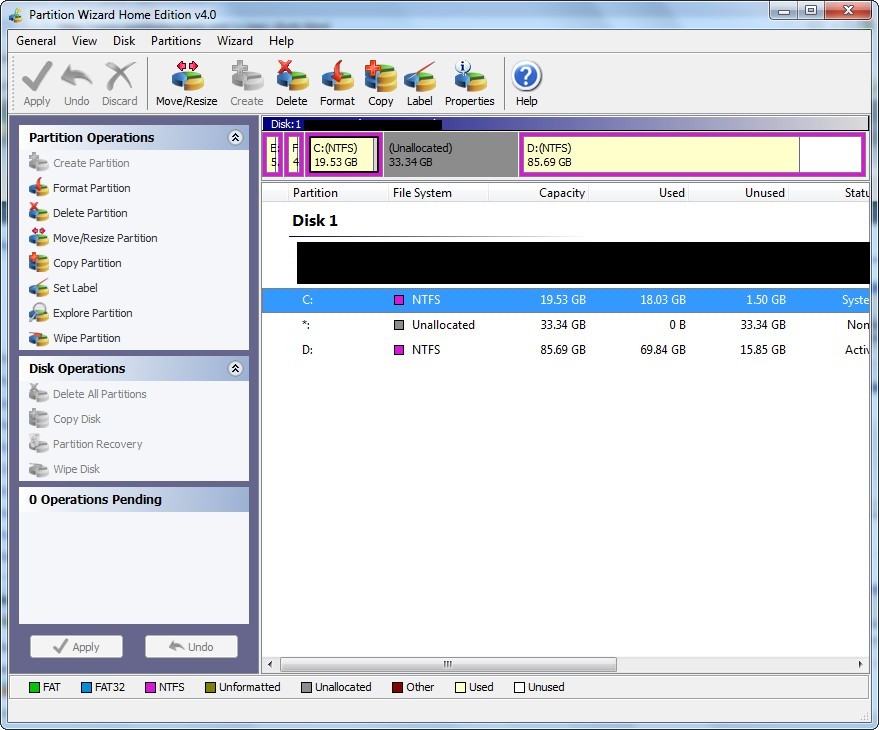
2009-08-27_002638

It isn’t so much of the fact that Partition Wizard is a free partitioning tool; EASEUS Partition Manager Home Edition is a very competent free Windows partitioning tool. Rather what really got me excited about Partition Wizard is the fact that in addition to being free for 32-bit home users, it is also available for free to 64-bit users and businesses – something EASEUS skipped out on.

Now being free to most everyone (Partition Wizard is free to use at home or in a commercial setting by anyone as long as it is not used on a server) does not really cut the cheese if the program itself is below par. Let me assure you Partition Wizard not only meets the bar, but may even surpass it; it is well worth a look if you need a partitioning weapon of choice.

Partition Wizard is featured filled…

  • Resize/Move partitions
  • Create partitions
  • Delete partitions
  • Change Partition Label
  • Delete all partitions
  • Format partitions
  • Convert file system
  • Explore Partition
  • Check Partitions
  • Partition Recovery
  • Wipe disk
  • Wipe partition
  • Copy partition
  • Copy disks
  • Initialize to MBR disk
  • Initialize to GPT disk

…and has impressive performance to boot.

As some of you may know, I recently installed Windows 7. However since I was not sure how well Windows 7 would work for me, I decided to keep Vista on my computer. Now I am fairly happy with Windows 7, seeing as almost everything I need is supported and works fine, so I am about ready to get rid of Vista. Therefore I figured lets give Partition Wizard the ultimate test: can it please Ashraf by shrinking the Vista partition and extending the Windows 7 partition without having to reboot his computer? To my pleasant surprise, yes (well half yes, half no).

With Partition Wizard I shrank my Vista partition by 30 GB, moved the 70 GB filled Vista partition 30 GB over on the hard drive so I could have unallocated space by my Windows 7 partition without having to reboot my computer. Extending my Windows 7 partition, however, did ask for a reboot; but asking for a reboot to extend a partition which has many programs, including an anti-virus, on it running is reasonable. I am sure if I turned everything off it would work just fine considering it told me to turn off all programs but I did not listen. But if you ignore the need for a reboot to extend my Windows 7 partition, the overall performance was impressed. My Vista Partition was shrank and moved securely and in a very timely manner (taking into considering moving a 70 GB filled partition can take some time): the whole shrink-and-move-Vista-Partition was done in about 40 minutes. One thing I should note, though, is while doing this whole shrink-and-move-Vista-Partition procedure, Partition Wizard used a lot of CPU: initially it was varying from 70-90% CPU usage for about 1-2 minutes but settled down to 40-50% while it was copying my Vista partition data in order to move it (the copying took up the majority of the time). However keep in mind depending on what partitions you are messing with, it is best to not use your computer while doing partitioning stuff (it is not completely forbidden and dangerous either though… I was writing this review while I partitioned LOL) so high CPU usage should not be a deterring factor for anyone.

I further looked into this software and found out Partition Wizard supports NTFS, FAT12, and FAT32 file systems, disks larger than 2 TB are supported, RAID is supported, the “wipe disk” and “wipe partition” features securely wipe your disk/partition, you can use the copy partition/disk features to migrate to a larger/smaller hard drive, and more things I have not mentioned. The only thing I find Partition Wizard missing is the ability to create a bootable disk. Update: Partition Wizard now offers a free Partition Wizard Bootable CD. It is a separate download than this Windows-based non-bootable CD version of Partition Wizard.

I am not going to lie: I am very impressed by Partition Wizard. Now is it better than, say, commercial software such as Paragon Partition Manger? No it is not. But keep in mind Paragon Partition Manager costs $$$ and is a 100+ MB download while Partition Wizard is free and is a 5.5 MB download. So then the second question: is it better than EASEUS Partition Manager Home Edition? Well it is a toss up. Both are excellent free partitioning software and both offer very similar features with few differences. The main differences, the “dealbreakers” depending on your needs, is Partition Wizard supports 64-bit users and businesses while EASEUS Partition Master Home Edition does not and Partition Wizard allows you to create bootable CDs while EASEUS Partition Master Home Edition does not. So with that information in hand, you decide which one you like better. All I can tell you is they are both great free partition management tools. I, personally, am using Partition Wizard over EASEUS Partition Master Home Edition to show my support for Partition Wizard since they added in key features which EASEUS makes you purchase their Professional Edition for.

You can download Partition Wizard from the following links:

Version Reviewed: 4.0

Supported OS: 32-bit and 64-bit Windows 2000/XP/Vista/Win7

Click here to download Partition Wizard Home Edition

Click here to download Partition Wizard Business Edition

Click here to download Partition Wizard Bootable CD

Thanks Erik!

33 Comments »

  1. Locutus August 27, 2009 at 12:39 AM (comment permalink) -

    The thing about these is they always have a pontential of being abused.

    1
  2. Ashraf August 27, 2009 at 12:40 AM (comment permalink) -
    Mr. Boss

    @Locutus: How so? You lost me.

    2
  3. Rob August 27, 2009 at 1:21 AM (comment permalink) -

    Ashraf,
    Were you running that from within Windows ?
    I believe that such tasks should be done from a bootable CD
    a) Do you agree/disagree ?
    B) Does it have the option of creating and using a bootable CD ?

    OOPs just searched and found no bootable CD

    3
  4. Locutus August 27, 2009 at 2:21 AM (comment permalink) -

    @Ashraf: Someone opens it up, not knowing what it is, and then half your data’s gone. (Hopefully they’ll read the warnings!)

    4
  5. Ashraf August 27, 2009 at 4:45 AM (comment permalink) -
    Mr. Boss

    @Rob: I specifically stated in my article “The only thing I find Partition Wizard missing is the ability to create a bootable disk.” =/.

    @Locutus: Ummm ya I guess. But you can’t really fault a program for human error.

    5
  6. Dino August 27, 2009 at 4:57 AM (comment permalink) -

    IN http://www.partitionwizard.com/download/ there is a pwboot.iso image, name suggests that is is some type of rescue disk for Partition Wizard. Anyone know?

    6
  7. Erik August 27, 2009 at 6:52 AM (comment permalink) -

    Hi Ashraf – Nice review. I really like the small file size compared to the bigger names, and based on its size, I was amazed with its features. I see I almost got a plug for bringing it to your attention, lol. Check your emails and you’ll see it was me. Keep up the great reviews.

    7
  8. Eddy Kenton August 27, 2009 at 8:22 AM (comment permalink) -

    Ashraf, EASEUS does not have bootable disk for freeware. Bootable disk is only for PRO version.
    I need bootable disk like Gparted/Paragon.

    8
  9. Ashraf August 27, 2009 at 8:44 AM (comment permalink) -
    Mr. Boss

    @Dino: Great find. Now wanna test it out for us? =D.

    @Eddy Kenton: I swear they added it in their Home Edition recently. However I will double check for you.

    9
  10. Mr Moo August 27, 2009 at 8:48 AM (comment permalink) -

    @Dino: I just tried that iso, and it’s just a demo version.

    10
  11. Ashraf August 27, 2009 at 8:54 AM (comment permalink) -
    Mr. Boss

    @Mr Moo: Thanks for checking it out for us.

    11
  12. gmon August 27, 2009 at 9:32 AM (comment permalink) -

    Actually, Ashraf, if Partition Wizard really did “cut the cheese”, nobody would want to use it ;-p

    12
  13. Ashraf August 27, 2009 at 10:18 AM (comment permalink) -
    Mr. Boss

    @Eddy Kenton and @Ashraf: Wow! You are right. I swear the boot disk feature worked when I tried it for my review… However now it does not. Maybe it worked for me earlier because I had Pro and Home Edition installed on the same computer. This is embarrassing now.

    13
  14. Jofre August 27, 2009 at 11:22 AM (comment permalink) -

    Hi Ashraf

    I think Partition Wizard is very very similar (but equal) to Easeus Partition Manager Home Edition.
    In my opinion this program is a plagiarism of Easeus Partition Manager Home Edition. Why? same interfaces (same fonts, same distribution, very similar colours), same functions, same file systems supported (not ext2 neither ext3).
    MT Solution only add an extra: support for 64-bit systems, in order to say that Partition Wizard and Easeus Partition Manager Home Edition are different programs.

    I don´t trust this company

    14
  15. Ashraf August 27, 2009 at 12:20 PM (comment permalink) -
    Mr. Boss

    @Jofre: I also noticed a striking similarity between them. However I don’t think it is fair to say MT Solution is “plagiarizing” EASEUS because we simply don’t know. For all we know EASEUS sold the rights to rebrand to MT Solution. Or maybe even the other way around. Or better yet EASEUS and MT Solution could both be rebranding a product from a third company. Fact of the matter is we just don’t know.

    15
  16. Alok August 27, 2009 at 12:29 PM (comment permalink) -

    Ashraf, you said that this tool is not better than Paragon. Could you please explain more? In what sense?

    My most common usage scenario is to image a whole disk with 4 partitions to another disk of the same size for backup. My requirement is that the backup disk should be a drop-in replacement of the original. The issue generally is that the drive-labels on the backup disks are messed up since they cannot be the same as those in the original disk. Because of which this am unable to boot from it. The procedure to fix this somehow is different each time. The following are the things that come to rescue, but procedure I documented from the last run usually does not work again!

    1. Fix MBR from Windows installation CD
    2. Boot into safe mode and edit some registry settings and reboot and then delete the junk login this process creates
    3. Bootable CD software to fix drive letters
    4. Try coping once again to see if it works this time, etc.)

    Even Paragon messes this up. Do you have any advice?

    16
  17. Ashraf August 27, 2009 at 12:46 PM (comment permalink) -
    Mr. Boss

    @Alok: Paragon has more features, simply put.

    As for your issue, I am not 100% familiar with it so I can’t comment.

    17
  18. Rob August 27, 2009 at 8:14 PM (comment permalink) -

    @Alok:
    I do the same as you (image the whole disk), however I don’t have any of the problems you mentioned. My clone disk or an image restored to an empty disk, can be connected and works like the original.

    I use Seagate Disk Wizard (BOOTABLE CD), which is FREE as long as it notices one Seagate drive on your PC (or even in external USB container/dock).
    I do it two different ways (often I do both to be obsessive compulsive)
    - Connect an empty drive, and get Wizard to clone to it.
    - Create an image of the lot into a USB external drive.
    (The latter is the Wizard’s image file, thus you can have multiple images on the USB drive)

    Two precautions -
    - Never have both drives (original and the copy) connected, when you are booting into one of them.
    - If you are restoring from an image, replicate your previous connections (EG Never do file copies/moves of your images, and try to connect identically, when doing restores.)

    18
  19. Inertially August 28, 2009 at 7:53 AM (comment permalink) -

    Seems like there’s some giant software house that serves these companies or are these companies.

    Just look up 1-952-646-5331.

    19
  20. Ashraf August 29, 2009 at 1:42 AM (comment permalink) -
    Mr. Boss

    @Inertially: 1-952-646-5331 is the phone number for RegNow. RegNow isn’t actually a giant software company. They are just a company that you can outsource your selling/shopping cart needs to. Think of it as a PayPal for software companies to use when selling items.

    20
  21. Ice September 11, 2009 at 1:04 PM (comment permalink) -

    @Mr Moo: I’m tring just now the bootable iso and it works quite well with the same real (no Demo) features as Partition Wizard Home or Business Ed.

    21
  22. John.M September 11, 2009 at 1:55 PM (comment permalink) -

    Thank you for the post and I noticed they just released 4.1 with bootable CD. check out at their site at http://www.partitionwizard.com. I tried it and works great, the iso file also small with about 34M.

    Seems the CD has some limitations. Make sure read the warning message during boot.

    22
  23. Ashraf September 11, 2009 at 4:18 PM (comment permalink) -
    Mr. Boss

    @John.M: Thank you! I made a separate post about it: http://dottech.org/freewaresr/9575.

    23
  24. Blah September 14, 2009 at 1:47 AM (comment permalink) -

    “When I think of partition management three big names come to mind: GParted (Linux based), EASEUS, and Paragon.”

    Yup, and what about PartitionMagic or Acronis Disk Director Suite?

    24
  25. Ashraf September 14, 2009 at 4:51 AM (comment permalink) -
    Mr. Boss

    @Blah: Dude, it is just a leading-intro to the post. Calm down >.>’.

    If it makes you happy I will add them in now.

    25

Leave A Response »



