
 Email article
Although I don’t use a Windows 8 touch-screen device, I really like to use some Modern UI apps — which are optimized for touch users — for my daily work. One of them is the Reader app, which helps me to view PDF documents with basic functions. Additionally, it is pre-installed with Windows 8 meaning I don’t have to go anywhere to download another PDF viewer.
When using keyboard and mouse to perform the printing action, it’s very simple; but I was confused about printing in Modern UI apps on a touch screen device because I didn’t know how to do this. Finally, I figured out how to print in Modern UI apps. In this article, I will share with you this knowledge.
HOW TO PRINT IN A MODERN APP ON TOUCH-SCREEN DEVICES
On a tablet, you may not have a keyboard to press a hotkey for printing; so what you have to do is focus on the Charm bar.
To show the print control panel in Modern UI apps, you should follow these steps:
- When in a Modern UI app that supports printing (e.g. Reader app or Modern UI Internet Explorer), you have to swipe from the right corner then choose “Devices.”
- If your printer is already connected, you can see its name in the Devices panel. You may want to tap the word “More” to show your unconnected printer.
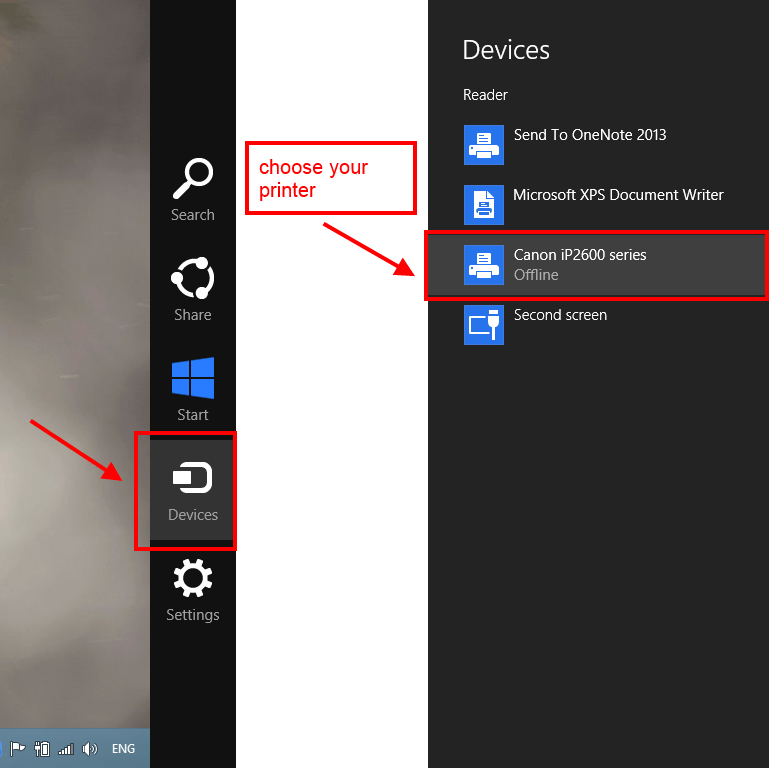
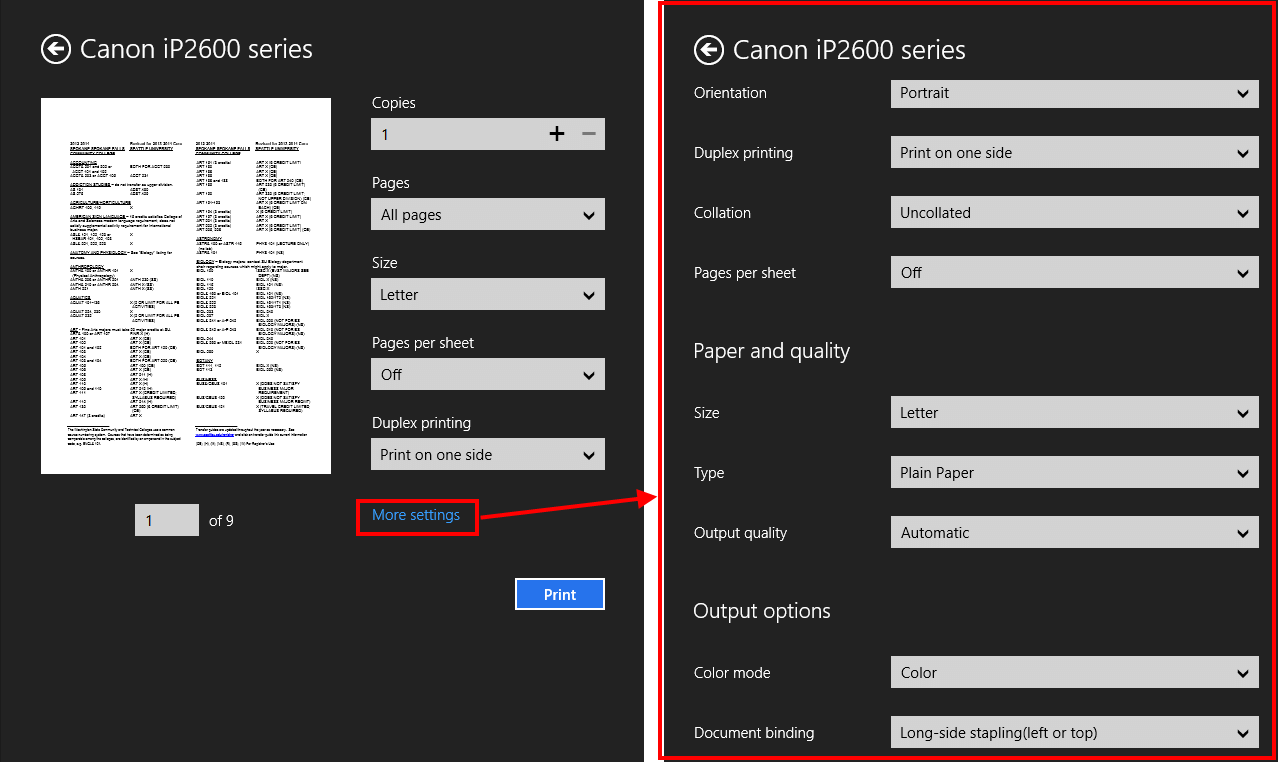
- After that, you should choose the printer you want to use. There will be brief settings for printing a paper. If you want to have detail settings such as color mode and orientation, you have to select “More settings.”
- Finally, tap Print button to print your document.
HOW TO PRINT IN A MODERN APP BY USING HOTKEY
To fire the print function on a non-touch Windows 8 device, it’s super easy because you just need to press Ctrl + P hotkey. By using this hotkey, the print settings panel will show up. Then, what you have to do is change the settings you want and click Print button.
CONCLUSION
I think that a lot of touch-enabled Windows 8 users don’t know how to print in a Modern app. Hope this article will resolve your problem.




