Email article
Security is always the most concerned thing on Windows. In Windows 8, you may heard that it is protected by Windows Defender (aka Microsoft Security Essentials), Windows Firewall, and many other things. Sometimes, however, users may not want to use Windows Defender and/or Windows Firewall, such as if a third-party security program is installed. Therefore, in this article, I will show you how to turn off Windows Defender and Windows Firewall.
HOW TO DISABLE WINDOWS DEFENDER
There are just some simple steps to turn off Windows Defender.
- Pressing Windows + W (on tablet, swiping from the right edge, choosing Search then selecting Settings in the right panel) then entering “services” (without the quotes) in the box.
- Choosing “View local services” result on the left side.
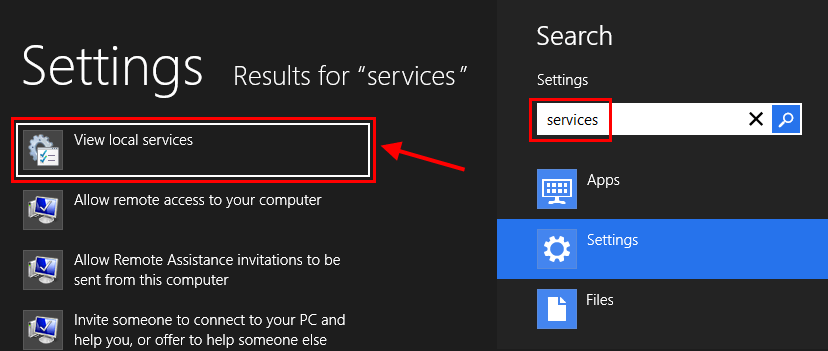
- In the opened Services window, you should find “Windows Defender Service” in the long list.
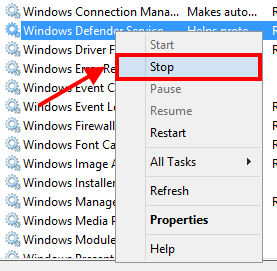
- If you want to stop Windows Defender right now, you can right click/long tap on “Windows Defender Service” and choose “Stop.”
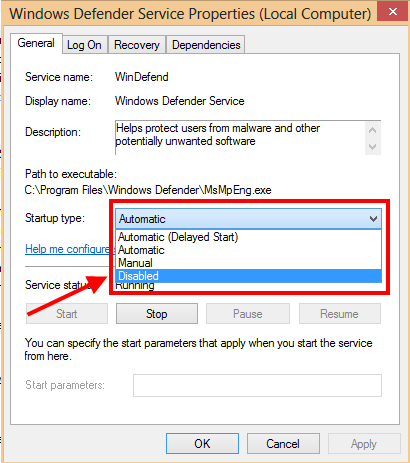
- Otherwise, you can completely turn off Windows Defender by double click on the service name, then in the Properties dialog, you have to select “Disabled” in the drop down menu.
- After that, just click OK to finish your settings.
HOW TO DISABLE WINDOWS FIREWALL
Can you image how slow your connection is when you have several firewall programs? So that, I also recommend just keep one firewall running in the system.
Turning off Windows Firewall is just the same way as we did with Windows Defender.
- Pressing Windows + W (on tablet, swiping from the right edge, choosing Search then selecting Settings in the right panel) then entering “services” (without the quotes) in the box.
- Choosing “View local services” result on the left side.
- In the opened Services window, you should find “Windows Firewall” in the long list.
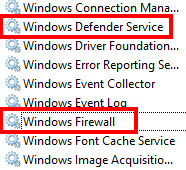
- If you want to stop Windows Firewall right now, you can right click/long tap on “Windows Firewall” and choose “Stop.”
- Otherwise, you capn completely turn off this program by double click on the service name, then in the Properties dialog, you have to select “Disabled” in the drop down menu.
- After that, just click OK to finish your settings.
CONCLUSION
Hope you stay safe!