
How to: install Windows (any version from XP to Win7) from a USB/flash drive

September 1, 2009 27 Email article | Print article

I just posted about how one can attain a 90 day trial of Windows 7 Enterprise to see if you really want to purchase Win7 or not. In the post I mentioned to install Windows 7 Enterprise you will need to put the .ISO you download on a DVD or on a bootable USB. Now I figure I should explain how to create a bootable USB.

For the longest time trying to install Windows from a USB was a pain. You had to do this, do that, blah, blah. However recently freeware programs have been created to help make this task easier. Today I am going to tell you about two of such programs.

A Bootable USB
2009-09-01_171047

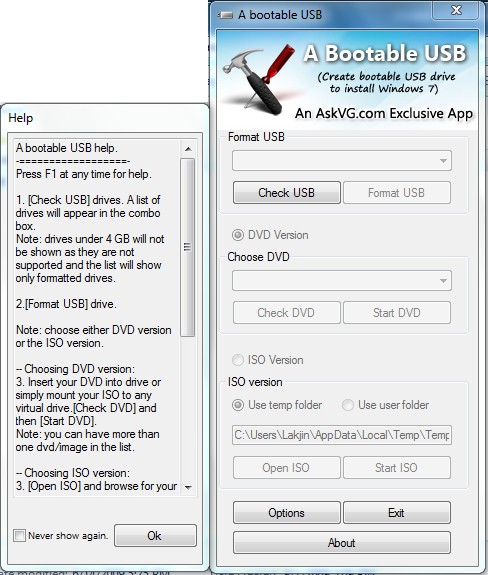
A Bootable USB is a simple application created by an AskVG.com reader. With this app, you can either transfer the Windows install directly from a DVD or use an ISO. You simply plug in your USB, run A Bootable USB, check USB, format USB, select the DVD or ISO you want grab the install from, and start the process of creating a bootable USB from which you can install Windows.

Take note A Bootable USB:

  • Only supports Windows Vista/2008/7 installs;
  • Only supports USB/flash drives larger than 4 GB;
  • Officially works only on Windows Vista/2008/7 (the OS you create your bootable USB on not the one you are trying to install);
  • Can be installed or used as a portable application.

WinToFlash

2009-09-01_171933

WinToFlash is an application which allows you to transfer Windows XP/2003/Vista/2008/7 install from a CD/DVD to a [bootable] USB/flash drive. Although officially the developer does not state WinToFlash supports .ISOs, you can simply mount your .ISO and trick WinToFlash into thinking it is a legit CD/DVD and create your bootable USB that way.

To create a bootable USB Windows install, simply follow the “Windows setup transfer Wizard”.

Take note while A Bootable USB was a one-time project by a zealous blog reader, WinToFlash is in constant development by its developer. Currently WinToFlash is in Beta and is also a portable app.

After you have created your bootable USB with a Windows install on it, with either A Bootable USB or WinToFlash, simply plug your USB into your computer and restart your computer. You should be able to boot from from the USB and install Windows now =). If you are unable to boot from it, you will have to go into your computer BIOS to change the boot order/settings to allow boot from USB.

You may download A Bootable USB and WinToFlash from the following links:

Click here to download A Bootable USB

Click here to download WinToFlash

27 Comments »

  1. Quro@75 September 1, 2009 at 6:15 PM (comment permalink) -

    Woaah, this is exactly what I’ve been looking for. I’ve been trying to do this USB Boot Project for my pc so many time, and it always screws up in the end (can’t figure it out, why, why? To many steps I guess, really confusing).
    Ok, I’ll grab number 2 instead coz it’s fit me (XP-SP2). I’ll try it now (and praying not to fail again)
    Thank you, Ashraf.

    1
  2. tejas September 1, 2009 at 6:39 PM (comment permalink) -

    Ashraf…. you need to check the link for WinToFlash. ;)

    2
  3. Ashraf September 1, 2009 at 7:31 PM (comment permalink) -
    Mr. Boss

    @tejas: Whooops… thanks. Fixed now.

    @Quro@75: You are welcome.

    3
  4. David Roper September 1, 2009 at 7:32 PM (comment permalink) -

    @tejas:

    Look at the link when you mouse over – it just has an extra http in it.

    4
  5. justnakenny September 1, 2009 at 7:50 PM (comment permalink) -

    I couldn’t even download the ” WinToFlash ” on theur home page, but my browser wasn’t IE7 or IE8 like it says that they tested it with, but ” Opera ” also failed.

    5
  6. Ashraf September 1, 2009 at 7:54 PM (comment permalink) -
    Mr. Boss

    @justnakenny: It works on Firefox just fine.

    6
  7. tejas September 1, 2009 at 9:30 PM (comment permalink) -

    @David Roper:
    Yeah, I know, I was just giving Ashraf a heads up. ;)

    @justnakenny:
    Failed with Opera here also….. works with Safari.

    7
  8. robb September 1, 2009 at 9:59 PM (comment permalink) -

    nice little program.
    and kudos for supporting win 7.

    8
  9. The Fiery Source September 2, 2009 at 6:01 PM (comment permalink) -

    Excellent post, I used it as well and it works nicely.

    9
  10. Joshoua September 3, 2009 at 1:54 AM (comment permalink) -

    Be careful of “A bootable USB” it deleted all USB drives attached to the computer even though I didn’t choose so.
    Maybe some bug or something, I don’t know.
    A more manual and straightforward method can be found here http://kmwoley.com/blog/?p=345

    10
  11. iEatJews September 4, 2009 at 8:02 AM (comment permalink) -

    If only i had a netbook! This would be perfect! Not to mention I already have the RTM version of Windows 7 Ultimate Cracked and Activated! ALL FOR FREE! HAAHA MICROSOFT IS SO SCREWED! But seriously Windows 7 is amazing.

    11
  12. Travis September 6, 2009 at 3:23 PM (comment permalink) -

    Thanks for the info. I’ve known how to do this, but like you said, it can certainly be a pain having to do it “the long way.” In one of my IT labs we’ve been installing a lot of versions of windows from flash disks and I’m hoping this saves us some time.

    12
  13. newprouser September 12, 2009 at 11:03 AM (comment permalink) -

    As far as windows vista and 7 are concerned there are some very easy commands to make a USB bootable.

    And as far Xp is concerned, i’ve used “WinSetupFromUSB” developed by users are another website for free. Its a great piece of work, and source code is included too.

    p.s. win2flash download worked fine for me in Opera v10.

    13
  14. Kinetix September 13, 2009 at 5:08 PM (comment permalink) -

    Hah, I just stumbled this page. Congrats. :P

    14
  15. foodland September 13, 2009 at 11:26 PM (comment permalink) -

    hi superb information…. usefull for me…..
    thank u very much

    15
  16. MeetDan September 13, 2009 at 11:36 PM (comment permalink) -

    excellent post; nice info!!!

    16
  17. Rajj September 14, 2009 at 2:23 AM (comment permalink) -

    This hidden secret is revealed. I was looking for Windows 7 installation from USB. Here i got. Thanks for sharing.

    17
  18. Granny September 15, 2009 at 1:02 AM (comment permalink) -

    A bootable USB no longer at the indicated link, but I found what I think is the same one at

    http://d60pc.com/redirectdownload/a-bootable-usb.html

    not familiar with mediafire, maybe the hosting time is short, but this is the message I got

    Invalid File. This error has been forwarded to MediaFire’s development team

    18
  19. Ashraf September 15, 2009 at 2:42 PM (comment permalink) -
    Mr. Boss

    @Granny: Thank you. I updated the link with a working one.

    19
  20. Z September 19, 2009 at 2:13 AM (comment permalink) -
  21. Viral Panchal October 11, 2009 at 1:31 AM (comment permalink) -

    Excellent post… its very useful for me…
    Thanks…

    21
  22. PTLdom October 23, 2009 at 8:58 AM (comment permalink) -

    Well, I’m running a stable vista home premium but do not want the fuss of uninstalling and/or reinstalling it … is it possible to run the windows 7 virtualized from a external hd or a usb pen?

    22
  23. Sandeep November 3, 2009 at 3:08 PM (comment permalink) -

    Hi Ashraf,

    Thanks a lot for always posting excellent reviews. The software’s mentioned above would really help.

    I just want to ask is it possible to install Windows (XP/Vista/7) on the USB itself ????

    Thanks,
    Sandeep

    23
  24. azhar ali buttar January 26, 2010 at 4:56 AM (comment permalink) -

    win2flash is a great tool and I tested this thing personally and shared it on my blog too.

    24
  25. azhar ali buttar January 26, 2010 at 5:00 AM (comment permalink) -

    @Sandeep: Yesterday one of my friend sent this link to me, I haven’t tested this yet but hope it will work, Check it out.
    http://articles.techrepublic.com.com/5100-22_11-5928902.html

    25

Leave A Response »



