
 Email article
Screenshots allow for the capturing of your computer screen(s) as image files. Consequently, screenshot tools allow users to save parts of their screen when it isn’t as simple as right-clicking and selecting ‘save image as’. Screenshots are important for explanations and tutorials as well as software reviews, as can be seen from the screenshots included in the Best Free Windows Software category of reviews found right here on dotTech. Screenshot tools are also invaluable for documenting information found on web pages and are sometimes the easiest way of recording information from such a source.
The issue, however, is there are so many screenshot programs for Windows out there, it is hard to pinpoint the good ones. That is why we, after receiving feedback from dotTechies (thank you to everyone that participated!), have received the best screenshot programs and listed them for you here.
[Note: If you are looking for screen recording programs, check out dotTech’s review on best free screen recording program for Windows.]
This review is part of our Best Free Windows Software section. Check out more articles on the best free Windows programs from here.
Table of Contents
Best Free Screenshot Tool
Program Name: PicPick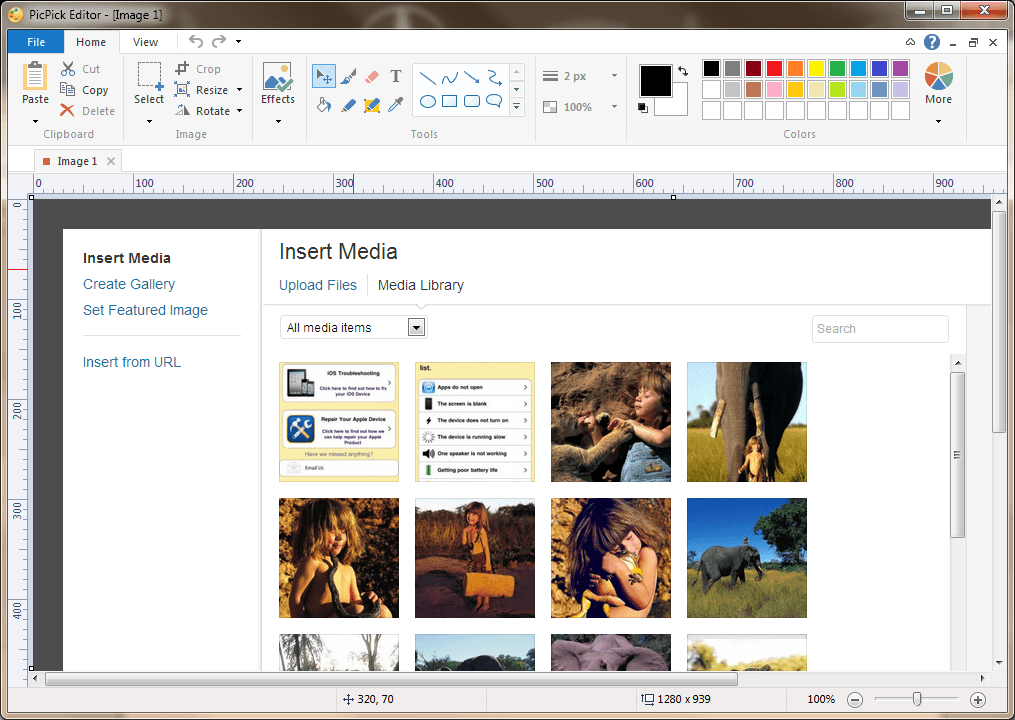
Developer: NTeWORKS
Download Size: 8.72MB
Version Reviewed: 3.2.1
Requires: Windows XP/Vista/7/8/Server
Approximate Memory Usage While Idle: 23.2 MB
Pros
- Several options for taking screenshots such as full-screen and scrolling window
- Built-in image editor
- Several sharing options including the sharing of images via Facebook and Twitter
- Ability to set hotkeys to activate certain functions instantly
- Allows for the saving of files to several formats
- Very straightforward to use
Cons
- Bulky main window
- Free to non-commercial use only. Commercial users need to purchase a license.
Discussion
PicPick is an excellent screenshot program which offers users a high level of functionality and, like FastStone Capture, covers all aspects of taking and managing screenshots. Take note that PicPick is also an image editor but we will only be focusing on the screenshot functionality and how the image editor part PicPick can be used to supplement that.
The screenshot options of PicPick are as follows:
- Capture the fullscreen
- Capture a specific window
- Scrolling window capture (allows users to take a screenshot of window that has scroll bars and needs to be scrolled to see the whole page, such as a website)
- Capture a rectangular region of the screen
- Capture a fixed region of the screen
- Capture a free hand region of the screen
- Repeat the last capture
PicPick includes an image editor which allows for the adjusting of several aspects of the captured image. Users can:
- Add text
- Change the foreground and background colors
- Add objects and text to the captured image
- Crop the image
- Resize the image
- Rotate the image
- Invert the colors
- Change the color to gray scale
- Pixelate the image
- Blur or sharpen the image
- Adjust the brightness/contrast of the image
- Adjust the hue/saturation of the image
- Adjust the color balance
PicPick also has comprehensive sharing options by offering users the option to share their images via Facebook and Twitter in addition to the following:
- Share via email
- Share via the web
- Share via ftp
Additionally users can of course carry out the traditional saving of the image to their hard drives as .PNG, .PDF, .BMP, .JPG or as .GIF files. Users can also choose to send their screenshots to Microsoft Word, Microsoft Excel, Microsoft Powerpoint or to an external program. Users can also open files from windows explorer, copy images from the clipboard or copy images from a URL. Users also have the option of printing their screenshots from directly within the program.
I have found no significant issues with PicPick. One minor issue, however, is that unless operated via hotkey, the program’s main window is required to take screenshots which can be rather intrusive while selecting screenshot options. You can also take screenshots by selecting the options by right-clicking PicPick’s system tray, but that can also be annoying. With FastStone Capture, features can be manually selected from its quite tiny main window (in addition to hotkey functionality), which is very handy.
It is clear however that PicPick is one of the most effective options for capturing screenshots available to users; it is both simple and filled with advanced features.
Runner Up
 Program Name: FastStone Capture
Developer: FastStone Soft
Download Size: 1.34MB
Version Reviewed: 5.3
Requires: Windows 98 and higher
Approximate Memory Usage While Idle: 8 MB
Note: FastStone Capture used to be completely freeware but is now shareware. If you want the latest version of FastStone Capture, you will need to purchase it. However, FastStone Capture v5.3 (the latest freeware version) is still available and is still an excellent screenshot program.
Discussion
FastStone Capture is a powerful program which is capable of taking a screenshot in several different ways allowing the user to produce the highest quality and most suitable images easily.
All of the options needed for taking a screenshot are found in the tiny main window of the program. The options for taking screenshots are as follows:
- Capture the active window
- Capture a window/object
- Capture a rectangular region of the screen
- Capture a freehand region of the screen
- Capture the full screen
- Capture a scrolling window
Also found on the main window are the options for outputting the screenshot. Users can choose the following:
- Output To editor
- Output To clipboard
- Output To file
- Output To file (auto save)
- Output To printer
- Output To email
Users are also able to choose suitable watermarks/edges if desired as well as opt to include captions or the cursor( mouse ). The settings menu allow users to tweak the program by allowing for options such as the changing of hotkeys, the amount of dots per inch included in screenshots and choosing if to run the program at windows startup.
FastStone Capture is quite straight forward to use but clicking on the rightmost icon gives users the option to download a tutorial which is quite comprehensive but very clear as it includes several visual cues in the form of — you guessed it — screenshots!
After actually taking a screenshot, users are given access to the FastStone editor which allows users to draw shapes on or add text to the image, add captions to the image, resize it, email it or print it among several other options. There is also a pan/scroll option as well as effects such as gray scale, sepia and negative. In addition adjustments can be made to the image such as resizing it, cropping it, reducing blur/sharpening, adjusting the contrast and brightness, adjusting the ‘RGB’ level, adjusting the hue saturation lightness and making the background transparent.
The only issue I have with FastStone Capture is that version 5.3 is the last free version of the program, which means that if users want to take advantage of the improvements made in later updates they have to pay up. This isn’t a bad thing, but after all, this review is on the best free screenshot program for Windows.
Overall, FastStone Capture is an excellent program and offers users extensive functionality and covers all aspects of taking screenshots.
Honorable Mention 1
Program Name: Screenshot Captor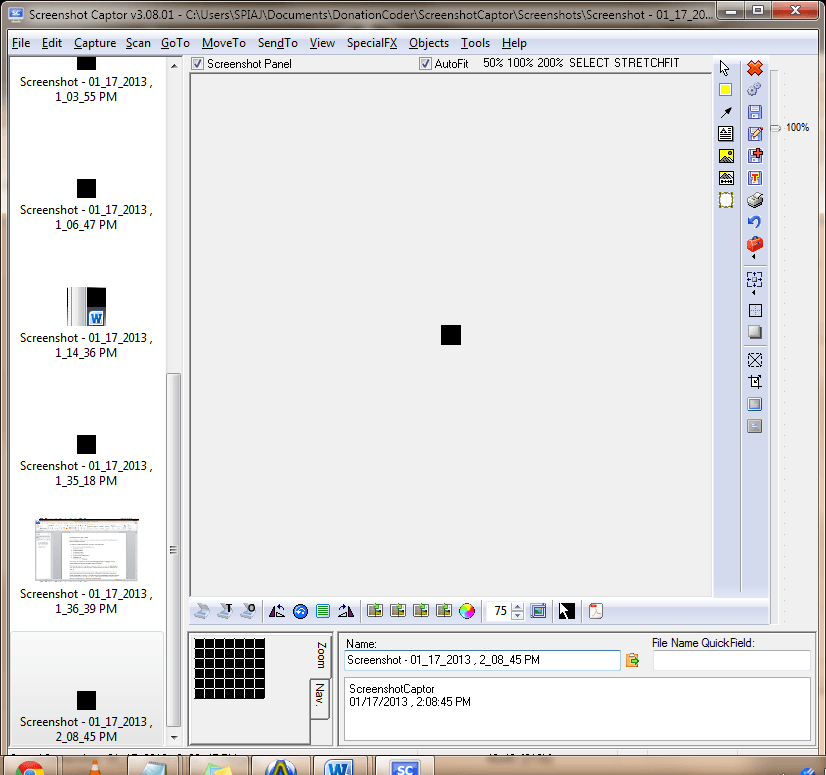
Developer: DonationCoder
Download Size: 7.93MB
Version Reviewed: 3.08.01
Requires: Windows9x/2k/XP/Vista/7/8
Approximate Memory Usage While Idle: 13.5 MB
Discussion
Screenshot Captor is a full-feature screenshot program with a wide variety of functionality and is designed in such a way that it quite effectively manages screenshots.
The options for taking screenshots with Screenshot Captor are as follows:
- Grab entire workspace (includes all monitors)
- Grab current screen
- Grab active window
- Grab selected region
- Grab fixed size region
- Grab window or scrolling window
- Repeat last grab
- Grab screenshot of fullscreen
These features are quite similar to those found in both FastStone Capture and PicPick. However, Screenshot Captor also allows users to acquire images from scanners.
After capturing a screenshot, the program prompts users what to do next. Users can either discard the image, keep the image and show it in the editor, print the image, keep the image but hide it, copy the image to the clipboard, copy the image’s filename to the clipboard, email it or choose to upload it to the internet which is made possible by downloading additional software.
Screenshot Captor also features an image editor and allows users to carry out basic and advanced functions much like those found in the top 2 programs such as cropping, resizing, adding objects and text and adding effects such as blurring and pixelating the captured images.
The preferences section of this powerful program offers users an extensive amount of customizability and users can change options from choosing if to start the program with windows, change/edit their hotkeys or even set automatic captions.
One of the issues I have with this software is that although on its website it is stated that it allows for “the easy and automatic or on-demand uploading of screenshots to a wide variety of image hosting services (imageshack, flickr, ftp, etc.)”, on further inspection the downloading of additional software is required in order for this functionality to be utilized. Additionally the user interface comes across as being more cluttered and less user-friendly than that of PicPick and FastStone Capture.
Neglecting those issues, there is no denying that this a powerful screenshot program, and it was a very close call in picking a “Best Free Screenshot Program” as all of the top three are effective at their job of taking screenshots.
Honorable Mention 2
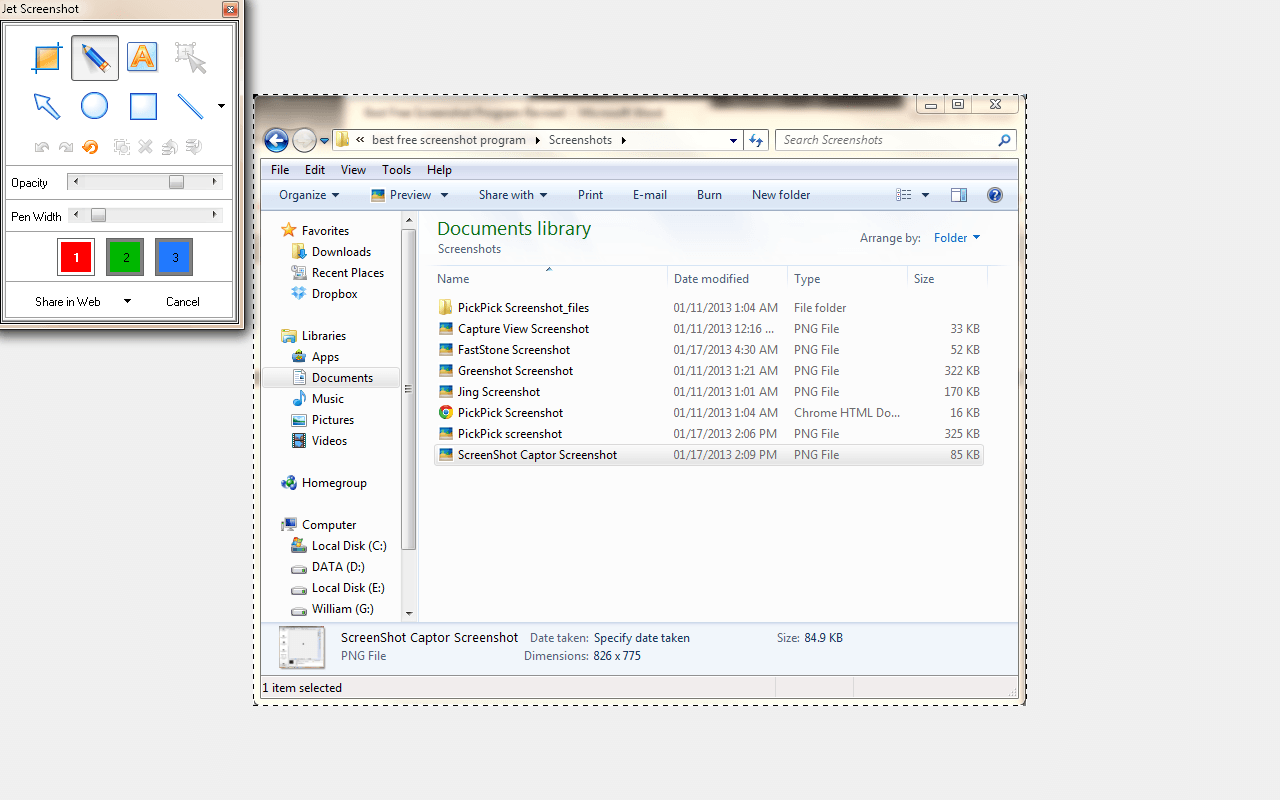 Program Name: Jet Screenshot
Developer: ArcticLine Software
Download Size: 2.70MB
Version Reviewed: 3.0.1.0
Requires: Windows 98/Me/Nt/200/XP/Vista/7
Approximate Memory Usage While Idle: 12 MB
Discussion
Jet Screenshot is yet another great screenshot tool which although not having as much functionality as PicPick, FastStone Capture or Screenshot Captor, it will get the job done effectively.
The screenshot options offered by Jet Screenshot are as follows:
- Capture region
- Capture full screen
- Capture window
One of the handy features of Jet Screenshot is its fast screen share option. It allows users to take a screenshot of the entire screen and provides users with a link which allows them to easily share their screenshots quite easily. Users can also capture images directly from the clipboard.
On capturing screenshots users are presented with an editor which allows for text and objects to be added to the image and the sharing options are made available to the user. Users can choose to share their screenshots via the internet, copy them to the clipboard or save them to a file. The settings menu allows for the changing of options such as hotkeys and quality of image.
There are some issues that I have with Jet Screenshot however. It does not allow for the level of customization which the other programs do. For example, FastStone allows users to adjust options such as the delay before capture while Jet Screenshot focuses mainly on areas such as the hotkeys, image quality, watermarks and sharing options mainly. Also it does not offer some of the functionality found in some of the other programs reviewed, such as the scrolling window capture feature.
Jet Screenshot is, however, both lightweight and convenient, and offers the basic functionality needed to effectively take and manage screenshots as well as some more advanced features such as sharing via the internet. While, personally speaking, I feel PicPick, FastStone Capture or Screenshot Captor are better screenshot tools, Jet Screenshot is still a viable option… especially if you like sharing screenshots easily.
Other Alternatives
- Gadwin PrintScreen
- Xnview
- Mwsnap
- TNT Screen Capture
- … and many more




